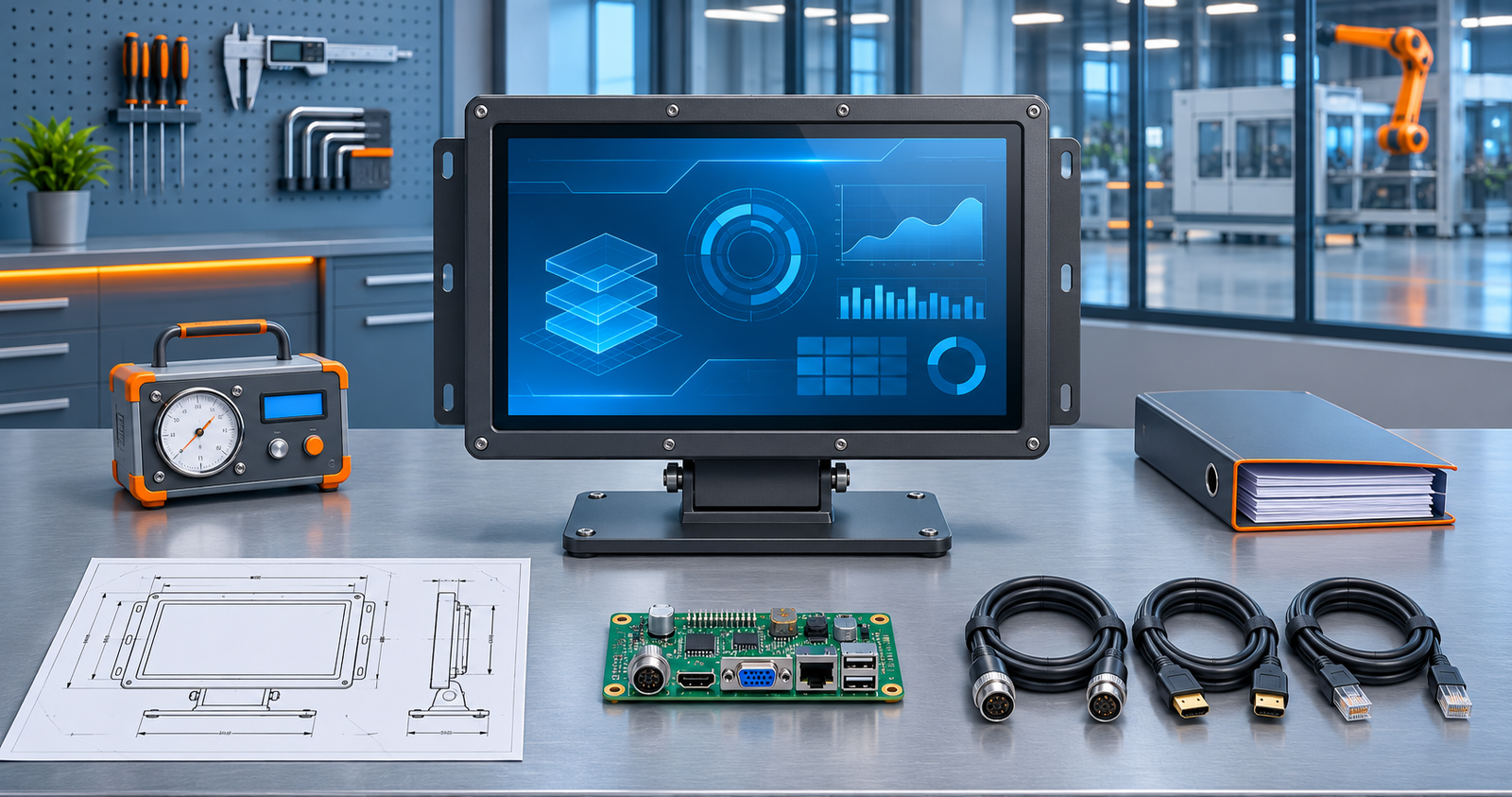
The most important checks when buying a touchscreen monitor are the application, touch method, screen size, display performance, host compatibility, interfaces, mounting, operating environment, and supplier documentation. For a commercial or industrial project, also check the exact sample configuration, warranty scope, spare-part plan, and total installed cost before approving a batch order.
A touchscreen monitor should be evaluated as a complete input system, not only as an LCD with a touch feature. The display, sensor, controller, cover glass, video connection, USB touch path, operating system, mounting structure, and application software must work together. A model with impressive headline specifications can still fail if it cannot detect the required glove, fit the cabinet opening, map correctly in a multi-monitor system, or survive the cleaning process.
This guide turns those risks into a practical pre-purchase checklist for equipment builders, kiosk integrators, distributors, and business buyers.
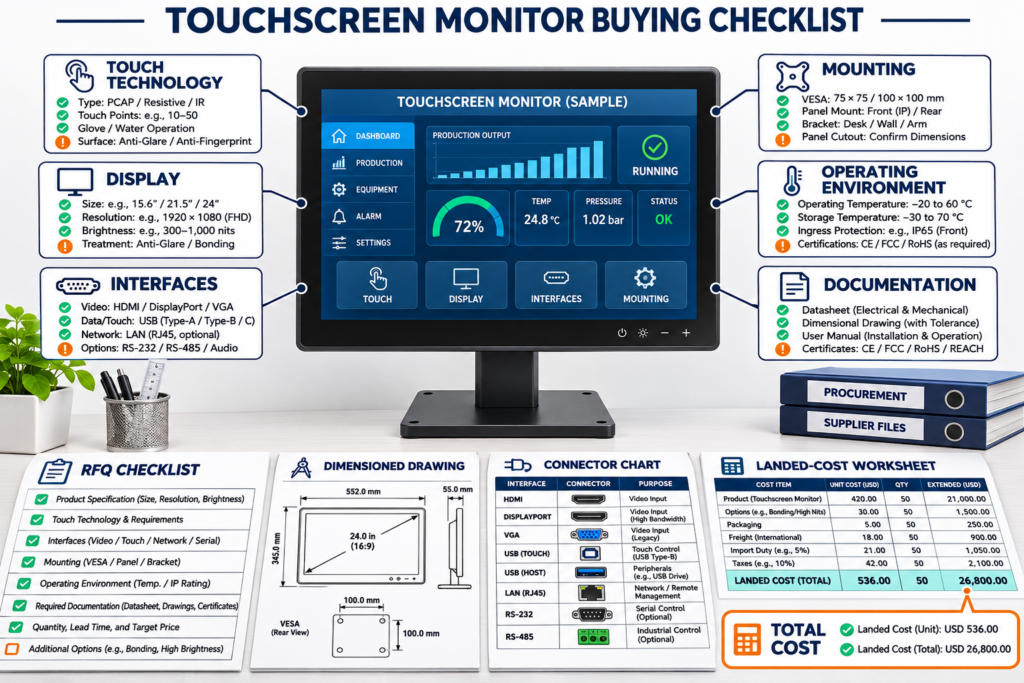
Quick Touchscreen Monitor Buying Checklist
| Check | Question to answer before purchase | Evidence to request |
|---|---|---|
| Application | What will users touch, how often, and in what position? | Workflow description or application video |
| Product format | Finished monitor, open frame, panel mount, or touchscreen computer? | Product drawing and system block diagram |
| Touch technology | PCAP, resistive, infrared, or another technology? | Touch specification and controller model |
| Input method | Bare finger, glove, passive stylus, active pen, or wet touch? | Test report or approved physical sample |
| Screen | What size, aspect ratio, resolution, brightness, and surface are needed? | LCD and optical specification |
| Compatibility | Will the host, OS, driver, and application support touch? | Compatibility list and live system test |
| Connections | Which cables carry video, touch data, power, and control? | Interface drawing and cable list |
| Mechanical fit | Does the monitor fit the enclosure, mount, and service space? | Dimensioned 2D drawing and 3D file when needed |
| Environment | What temperature, dust, water, impact, sunlight, and cleaning exposure apply? | Model-specific environmental specification |
| Production | How will the approved configuration be controlled? | Model code, revision record, inspection plan, and change-notification terms |
| Commercial scope | What is included in the quotation and landed cost? | Itemized quote, packing data, warranty, and spare-part terms |
Use the table as a shortlisting tool. A supplier response should state the exact model and configuration. A generic “supported” answer is not enough when a controller, cable, panel, firmware version, or mounting part can change the result.
1. Define the Real Application Before Comparing Monitors
Start with the task the user performs. A point-of-sale operator selecting large buttons has different requirements from a technician entering setpoints, a visitor navigating a directory, or an engineer drawing precise lines.
Record:
- The application and user group
- The number and size of touch targets
- Tap, swipe, drag, zoom, signature, drawing, or data-entry actions
- Expected use per hour and daily operating schedule
- Portrait or landscape orientation
- Viewing distance and normal touch distance
- Whether several people will interact at once
- Accessibility, posture, and reach constraints
- Whether a keyboard, mouse, scanner, camera, printer, or other peripheral is also required
This step decides more than the touch specification. It affects screen size, mounting height, viewing angle, software layout, cable routing, cleaning frequency, and whether touch adds value at all.
If users mainly read dashboards or type long documents, a standard monitor with a keyboard and mouse may be more efficient. If the workflow uses guided choices, direct manipulation, self-service, or equipment controls, touch can reduce steps and simplify the physical interface.
2. Choose the Correct Product Architecture
“Touchscreen monitor” can refer to several different products. Confirm which one the project needs before comparing prices.
| Product format | What it includes | Best fit |
|---|---|---|
| Enclosed touchscreen monitor | Display, touch system, housing, and external connections | Desktop, VESA, wall, POS, and general commercial use |
| Open-frame touch monitor | Display and touch hardware in an integration chassis | Kiosks, machines, cabinets, and custom enclosures |
| Panel-mount monitor | Front bezel designed for a prepared panel opening | Control panels and industrial cabinets |
| Touchscreen computer | Monitor plus Android, Windows, or another computing platform | Standalone applications without an external PC |
| Interactive large-format display | Large screen with multi-user interaction and often integrated functions | Meetings, teaching, collaboration, and public information |
A monitor does not automatically include a computer. Ask whether the quoted product needs an external host, what operating system is included, and whether storage, memory, Wi-Fi, speakers, or application software are part of the scope.
For equipment integration, an open-frame touch monitor can reduce mechanical redesign because the chassis, brackets, touch sensor, controller, and cable directions can be reviewed with the cabinet. For a complete external display, start with the touchscreen monitor range.
3. Select Touch Technology From the Input Method
Do not choose touch technology by popularity alone. Choose it from the user’s finger, glove, stylus, environment, and interface behavior.
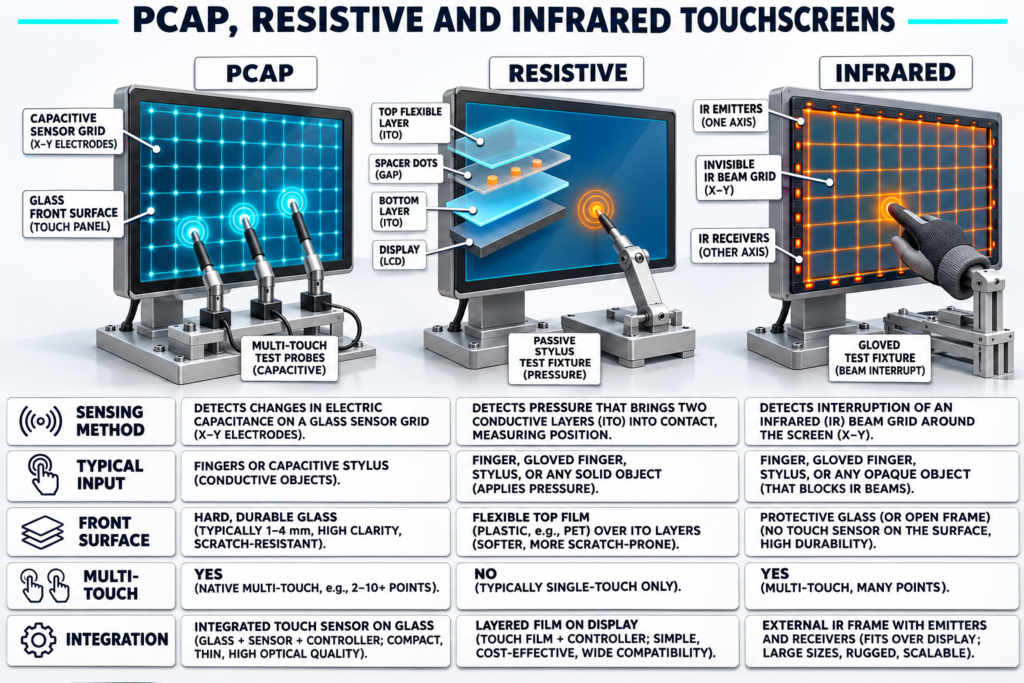
Projected Capacitive Touch
Projected capacitive, or PCAP, is common when buyers want a glass front, responsive finger input, and multi-touch gestures. It is often a strong choice for POS terminals, kiosks, commercial controls, and finished equipment.
PCAP performance depends on the sensor, controller, firmware, cover glass, grounding, display noise, mounting, and intended input object. A claim such as “works with gloves” needs a test with the actual glove. Thick cover glass, moisture, nearby metal, and an unsuitable controller setting can change the result.
Resistive Touch
Resistive touch responds to pressure. It can work with many gloves and simple passive styluses, making it useful for some industrial controls and legacy applications. Trade-offs can include a flexible operating surface, lower optical clarity than a glass-front PCAP design, and limited multi-touch behavior depending on the implementation.
Infrared Touch
Infrared touch uses an optical grid around the display. It supports large formats and can detect a finger, glove, or other opaque object without a pressure-sensitive surface. The raised frame, optical path, contamination, border access, and enclosure geometry require attention.
The detailed capacitive versus resistive touch comparison explains how input method and environment change the selection. The wider guide to touchscreen monitor types covers additional product formats.
4. Specify the Actual Touch Behavior
The technology name does not define the finished experience. Put measurable touch behavior in the requirement.
Check:
- Number of simultaneous touch points
- Required gestures
- Edge and corner access
- Drag accuracy across the full active area
- Response after sleep, restart, and USB reconnection
- Palm rejection if handwriting is required
- Finger, glove, passive stylus, or active-pen support
- Wet-finger or water-rejection behavior
- Touch through the specified cover glass
- Portrait and landscape operation
- Behavior in a multi-display system
An ordinary capacitive stylus is not the same as an active pen. Pressure sensitivity, hover, eraser functions, palm rejection, and precision handwriting require a compatible digitizer, pen protocol, controller, driver, and application. If active-pen use matters, name the required protocol and test the complete system.
Ask the supplier to demonstrate the real workflow on the production-intent sample. A desktop cursor test does not prove that small targets, gloves, gestures, or the final application will work correctly.
5. Choose Screen Size From Content, Reach, and Installation Space
Diagonal size alone is not enough. Compare the active image width and height, aspect ratio, outside dimensions, bezel, depth, weight, and mounting clearance.
The correct size should allow users to read the content and reach every required control without excessive movement. It must also fit the cabinet, stand, wall, counter, or machine opening. Large screens can improve visibility and shared interaction, but they increase weight, packaging volume, structural load, and the distance users move their arms.
For a built-in product, request these dimensions before releasing the enclosure:
- Active display area
- Touch-active area
- Overall width, height, and depth
- Front bezel and cover-glass dimensions
- Panel cutout when applicable
- Bracket and screw locations
- VESA pattern when applicable
- Rear cable clearance and bending radius
- Controller position and cable exit direction
- Ventilation and service clearance
- Net and packed weight
Approve a dimensioned drawing, not a product photo. Even monitors with the same advertised diagonal can have different outside dimensions and fixing points.
6. Match Resolution and Scaling to the Software
Higher resolution is useful only when the host, connection, application, viewing distance, and interface scale support it.
Check the native resolution, refresh rate, aspect ratio, supported input timing, operating-system scaling, and application behavior. Verify that text is readable and touch targets remain large enough at the selected scaling. A legacy HMI designed for one resolution can display incorrectly on a higher-resolution panel.
For detailed content or close viewing, higher pixel density can improve clarity. For a fixed industrial interface, stable software layout and predictable scaling may matter more than the highest available pixel count. Test the actual application at native resolution before approval.
7. Evaluate Brightness, Reflections, and Viewing Conditions Together
Brightness should be selected for the real installation, not from a single number. Indoor office use, a brightly lit retail counter, a window-facing kiosk, and an outdoor cabinet have different optical requirements.
Ask for:
- Typical and minimum brightness if both are available
- Surface treatment, such as anti-glare or anti-reflective construction
- Cover-glass thickness and any printed border
- Viewing angle and panel technology
- Contrast and black-level behavior in the application
- Color requirements when brand, imaging, or inspection work matters
- Brightness control method
- Expected performance at the intended temperature
- Sunlight and heat management for outdoor installations
A high brightness value does not remove reflections, improve poor content contrast, or solve solar heating. Test the sample at the intended viewing angle under representative lighting. For an outdoor or window-facing project, evaluate the complete optical stack and enclosure, not only the bare LCD specification.
8. Confirm Video, Touch Data, and Power Separately
Many purchasing errors happen because buyers treat one connector as proof that every function will work.
A common touchscreen monitor uses:
- HDMI or DisplayPort for video
- USB for touch data
- A separate DC or AC input for power
Some products can combine functions over USB-C, but the connector shape alone does not guarantee video, touch data, and sufficient power. The host port, monitor port, cable, DisplayPort Alternate Mode, USB data capability, and power requirements must all match. VESA explains that DisplayPort video over USB-C requires DisplayPort Alt Mode support, while the USB-IF Type-C guidance notes that USB 2.0 Type-C cables do not implement the high-speed and Alt Mode signal paths required for every USB-C display function.
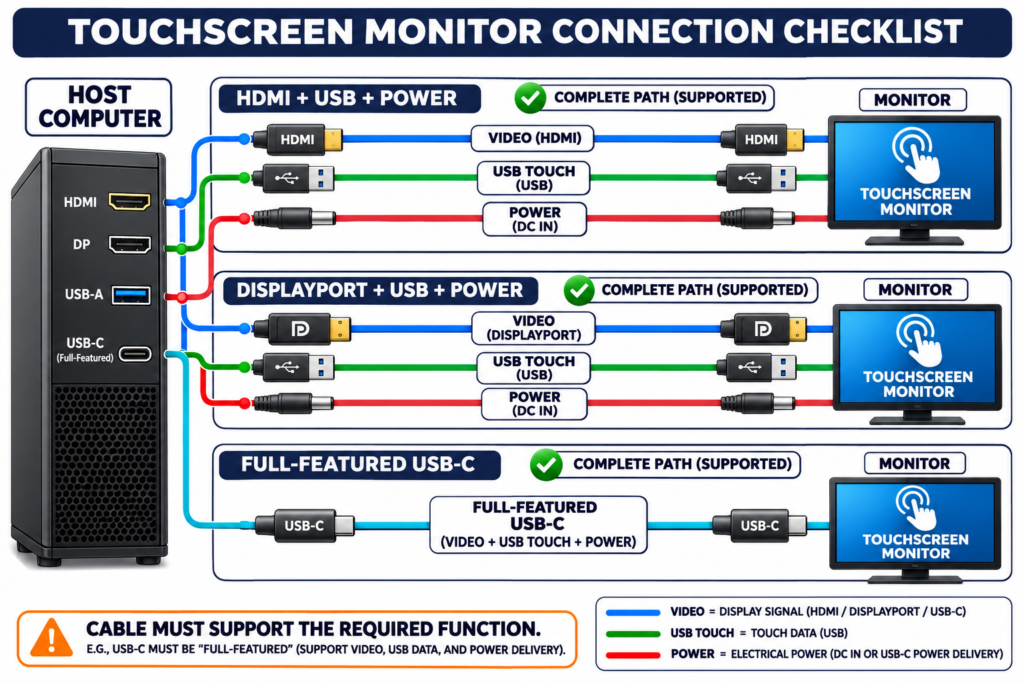
List every required port and cable in the purchase specification. Confirm connector orientation, cable length, locking requirements, strain relief, and whether cables and power supplies are included in the quotation.
9. Verify the Host Computer and Operating System
The display image and touch input are separate compatibility questions. A computer may show the picture while failing to recognize the touch controller.
For Windows projects, ask whether the controller presents as a standards-compatible HID touchscreen. Microsoft states that Windows touchscreen devices are expected to use the Human Interface Device protocol, and Windows includes class support for compatible HID buses. A legacy, proprietary, or advanced controller may still need a supplier driver or utility.
Confirm:
- Host model and operating-system version
- Video output and supported timing
- Available USB data connection
- Driver and administrator-rights requirements
- Touch-point support in the OS and application
- Sleep, wake, restart, and reconnect behavior
- Display rotation and scaling
- Linux distribution, Android build, or other platform details when applicable
- Availability of drivers and calibration tools for the planned deployment period
In multi-monitor systems, touch must map to the correct display. Microsoft’s digitizer display-mapping guidance explains that external touch devices and displays can require correct association, especially when several external displays are connected. Include the final display arrangement in the sample test.
Use the touchscreen monitor computer compatibility guide for a fuller host-by-host review.
10. Check Mounting and Mechanical Integration
Choose the mounting structure before finalizing the monitor. Common options include a desktop stand, wall mount, VESA arm, panel mount, rack mount, and open-frame installation behind a custom front panel.
Evaluate:
- Load capacity and center of gravity
- VESA or custom fixing pattern
- Panel cutout and front-bezel overlap
- Front glass support and stress
- Rear clearance and service access
- Cable exit direction
- Ventilation openings and heat path
- Portrait support
- Access to buttons and on-screen controls
- Installation sequence and tools
- Resistance to movement during repeated touch
A touch monitor experiences repeated force at the front surface. A stand or arm that is acceptable for passive viewing may move during touch. Test the final mount at the intended angle and with the most forceful expected interaction.
Never release a production enclosure from nominal dimensions alone. Approve the drawing and sample together, then control the revision used for mass production.
11. Match the Monitor to the Operating Environment
Describe the environment in practical terms:
- Indoor, semi-outdoor, or outdoor
- Normal and extreme temperature
- Humidity and condensation risk
- Dust, oil, coolant, salt, and cleaning chemicals
- Dripping, splashing, washdown, or temporary immersion exposure
- Direct sunlight and solar heat
- Vibration and impact
- Public access or vandalism risk
- Installation altitude where relevant
- Required operating hours and unattended use
If ingress protection is required, specify which part of the product needs protection. A front IP rating for a panel-mounted monitor does not automatically mean the rear electronics, connectors, and complete installed enclosure have the same protection. IEC 60529 defines the classification of degrees of protection provided by enclosures, so the requested rating should be tied to the finished installation and test scope.
For factories and equipment, compare panel-mount, open-frame, and enclosed options on the industrial touchscreen monitor page. Do not assume that adding a rubber seal to a consumer monitor creates an industrial or washdown-ready system.
12. Review Cover Glass, Surface, and Cleaning Requirements
The front surface affects optics, touch performance, durability, appearance, and maintenance.
Check:
- Glass thickness and edge treatment
- Tempering or other safety treatment where required
- Anti-glare, anti-reflective, or anti-fingerprint treatment
- Printed border color and dimensions
- Logo or custom printing
- Impact and scratch requirements
- Resistance to the approved cleaning chemical
- Gasket or adhesive compatibility
- Bonding method and parallax requirements
- Replaceability after damage
Test cleaning on the real sample. A cleaner that is safe for glass can still affect a coating, printed border, adhesive, seal, plastic bezel, or label. For PCAP, the glass and mounting stack can also affect touch sensitivity, so approve them as part of the touch configuration.
13. Check Reliability, Serviceability, and Lifecycle Support
Commercial buyers need more than a successful first-day demonstration. Ask what happens after continuous use, a cable replacement, a firmware update, or a component change.
Review:
- Intended duty cycle
- Operating and storage conditions
- Power input tolerance and power supply scope
- Thermal design and ventilation restrictions
- Controller firmware identification
- Driver source and supported operating systems
- Calibration and diagnostic tools
- Cable and power-supply replacement options
- Warranty period, exclusions, and return process
- Spare units and recommended spare parts
- Repair or module-replacement approach
- Product-change and end-of-life notification
- Configuration control for repeat orders
Do not accept an unsupported lifetime figure as a substitute for a service plan. LCD backlight life, touch-surface durability, power-supply life, connectors, fans, and other components have different failure modes. The purchasing decision should include how the product is diagnosed, replaced, and returned to service.
14. Compare Total Deployed Cost, Not Only Unit Price
Two quotations are comparable only when their scope is comparable. Calculate the complete deployed cost:
- Monitor or touchscreen computer
- Touch technology and custom cover glass
- Stand, brackets, bezel, or enclosure work
- Power supply and cables
- Driver, firmware, and software integration
- Samples and engineering charges
- Compliance testing required for the destination or application
- Packaging, freight, insurance, duty, and taxes
- Installation labor
- Spare units and field replacement
- Expected downtime and service effort
A lower-priced monitor can cost more if it needs a custom bracket, proprietary driver, additional powered hub, replacement cable, or enclosure redesign. A higher-priced configuration may reduce total cost when it arrives as an approved, installation-ready system.
The touchscreen monitor cost guide explains how configuration and project scope affect the quotation.
15. Approve a Production-Intent Sample and Document Set
Before a batch order, test a sample that matches the intended production configuration. Record the model, LCD, touch sensor, controller, firmware, driver, power supply, cables, glass, housing, and mounting parts.
Request the documents relevant to the project:
- Model-specific specification sheet
- Dimensioned mechanical drawing
- Interface and connector definition
- Pinout for non-standard connections
- Cable and accessory list
- Power requirements
- Touch controller and firmware identification
- Driver and calibration instructions
- Operating and storage limits
- Mounting instructions
- Packing dimensions and weight
- Applicable declarations, reports, or certificates required by the buyer
- Warranty and return terms
- Inspection or acceptance record
- Revision and change-notification method
Compliance is market- and application-specific. Name the required country, standard, test scope, issuing body, and document format in the RFQ. Do not treat a logo on a product page as proof that the exact ordered configuration meets the project requirement.
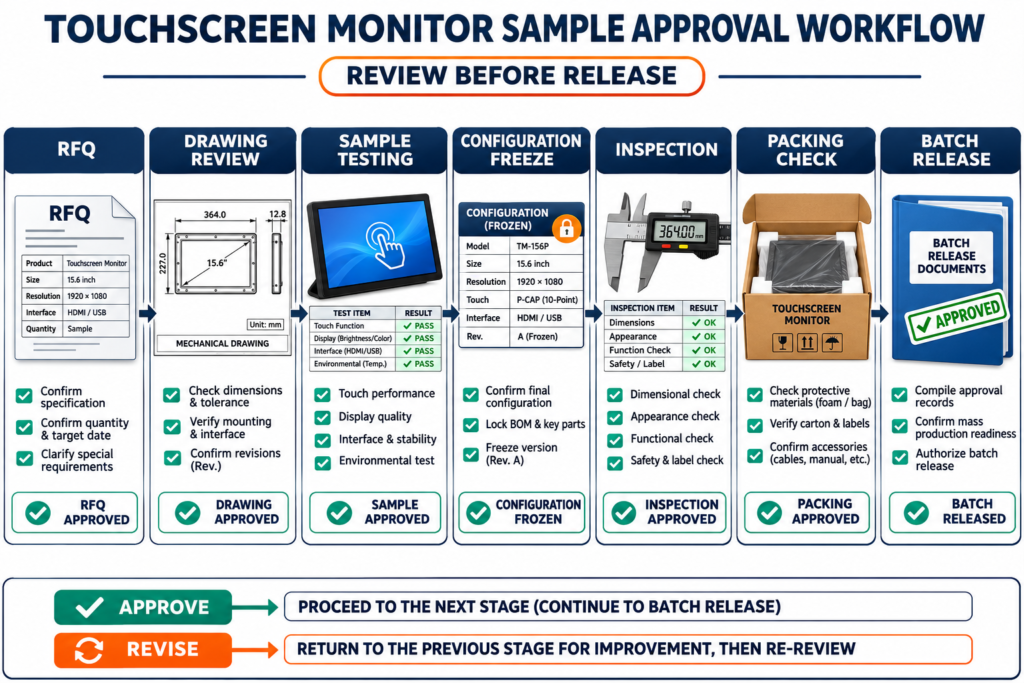
Sample Test Checklist Before Batch Approval
Test the sample on the actual host, cables, mount, and software whenever possible.
| Test area | What to verify |
|---|---|
| Image | Native resolution, scaling, orientation, color, brightness, and wake behavior |
| Touch | Center, corners, edges, drag, long press, gestures, and required touch-point count |
| Input objects | Approved finger, glove, stylus, and wet-condition behavior |
| Compatibility | Final OS image, driver, application, USB path, and video source |
| Multi-display | Touch maps to the intended screen after restart and reconnection |
| Mechanical | Fit, stability, cutout, brackets, cable clearance, buttons, and ventilation |
| Environment | Representative light, temperature, contamination, and cleaning exposure |
| Recovery | Power cycle, sleep/wake, USB reconnect, video reconnect, and application relaunch |
| Documentation | Sample matches the drawing, specification, model code, and accessory list |
| Packing | Product is supported and protected for the planned shipment method |
Keep a signed or otherwise controlled approval record. If the sample changes after testing, identify the change and repeat the affected tests before mass production.
Questions to Put in the Touchscreen Monitor RFQ
Send suppliers the same structured request so that quotations can be compared accurately:
- What is the application and installation location?
- Is the requirement a monitor, open-frame display, panel-mount unit, or touchscreen computer?
- What screen size, aspect ratio, resolution, orientation, and brightness are required?
- What will users touch with: bare finger, glove, passive stylus, or active pen?
- How many simultaneous touch points and which gestures are needed?
- What host computer, operating system, application, and display arrangement will be used?
- Which video, USB, power, and control interfaces are required?
- What mounting method, cutout, outside dimensions, and cable directions apply?
- What temperature, moisture, dust, impact, sunlight, cleaning, and duty-cycle conditions apply?
- Which certifications, declarations, reports, labels, and packaging marks are required for the destination?
- What quantity is needed for samples, pilot production, and mass production?
- What accessories, spare units, warranty, service, and change-notification terms are required?
Attach the cabinet drawing, host specification, software screenshot, cable constraints, and photos of the installation area. These inputs usually prevent more errors than a longer list of generic monitor features.
Common Buying Mistakes
Comparing Only Size and Price
The same diagonal can hide different active areas, outside dimensions, panels, controllers, interfaces, housings, and service scope.
Assuming HDMI Carries Touch
HDMI normally carries the image and audio. Touch commonly returns to the host through USB.
Assuming Every USB-C Port Is Full-Featured
The host, monitor, and cable must support the required video, data, and power functions.
Treating Multi-Touch as an Application Guarantee
The sensor and OS may report several contacts while the application supports only a single pointer or limited gestures.
Specifying “Glove Touch” Without Naming the Glove
Material, thickness, fit, moisture, and controller tuning can change PCAP performance.
Releasing the Enclosure Before Approving the Drawing
Product photos and nominal size cannot define cutouts, bracket locations, connectors, or service clearance.
Applying a Front IP Rating to the Complete Product
Protection can differ between the front surface, rear electronics, connectors, and final cabinet.
Skipping the Production-Intent Sample
A demonstration unit with different glass, controller, firmware, cable, or panel does not approve the ordered configuration.
Final Purchase Decision
The best touchscreen monitor is the one that passes the real application, compatibility, mechanical, environmental, and service tests with a controlled production configuration. Define the workflow first, then select the product architecture, touch technology, display, interfaces, mounting, and protection. Compare total deployed cost only after every quotation covers the same scope.
For a Lucky-XFC configuration review, send the application, screen size, quantity, host and operating system, required interfaces, touch method, mounting drawing, operating environment, and destination requirements through the touchscreen project inquiry page. The team can then review whether a standard flat monitor, open-frame assembly, industrial touchscreen, curved display, or integrated computer is the appropriate starting point for sampling and quotation.