
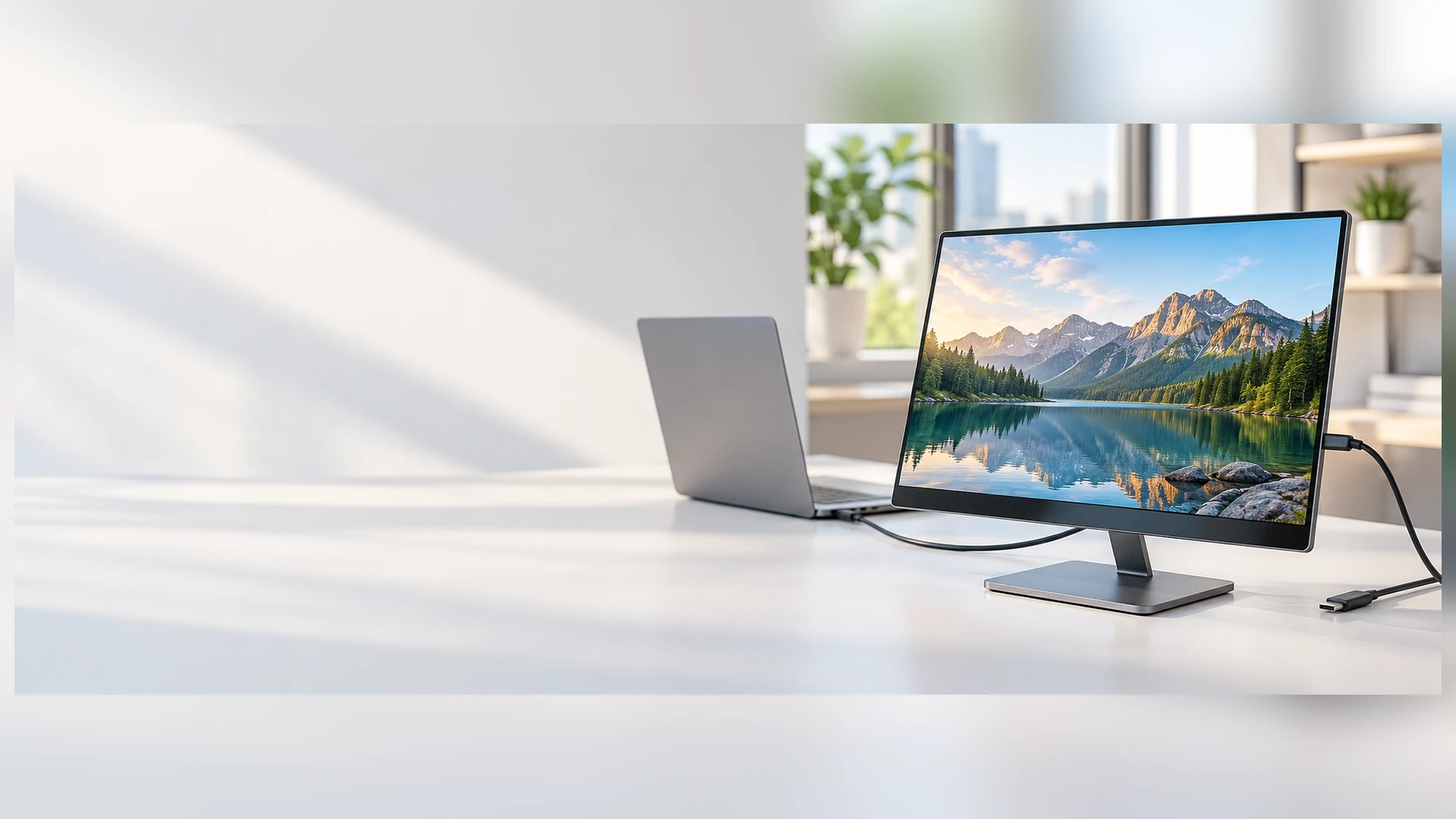
USB C Touchscreen Monitor Manufacturer for Custom Display Integration
Configure a touchscreen monitor around the connection your host system actually supports. Lucky-XFC reviews screen size, touch technology, USB-C video capability, touch-data communication, power input, mounting and enclosure requirements for portable, enclosed, open-frame and industrial display projects.
USB-C video, touch data and power functions are confirmed according to the selected monitor, host port, cable and approved project specification.
- Portable, enclosed, open-frame and industrial formats
- External-host touchscreen configurations
- OEM/ODM interface and structure review
- Drawings and host information accepted
USB C Touchscreen Monitor Project Scope at a Glance
A USB C touchscreen monitor combines a display panel, touch sensor, touch controller and display electronics with a USB-C connection selected for specific functions. Depending on the approved hardware, USB-C may carry display video, touch data, power or a confirmed combination.
USB-C is not a universal one-cable guarantee. The monitor controller, host port, cable and operating system must support the same connection path.
4 product formats
Portable, enclosed, open-frame and industrial
12.3–43 inch
Documented starting scope. Final availability depends on product format and model
PCAP touch
Verified across current flat and selected open-frame references
External-host
The monitor normally connects to a laptop, industrial PC, embedded computer or other project host
OEM/ODM review
Interfaces, housing, cover glass, mounting and branding may be evaluated by project
Note: Final specifications follow the selected model sheet, approved drawing and confirmed interface configuration.
USB C Touchscreen Monitor Product Formats
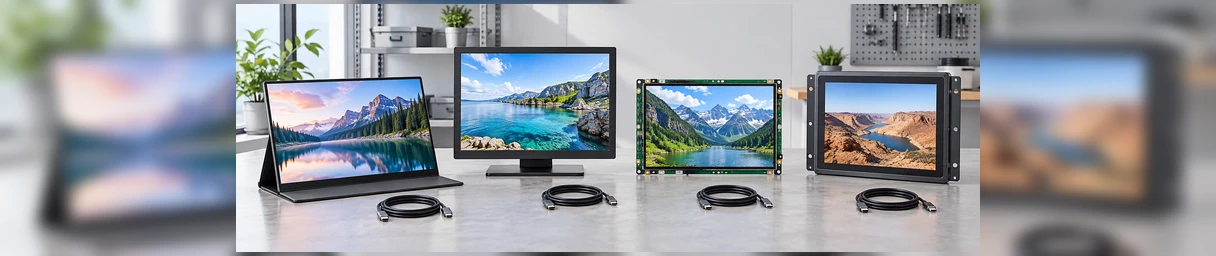
Start with the physical product format, then verify what the USB-C connection must carry. Each format answers a different installation, mobility and equipment-integration requirement.
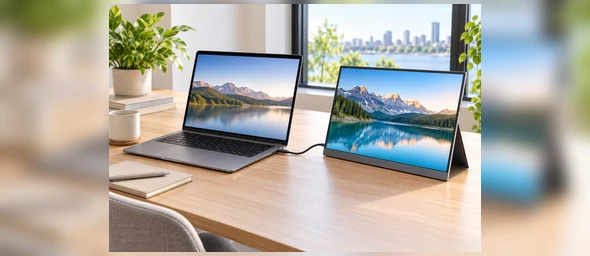
Portable USB-C Touchscreen Monitors
Compact external displays for mobile workstations, field diagnostics, demonstrations and laptop expansion. Project sizes include 12.3, 13.3, 14, 15.6 and 16 inches. Confirm the resolution, PCAP touch behavior, stand, housing, host port and required USB-C functions.
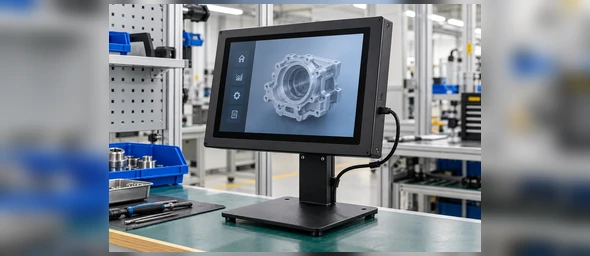
Enclosed USB-C Touchscreen Monitors
Finished metal-housed monitors for desktops, VESA arms, commercial terminals and equipment workstations. Current flat PCAP references cover 21.5, 23.8, 27, 31.5 and 43 inches at 1920 × 1080. USB-C requires model-based interface evaluation.
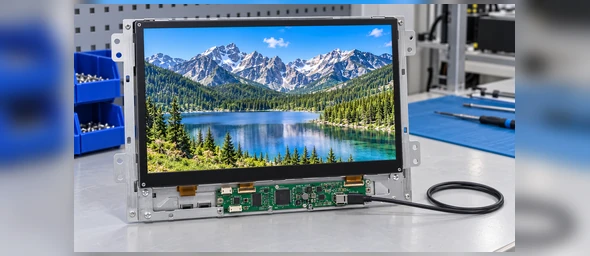
Open-Frame USB-C Touchscreen Monitors
Open-chassis monitors designed to install behind a machine panel, kiosk fascia or custom enclosure. Start from documented 21.5, 27 or 43-inch PCAP models, then confirm the controller board, USB-C function, cutout, brackets and cable clearance.
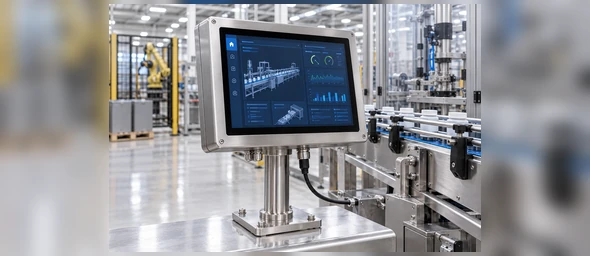
Industrial USB-C Touchscreen Monitors
Panel-mounted, VESA-mounted or equipment-integrated displays for external industrial computers and embedded hosts. Select the touch method, video path, power arrangement, mounting and operating requirements as one system.
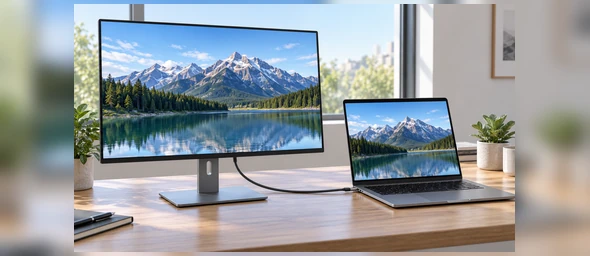
Full-Feature USB-C Path
A confirmed full-featured path may combine display video, USB touch data and power. Every part of the connection must support the required functions.
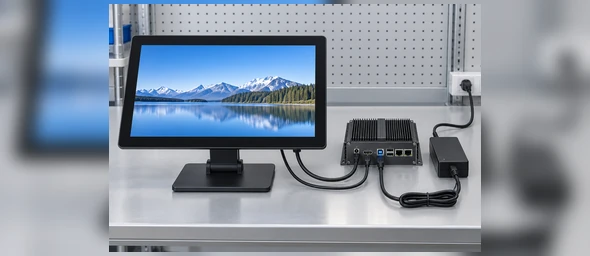
Separate-Connection Path
HDMI or DisplayPort can carry video while USB carries touch data and a separate input supplies power. This path may be preferable when the host does not support full-featured USB-C.
What Is a USB C Touchscreen Monitor?
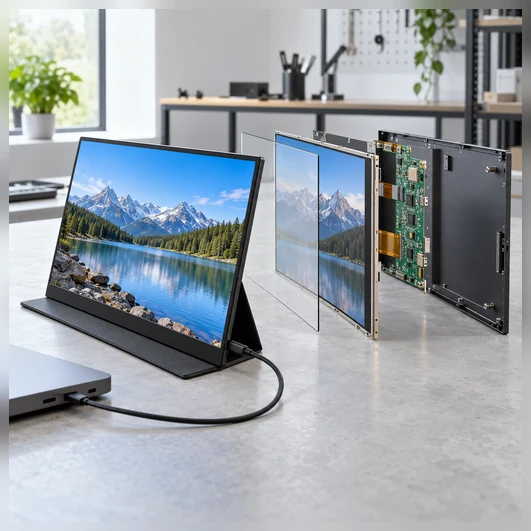
A USB C touchscreen monitor is an external display that combines visual output with direct touch input and includes a USB-C connection whose functions are defined by the selected electronics.
The display and touch layers perform different jobs. The display controller receives the video signal. The touch controller sends finger or stylus input back to the host as data. Power is a third requirement. A USB-C design can combine these paths only when the monitor, host and cable support the required functions.
System Layers
-
1
LCD panel Displays the host’s image.
-
2
Touch sensor Detects finger or supported input.
-
3
Touch controller Processes touch coordinates.
-
4
Display controller board Receives and converts the video signal.
-
5
USB-C or alternative interfaces Carry the confirmed combination of video, touch data and power.
-
6
External host Runs the operating system and application.
USB C Touchscreen Monitor Integration Problems to Prevent
Problem: The connector fits, but no image appears.
Consequence: The host USB-C port may supply charging or data without supporting display output.
Response: Confirm DisplayPort Alt Mode or another supported video mode on the exact host port. When unavailable, use the monitor’s confirmed HDMI or DisplayPort input.
Problem: The image works, but touch does not.
Consequence: Video reaches the monitor, but the touch controller has no USB data path back to the host.
Response: Confirm whether the selected USB-C connection carries USB data. For an HDMI video connection, plan a separate USB touch-data connection.
Problem: The monitor starts but becomes unstable.
Consequence: The host port or cable may not provide the power required by the selected monitor configuration.
Response: Confirm the power profile and operating load. Use an approved external power input when the host cannot provide stable power.
Problem: The sample works with one laptop but not the deployment host.
Consequence: USB-C capabilities, operating-system behavior, drivers, adapters and docks may differ between devices.
Response: Validate the exact host model, operating system, cable and connection path before approving the batch configuration.
USB C Touchscreen Monitor Verified Product Starting Points
Use these documented Lucky-XFC products and customization directions as starting points. USB-C functionality is confirmed separately for the selected electronics and project.
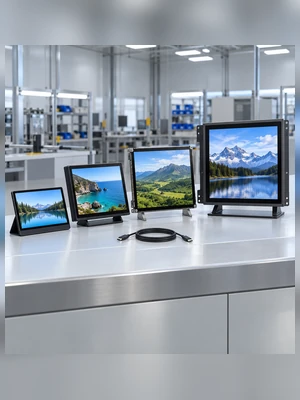
| Product Path | Size Reference | Display | Touch | Structure | Current Interface Evidence | USB-C Status |
|---|---|---|---|---|---|---|
| Portable Custom Path | 12.3 / 13.3 / 14 / 15.6 / 16 inch | Resolution confirmed by project | PCAP project direction | Portable housing and kickstand | HDMI and USB-C planning | USB-C functions require project confirmation |
| Flat Enclosed Series | 21.5 / 23.8 / 27 / 31.5 / 43 inch | 1920 × 1080, 16:9 | PCAP | Metal housing | Interface confirmed by model | USB-C customization evaluation |
| XFC-OF215-PCAP | 21.5 inch | 1920 × 1080 | PCAP, 10-point | Open frame, side brackets and VESA | HDMI and VGA | USB-C controller evaluation required |
| XFC-OF270-PCAP | 27 inch | 1920 × 1080 | PCAP, 10-point | Open frame, side brackets and VESA | HDMI, DisplayPort and VGA | USB-C controller evaluation required |
| XFC-OF430-PCAP | 43 inch | Full HD or 4K by configuration | PCAP, 10-point | Open frame, heavy-duty brackets and VESA | HDMI and DisplayPort | USB-C controller evaluation required |
| Industrial Custom Path | Model and size selected by application | Confirmed by model | PCAP or selected resistive option | Panel, VESA or equipment integration | Video, touch and power defined by project | USB-C feasibility confirmed after host review |
Note: Do not combine the values from different models into one universal specification.
USB C Touchscreen Monitor Signal Path
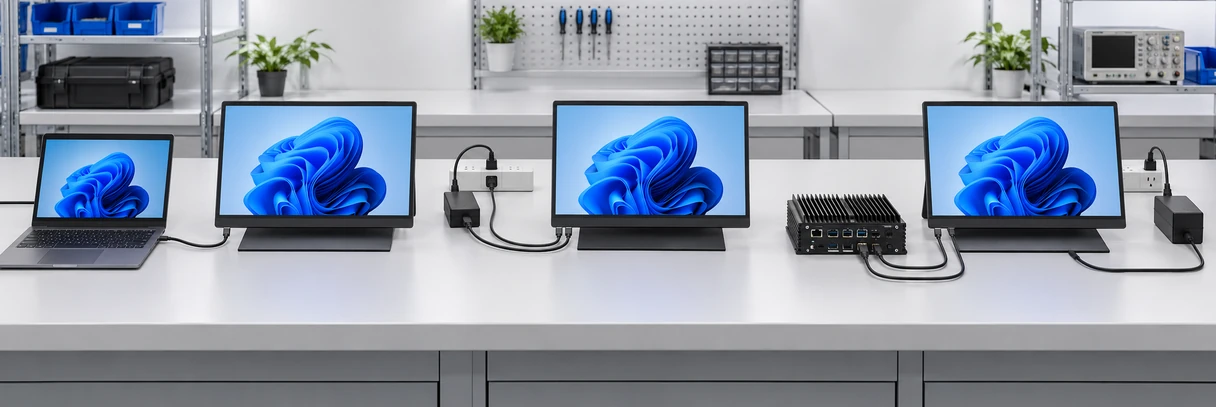
Path A: Full-featured USB-C
Host USB-C port → full-featured USB-C cable → monitor USB-C controller
Functions subject to confirmation:
Video + USB touch data + power
Path B: USB-C video & touch + external power
Host USB-C port → USB-C cable → monitor
External adapter → monitor power input
Path C: Separate video and touch
Host HDMI or DP → monitor video input
Host USB → monitor touch controller
External adapter → monitor power input when required
The cleanest-looking connection is not automatically the most suitable connection. Choose the path according to host capability, power requirements, cable length, installation access and the need for alternative interfaces.
USB C Touchscreen Monitor Connection Comparison
| Connection | Video | Touch Data | Power | Suitable When | Main Check |
|---|---|---|---|---|---|
| Full-Featured USB-C | Possible | Possible | Possible | The host, cable and monitor support the same functions | Confirm DisplayPort Alt Mode, USB data and Power Delivery |
| USB-C Plus External Power | Possible | Possible | External input | USB-C carries video and data but host power is insufficient | Confirm controller design and external input |
| HDMI Plus USB | Yes | USB carries touch | Separate power may be required | The host has reliable HDMI and USB ports | Confirm USB touch connection and power |
| DisplayPort Plus USB | Yes | USB carries touch | Separate power may be required | Industrial or desktop host uses DisplayPort | Confirm selected monitor inputs |
| HDMI Only | Yes | No normal touch-data return path | No | Display-only operation | Do not expect touch input through HDMI alone |
USB-C is valuable when it simplifies the verified system. Separate connections remain a practical option when they provide clearer compatibility, stable power or easier servicing.
USB C Touchscreen Monitor Host and Cable Compatibility
A successful USB-C touchscreen connection depends on every link in the chain.
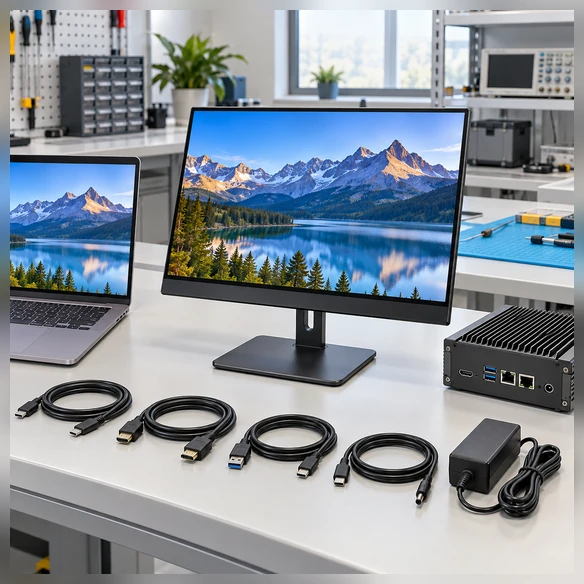
Host port
Confirm whether the exact USB-C port supports display output, USB data and the required power direction. Do not infer capability from the connector alone.
Monitor controller
Confirm which functions the selected USB-C controller accepts and whether alternative video, touch and power inputs remain available.
Cable
Use a cable specified for the required video, data and power functions. A charging-only cable cannot provide the complete touchscreen path.
Operating system
Confirm recognition of the touch controller, multi-display mapping and required driver behavior on the target system.
Adapters and docks
Test the intended dock or adapter. Some devices pass video but interrupt USB touch data or change available power.
Installation
Confirm connector orientation, bend radius, cable exit, retention and service access inside the enclosure.
USB C Touchscreen Monitor Touch and Operating-System Validation
Displaying an image is only the first validation step. The touch workflow must also be checked on the intended host.
Detect the display
Confirm resolution, orientation and refresh behavior supported by the selected monitor.
Detect the touch controller
Verify that the host recognizes the touch input through the approved USB data path.
Map touch to the correct screen
For a multi-monitor workstation, confirm that touches are assigned to the intended display.
Test the required gestures
Validate tap, drag, swipe, multi-touch or supported stylus behavior according to the selected touch configuration.
Repeat operational events
Test startup, restart, sleep, wake, cable reconnection and application launch on the target system.
Windows, Android, Linux and macOS behavior can differ by controller, operating-system version and driver support. Do not publish universal plug-and-play compatibility without a model-specific validation record.
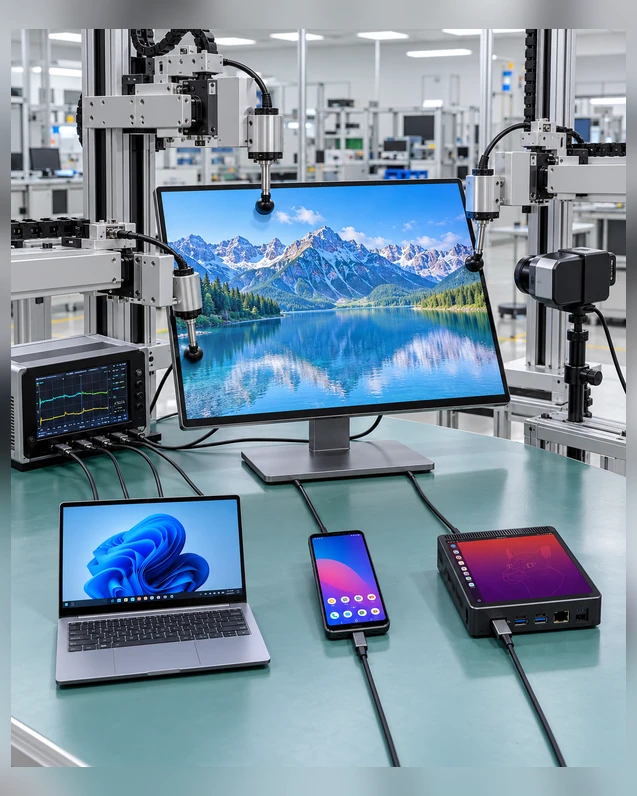
USB C Touchscreen Monitor Applications
Select the product structure and connection path around the actual operating workflow.
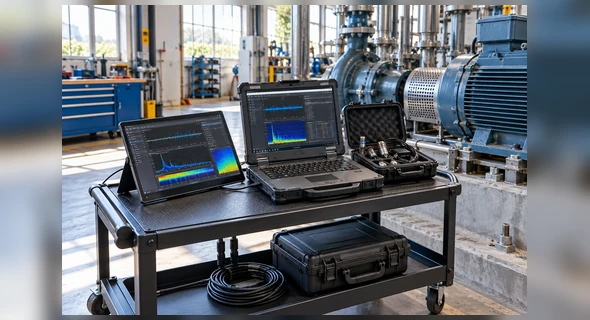
Portable Diagnostic Workstations
Use a compact external touch display with a laptop or service computer for equipment setup, field diagnostics and software testing. Confirm host power, cable capability, stand stability and the availability of an alternative connection.
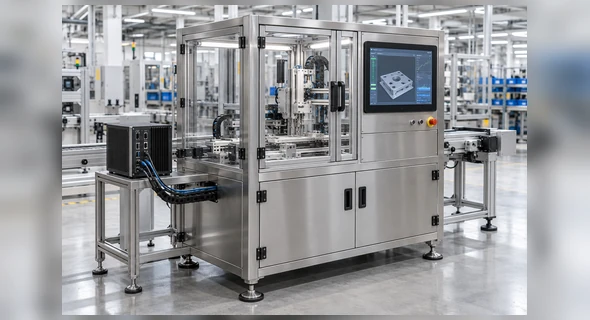
Industrial Equipment Integration
Install an enclosed, panel-mounted or open-frame display with an industrial PC or embedded controller. Confirm USB-C function, separate power, mounting, cable retention and service access before enclosure approval.
POS and Commercial Terminals
Coordinate the display with the transaction application, countertop structure, host computer and required peripherals.
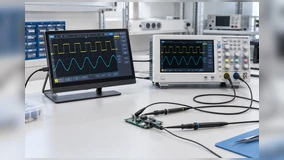
Testing and Laboratory Workstations
Provide direct touch control beside instruments, test computers or compact data systems. Validate grounding, cable routing and exact host compatibility.
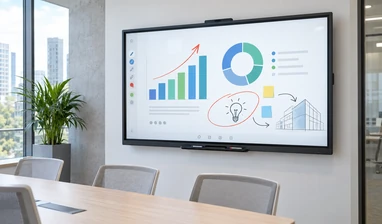
Interactive Product Demonstrations
Use a portable or enclosed display to present software, equipment controls or product information while keeping the host system separate.
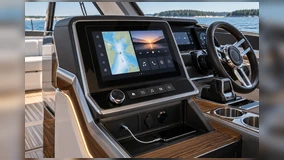
Custom Information Terminals
Integrate an open-frame monitor into a purpose-built enclosure with the required display, touch, power and service connections.
USB C Touchscreen Monitor Representative Project Scenario
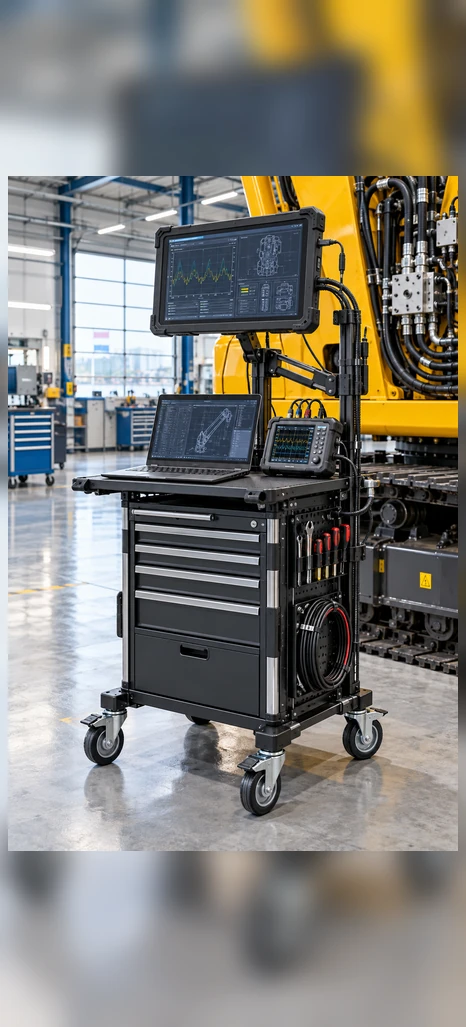
Mobile Equipment Maintenance Terminal in the Netherlands
This anonymized representative scenario combines common project requirements to explain the selection and validation process. It does not identify a specific customer or claim a published project result.
A maintenance-equipment developer needed a portable touch display for technicians using a laptop-based diagnostic application. The intended setup required a compact screen, direct touch input, convenient transport and a simplified connection at temporary service locations.
Step 1: Define the host connection
The laptop model and USB-C port functions were reviewed before selecting a monitor architecture. Connector shape alone was not treated as confirmation of display output, touch data or available power.
Step 2: Select the portable structure
A portable PCAP touchscreen format was used as the starting point. Screen size, resolution, stand position and cable direction were considered together.
Step 3: Keep an alternative connection path
HDMI video, USB touch data and external power were retained as a validation path in case the deployment laptop could not support every required function through USB-C.
Step 4: Validate the application workflow
The review covered image output, touch recognition, multi-display mapping, startup, reconnection and the diagnostic software’s main touch actions.
Step 5: Confirm the production specification
The approved configuration would identify the display, touch controller, USB-C functions, power method, alternative interfaces, housing and cable package.
This approach helps separate a convenient connector request from the complete technical path required by the application.
USB C Touchscreen Monitor Customization Options
Begin with a verified monitor or product format, then review only the options supported by the selected base hardware.
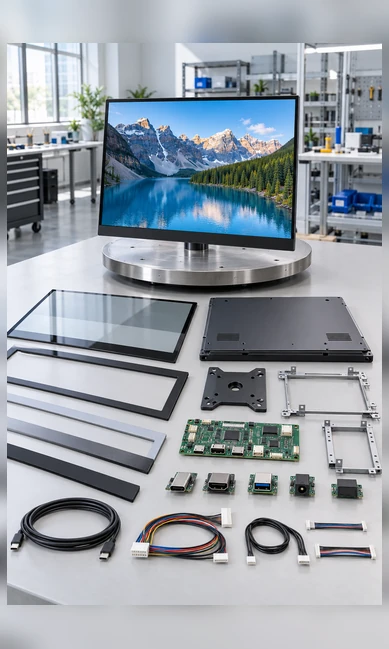
Display
Screen size, resolution, brightness and orientation according to panel and model availability.
Touch
PCAP or selected resistive configuration, supported touch points, controller and cover-glass requirements.
USB-C function
Required video mode, USB touch-data path, power input or output direction and alternative connection path.
Interfaces
HDMI, DisplayPort, VGA, USB touch or serial touch where supported by the selected electronics.
Housing
Portable enclosure, finished metal housing, open-frame chassis or equipment-specific structure.
Mounting
Kickstand, VESA, side brackets, panel integration, cutout and rear clearance.
Cover glass
Dimensions, printed border, logo and available surface-treatment options subject to feasibility.
Cables
Connector type, cable function, direction, length, retention and required external power accessories.
Branding and packaging
Logo, labels, housing appearance and packaging may be reviewed within the approved OEM/ODM scope.
USB C Touchscreen Monitor Project Workflow

Application Review
Define the user task, host system, operating system and installation environment.

Product Format Selection
Choose a portable, enclosed, open-frame or industrial monitor structure.

Connection Definition
Identify the required video, touch-data and power paths, including fallback interfaces.
Specification and Drawing Review
Confirm the screen, touch, dimensions, mounting, connector positions and cable clearance.

Sample or Prototype Validation
Test the actual host, cable, application, touch behavior and physical installation when required.

Approved Production Configuration
Release the agreed model, electronics, housing, cable set, inspection scope and packaging requirements.
USB C Touchscreen Monitor Manufacturing and Inspection
Lucky-XFC supports touchscreen monitor projects from configuration review through production and inspection. The applicable inspection scope follows the approved product specification.
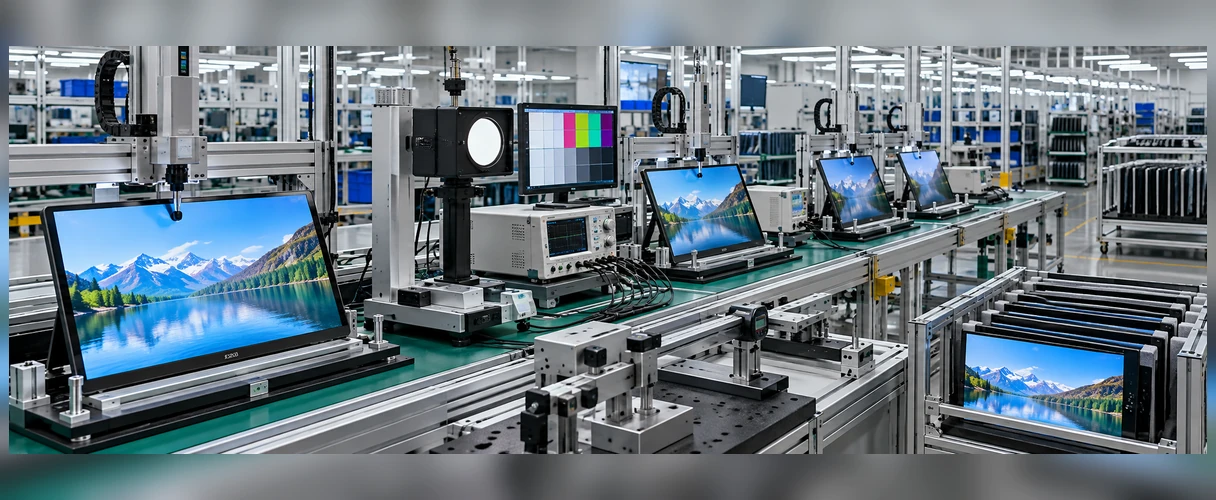
Inspection scope may include:
- Product appearance
- Display output
- Touch response
- Interface connection
- Resolution and orientation
- Dimensions and mounting points
- Cable and accessory matching
- Packaging against the approved requirement
Why Choose a Lucky-XFC USB C Touchscreen Monitor?
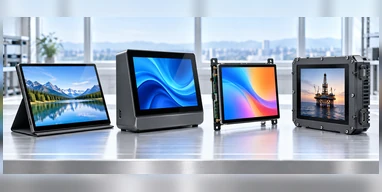
Four Product Structures
Compare portable, enclosed, open-frame and industrial formats within one product discussion instead of forcing every project into the same enclosure.
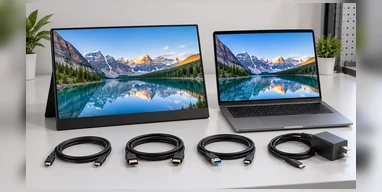
Complete Connection Review
Review video, USB touch data and power as separate technical requirements before deciding whether they can share one USB-C cable.
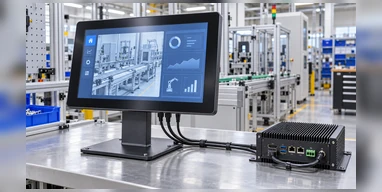
External-Host Integration
Coordinate the display with the laptop, industrial PC, embedded computer or controller that runs the actual application.
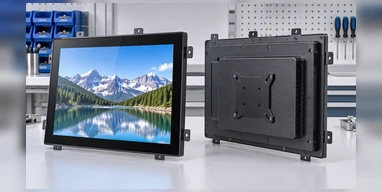
Mechanical Configuration
Review housing, cutout, VESA, brackets, connector position and cable clearance before the enclosure is approved.
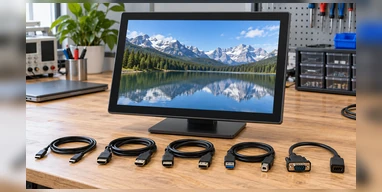
Alternative Interface Planning
Retain HDMI, DisplayPort, VGA or separate USB touch paths where the selected monitor and host require them.
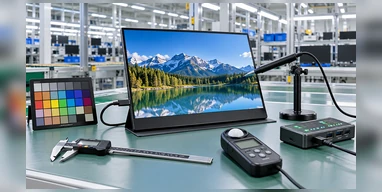
Specification-Based Inspection
Inspect the display, touch, interfaces, dimensions, mounting and accessories against the approved project configuration.
USB C Touchscreen Monitor Selection Matrix
| Project Requirement | Recommended Starting Path | Key Confirmation |
|---|---|---|
| Mobile laptop extension | Portable monitor | Screen size, resolution, host USB-C functions, stand and power |
| Desktop or commercial terminal | Enclosed monitor | Housing, VESA, touch path, video input and cable direction |
| Machine or kiosk enclosure | Open-frame monitor | Cutout, depth, brackets, connector position and host system |
| Factory workstation | Industrial monitor | Mounting, touch technology, power, host and operating requirements |
| Clean single-cable setup | Full-featured USB-C evaluation | DisplayPort Alt Mode, USB data, Power Delivery and full-featured cable |
| Host lacks USB-C video | HDMI or DisplayPort plus USB touch | Separate video, touch-data and power connections |
| Uncertain deployment hardware | Sample validation | Exact host, cable, dock, operating system and application |
Selection note: Select the product format first. Then approve the connection path using the exact deployment host rather than a generic USB-C assumption.
USB C Touchscreen Monitor Buying Guide
Contents
Does every USB-C port support a touchscreen monitor?
No. USB-C defines the connector, not the complete feature set. The host port must support the required video output and USB data functions. If the monitor depends on host power, the available power profile must also be sufficient. Check the exact computer or controller documentation instead of relying on the port shape.
Can one USB-C cable carry video, touch and power?
It can when the host port, monitor controller and cable all support the required video, data and power functions. A charging-only or limited-function cable cannot create a complete touchscreen path. Lucky-XFC treats single-cable operation as a model-specific configuration to be confirmed, not a universal feature.
Why does the monitor show an image but not respond to touch?
The video signal and touch data use different logical paths. HDMI normally supplies the image but does not return touch coordinates to the computer. Add the monitor’s approved USB touch-data connection or confirm that the selected USB-C connection carries USB data.
Is a separate power adapter always required?
Not always. The answer depends on the monitor’s power requirement and the host port’s supported output. External power may still be appropriate when the host cannot provide stable power, when higher operating loads are expected or when the installation needs a clearly separated power path.
How should USB-C compatibility be validated?
Test the exact monitor configuration with the deployment host, operating system, cable, dock or adapter and application. Check display output, touch recognition, touch-to-screen mapping, restart, sleep and wake behavior, cable reconnection and the required gestures.
Should I choose a portable, enclosed or open-frame monitor?
Choose portable construction for mobility and temporary setup. Choose an enclosed metal monitor for an external desktop, VESA or terminal installation. Choose an open-frame monitor when the display must mount behind a machine or kiosk panel. Industrial projects should also define the mounting, power, host and operating requirements before choosing the interface.
USB C Touchscreen Monitor FAQ
Is a USB C touchscreen monitor a complete computer?
Can Lucky-XFC supply portable USB-C touchscreen monitors?
Can USB-C be added to an open-frame touchscreen monitor?
Does HDMI carry touchscreen input?
Will the monitor work with Windows, Android, Linux and macOS?
What information is needed for a configuration review?
Can the page promise one-cable operation?
Can Lucky-XFC customize the housing and cover glass?
Related USB C Touchscreen Monitor Product Paths

Portable Touchscreen Monitors
Review compact external touch displays and portable size directions.

Open-Frame Touch Monitors
Compare monitor structures designed for machine and enclosure integration.

Industrial Monitors
Review panel, VESA and equipment-mounted monitor starting points.
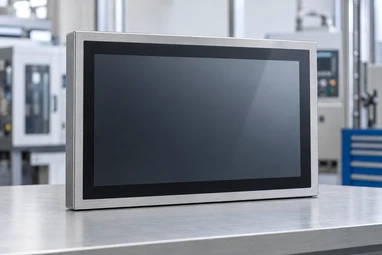
Touchscreen Displays
Compare Lucky-XFC’s broader flat, open-frame, industrial and custom display formats.
Smart Touchscreen Monitors
Compare external-host, Android and Windows touchscreen system architectures.
Contact Lucky-XFC
Send host information, drawings and connection requirements for review.
Request a USB C Touchscreen Monitor Configuration
Send the host and installation information needed to review the complete display, touch and power path. Lucky-XFC can use the details to identify a suitable portable, enclosed, open-frame or industrial starting configuration.
Helpful information to include:
- • Required screen size and resolution
- • Portable, enclosed, open-frame or industrial format
- • Host manufacturer and model
- • Operating system and version
- • Available USB-C, HDMI, DisplayPort, VGA and USB ports
- • Whether USB-C must carry video, touch data, power or all three
- • Mounting or enclosure requirements
- • Expected quantity
- • Drawings or reference-product information
