
Independent Manufacturer for HP Touchscreen Monitor Alternative Projects
Compare independent Lucky-XFC touch displays by size, touch, mounting and host requirements before selecting a migration path. Looking beyond an HP touchscreen monitor for a new project, discontinued-product migration or custom equipment installation? Lucky-XFC supplies independent flat, open-frame and computing-integrated touch display solutions. Start with the original model and application, then compare the display, touch, mechanical, electrical and host requirements against an approved Lucky-XFC configuration.
- 23.8" Flat PCAP Starting Model
- 21.5"–31.5" Flat Range
- Documented Open-Frame Models
- Drawing-Based Review
- Host and Touch Validation
Important Statement: HP and its product names are trademarks of their respective owner. Lucky-XFC does not sell HP-branded monitors. No affiliation, authorization or endorsement is claimed. Any alternative must be selected through complete specification review and validation.
HP Touchscreen Monitor Alternative Sourcing at a Glance
A useful alternative is not selected from a brand name or diagonal size alone. Two 23.8-inch monitors may differ in active area, outer dimensions, touch technology, touch-data connection, video inputs, stand, VESA pattern, power and operating-system behavior.
Lucky-XFC products are independently manufactured and specified. The current flat range provides documented 21.5, 23.8, 27 and 31.5-inch starting points. Open-frame models provide another route when the display must be installed inside equipment rather than placed on a desktop stand.
HP Touchscreen Monitor Alternative Product Paths
Choose the closest product structure first. Then compare every specification that affects installation and operation.
23.8-Inch Flat PCAP Monitor
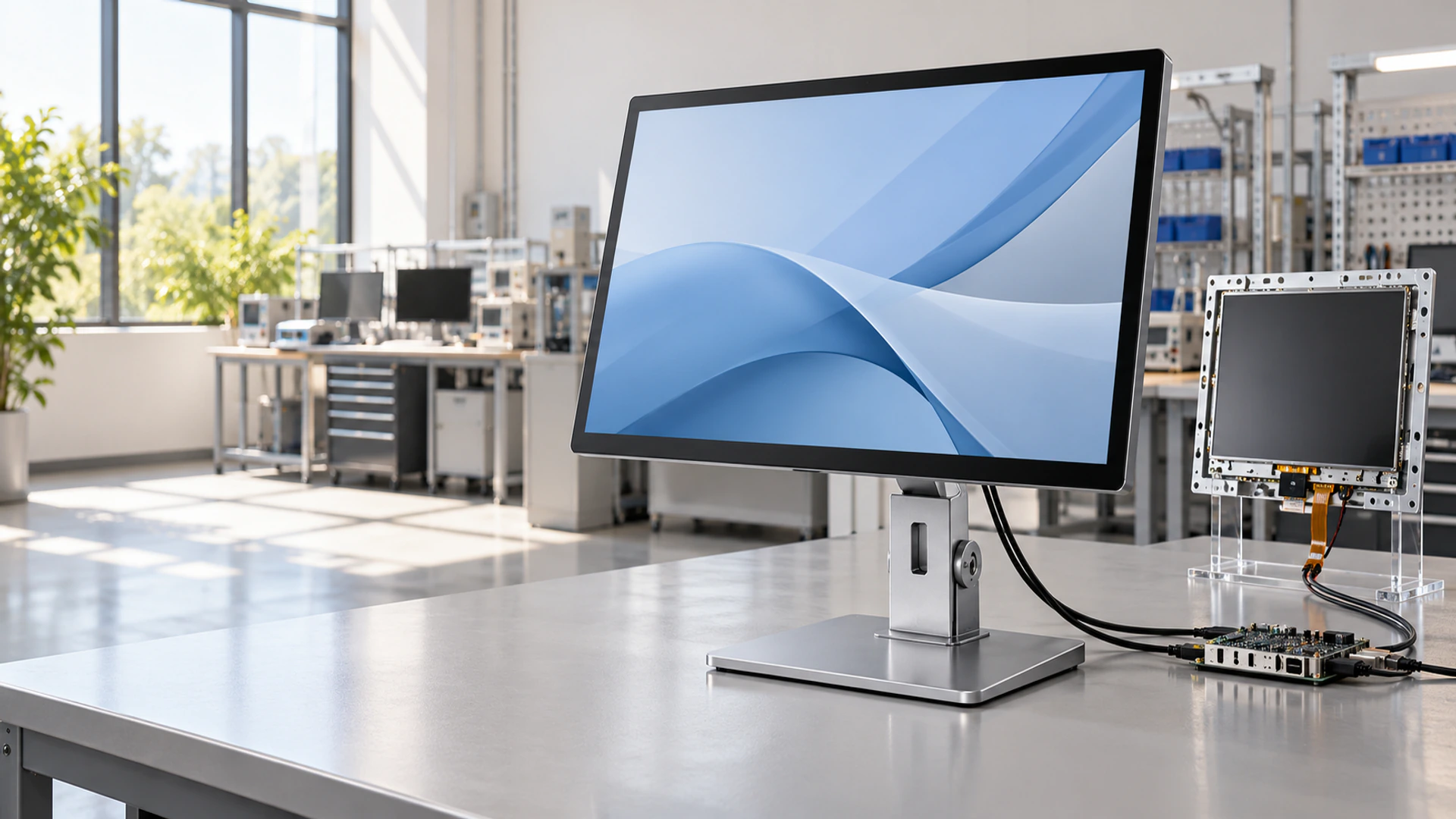
TP238-JX-DR-02 is the primary Lucky-XFC starting point for projects reviewing a 23.8 or 24-inch-class touch monitor. It uses a 1920 × 1080, 16:9 capacitive-touch display in a metal housing.
21.5-Inch Compact Flat PCAP Monitor
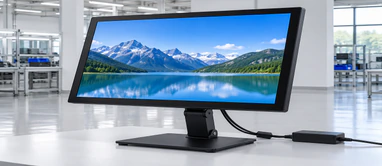
TP215-JX-DR-02 provides a smaller Full HD metal-housing option when the workstation, counter or equipment area cannot accommodate the original screen class.
27-Inch Flat PCAP Monitor
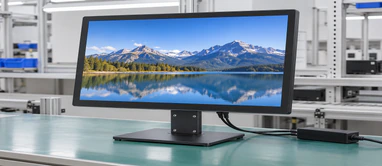
TP270-JX-DR-02 provides a larger Full HD touch workspace for projects that can accept a different screen class and revised mechanical arrangement.
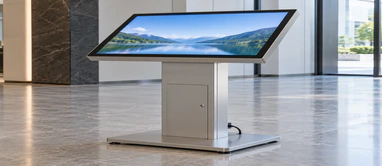
31.5-Inch Flat PCAP Monitor
TP315-JX-DR-02 is the documented Lucky-XFC reference for the 32-inch market class. Its actual panel size is 31.5 inches.
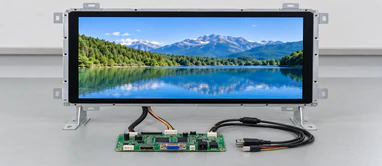
Open-Frame PCAP Monitor
Choose an open-frame product when the display must sit behind a machine fascia, kiosk panel or custom equipment enclosure. Documented models are available as starting references.
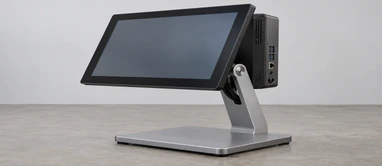
Touchscreen Computer
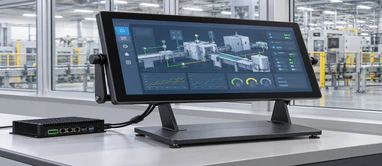
Choose an integrated system when the requirement includes processor, memory, storage and an operating system. Do not replace a display-only monitor with a computer unless planned.
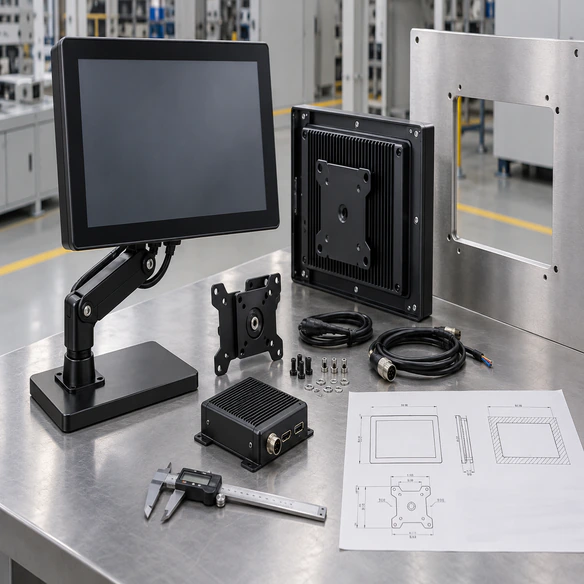
What an HP Touchscreen Monitor Alternative Must Match
A cross-reference must compare the complete installation, not just the product name or screen diagonal.
Display Layer
Screen size, active area, aspect ratio, native resolution, brightness, viewing direction and orientation.
Touch Layer
Touch technology, touch points, controller, USB or other data interface, gestures, cover glass and driver behavior.
Mechanical Layer
Overall width, height and depth, bezel, active-area position, VESA pattern, stand, bracket and connector location.
Electrical Layer
Power input, supplied adapter, video inputs, USB touch-data connection, cable type and cable direction.
Host Layer
Computer model, operating system, graphics output, USB availability, required drivers and multi-display arrangement.
Application Layer
Software resolution, required gestures, screen orientation, restart behavior and maintenance workflow.
Conclusion: A same-size monitor is not automatically a mechanical, electrical or software replacement.
HP Touchscreen Monitor Specification Collection
Begin with the exact product in the existing installation. A broad description such as "HP 24-inch touch monitor" is not enough to identify the required dimensions, ports, stand, touch controller or host behavior.
Product Identity
Manufacturer, exact model, product number, label photo and current or discontinued status.
Official Documentation
Original data sheet, user manual, dimensional drawing and connection guide.
Physical Installation
Monitor dimensions, active area, desk footprint, stand, VESA pattern, available depth and cable clearance.
Connections
Video cables, USB touch cable, power adapter, docking station and any converter.
Host Environment
Computer model, operating system, graphics output, USB ports and multi-monitor arrangement.
Required Behavior
Touch gestures, screen rotation, sleep and wake, touch mapping and application workflow.
Tip: When the original data sheet is unavailable, provide clear label photos, front and rear images, physical measurements and host-port information.
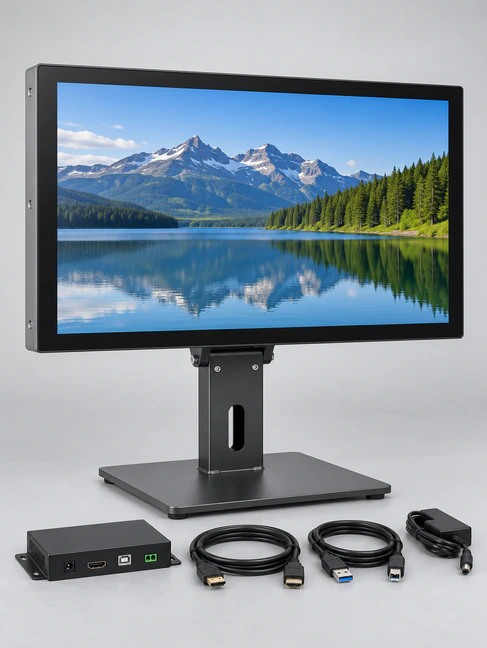
23.8-Inch HP Touchscreen Monitor Alternative Starting Point
TP238-JX-DR-02 is the primary Lucky-XFC starting point for projects that need an independent 23.8-inch-class touch display. It combines a 23.8-inch Full HD 16:9 panel, capacitive touch and a metal housing.
This shared size class does not establish direct replacement compatibility. The selected configuration must still be compared for active area, outer dimensions, touch points, brightness, video inputs, USB touch connection, VESA, stand requirements, power and operating-system behavior.
Starting Specifications
- ModelTP238-JX-DR-02
- Display Size23.8 inch
- Resolution1920 × 1080
- Aspect Ratio16:9
- TouchCapacitive
- HousingMetal
- Computer IncludedNo
- Interfaces & MountingConfirm by configuration
Selection Tip: Choose this model as a review starting point when the project needs a finished, external-host touch monitor in the 24-inch market class. Do not release a stand, bracket or enclosure until the approved drawing is available.
HP Touchscreen Monitor Cross-Reference Framework
A responsible cross-reference reveals differences before approval instead of hiding them behind a similar screen size.
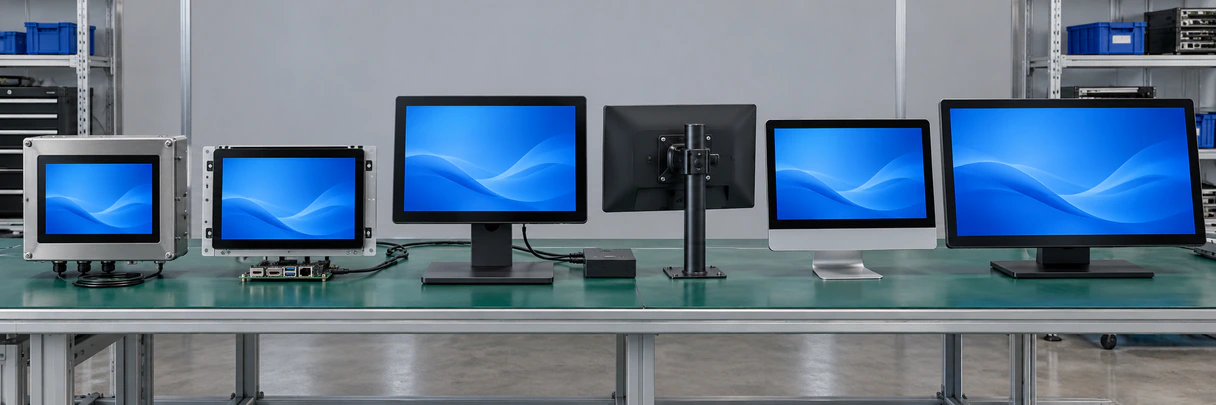
Identify the Existing Product
Record the exact model, product number, data sheet, photos and application.
Classify the Architecture
Decide whether the project needs a flat monitor, open-frame monitor or touchscreen computer.
Compare Display Specs
Check size, active area, resolution, aspect ratio, brightness and orientation.
Compare Touch & Connections
Check technology, touch points, controller, video input, USB touch and power.
Compare Mechanicals
Check dimensions, VESA, stand, brackets, connector position and cable space.
Validate the Host
Test video, touch recognition, mapping, gestures, sleep, wake and reconnection.
Record Remaining Differences
Document every bracket, cable, stand, enclosure or software change required by the Lucky-XFC candidate before final approval.
HP Touchscreen Monitor or Touchscreen Computer?
Search results may mix touch monitors, touch desktops, all-in-one computers and laptops. These products do not share the same system architecture.
Touchscreen Monitor
- Computer IncludedNo
- ProcessingExternal host required
- VideoReceived from the host
- Touch DataReturned to the host
- Selection FocusDisplay, touch, connections, mounting
- Best FitThe customer already has a computer or controller
Touchscreen Computer
- Computer IncludedYes, depending on configuration
- ProcessingIntegrated CPU platform
- VideoGenerated by the integrated system
- Touch DataManaged within the complete system
- Selection FocusCPU, memory, storage, OS, thermal design
- Best FitThe terminal must operate independently
Do not treat an HP touch desktop or all-in-one computer as the same product as an external HP touchscreen monitor. Select the system architecture before comparing screen specifications.
HP Touchscreen Monitor Mechanical Matching
Mechanical fit is often the main constraint in a replacement or migration project. A monitor can share the same nominal screen size and still require a different stand, bracket, cable path or workstation layout.
-
Overall Width and Height
Confirm that the candidate fits the desk, equipment area or enclosure.
-
Active Display Area
Check whether the visible image aligns with the original user interface and physical opening.
-
Monitor Depth
Include the rear housing, connectors, cable bends and service space.
-
Stand Footprint & VESA Pattern
Compare the base dimensions, tilt range, mounting-hole pattern, screw depth and bracket compatibility.
-
Connector Position
Check whether video, USB touch and power cables can be attached and serviced.
Tip: Use the approved Lucky-XFC mechanical drawing before manufacturing an adapter, stand, bracket or enclosure.
HP Touchscreen Monitor Connections and Host Validation
A touchscreen monitor usually requires separate paths for video, touch data and power. Matching one port does not establish complete compatibility.
Video Path
Confirm the host output, selected monitor input, native resolution and required adapter.
Touch-Data Path
Touch coordinates commonly return to the host through USB or another approved interface. A working image does not prove that touch is connected.
Power Path
Confirm the selected Lucky-XFC power input and adapter. Do not reuse an existing power supply without electrical verification.
USB-C or Docking Path
Confirm the computer, dock, monitor, cable, video protocol, USB data and power arrangement together. Connector shape alone does not guarantee compatibility.
Host Checklist
- • Computer model
- • Operating system
- • Video output
- • Available USB port
- • Docking station
- • Required adapters
- • Number of displays
- • Touch mapping
- • Cable length
- • Restart behavior
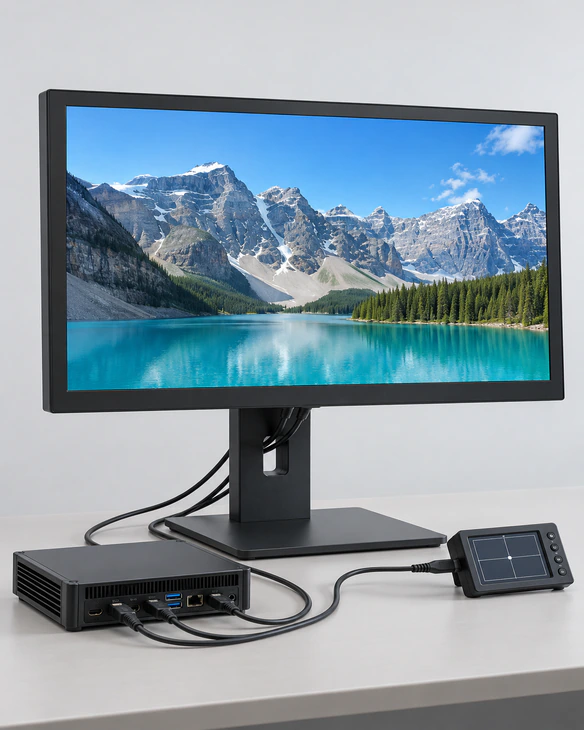
HP Touchscreen Monitor Alternative Applications
Choose the product structure from the installation and workflow rather than from the original brand alone.
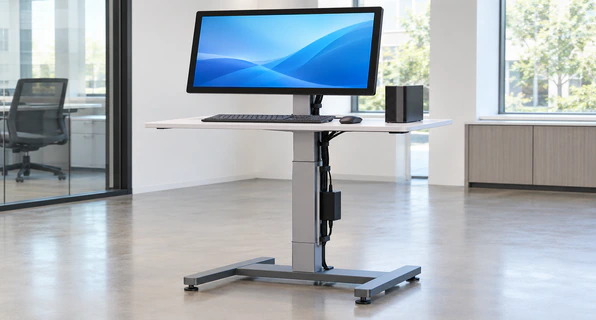
Desktop Workstations
Use a finished flat monitor when the display sits on a desk or compatible support and connects to an external computer.
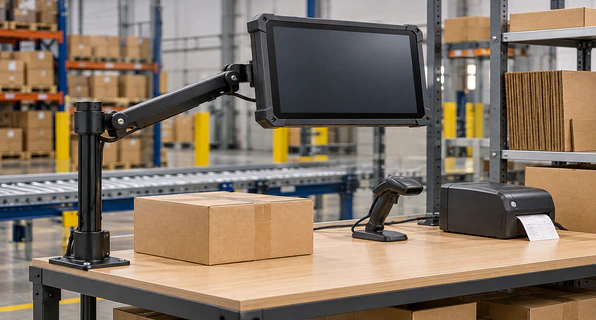
Warehouse Packing Stations
Review touch reach, stand stability, barcode-scanner workflow, cables and the workstation PC.
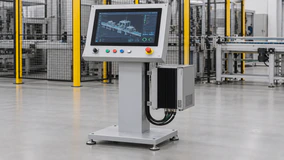
Industrial Operator Stations
Confirm host output, mounting, operating environment and the controls used by the operator.
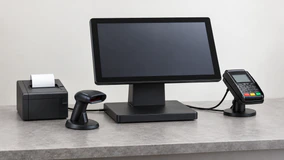
Retail Service Counters
Coordinate the touch display with the counter depth, customer reach, POS computer and peripheral layout.
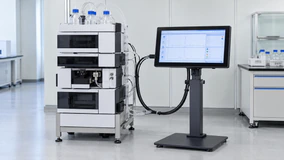
Laboratory Equipment
Compare display area, touch behavior, mounting and the software used to show measurements.
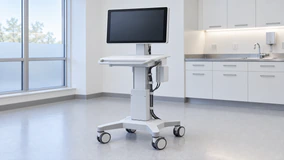
Kiosks & Cabinets
Use an open-frame product when the screen must mount behind a fascia or inside a custom enclosure.
Every application requires confirmation of screen size, user reach, mounting, host compatibility and service access.
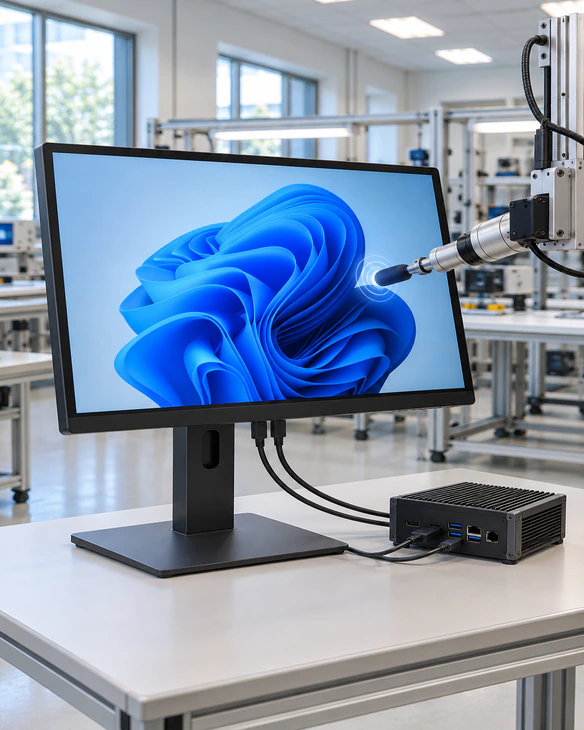
HP Touchscreen Monitor Touch and Windows Validation
Physical fit and video output do not establish touch compatibility. Test the selected touch controller with the intended computer, Windows version and application.
Controller Recognition
Confirm that Windows identifies the selected touch device after startup and reconnection.
Touch-to-Screen Mapping
Assign touch input to the correct display in a multi-monitor setup.
Required Gestures & Edge Controls
Test tap, drag, swipe, zoom and buttons near the perimeter of the active touch area.
Orientation & Power-State
Confirm mapping after rotation. Test startup, sleep, wake, restart and cable reconnection.
Application Workflow
Verify the complete user task rather than relying only on a basic touch-test utility.
Limitation: Lucky-XFC does not distribute or promise HP drivers. Use the controller and driver information applicable to the selected Lucky-XFC configuration.
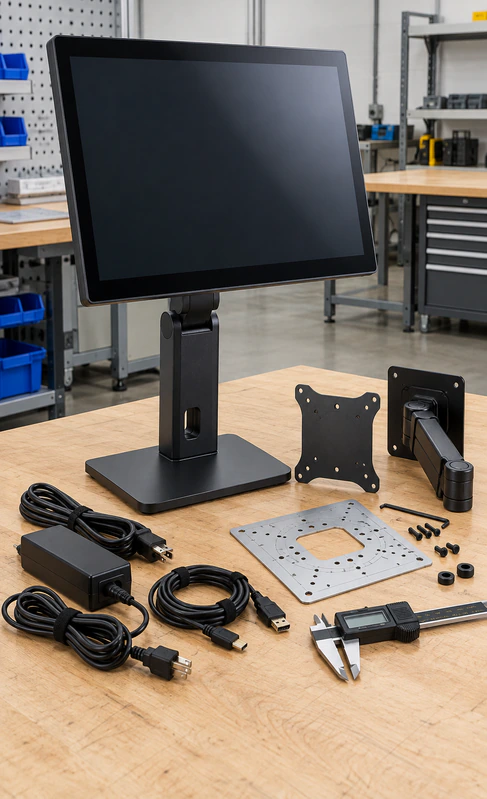
HP Touchscreen Monitor Stand and VESA Review
A stand is part of the touch interaction. Repeated touch input applies force to the monitor, hinge and desk surface. A visually similar base may not provide the same height, tilt, pivot or stability.
Original Stand
Record base footprint, height range, tilt, swivel, pivot and screen position.
Lucky-XFC Stand Req.
Confirm whether the selected model includes a suitable stand or requires project-specific support.
VESA Mounting
Compare the mounting pattern, screw depth, monitor weight, bracket capacity and cable clearance.
Touch Stability
Verify that the screen does not move excessively during normal operation.
Operator Reach & Adapters
Check seated or standing reach to the top, corners and outer interface controls. Document any required bracket, plate or workstation modification before approval.
Warning: Do not transfer an HP stand or ergonomic specification to a Lucky-XFC monitor without mechanical verification.
HP Touchscreen Monitor Replacement Risks to Prevent

"Both monitors are 23.8 inches."
Consequence: Active area, dimensions, stand or VESA may differ.
Response: Compare the complete mechanical drawing.

"The video cable fits."
Consequence: Touch-data connection may still be missing.
Response: Confirm video, USB touch and power as separate paths.

"The image works, but touch does not."
Consequence: Controller, USB, or mapping may be incorrect.
Response: Validate touch using the intended host and application.

"The existing stand can be reused."
Consequence: Mounting pattern, weight or stability may not match.
Response: Review the stand and VESA system as part of the replacement.

"The original was a touchscreen computer."
Consequence: A display-only monitor cannot run the OS.
Response: Confirm whether computing hardware must be integrated.

"Any similar monitor will work."
Consequence: Unrecorded differences may require late redesign.
Response: Use a documented cross-reference and validation process.
HP Touchscreen Monitor Representative Migration Scenario
Warehouse Packing Workstation Refresh in Belgium
A warehouse-system integrator needed to refresh touch displays used at packing workstations. The existing computers, barcode scanners and warehouse application were expected to remain in service. The new monitor therefore had to work with the current host and workstation rather than change the complete system.
The original request referred only to an HP touchscreen monitor and its approximate screen size. That information was not enough to approve an independent alternative.
- 1. Record Installation: Captured original model label, visible area, dimensions, stand, connections and Windows environment.
- 2. Choose Path: TP238-JX-DR-02 was selected as the initial 23.8-inch-class review path, not as a claimed direct replacement.
- 3. Compare Mechanics: Dimensions, stand/VESA, connector position reviewed against the packing desk.
- 4. Validate: Workstation PC checked for video output, USB touch recognition, mapping and application operation.
- 5. Document: Required cable, bracket or workstation adjustments recorded before approval.
Conclusion: A controlled migration protects the existing workflow by identifying differences before deployment instead of assuming that a similar screen size guarantees compatibility.
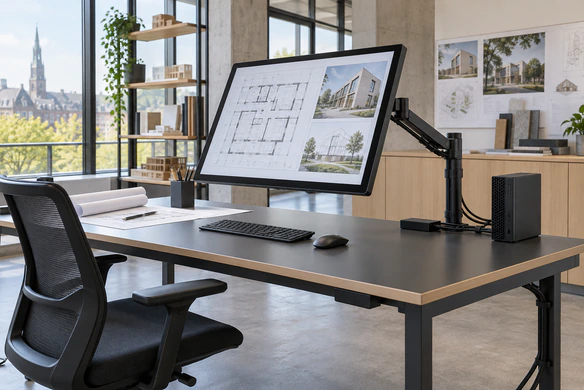
HP Touchscreen Monitor Alternative Review Workflow
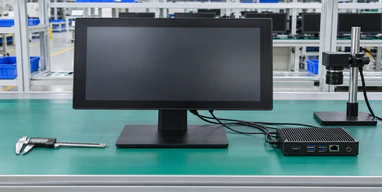
Existing Product ID
Provide the exact model, product number, label photos, data sheet and current application.
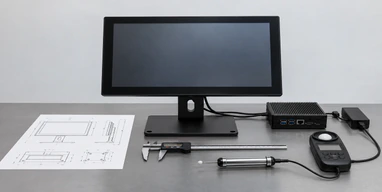
Requirement Classification
Determine whether the project needs a flat monitor, open-frame monitor or touchscreen computer.
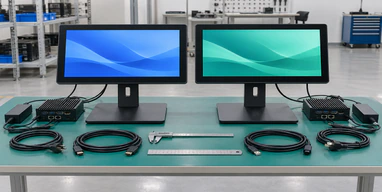
Spec Cross-Reference
Compare display, touch, interfaces, power, dimensions, stand and mounting.
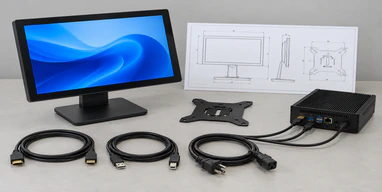
Drawing & Host Review
Confirm installation space, brackets, clearance, computer, OS and application.
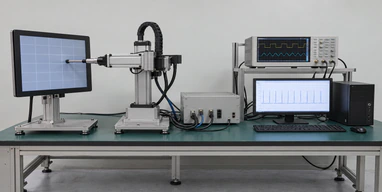
Sample/System Validation
Test physical fit, image output, touch recognition, mapping and workflow when required.
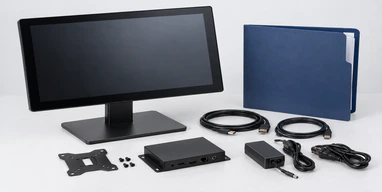
Approved Configuration
Release the agreed product, adaptations, inspection scope, cables and packaging.
Any later change to the host, operating system, controller, cable, stand or enclosure should be reviewed for compatibility impact.
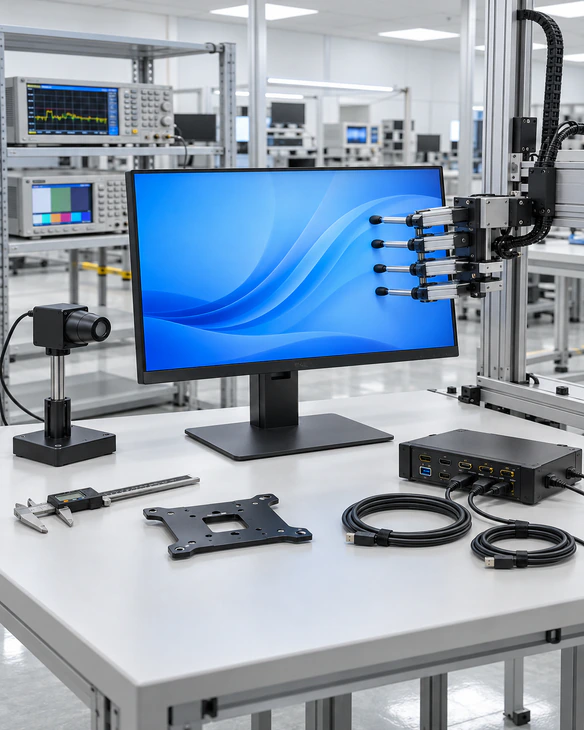
HP Touchscreen Monitor Inspection and Validation
Inspection must follow the approved Lucky-XFC model and project configuration. It must not be presented as HP testing, HP certification or HP warranty support.
-
Appearance & Display Function
Check touch surface, housing, assembly, image input, resolution and orientation.
-
Touch Function & Interfaces
Check touch response, coordinates, touch-points, and specified video/data/power cables.
-
Mechanical Dimensions
Compare applicable dimensions, VESA/bracket positions and connectors with the drawing.
-
Host Validation & Accessories
Check Windows recognition/mapping (if in scope) and confirm approved adapters/stands/packaging.
Limitation: Do not display HP certification marks or transfer HP warranty, environmental, performance or service claims to a Lucky-XFC product.
Why Review an HP Touchscreen Monitor Alternative with Lucky-XFC?
Lucky-XFC manufactures and configures independent touchscreen displays. The company does not rebrand HP products or claim automatic replacement compatibility. Its role is to identify an appropriate Lucky-XFC starting model, document differences and review the resulting configuration around the customer's installation.
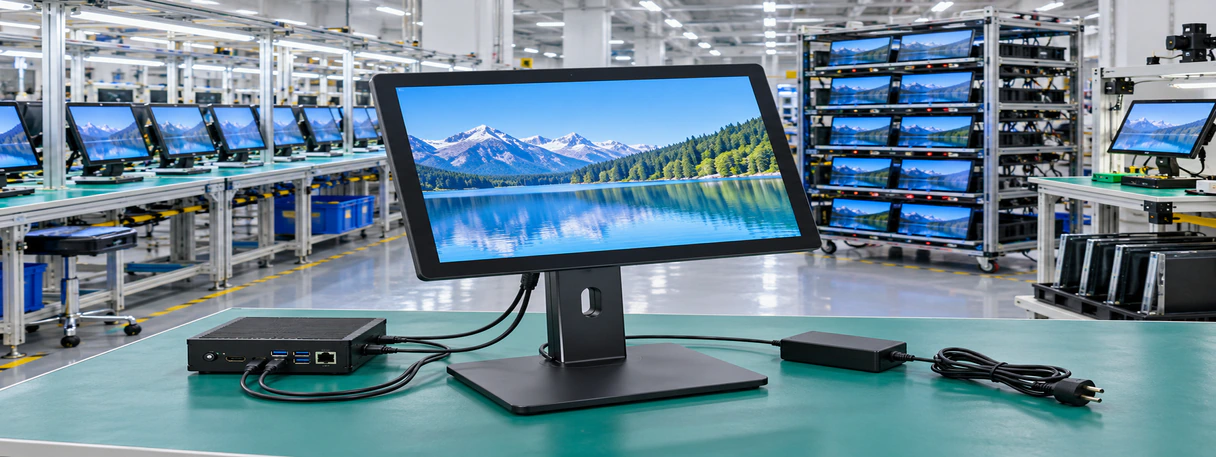
Documented Starting Models
Begin with defined Lucky-XFC flat or open-frame products rather than an unsupported replacement number.
Drawing-Based Review
Compare outer dimensions, active area, mounting, stand, connector position and service clearance.
Host & Touch Review
Evaluate video, USB touch, operating system and application behavior as one system.
Project Adaptation
Review supported housing, glass, interfaces, brackets and cable changes around the selected product.
Configuration Inspection
Inspect applicable product details against the approved Lucky-XFC specification.
Lucky-XFC products are independently manufactured and specified. HP and its product names remain the property of their respective owner.
HP Touchscreen Monitor Alternative Buying Guide and FAQ
Does Lucky-XFC sell HP touchscreen monitors?
Can a Lucky-XFC monitor directly replace an HP touchscreen monitor?
Which Lucky-XFC model should be reviewed for a 23.8-inch touch monitor?
Is a 23.8-inch monitor the same as a 24-inch monitor?
Can the existing HP monitor stand be reused?
Does HDMI carry the touchscreen signal?
Can the monitor connect to an HP desktop or laptop?
Does Lucky-XFC provide HP drivers?
What if the original touchscreen monitor is discontinued?
What is the difference between an HP touch monitor and an HP touch desktop?
When should an open-frame monitor be selected?
What information is needed for a cross-reference?
HP Touchscreen Monitor Project Support

Model ID
Record exact model, label and installation.

Product Selection
Choose flat, open-frame or integrated path.

Spec Comparison
Compare display, touch, interfaces, power.

Mechanical Review
Review dimensions, stand, VESA, clearance.

Host Validation
Check video, USB touch, OS, mapping.

Documentation
Record approved product and adaptations.
For a useful review, send the original model information together with workstation photos, host ports and the required quantity.
Start an HP Touchscreen Monitor Alternative Review
Send the exact existing monitor model, installation details and host information. Lucky-XFC will determine whether the project should begin with the 23.8-inch TP238-JX-DR-02, another flat size, an open-frame monitor or an integrated touchscreen computer.
Request an Independent Touch Monitor Review
Your project information and uploaded files will be used only to evaluate this inquiry.
Lucky-XFC supplies independent touchscreen products. Submission of a third-party model does not imply affiliation, authorization or guaranteed replacement compatibility.
