Independent Acer Touchscreen Monitor Alternative Manufacturer
Source a configurable 23.8-inch PCAP touchscreen monitor for commercial workstations, service counters, POS systems and equipment integration. Lucky XFC supports display selection, touch-controller matching, interface planning, metal housing, mounting design and OEM/ODM customization.
Looking for an external touch display for an Acer computer? Send the host model, operating system, available video output and USB data connections for a project-specific compatibility review.
- 23.8-inch desktop PCAP main configuration
- 21.5-inch compact desktop option
- 27-inch larger desktop option
- 15.6-inch portable touchscreen path
- Custom interfaces, housing and mounting
Choosing the Right Acer Touchscreen Monitor Alternative
A search for an Acer touchscreen monitor can refer to several different products. The correct choice depends on whether the project needs an external display, a complete computer or a portable second screen.
External Desktop Touchscreen Monitor
Includes a display, touch sensor, controller, housing, video input and touch-data connection. It normally connects to a separate host computer.
Best fit:
- Commercial workstations
- POS systems
- Service counters
- Control desks
- Equipment interfaces
Touchscreen All-in-One Computer
Includes a processor, memory, storage and operating system inside the display structure. Choose this when the unit must run applications without a separate computer.
Do not describe the products on this page as all-in-one computers unless a verified integrated system is selected.
Portable Touchscreen Monitor
A smaller, mobile display for laptop extension, presentations and equipment setup. It normally uses USB-C or HDMI plus USB, depending on the host and display configuration.
Lucky XFC manufactures independent touchscreen displays. We do not sell Acer-branded monitors and do not claim universal compatibility with Acer computers. Acer is a trademark of its respective owner. Lucky XFC is an independent touchscreen monitor manufacturer and is not affiliated with, authorized by, endorsed by, or sponsored by Acer.
Acer Touchscreen Monitor Alternative Product Paths
23.8-Inch Desktop PCAP Touchscreen
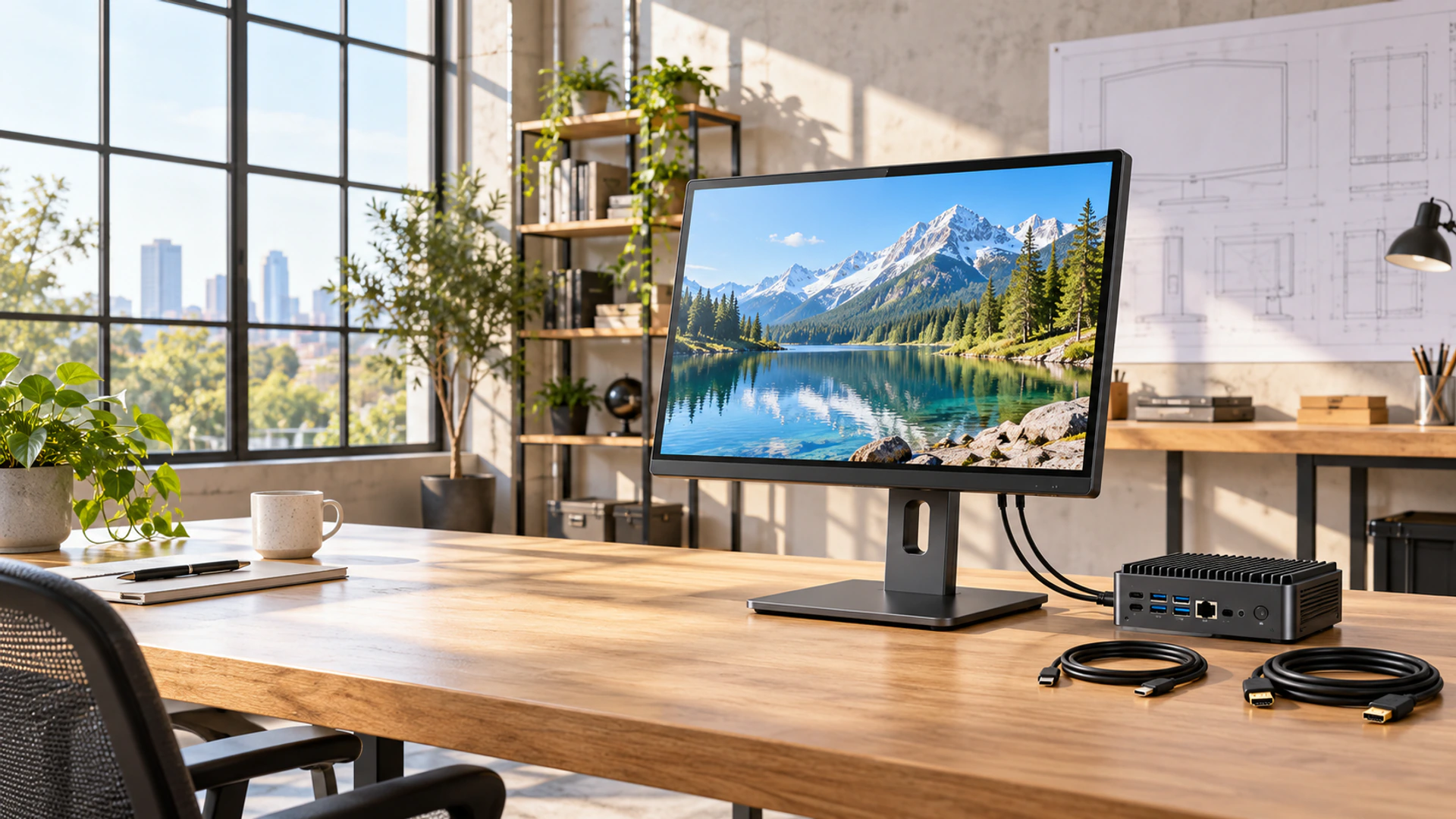
The recommended main direction for commercial desks, POS workstations, service counters and equipment control.
- • FHD starting direction
- • PCAP touch
- • Metal housing
- • Desktop or VESA mounting
- • Video and USB touch-data planning
21.5-Inch Compact Desktop Touchscreen
A smaller fixed-display option for counters, compact consoles and equipment with limited installation space.

27-Inch Desktop PCAP Touchscreen
A larger touch surface for interactive counters, control desks and commercial presentation systems.
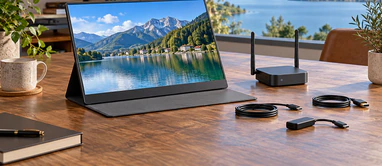
15.6-Inch Portable Touchscreen
A mobile display direction for travel, laptop extension, demonstrations and equipment commissioning.
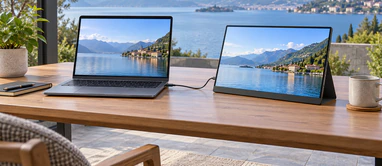
Custom Interface Configuration
Plan HDMI, DisplayPort, VGA, USB or USB-C around the selected model and host requirements. Do not show every interface as standard on every product.
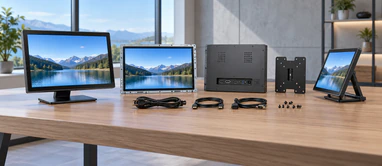
Custom Housing and Mounting
Evaluate metal housing, cover glass, desktop stand, VESA position, mounting bracket and cable routing.

23.8-Inch Acer Touchscreen Monitor Alternative for Desktop Projects
The 23.8-inch desktop PCAP touchscreen monitor is the primary product direction for this page. It offers a practical balance between display area and installation size for service counters, commercial workstations, POS systems and equipment-control interfaces.
The verified starting direction combines a 23.8-inch panel, FHD 1920×1080 resolution, PCAP touch and metal housing. Desktop support, VESA mounting, video inputs, USB touch data and power must be confirmed for the selected configuration.
This is a Lucky XFC product intended for independent commercial and equipment projects. It is not an Acer-manufactured monitor and should not be presented as an exact replacement for a specific Acer model.
Features
- 23.8-inch desktop format
- 1920×1080 starting direction
- PCAP touch integration
- Metal housing
- Desktop or VESA installation
- Project-specific video and USB touch
- OEM logo, housing and packaging evaluation
Acer Touchscreen Monitor Alternative Specifications to Confirm
The table presents selection starting points rather than a universal specification for every unit. Final values must come from the approved datasheet, drawing or sample.
| Specification | 23.8-inch main direction | Available options | Status |
|---|---|---|---|
| Product type | External desktop touchscreen monitor | Compact, larger desktop or portable | Verified |
| Display size | 23.8 inch | 21.5, 27 and 15.6-inch paths | Verified |
| Resolution | 1920×1080 starting direction | Other options depend on panel selection | Project confirmation |
| Aspect ratio | 16:9 starting direction | Model-dependent | Confirm selected model |
| Touch technology | PCAP | Controller matched by project | Verified customization |
| Touch points | Do not publish a universal number | Depends on controller and OS | Must be confirmed |
| Housing | Metal housing direction | Custom structure and finish | Available by project |
| Video input | Selected around the host | HDMI, DP, VGA or board-dependent paths | Model confirmation |
| Touch data | USB data connection | USB-C combination when supported | Host validation |
| Power | Model-specific | External or project-specific power | Confirmation required |
| Mounting | Desktop or VESA direction | Custom bracket or embedded structure | Available by project |
| Operating system | Controller-dependent | Validate intended host and OS | Sample testing |
| Branding | Lucky XFC or approved OEM branding | Label and packaging options | Available by project |
| MOQ | Not universal | Depends on model and customization | Quotation confirmation |
Acer Touchscreen Monitor Alternative Construction
A complete external touchscreen monitor combines more than an LCD panel. Display quality, touch behavior, interface operation and mechanical fit depend on multiple components working together.
- Cover glass
- PCAP touch sensor
- LCD display panel
- Touch controller
- Video interface board
- Metal rear housing
- Desktop or VESA mounting structure
- Video, USB touch and power connections
Lucky XFC can review cover-glass dimensions, printed borders, controller selection, connector positions and housing details around the selected product base.
Do not publish glass hardness, bonding method, material thickness or controller brand unless verified for the selected model.

Acer Touchscreen Monitor Connection Planning: Video, Touch and Power
An external touchscreen monitor usually uses separate paths for video, touch data and power.
HDMI, DisplayPort or VGA path
The video cable carries the image from the host to the monitor. A video connection alone does not normally activate touch input.
USB touch-data path
A USB connection sends touch coordinates from the monitor’s controller back to the computer.
Power path
The monitor requires the approved power connection for the selected configuration.
USB-C path
A supported USB-C configuration may combine video, touch data and power, but only when the host port, display board, cable and power design support all required functions.
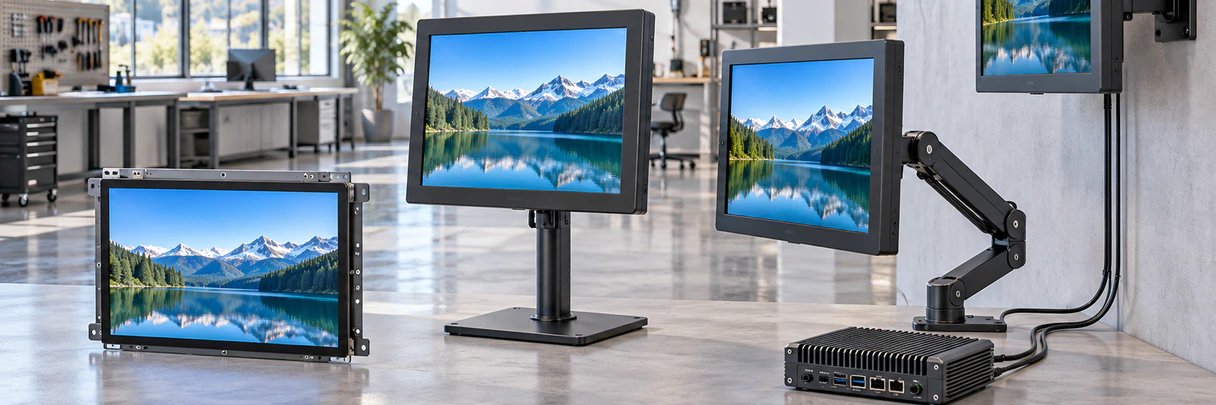
Traditional connection
- Host video output → Display image
- Host USB data → Touch input
- Approved power source → Monitor power
USB-C connection
- Host USB-C video capability → Display image
- Host USB data capability → Touch input
- Host or external power capability → Monitor power
Acer Touchscreen Monitor Touch Setup and Troubleshooting Guide
When the monitor shows an image but touch does not work, the video path may be connected while the USB touch-data path is missing or not recognized.
Diagnostic sequence
1. Confirm the product is touch-enabled
A standard display without a touch sensor and controller cannot become touch-enabled through software alone.
2. Check the video connection
Confirm that the host displays the image at the intended resolution.
3. Check the USB touch cable
Make sure the touch-data cable is connected to a USB data port rather than a charging-only connection.
4. Check operating-system detection
Confirm that the selected touch controller is recognized by the intended operating system.
5. Check touch mapping
In a multi-monitor setup, verify that touch input is mapped to the correct display.
6. Test another approved port or host
Use this only as a diagnostic step. Do not assume that success on one computer proves universal compatibility.
7. Review drivers and controller requirements
Some configurations are recognized automatically; others may require a specific driver or setup process.
Image but no touch
Check the USB touch-data path.
Touch controls the wrong display
Review operating-system display mapping.
Intermittent touch
Inspect the cable, USB port, power and controller configuration.
USB-C provides power but no image
The host port or cable may not support video output.
Acer Computer and Touch Monitor Compatibility Checklist
A screen size or connector shape does not prove compatibility. The complete host, operating system, video output, USB data path, controller and power design must be reviewed.
- Complete Acer or other host model
- Operating system and version
- Available HDMI, DP, VGA or USB-C
- Available USB data ports
- USB-C video capability
- USB-C power capability
- Number of connected displays
- Required orientation
- Application software
- Required mounting method
- Cable length
- Expected touch behavior
Lucky XFC does not guarantee compatibility with every Acer computer. Compatibility must be confirmed through specification review and, where required, an approved physical sample.

Mounting an Acer Touchscreen Monitor Alternative
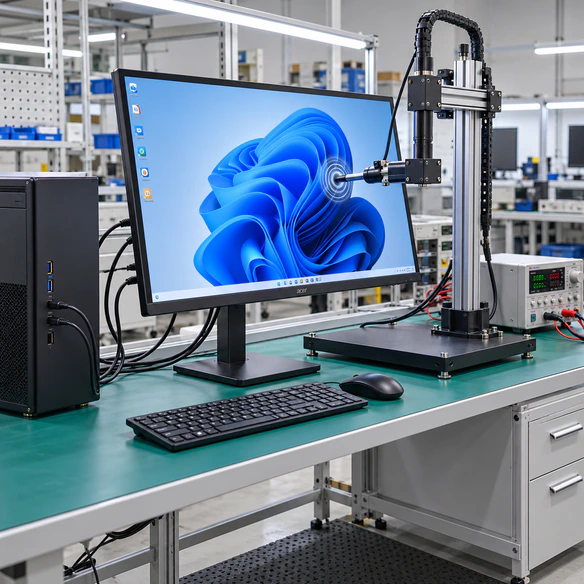
Touch interaction places different loads on a monitor and support structure than passive viewing. Select the mounting method according to touch frequency, viewing distance, stability, cable access and maintenance.
Adjustable Desktop Stand
Suitable for service counters, POS workstations and interactive desks. Final tilt range depends on the selected stand.
VESA Mount
Suitable for monitor arms, wall brackets and equipment frames. Confirm the hole pattern and load using the approved drawing.
Embedded Installation
Suitable for consoles, kiosks and equipment panels. Confirm bezel overlap, ventilation, cable access and serviceability.
Portable Support
Suitable for the 15.6-inch branch. Confirm kickstand stability, orientation and cable routing.
Custom Bracket
Use a project-specific bracket when standard mounting cannot fit the equipment.
Acer Touchscreen Monitor Alternative Applications

Retail Service Counter
A 23.8-inch touch display provides space for product lookup, assisted ordering and customer-service software.

POS Workstation
A 21.5-inch format may suit counters where equipment space is limited.
Industrial Control Desk
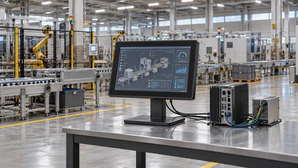
A fixed desktop or VESA-mounted screen can provide direct interaction with approved control software.
Self-Service Equipment
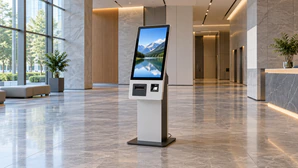
A custom housing or embedded structure can support integration into commercial equipment.
Product Demonstration
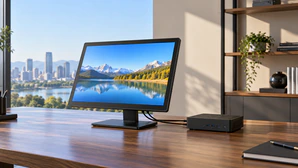
A 27-inch screen provides a larger interactive surface for demonstrations and shared viewing.
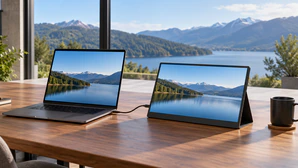
Portable Equipment Setup
A 15.6-inch portable touchscreen can support field configuration, diagnostics and temporary workstations.
Custom Acer Touchscreen Monitor Alternative for OEM/ODM Projects
A standard monitor may not match the enclosure, cable routing, mounting points or branding of a commercial project. Lucky XFC can evaluate customization from a verified product starting point.
Display selection
23.8-inch main direction, 21.5-inch compact direction, 27-inch larger direction, 15.6-inch portable direction. Resolution and panel selection by project.
Touch system
PCAP integration, touch-controller matching, cover-glass dimensions, printed border, operating-system verification.
Connections
HDMI, DisplayPort, VGA or board-dependent video inputs. USB touch-data connection, USB-C planning, power-input location, cable routing.
Mechanical design
Metal housing, desktop stand, VESA location, embedded structure, custom bracket, connector opening.
Branding and packaging
Approved logo, product label, carton and protective packaging, project documentation.

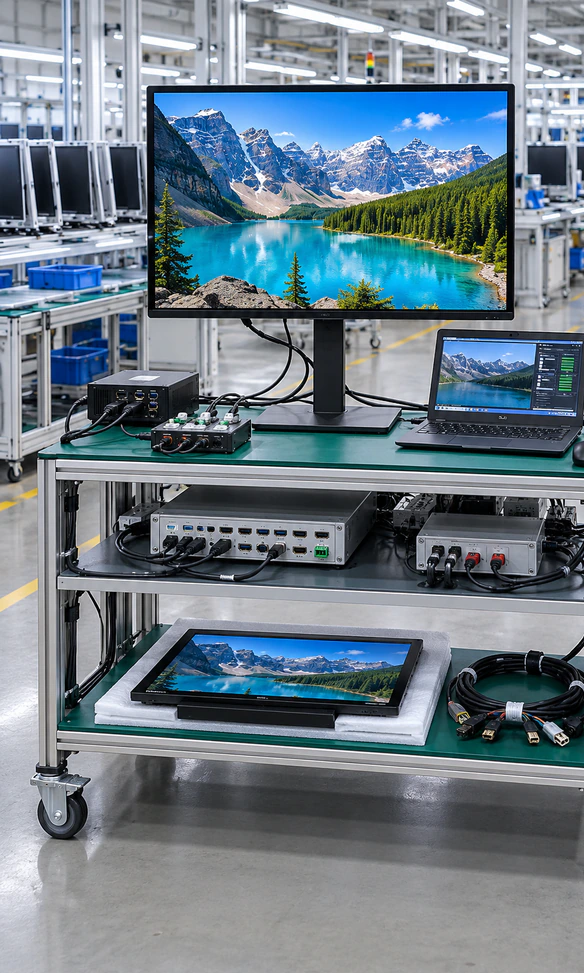
Acer Touchscreen Monitor OEM/ODM Workflow
Define the product type
Confirm desktop, larger-format or portable use.
Select the starting size
Choose 23.8, 21.5, 27 or 15.6 inches according to the installation.
Review the host and connections
Check the operating system, video output, USB data and power.
Confirm the touch and mechanical structure
Review the controller, cover glass, housing, mounting and connector positions.
Prepare the quotation and drawing
Document the project-specific configuration rather than relying on a generic product description.
Build and validate a sample
Check image, touch input, interface operation, mapping and mechanical fit.
Approve the configuration
Use the approved drawing, specification and sample as the production reference.
Produce and inspect
Apply the agreed functional, appearance and packaging criteria.
Why Choose Lucky XFC Touchscreen Monitors

Manufacturing Since 2013
Experience manufacturing touch display products for commercial systems and equipment integration.

Verified Desktop Size Options
21.5, 23.8 and 27-inch PCAP monitor starting points support different installation requirements.

Portable Touchscreen Path
A verified 15.6-inch customization direction supports mobile workstations and field use.

Touch and Interface Coordination
Panel, touch controller, video input, USB data and power can be reviewed together.

Custom Mechanical Integration
Housing, cover glass, stand, VESA position and brackets can be evaluated around the application.

Sample-Based Project Approval
The selected product can be checked with the intended host, software and mounting before production approval.
Acer Touchscreen Monitor Alternative Quality Control
Inspection should follow the approved product specification and sample. The selected panel, controller, interface board, housing and packaging determine the final inspection criteria.
Inspection areas
- Incoming component inspection
- Screen appearance and image check
- Touch response and coordinate check
- Video-interface check
- USB touch-data check
- Power-on check
- Housing and connector inspection
- Stand, VESA or mounting inspection
- Label and accessory verification
- Packaging check
- Agreed operating or aging test
Do not publish a fixed defect rate, aging duration or test standard unless verified for this product.
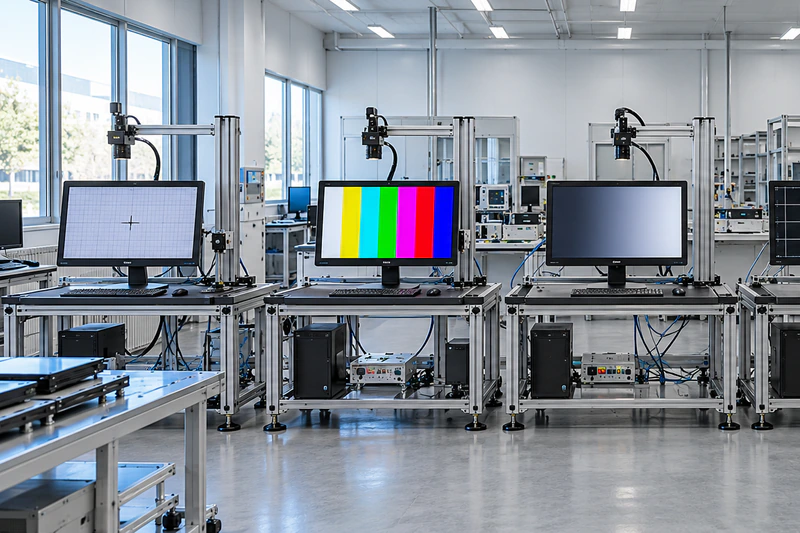
Acer Touchscreen Monitor Alternative Testing Process
Only describe tests genuinely performed for the selected configuration.
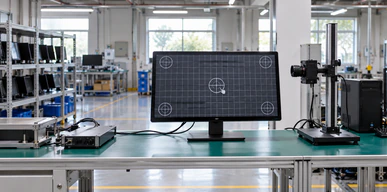
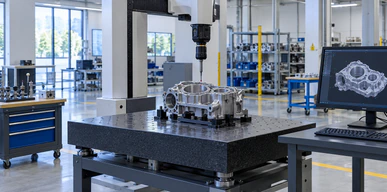
Display Check
Inspect the visible image, panel condition and approved resolution.
Touch Function Check
Confirm touch recognition and response using the selected controller.

Touch Mapping Check
Verify that touch input corresponds to the intended display area.
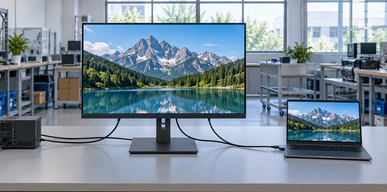
Interface Check
Test the selected video, USB touch-data and power connections.

Mechanical Check
Inspect the housing, connectors, mounting points and support structure.

Packaging Check
Verify the approved accessories, labels, protection and packaging.
Acer Touchscreen Monitor Alternative Scenario for an Australian Retail Counter
This is a non-identifying representative application scenario. It does not name a customer or claim a completed order, purchase quantity or measured project result.
An Australian retail-fixture integrator is evaluating an external touchscreen for a staffed service counter. The available desktop space supports a 23.8-inch display, and the application requires frequent touch interaction with product and order information.
The host provides a video output and separate USB data ports. During configuration review, the project is divided into display, touch, mounting and cable requirements rather than assuming that one video cable will enable every function.
A suitable project process would include:
- • Selecting the 23.8-inch PCAP desktop direction
- • Confirming the host video output
- • Planning the USB touch-data connection
- • Reviewing the desktop stand or VESA position
- • Checking cable routing behind the counter
- • Testing touch mapping with the intended software
- • Approving the sample before production
The value of this process is clearer integration planning. It is not a claim of universal Acer compatibility or a guaranteed commercial outcome.

How to Select an Acer Touchscreen Monitor Alternative
| Product direction | Best fit | Installation | Connection focus | Evidence status |
|---|---|---|---|---|
| 23.8-inch desktop PCAP | Service counters, POS, workstations and control desks | Desktop, VESA or custom | Video plus USB touch; USB-C by configuration | Verified main product line |
| 21.5-inch compact desktop PCAP | Smaller counters and equipment spaces | Desktop, VESA or embedded | Video plus USB touch | Verified product line |
| 27-inch desktop PCAP | Larger interactive surfaces and shared viewing | Stable stand, VESA or custom structure | Video plus USB touch | Verified product line |
| 15.6-inch portable PCAP | Mobile work, demonstrations and equipment setup | Portable stand or custom cover | USB-C or HDMI plus USB | Verified customization path |
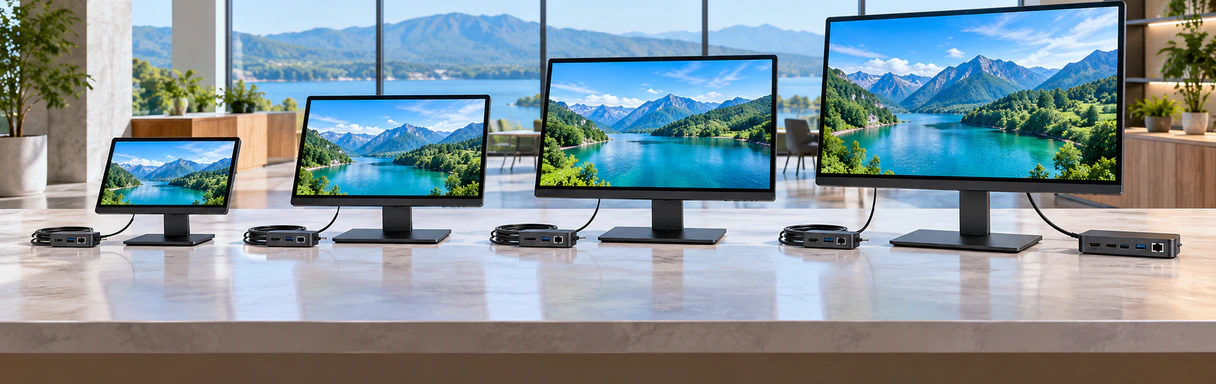
Choose 23.8 inches when the project needs a balanced desktop format. Use 21.5 inches where space is limited. Select 27 inches when the application benefits from a larger touch area and the installation can support it. Choose 15.6 inches when portability is more important than a fixed desktop structure.
After selecting the size, confirm the resolution, controller, video input, USB touch-data connection, power and mounting.
Acer Touchscreen Monitor Alternative FAQ
Does Lucky XFC sell official Acer touchscreen monitors?
Can a Lucky XFC monitor work with an Acer computer?
Why does the monitor show an image but not respond to touch?
Does HDMI carry touch data?
Can one USB-C cable provide video, touch and power?
Which screen size should I choose?
Is this monitor a touchscreen computer?
Can the stand and VESA structure be customized?
Which operating systems are supported?
What information is needed for a quotation?
What is the MOQ?
Should a sample be tested?
Lucky XFC Support for Acer Touchscreen Monitor Alternative Projects

Product Selection
Compare desktop, larger-format and portable product directions.

Host Review
Check video, USB data, power and operating-system requirements.

Touch Integration
Coordinate the sensor, controller, cover glass and touch behavior.
Mechanical Design
Review housing, stand, VESA, bracket and connector positions.

Sample Validation
Evaluate image, touch, interfaces, mapping and fit before approval.

Production Coordination
Manufacture and inspect according to the approved project specification.
Request an Acer Touchscreen Monitor Alternative Quote
Share the intended application, host and installation requirements. Lucky XFC can use this information to identify an appropriate screen size, touch configuration, connection path and mechanical structure.