
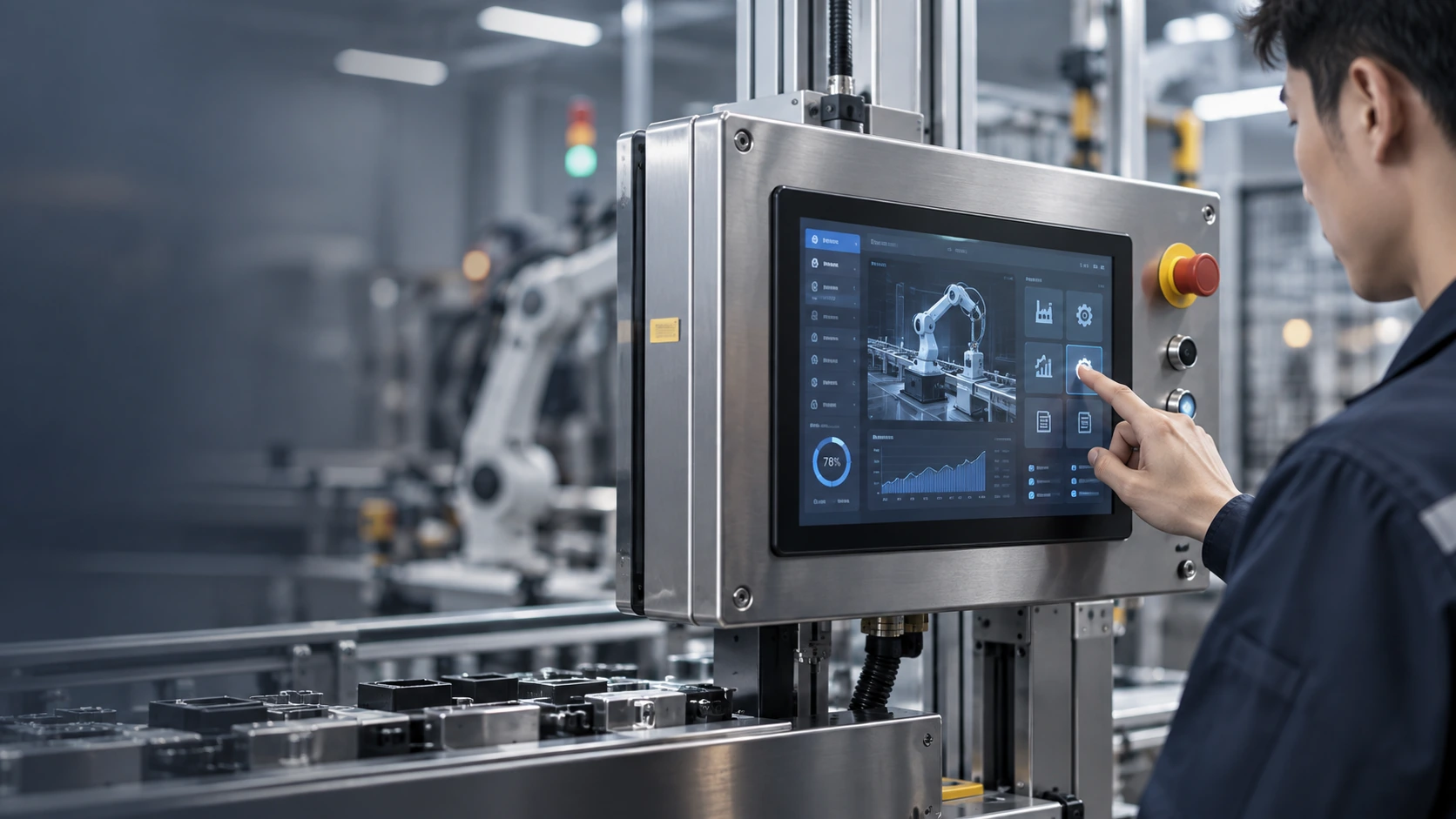
LCD Touchscreen Monitor Manufacturer for Equipment Integration
Lucky-XFC manufactures and customizes LCD touchscreen monitors for industrial equipment, kiosks, POS systems, information terminals and commercial display projects. Select a current flat monitor or review an open-frame, industrial, large-format or curved configuration around your host system and installation.
- 21.5"–43" Current Flat Monitor Series
- Capacitive Touch
- Full HD 1920 × 1080
- Metal Housing
- OEM & ODM Project Review
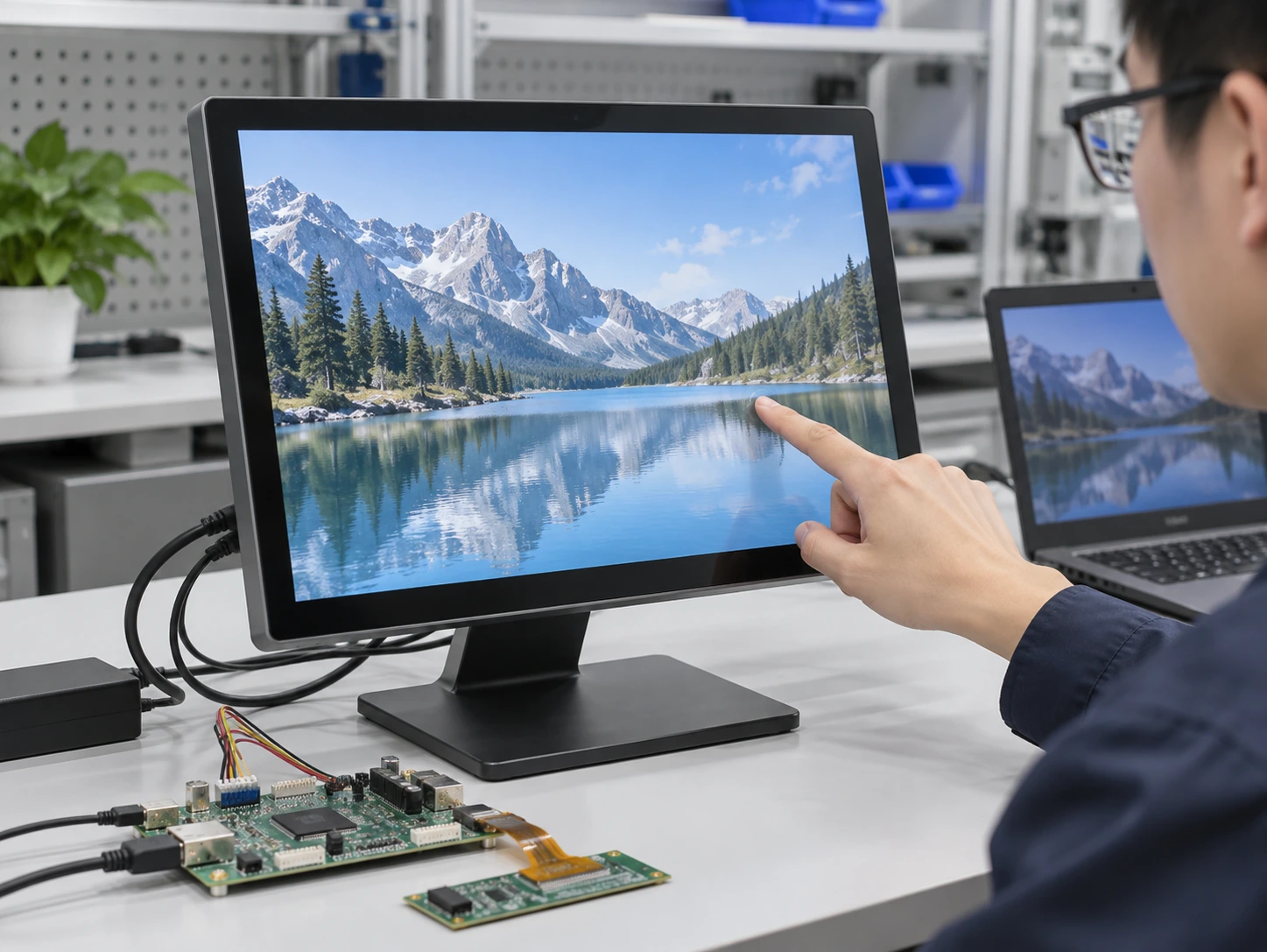
Hardware Architecture
- LCD Panel
- Touch Sensor
- Touch Controller
- Display Electronics
- Housing & Mounting
- External Host Connection
What Is an LCD Touchscreen Monitor?
An LCD touchscreen monitor combines an LCD panel, touch sensor, touch controller, display electronics and a finished or integration-ready structure. It receives the visual signal from an external computer or controller and sends touch input back to that host.
A standard touchscreen monitor does not automatically include a CPU, memory, storage or operating system. If the screen must run an application without an external computer, compare a touchscreen computer or panel PC instead.
Monitor architecture: display + touch + controller
Computer architecture: display + touch + computing hardware + operating system
LCD Touchscreen Monitor Types for Different Integration Paths
Start with the physical format and application. Screen size, touch technology, mounting, interfaces and environmental requirements can then be confirmed within the selected product path.
Flat LCD Touchscreen Monitors
Finished metal-housing monitors for desktop, VESA, wall-mounted and equipment-bracket installations. The current flat series covers 21.5, 23.8, 27, 31.5 and 43 inches.
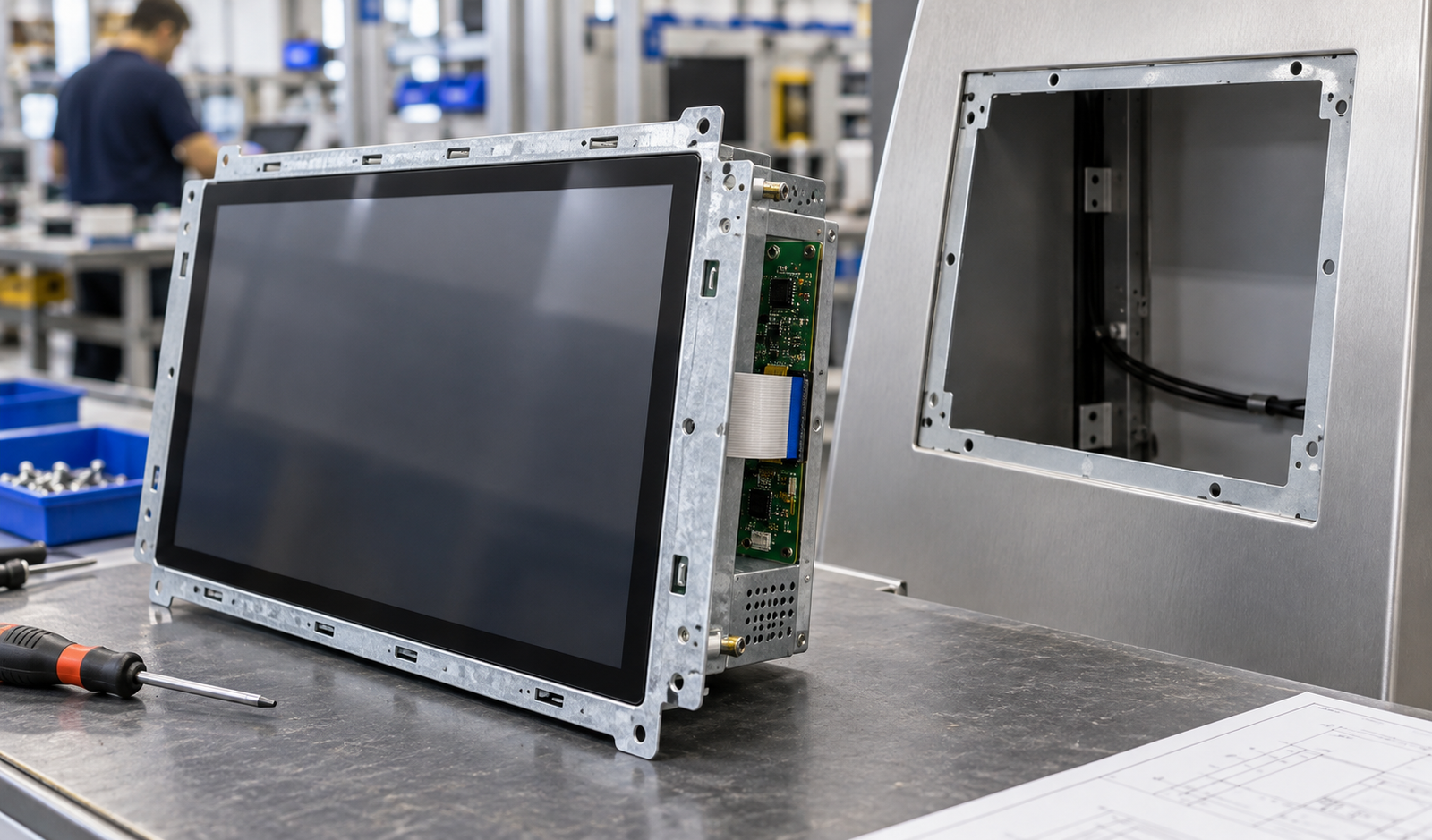
Open-Frame LCD Touchscreen Monitors
Integration-ready monitors designed to sit behind a machine panel, kiosk fascia or custom enclosure. Mechanical drawings, opening dimensions and rear clearance are central to selection.
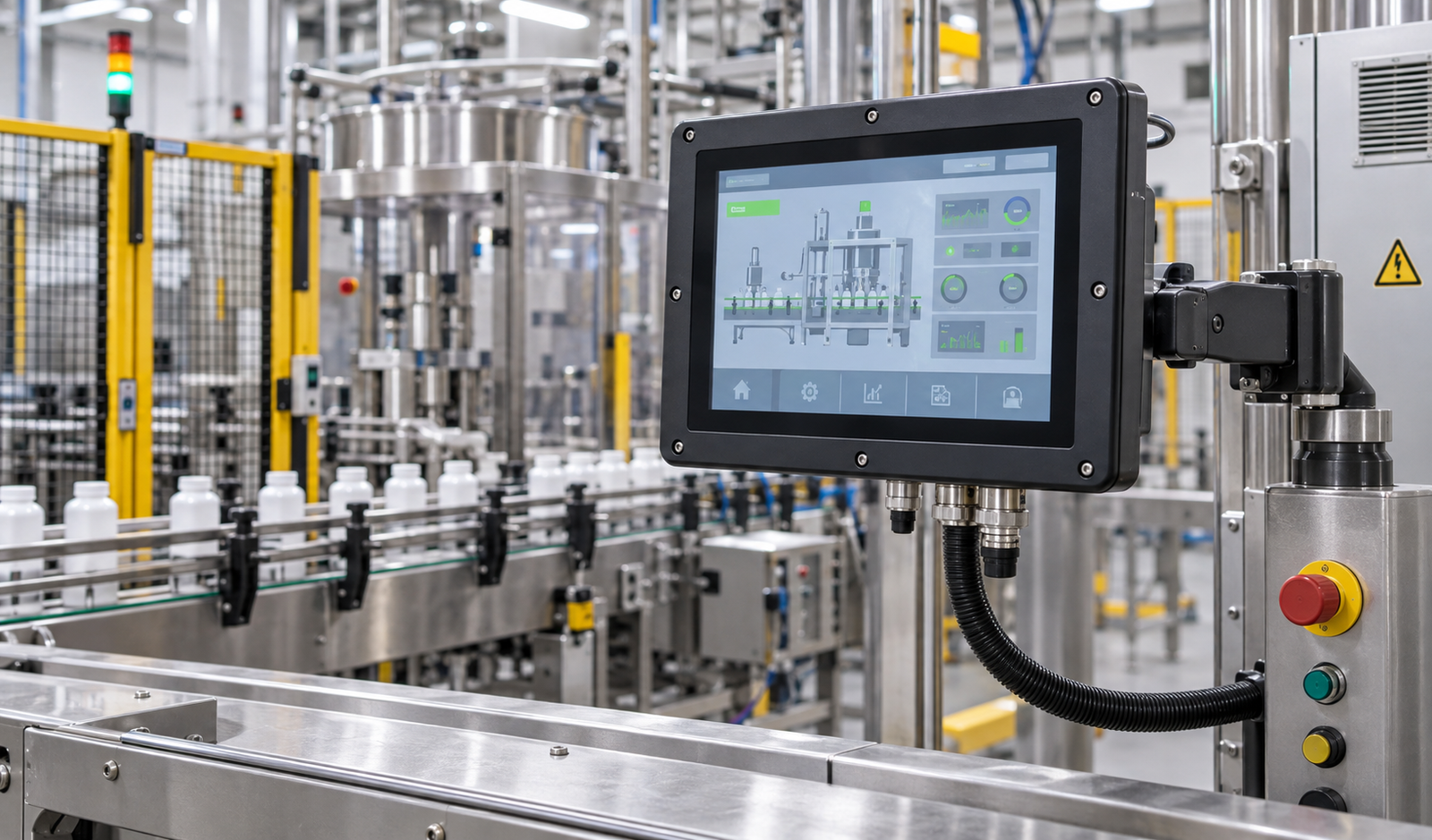
Industrial LCD Touchscreen Monitors
Touch displays for machine interfaces, operator stations and industrial control equipment. The monitor connects to an external industrial computer, controller or compatible host.
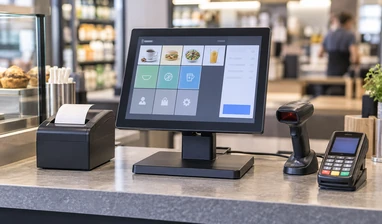
Kiosk & POS LCD Touchscreen Monitors
Display-only touch hardware for checkout counters, ordering terminals, ticketing equipment and information kiosks. Computing hardware and peripherals remain separate unless a complete system is specified.
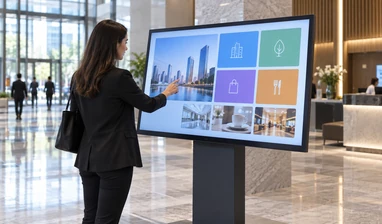
Large-Format LCD Touchscreen Monitors
Larger interactive displays for directories, retail browsing, information systems and custom commercial equipment. Viewing distance, installation structure and computing architecture should be reviewed together.
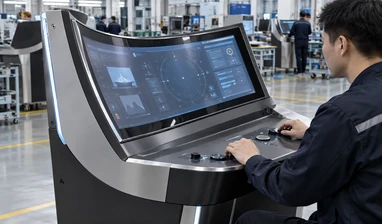
Curved LCD Touchscreen Monitors
C-shaped and J-shaped capacitive touch monitors for gaming cabinets, custom terminals and display structures that require a curved interactive surface.
Current Flat LCD Touchscreen Monitor Series
The current flat series provides five documented size starting points. Each model uses capacitive touch, a 16:9 Full HD display and a metal housing. Touch points, brightness, interfaces, mounting details and environmental specifications are confirmed from the selected model specification.
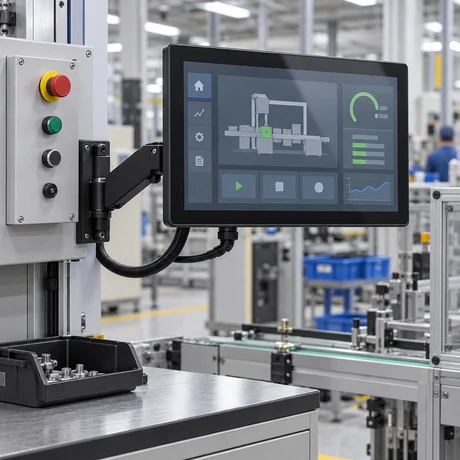
21.5-Inch LCD Touchscreen Monitor
Model: TP215-JX-DR-02
Best matched to:
Compact equipment, POS terminals, information systems and control interfaces.
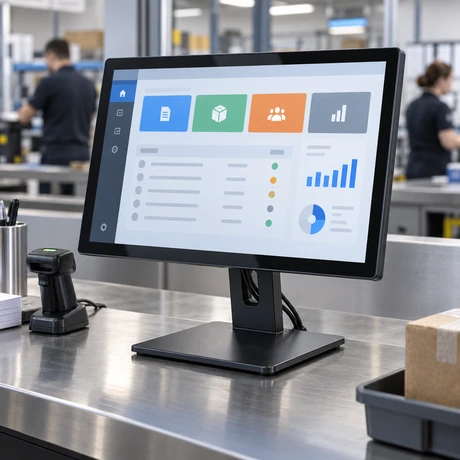
23.8-Inch LCD Touchscreen Monitor
Model: TP238-JX-DR-02
Best matched to:
Desktop equipment, commercial terminals, operator interfaces and interactive counters.
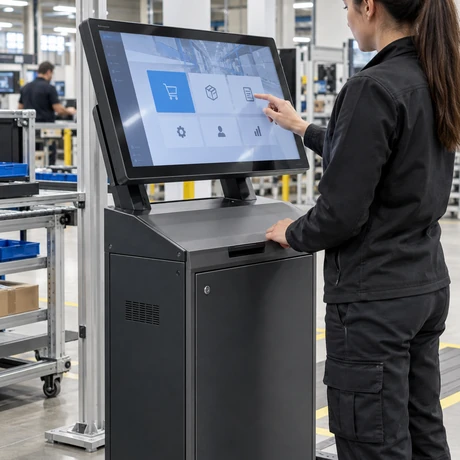
27-Inch LCD Touchscreen Monitor
Model: TP270-JX-DR-02
Best matched to:
Self-service equipment, operator workstations, retail interaction and gaming equipment integration.

31.5-Inch LCD Touchscreen Monitor
Model: TP315-JX-DR-02
Best matched to:
Information terminals, large control interfaces, commercial equipment and integrated cabinets.
The 31.5-inch panel is often grouped into the 32-inch market class. Use the approved drawing for actual panel and enclosure dimensions.
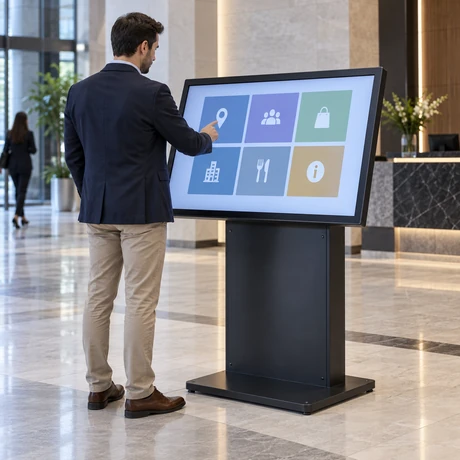
43-Inch LCD Touchscreen Monitor
Model: TP430-JX-DR-02
Best matched to:
Large information terminals, interactive retail equipment, commercial display systems and custom equipment cabinets.
Compare Current Flat Monitor Sizes
Use the table to choose a size starting point. Final mechanical, touch, optical and interface details belong in the approved model specification.
| Screen Size | Model | Touch | Resolution | Aspect Ratio | Housing | Typical Fit |
|---|---|---|---|---|---|---|
| 21.5 Inch | TP215-JX-DR-02 | Capacitive | 1920 × 1080 | 16:9 | Metal | Compact equipment, POS and control interfaces |
| 23.8 Inch | TP238-JX-DR-02 | Capacitive | 1920 × 1080 | 16:9 | Metal | Desktop equipment and interactive counters |
| 27 Inch | TP270-JX-DR-02 | Capacitive | 1920 × 1080 | 16:9 | Metal | Self-service equipment and operator workstations |
| 31.5 Inch | TP315-JX-DR-02 | Capacitive | 1920 × 1080 | 16:9 | Metal | Information terminals and integrated cabinets |
| 43 Inch | TP430-JX-DR-02 | Capacitive | 1920 × 1080 | 16:9 | Metal | Large information and commercial display systems |
Confirm before ordering:
- Overall and cutout dimensions
- Active display area
- Touch-point requirement
- Brightness and surface treatment
- Video and touch interfaces
- Power input
- VESA or equipment mounting
- Host and operating-system compatibility
LCD Touchscreen Monitor, Touch Panel, Touch Computer or Complete Kiosk?
These product names are often mixed together. The correct choice depends on where the display electronics, computer, enclosure and peripherals will be located.
| Hardware Type | Included Hardware | External Host | Main Selection Focus |
|---|---|---|---|
| LCD Touchscreen Monitor | LCD, touch sensor, controller, display electronics and housing | Required | Size, interfaces, mounting and touch behavior |
| Touch Panel Component | Touch sensor or touch glass; controller when specified | Required | Sensor size, glass, controller and bonding structure |
| Touchscreen Computer / Panel PC | Display, touch and integrated computing hardware | Not normally required | CPU platform, memory, storage, OS, I/O and thermal design |
| Complete Self-Service Kiosk | Touch display, computer, enclosure and selected peripherals | Included by project | Workflow, enclosure, printer, scanner, payment and service access |
Architecture Conclusion
Choose an LCD touchscreen monitor when the project already has a compatible computer or controller. Choose a touchscreen computer when the display must run the application itself. Choose a complete kiosk when the project also requires an enclosure and peripherals.
Choose the Touch Technology Around the User and Environment
Touch technology affects input method, gesture support, cover structure and integration. PCAP is the documented focus of the current flat monitor series. Resistive and infrared configurations require project-specific review.
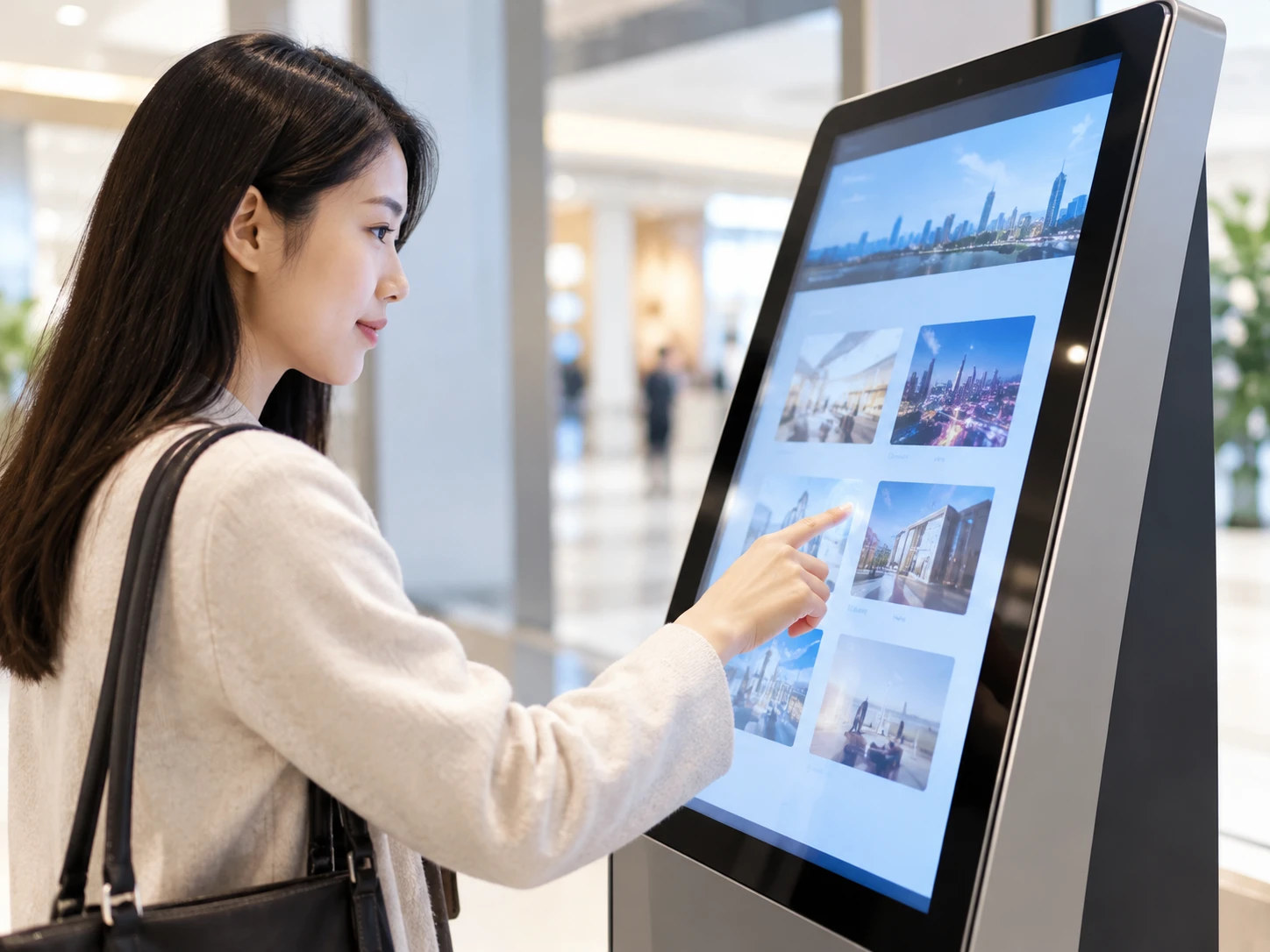
Projected Capacitive Touch
- ▸Uses finger conductivity or a compatible input device
- ▸Commonly selected for clear glass surfaces and gesture-based interaction
- ▸Multi-touch capability depends on the controller, model and operating system
- ▸Glove, water, stylus and thick-cover-glass behavior must be validated
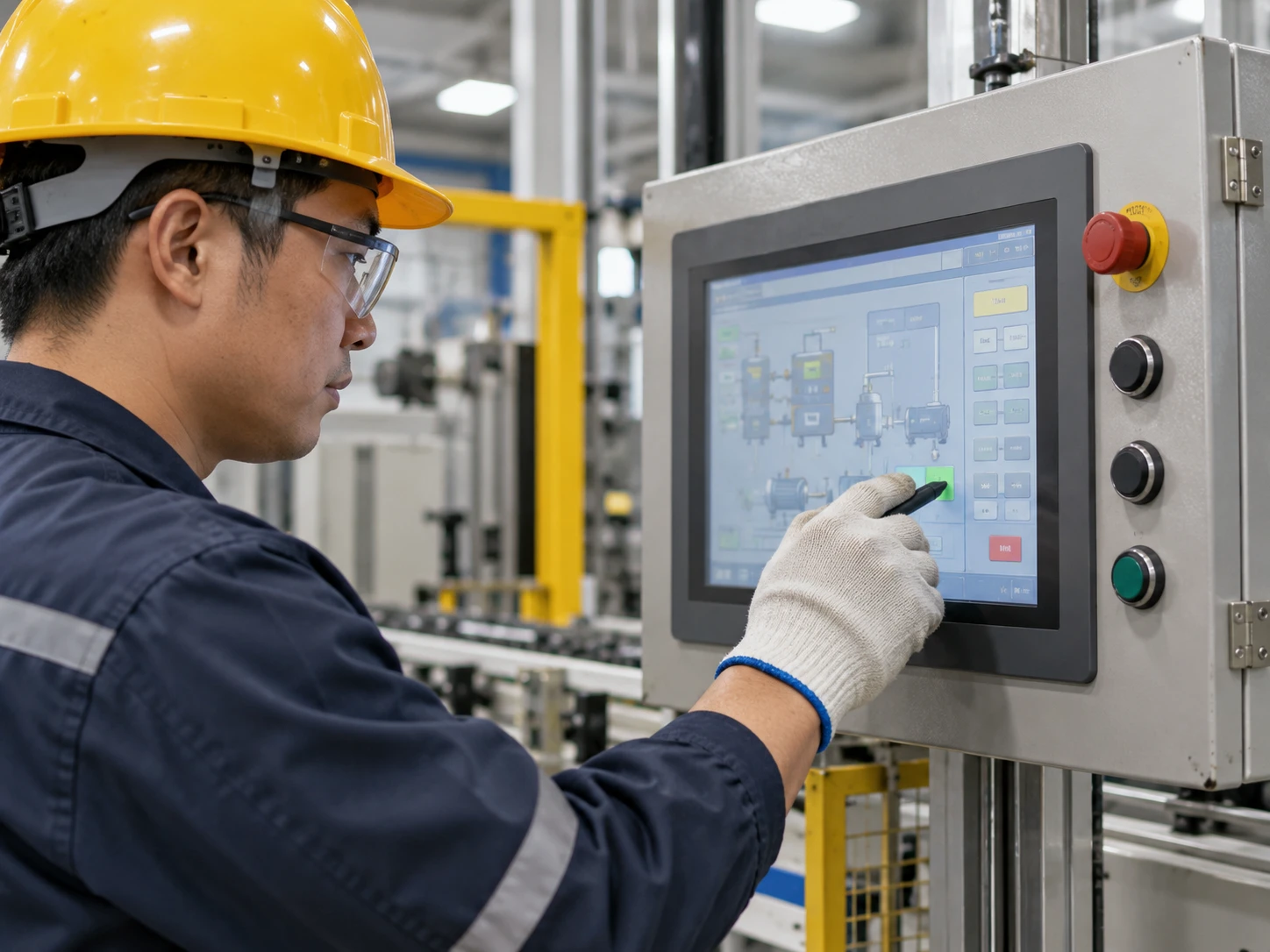
Resistive Touch
- ▸Responds to pressure rather than finger conductivity
- ▸Can suit applications that use gloves or a simple stylus
- ▸Gesture and multi-touch capability may be more limited
- ▸Surface construction and operating conditions must be confirmed
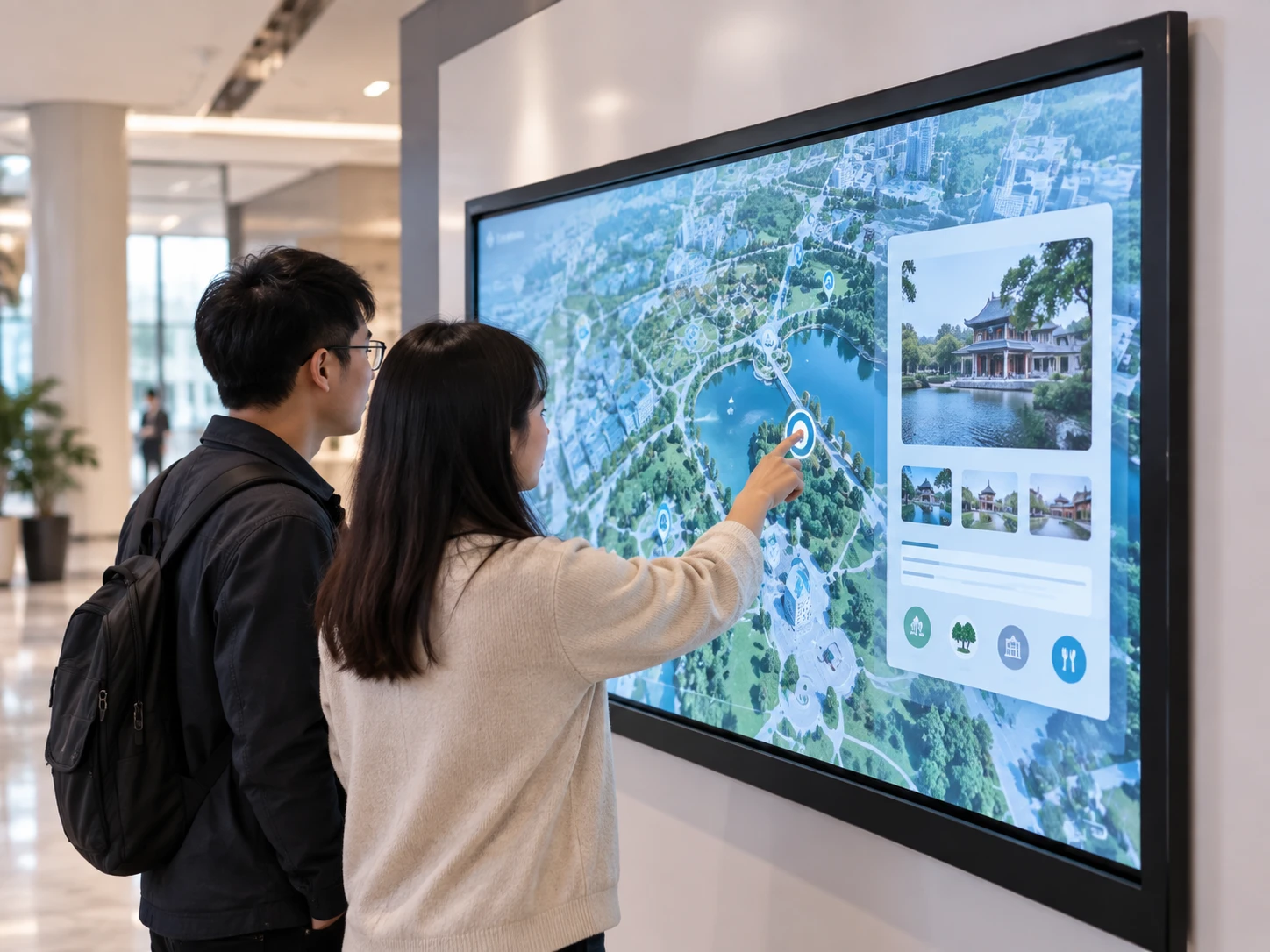
Infrared Touch
- ▸Detects interruption across an optical grid
- ▸Can accept different opaque input objects
- ▸Often considered for larger display formats
- ▸Bezel structure, contamination and installation conditions require review
Important Note: Do not select touch technology by touch-point count alone. Define the user, input object, cover glass, environment, software gestures and cleaning method first.
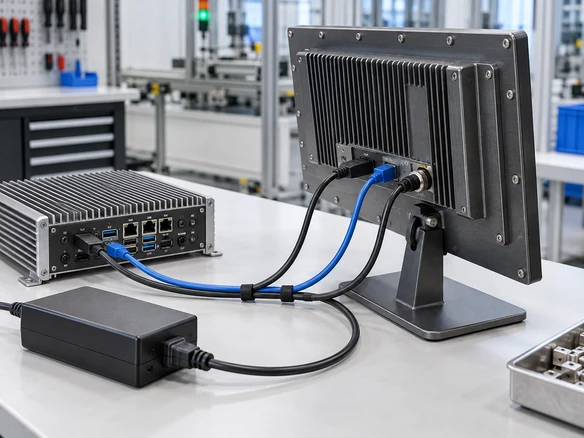
Video and Touch Use Separate Signal Paths
An LCD touchscreen monitor normally needs a video connection, a touch-data connection and power. HDMI, DisplayPort or VGA can carry the image. USB commonly returns touch input to the host computer.
HDMI does not normally carry touchscreen input. If the screen displays an image but does not respond to touch, check the USB touch connection, controller, driver and operating-system configuration.
Signal Routing
Available interfaces vary by model and configuration.
Compatibility Checklist
| Check | Why It Matters |
|---|---|
| Host video output | Must match the monitor input or an approved adapter path |
| Touch-data interface | Required for touch commands to return to the host |
| Operating system and driver | Determines recognition, calibration and gesture behavior |
| Display orientation | Touch mapping must match landscape or portrait use |
| Cable route & strain relief | Affects installation space and connector stability |
| Power input | Must match the approved monitor configuration |
Plan the Mounting Structure Before the Enclosure Is Finalized
The display size alone does not define installation fit. Review the monitor outline, active area, opening dimensions, mounting points, connector position, cable bend radius and service clearance.
Desktop or Counter Installation
For POS desks, operator stations and interactive counters. Confirm stand geometry, viewing angle, user reach and cable routing.
VESA or Wall Mounting
For monitor arms, wall structures, brackets and custom stands. Confirm the VESA pattern and total assembly weight from the selected model drawing.
Open-Frame Embedded
For kiosks, equipment panels and machine enclosures. Confirm cabinet opening, bezel overlap, bracket positions, front appearance and rear access.
Custom Cabinet Integration
For gaming cabinets, information terminals and application-specific equipment. Review the display, touch layer, cover glass, housing and cable exit together.
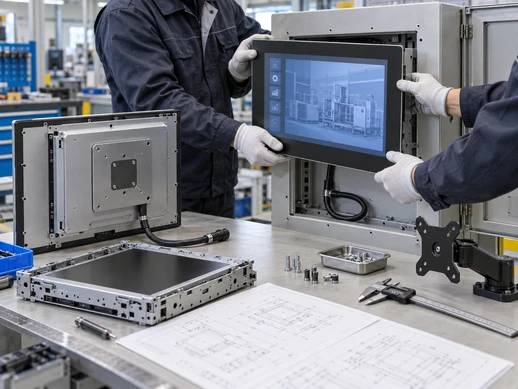
Mechanical Drawing Review Points:
- Overall Dimensions
- Active Display Area
- Cabinet Opening
- Mounting Holes
- Rear Clearance
- Connector Position
- Cable Exit
- Service Access
Conclusion: Use the approved mechanical drawing rather than the market screen-size label when designing the enclosure.
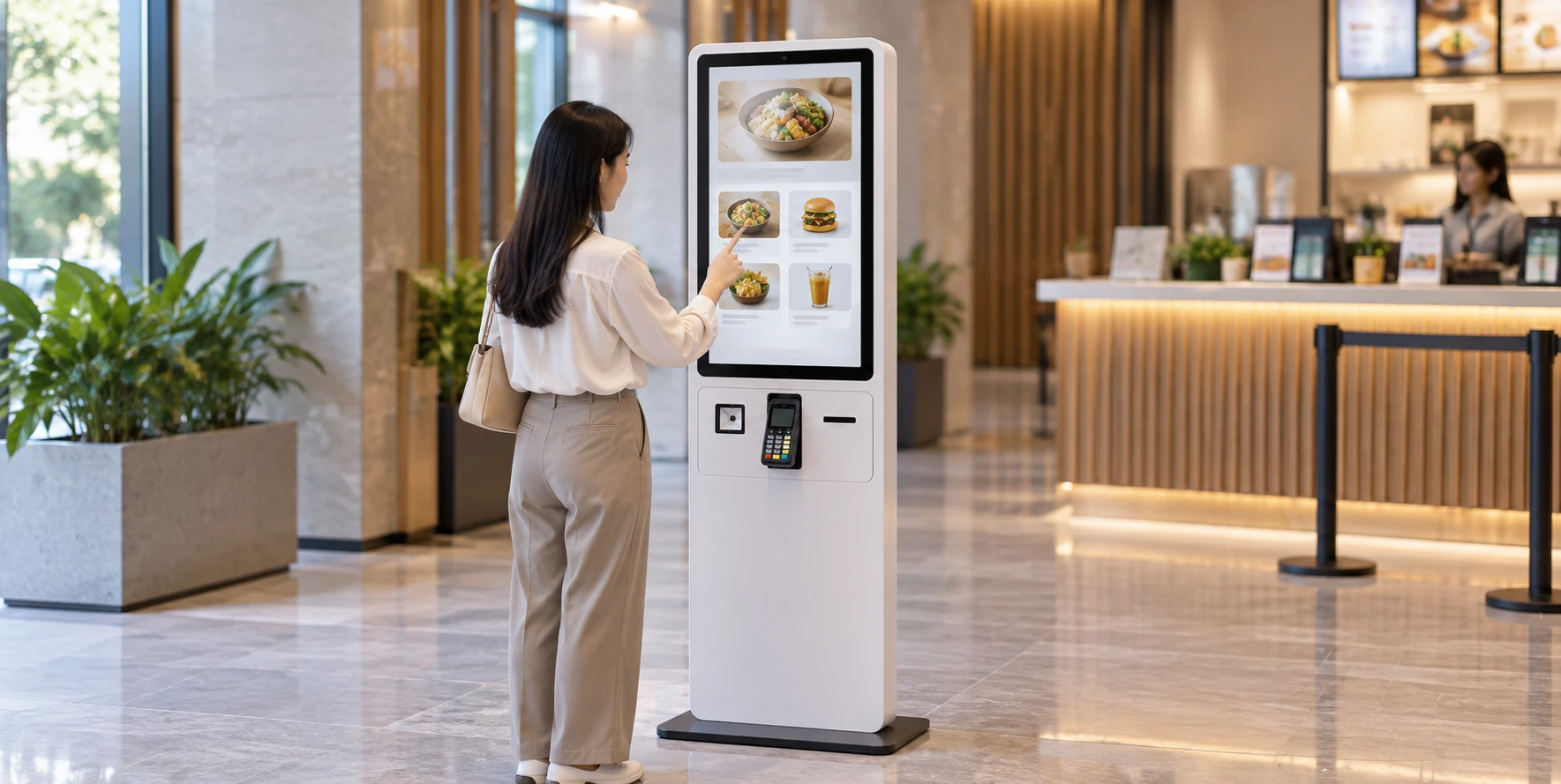
Match the Monitor Format to the Equipment
A monitor can be used across several applications, but the same specification should not be copied from one installation to another without checking the host, mechanical design and user environment.



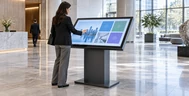
| Application | Recommended Starting Point | Main Selection Priorities |
|---|---|---|
| Retail POS & Checkout | Flat or POS LCD touchscreen monitor | Counter space, user angle, host ports, touch-data connection and cable management |
| Self-Ordering & Information Kiosk | Open-frame or kiosk touch monitor | Cabinet opening, public-use position, external computer and peripheral layout |
| Industrial Control & HMI | Industrial or panel-mount touch monitor | Host compatibility, installation, input method and operating environment |
| Commercial Information Display | Flat or large-format touch monitor | Viewing distance, user reach, content resolution and mounting |
| Gaming & Custom Cabinet | Flat open-frame or curved touch monitor | Cabinet geometry, active area, curve, mounting and interface routing |
| Large Interactive Terminal | Large-format LCD touch monitor | Screen role, installation structure, resolution and computing architecture |
Resolve the Integration Risks Before Production
1. The image works, but touch does not
Situation: The video cable is connected, but the touch-data path is missing or not recognized.
Response: Review the USB touch connection, controller, driver and operating-system settings.
Procurement value: A defined signal map makes system testing and troubleshooting clearer.
2. The monitor does not fit the cabinet
Situation: The market screen-size label was used instead of the mechanical drawing.
Response: Review overall dimensions, active area, cabinet opening, mounting points and rear clearance before the enclosure is finalized.
Procurement value: The display and cabinet can be reviewed against the same dimensional reference.
3. Visibility changes in the real installation
Situation: Ambient light, viewing angle, glass and installation position were not considered during model selection.
Response: Confirm brightness, surface treatment, viewing angle and mounting orientation for the intended environment.
Procurement value: The optical specification is connected to the actual installation rather than selected in isolation.
4. The wrong hardware architecture is quoted
Situation: A request for a monitor is interpreted as a touchscreen computer or a complete kiosk.
Response: Define the scope as monitor-only, integrated computer or complete terminal before comparing detailed specifications.
Procurement value: Display, computing and enclosure responsibilities remain clear.
Custom LCD Touchscreen Monitor Options
Customization starts with a documented monitor or product format, then reviews the changes required for the equipment. Availability depends on the selected panel, electronics, tooling and project requirements.
Display
- • Screen size
- • Resolution
- • Brightness requirement
- • Viewing area
- • Landscape or portrait orientation
Touch
- • PCAP, resistive or infrared review
- • Touch-point requirement
- • Cover glass & Printed border
- • Touch-area mapping
- • Input method
Electronics
- • Video input
- • Touch-data interface
- • Power input
- • Controller-board matching
- • Host and OS compatibility
Mechanical Structure
- • Finished metal or open-frame housing
- • Mounting holes & VESA pattern
- • Cabinet integration
- • Cable exit & Service clearance
- • Exterior color
Branding & Identification
- • Logo customization
- • Product labels
- • Model identification
- • Packaging requirements (subject to review)
Coordinate the LCD, Touch and Mechanical Structure in One Review
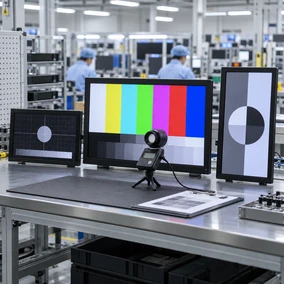
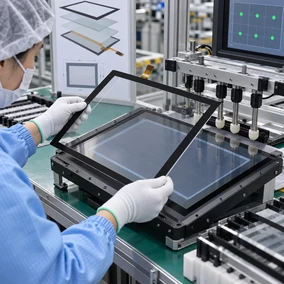
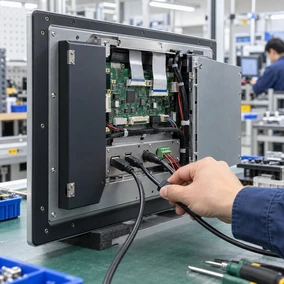
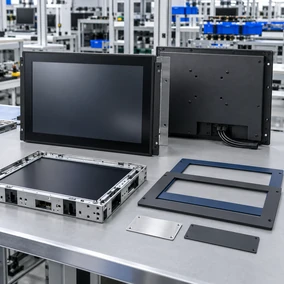
A touch monitor project involves more than selecting an LCD size. The display panel, touch layer, controller, housing, mounting and host connection must describe one compatible product.
Documented Flat Starting Series
Five current flat sizes provide a defined starting point for common commercial and equipment projects: 21.5, 23.8, 27, 31.5 and 43 inches.
Product-Family Options
Flat, open-frame, industrial, kiosk, large-format and curved formats allow the project to start from the physical architecture that best matches the equipment.
Broader Custom Review
Lucky-XFC’s touch display portfolio supports custom review from 2.5 to 120 inches. The applicable LCD panel, touch structure and monitor format are confirmed project by project.
OEM & ODM Coordination
Display, touch, mechanical structure, logo and interface requirements can be reviewed from design and sampling through production preparation.
Conclusion
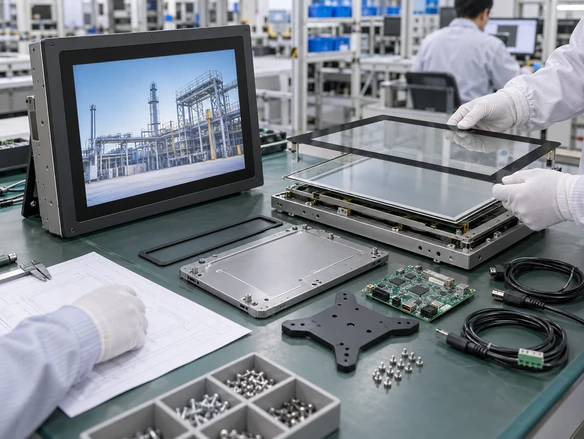
The practical advantage is a clearer product definition across the parts that affect display integration. Final performance and compatibility remain tied to the approved model and project specification.
From Product Requirement to Production Handoff
Requirement & Reference Review
Review the application, screen size, host system, installation, reference sample and required interfaces.
Component Evaluation
Evaluate the LCD panel, touch structure, controller and related electronics against the project definition.
Industrial & Mechanical Design
Confirm product form, housing, mounting, opening dimensions, cable direction and service space.
Prototype Construction
Build the agreed configuration for product and equipment review.
Sample Review
Check the physical fit, display connection, touch behavior and application compatibility against the approved requirements.
Assembly & Production Handoff
Use the confirmed specification and drawings as the shared reference for assembly, inspection and shipment preparation.

Touch Display Manufacturing and Inspection in Shenzhen
Shenzhen Xin Fei Chi Technology Co., Ltd. has focused on touchscreen displays, all-in-one machines and curved touch screens for 13 years. The company combines product development, production and sales for custom display and terminal projects.
- 3,100 m² Manufacturing Facility
- 160+ Employees
- 26 Quality Control Personnel
- 100% Inspection Throughout Production
- OEM, ODM & Logo Customization
- Design, Sampling and Production Support
LCD Touchscreen Monitor Selection Guide
Guide Contents
- Does an LCD touchscreen monitor need a computer?
- How does touch connect to the host?
- Which screen size should I choose?
- When should I use an open-frame monitor?
- How do I choose PCAP, resistive or infrared touch?
- Will the monitor work with my operating system?
- Is a touchscreen monitor the same as a panel PC?
- What information belongs in an RFQ?
Does an LCD touchscreen monitor need a computer?
A standard LCD touchscreen monitor needs an external computer, industrial PC, media player or compatible controller. The monitor displays the image and returns touch input, but it does not normally run the application by itself.
Choose a touchscreen computer or panel PC when CPU, memory, storage and the operating system must be built into the display assembly.
How does touch connect to the host?
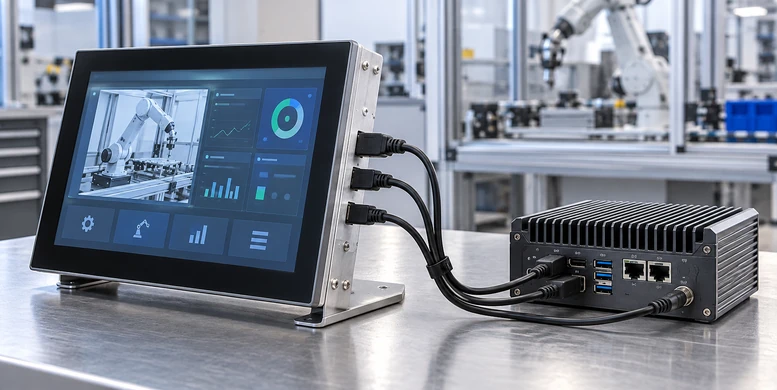
The visual image and touch input commonly use separate signal paths. HDMI, DisplayPort or VGA carries the image, while USB commonly sends touch input back to the host. Power is supplied through the approved monitor power connection.
HDMI alone normally produces an image without enabling touch. USB-C can combine several functions only when the monitor, host port, cable and power requirement are compatible.
Which screen size should I choose?
Start with equipment space, viewing distance, user reach and the amount of information shown on screen. The current flat series provides 21.5, 23.8, 27, 31.5 and 43-inch starting points, all with capacitive touch, 16:9 Full HD panels and metal housings.
Use the mechanical drawing to design the enclosure. The marketed screen size does not describe the outside dimensions, active area, mounting holes or rear clearance.
When should I use an open-frame monitor?
Use an open-frame monitor when the display will be built behind a kiosk fascia, machine panel or custom enclosure. The equipment provides the finished exterior, while the monitor supplies the LCD, touch system, display electronics and integration structure.
An enclosed flat monitor is more suitable when the product needs a finished housing for desktop, VESA, wall or external bracket installation.
How do I choose PCAP, resistive or infrared touch?
Choose by input method and environment. PCAP is commonly selected for finger input, clear glass and gesture-based interfaces. Resistive touch can suit pressure input, gloves or a simple stylus. Infrared touch may be considered for large formats and different opaque input objects.
Touch-point count alone is not enough. Confirm cover glass, glove use, water exposure, cleaning method, stylus requirement and software gestures before selecting the controller.
Will the monitor work with my operating system?
Compatibility depends on the touch controller, connection, driver, operating-system version and required gestures. A host may display video correctly while touch input still needs a separate USB connection or driver review.
Provide the exact host device, operating system, software and connection plan. Compatibility should be confirmed against the selected monitor configuration rather than assumed across an entire product family.
Is a touchscreen monitor the same as a panel PC?
No. A touchscreen monitor provides display and touch input and normally relies on an external host. A panel PC integrates the display, touch system and computing hardware in one assembly.
The monitor architecture keeps the host separate and can make display and computer replacement independent. The panel-PC architecture reduces the number of separate hardware units but requires processor, memory, storage, operating-system and thermal review.
What information belongs in an RFQ?
A useful RFQ identifies the product architecture first, then records the application, screen size, quantity, host system, video output, touch-data connection, mounting, cabinet opening, operating environment and customization requirements.
For an embedded project, include a drawing or reference sample when available. For a POS or kiosk project, also identify the computer and peripherals so the monitor interface plan can be reviewed in the complete equipment context.
Still comparing product formats?
Get help matching the monitor to your equipment.
Continue Your Touch Display Review
Use these related pages when the project requires a narrower construction, a different computing architecture or a complete terminal.
Touch Panel Monitors
Compare finished touch monitors, open structures and component-level touch integration.
Open-Frame Touch Monitors
Review monitors designed for kiosks, machines and custom enclosure installation.
Industrial Monitors
Explore display hardware for machine interfaces, operator stations and industrial equipment.
Kiosk Touch Screen Monitors
Select display-only touch hardware for self-service enclosure integration.
Large Touch Screen Monitors
Compare larger flat, curved and interactive display formats.
Curved Touch Monitors
Review documented C-shaped and J-shaped capacitive touch display families.
Touchscreen Computers
Choose an integrated display, touch and computing system when an external host is not preferred.
Self-Service Kiosks
Move from a monitor-only requirement to a complete enclosure, computer and peripheral project.
Request an LCD Touchscreen Monitor Review
Share the application, preferred product type and main integration requirements. We can use this information to review a current flat model or a custom LCD touch monitor direction.
Useful project details include:
- Application or equipment type
- Preferred screen size
- External host and operating system
- Video and touch-data interfaces
- Desktop, VESA, panel or cabinet installation
- Touch technology or input method
- Quantity and customization requirements
