
Custom POS Touchscreen Monitor Manufacturer for Retail Systems
Build a POS touchscreen monitor around the counter space, operator workflow, host computer and connection requirements of your retail or hospitality system. Lucky-XFC supports desktop, flat PCAP, open-frame and integrated POS hardware projects through model-based configuration and OEM/ODM review.
The primary 15.6-inch product path is a display-only touchscreen monitor for connection to an external POS computer. POS software, payment processing and peripherals are not included unless separately defined.
- 15.6-inch Full HD configuration starting point
- PCAP or resistive touch review
- HDMI, VGA and DVI video paths
- Panel, VESA and project-specific mounting
- Monitor-only and integrated-computer options
POS Touchscreen Monitor Project Scope at a Glance
Primary Product
15.6-inch external-host touch monitor
Touch Options
PCAP or resistive according to configuration
Installation
Desktop, VESA, panel or open-frame
System Paths
Monitor only or integrated POS computer
A POS touchscreen monitor provides the display and touch-input functions of a point-of-sale workstation. It does not automatically include a processor, operating system, POS application, payment service or retail peripherals.
POS Touchscreen Monitor Product Paths
Choose between a display-only monitor, an embedded display or a complete touch computer before defining the detailed POS configuration.
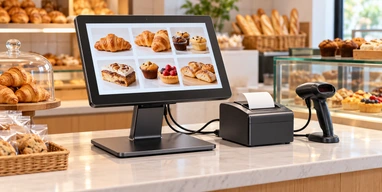
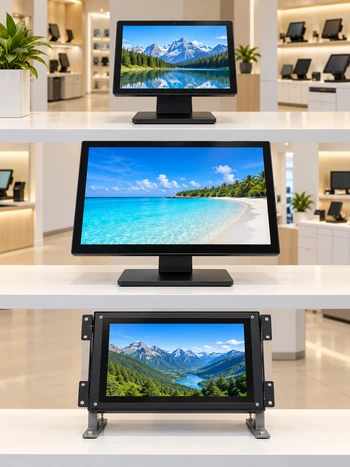
15.6-Inch Desktop POS Touchscreen Monitor
The primary path for cashier counters, ordering stations and reception desks. The XFC-IM-156P starting configuration provides a 15.6-inch Full HD display with PCAP or resistive-touch review, panel or VESA mounting, and HDMI, VGA and DVI video inputs.
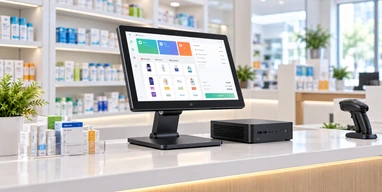
21.5–23.8 Inch Flat PCAP POS Monitor
A larger metal-housed touch-display path for more complex menus, inventory screens, customer service desks and commercial terminals.
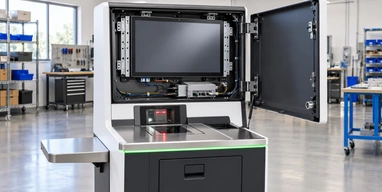
Open-Frame POS Touchscreen Monitor
An embedded display path for custom counters, kiosks, ordering machines and POS enclosures where the equipment provides the finished exterior structure.
Review Open-Frame Integration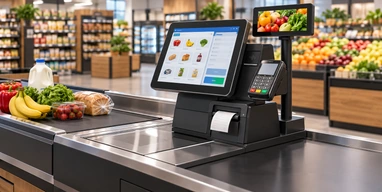
Integrated POS Touchscreen Computer
A combined display, touch and computing platform for projects that require the processor, memory, storage, operating system and system interfaces inside the terminal.
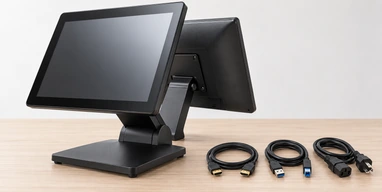
Monitor Only
Provides display and touch input. An external POS computer runs the operating system and application.
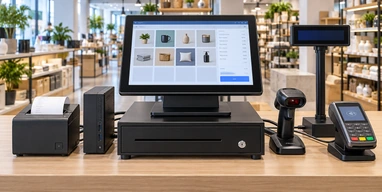
Complete POS Hardware Architecture
May include computing hardware and separately defined peripherals, but software, payment processing and peripheral supply must be confirmed.
What Is a POS Touchscreen Monitor?
A POS touchscreen monitor is an interactive display used as the operator-facing or customer-facing interface of a point-of-sale system. It presents transaction information and returns touch input to the connected POS computer.
The monitor is one part of the complete system. A working POS station may also require a computer, POS application, network connection, barcode scanner, receipt printer, cash drawer, payment terminal and customer display.
-
1
Display — Presents the application and transaction interface
-
2
Touch Sensor and Controller — Returns operator input
-
3
POS Computer — Runs the operating system and application
-
4
POS Software — Manages products, orders and transactions
-
5
Peripherals — Scanner, printer, cash drawer and payment hardware
-
6
Network and Services — Connects the terminal to approved business systems
Confirm which layers are included in the hardware quotation before comparing prices.

POS Touchscreen Monitor Integration Problems to Prevent
A Monitor Is Ordered When a Complete POS Computer Is Required
The display arrives without a processor, storage or operating system. Define the hardware architecture before selecting a model.
Video Works but Touch Does Not
HDMI, VGA or DVI can carry the image, while touch normally needs a separate USB or controller-specific data connection.
The Screen Blocks Counter Space
A suitable diagonal may still have an unsuitable base, tilt range, depth or cable direction.
The Touch Method Does Not Match the Operator
Bare-finger retail use, gloves, stylus input, moisture and cleaning procedures can lead to different touch-technology choices.
POS Peripherals Are Assumed to Be Included
A scanner, printer, cash drawer, customer display or payment terminal requires separate interface and supply confirmation.
Software Compatibility Is Approved from the Connector List
The operating system, touch controller, driver behavior, screen orientation and POS application must be evaluated together.
POS Touchscreen Monitor Verified Starting Points
Use the documented configurations below as starting points. Final touch points, brightness, dimensions, stand, touch-data connection and environmental requirements remain subject to the selected specification.
| Configuration | Screen | Verified Display and Touch | Mounting | Video Inputs | POS Direction |
|---|---|---|---|---|---|
| XFC-IM-156P | 15.6 inch | 1920 × 1080; PCAP or resistive path | Panel / VESA | HDMI / VGA / DVI | Primary desktop or equipment-integrated POS monitor |
| TP215-JX-DR-02 | 21.5 inch | 1920 × 1080; PCAP; metal housing | Confirm by model | Confirm by model | Larger operator interface |
| TP238-JX-DR-02 | 23.8 inch | 1920 × 1080; PCAP; metal housing | Confirm by model | Confirm by model | Retail counter or service terminal |
| XFC-IM-215O | 21.5 inch | 1920 × 1080; PCAP | Open frame | HDMI / DP / VGA | Embedded POS or kiosk integration |
| Integrated POS Computer | Project-defined | Display, touch and computer configured together | Desktop or custom enclosure | Project-defined | Standalone POS hardware terminal |
The table identifies supply and configuration paths. It is not a universal specification for every POS touchscreen monitor.
POS Touchscreen Monitor System and Connection Architecture
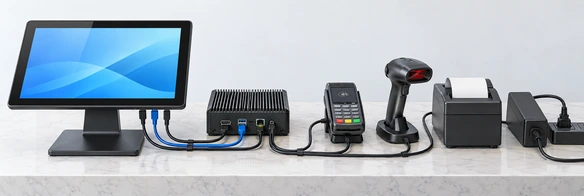
Video, touch data and power are separate functions unless the selected hardware confirms a combined connection. POS peripherals normally connect to the computer or approved terminal controller rather than directly to the monitor.
- Video — HDMI, VGA, DVI, DisplayPort or confirmed USB-C
- Touch Data — USB or controller-specific interface
- Power — Approved DC input or confirmed system power
- Peripherals — Connected through the POS computer or terminal hardware
- Network — Managed by the POS computer or integrated system
POS Touchscreen Monitor Touch Technology Comparison
| Selection Factor | PCAP Touch | Resistive Touch |
|---|---|---|
| Input method | Bare finger or compatible conductive input | Pressure from finger, glove or stylus |
| Gesture support | Multi-touch may be available by controller and OS | Commonly used for simpler point input |
| Front surface | Cover-glass-based construction | Flexible layered touch surface |
| Common POS direction | Retail counters, reception and modern ordering interfaces | Selected kitchen, glove or stylus workflows |
| Required validation | Touch points, controller, grounding, OS and application | Actuation, surface behavior, controller and application |
| Supply status | Documented across multiple Lucky-XFC configurations | Documented on selected industrial paths |
Selection note: Do not select touch technology only from an industry label. Test the actual operator input, cleaning method, software controls and selected product configuration.
POS Touchscreen Monitor Host and Software Compatibility
A POS touchscreen monitor should be validated with the actual computer and application image. A matching connector does not confirm touch recognition, correct mapping or software usability.
Compatibility Checklist:
- POS computer model and OS
- Graphics output & resolution
- USB touch-data connection
- Touch-controller recognition
- Orientation & touch mapping
- Single or dual-display
- POS application layout
- User permissions & driver policy
- Sleep, restart & reconnect
- Cable length & port availability
Windows, Android or Linux support is configuration-specific. Do not display compatibility logos unless the selected hardware and operating-system build have been verified.

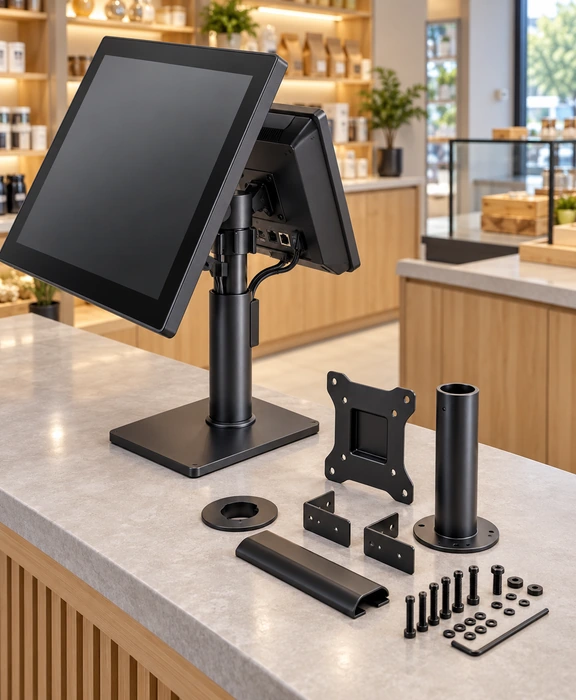
POS Touchscreen Monitor Counter and Mounting Integration
The monitor should fit the cashier’s reach, viewing angle and available counter space without blocking the scanner, printer, payment terminal or customer interaction area.
Integration Checks
- • Monitor outline & base footprint
- • Screen height & viewing angle
- • Operator touch reach
- • Tilt or fixed-angle requirement
- • VESA pattern & screw depth
- • Counter, pole, wall or panel mounting
- • Cable exit & bend clearance
- • Access to power & data connectors
- • Scanner & printer placement
- • Customer-facing display direction
- • Cleaning & service access
- • Anti-tip & structure stability
Mounting Paths
- Desktop Stand
- VESA Arm or Pole
- Counter-Mounted Bracket
- Panel-Mounted Display
- Open-Frame Enclosure
POS Touchscreen Monitor Applications

Retail Checkout Counters
Support product lookup, cart review and transaction workflows through an operator-facing touch interface.
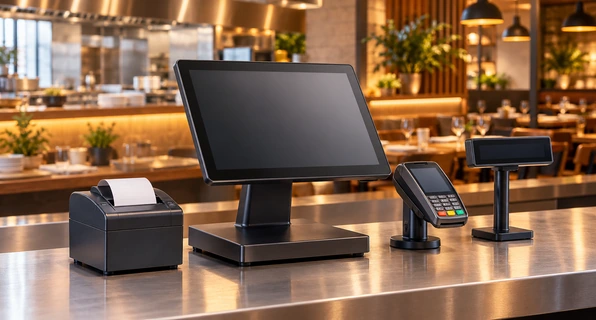
Restaurant Ordering Stations
Present menu categories, modifiers and order controls after touch behavior, cleaning method and software layout are validated.

Hotel and Service Reception
Provide a touch interface for reservations, service records, customer information and front-desk workflows.

Pharmacy and Specialty Retail
Display product, inventory and customer-service information through the approved POS application.

Self-Service Ordering Equipment
Use an open-frame or integrated product path when customers interact directly with the terminal enclosure.
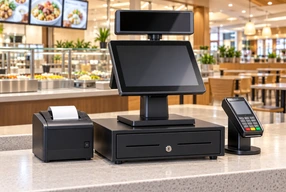
Customer-Facing Information Display
Add a separately defined customer display when order totals, product information or promotional content must face the shopper.
POS Touchscreen Monitor
Restaurant Counter Hardware Refresh
A restaurant-system integrator is updating counter displays while keeping the existing POS computers, ordering software, receipt printers and cash drawers. The initial request specifies only a 15.6-inch POS touchscreen monitor.
The project requires more than matching the diagonal size. The replacement display must work with the existing graphics output, USB touch connection, operating-system image, countertop arrangement and operator workflow.
- 1. Record the Existing System Identify the host computer, operating system, video output, USB availability and POS application.
- 2. Choose the Monitor Path Use XFC-IM-156P as the initial 15.6-inch configuration base, not as an automatic direct replacement.
- 3. Review Counter Integration Confirm the base footprint, viewing angle, VESA option, cable direction and nearby peripherals.
- 4. Validate Touch Operation Check touch recognition, mapping, menu selection and reconnect behavior with the intended system.
- 5. Approve the Configuration Record the monitor specification, cables, mounting and required adjustments before production.
This representative scenario illustrates a controlled hardware review. It does not identify a customer, restaurant, order quantity, deployment country or published performance result.
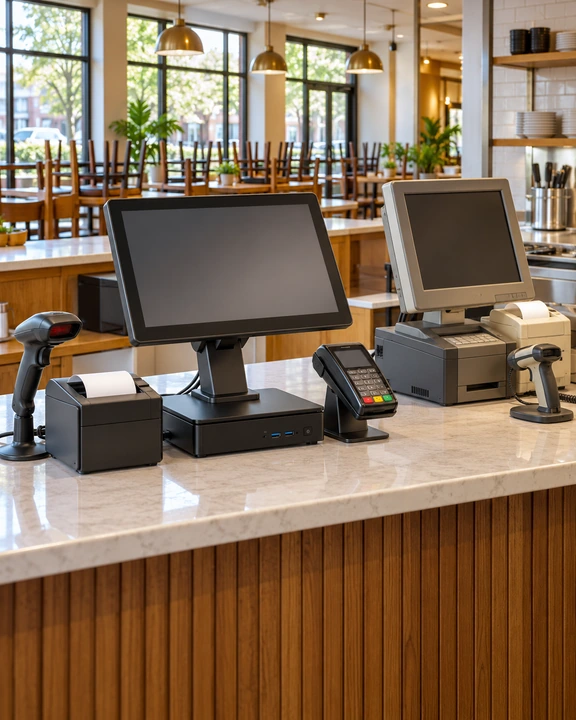
POS Touchscreen Monitor Customization Options
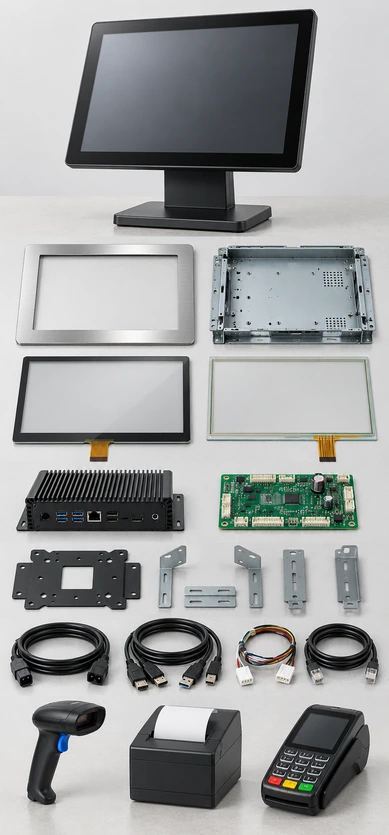
Display
- • 15.6-inch Full HD starting configuration
- • 21.5 and 23.8-inch flat PCAP paths
- • Alternative sizes subject to product review
- • Landscape or portrait application layout
Touch
- • PCAP or resistive selection
- • Required input method
- • Touch-point confirmation
- • Glove or stylus validation
Mechanical
- • Desktop, VESA, panel or open-frame mounting
- • Base and bracket review
- • Housing color and logo direction
- • Connector location and cable access
System
- • External POS computer
- • Integrated Windows, Android or Linux hardware review
- • Memory, storage and network configuration where applicable
- • Dual-display or customer-display planning
Peripheral Coordination
Peripheral coordination does not mean that every peripheral, software license or payment service is included. Final supply scope must be stated in the approved quotation.
POS Touchscreen Monitor Project Workflow

1. Define the POS Workflow
Record the operator, customer interaction, software and transaction process.
2. Choose the Hardware Architecture
Select monitor only, open frame or integrated POS computer.
3. Confirm Display and Touch
Define screen size, resolution, PCAP or resistive input and required behavior.
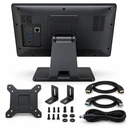
4. Review Host, Interfaces and Mechanics
Match video, touch data, power, mounting, counter space and peripherals.
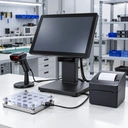
5. Validate the Sample Configuration
Test the approved hardware with the intended operating system and POS application.

6. Release the Approved Configuration
Use the confirmed specification, drawing, cable set and inspection requirements for production.
POS Touchscreen Monitor Manufacturing and Inspection

Inspection should follow the approved model specification and POS system requirements. A generic product label cannot replace checks for the selected display, touch controller, interfaces, mounting structure and accessories.
Inspection Directions
- Display image and resolution
- Visible panel condition
- Touch response and mapping
- Video-input operation
- Touch-data connection
- Power and control functions
- Housing and glass appearance
- Stand, VESA or bracket configuration
- Cable and accessory confirmation
- Label and packaging review
Model-specific test methods, acceptance limits, certificates and environmental ratings must be confirmed for the selected configuration.
Why Choose Lucky-XFC for a POS Touchscreen Monitor Project?
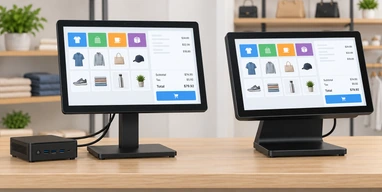
Monitor-Only and Integrated Paths
Choose an external-host display or review a complete touch-computing configuration without confusing the two product types.
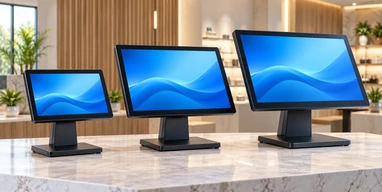
Documented Starting Models
Begin with published 15.6, 21.5 and 23.8-inch configuration references instead of an undefined POS screen request.

PCAP and Resistive Review
Match the touch method to the operator, cleaning process, software controls and environment.
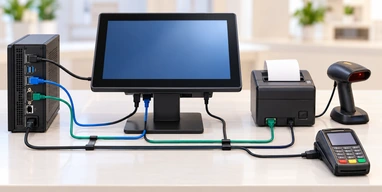
Interface Coordination
Review video, touch data, power and host ports before confirming cables or hardware.
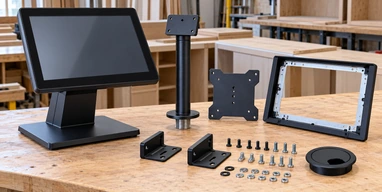
Mechanical Integration
Coordinate the display, base, VESA mount, open-frame structure and surrounding POS peripherals.

Configuration-Based Inspection
Inspect the approved display, touch, interfaces, structure and accessories against the final project record.
POS Touchscreen Monitor Selection Matrix
| Project Requirement | Recommended Path | Confirm Before Approval |
|---|---|---|
| Compact cashier counter with external PC | 15.6-inch XFC-IM-156P path | Touch type, host ports, stand or VESA, USB touch and counter footprint |
| Larger menu or inventory interface | 21.5–23.8-inch flat PCAP monitor | Operator reach, mounting, interfaces and actual model specification |
| Display built into a kiosk or cabinet | Open-frame POS touchscreen monitor | Cutout, depth, brackets, cooling and service access |
| No external POS computer desired | Integrated POS touchscreen computer | CPU, memory, storage, OS, software and interfaces |
| Bare-finger modern retail workflow | PCAP configuration | Touch points, controller, OS and application |
| Selected glove or stylus workflow | Resistive-touch evaluation | Actuation, surface, controller and application |
| Existing POS computer retained | Monitor-only configuration | Graphics output, USB, OS, resolution and touch recognition |
| Customer-facing second display | Separate customer-display path | Content, connection, placement and software support |

The matrix identifies a review path. It does not replace the final product specification, drawing or application test.
POS Touchscreen Monitor Buying Guide

Do I need a POS touchscreen monitor or a complete POS terminal?
Choose a monitor when an existing computer will run the operating system and POS application. Choose an integrated terminal when the display assembly must include the processor, memory, storage and operating system.
Is PCAP or resistive touch better for POS use?
PCAP commonly suits bare-finger retail and hospitality interfaces. Resistive touch may suit selected pressure, glove or stylus workflows. Validate the actual operator and application instead of selecting by industry name alone.
Does HDMI carry the touch signal?
HDMI normally carries the display image and audio. Touch input usually requires a separate USB or controller-specific data connection.
What screen size fits a POS counter?
Choose by application layout, operator reach, viewing distance, base footprint and surrounding peripherals. A larger display can show more information but also occupies more counter space.
Can the monitor work with existing POS software?
The monitor presents the application, but compatibility depends on the host computer, operating system, touch controller, resolution, orientation and software interface.
Do scanners and printers connect to the monitor?
They normally connect to the POS computer or integrated terminal hardware. Confirm the complete system interface plan rather than assuming the monitor provides peripheral ports.
POS Touchscreen Monitor FAQ
Is a POS touchscreen monitor a computer?
What is the primary Lucky-XFC 15.6-inch configuration?
Does the monitor include POS software?
Can the monitor connect to an existing POS computer?
Can Lucky-XFC provide a larger POS display?
Can the display be embedded into a kiosk or counter?
Can a customer-facing display be added?
What should I send for a quotation?


Request a POS Touchscreen Monitor Configuration
Send the POS application, preferred screen size, host computer, operating system, video output, touch method, mounting direction and expected quantity. Lucky-XFC can use this information to identify the correct monitor or integrated-hardware path.