
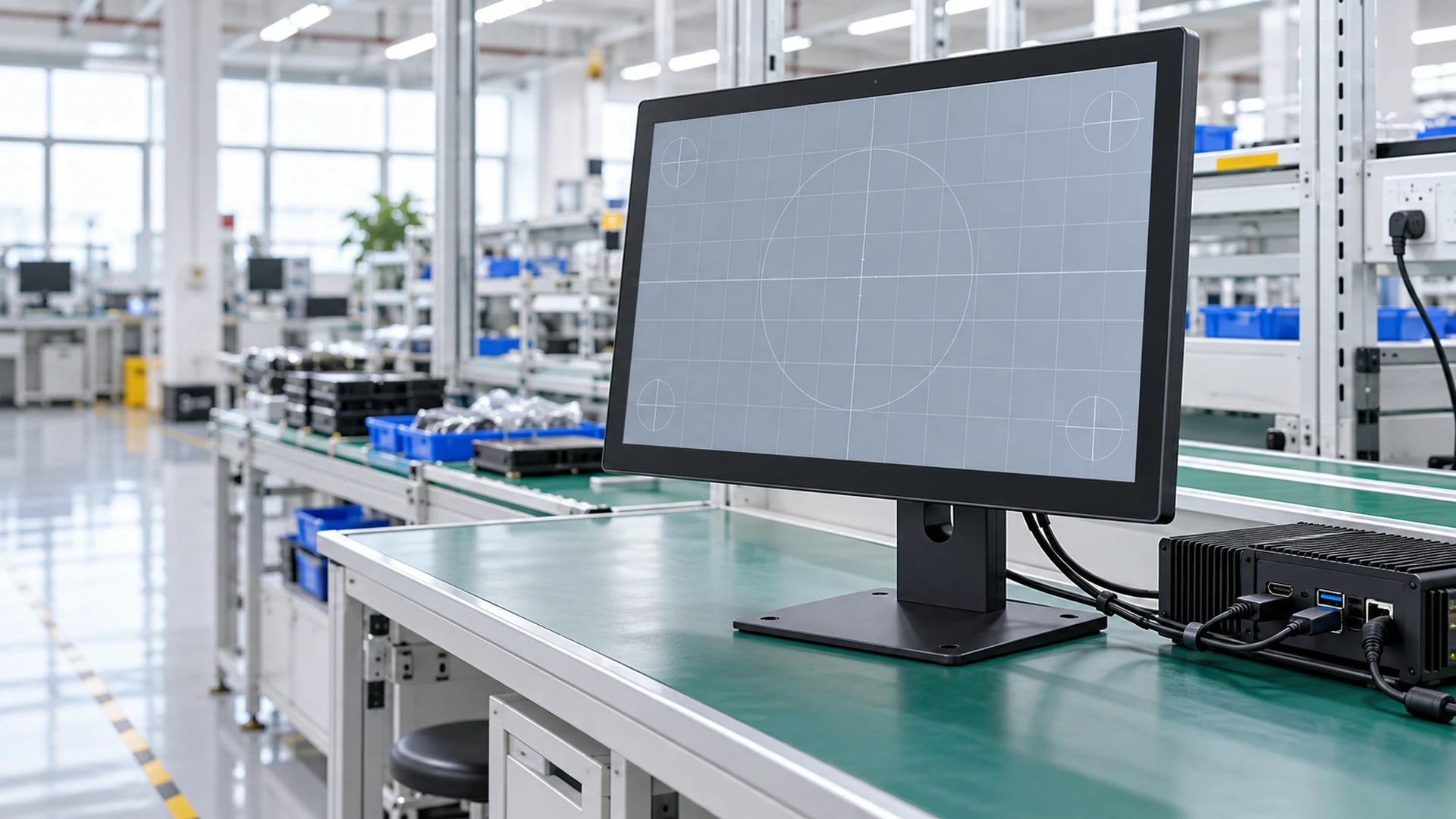
Custom HDMI Touchscreen Monitor Manufacturer
Lucky-XFC manufactures and customizes HDMI touchscreen monitors for equipment, workstations, kiosks, portable systems and commercial terminals. Select an enclosed, open-frame, portable or compact project configuration around the required screen size, host computer, touch interface, power path and mechanical installation.
Important connection note: HDMI normally carries the display signal. A separate USB connection is commonly required to return touch input to the host.
- 12.3-inch to 43-inch verified project and product starting range
- Enclosed, open-frame and portable structures
- HDMI video and USB touch-data planning
- OEM and ODM mechanical and interface customization
HDMI Touch Displays Built Around the Host and Installation
Exact interfaces, power, mounting, operating-system support and touch behavior are confirmed by the selected model and project configuration.
Choose the Right HDMI Touchscreen Monitor Format
Start with the enclosure and host architecture. Products that all use an HDMI input can still require different touch controllers, power connections, mounting structures and validation steps.
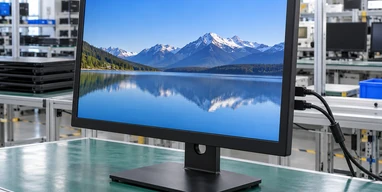
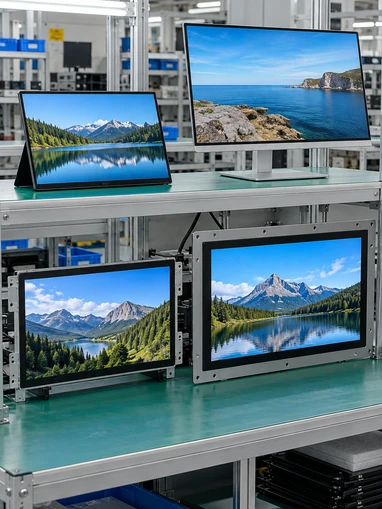
21.5–43 Inch Enclosed HDMI PCAP Monitors
Lucky-XFC’s verified flat range includes 21.5, 23.8, 27, 31.5 and 43-inch Full HD capacitive-touch monitors with metal housings. The exact HDMI, USB, mounting, brightness and touch-point configuration must be confirmed for the selected model.
Selection cue: Choose an enclosed monitor for desktop, stand, VESA, wall or externally mounted equipment applications.
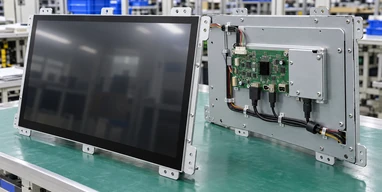
Open Frame HDMI Touchscreen Monitors
Open-frame models place the LCD, touch sensor, controller and display electronics inside an integration-oriented metal chassis. Verified starting configurations include 21.5, 27 and 43-inch models with HDMI inputs.
Selection cue: Choose open frame when the display must fit behind a machine panel, kiosk fascia or custom enclosure.
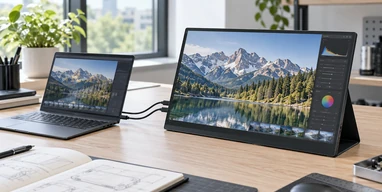
12.3–16 Inch Portable HDMI Touchscreen Monitors
Portable projects can be planned around 12.3, 13.3, 14, 15.6 or 16-inch formats with PCAP touch, HDMI or USB-C interface planning, a custom housing and a suitable support structure.
Selection cue: Choose this path for mobile workstations, auxiliary displays, diagnostics, device commissioning and portable control interfaces.
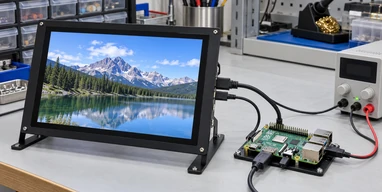
Compact Raspberry Pi / SBC HDMI Touch Displays
Lucky-XFC can evaluate a compact HDMI touch display around the host board, video output, USB touch connection, power path and enclosure. The currently verified portable project range begins at 12.3 inches; smaller sizes require product and panel confirmation before quotation.
Selection cue: Choose this evaluation path for Raspberry Pi, single-board computers, test systems and space-limited equipment.
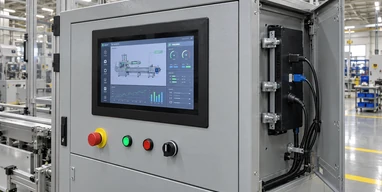
HDMI sends the image to the monitor. USB commonly returns touch input to the computer. Power may use USB or an approved adapter according to the selected configuration.
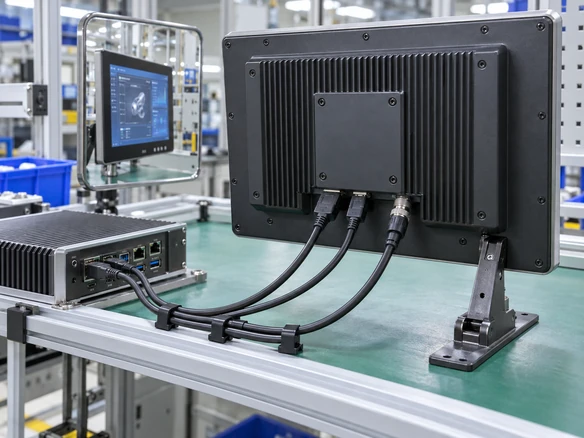
A USB-C connector can combine video, touch and power only when the host port, display controller, cable and power profile support all required functions.
What Is an HDMI Touchscreen Monitor?
An HDMI touchscreen monitor is an external display that receives a video signal from a computer, industrial PC, media player or single-board computer through HDMI. The touch sensor uses a controller to return user input to the host, normally through a separate USB data connection.
HDMI does not normally turn a display into an independent computer. The monitor shows the interface produced by the host system. It does not automatically include a CPU, storage, operating system or application software.
HDMI Touchscreen Monitor
- Receives video from an external source
- Sends touch input back through USB in a typical configuration
- Requires a suitable power connection
- Does not normally include its own operating system
Touchscreen All-in-One
- Integrates display, touch and computing hardware
- Can use Android, Windows or Linux according to configuration
- Runs the application without a separate external computer
USB-C Touch Display
- May combine video, touch data and power
- Requires compatible DisplayPort Alt Mode or another approved video mode
- One-cable operation must be verified across the host, monitor and cable
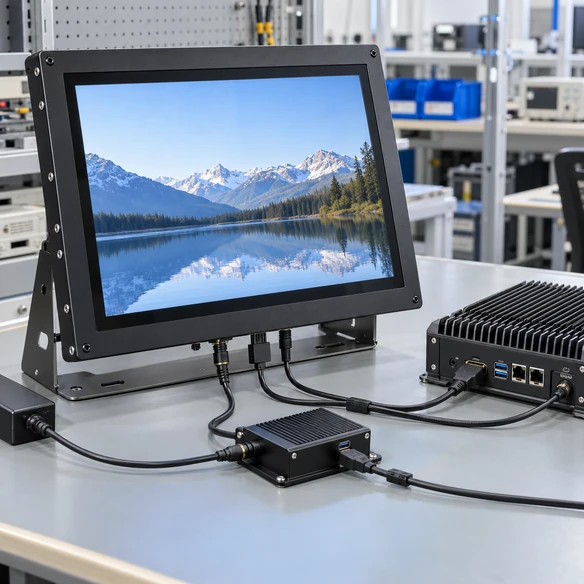
How HDMI, USB Touch and Power Work Together
Treat the three signal paths separately during selection and troubleshooting.
This path carries the picture and may also carry audio when supported.
This path sends touch coordinates back to the operating system. Without it, the screen can show an image but behave like a non-touch monitor.
The power source and voltage depend on the selected product configuration.
USB-C Alternative Callout:
USB-C can combine these functions only after the host video capability, cable specification, touch-data path and power requirement have been confirmed.
Verified HDMI Touchscreen Monitor Starting Points
Use the following configurations as selection references. Do not assume that every interface or specification applies to every size.
| Product Path | Model or Size | Verified Display | Touch | HDMI Status | Structure |
|---|---|---|---|---|---|
| Enclosed Flat | TP215-JX-DR-02 / 21.5 inch | 1920×1080, 16:9 | Capacitive | Confirm HDMI & other ports by model | Metal housing |
| Enclosed Flat | TP238-JX-DR-02 / 23.8 inch | 1920×1080, 16:9 | Capacitive | Confirm HDMI & other ports by model | Metal housing |
| Enclosed Flat | TP270-JX-DR-02 / 27 inch | 1920×1080, 16:9 | Capacitive | Confirm HDMI & other ports by model | Metal housing |
| Enclosed Flat | TP315-JX-DR-02 / 31.5 inch | 1920×1080, 16:9 | Capacitive | Confirm HDMI & other ports by model | Metal housing |
| Enclosed Flat | TP430-JX-DR-02 / 43 inch | 1920×1080, 16:9 | Capacitive | Confirm HDMI & other ports by model | Metal housing |
| Open Frame | XFC-OF215-PCAP / 21.5 inch | 1920×1080 | PCAP, 10-point | HDMI and VGA | Side brackets and VESA |
| Open Frame | XFC-OF270-PCAP / 27 inch | 1920×1080 | PCAP, 10-point | HDMI, DP and VGA | Side brackets and VESA |
| Open Frame | XFC-OF430-PCAP / 43 inch | Full HD or 4K by config | PCAP, 10-point | HDMI and DP | Heavy-duty brackets and VESA |
| Portable Project | 12.3, 13.3, 14, 15.6, 16 inch | Panel and resolution by project | PCAP project path | Std, Mini or Micro HDMI planning | Portable housing or custom support |
| Compact SBC Project | Below verified 12.3" range | Confirmation required | Confirmation required | Host & controller review required | Custom project evaluation |
- The 21.5-inch open-frame reference lists 250 nits.
- The 27-inch open-frame reference lists 300 nits.
- The 43-inch open-frame reference lists 350 nits.
- Brightness must not be transferred to other sizes.
- Selected 23.8 and 31.5-inch open-frame projects may be evaluated, but availability and dimensions require confirmation.
Match the Monitor to the Host Device
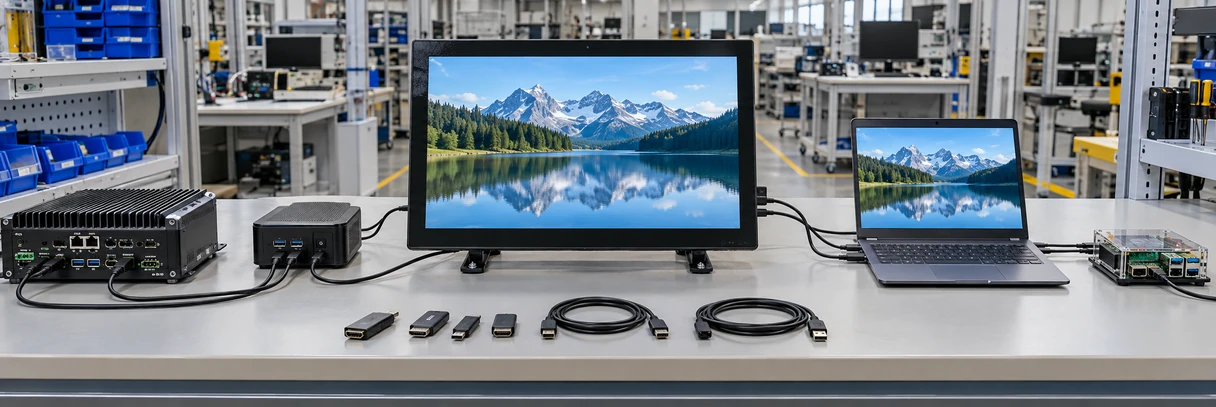
Laptop or Workstation
- Video: HDMI output or approved adapter
- Touch: USB data connection
- Checks: Operating-system touch support, display scaling, available ports and power source
Industrial PC
- Video: HDMI, DP or VGA according to the selected configuration
- Touch: USB or approved project-specific interface
- Checks: Connector retention, grounding, cable route, operating environment and mounting
Media Player / Signage
- Video: HDMI output
- Touch: USB input support is required for interactive use
- Checks: The media platform and application must be able to receive touch input
Raspberry Pi or SBC
- Video: HDMI, Mini HDMI or Micro HDMI according to the board
- Touch: Compatible USB data connection
- Checks: Supported resolution, operating-system image, USB input behavior, power budget, controller board and enclosure space
An HDMI output confirms only the video source. It does not confirm touch-controller support, suitable power or mechanical compatibility.
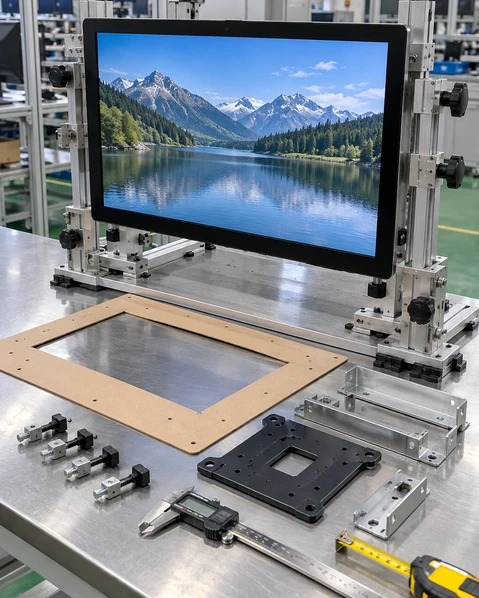
Select the Screen Size and Installation Structure
12.3–13.3 Inch Portable
Prioritizes compact dimensions for mobile diagnostics, auxiliary screens and space-limited equipment. Confirm port accessibility and support stability.
14 Inch Portable
Balances usable workspace and portability for laptop extension, business systems and mobile workstations.
15.6 Inch Portable
Provides a mainstream portable workspace for dashboards, software controls and equipment commissioning.
16 Inch Portable
Provides a larger portable working area where information density is more important than minimum size.
21.5–27 Inch Enclosed or Open Frame
Suitable starting range for POS, operator stations, kiosks, control interfaces and commercial equipment.
31.5–43 Inch Enclosed or Open Frame
Supports larger information layouts, interactive terminals and equipment interfaces where viewing distance and user reach are planned together.
Compact SBC Evaluation
Use this path when the available space is smaller than the verified 12.3-inch portable range. Product availability, controller board, resolution and mechanical construction require confirmation.
Mechanical Dimensions to Verify
- Nominal screen size Does not define the full housing.
- Active display area Determines the visible interface area.
- Overall dimensions Determine whether the product fits the equipment.
- Panel cutout Must match the approved open-frame drawing.
- Rear depth Must include the chassis, connectors and cable bending space.
- Mounting points Confirm VESA, side brackets or custom fixing positions.
- Port direction Ensure HDMI, USB and power connections remain accessible after installation.
Choose the Correct Video, Touch and Power Configuration
Connector shape does not define function. A USB-C port may provide only data or charging. A USB cable may supply power without carrying touch data, depending on the port and cable arrangement. Record the purpose of every cable in the approved configuration.
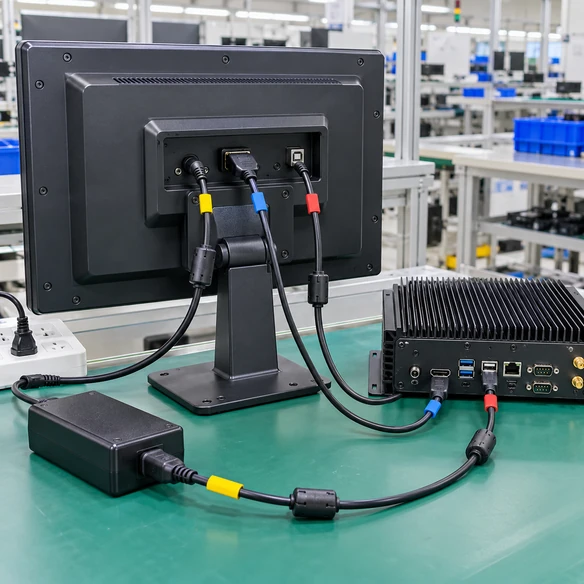
| Configuration | Video | Touch Data | Power | Main Check |
|---|---|---|---|---|
| HDMI + USB Touch + Adapter Power | HDMI | USB | External adapter | Confirm three cable paths and rear clearance |
| HDMI + USB Touch and USB Power | HDMI | USB data | USB power | Confirm whether separate USB ports or cables are required |
| Mini or Micro HDMI Portable Setup | Mini/Micro HDMI | USB | USB or adapter | Confirm connector type, cable direction and strain relief |
| USB-C Combined Setup | Compatible USB-C video mode | USB data through USB-C | Host or approved adapter | Confirm host capability, cable rating and power budget |
| Equipment-Internal Connection | Controller-board input by design | USB or selected touch interface | Equipment power system | Confirm board, voltage, grounding and internal cabling |
Prevent Common HDMI Touchscreen Problems
Troubleshooting should identify which path has failed: video, touch data, power, software mapping or mechanical installation.
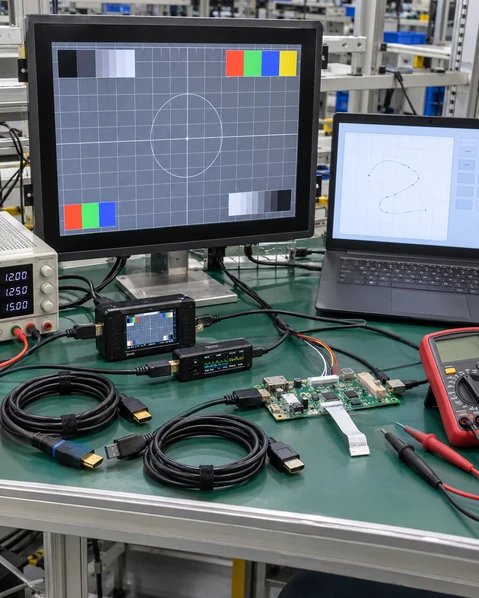
Symptom: The monitor displays an image, but touch does not work.
Likely reason: HDMI carries the video signal, but the USB touch-data connection is missing, connected to the wrong port or not recognized by the host.
Response: Connect the approved touch-data cable and verify the touch controller in the intended operating system.
Symptom: The screen shows no image.
Likely reason: The host output, selected input, resolution, adapter or HDMI cable may not match the monitor configuration.
Response: Check the host video output, input selection, supported resolution and cable before treating the issue as a touch fault.
Symptom: The display powers on and off or becomes unstable.
Likely reason: The available USB port or adapter may not provide the required power.
Response: Use the approved power path and verify the required voltage and current for the selected configuration.
Symptom: Touch coordinates do not match the visible interface.
Likely reason: Orientation, display scaling, multi-monitor mapping, calibration or operating-system settings may be incorrect.
Response: Validate touch mapping after the final resolution, orientation and multi-display arrangement are set.
Symptom: The product fits the opening, but cables cannot be installed.
Likely reason: Connector direction, rear depth and cable bending radius were not included in the enclosure design.
Response: Review port position, cable exit, connector retention and service clearance using the approved drawing.
HDMI Touchscreen Monitor Applications
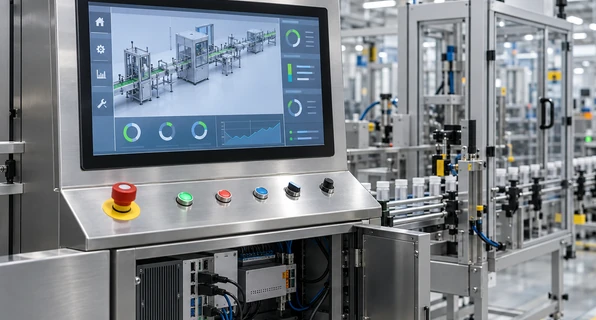
Industrial Control and Operator Stations
An enclosed or open-frame touch display can connect to an existing industrial PC for process visualization, equipment setup and operator input. Grounding, cable retention and host compatibility require project review.
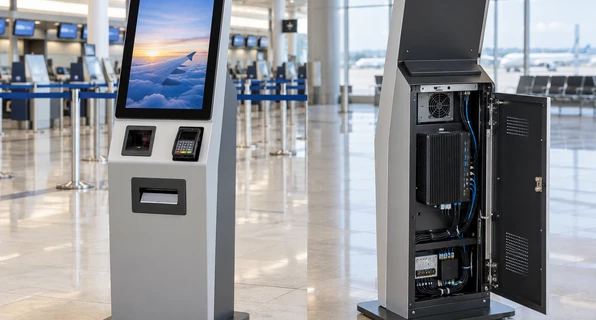
Self-Service and Check-In Kiosks
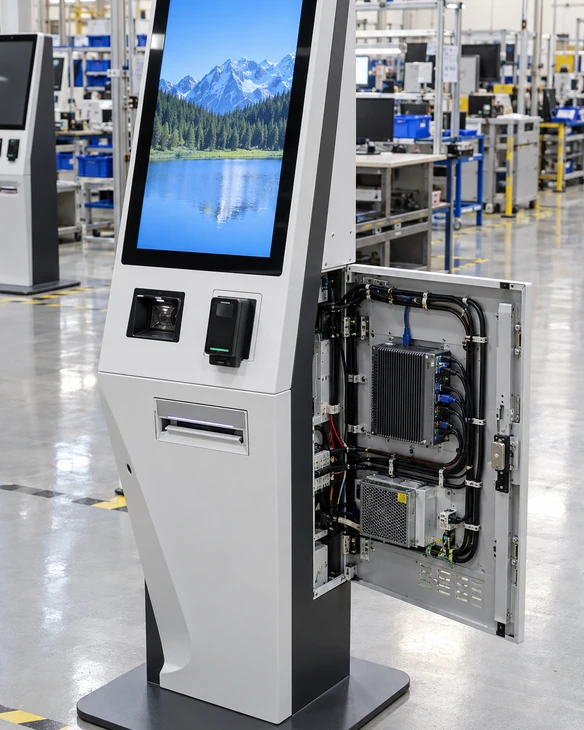
The monitor can connect to a kiosk computer while USB returns touch input. The enclosure, screen position, printer, scanner and maintenance access should be coordinated around the user workflow.
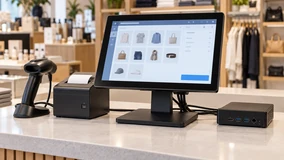
POS and Retail Terminals
Enclosed and open-frame monitors can support ordering, checkout, assisted service and interactive product information when the host system provides suitable HDMI and USB connections.
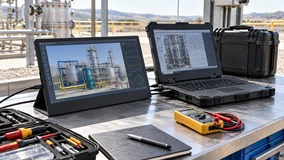
Portable Workstations
A 12.3–16 inch project can add touch-operated workspace for documents, diagnostics, software controls or mobile equipment.
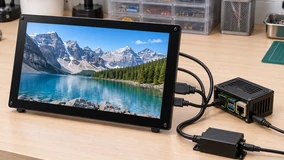
Raspberry Pi and SBC Projects
A compact display should be selected around the board’s HDMI connector, supported resolution, USB input behavior, power budget and enclosure space. Smaller-than-12.3-inch supply requires confirmation.
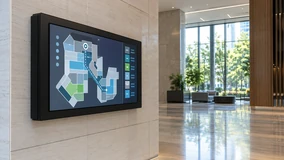
Information and Wayfinding
A host computer can provide maps, directories, forms and guided content through HDMI while USB returns user input to the application.
US Check-In Kiosk Integration Project
Coordinating the touch display, Windows IoT system, A4 printer and ID scanner around one validation process.
Project Requirement
A US project required a custom check-in kiosk combining a touchscreen interface, A4 printing and ID scanning. The hardware platform needed to support the customer’s application and peripheral workflow.
System Coordination
The touch display, computer, printer and scanner were reviewed as parts of one system. Printer-driver operation was tested with Windows IoT rather than being assumed from the component specification.
Prototype Validation & Mechanical Adjustment
One prototype was prepared for the customer’s software team to validate the application, screen workflow and peripheral operation. The review identified that paper loading needed easier access. Minor structural changes were made before the rollout configuration was finalized.
Delivery Planning
The project used phased delivery planning for a regional rollout.
Lessons for HDMI Touch Projects:
- Verify the touch-data connection separately from the display signal.
- Test peripheral drivers in the intended operating-system environment.
- Validate software and maintenance workflows on a prototype.
- Review the complete enclosure after cables and peripherals are installed.
Configure the HDMI Touchscreen Around Your Equipment
Final product availability and specifications depend on the selected panel, controller, touch structure, interfaces, mechanical requirements and quantity.
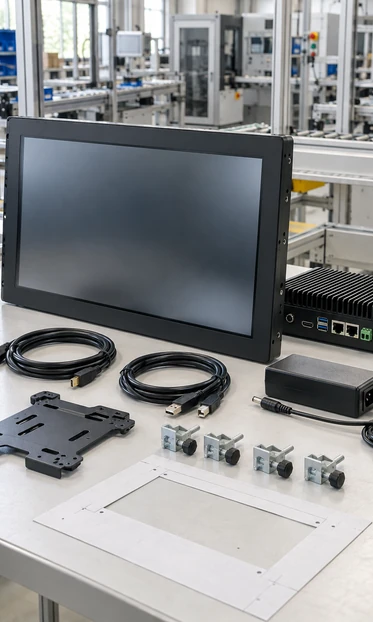
Display
- Select a verified standard size or evaluate a project-specific panel
- Confirm resolution, brightness, viewing requirements and orientation
- Match the controller board to the selected LCD panel
Touch
- PCAP touch for verified flat monitor references
- PCAP or selected resistive options for open-frame projects
- Touch controller matching
- Cover-glass dimensions and printed border
- Touch-point count confirmed by configuration
HDMI and Other Interfaces
- Standard, Mini or Micro HDMI according to project architecture
- DisplayPort, VGA and other model-specific video options
- USB touch-data connection
- USB-C evaluation when combined functions are required
- Port direction and cable clearance
Power
- Approved external adapter
- USB power where the configuration supports it
- Equipment-level power integration after voltage and connector review
Mechanical Structure
- Finished metal housing or Open-frame chassis
- Portable housing and kickstand
- VESA or side brackets
- Custom enclosure integration
- Connector retention and service access
Computing Compatibility
- Laptop or desktop computer
- Industrial PC
- Android controller or Linux computer
- Media player
- Raspberry Pi or other SBC after configuration review
Brand Appearance
Housing color, logo placement and printed details according to the approved project scope.
From Host Requirements to an Approved HDMI Touch Display
Sample, documentation, testing and delivery arrangements are confirmed for each project. Do not promise a fixed schedule.
1. Requirement Review
Define the application, screen size, host device, operating system, installation, required ports and estimated quantity.
2. Product Path Selection
Choose an enclosed, open-frame, portable or compact SBC project path.
3. Connection Review
Confirm the video signal, touch-data connection, power source, controller and cable arrangement.
4. Mechanical Review
Check the active area, overall size, opening, depth, mounting points, port direction and cable clearance.
5. Sample Validation
Evaluate image output, touch behavior, power, application scaling and installation in the intended host environment.
6. Production and Inspection
Produce against the approved configuration and inspect the agreed product functions and appearance before delivery.
Manufacturing and Inspection Behind the Configuration
Lucky-XFC has 13 years of touch display manufacturing experience, supported by a 3,100 m² facility, a production team of more than 160 people and 26 quality personnel. Products undergo inspection before delivery according to the approved model and project requirements.
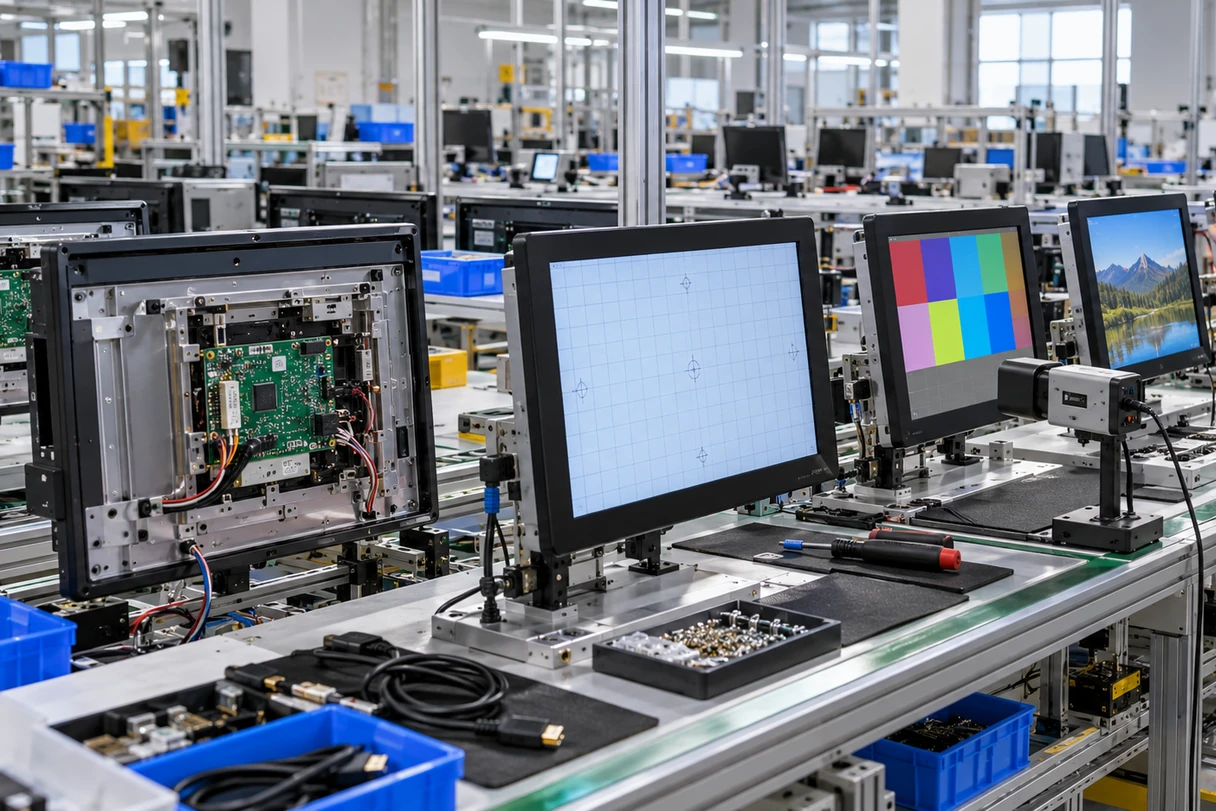
Configuration Identity
Check the selected screen, controller, housing and approved interface arrangement.
Display Operation
Check the visible image using the required input and agreed resolution.
Touch Response
Check touch recognition with the approved data connection and controller.
Interface Function
Check the agreed HDMI, USB and other selected ports.
Power Operation
Check the approved power input and supplied accessories.
Mechanical & Project
Check housing assembly, mounting components, connector access, visible appearance, labels and logo when included.
Inspection requirements and acceptance conditions must follow the selected model and agreed project scope. Do not claim universal certification, zero defects or guaranteed performance inside every customer enclosure.
Why Work with Lucky-XFC on an HDMI Touch Display Project?
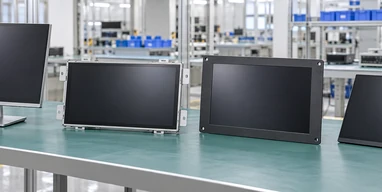
Several Product Architectures
The project can begin with an enclosed monitor, open-frame chassis, portable display or compact SBC evaluation instead of forcing every application into one structure.
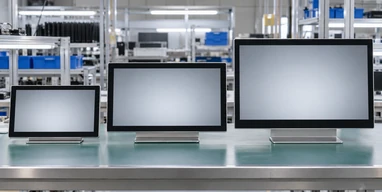
Defined Starting Models
The verified flat and open-frame ranges provide known size and model references for comparison before customization begins.
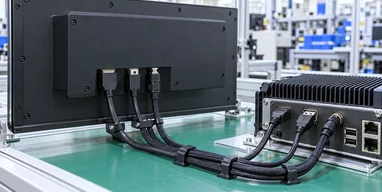
Separate Signal-Path Planning
Video, touch data and power are reviewed as separate functions, helping prevent the common assumption that HDMI alone enables touch.
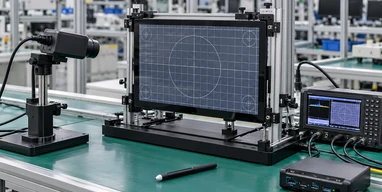
Controller and Host Review
The touch controller, operating system, application and selected host can be evaluated together rather than relying only on connector shape.
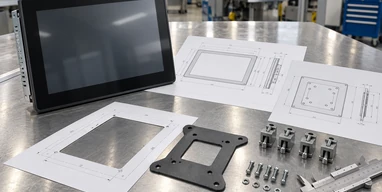
Drawing-Based Integration
Openings, depth, fixing points, port direction and cable space can be reviewed before the enclosure is finalized.
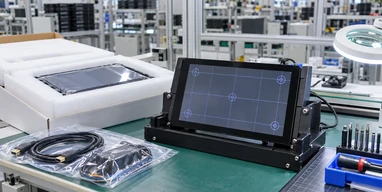
Sample and Inspection Support
When included in the project plan, a sample provides a practical stage for checking the host connection, application behavior and mechanical fit before production.
Compatibility Checks Before Approving an HDMI Touchscreen Monitor
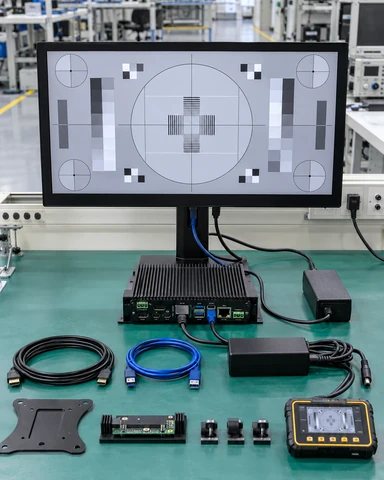
| Factor | What to Confirm | Procurement Implication |
|---|---|---|
| Host video output | HDMI type, adapter, supported resolution and refresh behavior | HDMI connector presence alone does not guarantee the required display mode |
| Touch-data port | USB connection supported by the host and touch controller | A separate USB data path is normally required |
| Power source | USB power, external adapter or equipment power supply | Insufficient power can cause unstable operation |
| Windows | Exact version, touch controller, application and multi-display mapping | Many configurations may use standard USB HID behavior, but final validation remains model-specific |
| Android | Controller, Android build, USB host behavior and application | Android support cannot be assumed across every board and OS image |
| Linux | Kernel, distribution, USB input recognition and calibration requirements | Test the intended system image |
| macOS | Video output, required driver or utility, gestures and OS version | External multi-touch behavior requires model-specific validation |
| Raspberry Pi / SBC | HDMI connector, supported resolution, USB input, power budget and enclosure | Review the complete board and OS configuration |
| USB-C alternative | Video Alt Mode, data, power and cable capability | A USB-C connector does not automatically provide one-cable operation |
| Application | Resolution, scaling, orientation, touch target size and gesture requirements | Validate the actual software instead of only the operating-system desktop |
| Mounting | Overall size, opening, depth, fixing points and connector clearance | Use the approved drawing before manufacturing the enclosure |
Validation Checklist:
- Connect the intended host.
- Select the final resolution and orientation.
- Verify the image through the approved video input.
- Confirm USB touch recognition.
- Test touch mapping across the active display area.
- Test the real application and required gestures.
- Confirm the approved power source.
- Install the cables inside the final enclosure.
- Recheck touch behavior after grounding and mechanical assembly.
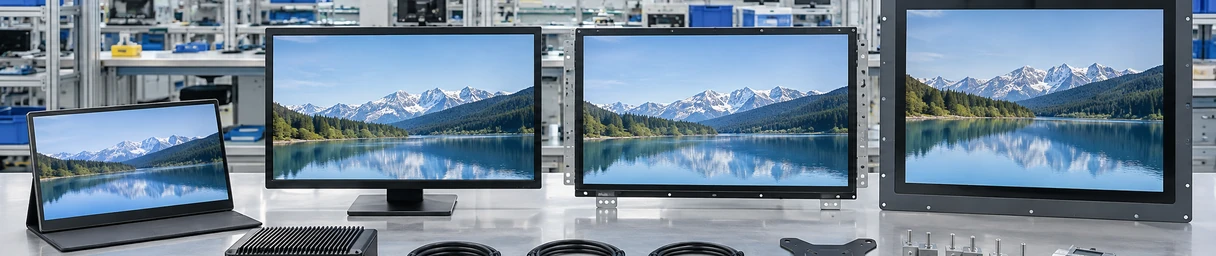
HDMI Touchscreen Monitor Buying Guide
Contents
Procurement Checklist
- Application
- Required screen size
- Enclosed, open-frame, portable or compact structure
- Host model
- Operating system and version
- HDMI connector type
- Required resolution
- Touch method and touch-point requirement
- Power source
- Installation dimensions or drawing
- Cable direction
- Operating environment
- Estimated quantity
Guide 1 — Choose the product structure
Use an enclosed monitor when the display is mounted externally. Use open frame when it sits behind a customer-designed panel. Choose portable when the product needs a kickstand or mobile structure. Use the compact SBC path when the installation is smaller than the verified portable range and requires a new product evaluation.
Guide 2 — Confirm the screen size
Select size according to viewing distance, usable workspace, touch reach and available equipment space. The marketed diagonal does not define the outer housing, active area, mounting or rear depth.
Guide 3 — Map every connection
Record which cable carries video, touch data and power. For a typical HDMI touchscreen monitor, HDMI carries video, USB carries touch input and power uses USB or an approved adapter. Confirm whether the selected USB cable is intended for data, power or both.
Guide 4 — Check the host and operating system
Identify the exact computer, graphics output, OS version and application. Windows, Android, Linux, macOS and Raspberry Pi projects have different touch-input and driver considerations. Avoid describing any operating system as universally compatible before validation.
Guide 5 — Review the mechanical installation
Confirm orientation, opening, overall dimensions, mounting positions, connector direction, cable bending space and maintenance access. For portable products, also review stand stability and port access.
Guide 6 — Validate the real configuration
Test the selected monitor with the actual host, cable arrangement, power source and application. For integrated equipment, repeat the test after installation in the final enclosure.
HDMI Touchscreen Monitor FAQs
Does HDMI carry touchscreen input?
HDMI normally carries video and audio, not touch-input data. A separate USB data connection is commonly required between the monitor’s touch controller and the host computer.
Why does the screen show an image when touch does not work?
The HDMI video path may be working while the USB touch-data path is missing or not recognized. Check the touch cable, USB port, controller, operating system and touch mapping.
Does an HDMI touchscreen monitor need a USB connection?
Yes, a USB connection is normally required for touch input. The monitor may also require USB or an external adapter for power, depending on the configuration. Confirm whether each USB connection carries data, power or both.
Can HDMI provide power to the touchscreen monitor?
No. HDMI is not normally the monitor’s power source. Power must be provided through the approved USB connection, adapter or equipment power system.
Can one USB-C cable replace HDMI and USB?
Only when the host USB-C port supports the required video mode, data path and power output, and the display and cable support the same functions. A USB-C connector alone does not confirm one-cable compatibility.
Can I connect the monitor to a laptop?
Yes, when the laptop provides a compatible HDMI or approved video output, an available USB connection for touch data and a suitable power path. Check display scaling and multi-monitor touch mapping after connection.
Can an HDMI touchscreen monitor work with Raspberry Pi?
It may work when the display resolution, HDMI connector, USB touch controller, operating-system image and power requirements are compatible. The complete Raspberry Pi or SBC configuration must be reviewed and tested.
Are the monitors compatible with Windows, Android and Linux?
Compatibility depends on the selected touch controller, OS version, host hardware and application. Validate the intended configuration rather than assuming universal support.
Will touch work on macOS?
Video output may work through a compatible connection, but external touch and gesture support can require a specific driver, utility or controller configuration. Confirm the monitor model and macOS version before selection.
Which HDMI touchscreen sizes does Lucky-XFC offer?
Verified starting paths include 21.5 to 43-inch enclosed flat monitors, 21.5, 27 and 43-inch open-frame HDMI models, and 12.3 to 16-inch portable projects. Selected 23.8 and 31.5-inch open-frame configurations may be evaluated. Smaller compact displays require confirmation.
Can Lucky-XFC customize the housing and port position?
Project scope can include housing structure, open-frame mounting, cover glass, printed border, interface planning, cable direction, portable support and equipment integration. Final feasibility depends on the selected panel and mechanical design.
What information is needed for a quotation?
Provide the application, size, product structure, host model, operating system, resolution, HDMI connector, touch method, power source, installation dimensions, environment and estimated quantity. Include an enclosure drawing when available.
Continue Your Touch Display Selection

Touchscreen Monitors
Compare the verified 21.5 to 43-inch flat PCAP range.

Open Frame Touch Monitors
Review HDMI models, mounting structures and enclosure inputs.

Portable Touchscreen Monitors
Explore 12.3 to 16-inch portable display project options.

Industrial Touch Screens
Compare panel-mount, open-frame and enclosed industrial structures.

Touchscreen Computers
Choose integrated computing when an external HDMI host is not preferred.

Kiosk Touch Screen Monitors
Coordinate the display with a kiosk enclosure, computer and peripherals.
Discuss Your HDMI Touchscreen Monitor Project
Share the host device, screen size, HDMI connector, touch-data path, power source and installation structure. Lucky-XFC can use these details to review an enclosed monitor, open-frame model, portable configuration or compact SBC display project.
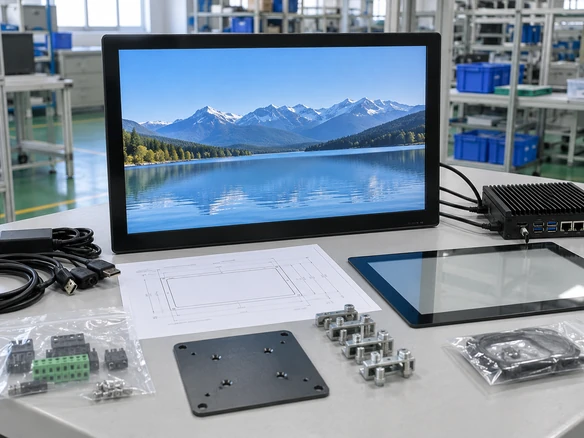
Useful project details:
- Application and installation location
- Required screen size
- Enclosed, open-frame, portable or compact structure
- Host computer or controller
- Operating system and version
- Required resolution
- Standard, Mini or Micro HDMI
- USB touch-data connection
- Power source
- Mounting or enclosure drawing
- Operating conditions
- Estimated quantity
