
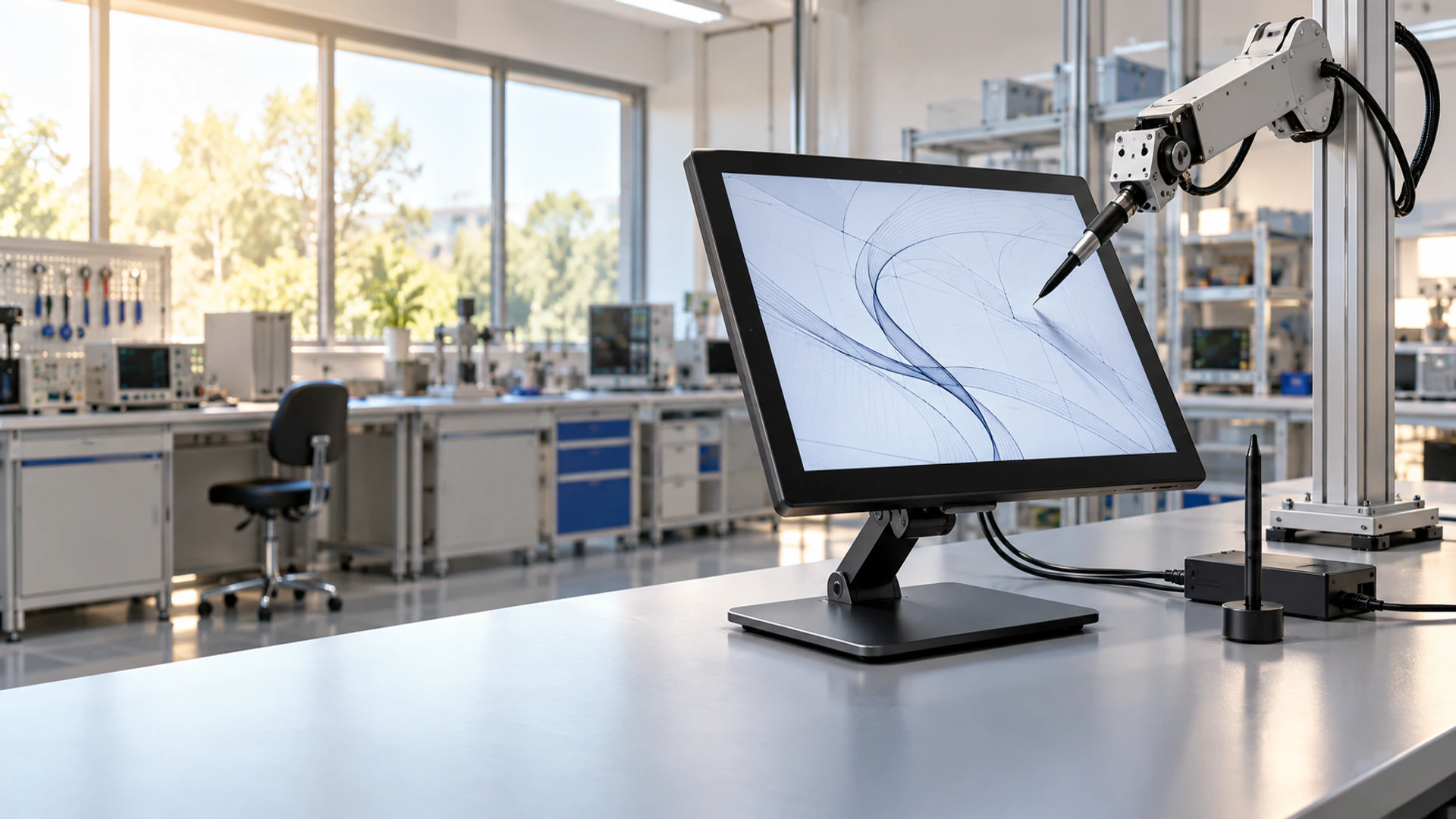
Pen for Touch Screen Monitor Manufacturer for Custom Display Projects
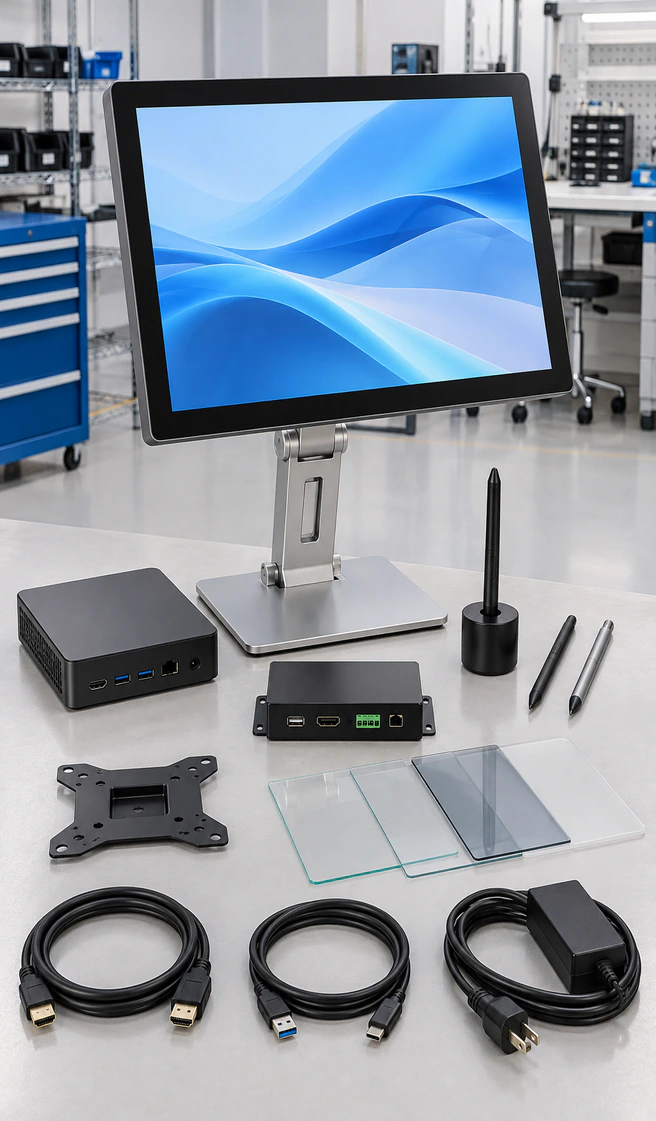
Lucky-XFC supplies configurable touch screen monitors for projects that require pen, stylus, finger or glove input. Select PCAP, resistive, open-frame or industrial display structures according to the pen type, required accuracy, mounting design and host system.
- PCAP and resistive touch options
- Open-frame, panel-mount and enclosed structures
- Touch controller and interface matching
- OEM/ODM display and mechanical customization
Pen behavior depends on the selected touch sensor, controller, cover glass, firmware and pen technology. Final compatibility is confirmed at configuration level.
What Is a Pen for Touch Screen Monitor?
A pen for touch screen monitor is an input tool used with a compatible touch display for navigation, signature capture, menu selection, annotation or controlled data entry. The phrase does not describe one universal pen technology. A passive capacitive stylus, a resistive stylus and an active digital pen communicate with the screen in different ways.
A standard PCAP monitor may recognize a conductive passive stylus in much the same way that it recognizes a finger. A resistive monitor responds to physical pressure and can often be operated with a simple non-sharp stylus. An active pen requires a matching digitizer or communication protocol inside the display. Touch support alone does not prove active-pen compatibility.
Choose the display and pen as one input system—not as two unrelated accessories.
Monitor
Displays the host image
Touch Layer
Detects finger, pressure or a compatible pen signal
Touch Controller
Converts touch data for the host
Host System
Runs the operating system and application
Choose a Pen for Touch Screen Monitor Configuration
Start with the input method and application rather than the appearance of the pen. These six paths cover the main compatibility, installation and development decisions.
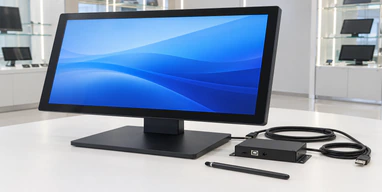
Passive Capacitive Stylus Display
A PCAP touch monitor evaluated for conductive passive-stylus input. Suitable for interface navigation, tapping, signatures and basic annotation where pressure sensitivity and palm rejection are not required.
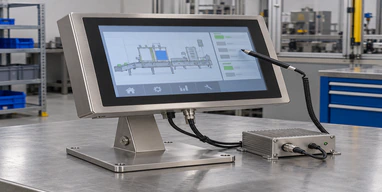
Resistive Stylus Touch Display
A pressure-responsive touch display for controlled single-point input with a finger, glove or suitable non-sharp stylus. Often considered for equipment controls and precise menu selection.
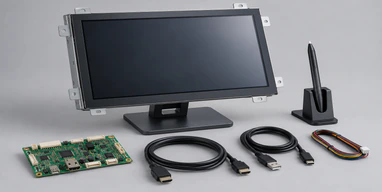
Open-Frame Stylus Touch Monitor
An integration-ready display installed behind a machine, kiosk or custom fascia. PCAP or resistive touch can be evaluated together with the cutout, mounting depth and cable routing.
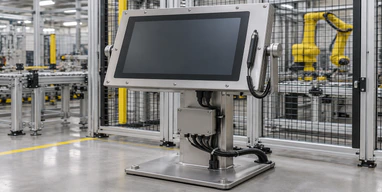
Industrial Stylus Touch Monitor
A panel-mount, open-frame or enclosed display configured around industrial input methods, host interfaces, mounting requirements and operating conditions.
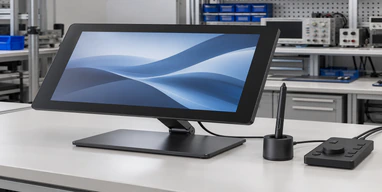
Active-Pen Display Development
A project-evaluation route for applications that require pressure levels, palm rejection, hover or fine writing. The target pen protocol and digitizer architecture must be identified before development.
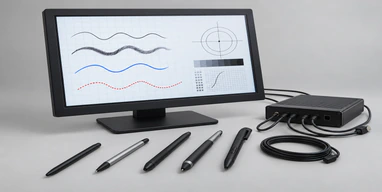
Replacement-Pen Compatibility Review
A matching service for projects that already have a monitor or original pen. Review the monitor model, touch technology, original pen number and intended task before selecting a replacement path.
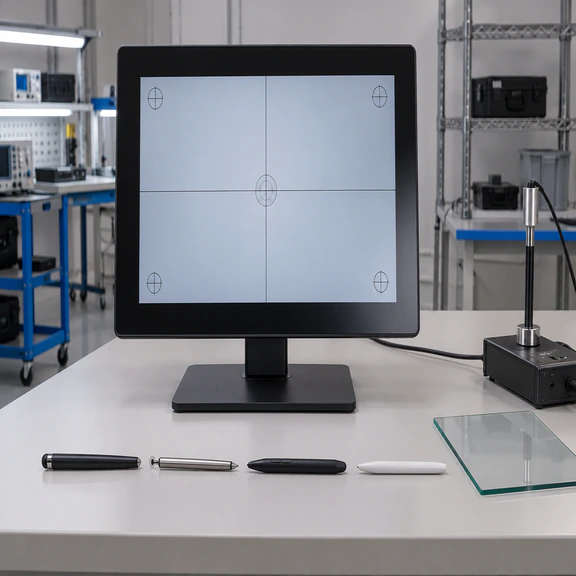
Why Pen for Touch Screen Monitor Compatibility Fails
A pen can look suitable and still fail because the screen is listening for a different kind of input.
The monitor responds to a finger but ignores an active pen.
A normal PCAP sensor may detect conductive contact without containing the digitizer required by an active pen. Confirm the pen protocol instead of assuming that every touch display supports digital ink.
The pen works for tapping but produces poor handwriting.
A passive capacitive stylus generally behaves like a finger. Fine lines, pressure levels, hover and palm rejection require hardware and software designed for those functions.
The cursor appears on the wrong monitor.
In a multi-display setup, the operating system must map touch input to the intended display. Video connection and USB touch-data connection should be checked separately.
Touch changes after cover glass is added.
Glass thickness, bonding structure, printed borders, controller tuning and grounding can affect PCAP performance. The final stack should be validated as a complete assembly.
"Compatibility should be tested with the intended pen, host, operating system, application and final glass structure."
How a Pen for Touch Screen Monitor Reads Input
The pen creates an input
A passive capacitive stylus changes the screen’s electric field, a resistive stylus applies pressure, and an active pen sends a protocol-specific signal.
The touch layer detects it
The sensor must be designed or configured to recognize that input method through the final cover surface.
The controller processes coordinates
The touch controller converts the detected position or supported pen data into information the host can use.
The host application responds
The operating system and software interpret the input as a click, drag, signature, annotation or supported digital-ink action.
A display problem, touch-layer mismatch, controller setting, cable issue or host configuration can each produce a different pen-input symptom.
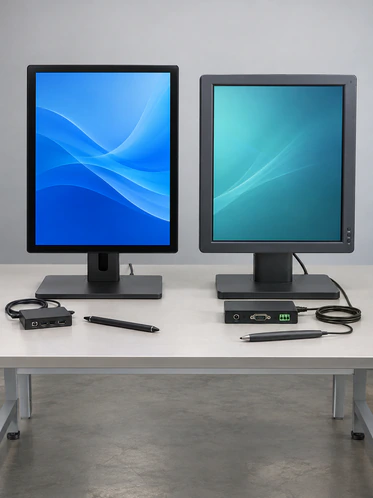
PCAP or Resistive Pen for Touch Screen Monitor?
| Selection Factor | PCAP Touch | Resistive Touch |
|---|---|---|
| Input principle | Conductive contact | Physical pressure |
| Typical pen path | Compatible passive capacitive stylus | Suitable non-sharp resistive stylus |
| Multi-touch | Common on compatible configurations | Usually single-point |
| Cover surface | Rigid cover glass | Flexible resistive surface |
| Basic pen use | Navigation, tapping and simple annotation | Precise menu selection and controlled data entry |
| Active-pen features | Not implied by PCAP | Not provided by ordinary resistive touch |
| Glove use | Requires glove and controller evaluation | Often selected for pressure input with gloves |
| Project validation | Pen tip, glass and controller | Tip material, pressure and surface wear |
Choose PCAP when a modern glass interface and multi-touch are important. Consider resistive touch when simple pressure-based pen or glove input is the priority. Neither option should be described as an active drawing display unless the required digitizer has been confirmed.
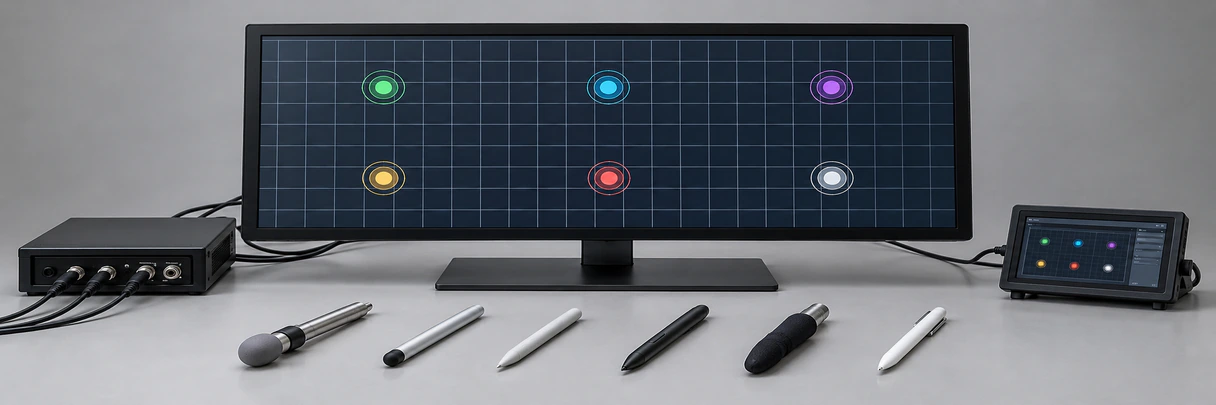
Pen for Touch Screen Monitor Compatibility Matrix
| Input Tool | Required Screen Path | Suitable Tasks | Do Not Assume |
|---|---|---|---|
| Finger | PCAP or suitable resistive touch | Navigation, gestures, menu input | Pen-level precision |
| Passive capacitive stylus | Compatible PCAP sensor and suitable tip | Tapping, signatures, basic annotation | Pressure sensitivity or palm rejection |
| Resistive stylus | Resistive touch layer | Precise single-point control, glove-operated interfaces | Multi-touch or digital-ink features |
| Active digital pen | Matching digitizer and protocol | Fine writing and supported digital-ink functions | Cross-brand or universal compatibility |
For replacement projects, record the monitor model, touch technology and original pen identification before purchasing or developing an alternative.
Passive Capacitive Pen for Touch Screen Monitor Projects
A passive capacitive stylus can be a practical input option when the application needs cleaner tapping, menu selection, signatures or basic annotation on a compatible PCAP display. It does not contain the protocol electronics used by an active digital pen.
If the application requires digital ink rather than finger-equivalent touch, specify the required pen protocol before selecting the monitor.
Suitable For
- • Operator menus with medium or large touch targets
- • Simple signatures and confirmation fields
- • Kiosk or counter interfaces where fingerprints should be reduced
- • Basic annotation that does not require pressure data
- • Projects prepared to validate the final pen tip and cover glass
Do Not Assume
- × Professional pressure-sensitive drawing
- × Automatic palm rejection
- × Hover detection
- × Tilt recognition
- × Guaranteed fine-point handwriting
- × Compatibility with a brand-specific active pen
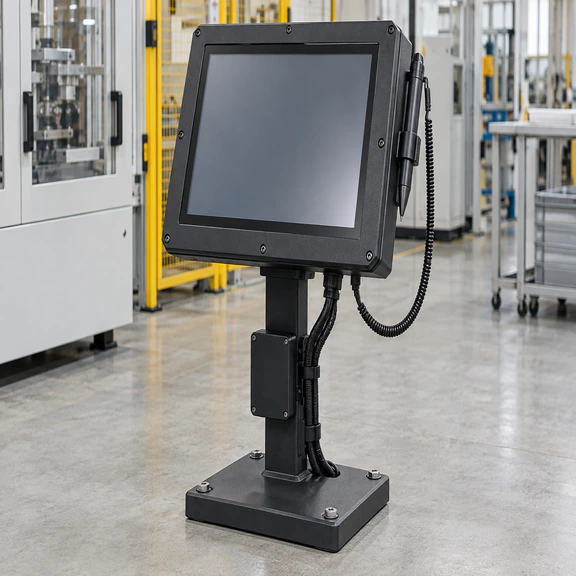
Resistive Pen for Touch Screen Monitor Projects
Resistive touch detects physical pressure between sensor layers. A suitable non-sharp stylus can provide controlled single-point input without requiring an active-pen protocol. This makes resistive touch relevant to selected industrial controls, legacy interfaces and glove-operated equipment.
- Pressure-based input
- Usually single-point operation
- Useful for small interface targets
- Can suit many glove and stylus workflows
- Requires a tip that will not damage the flexible surface
- Should be tested for the intended operating force and duty cycle
Warning: Do not use a sharp metal object as a resistive stylus. Tip material, geometry and repeated-use conditions should be evaluated to reduce surface wear.
Active Pen for Touch Screen Monitor Development
An active pen is a system component, not a universal accessory. Features such as pressure levels, palm rejection, hover, side buttons or tilt depend on a compatible digitizer, pen protocol, controller, firmware, operating system and application.
Must be confirmed before development:
- Target pen protocol or original pen model
- Required pressure, hover, tilt and palm-rejection behavior
- Display size and resolution
- Cover-glass and bonding structure
- Host operating system
- Writing or annotation application
- Video, touch-data and power connections
- Prototype and validation expectations
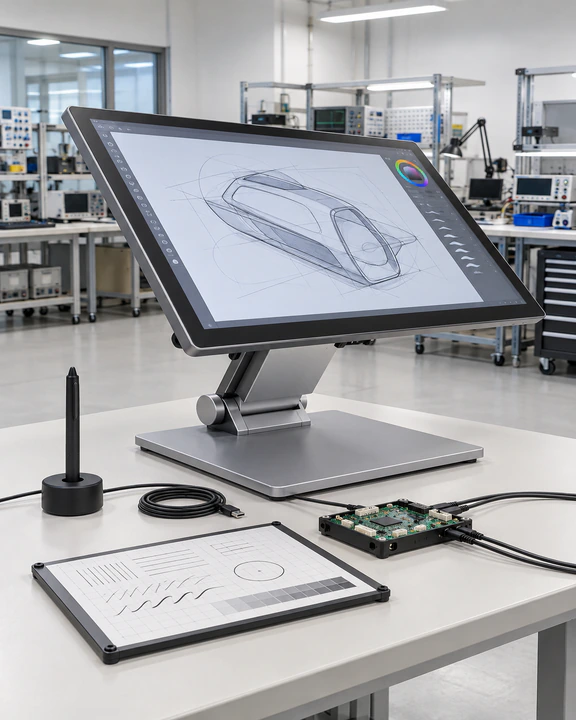
Pen for Touch Screen Monitor Product and Integration Advantages
Discover the seamless integration and superior performance of our touch screen monitors designed for precision stylus operation, ensuring optimal functionality across diverse industrial applications.
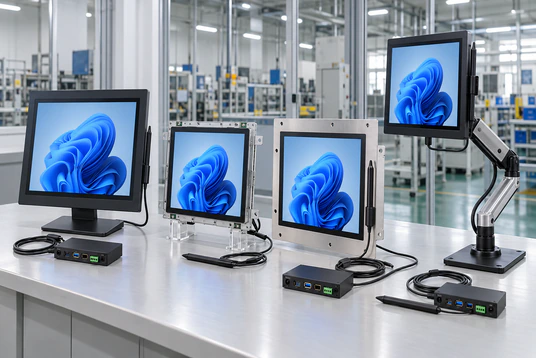
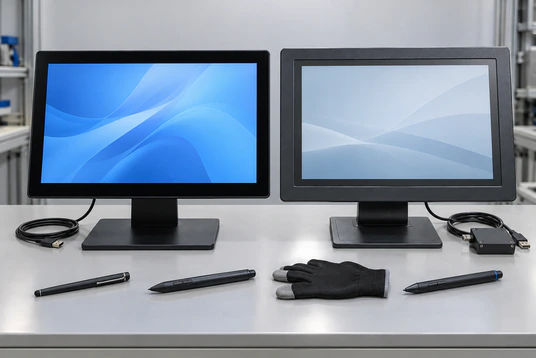
Touch technology selected around the input method
PCAP and resistive directions can be compared according to the required pen, finger, glove and gesture behavior instead of selecting by appearance alone.
Multiple mechanical structures
Open-frame, panel-mount and enclosed or VESA structures support different equipment housings, operator positions and service-access requirements.
Display and touch interfaces reviewed separately
Video and touch data may use different connections. Reviewing both signal paths helps prevent a monitor that displays an image but does not return touch input.
Configurable display integration
Applicable projects can evaluate screen size, resolution, touch technology, cover glass, printed border, housing, brackets, connector position and cable direction.
Controller-level compatibility review
Pen behavior can be assessed together with the sensor, controller, glass structure, grounding and host environment rather than treating the pen as an isolated accessory.
Project inspection before shipment
The selected configuration can be checked for display appearance, image output, touch response, interfaces, enclosure and order consistency before shipment.
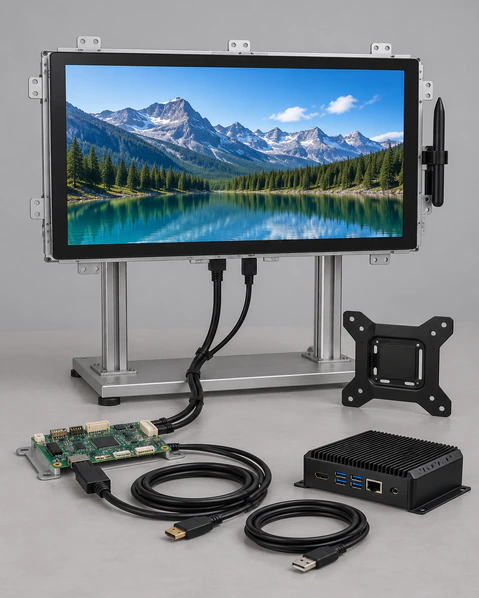
Open-Frame Pen for Touch Screen Monitor Integration
An open-frame touch monitor is installed behind a machine panel, kiosk fascia or custom enclosure. The display, touch layer, controller and electronics are supplied as an integration unit, while the customer’s equipment provides the external housing and host system.
| Reference Model | Display | Resolution | Touch | Video Inputs | Mounting |
|---|---|---|---|---|---|
| XFC-OF215-PCAP | 21.5 inch | 1920×1080 | 10-point PCAP | HDMI, VGA | Side brackets, VESA |
| XFC-OF270-PCAP | 27 inch | 1920×1080 | 10-point PCAP | HDMI, DP, VGA | Side brackets, VESA |
| XFC-OF430-PCAP | 43 inch | FHD or 4K | 10-point PCAP | HDMI, DP | Heavy-duty brackets, VESA |
These reference models document standard PCAP starting points. Passive-stylus behavior, resistive alternatives, dimensions, brightness, interfaces and availability must be confirmed for the selected configuration.
Confirm the front opening, active area, rear depth, mounting positions, cover-glass overlap, connector clearance and cable direction before finalizing the enclosure.
Industrial Pen for Touch Screen Monitor Options
Industrial pen-input projects should be defined by mounting structure, operator method and operating environment. The display connects to an external industrial computer, embedded controller or other compatible host; computing hardware and application software are not included unless separately confirmed.
Panel-Mount
Installed through a prepared equipment opening and secured from the rear. Review the cutout, bezel, panel thickness and sealing design.
Open-Frame
Installed inside an OEM enclosure. Review mounting brackets, active-area position, rear depth and service access.
Enclosed / VESA
Used on equipment arms, workstations or wall brackets where a complete metal housing is preferred.
Documented flat PCAP reference sizes:
21.5, 23.8, 27, 31.5 and 43 inches, normally using 16:9 Full HD panels and metal housings in the documented reference range.
Final brightness, dimensions, touch behavior, environmental limits, protection level and interface set are configuration-specific.
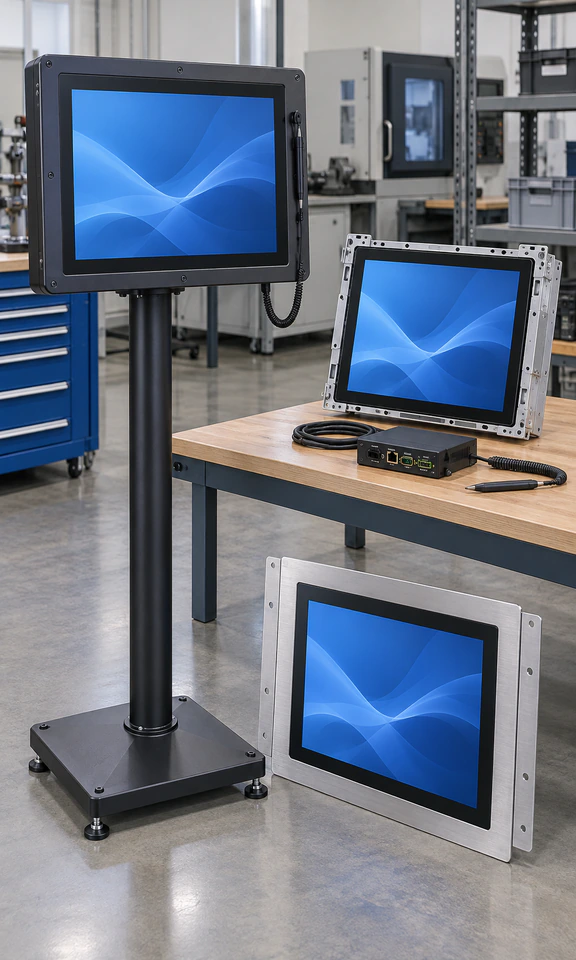
Pen for Touch Screen Monitor Application Fit
Input Task
Define whether the operator will tap menus, sign, annotate, write continuously or create pressure-sensitive content.
Pen Technology
Identify passive capacitive, resistive or active digital pen requirements before selecting the touch layer.
Touch Surface
Confirm cover glass, bonding, printed borders and any required surface treatment.
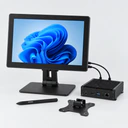
Host System
Record the operating system, graphics output, USB touch path and target application.
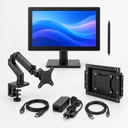
Mounting Structure
Match open-frame, panel-mount or VESA construction to the equipment design.
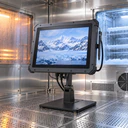
Operating Conditions
Review glove use, moisture, cleaning, temperature, vibration and expected operating hours at model level.
Pen for Touch Screen Monitor Selection Guide
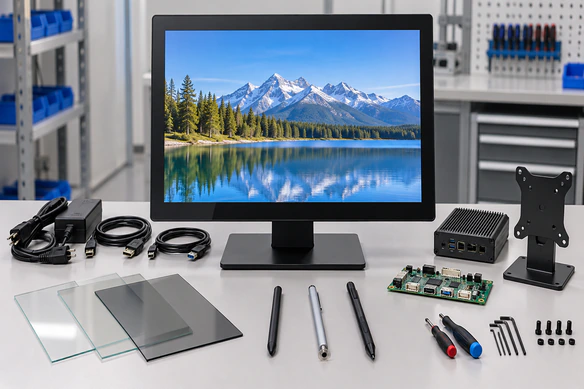
Do you need pressure sensitivity, hover or palm rejection?
- Yes → Identify the active-pen protocol and request a digitizer development review.
- No → Continue to the next question.
Do you need modern glass, gestures or multi-touch?
- Yes → Evaluate a PCAP monitor with the intended passive capacitive stylus.
- No → Continue to the next question.
Do you need controlled pressure input with a glove or simple stylus?
- Yes → Evaluate a resistive touch configuration.
- No → Compare PCAP and resistive samples using the real interface.
Will the display be installed inside equipment?
- Yes → Select open-frame or panel-mount construction using the enclosure drawing.
- No → Evaluate an enclosed or VESA-mounted monitor.
Are you replacing an existing monitor or pen?
- Yes → Supply the original model, data sheet, photos, dimensions and pen identification.
- No → Define the new display, touch and host requirements together.
The correct choice is determined by the complete input system, not by pen shape or screen size alone.
Pen for Touch Screen Monitor Applications
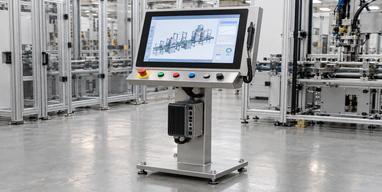
Industrial Control Panels
Stylus-assisted menu selection and parameter entry for machine interfaces where mounting, glove use and host connectivity must be reviewed together.
Inspection Workstations
Controlled selection, marking and confirmation on quality-inspection terminals connected to an external computer.
OEM Equipment
Open-frame or panel-mount displays integrated into custom housings with defined cutouts, brackets and cable routes.
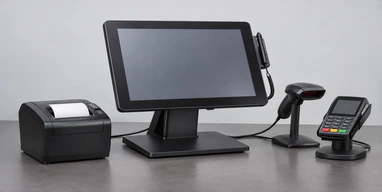
POS and Signature Capture
Simple signatures, confirmations and menu input using a suitable passive or resistive stylus, subject to application-level validation.
Interactive Annotation
On-screen annotation for training, review or presentation environments, with the required pen precision defined before selection.
Legacy Equipment Migration
Replacement of an existing touch display while reviewing the original pen method, dimensions, interfaces and host setup.
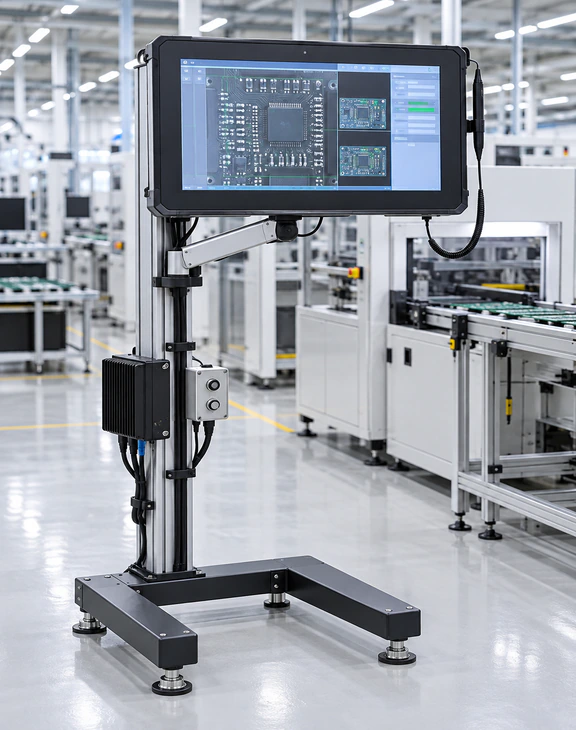
A Pen for Touch Screen Monitor Project Scenario in Finland
Representative industrial integration scenario
A Finnish equipment integrator needed a touch display for a maintenance terminal used by technicians wearing work gloves. The existing interface contained small controls, while ordinary finger input caused selection errors. The integrator also needed the display to fit an existing equipment opening and connect to an external industrial computer.
The project direction was changed from a generic finger-first monitor to a pressure-based stylus workflow. A resistive touch configuration was evaluated together with a rounded non-sharp stylus, the panel opening, rear installation depth and host connections. The interface remained single-point and did not require pressure-sensitive drawing or an active-pen protocol.
Project Handling Focus:
- ✓ Pressure-based input for gloved operators
- ✓ Rounded stylus tip selected to reduce surface wear
- ✓ Panel dimensions reviewed before enclosure release
- ✓ Video and touch-data connections checked separately
- ✓ Real operator workflow included in sample validation
The proposed configuration gave the integrator a clearer validation path for controlled menu input without introducing unnecessary active-pen hardware. Final performance remained subject to sample testing in the actual equipment.
This anonymized representative scenario illustrates a typical project approach and does not identify a specific customer or publish confidential project data.
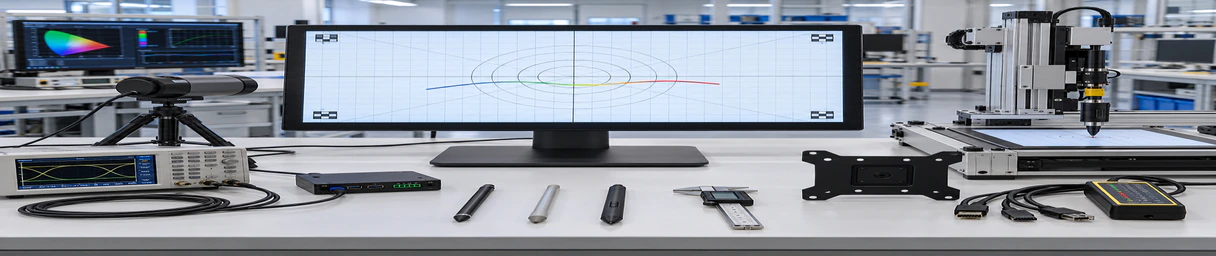
Pen for Touch Screen Monitor Quality and Inspection
Pen-input performance depends on more than the pen itself. The selected display configuration should be checked as a complete display, touch and mechanical assembly.
- Display appearance and image check
- Touch response check with the approved input method
- Video and touch-interface check
- Enclosure and mounting review
- Configuration and quantity verification
- Final order information check
Lucky-XFC has manufactured touch display products since 2013. The company operates a 3100㎡ factory with more than 160 employees and a 26-person quality-control team. OEM/ODM projects and one-piece starting orders are available for applicable configurations, and products are subject to pre-shipment inspection.
Certification, environmental testing and compliance documents are confirmed according to the selected model, destination market and project scope.
Pen for Touch Screen Monitor Buyer Guide
Identify the required pen behavior
Write down the task before choosing the pen. Tapping menus, signing a form, annotating a presentation and producing pressure-sensitive artwork require different hardware. If pressure, hover, tilt or palm rejection is mandatory, a passive capacitive or ordinary resistive stylus is not an equivalent substitute for a protocol-matched active pen.
Separate video from touch data
A monitor can display an image even when touch input is not connected. HDMI, DisplayPort or VGA normally carries video, while USB or another confirmed interface returns touch data. Check both paths, especially when an external touchscreen is added to a multi-monitor system.
Check the final glass and enclosure
Touch behavior should be evaluated with the intended cover glass, bonding method, printed border, grounding and mounting structure. Mechanical dimensions must be based on an approved drawing rather than diagonal screen size alone.
Validate the host and software
Record the operating system, touch-driver requirements, display mode and target application. In a multi-display setup, map the touch device to the correct screen and test the gestures or writing functions actually used by the application.
Prepare a replacement project
For an existing installation, collect the original monitor model, pen number, touch technology, display size, resolution, active area, overall dimensions, mounting holes, interfaces and host details. A similar diagonal size does not guarantee mechanical or pen compatibility.
Approve the sample under real conditions
Test the intended pen, glove, interface, host, software and operator workflow together. For repeated stylus use, also evaluate tip material, surface wear and the force applied during normal operation.
Pen for Touch Screen Monitor FAQ
Will any pen work with a touch screen monitor?
Can a PCAP pen for touch screen monitor provide pressure sensitivity?
Is a resistive pen for touch screen monitor suitable for industrial equipment?
Why does the pen control the wrong display?
Can Lucky-XFC replace an existing touch monitor and pen?
What should I submit for an active-pen display project?
Request a Pen for Touch Screen Monitor Configuration
Send the display and pen information needed to compare a PCAP, resistive, open-frame, industrial or active-pen development path. Lucky-XFC will use the submitted details to discuss an appropriate configuration and identify items that still require validation.
Submission Checklist:
- Pen type, protocol or original pen model
- Display size and resolution
- Required writing or touch behavior
- Host device and operating system
- Video and touch-data interfaces
- Mounting structure or enclosure drawing
- Application, quantity and destination market
