
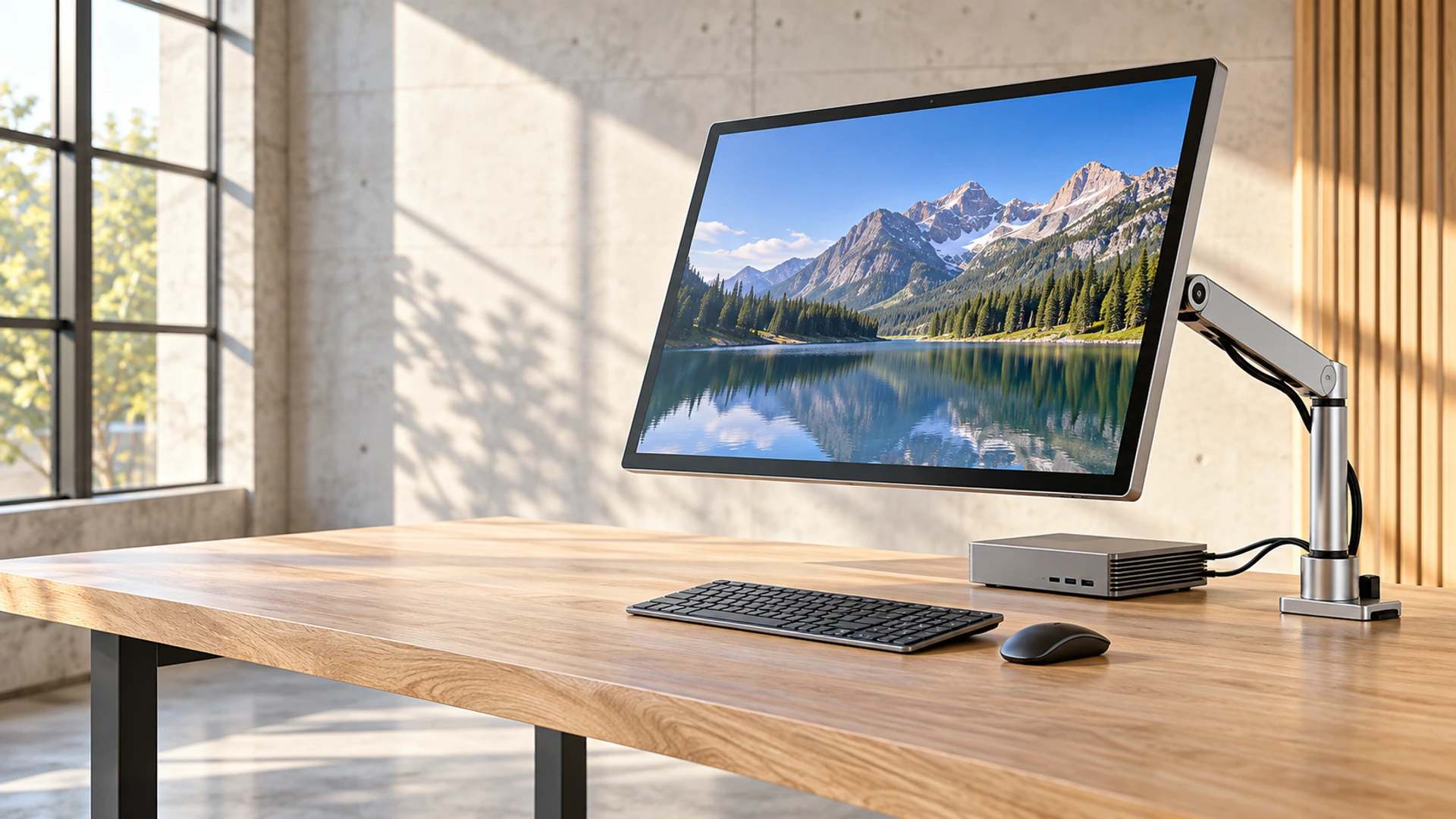
Desktop Touchscreen Monitor Manufacturer for Custom Workstations
Flat PCAP touch monitors for desktop workstations, commercial terminals and equipment interfaces.
Choose a desktop touchscreen monitor around the real workspace, host computer and operator position. Lucky-XFC provides documented 21.5, 23.8, 27 and 31.5-inch Full HD PCAP monitor starting models with metal housings. Desktop stands, VESA mounting, video inputs, touch-data connections and mechanical details are confirmed for the selected project configuration.
Send your preferred size, host model, available ports and mounting requirement.
Why Choose a Desktop Touchscreen Monitor from Lucky-XFC?
A desktop touch display must do more than fit on a desk. The screen size must suit the viewing distance, the operator must be able to reach the complete touch area, the stand or arm must remain stable during repeated input, and the host must provide compatible video and touch-data connections.
Lucky-XFC begins with four documented flat monitor models instead of treating every requested specification as a standard product. Each reference uses a Full HD 16:9 display, capacitive touch and a metal housing. The final stand, VESA arrangement, interfaces, dimensions and touch behavior are confirmed for the chosen configuration.
Four documented flat PCAP size references
Display-only architecture for use with the buyer’s selected host
Desktop stand and VESA requirements reviewed by project
Mechanical and connection details confirmed before approval
Desktop Touchscreen Monitor Models and Configuration Paths
Start with the required viewing area and installation method. Then confirm the host, connection and operator position.
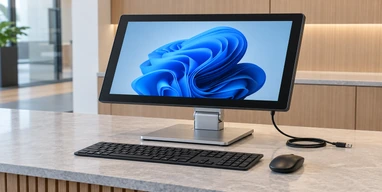
21.5-Inch Desktop Touchscreen Monitor
TP215-JX-DR-02
A compact Full HD PCAP monitor for smaller workstations, POS counters, equipment-control desks and space-conscious desktop terminals.
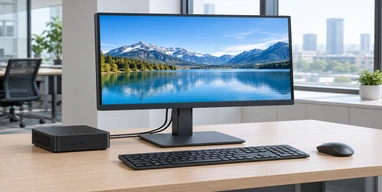
23.8-Inch Desktop Touchscreen Monitor
TP238-JX-DR-02
A balanced desktop format for commercial terminals, office workstations, interactive counters and general touch-enabled PC operation.
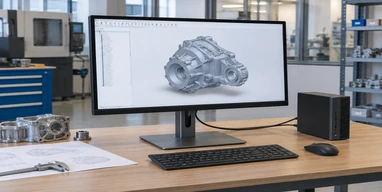
27-Inch Desktop Touchscreen Monitor
TP270-JX-DR-02
A larger touch workspace for inspection systems, operator stations, retail interaction and applications that need more visible controls.
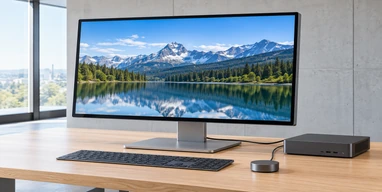
31.5-Inch Desktop Touchscreen Monitor
TP315-JX-DR-02
A 31.5-inch panel commonly searched in the 32-inch class. Suitable for large control layouts, information terminals and integrated workstations.
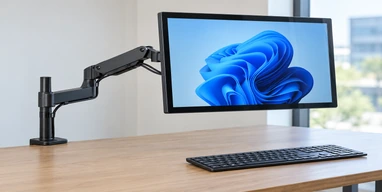
VESA & Stand-Mounted Desktop Touchscreen Monitor
A mounting path for adjustable stands, monitor arms and fixed workstation supports. Final VESA pattern, stand load, tilt range and cable clearance require project confirmation.
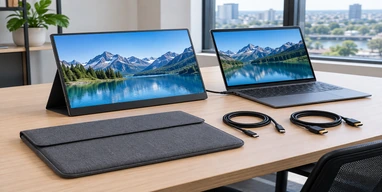
Portable Desktop Touchscreen Monitor
A portable alternative for temporary desks, mobile service stations and laptop expansion. Available project sizes include 12.3, 13.3, 14, 15.6 and 16 inches.
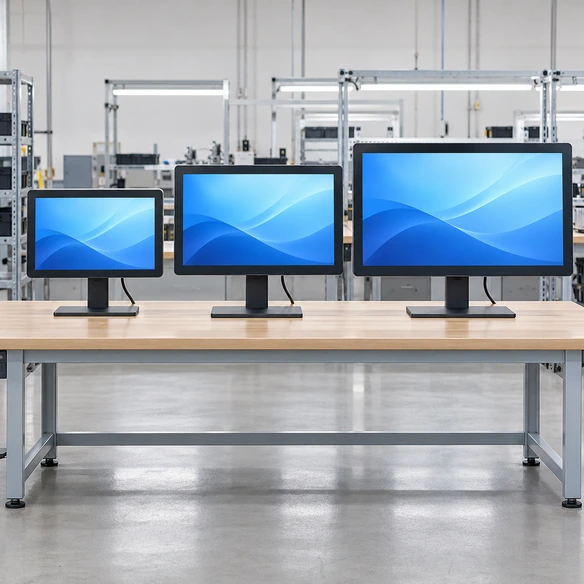
Desktop Touchscreen Monitor Size Comparison
The correct screen size depends on more than available desk width. Compare viewing distance, software layout, touch reach, stand footprint and the number of controls that must remain visible.
Swipe to view full table →
| Size | Model / Specs | Best Starting Fit | Selection Focus |
|---|---|---|---|
| 21.5 Inch | TP215-JX-DR-02 1920×1080, PCAP, Metal |
Compact workstations, POS and equipment control | Limited desk space and shorter viewing distance |
| 23.8 Inch | TP238-JX-DR-02 1920×1080, PCAP, Metal |
General desktop terminals and interactive counters | Balanced viewing area and operator reach |
| 27 Inch | TP270-JX-DR-02 1920×1080, PCAP, Metal |
Inspection stations and larger operating interfaces | More visible controls without excessive reach |
| 31.5 Inch | TP315-JX-DR-02 1920×1080, PCAP, Metal |
Large desktop interfaces and integrated workstations | Stable mounting and comfortable full-screen reach |
Tip: The 31.5-inch panel is commonly grouped into the 32-inch commercial size class. Always use the actual model drawing when planning desk space, brackets or an enclosure.
How to Select a Desktop Touchscreen Monitor
Confirm the Product Architecture
Choose an external-host monitor when the desktop PC, mini PC or industrial computer already provides processing and software. Choose a touchscreen computer only when the display needs its own processor, memory, storage and operating system.
Match Size to Touch Reach
A larger screen provides more visible content but also increases the distance between interface controls. Evaluate the software layout from the operator’s normal seated or standing position.
Define the Mounting Method
Decide whether the monitor will use a desktop stand, VESA arm, wall bracket or equipment support. Repeated touch input creates force that an ordinary lightweight stand may not handle well.
Separate Video, Touch and Power
Record the host’s video output, the required touch-data connection and the available power as separate items.
Check the Operating System
Confirm that the selected touch controller and host environment support the required touch behavior, gestures and multi-display mapping.
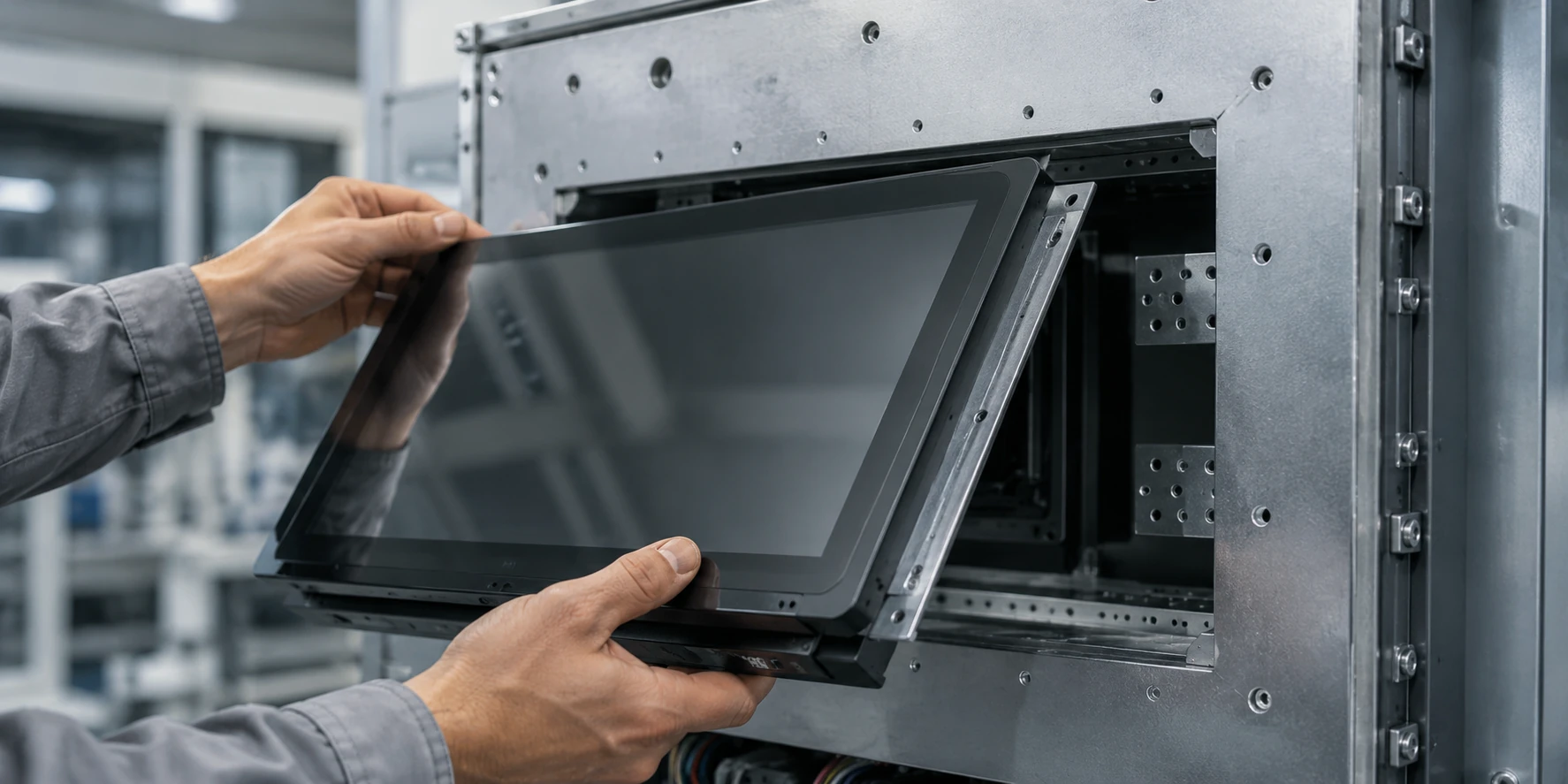
Approve the Drawing and Configuration
Confirm the overall dimensions, connection locations, stand or VESA arrangement and selected electrical configuration before releasing the workstation design.
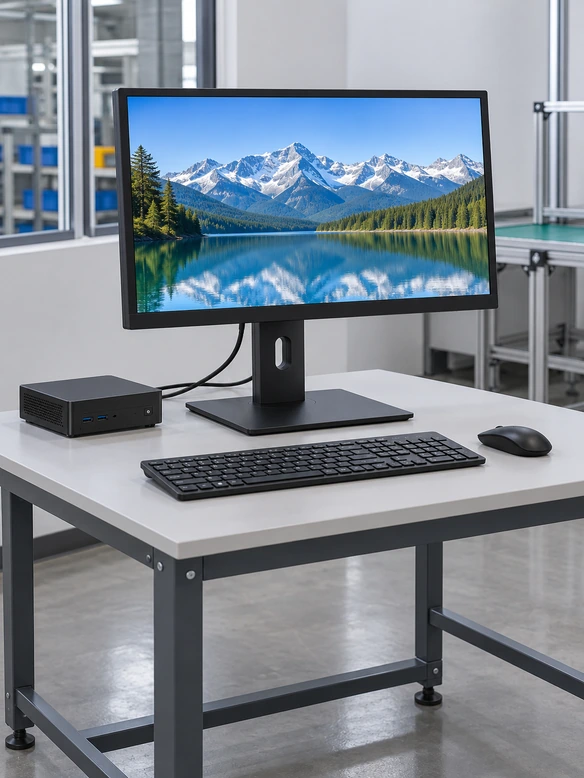
21.5-Inch Desktop Touchscreen Monitor for Compact Workstations
The TP215-JX-DR-02 is the smallest documented model in the current flat desktop range. Its 21.5-inch Full HD 16:9 display provides a practical starting point when the workstation needs direct touch control but has limited desk or counter space.
The capacitive touch surface supports a modern glass-front interaction style, while the metal housing gives the product a finished monitor structure. Final interfaces, touch points, brightness, VESA pattern, stand design and external dimensions must be confirmed for the selected configuration.
Verified Specifications
- Model: TP215-JX-DR-02
- Display Size: 21.5 inch
- Resolution: 1920 × 1080
- Aspect Ratio: 16:9
- Touch: Capacitive / PCAP
- Housing: Metal
- Computing Hardware: Not included
- Project Confirmation: Interfaces, mounting, dimensions and touch details
Best-fit directions:
23.8-Inch Desktop Touchscreen Monitor for Everyday Touch Work
The TP238-JX-DR-02 provides a balanced format for buyers who want more touch workspace than a compact 21.5-inch display without moving immediately to a large 27 or 31.5-inch installation.
Its documented starting specification includes a 23.8-inch Full HD 16:9 panel, capacitive touch and a metal housing. It can be evaluated for general desktop workstations, interactive counters, commercial terminals and equipment interfaces.
Buyer consideration: A 23.8-inch product is often described as a 24-inch market-class monitor. Confirm the actual panel size and mechanical drawing instead of designing the workstation around a rounded marketing size.
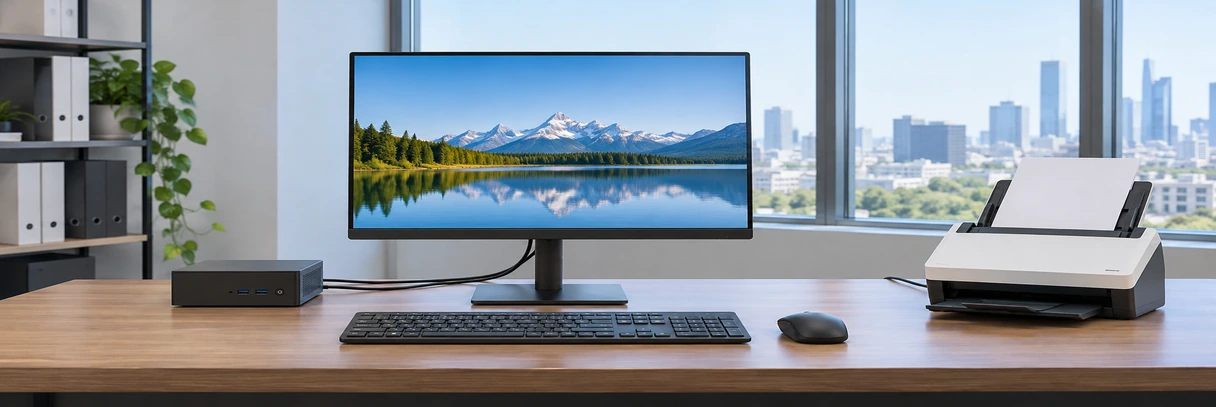
27-Inch Desktop Touchscreen Monitor for Larger Interfaces
The TP270-JX-DR-02 provides a larger Full HD touch surface for interfaces that display more controls, inspection results, product information or operating status at the same time.
Verified starting specification
- 27-inch display
- 1920 × 1080 resolution
- 16:9 aspect ratio
- Capacitive touch
- Metal housing
- External-host monitor architecture
Selection guidance
Do not select a 27-inch monitor only because more screen area appears desirable. Confirm that users can comfortably reach controls near the upper and outer edges. Review stand stability, viewing angle and desk depth because repeated touch input places different demands on the installation than mouse-only use.
Best-fit directions:
- • Electronics inspection desks
- • Industrial operator workstations
- • Retail product-selection counters
- • Control and monitoring interfaces
31.5-Inch Desktop Touchscreen Monitor for Large Workspaces
The TP315-JX-DR-02 is the documented Lucky-XFC flat reference for buyers searching the 32-inch desktop touchscreen monitor class. The actual panel size is 31.5 inches.
Its verified starting specification combines Full HD resolution, a 16:9 format, capacitive touch and a metal housing. This size can support large control interfaces and information-rich workstations, but it also requires careful review of mounting stability, desk depth, user reach and viewing distance.
Core Specifications
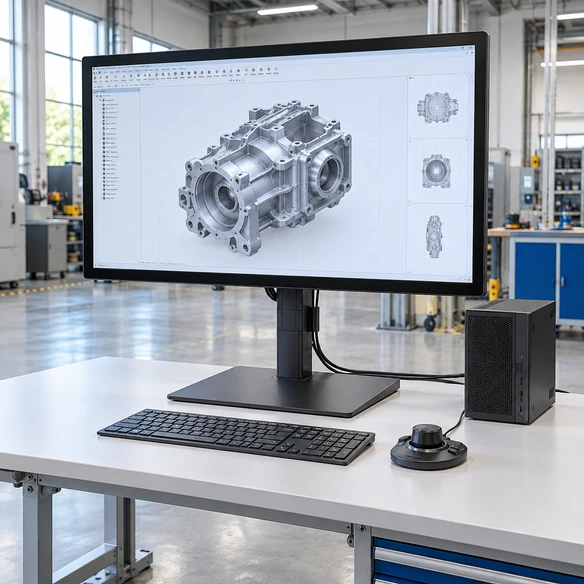
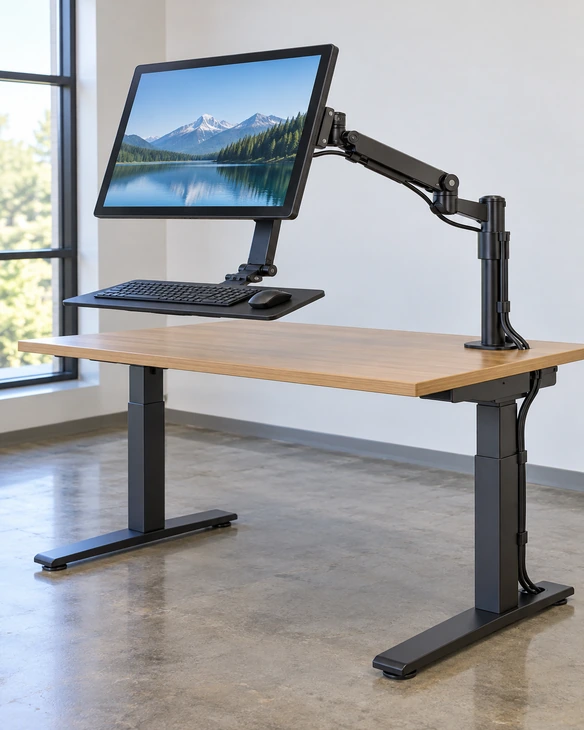
Desktop Touchscreen Monitor Mounting and Ergonomic Planning
Touch operation transfers force into the monitor and its support. A stand that works for a standard office display may move, tilt or vibrate during repeated touch input. Review the complete mounting system rather than treating the stand as a decorative accessory.
Desktop Stand
Confirm base footprint, screen angle, tilt resistance, operator reach and whether the stand remains stable during touch.
VESA Monitor Arm
Confirm the required VESA pattern, monitor weight, arm capacity, movement range, desk clamp and cable path.
Fixed Workstation Support
Use a fixed support when the monitor must remain in a defined position for production, inspection or public interaction.
Wall or Equipment Bracket
Confirm viewing height, screen angle, load, mounting surface and access to rear connectors.
Mechanical fields to confirm:
Desktop Touchscreen Monitor Applications
Match the model and mounting configuration to the operator’s task, host system and available workspace.
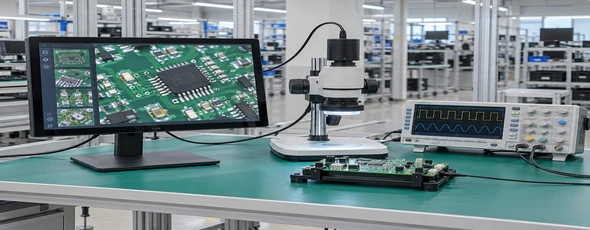
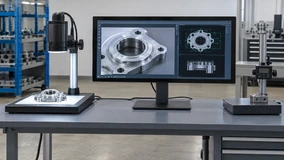
Electronics Inspection Workstations
Display inspection results, images and test controls while allowing direct touch input beside production or laboratory equipment.
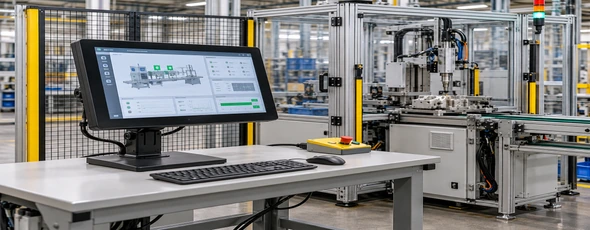
Industrial Operator Desks
Provide access to machine status, settings and production information from a fixed control workstation.
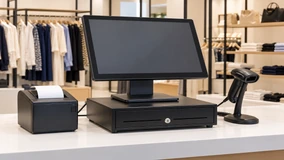
POS and Counter Terminals
Support product lookup, order entry or service workflows where the operator works from a counter.
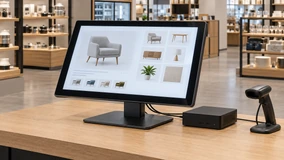
Retail Product Selection
Allow customers or sales staff to browse products and configurations using a desktop or counter-mounted interface.
Reception and Information Desks
Provide an interactive interface for registration, information retrieval or visitor guidance without requiring a floor-standing kiosk.
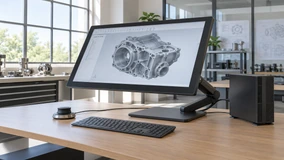
Design and Review Stations
Support direct manipulation of diagrams, visual content or control panels when the application benefits from touch input.
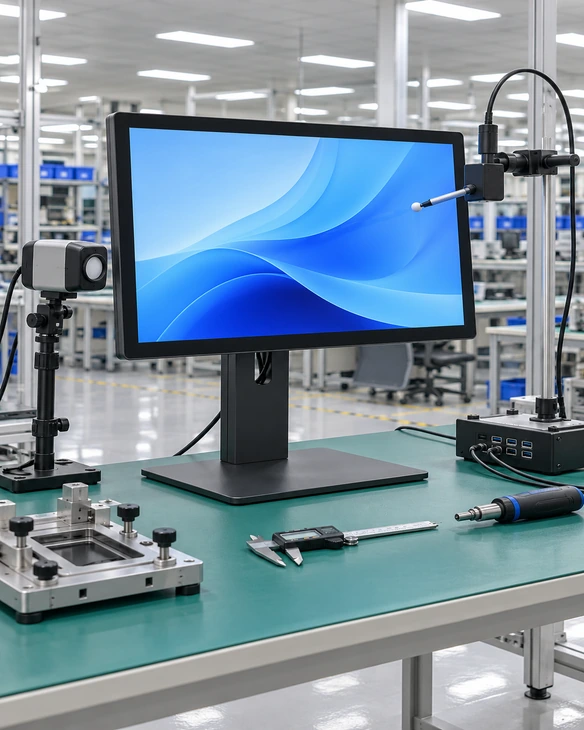
Desktop Touchscreen Monitor Video, Touch and Power Connections
A touchscreen monitor requires the complete signal path to work. A matching connector shape does not automatically establish compatibility.
Video Path
The host sends the image to the monitor. Confirm the host output, monitor input, native resolution, orientation and any required adapter. The available input must be checked for the selected Lucky-XFC configuration.
Touch-Data Path
The monitor returns touch coordinates to the host. Many configurations use USB for touch data. Video working correctly does not prove that touch data is connected or recognized.
Power Path
Confirm the approved power input and power source for the selected monitor configuration.
USB-C Review
USB-C may combine several functions only when the host port, monitor, cable, video protocol and power arrangement support the same configuration. Do not promise one-cable operation without model-specific verification.
Buyer checklist:
Desktop Touchscreen Monitor Host and Operating-System Compatibility
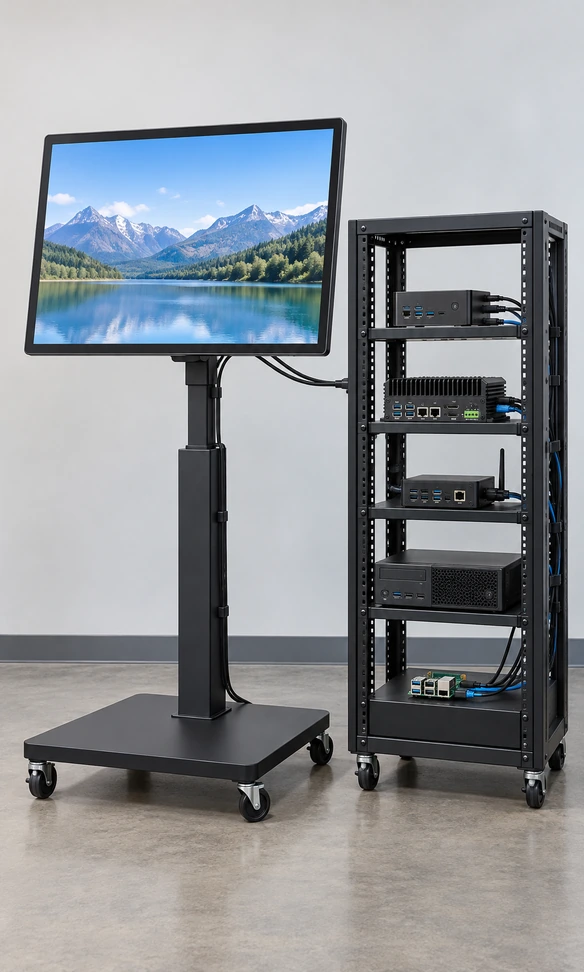
The monitor must be validated with the host that will run the application. The computer brand alone does not determine compatibility.
Windows Desktop PC
Confirm display output, USB touch recognition, required gestures, screen orientation and multi-display touch mapping.
Mini PC
Confirm the available video and USB ports, supported resolution, power arrangement and physical cable path.
Industrial Computer
Confirm operating system, display output, USB host capability, installation environment and restart behavior.
Android or Linux Host
Confirm controller support, touch recognition, driver requirements and application behavior for the exact system image.
Multi-Monitor Desktop
Assign touch input to the intended screen. Test startup, sleep, wake, reconnection and display-order changes.
Desktop Touchscreen Monitor vs. Touchscreen Computer
Desktop Touchscreen Monitor
- • Uses an external host
- • Does not include processor, memory or storage
- • Easier to pair with the customer’s selected computer
- • Host and monitor can be maintained separately
Touchscreen Computer
- • Includes computing hardware by configuration
- • Requires CPU, RAM, storage and OS planning
- • Suitable when the terminal must operate independently
Desktop Touchscreen Monitor Responses to Common Project Risks

“The monitor is too large for comfortable touch.”
Response: Compare screen size with seated or standing reach. Test the software layout at the intended viewing distance before selecting a larger display.

“The stand moves when users touch the screen.”
Response: Review stand footprint, hinge resistance, monitor weight and touch force. Consider a stable base, VESA arm or fixed workstation support.

“The screen shows an image, but touch does not work.”
Response: Check the USB touch-data path, operating-system recognition, controller support and touch-to-screen assignment.

“The computer has USB-C, so one cable should work.”
Response: Confirm video-protocol support, cable capability, power and touch-data behavior. Connector shape alone does not guarantee one-cable operation.

“The 32-inch monitor does not fit the planned space.”
Response: Use the actual 31.5-inch model drawing. The market size class does not define outer dimensions, base footprint or connector clearance.

“The customer expected a complete computer.”
Response: State clearly that the product is an external-host monitor. Route projects requiring processor, memory, storage and an operating system to a touchscreen computer configuration.
Desktop Touchscreen Monitor Case: Electronics Inspection Workstation
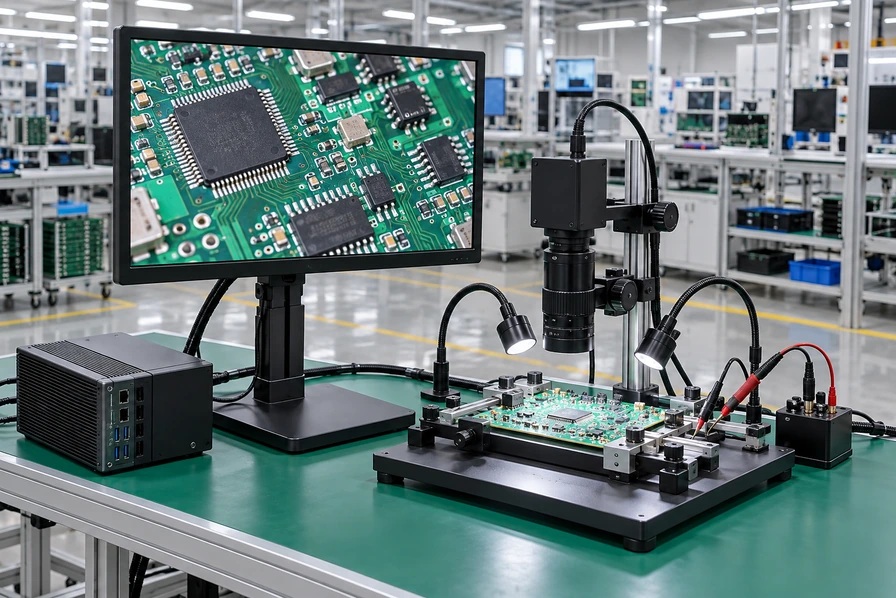
An electronics equipment integrator needed a touch-enabled display for a production inspection desk. The workstation computer and test software were already defined, so the project required an external monitor rather than another integrated computer.
The interface needed enough space for inspection images, test controls and pass/fail information. At the same time, the operator had to reach all controls comfortably during repeated use.
Lucky-XFC used the 27-inch TP270-JX-DR-02 as the initial product direction because it provided a larger Full HD touch workspace than the compact sizes while remaining within the documented flat metal-housing range.
Review process:
- Confirm the workstation PC’s video output and USB touch-data connection.
- Review operator reach and software-control placement.
- Determine whether a stable desktop stand or VESA arm better suited repeated touch input.
- Check connector direction and cable clearance behind the workstation.
- Record the approved display, mounting and connection configuration before release.
Project value:
The review separated screen size, touch operation and mounting stability into clear decisions. This reduced the risk of selecting a monitor that displayed the software correctly but was uncomfortable or unstable during daily touch operation.
This anonymized representative scenario combines common application requirements. It does not identify a specific customer or disclose confidential project information.
Desktop Touchscreen Monitor Configuration in Six Steps
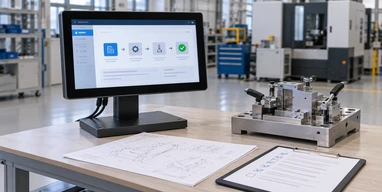
1 Define the Desktop Application
Clarify what the operator views, touches and controls during a normal work cycle.
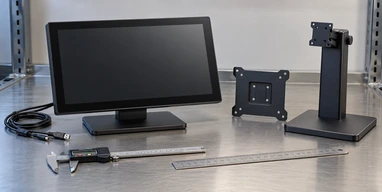
2 Select a Size Starting Point
Compare 21.5, 23.8, 27 and 31.5-inch models according to workspace and touch reach.
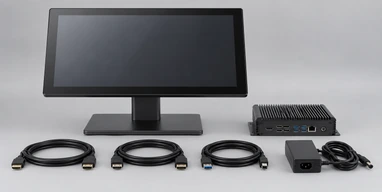
3 Review the Host
Record the computer model, operating system, video output, USB availability and multi-display arrangement.
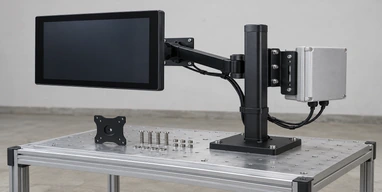
4 Define Mounting
Select a desktop stand, VESA arm, fixed bracket or equipment support and confirm available space.
5 Confirm the Specification
Approve the selected model, interfaces, touch behavior, dimensions, mounting and cable arrangement.
6 Validate the Project Setup
Check image output, touch recognition, screen mapping, stability and workstation fit with the intended host and installation.
Changes to the panel, interfaces, mounting or housing after approval may affect feasibility, cost, MOQ and schedule. Record the final configuration before production planning.
Desktop Touchscreen Monitor Quality and Configuration Checks
Inspection must follow the approved model and project configuration. Do not use a generic quality statement as a substitute for checking the actual product requirements.
Appearance Inspection
Review the front surface, metal housing, assembly and connectors.
Display Function
Check image input, native resolution behavior and screen condition against the approved configuration.
Touch Function
Verify touch response, coordinate behavior and required operating-system recognition.
Connection Check
Confirm the specified video, touch-data and power connections.
Mechanical Check
Review applicable overall dimensions, mounting positions and connector locations against the approved drawing.
Stand or VESA Check
Confirm the selected support structure, installation and cable clearance.
Multi-Display Validation
When applicable, confirm that touch input maps to the intended screen after startup and reconnection.
Desktop Touchscreen Monitor Manufacturing Support from Lucky-XFC
Lucky-XFC supports touchscreen display projects from model selection through configuration review, assembly and applicable inspection. The desktop range begins with documented products rather than an undefined list of possible sizes.
For this product family, buyers can discuss:
- 21.5, 23.8, 27 and 31.5-inch documented starting models
- PCAP touch requirements
- Desktop stand and VESA mounting direction
- Host and connection review
- Metal-housing configuration
- Mechanical drawings and installation requirements
- OEM/ODM appearance and project requirements
- Portable or integrated-computer alternatives when the architecture changes
The final quotation and product approval should refer to the selected model, confirmed specification and applicable drawing. Do not combine specifications from different models into one universal desktop monitor claim.
Desktop Touchscreen Monitor Buyer Guide and FAQs
What is a desktop touchscreen monitor?
Which desktop touchscreen monitor size should I choose?
Is a 23.8-inch monitor the same as a 24-inch monitor?
Is a 31.5-inch monitor the same as a 32-inch monitor?
Does the monitor include a desktop computer?
Does HDMI carry the touch signal?
Can I connect the monitor through USB-C?
Can the monitor be used with Windows?
How do I map touch to the correct screen in a dual-monitor setup?
Is a desktop stand included?
Can the monitor use a VESA arm?
What information is needed for a quotation?
Desktop Touchscreen Monitor Project Support

Model Selection
Compare the documented sizes according to workspace, software layout and touch reach.

Host Compatibility Review
Check the computer, operating system, video output and touch-data connection.

Mounting Coordination
Review desktop stands, VESA arms, brackets, stability and cable clearance.

Mechanical Confirmation
Use the applicable dimensions and drawing before releasing the workstation structure.

Configuration Approval
Record the selected model, touch, interfaces, mounting and accessories before production.

Technical Communication
Reference the approved configuration when discussing installation or after-sales questions.
For a more useful recommendation, send a workstation photo or drawing together with the host model, available ports and expected quantity.
Start Your Desktop Touchscreen Monitor Project
Tell Lucky-XFC how the monitor will be used, which computer will drive it and how it should be mounted. We will determine whether the project fits the documented 21.5, 23.8, 27 or 31.5-inch desktop range, requires a stand or VESA review, or should move to a portable or integrated touchscreen computer configuration.
