
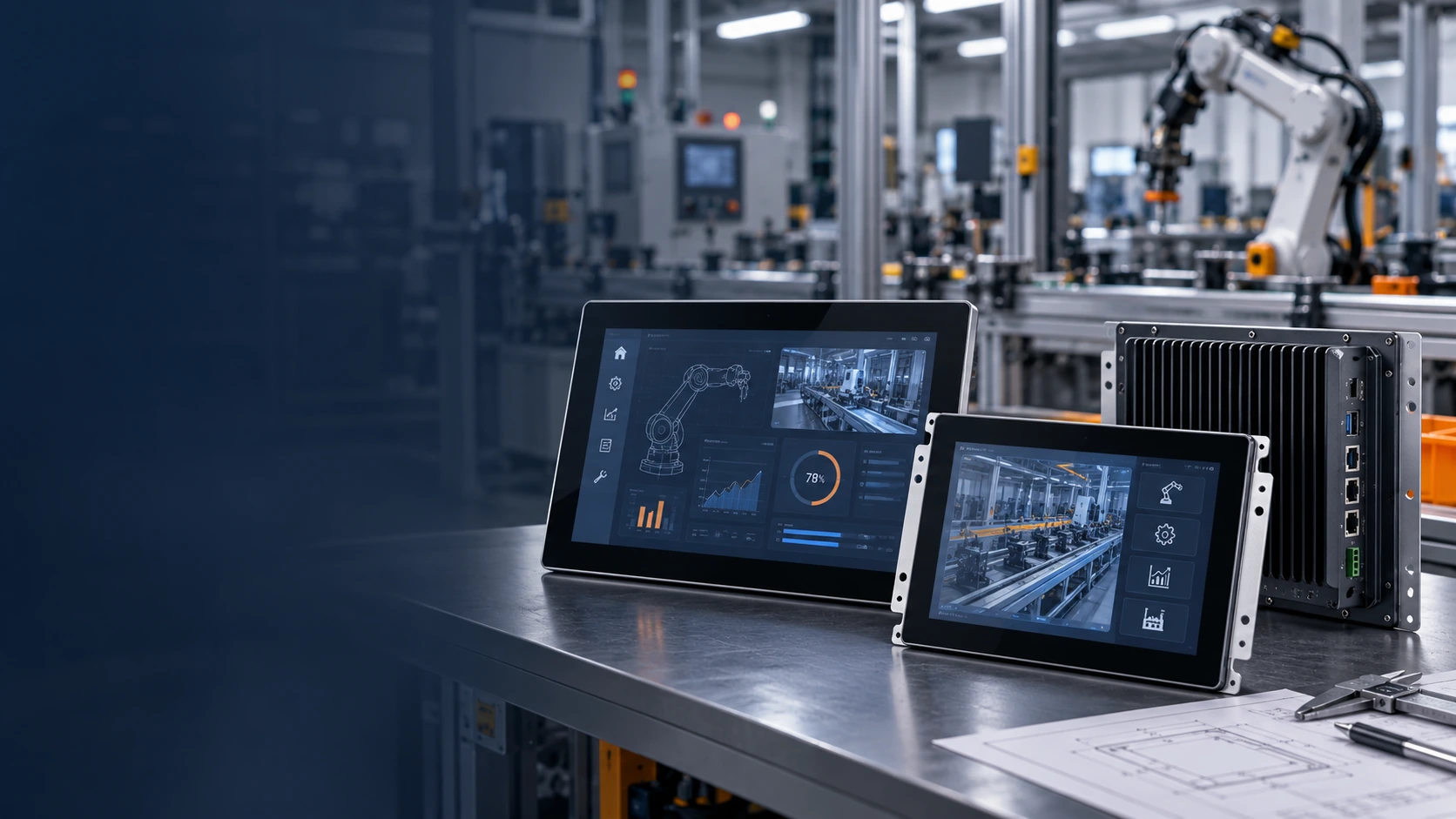
Custom Touchscreen Display Manufacturer for Equipment Integration
Lucky XFC manufactures and customizes touchscreen displays for industrial equipment, self-service terminals, commercial interfaces, gaming cabinets and custom display systems.
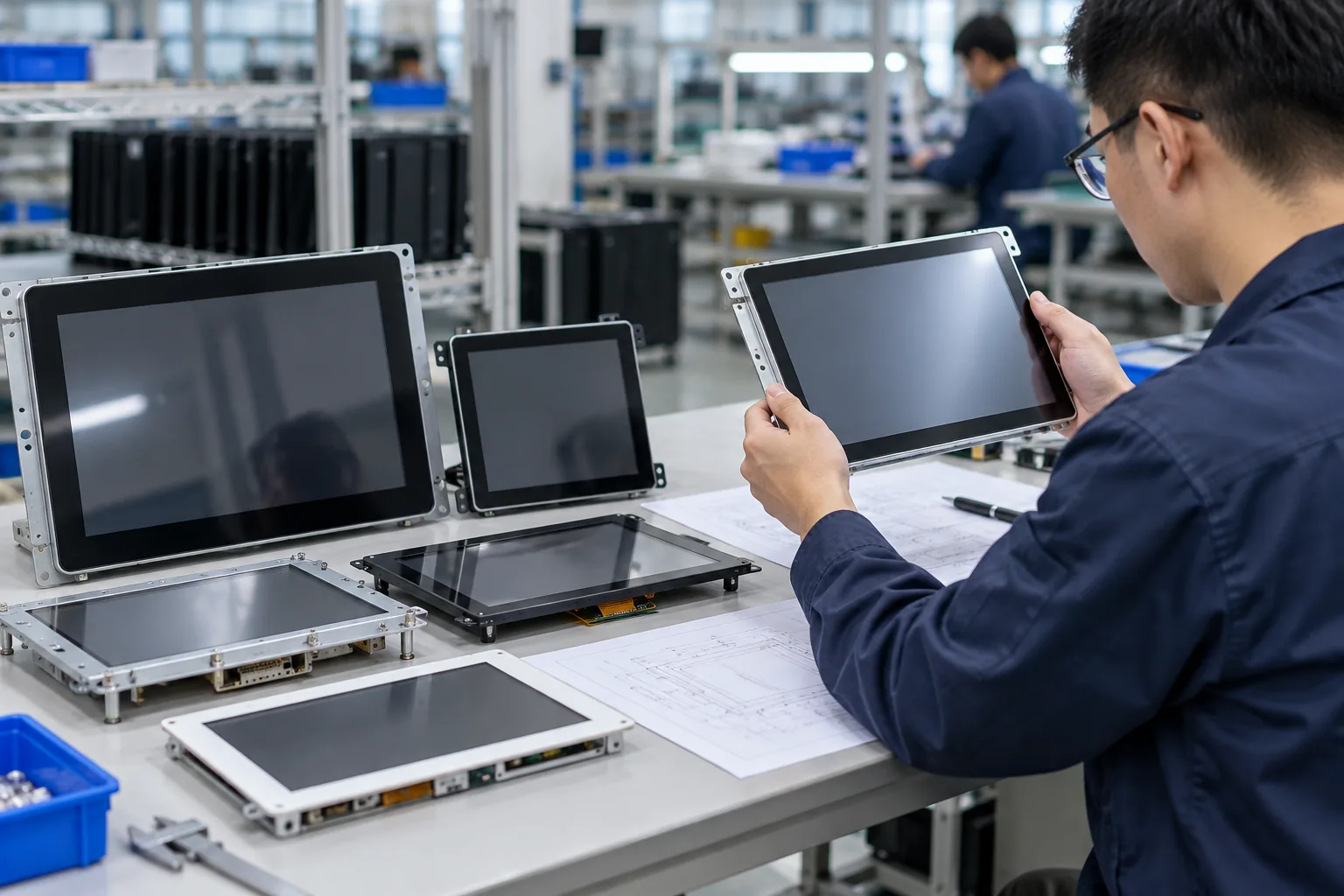
Choose from standard flat monitors, open-frame displays, industrial and rugged configurations, large-format displays, J-type and C-type curved screens, or kiosk-focused display hardware. Standard products provide practical starting points, while size, touch behavior, interfaces, mounting and electronics are reviewed against the selected model and equipment design.
- Standard flat PCAP monitors from 21.5 to 43 inches
- J-type and C-type curved display families
- Open-frame, panel-mount and enclosed integration paths
- OEM, ODM and logo customization
- Custom touchscreen solutions from 2.5 to 120 inches subject to technical review
Touchscreen Displays by Product Format
Start with the physical format and installation method. Each product family answers a different equipment, enclosure or user-interaction requirement.
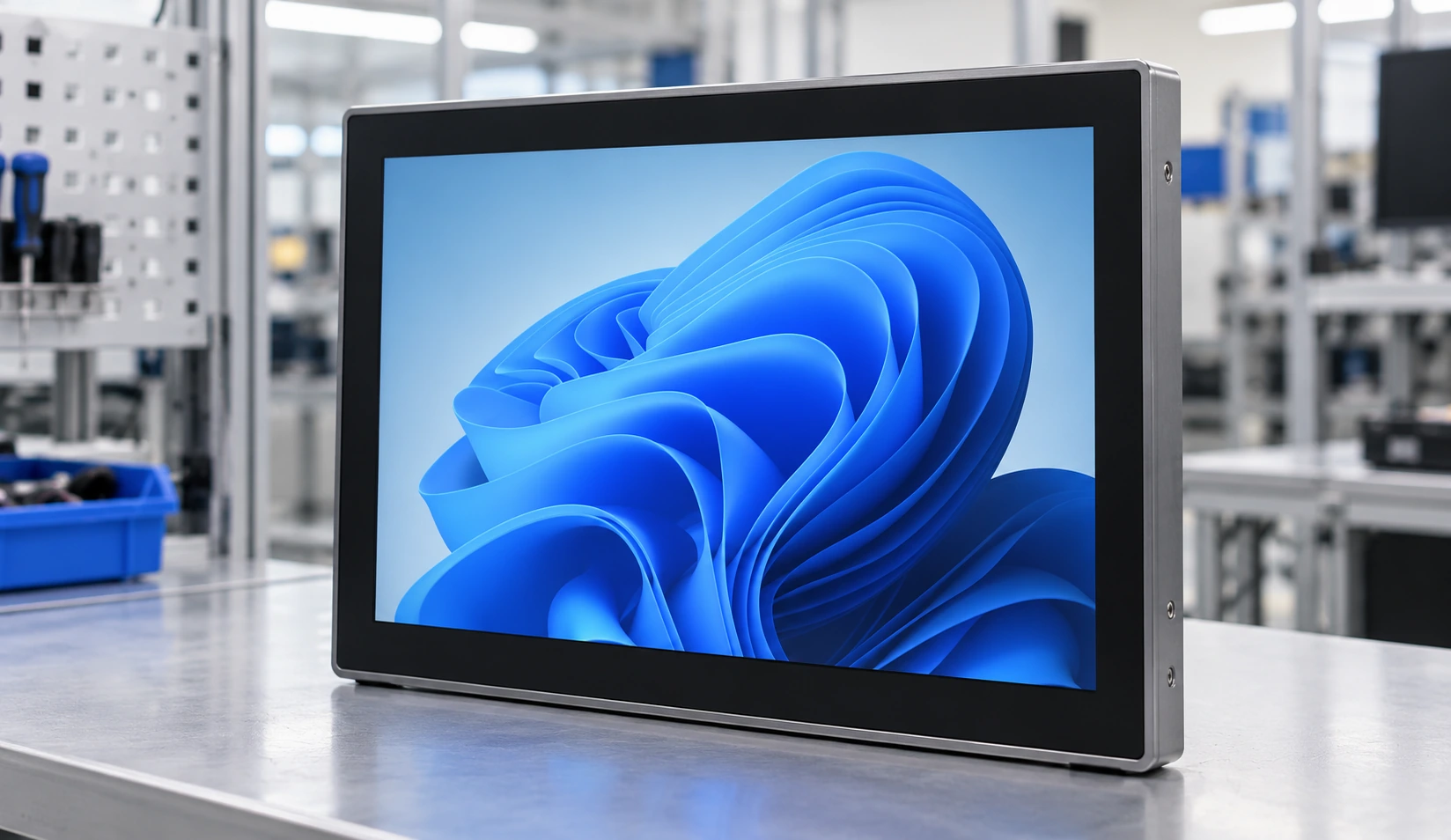
Standard Flat Touchscreen Displays
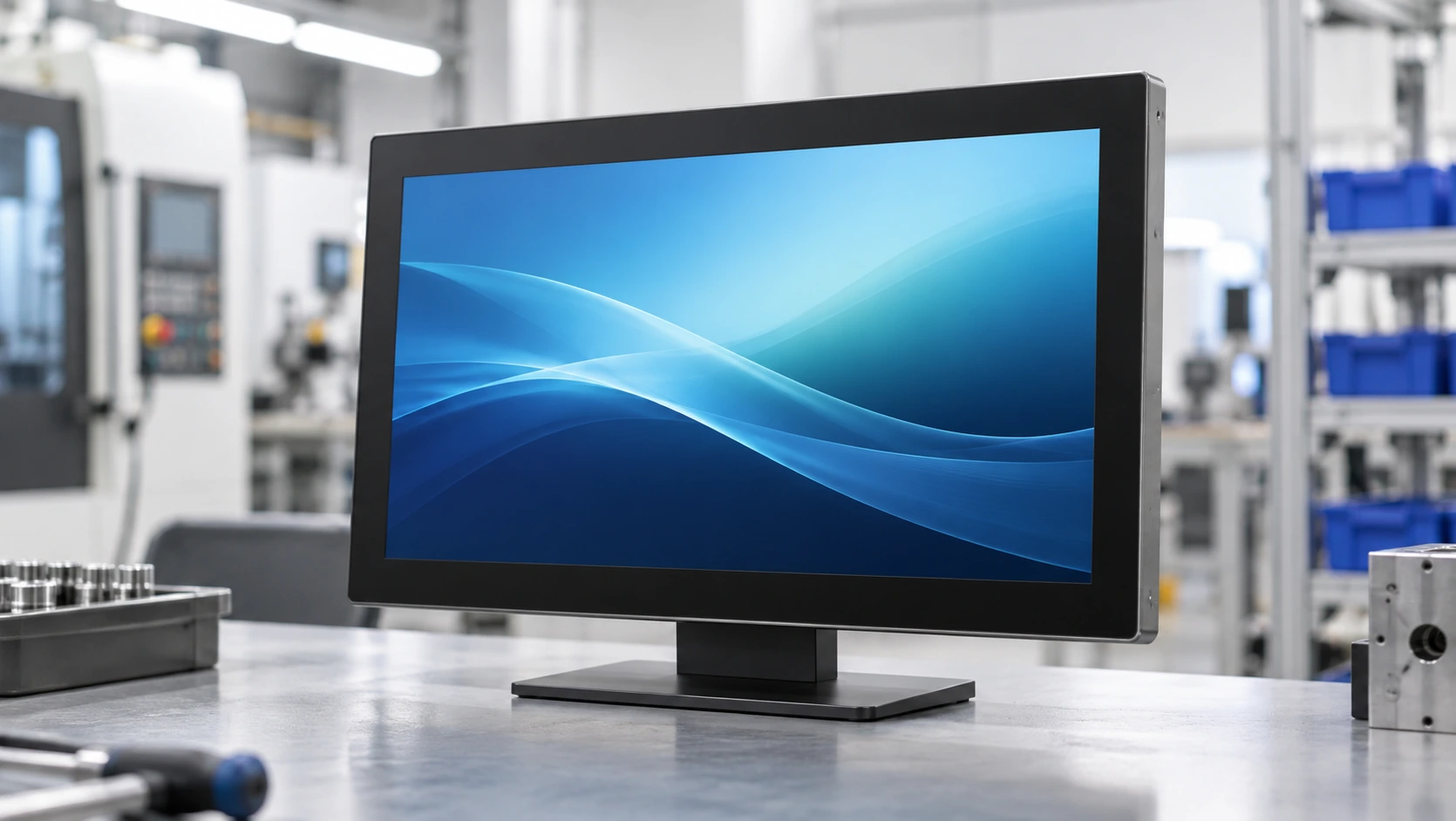
Finished metal-housed touchscreen monitors for desktop, VESA, wall or equipment-mounted installations. The current flat PCAP range includes 21.5, 23.8, 27, 31.5 and 43-inch models with 16:9 Full HD panels.
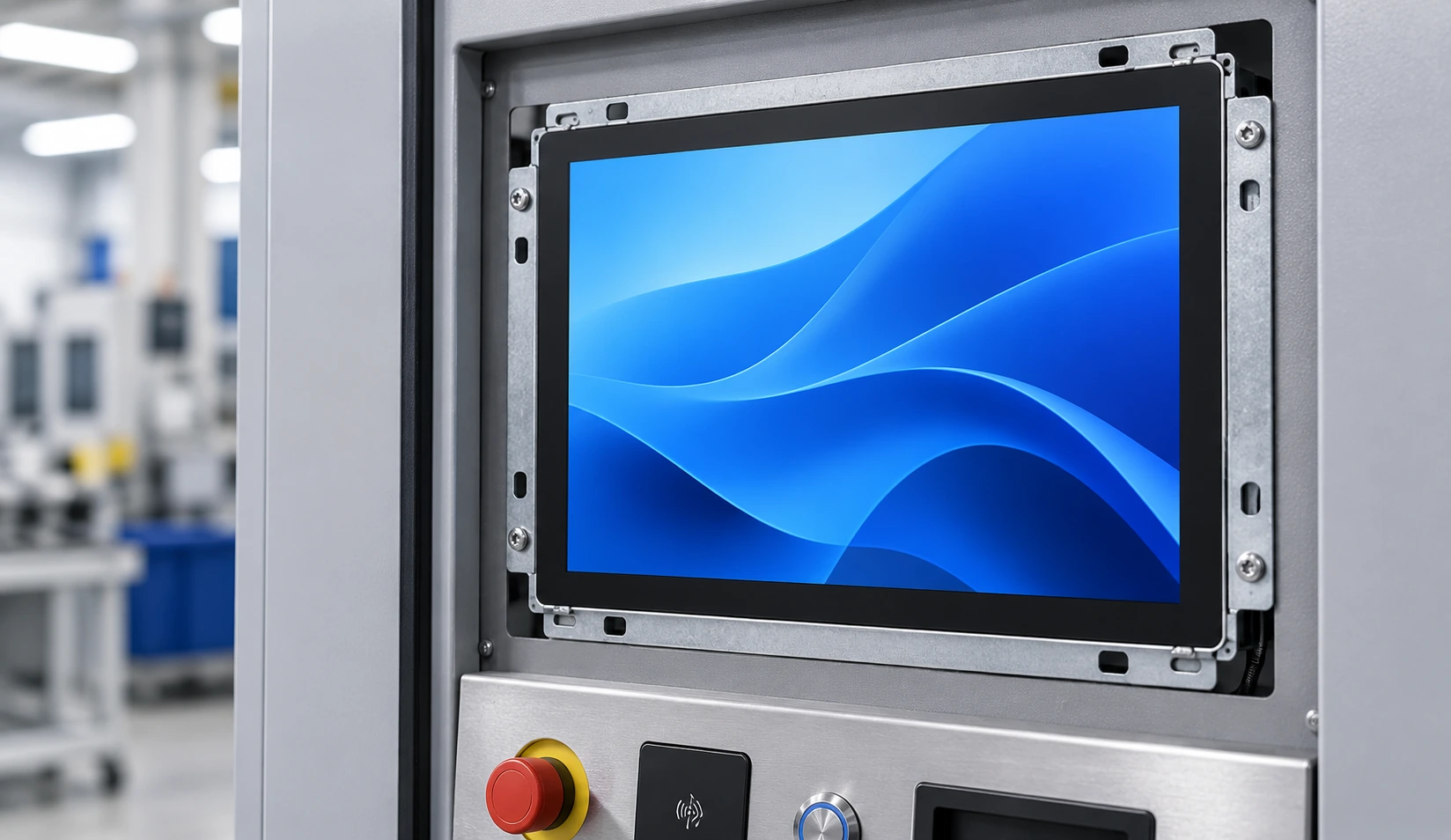
Open-Frame Touchscreen Displays
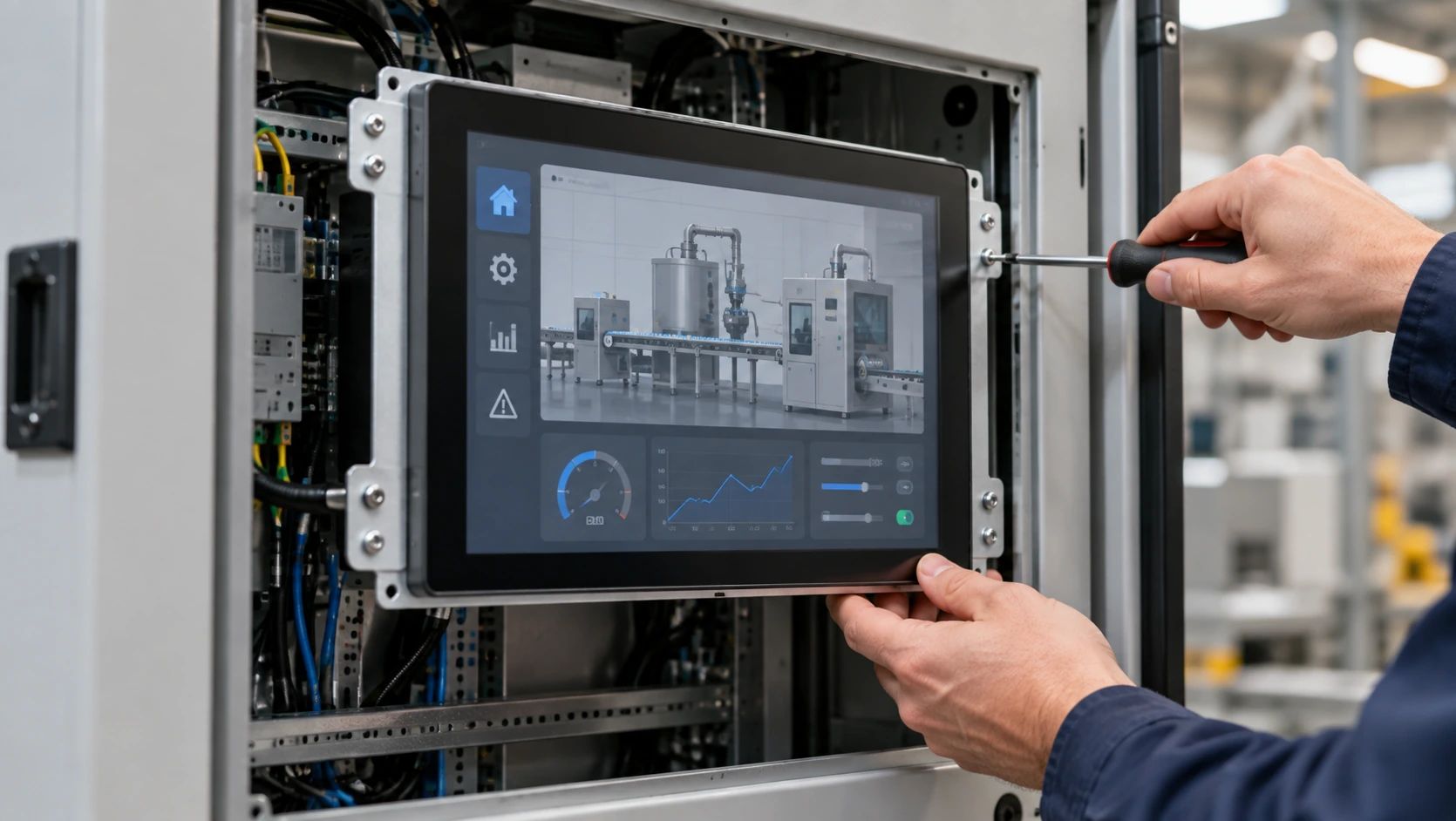
Display and touch assemblies designed to mount behind a kiosk, machine panel or custom enclosure. Select this format when the equipment cabinet provides the external appearance and the display must fit a defined opening and installation depth.
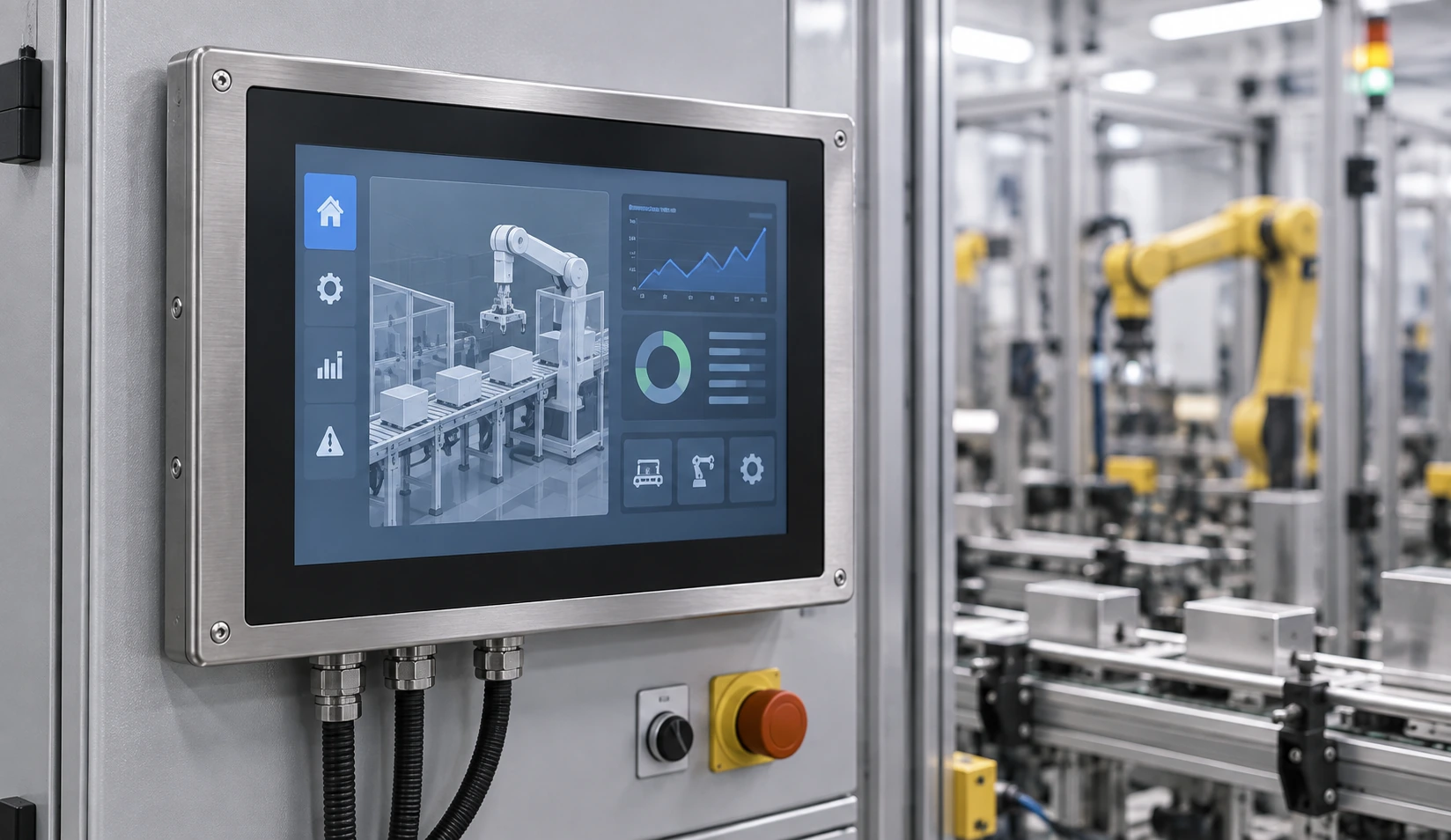
Industrial Touchscreen Displays
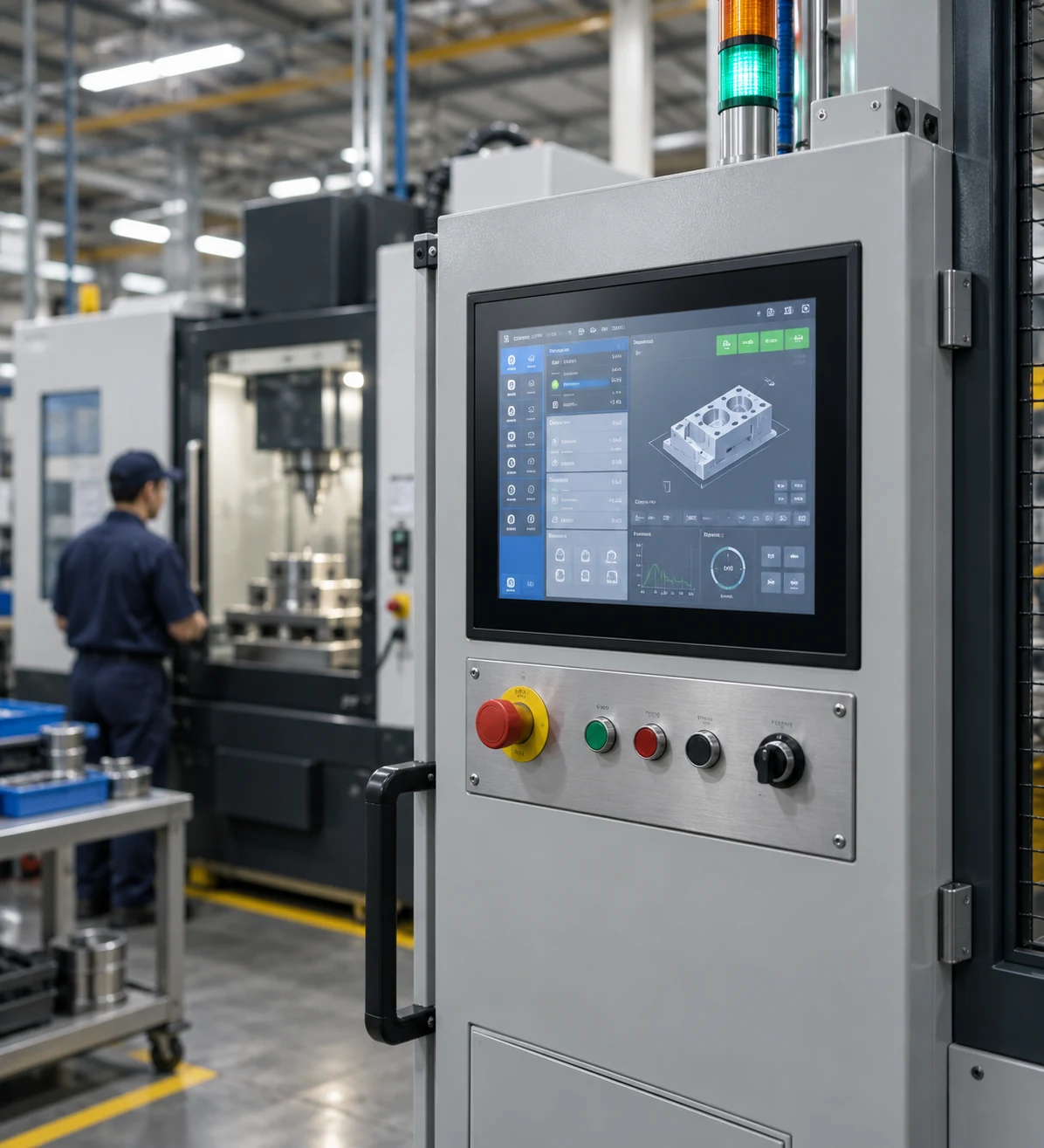
Panel-mount, open-frame or enclosed display hardware for control panels, automation equipment and operator interfaces. Touch technology, power, interfaces and mounting are selected around the external industrial computer or controller.
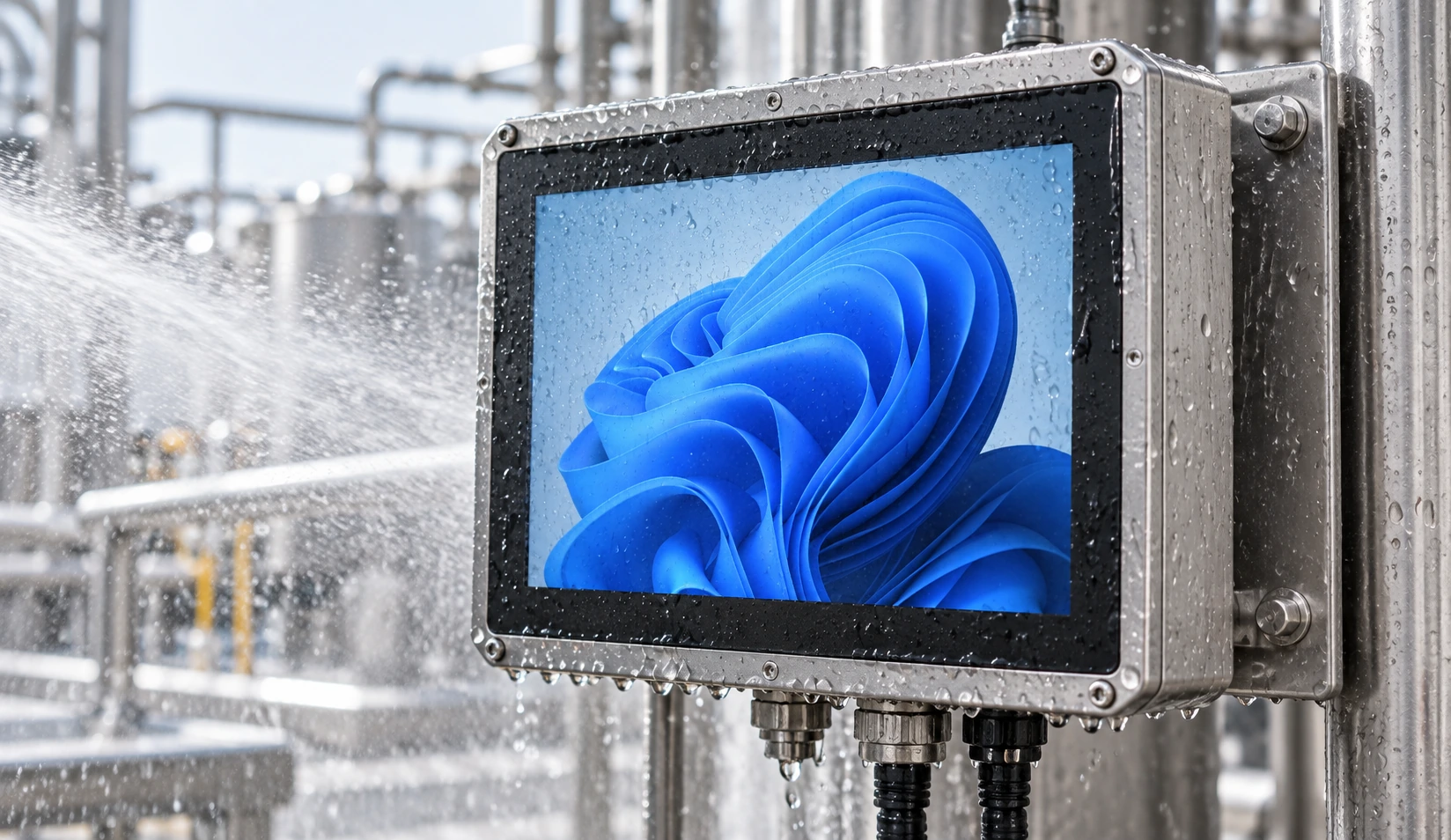
Rugged and Waterproof Displays
Project-reviewed display configurations for moisture, dust, frequent public interaction, unstable power or demanding installation conditions. Protection scope, temperature, brightness and touch behavior must be confirmed for the selected model and complete enclosure.
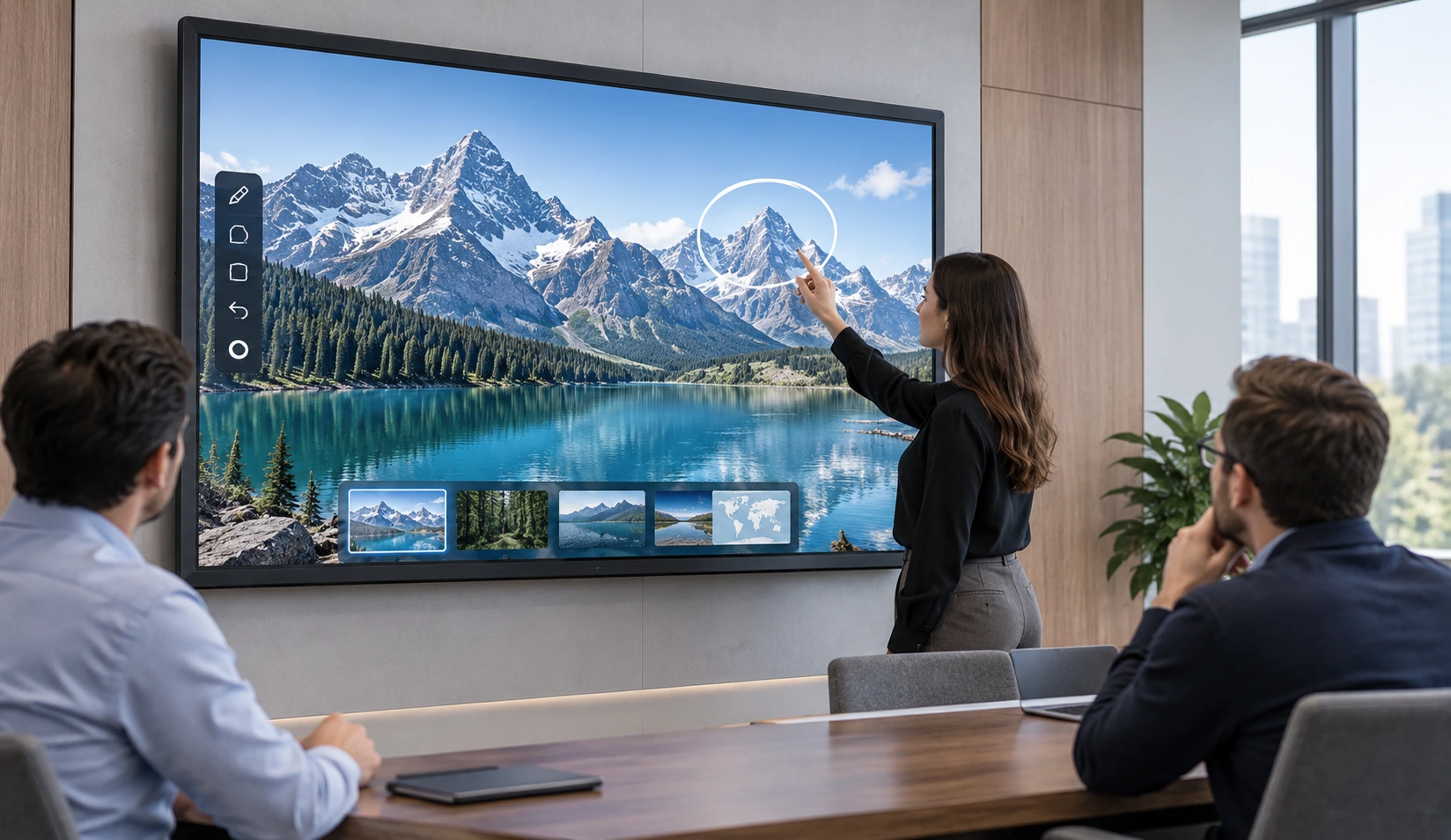
Large-Format and 4K Displays
Large interactive displays for commercial information, collaborative spaces and custom equipment. Documented starting points include a 43-inch flat touchscreen and 32–55-inch curved formats. 4K belongs to selected interactive configurations rather than every model.
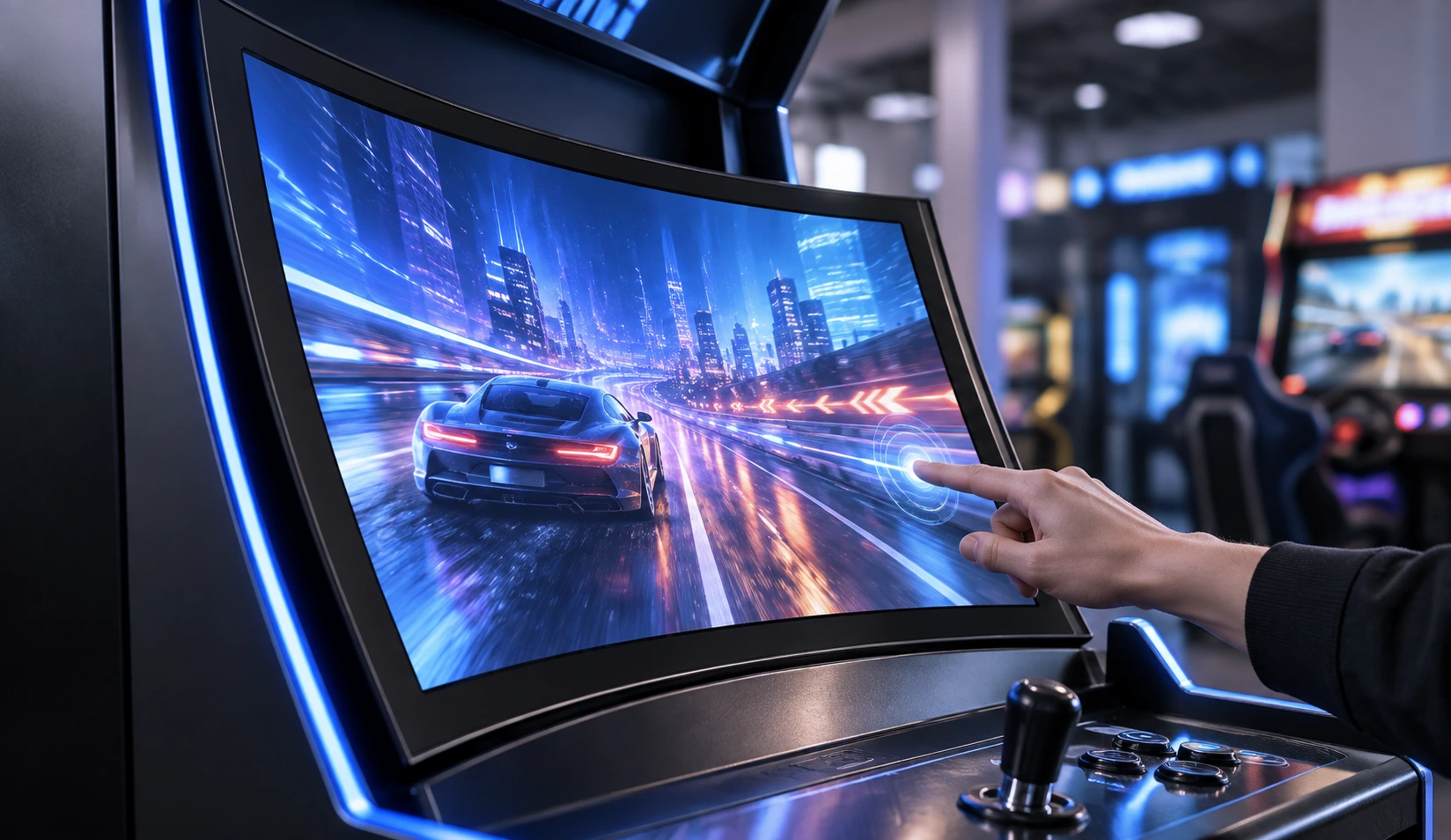
Curved Touchscreen Displays
J-type and C-type capacitive-touch displays for shaped cabinets, gaming equipment and immersive interactive systems. The display profile, active touch area, opening dimensions and mounting depth must be reviewed together.
Compare Touchscreen Display Formats
The product name alone does not define the correct display. Compare enclosure, host architecture, mounting and operating conditions before selecting a series.
| Product Format | Verified Starting Point | Installation | Host Architecture | Best Starting Use | Main Items to Confirm |
|---|---|---|---|---|---|
| Standard Flat Display | 21.5″, 23.8″, 27″, 31.5″ and 43″ PCAP models | Desktop, VESA, wall or equipment bracket | External host required | Finished monitor installations | Size, VESA pattern, interfaces, touch points and brightness |
| Open-Frame Display | Model and project dependent | Behind an equipment or kiosk opening | External host required | Custom cabinets and embedded equipment | Cutout, active area, depth, brackets and cable direction |
| Industrial Display | Panel-mount, open-frame or enclosed paths | Machine panel, control cabinet or workstation | External industrial PC or controller | Automation and operator interfaces | Power, touch method, mounting, temperature and interfaces |
| Rugged / Waterproof Display | Protection confirmed by model and enclosure | Equipment-specific installation | External host usually required | Moisture, dust or demanding operating conditions | Front protection, full sealing, brightness, temperature and touch behavior |
| Large-Format Display | 43″ flat reference and 32–55″ curved families | Wall, stand, cabinet or custom structure | Monitor, Android or PC architecture by configuration | Commercial interaction and large equipment | Resolution, viewing distance, user reach, mounting and computing architecture |
| Curved Display | J-type 43″/49″/55″; C-type 32″/43″/49″/55″ | Shaped cabinet or custom frame | Configuration dependent | Gaming, casino and immersive equipment | Curve type, opening, active touch area, interfaces and service access |
| Kiosk Display | Open-frame, enclosed, rugged, waterproof or curved paths | Integrated into a kiosk enclosure | External host for display-only monitor | Ordering, check-in, payment and information equipment | Monitor or complete kiosk, peripherals, orientation and maintenance access |
Need Help Matching the Format to Your Equipment?
Our engineering team can review your application and host system to recommend the correct starting architecture.
What Is a Touchscreen Display?
A touchscreen display combines visual output with a touch-sensitive input surface and controller. It sends the image from a host system to the screen and returns touch input to that host. The term can refer to several hardware architectures, so buyers should confirm what is included before comparing specifications or quotations.
This page focuses on touchscreen display assemblies and monitors for equipment integration. A touchscreen display does not automatically include a CPU, memory, storage or operating system.
Core Components
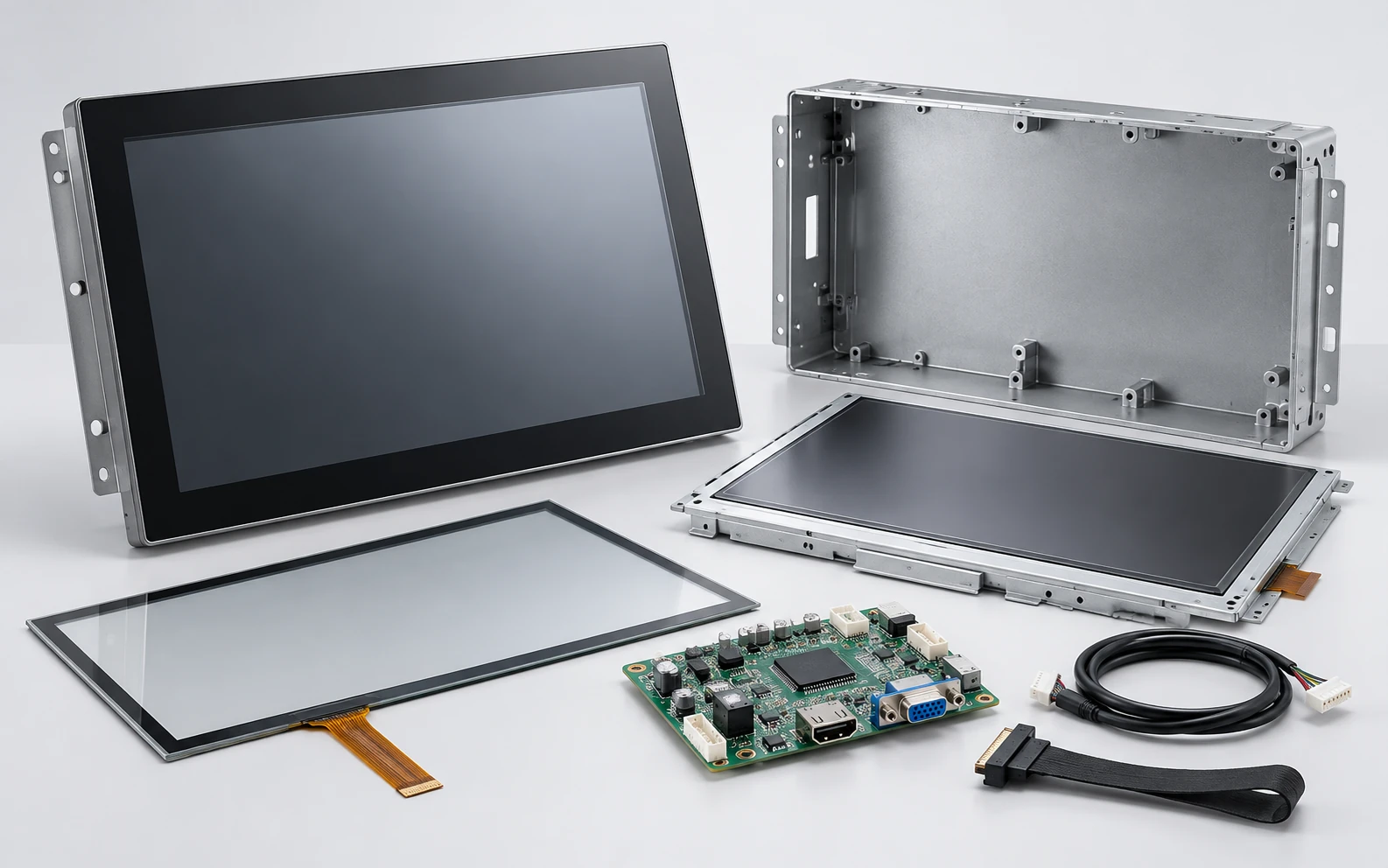
- • Display panel
- • Touch layer
- • Controller
- • Housing
- • Video interface
- • Touch-data interface
1. Enclosed Touchscreen Monitor
Includes the display, touch layer, controller, housing and external interfaces. It normally requires a separate computer or media source.
2. Open-Frame Touchscreen
Uses an integration-ready metal structure without a finished consumer-style enclosure. The equipment cabinet provides the visible front design.
3. Touchscreen All-in-One or Panel PC
Adds internal computing hardware and an operating system according to the selected configuration.
4. Complete Self-Service Kiosk
Combines the display, computing system, enclosure and selected peripherals such as printers, scanners, readers or payment devices.
Confirm the hardware architecture before comparing screen size, resolution or price.
PCAP, Resistive or Infrared Touch?
Touch technology changes how users interact with the screen and how the display responds to fingers, gloves, styluses, cover glass and environmental conditions.

| Selection Factor | Projected Capacitive (PCAP) | Resistive Touch | Infrared Touch |
|---|---|---|---|
| Input | Finger or compatible conductive stylus | Pressure from finger, glove or stylus | Finger, glove or other opaque object |
| Multi-Touch | Commonly supported; exact touch points depend on model | Usually single-point or limited | Multi-touch depends on controller |
| Surface | Glass touch surface | Flexible pressure-sensitive layers | Glass with sensors around the display edge |
| Typical Fit | Modern interfaces, kiosks and commercial interaction | Specific glove, stylus or pressure-input workflows | Large-format interaction where bezel space is acceptable |
| Important Check | Cover glass, water rejection, glove type and controller tuning | Surface wear, optical clarity and required actuation pressure | Bezel space, contamination and installation environment |
Product Range Note: Lucky XFC’s current flat 21.5–43-inch monitor series is confirmed with capacitive touch. Resistive and infrared configurations must be confirmed against the selected product and project.
Glove use, active or passive stylus support, wet-hand operation, touch through thick glass and the number of touch points are not universal specifications.
How to Specify a Touchscreen Display
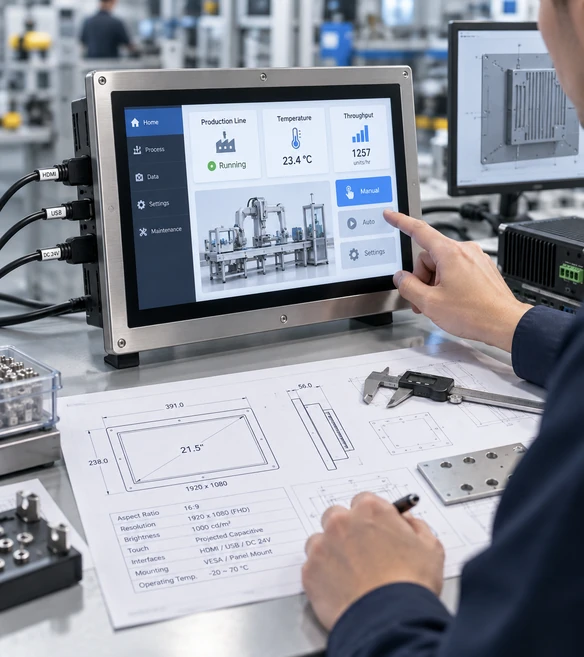
A useful display specification connects the screen to the installation, host system and user workflow. Use the following factors together rather than choosing by diagonal size alone.
Screen Size
Current flat references cover 21.5, 23.8, 27, 31.5 and 43 inches. Curved references cover 32–55 inches depending on J-type or C-type construction. The broader 2.5–120-inch scope describes custom review capability, not standard availability in every format.
Resolution
The documented flat and curved reference products use 1920 × 1080. Select 4K when close viewing, fine text, detailed images or multi-window content requires additional pixel detail. 4K must be confirmed by configuration.
Aspect Ratio and Orientation
The current flat and curved references use 16:9. Confirm landscape, portrait or shaped-display requirements together with content layout and mounting.
Brightness and Surface
Select brightness, anti-glare treatment and cover glass according to ambient light, viewing angle, cleaning and indoor or outdoor exposure. Do not assume that a standard indoor screen is sunlight readable.
Touch Behavior
Confirm touch points, glove type, stylus type, wet-hand behavior, cover-glass thickness and required gestures using the selected controller and operating system.
Video and Touch Interfaces
Video and touch-data connections are separate selection items. Confirm HDMI, DisplayPort, VGA, USB touch or USB-C functions by model.
Mechanical Integration
Review external dimensions, active area, panel cutout, mounting-hole positions, installation depth, cable direction and service access.
Power and Host System
Match the display power input and signal interfaces to the external computer, industrial controller, Android board or other host architecture.
Connect Video and Touch to the Host System
Does HDMI carry touch input?
HDMI normally carries video and audio. Touch data commonly requires a separate USB connection between the display controller and the host.
Can USB-C carry video, touch and power?
It can only do so when both the host and the selected display support the required USB-C video, data and power functions. A USB-C connector alone does not confirm full compatibility.
Which operating systems are supported?
Windows, Android and Linux integration can be reviewed according to the selected controller and hardware configuration. macOS video output may work, but external touch and gesture behavior requires model, driver and operating-system validation.
Choose the Mounting Structure Before Finalizing the Display
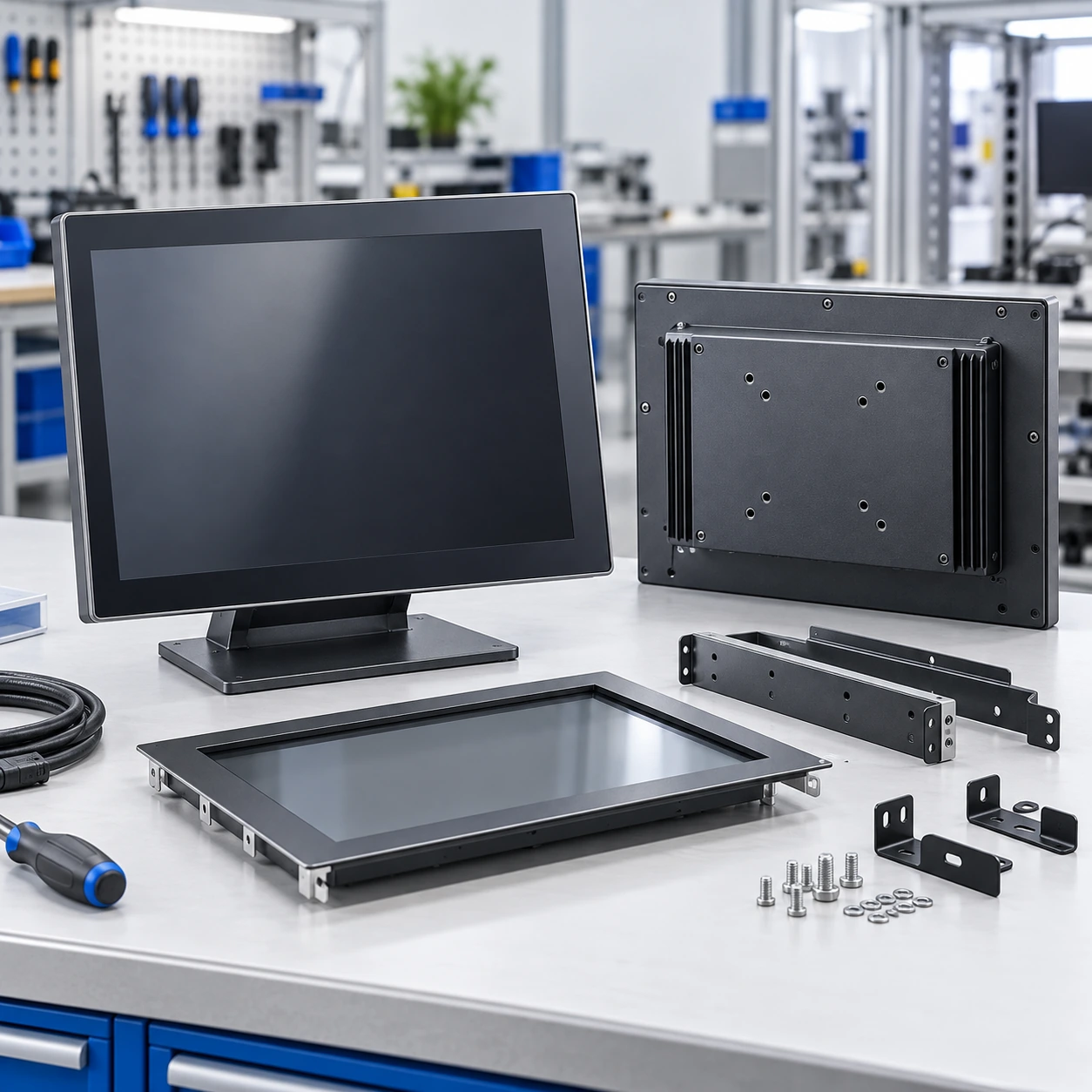
Mounting affects the visible bezel, installation depth, cable routing, front protection and future service access.
Desktop or Stand Mounting
For counters, operator desks and interactive workstations. Confirm stand compatibility, viewing angle and cable management.
VESA Mounting
For monitor arms, wall brackets and equipment frames. Confirm the exact VESA pattern and weight of the selected model.
Panel Mounting
The monitor passes through a prepared machine-panel opening while the front bezel remains visible. Confirm cutout, gasket or front-protection requirements and rear fixing space.
Open-Frame Integration
The display mounts from inside the customer’s enclosure. Confirm active-area position, internal brackets, installation depth and access for cable replacement.
Wall or Large-Format Installation
For commercial information and collaborative displays. Confirm wall structure, orientation, user reach, ventilation and maintenance access.
Curved Cabinet Integration
For J-type and C-type displays. Confirm the curve profile, cabinet opening, bezel transition, touch area, mounting points and service clearance together.
Do not release the cabinet drawing until the display outline, opening, mounting points and cable space have been checked against the selected model.
Prevent Common Touchscreen Display Integration Problems
The screen shows an image, but touch input does not work.
The equipment behaves like a standard display because the touch controller is not communicating with the host.
Check the USB touch-data connection, controller, driver, operating system and required touch settings separately from the video signal.
The display does not fit the finished cabinet opening.
Mounting holes, bezel position, cables or service clearance may require cabinet modification.
Review the external dimensions, active area, cutout, mounting points, rear depth and cable direction before releasing the enclosure.
The selected screen is difficult to read in the installation environment.
Glare, insufficient brightness, viewing angle or surface reflections can reduce usability.
Match brightness, surface treatment, glass, installation angle and ambient-light conditions to the selected model.
The requested product architecture is unclear.
A display-only monitor may be quoted when the project actually needs a panel PC or complete kiosk.
Define whether the project requires an external host, integrated computing hardware, enclosure and peripherals before selecting the product family.
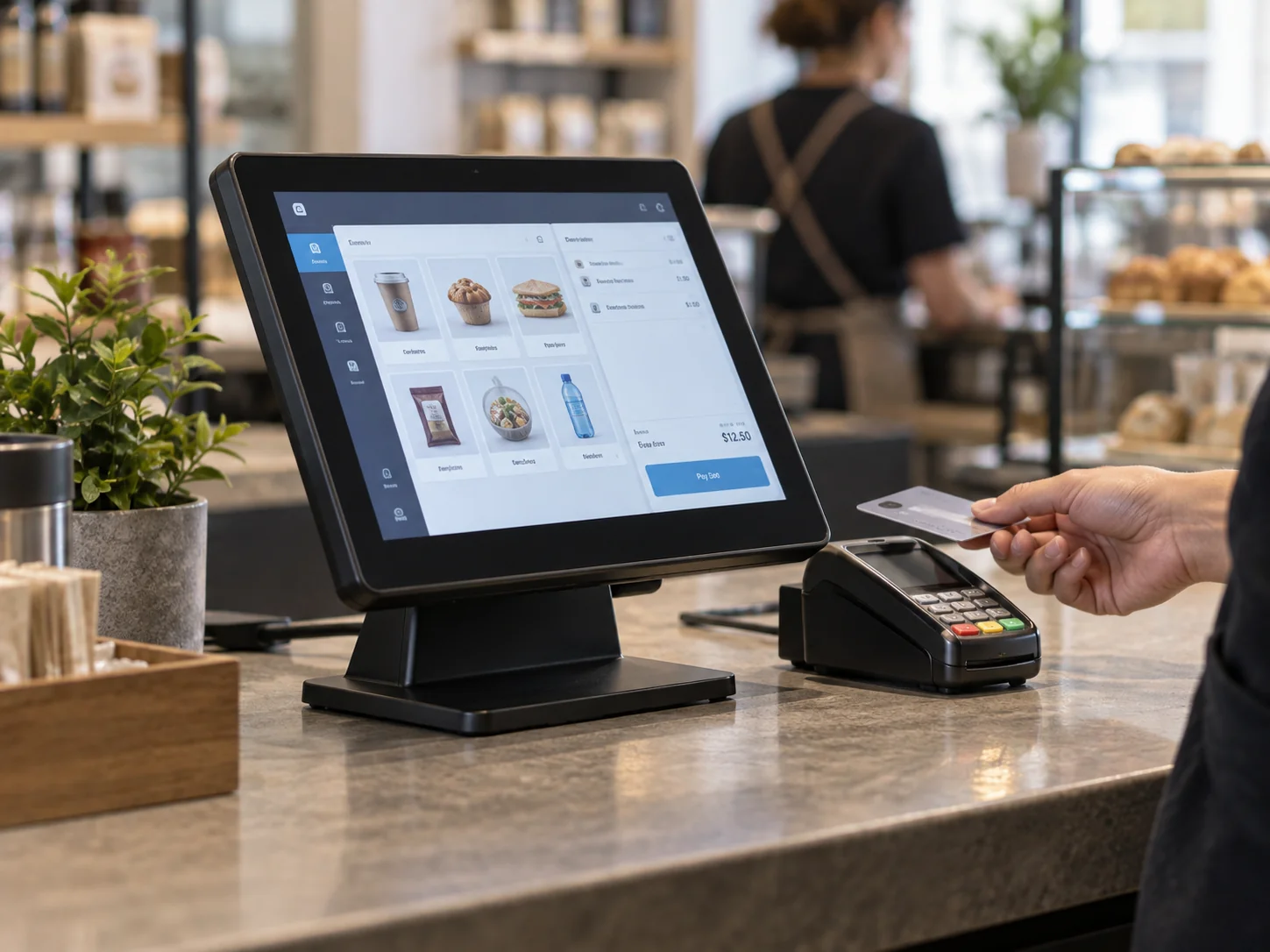
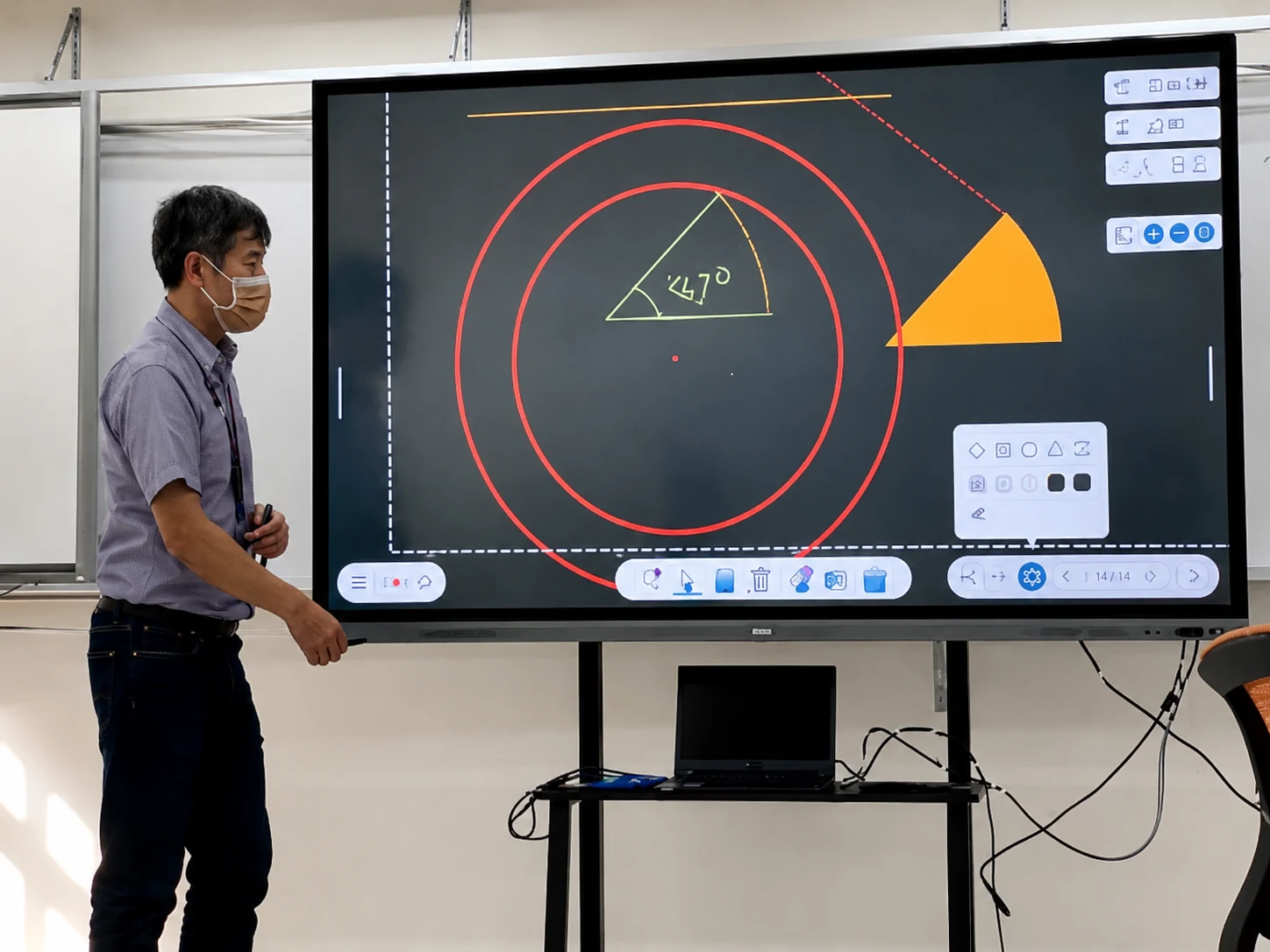
Touchscreen Displays for Equipment and Commercial Applications
Select the display family from the installation and workflow, then validate the model-level specifications.

Custom Touchscreen Displays from Requirement Review to Production
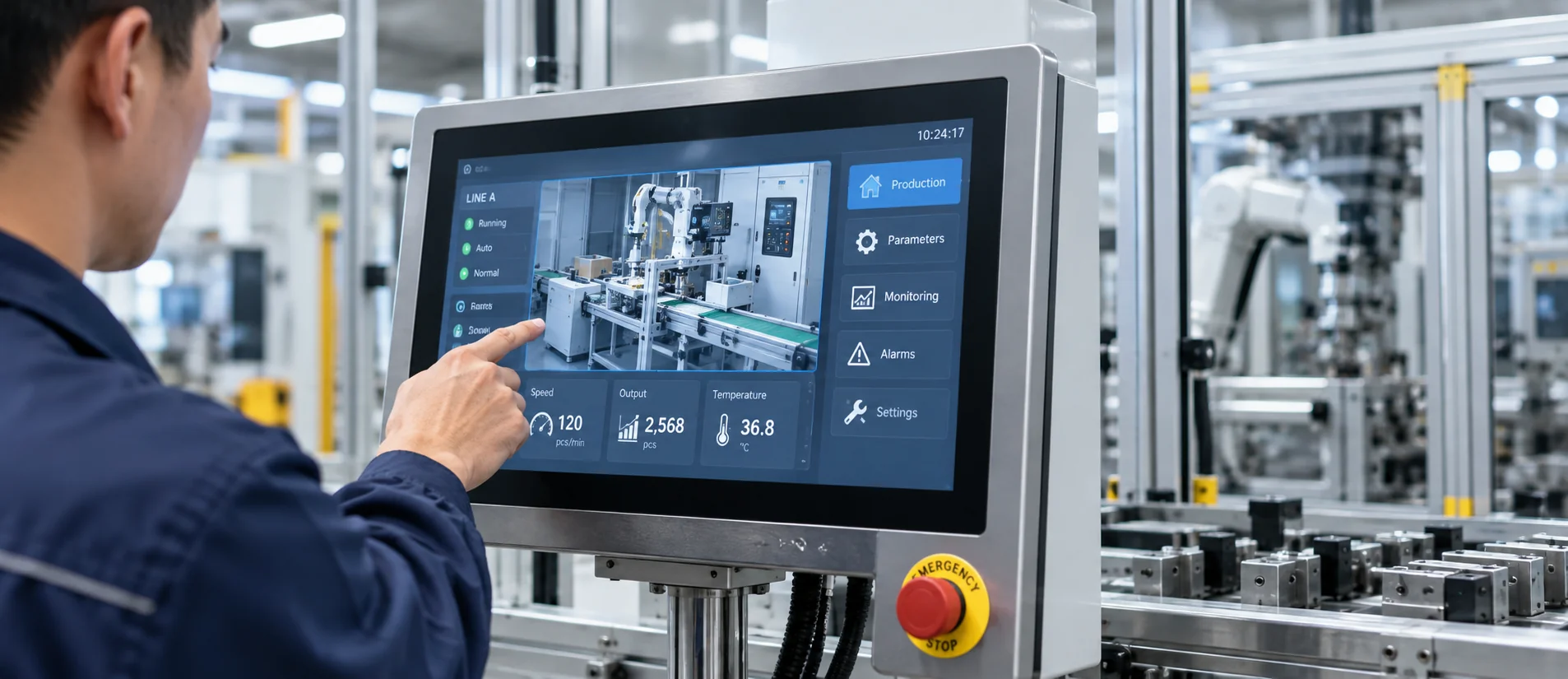
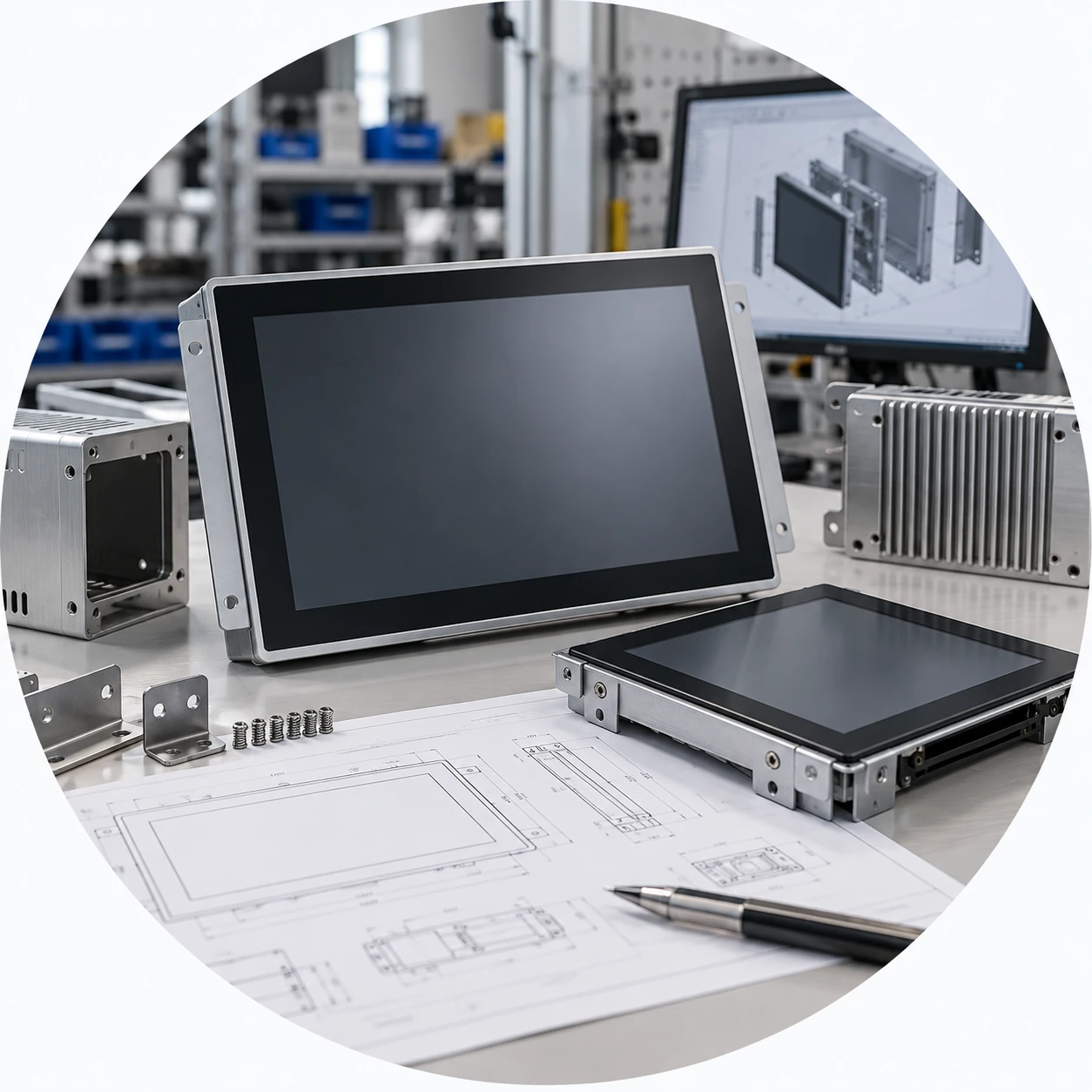
Lucky XFC can review standard products and custom display structures around equipment drawings, reference products and application requirements. Feasibility depends on panel availability, electronics, tooling, mechanical design and the approved project specification.

Customization Scope
- •Screen size and product format
- •Flat, open-frame or curved construction
- •Cover glass and printed border
- •Touch points and controller requirements
- •Housing structure and color
- •Video and touch interfaces
- •Power input
- •Mounting holes and VESA arrangement
- •Logo, labels and product appearance
- •Android or computer hardware when included in the selected system architecture
Project Workflow
Requirement Review
Application, product format, size, quantity, host system and operating conditions.
Component Evaluation
Review the available panel, touch controller, electronics and required interfaces.
Industrial and Mechanical Design
Confirm appearance, enclosure, cutout, mounting points, depth and cable routing.
Drawing and Specification Confirmation
Align the display outline, active area, interfaces and project-specific options.
Prototype or Sample Review
Produce an appropriate project sample for equipment integration and compatibility checks.
Assembly, Inspection and Production
Proceed according to the approved product specification and project requirements.
Why Lucky XFC Fits Custom Display Integration
Multiple Product Architectures
Move from enclosed monitors to open-frame, panel-mount, rugged, curved or kiosk-focused formats without treating every display project as the same product.
Verified Product Starting Points
Use documented flat PCAP models from 21.5 to 43 inches and J-type or C-type curved families as practical starting points before evaluating custom requirements.
Display, Touch, Electronics and Structure Coordination
Review the panel, touch controller, interfaces, housing and installation requirements as one equipment-integration package.
Drawing-Based Mechanical Review
Use equipment drawings, cabinet openings, mounting positions and cable requirements to reduce ambiguity before sample or production approval.
OEM, ODM and Logo Customization
Adapt the supported product format, structure, appearance and labeling according to technical feasibility and approved project requirements.
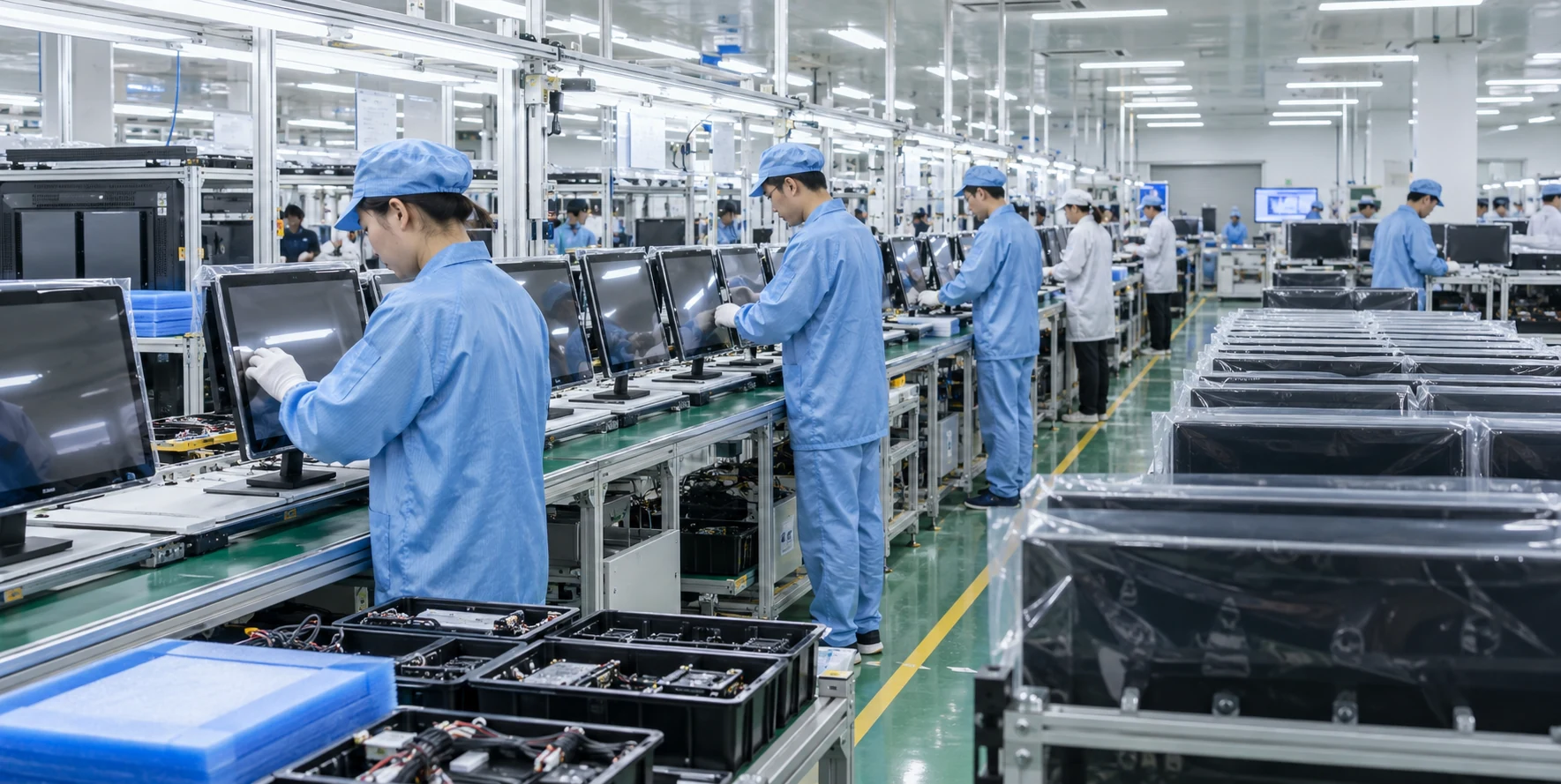
Manufacturing and Inspection in Shenzhen
Shenzhen Xin Fei Chi Technology Co., Ltd., operating under the Lucky XFC brand, integrates touchscreen display development, production and sales. The company has focused on touchscreen displays, touchscreen all-in-one systems and curved touch products for 13 years.
The documented manufacturing organization includes a 3,100-square-meter factory, more than 160 employees and 26 quality-control personnel. Product projects can move from design and component evaluation through mechanical development, prototype construction, assembly and shipment.
Lucky XFC documents 100% inspection throughout the production process. Any model-specific test method, result, certificate or environmental rating must still be confirmed for the selected product.
Touchscreen Display Buyer Guide
Use these answers to separate product architecture, touch behavior and integration requirements before comparing models.
Contents
What Is the Difference Between a Touchscreen Display and a Touchscreen Monitor?
“Touchscreen display” is a broad term for display hardware that combines a visual screen and touch input. It can describe an enclosed monitor, an open-frame assembly, an industrial display, a large interactive screen or part of a complete touchscreen system.
A touchscreen monitor normally refers to a finished external display that connects to a separate computer. It does not automatically contain a CPU, memory, storage or operating system. If the project needs internal computing hardware, specify a touchscreen all-in-one or panel PC. If it also needs an enclosure and peripherals, specify a complete kiosk.
Which Touch Technology Should I Choose?
PCAP is a practical starting point for modern finger interaction and multi-touch interfaces. Lucky XFC’s current 21.5–43-inch flat monitor series is confirmed with capacitive touch. The exact number of touch points and support for gloves, styluses, water rejection or thick cover glass must be checked by model.
Resistive touch can suit pressure-based input, specific gloves or stylus workflows. Infrared touch can be considered for large interactive surfaces where the sensor frame and operating environment are acceptable. These technologies should be selected from the real user input, surface and environmental requirements rather than from a general claim that one is always better.
How Should I Choose Screen Size and Resolution?
Choose size from the available equipment space, viewing distance, user reach, content density and installation structure. A larger diagonal does not automatically create a better interface if controls become difficult to reach or the cabinet cannot provide suitable mounting and service access.
The documented flat and curved reference displays use 1920 × 1080. Select 4K when users view detailed content from a short distance, work with fine text or use multiple content areas. For simpler control interfaces or longer viewing distances, Full HD may remain practical. The final decision should combine resolution with panel size and application content.
Does HDMI Carry Touchscreen Input?
HDMI normally carries the image and audio signal, not the touch input. Most touchscreen monitor installations use HDMI, DisplayPort or VGA for video and a separate USB connection for touch data.
If the display shows an image but does not respond to touch, check the USB touch connection, touch controller, driver and operating-system settings. USB-C can combine video, data and power only when the host and selected display support all required functions.
Should I Choose an Open-Frame or Enclosed Touchscreen Display?
Choose an enclosed monitor when the project needs a finished metal housing for a desktop, VESA arm, wall bracket or equipment frame. The housing becomes part of the visible installation.
Choose an open-frame display when the customer’s machine or kiosk enclosure provides the exterior appearance. The display mounts behind the cabinet opening, so the active area, cutout, rear depth, mounting brackets, cable direction and maintenance access become primary selection factors.
Which Operating Systems Can Be Used with a Touchscreen Display?
A touchscreen display works through the selected video interface and touch controller. Windows, Android and Linux integration can be evaluated according to the specific controller, host hardware and system configuration.
Video compatibility does not automatically confirm touch gestures, multi-touch, rotation or driver behavior. macOS external touch support is especially dependent on the controller, driver and software environment. Always validate the selected model with the actual host system before production approval.
What Information Should I Send to a Touchscreen Display Manufacturer?
Start with the required product architecture: enclosed monitor, open-frame display, industrial display, curved display, touchscreen all-in-one or complete kiosk. Then include the target screen size, quantity, application, host system, operating environment and preferred touch behavior.
For equipment integration, provide the cabinet opening, available depth, mounting positions, cable direction, video interface, touch-data connection and power requirements. A drawing, reference product or installation photo can make the mechanical review more specific, but the final configuration still follows technical feasibility and model confirmation.
Continue with the Right Touchscreen Display Series
Use the product-specific pages for model details, integration guidance and narrower selection criteria.
Compare 21.5–43 Inch Flat Touchscreen Monitors
Finished enclosures for external hosts.
Integrate an Open-Frame Touch Monitor
Mounting behind custom equipment panels.
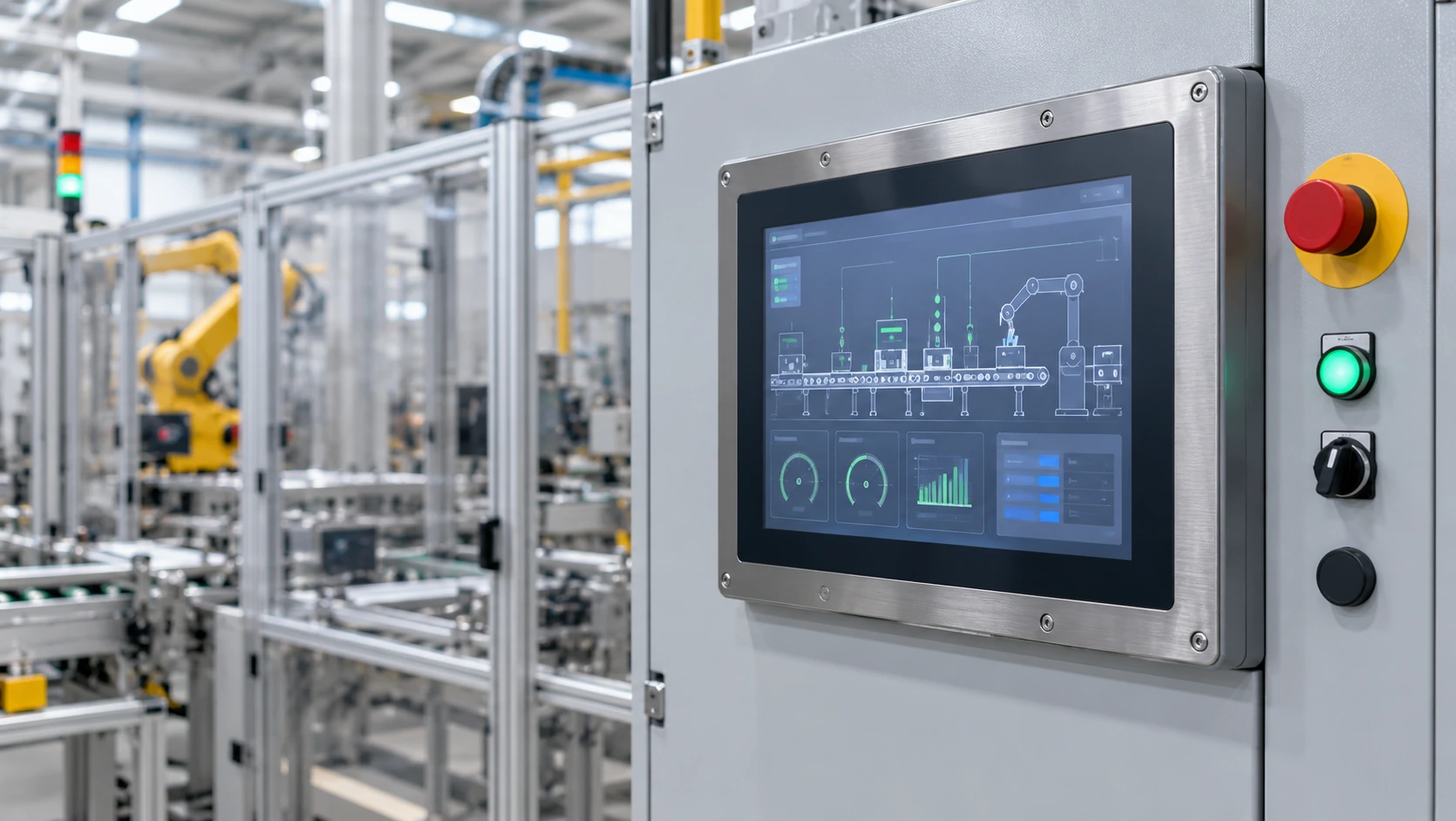
Choose an Industrial Touch Screen
Hardware for automation and control interfaces.
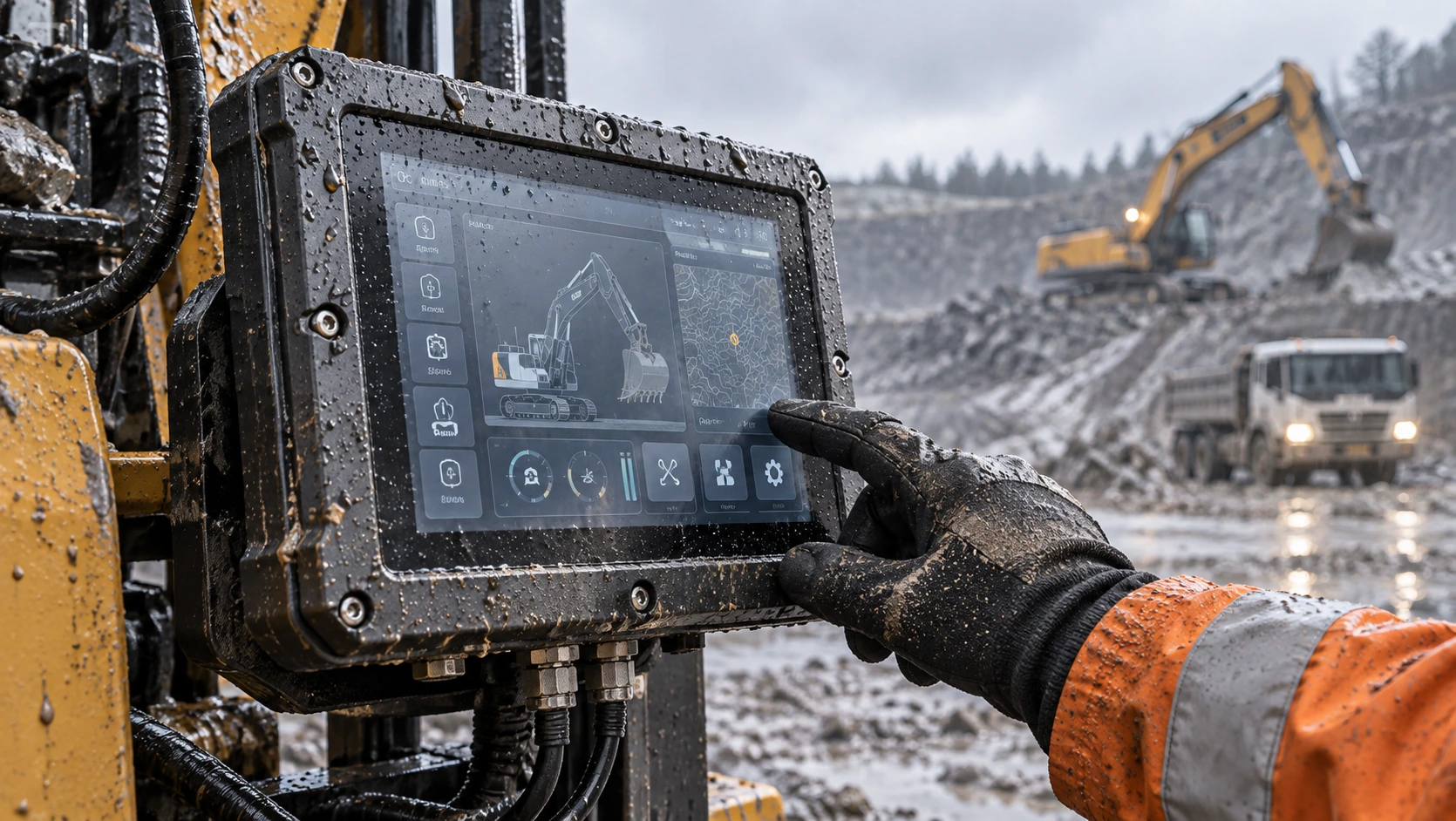
Review Rugged Touch Screen Requirements
Configurations for demanding environments.
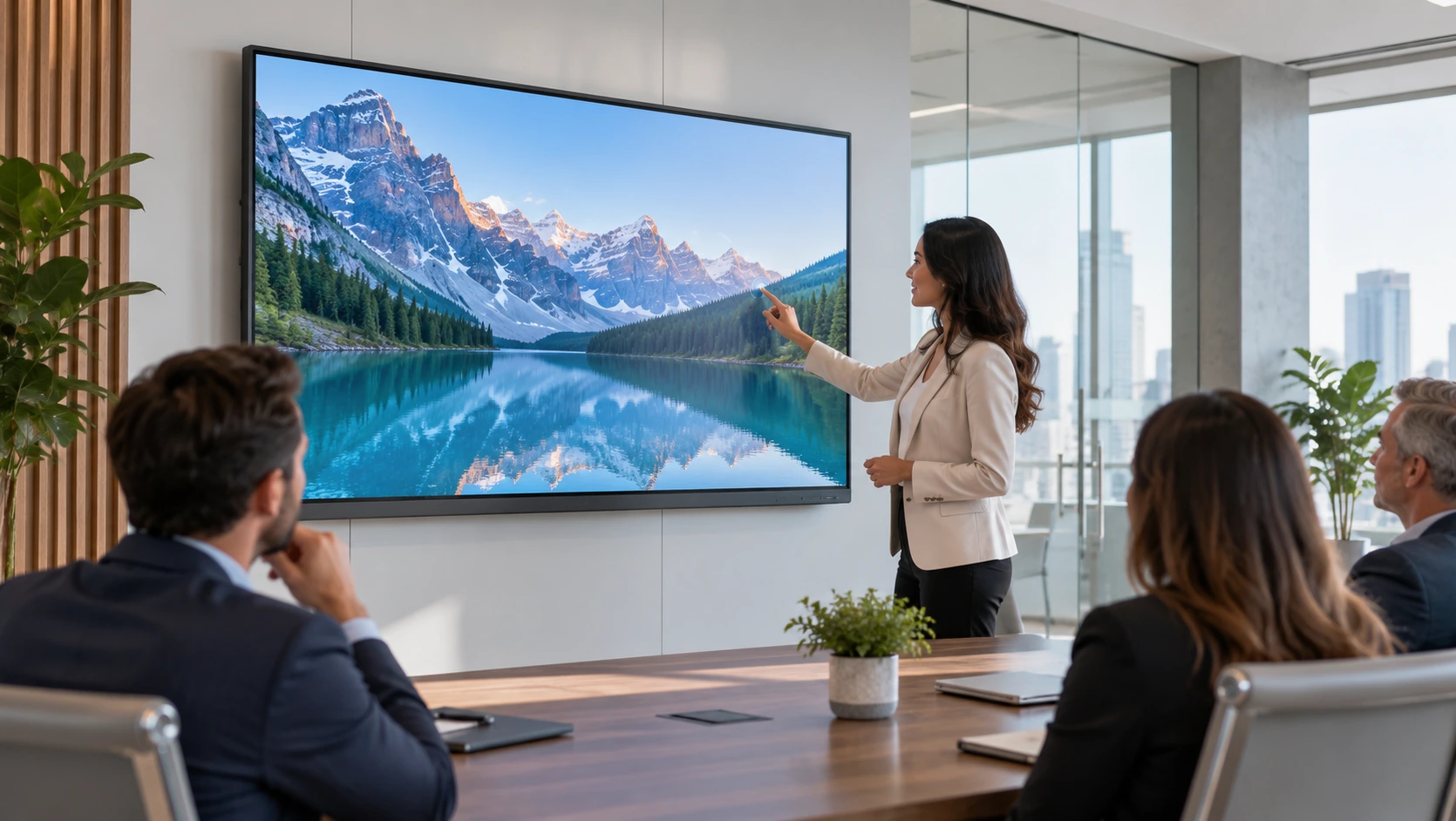
Explore Large Touch Screen Monitors
Interactive formats for commercial and collaborative spaces.
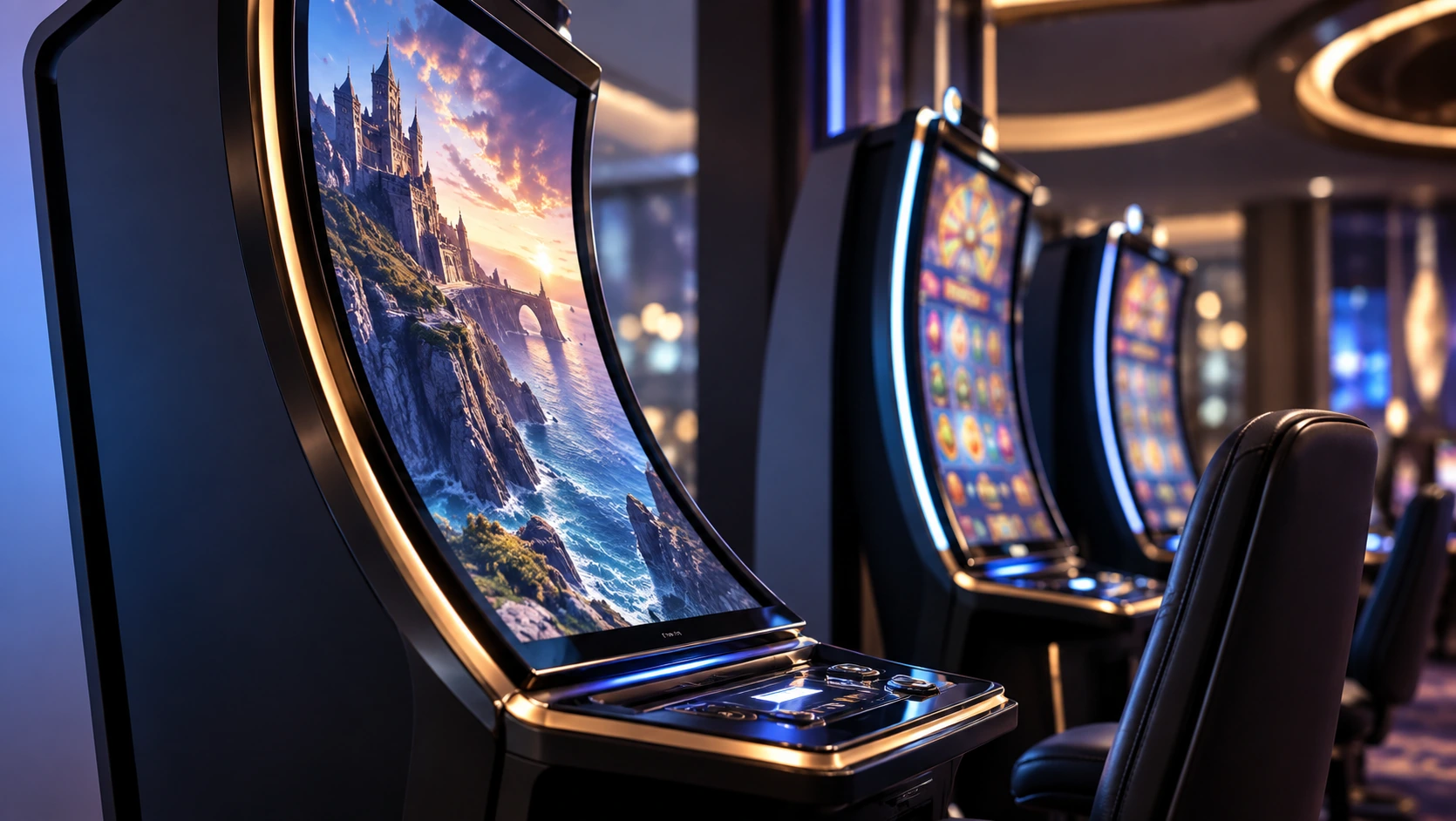
Compare J-Type and C-Type Curved Displays
Shaped profiles for gaming and immersive equipment.
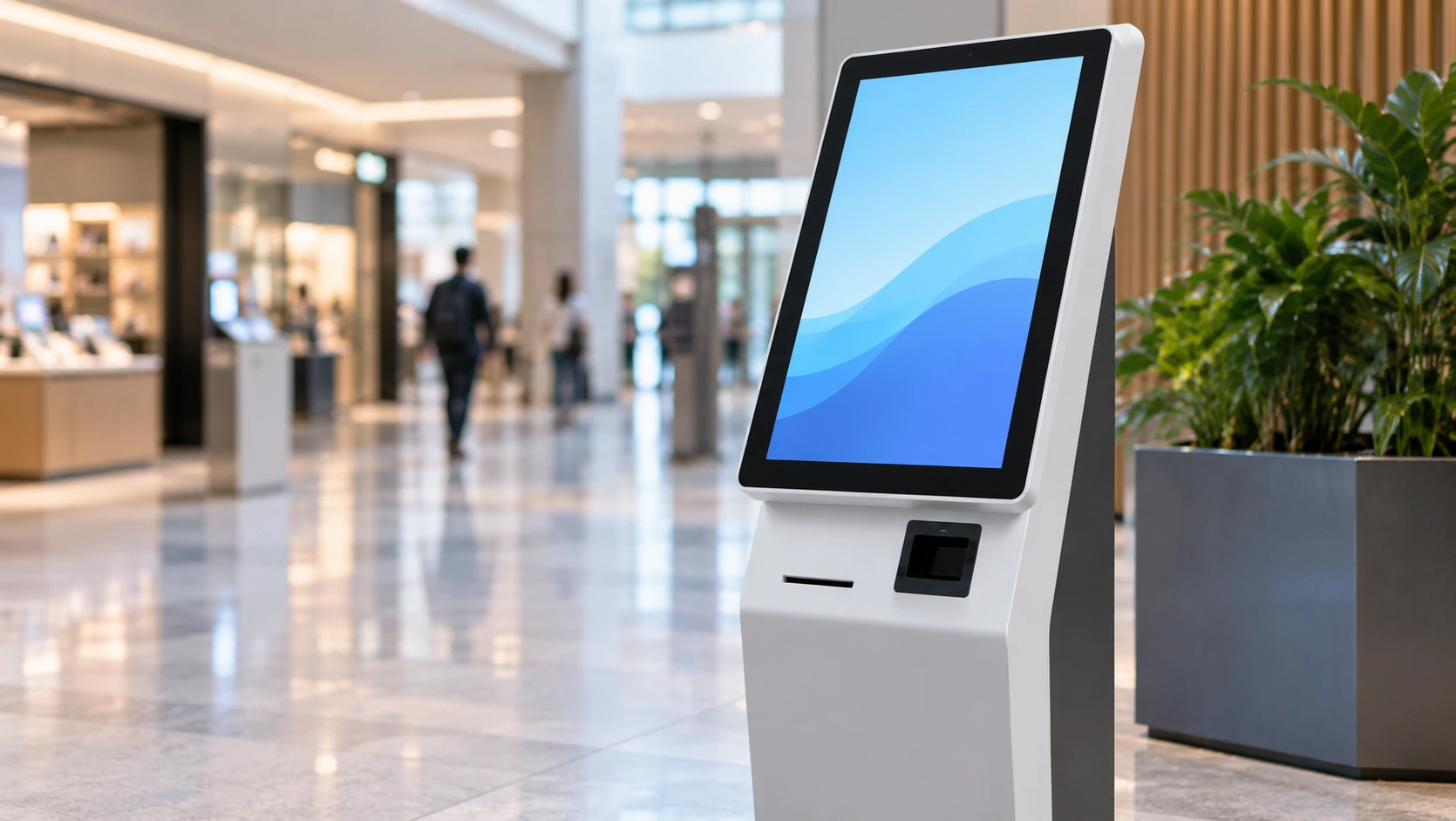
Select a Kiosk Touch Screen Monitor
Displays for self-service and information terminals.
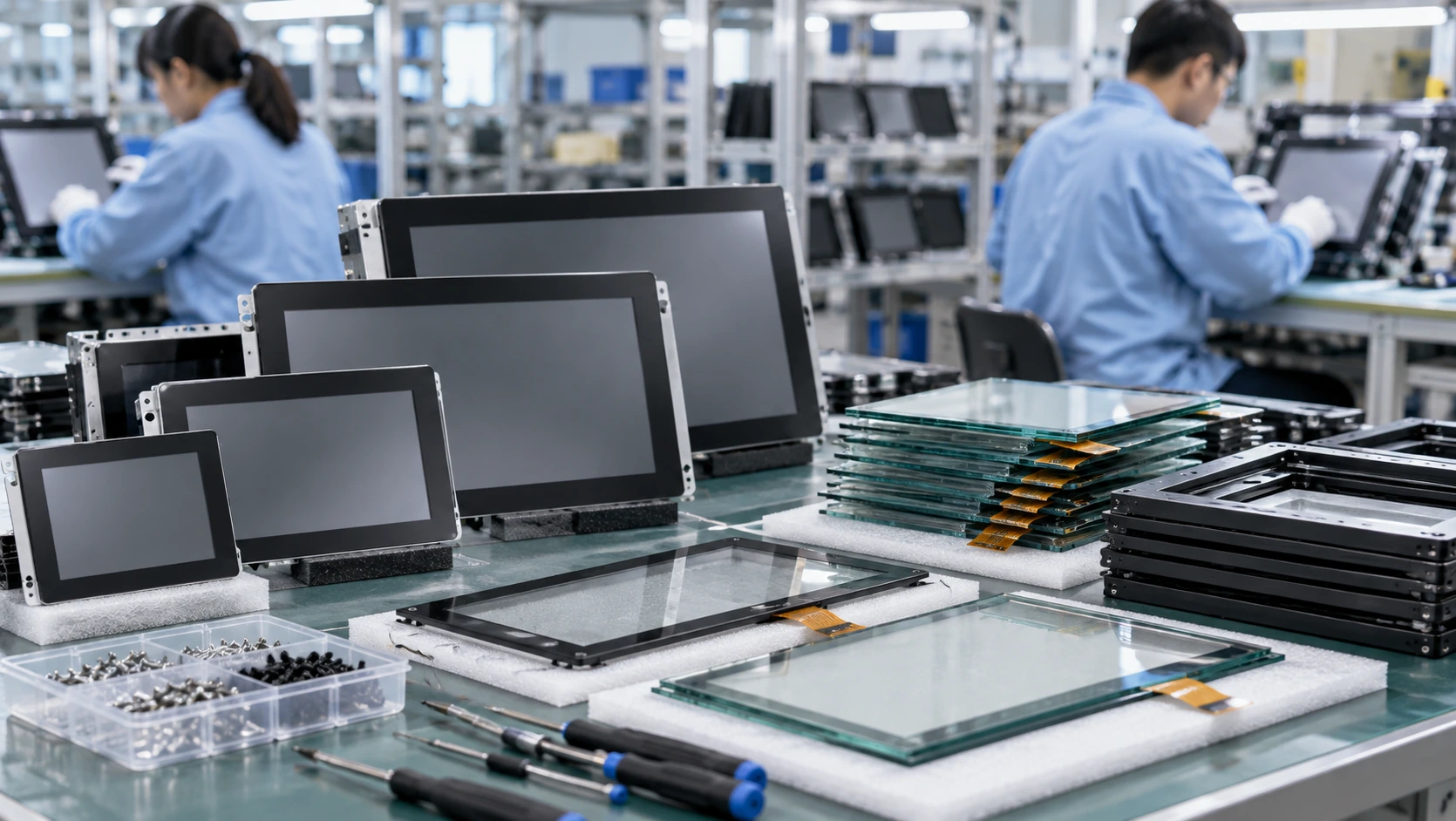
Review Custom Touch Screen Manufacturing
OEM/ODM capabilities and supplier overview.
Discuss Your Touchscreen Display Project
Share the display format, screen size, quantity, application, host system, mounting method and interface requirements. Lucky XFC can use these inputs to review a suitable standard starting point or a technically feasible customization path.
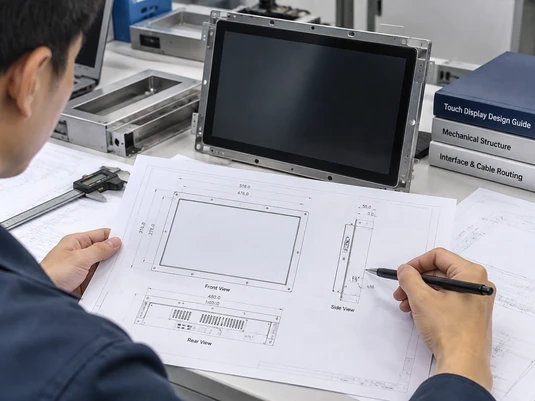
Inquiry preparation list:
- • Required display format and screen size
- • Estimated quantity
- • Application and operating environment
- • External PC, Android system or integrated computer requirement
- • Video and touch interfaces
- • Mounting, cutout or cabinet drawing
- • Touch points, glove, stylus or cover-glass requirements
