
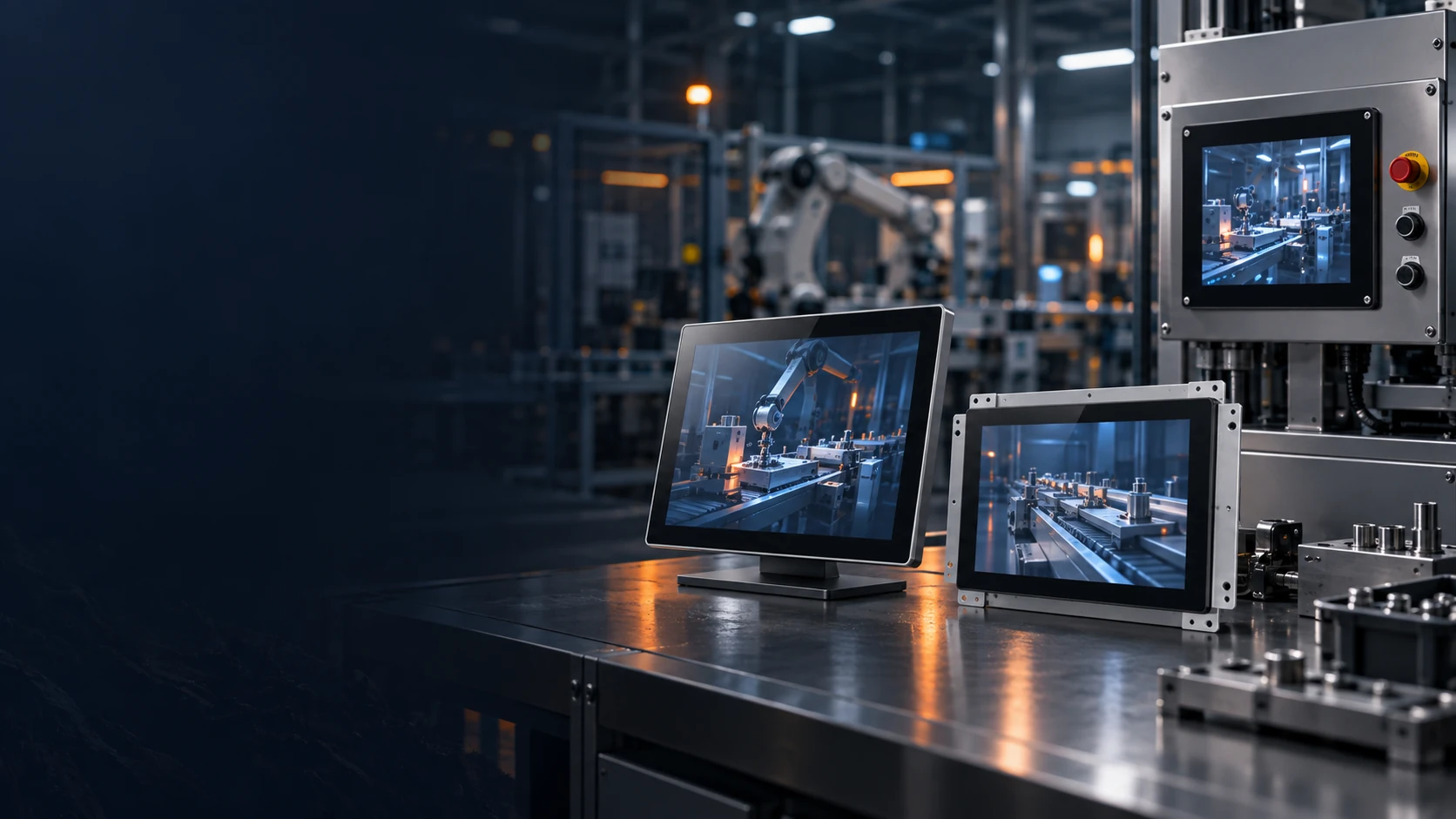
Independent Touchscreen Monitor Manufacturer for Elo Alternative Projects
Searching beyond a fixed Elo touchscreen monitor model? Lucky-XFC manufactures its own flat, open-frame, industrial, kiosk and large-format touch displays for equipment integration and commercial systems.
This page describes independent Lucky-XFC products. We do not sell Elo-branded monitors or promise a drop-in replacement for any Elo model.
- Standard flat and open-frame formats
- Capacitive touch starting configurations
- Equipment and enclosure integration
- Full HD and selected 4K project routes
- OEM and ODM customization
Start With the Right Sourcing Path
A genuine branded monitor and an independently manufactured custom touch display solve different purchasing requirements. Confirm the product identity first, then compare the technical specification.
You Need a Genuine Elo Product
Use Elo or an authorized sales channel when your project requires a specific Elo model, Elo warranty, Elo firmware, Elo accessories, model-specific support or an exact replacement for an installed Elo product.
Lucky-XFC does not sell or service Elo-branded monitors.
You Need an Independent Custom Touch Display
Continue with Lucky-XFC when the monitor must be selected or customized around an equipment enclosure, mounting structure, interface, operating environment, screen format or application.
Selection begins with the complete project specification, not with visual similarity to a third-party model.
Choose a Lucky-XFC Touchscreen Monitor Format
Select the product format according to how the display will be installed, connected and operated. Final specifications must be confirmed against the selected Lucky-XFC model or approved project drawing.
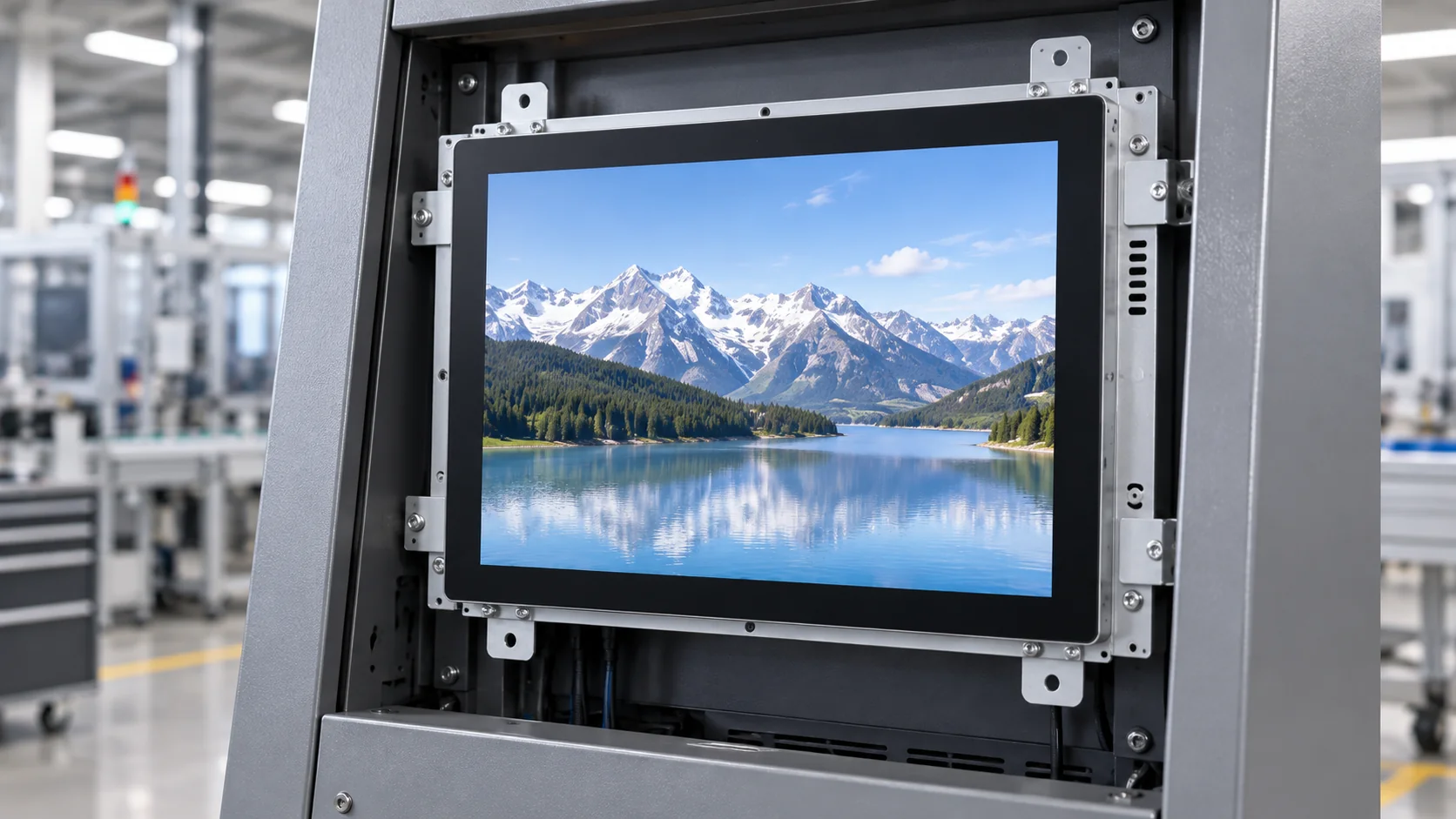
Standard Flat Capacitive Touchscreen Monitors
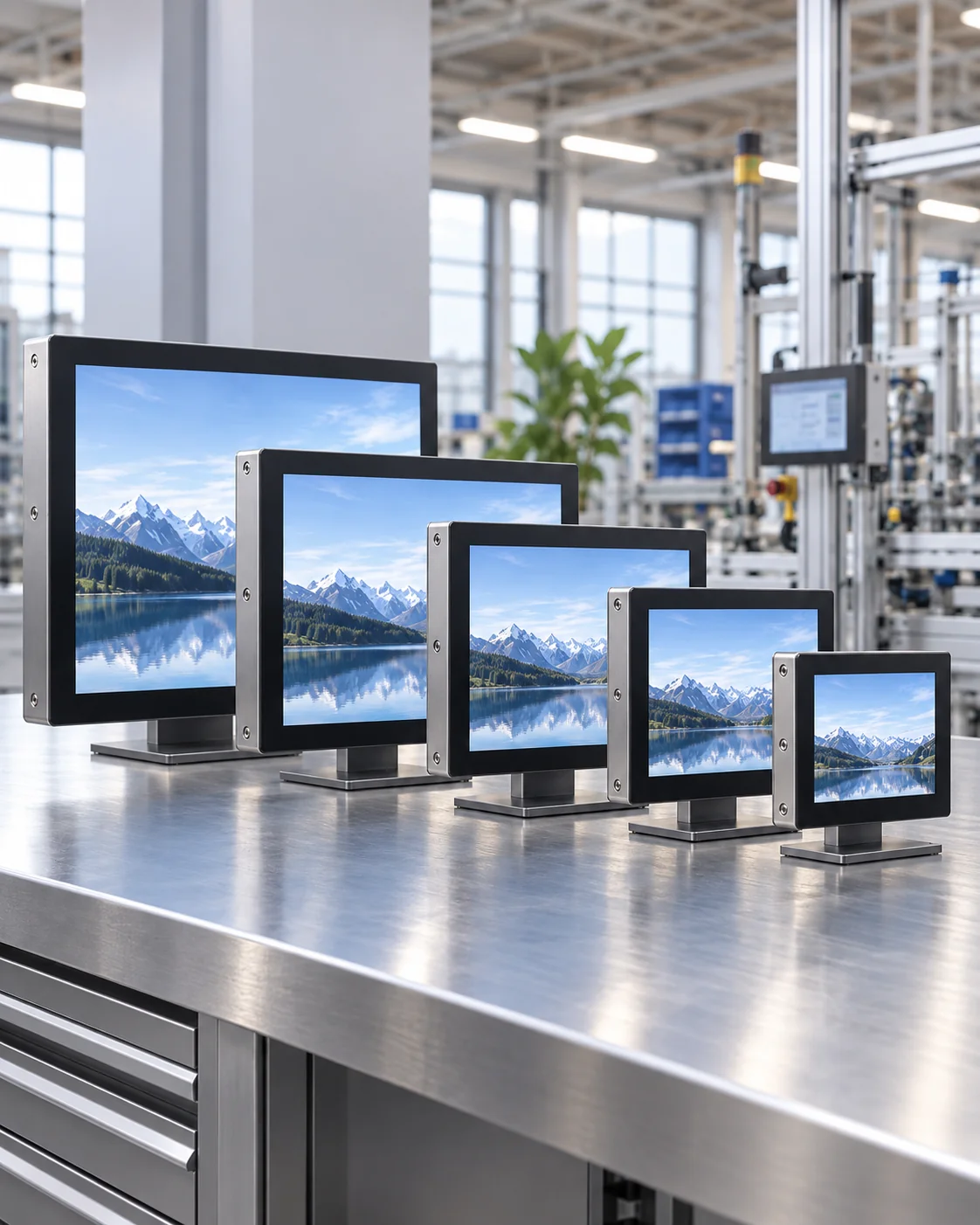
Finished metal-housed monitors for desktop, VESA, wall and conventional equipment installations. The current documented flat range covers 21.5, 23.8, 27, 31.5 and 43 inches.
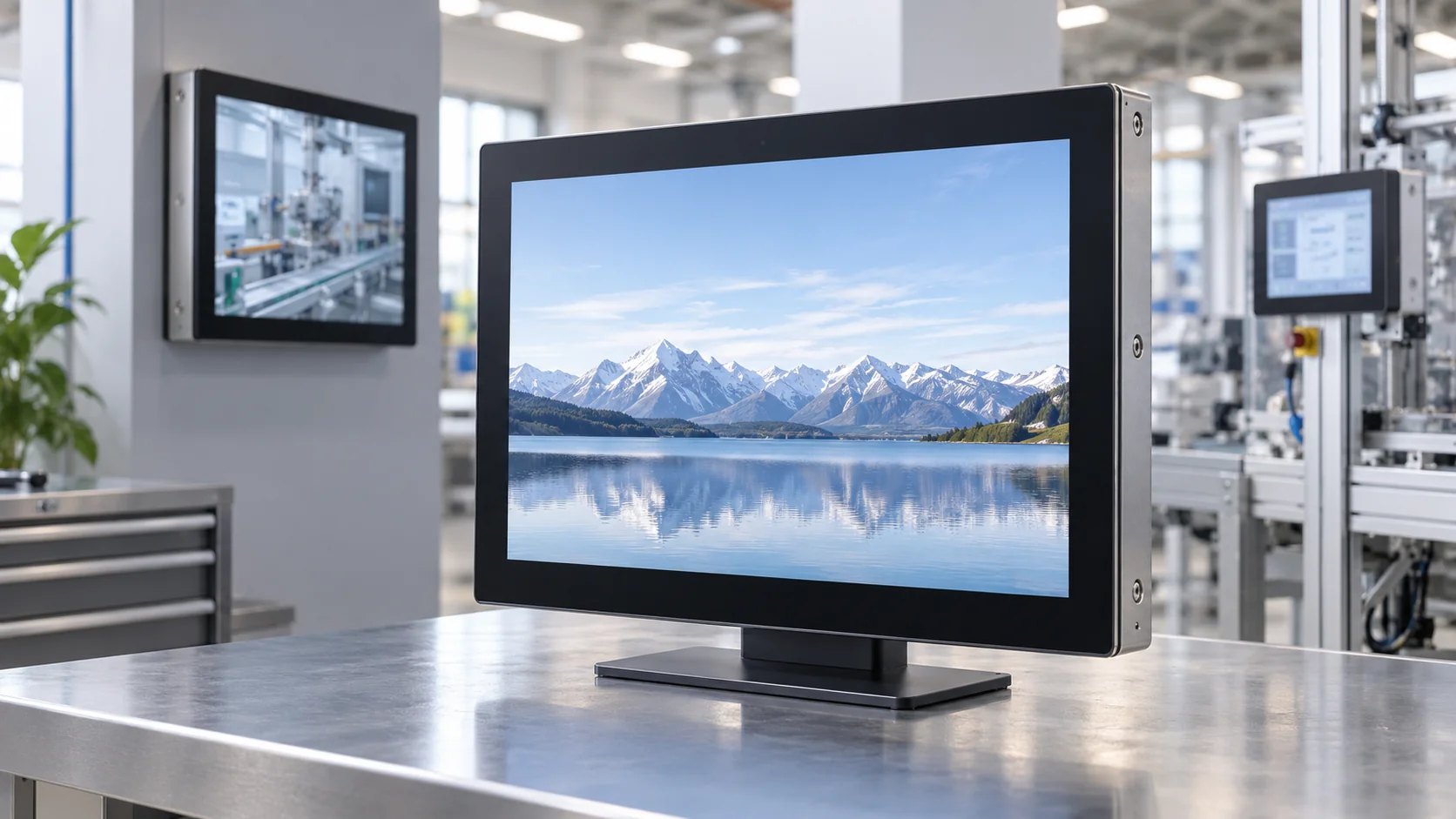
Open-Frame Touch Monitors
Display and touch assemblies designed to mount behind an equipment bezel or inside a kiosk, machine or custom enclosure.
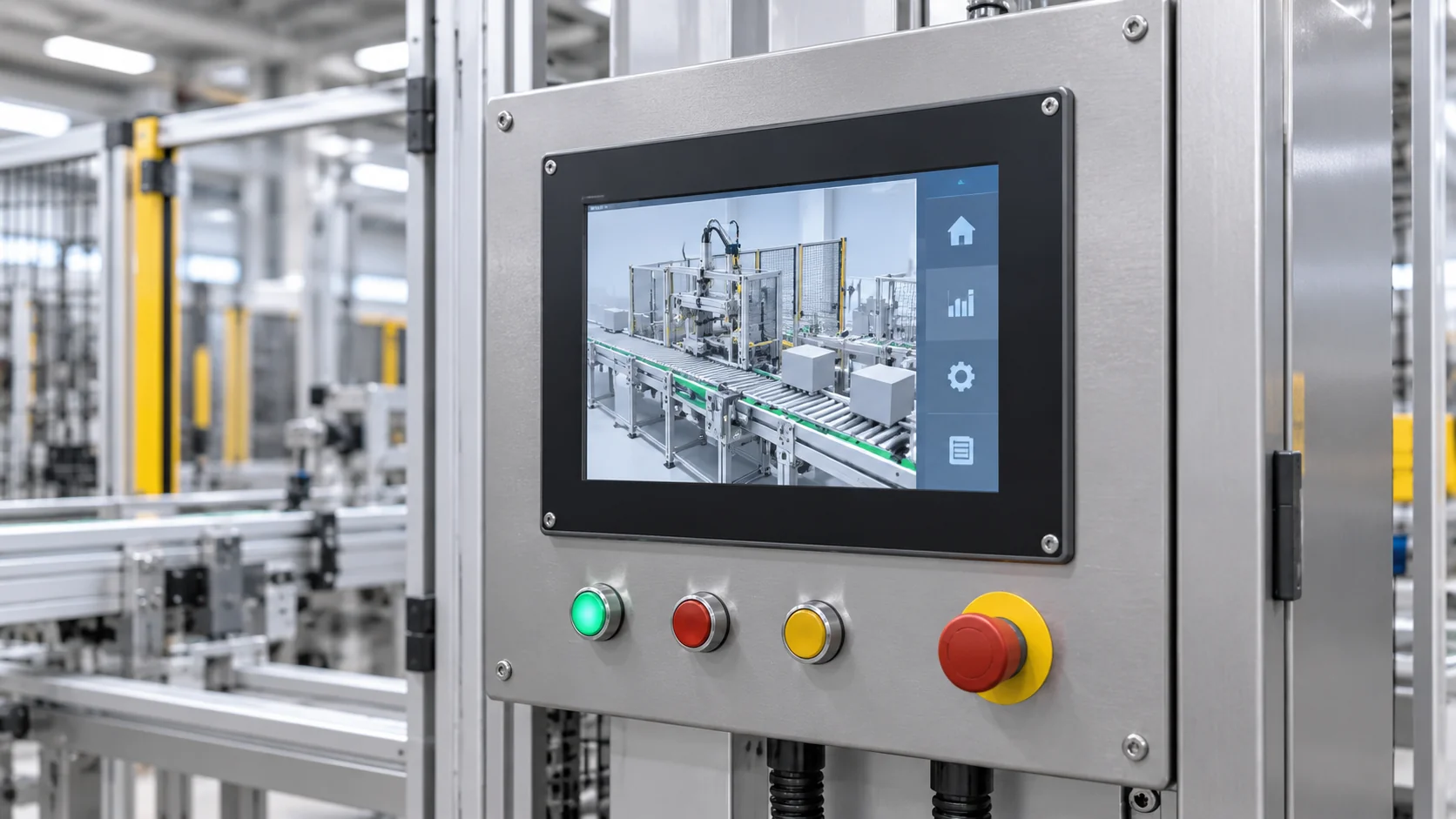
Industrial & Panel-Mount
Panel-mount, open-frame and enclosed configurations for machinery and integration.
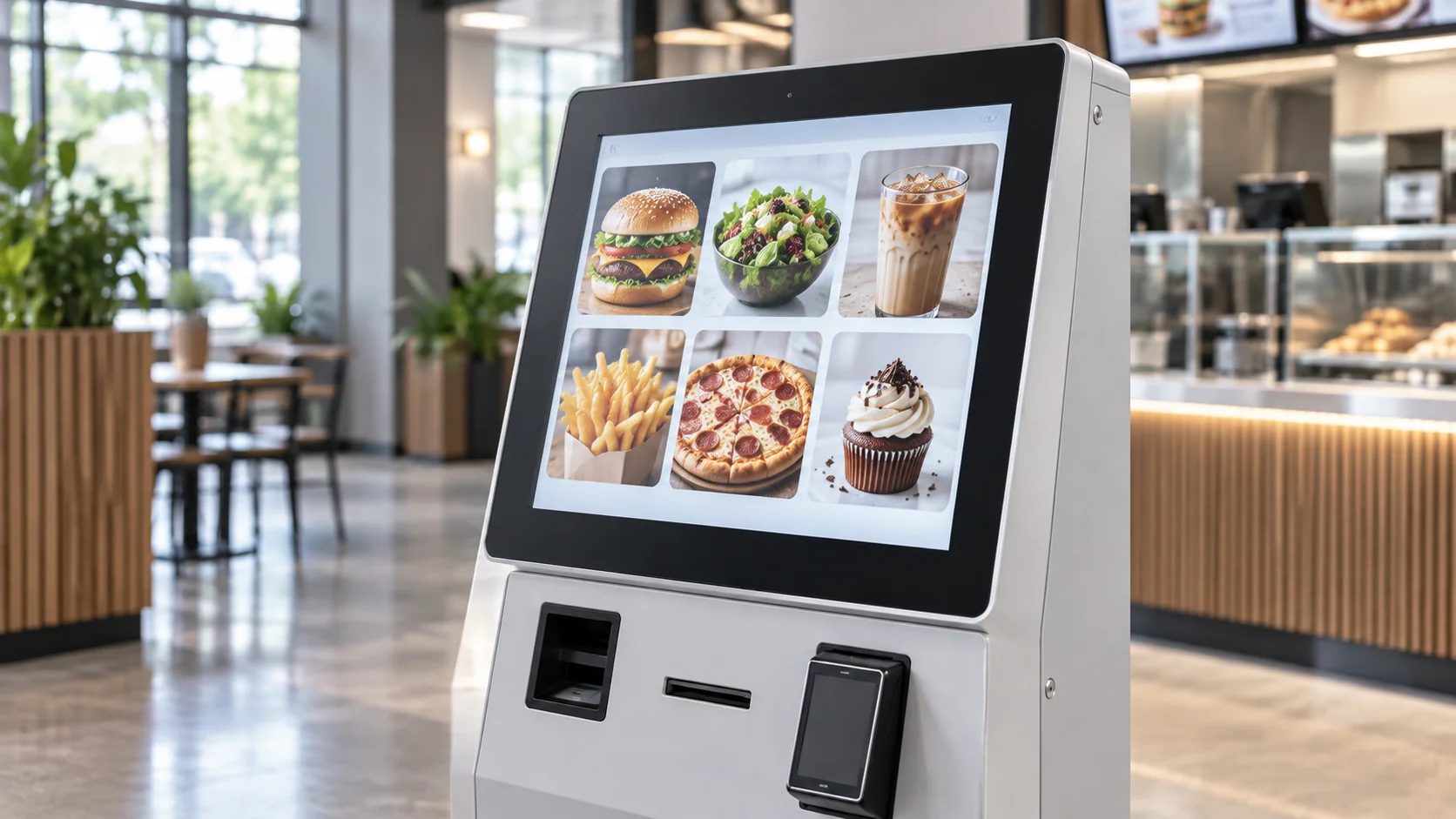
Kiosk Touch Monitors
Configurations for ordering, information, ticketing and self-service equipment.
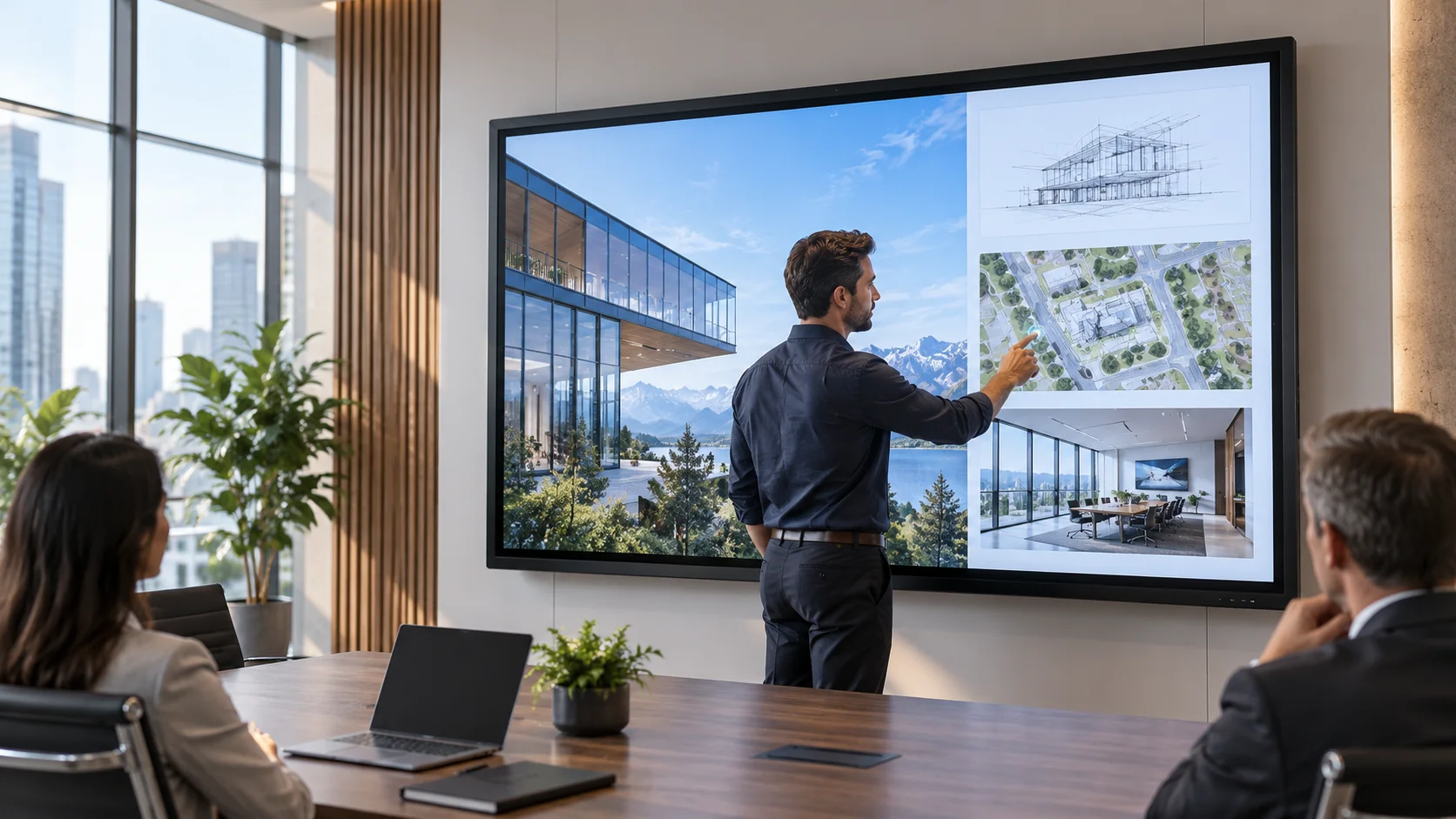
Large-Format Displays
Flat, curved and interactive display routes for commercial systems.
Documented Flat Capacitive Touchscreen Monitor Models
The current Lucky-XFC flat monitor range provides five starting sizes for equipment and commercial projects. These products share capacitive touch, a 16:9 format, Full HD resolution and metal housings.
| Screen Size | Model | Touch | Aspect Ratio | Resolution | Housing | Confirm for Project |
|---|---|---|---|---|---|---|
| 21.5 Inch | TP215-JX-DR-02 | Capacitive Touch | 16:9 | 1920 × 1080 | Metal Housing | Brightness, interfaces, touch points, dimensions and mounting |
| 23.8 Inch | TP238-JX-DR-02 | Capacitive Touch | 16:9 | 1920 × 1080 | Metal Housing | Brightness, interfaces, touch points, dimensions and mounting |
| 27 Inch | TP270-JX-DR-02 | Capacitive Touch | 16:9 | 1920 × 1080 | Metal Housing | Brightness, interfaces, touch points, dimensions and mounting |
| 31.5 Inch | TP315-JX-DR-02 | Capacitive Touch | 16:9 | 1920 × 1080 | Metal Housing | Brightness, interfaces, touch points, dimensions and mounting |
| 43 Inch | TP430-JX-DR-02 | Capacitive Touch | 16:9 | 1920 × 1080 | Metal Housing | Brightness, interfaces, touch points, dimensions and mounting |
Note: These models are Lucky-XFC product starting points. They are not identified as replacements for a specific Elo model. Compare the approved datasheet and mechanical drawing with the complete project requirement before selection.
Open-Frame Starting Models for Custom Enclosures
An open-frame touch monitor becomes part of the customer’s equipment. The front opening, active display area, installation depth, mounting points and cable direction must be reviewed together.
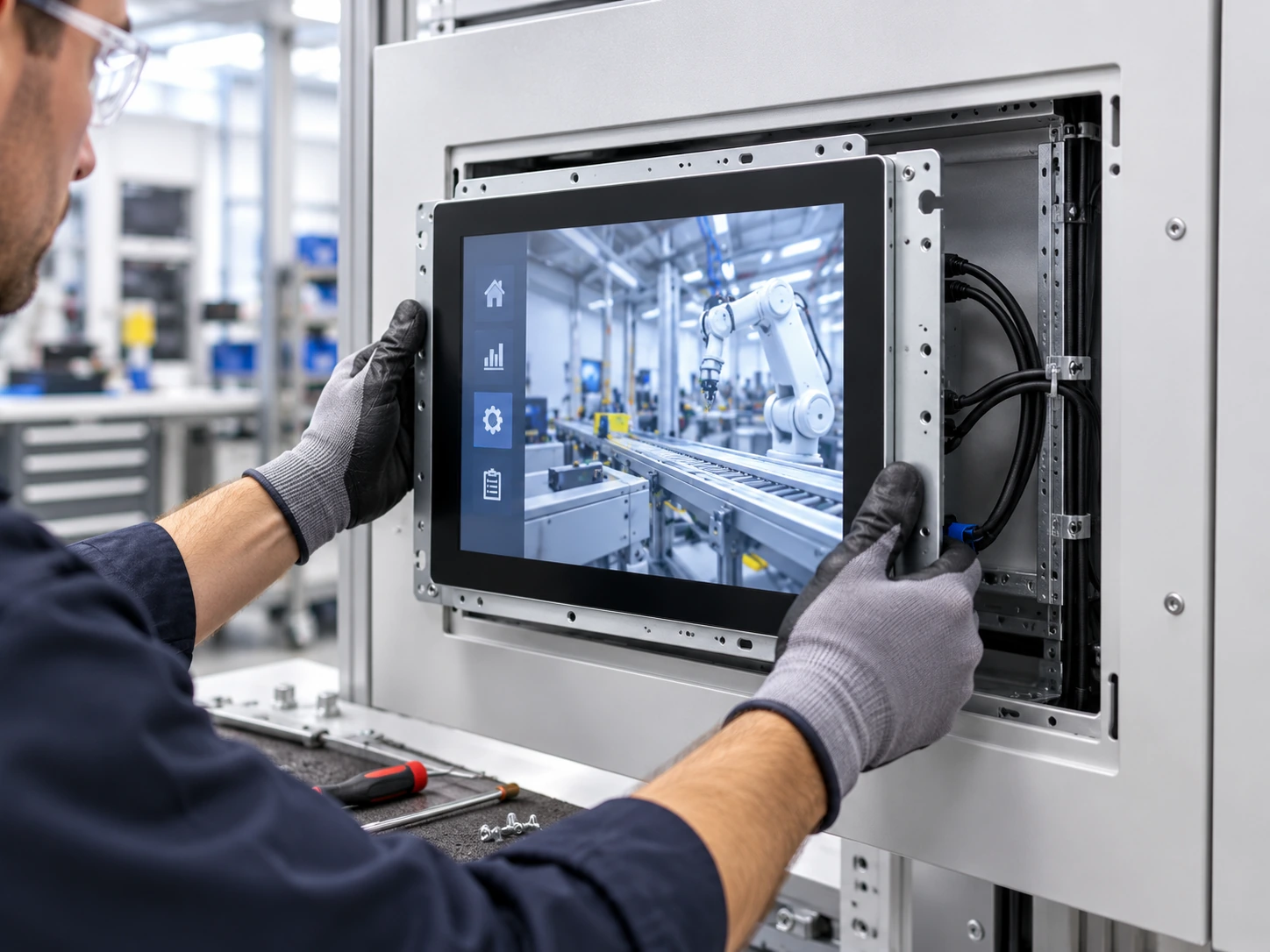
Confirm These Dimensions Before Designing the Enclosure
- Overall monitor width and height
- Active display area
- Recommended front opening
- Rear installation depth
- Mounting-hole positions
- Glass overlap and bezel coverage
- Connector locations
- Cable bending space
- Ventilation and service clearance
- Landscape or portrait installation
| Model | Size | Resolution | Touch | Reference Brightness | Video Inputs | Mounting |
|---|---|---|---|---|---|---|
| XFC-OF215-PCAP | 21.5″ | 1920 × 1080 | 10-Point PCAP | 250 nits | HDMI, VGA | Side Brackets, VESA |
| XFC-OF270-PCAP | 27″ | 1920 × 1080 | 10-Point PCAP | 300 nits | HDMI, DP, VGA | Side Brackets, VESA |
| XFC-OF430-PCAP | 43″ | Full HD or 4K, confirmed by config | 10-Point PCAP | 350 nits | HDMI, DP | Heavy-Duty Brackets, VESA |
Panel availability, brightness, interfaces, mechanical dimensions and mounting details must be confirmed against the selected model and approved drawing before quotation.
Project Routes Beyond a Standard Desktop Monitor
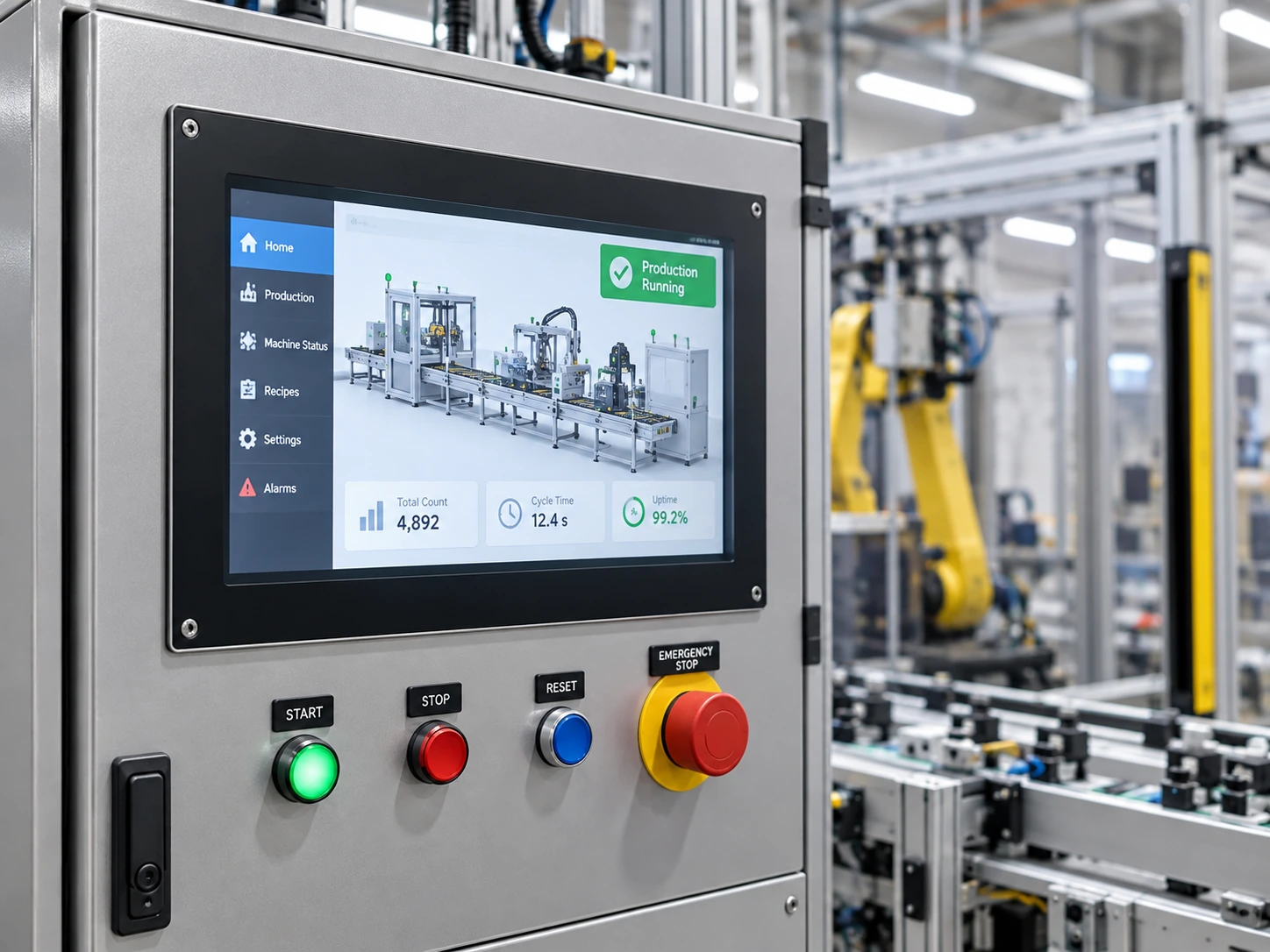
Industrial & Panel-Mount Displays
Select a panel-mount, open-frame or enclosed monitor according to the machine panel, operator position, mounting depth, service access and external host.
- Panel cutout and front bezel
- PCAP or confirmed resistive touch
- Video and touch-data interfaces
- Power input
- Ambient light & operating conditions
- Required standards and documents
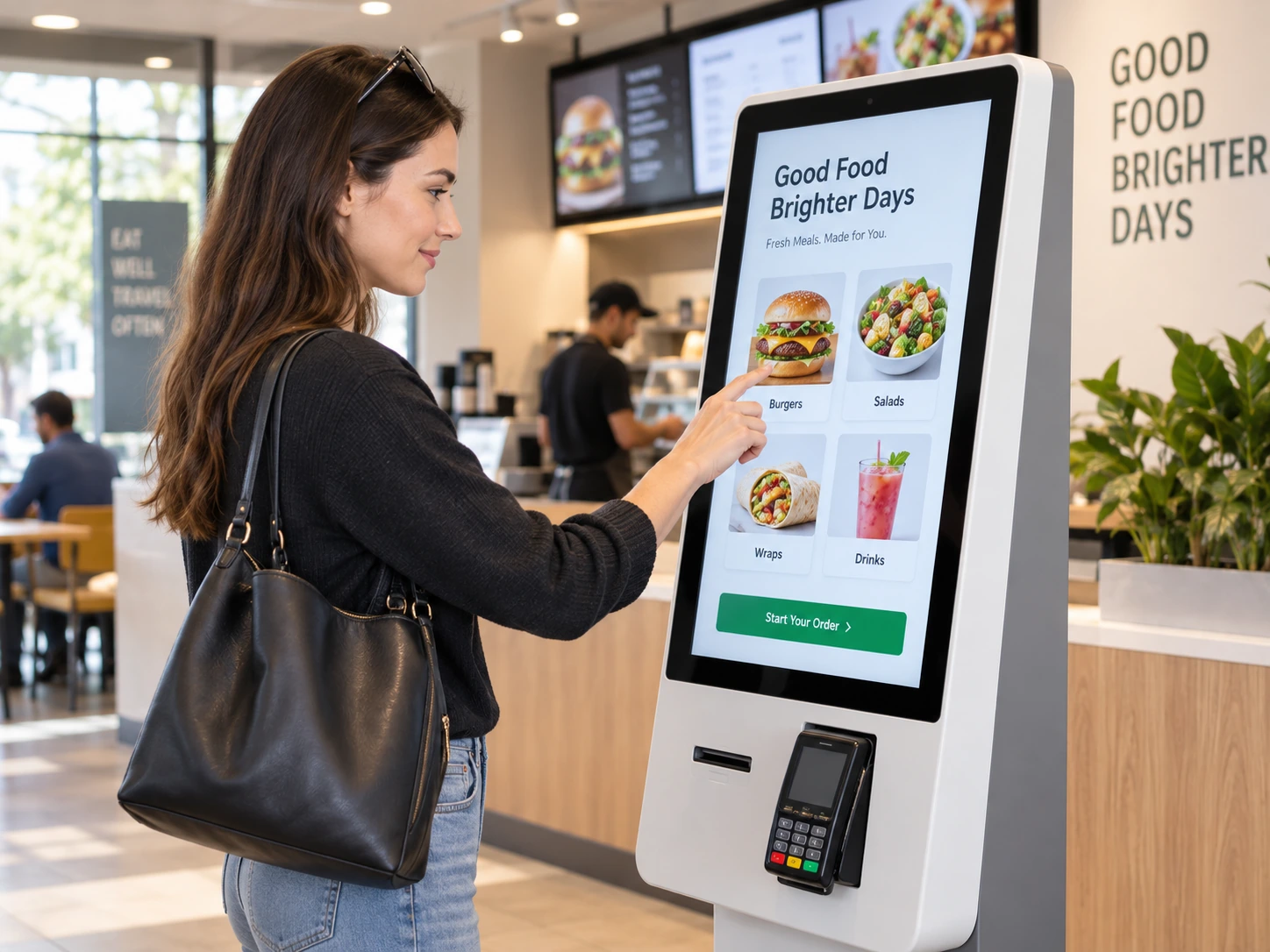
Kiosk Touch Screen Monitors
A kiosk touch monitor supplies display and touch functions and normally connects to an external computer or controller. Peripheral layout, service doors, cabling and enclosure structure remain part of the complete kiosk design.
- Monitor or complete kiosk architecture
- Host computer and operating system
- User height and screen orientation
- Printer, scanner & payment clearance
- Maintenance access
- Indoor or outdoor installation
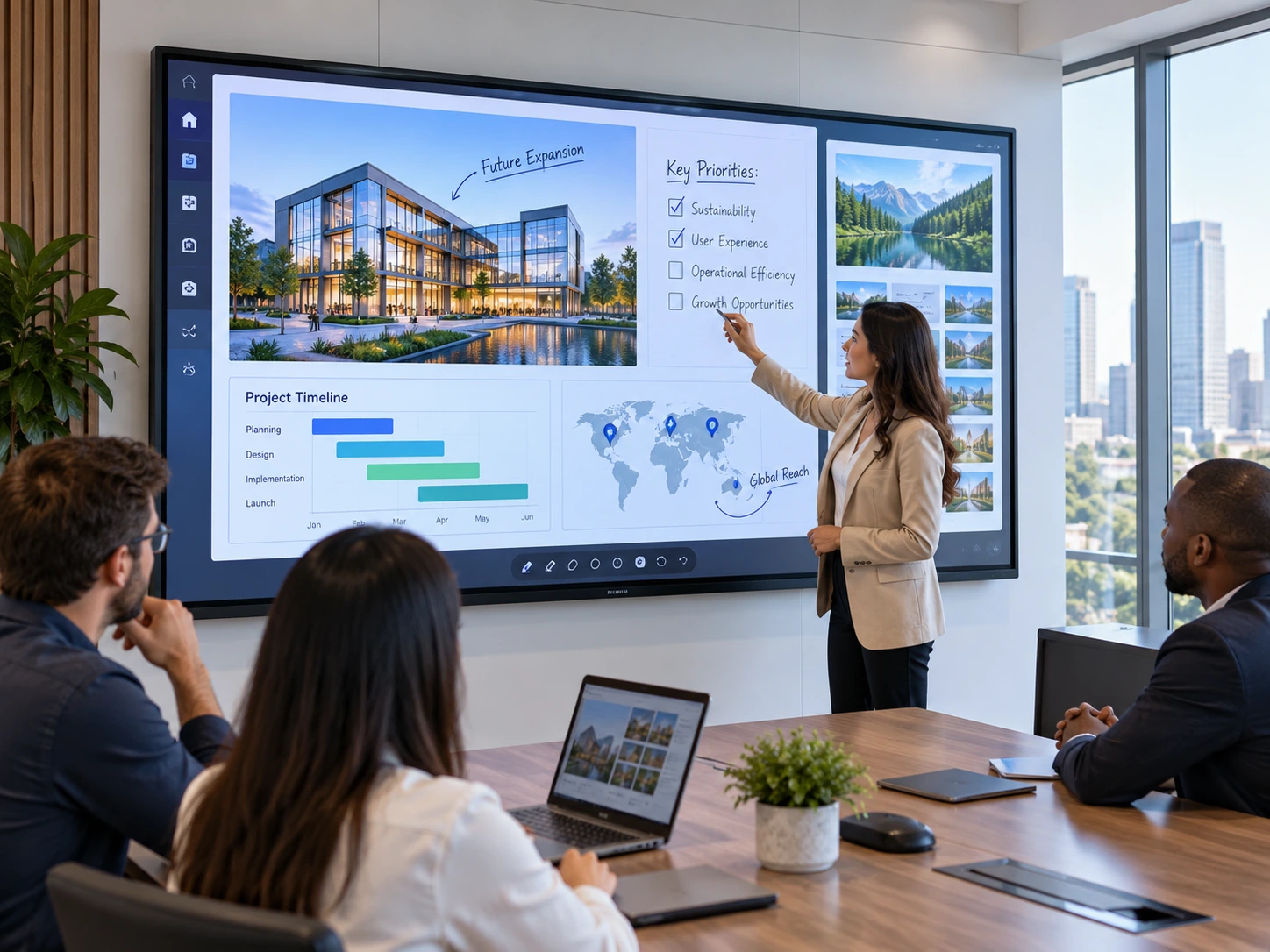
Large-Format Touch Displays
Documented starting points include a 43-inch flat touch monitor, C-type curved displays from 32 to 55 inches and J-type curved displays from 43 to 55 inches. Selected large-format and 4K configurations require project evaluation.
- Viewing and interaction distance
- Required resolution
- Number of simultaneous users
- Wall, stand or equipment mounting
- Total weight and support structure
- Host resolution and touch connection
- Service and replacement access
Monitor, All-in-One or Complete Kiosk?
A touchscreen monitor provides display and touch functions for an external host. A touchscreen all-in-one adds computing hardware. A complete kiosk adds the enclosure and selected peripherals. Confirming this architecture prevents the wrong product from entering the quotation.
Common Problems in Touchscreen Monitor Alternative Projects
Selecting by Diagonal Size Alone
Situation: Two monitors with the same advertised size can have different external dimensions, active areas, mounting holes, rear depths and connector positions.
Consequence: The new display may not fit the existing opening or support structure.
Matching Video Without Matching Touch
Situation: The monitor may display an image through HDMI, DisplayPort or VGA while touch input remains unavailable.
Consequence: The screen works as a display but not as an interactive device.
Assuming Model Names Indicate Compatibility
Situation: A similar screen size or product description does not establish electrical, mechanical or software equivalence.
Consequence: Accessories, mounting, power, touch behavior or host-system support may differ.
Ignoring the Operating Environment
Situation: Ambient light, cleaning, gloves, moisture, cover glass, vibration and installation angle can affect the required product configuration.
Consequence: A standard office-style monitor may not provide the required interaction or installation behavior.
Off-the-Shelf Branded Monitor or Custom Touch Display?
The correct sourcing path depends on whether the project requires a fixed branded identity or a display configured around equipment requirements.
| Decision | Genuine Branded Product Route | Lucky-XFC Independent Project Route |
|---|---|---|
| Purchase objective | Obtain the specified branded model and its published commercial support | Select or customize a monitor around an equipment specification |
| Product identity | Brand, series and exact model determine the product | Size, structure, touch, interfaces, mounting and application determine the product |
| Mechanical design | Housing, stand, port position and accessories are normally fixed by the model | Supported housing, mounting, orientation, cable exit and enclosure details can be reviewed |
| Software relationship | Uses the brand’s specified firmware, drivers and model support | Uses the controller and compatibility path approved for the selected Lucky-XFC configuration |
| Best fit | Exact replacement, brand-standard deployment, original warranty or brand-specific support | Kiosks, machines, gaming equipment, commercial terminals and custom enclosures |
| Required validation | Confirm the correct genuine model and authorized supply route | Approve specifications, drawing, interfaces, touch behavior and integration result |
Purchase objective
Obtain the specified branded model and its published commercial support
Select or customize a monitor around an equipment specification
Product identity
Brand, series and exact model determine the product
Size, structure, touch, interfaces, mounting and application determine the product
Best fit
Exact replacement, brand-standard deployment, original warranty or brand-specific support
Kiosks, machines, gaming equipment, commercial terminals and custom enclosures
Important note: A custom display is not automatically a technical equivalent or drop-in replacement for a branded monitor.
Compare the Complete Specification Before Replacing a Monitor
A useful cross-reference begins with the installed product and the equipment around it. Record the following information before selecting an independent display.
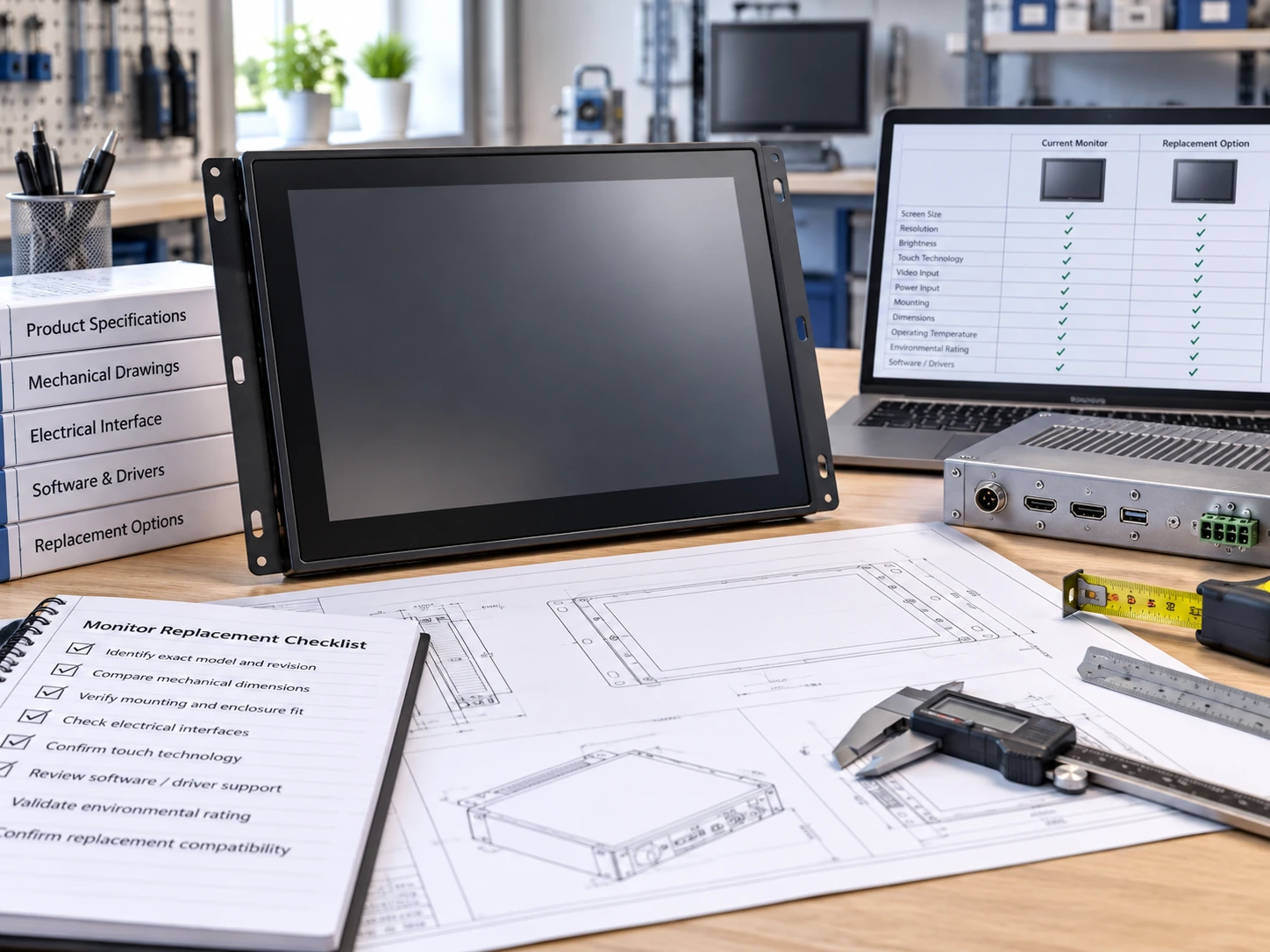
Do not share confidential drawings, manuals or third-party documents unless you are authorized to provide them.
Product Identification
- Existing brand and exact model number
- Product label and revision, where applicable
- Monitor, open-frame display or all-in-one architecture
- Required functions that cannot change
- Functions that may be redesigned
Display and Touch
- Diagonal size and aspect ratio
- Native resolution
- Active display area
- Touch technology and touch points
- Finger, glove or stylus input
- Cover glass or touch-through requirement
- Orientation and expected user position
Mechanical Integration
- Overall width, height and depth
- Front opening and visible area
- Mounting-hole pattern
- Stand, VESA, panel or side-bracket structure
- Connector positions and cable clearance
- Ventilation and maintenance route
Electrical and Software
- Video input
- Touch-data connection
- Power input
- Host computer or controller
- Operating system and version
- Required driver or communication protocol
- Multi-monitor mapping requirements
Operating Conditions
- Indoor or outdoor location
- Ambient light
- Temperature and humidity requirements
- Dust, water, oil or cleaning exposure
- Required certification or compliance documents
PCAP, Resistive or Infrared Touch?
Select touch technology according to the user input, cover structure, environment, software and required interaction. PCAP is the documented standard for the current Lucky-XFC flat monitor range. Other touch methods require project confirmation.
Projected Capacitive Touch
Input: Finger or compatible conductive input
Common Fit: Modern commercial interfaces, kiosks, POS systems and multi-touch equipment controls
Check: Touch points, glove use, water behavior, stylus support and cover-glass thickness
Resistive Touch
Input: Pressure from a finger, glove or stylus
Common Fit: Selected industrial or pressure-operated controls
Check: Surface construction, optical clarity, gesture requirements and controller support
Infrared Touch
Input: Finger, glove or stylus interrupting an infrared grid
Common Fit: Selected large-format interactive displays
Check: Bezel design, contamination, ambient conditions and model-specific accuracy
Do Not Assume Touch-Through Performance
Touch operation through an additional glass layer depends on the touch sensor, controller, glass material, thickness, air gap, grounding, firmware and installation. Validate the complete stack rather than transferring a specification from another brand or model.
A Touchscreen Monitor Usually Needs More Than a Video Cable
A touchscreen monitor receives the picture from a host and sends touch input back to that host. Video, touch data and power must all be confirmed.
Does HDMI Carry Touch Input?
HDMI normally carries video and audio, not touchscreen data. A separate USB touch connection is commonly required. The monitor may show an image even when touch data is not connected.
Can USB-C Carry Everything?
USB-C may combine video, touch data and power only when the selected monitor, host port, cable and power-delivery requirements all support the required functions. A USB-C connector alone does not confirm full compatibility.
Why Does the Screen Display an Image but Not Respond to Touch?
Check the touch-data cable, USB port, touch controller, driver, operating-system mapping and calibration. In a multi-monitor setup, confirm that touch input is mapped to the correct display.
Confirm the Host, Controller and Operating System Together
Video output does not automatically confirm touch compatibility. The selected touch controller, connection method, operating system, driver and application must work together.
| Host Environment | What to Confirm |
|---|---|
| Windows | Exact Windows version, touch controller, required driver, calibration and multi-monitor mapping |
| Linux | Distribution, kernel, USB HID behavior, available driver and application requirements |
| Android | Host hardware, USB touch support, orientation, resolution and gesture behavior |
| macOS | Video output, third-party touch-driver availability, gesture support and application behavior |
| Industrial PC or Embedded Controller | Available video output, USB or serial touch interface, driver support, power and communication requirements |
| Multi-Monitor System | One video path and one supported touch-data path for each interactive display, plus correct display mapping |
Project note: Windows, Android and Linux configurations appear across documented Lucky-XFC product lines, but compatibility is model- and controller-specific. Test the approved configuration with the actual host and software before production.
Choose the Monitor by Installation Structure
Desktop Installation
Use a finished housing and suitable stand for counters, operator desks and customer-facing workstations.
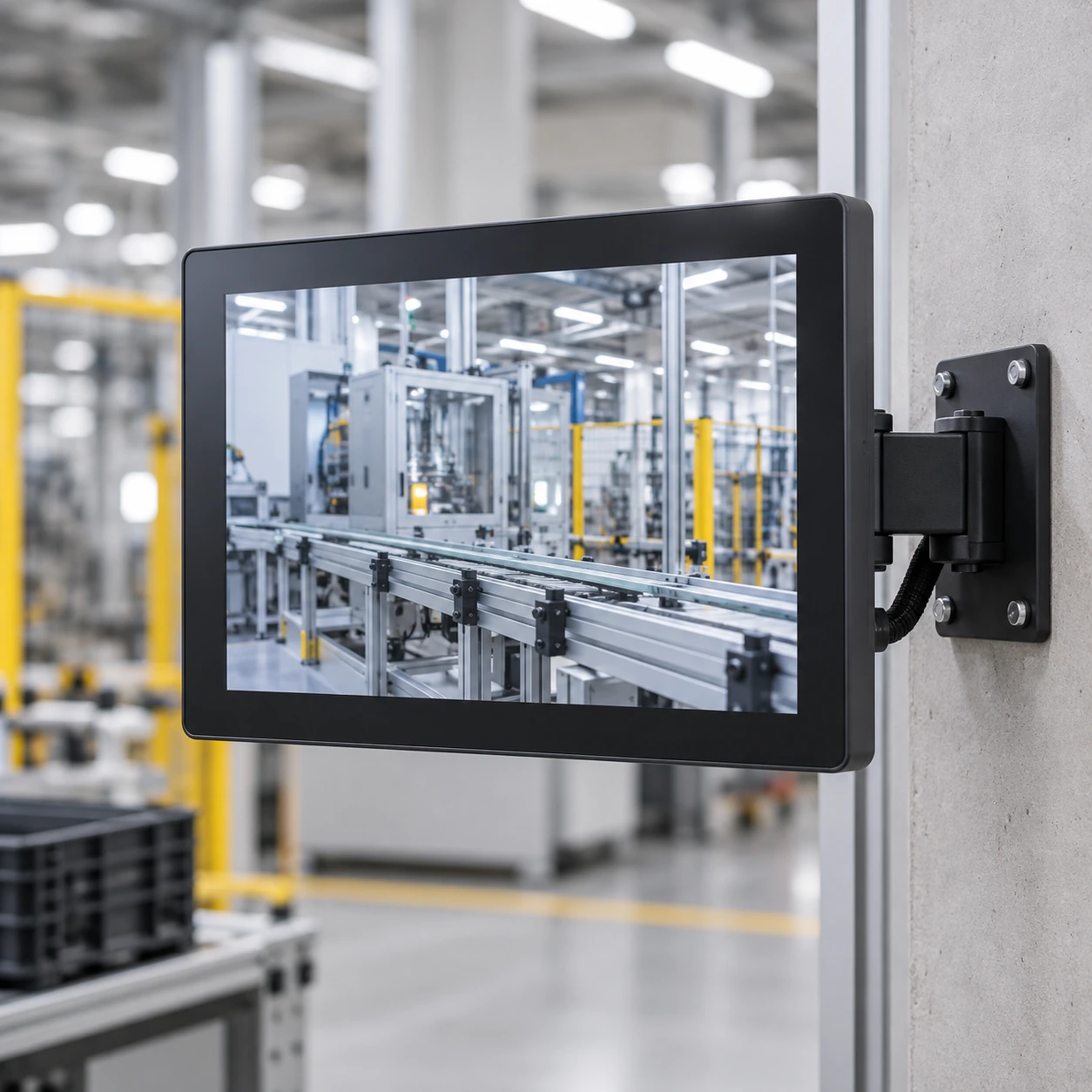
VESA or Wall Mounting
Use a confirmed VESA pattern for monitor arms, wall brackets, equipment frames and custom stands.
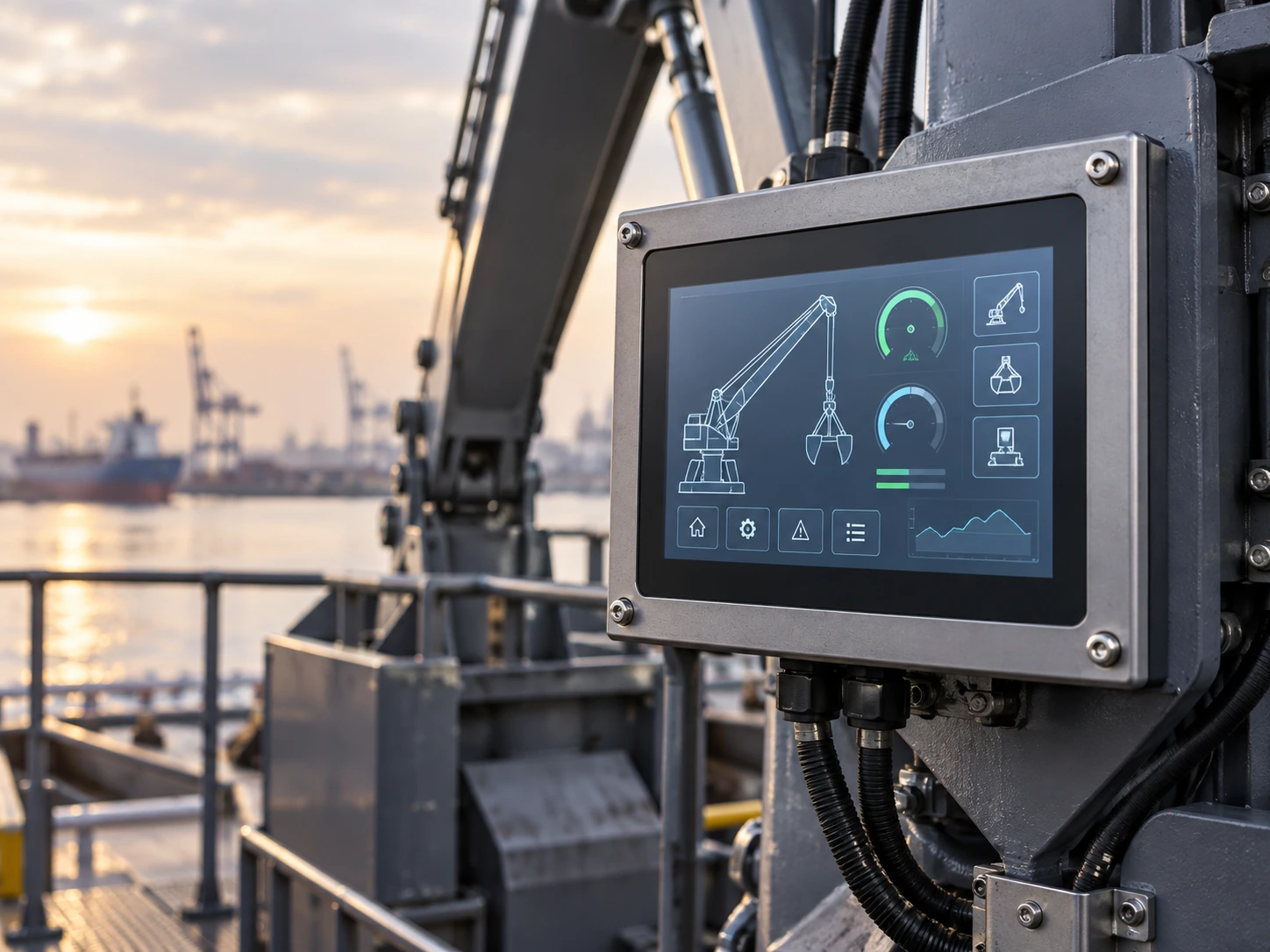
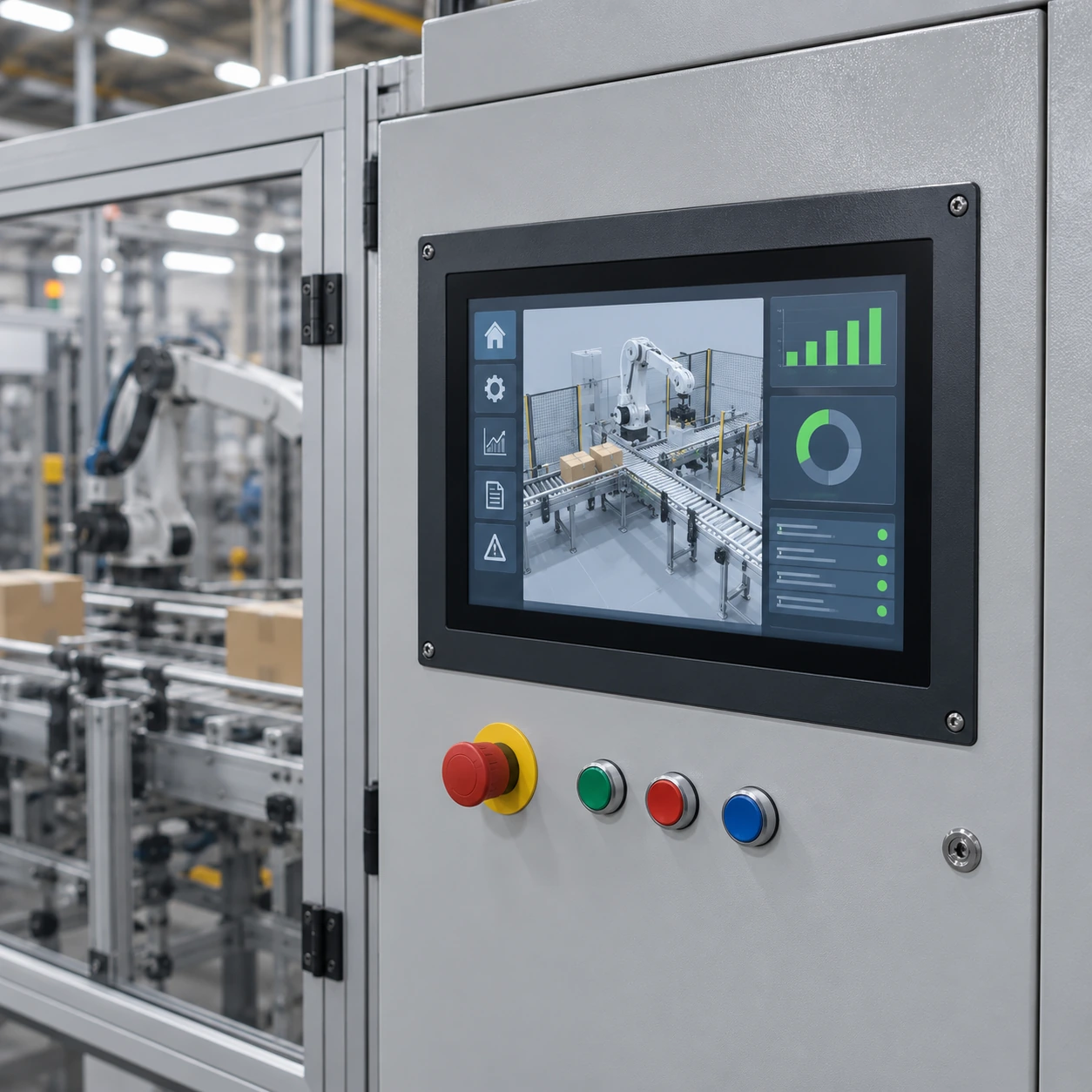
Panel-Mount Installation
Install the monitor through a prepared front opening and secure it from behind the machine panel or control cabinet.
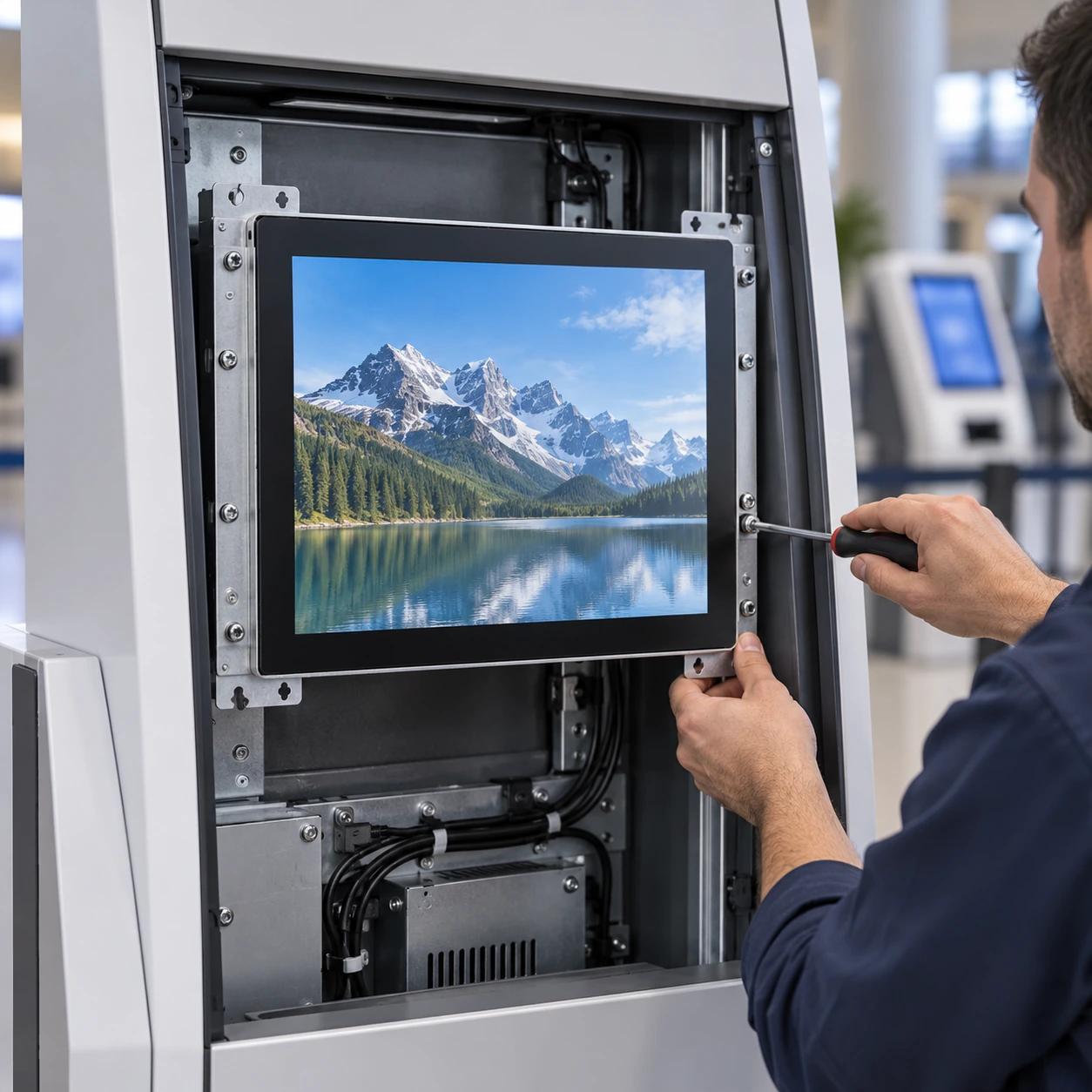
Open-Frame Integration
Mount the display from inside the customer’s enclosure, normally behind a custom front bezel or glass.
Approve the selected Lucky-XFC datasheet and mechanical drawing before machining the final equipment enclosure.
Touch Displays for Equipment and Commercial Systems
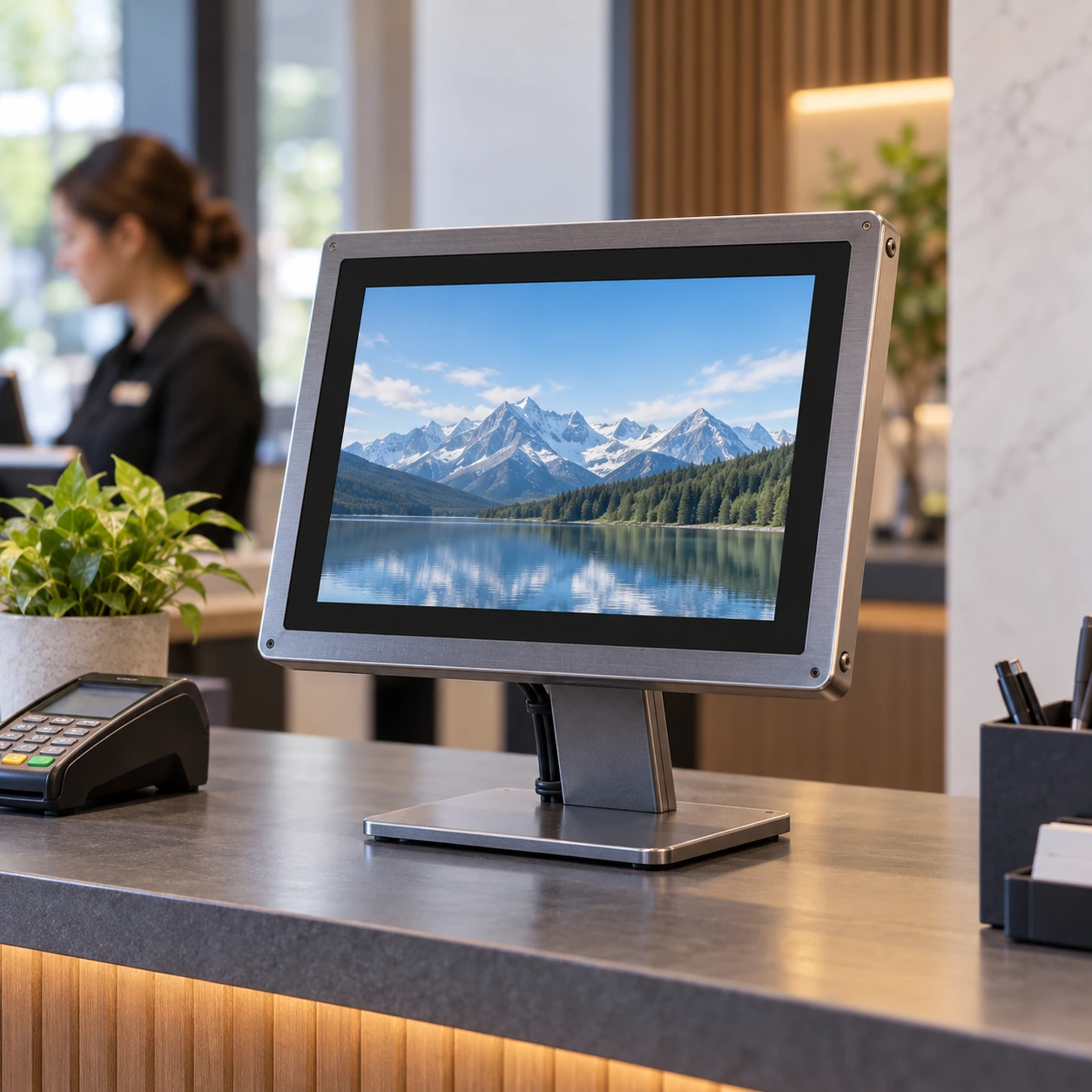
POS and Customer-Facing Counters
Finished flat monitors for transaction interfaces, product lookup, assisted service and counter-mounted systems. Confirm stand or VESA mounting, user angle, host ports and touch connection.
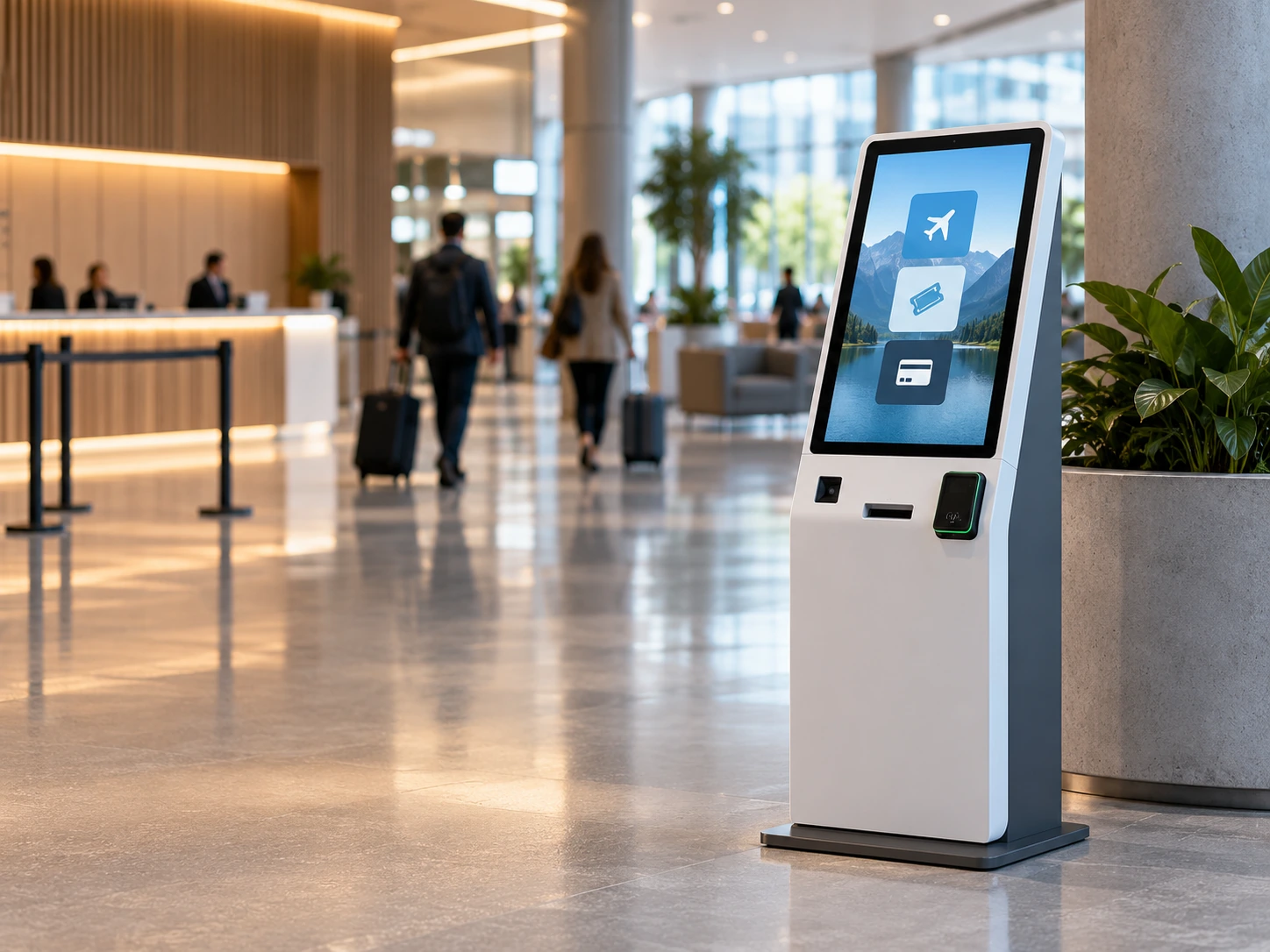
Self-Service Kiosks
Open-frame or enclosed monitors for ordering, ticketing, check-in, payment and information terminals. Coordinate the display with the enclosure, computer, peripherals and service route.
Explore Kiosk Touch Monitors →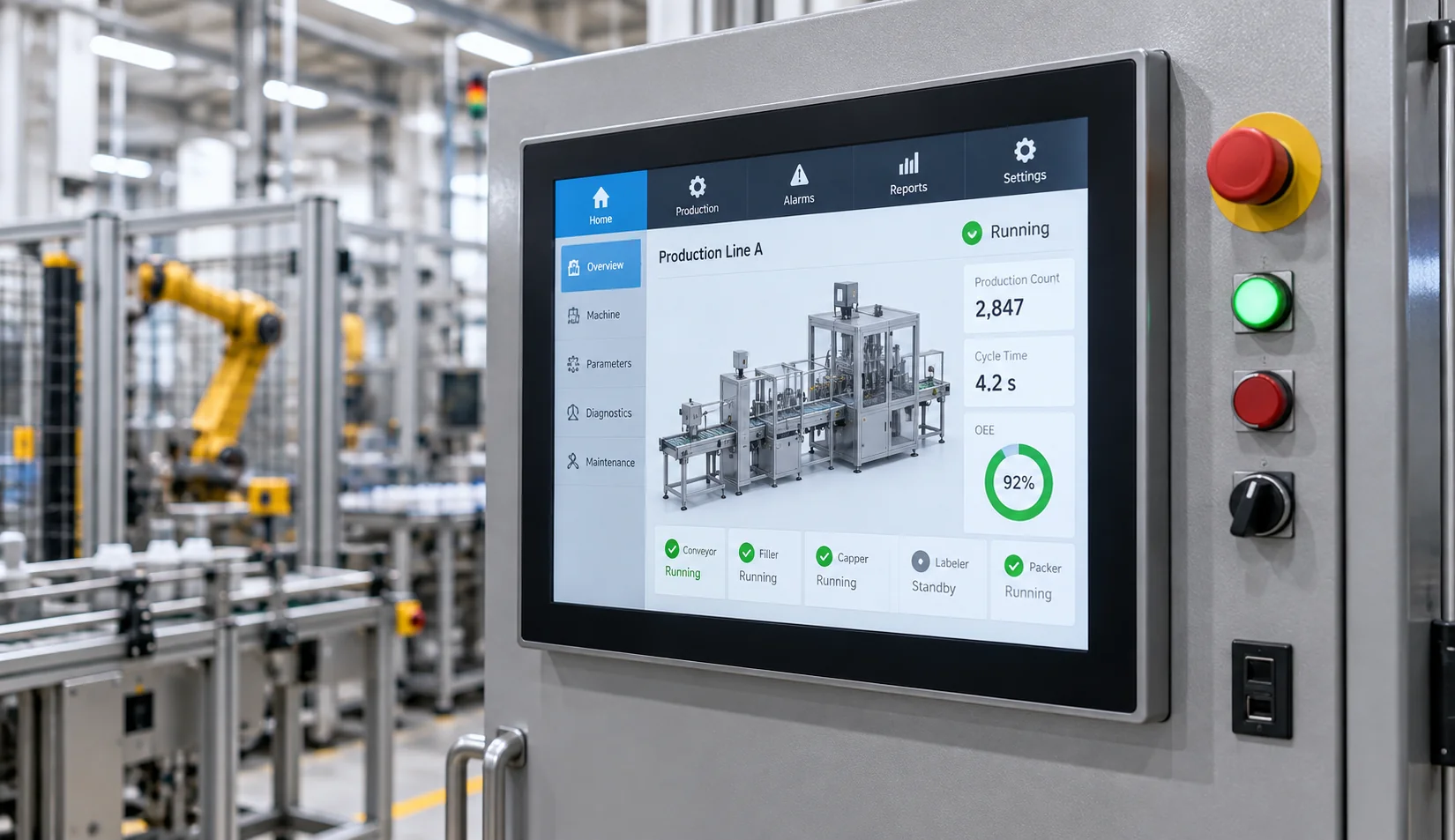
Industrial Control and HMI
Panel-mount, open-frame or enclosed displays for machinery, operator stations and control cabinets. Define the mounting, touch input, interface and operating conditions before selection.
Review Industrial Touch Displays →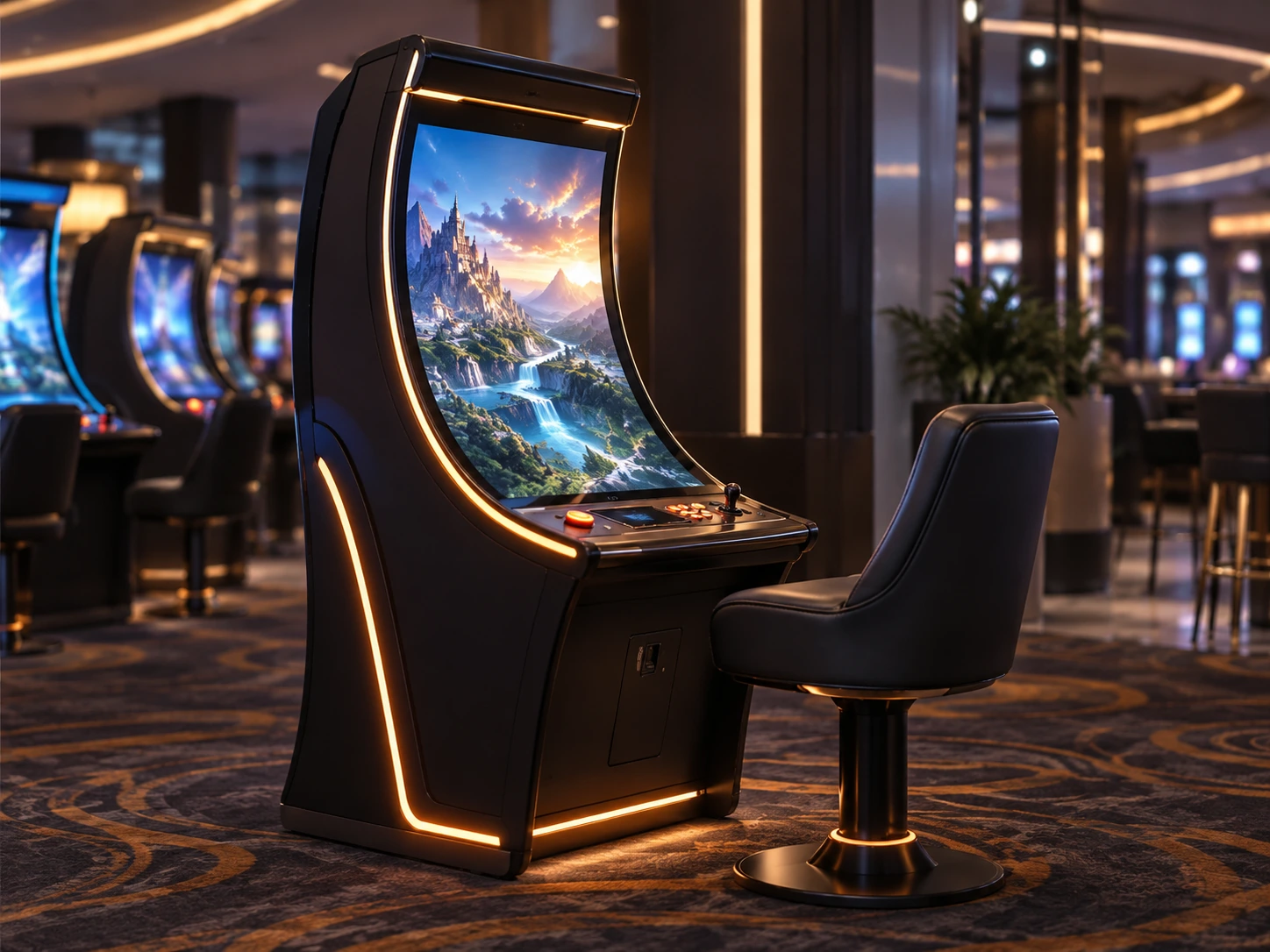
Gaming and Custom Cabinets
Flat, J-type or C-type touch monitors selected around cabinet geometry, interaction area, host system and maintenance access.
Explore Curved Touch Monitors →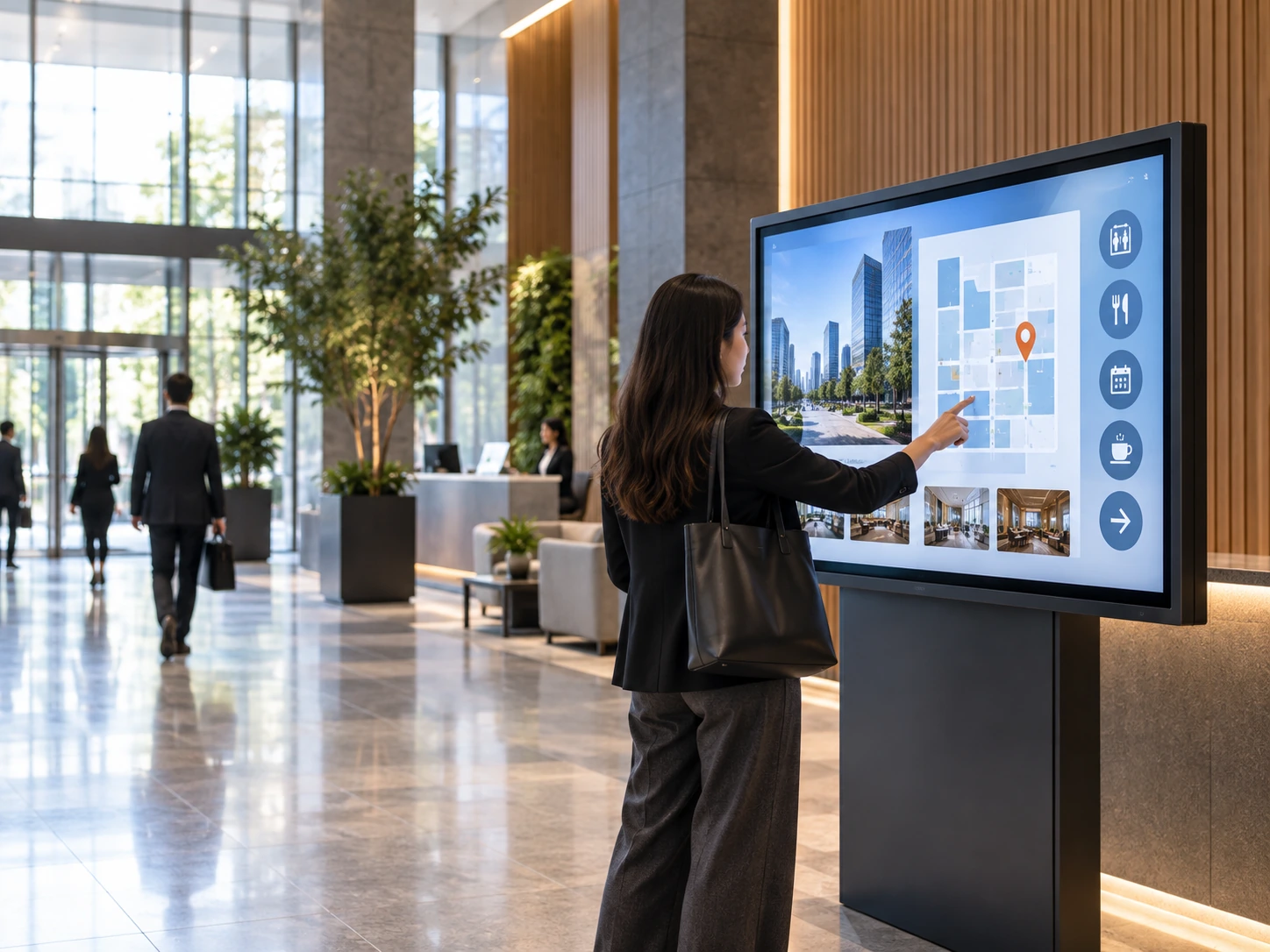
Commercial Information Systems
Interactive displays for directories, wayfinding, product information and public navigation. Match size and resolution to the viewing distance and content detail.
Compare Large Touch Displays →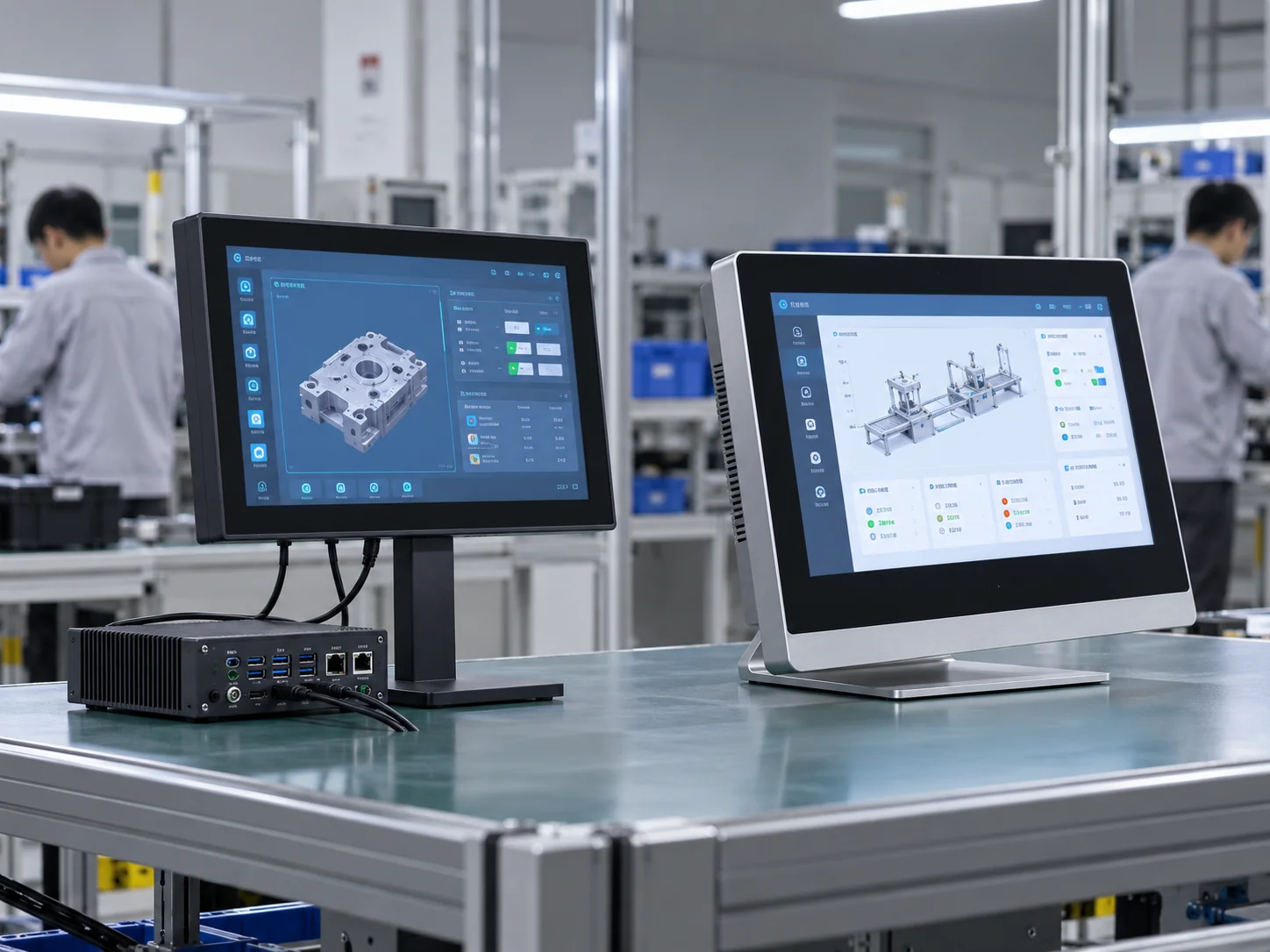
Custom Equipment Interfaces
Project-specific displays for equipment that cannot use a standard housing, mounting pattern, cable layout or screen format.
Configure the Display Around the Equipment
Lucky-XFC supports OEM and ODM review for touch display projects. Available options depend on the starting model, panel supply, electronics, tooling, quantity and engineering evaluation.

Display
- Screen size
- Flat or documented curved structure
- Resolution
- Brightness
- Landscape or portrait orientation
Touch
- PCAP starting configurations
- Project-confirmed alternative touch methods
- Touch points
- Cover glass
- Printed border
- Glove, stylus or wet-use requirements for validation
Mechanical
- Finished housing
- Open-frame or panel-mount structure
- VESA pattern
- Side brackets
- Cable exit
- Equipment-specific mounting review
Electrical & Branding
- Video interfaces
- Touch-data interface
- Power input
- Controller selection & Host-system matching
- Logo & Labels
- Housing appearance & Packaging requirements
A Documented Route From Requirement to Production
The documented company-wide custom touch solution scope extends from 2.5 to 120 inches. This is a technical review range, not standard availability in every size, structure or specification.
Product and application definition
Component and configuration evaluation
Industrial and mechanical design
Drawing and interface confirmation
Prototype or sample validation where applicable
Approved assembly and production coordination
Manufacturing Support for Custom Touch Display Projects
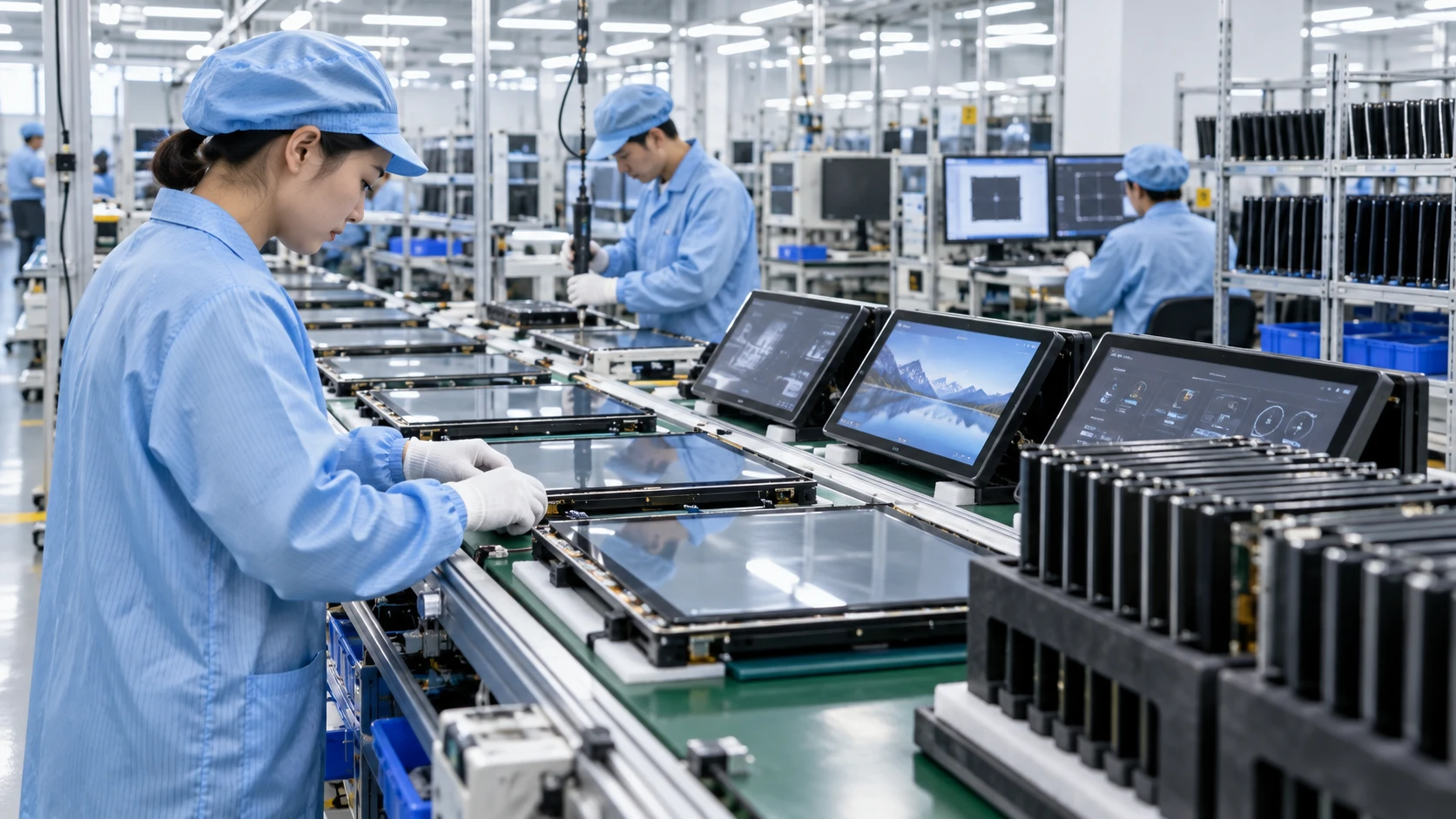
Lucky-XFC has focused on touch displays, all-in-one equipment and curved touch screens for 13 years. Its documented manufacturing profile includes a 3,100 m² facility, more than 160 employees and 26 QC personnel.
- Design, sampling and production coordination
- Flat, open-frame and curved display routes
- OEM, ODM and logo customization
- Product and configuration review
- Inspection throughout the production process
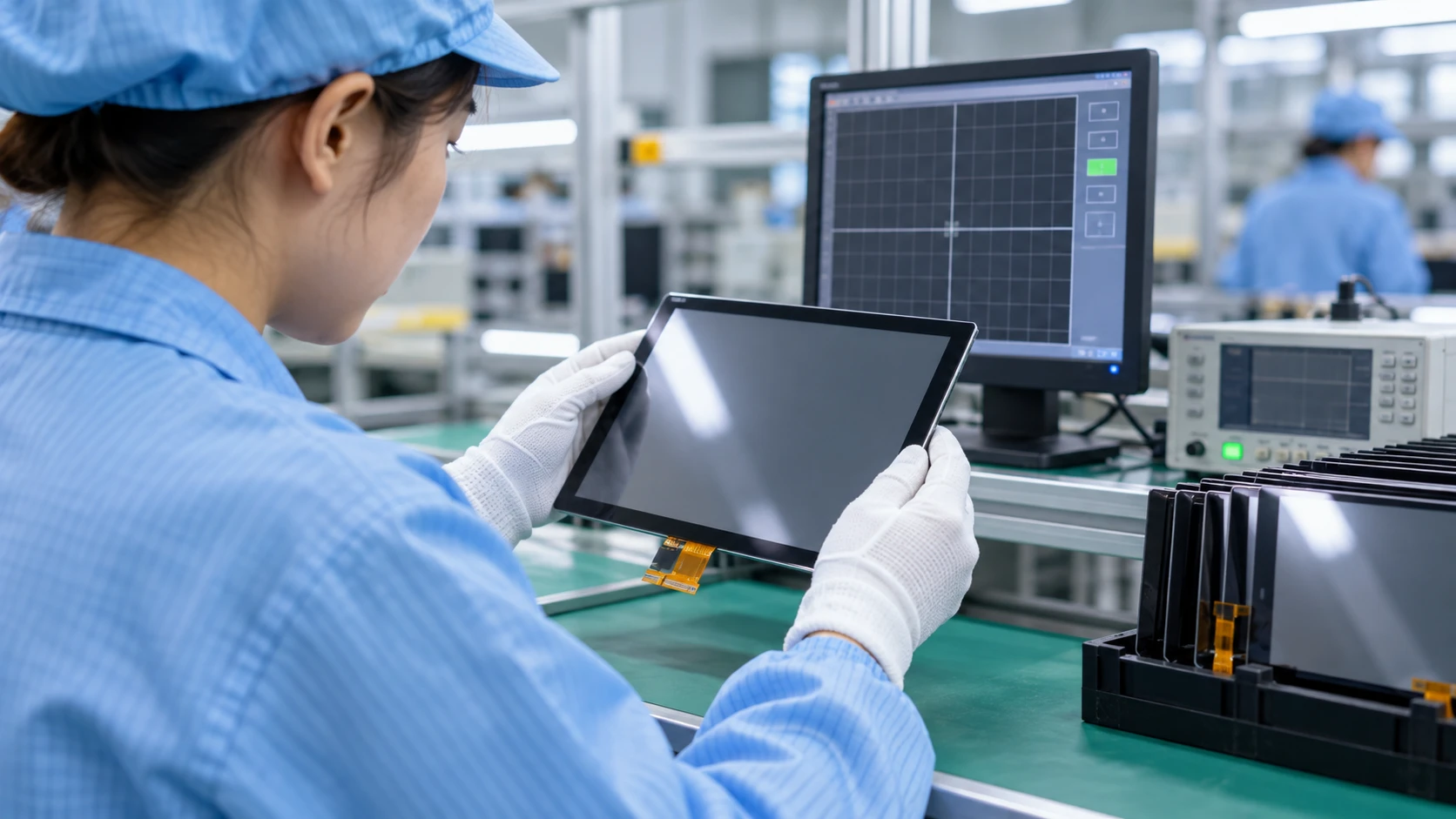
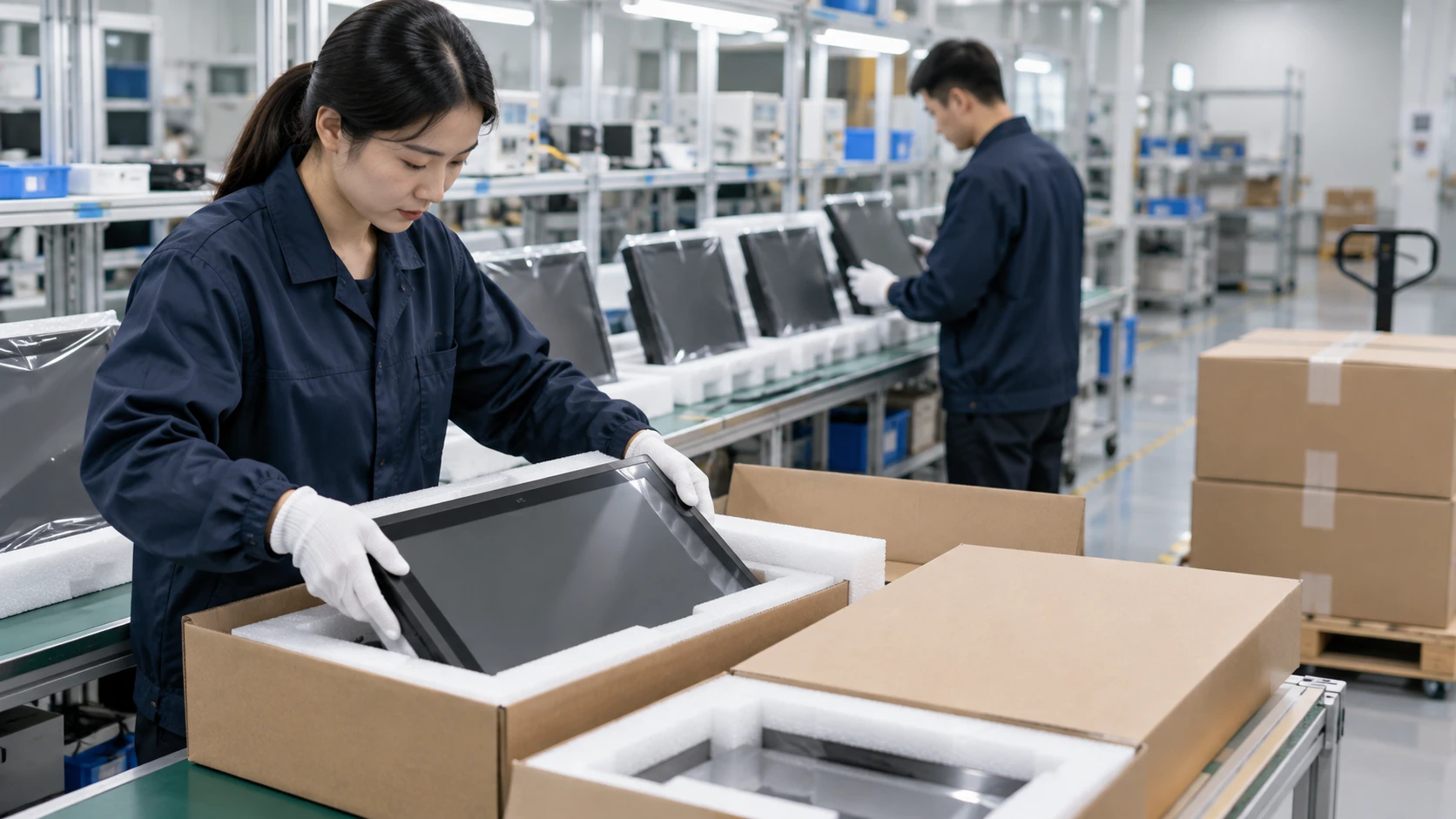
Inspection Scope Before Shipment
- • Product identity and quantity
- • Display appearance and image
- • Touch response
- • Interface and connection
- • Enclosure and mounting
- • Confirmed configuration
Important note: Model-specific environmental ratings, performance tests, certificates and compliance documents must be confirmed for the selected product and destination market. Do not assume that one document applies to every monitor configuration.
Questions About Elo Touchscreen Monitor Alternative Projects
Guide contents
- Does Lucky-XFC sell Elo touchscreen monitors?
- Can a Lucky-XFC monitor directly replace an Elo model?
- What is the best alternative to an Elo touchscreen monitor?
- Can Lucky-XFC review 15, 17 or 19-inch monitor requirements?
- Does HDMI transmit touchscreen input?
- What if the system requires a specific Elo driver or protocol?
- Can a touchscreen work through additional cover glass?
- What should be validated before approving production?
Does Lucky-XFC sell Elo touchscreen monitors?
Can a Lucky-XFC monitor directly replace an Elo model?
An independent display project may be suitable when the equipment can accept a reviewed Lucky-XFC specification. An exact installed replacement may still require the original model.
What is the best alternative to an Elo touchscreen monitor?
Start by deciding whether the project needs a finished flat monitor, an open-frame display, a panel-mount industrial monitor, a kiosk display or a large-format screen. Then compare the mechanical drawing, touch method, host connections, operating system and environment.
Can Lucky-XFC review 15, 17 or 19-inch monitor requirements?
Do not assume that a 15, 17 or 19-inch request is a standard Lucky-XFC flat model.
Does HDMI transmit touchscreen input?
If the display shows an image but does not respond to touch, check the USB touch cable, controller, driver and operating-system mapping.
What if the system requires a specific Elo driver or protocol?
A Lucky-XFC alternative uses the controller and compatibility path approved for its own configuration. Compatibility must be tested with the real host and application.
Can a touchscreen work through additional cover glass?
Do not transfer a touch-through specification from another brand or model. Validate the complete display and glass stack for the actual project.
What should be validated before approving production?
For medical, safety-regulated or certified equipment, verify the exact required standard and the scope of the available product documentation before selection.
Request an Independent Touchscreen Monitor Review
Share the equipment requirement and the functions that must be retained. Lucky-XFC can use the information to identify a suitable product route and the specifications that still require confirmation.
Prepare These Details
- • Existing monitor brand and exact model, if relevant
- • Required screen size and resolution
- • Equipment application
- • Overall dimensions and front opening
- • Mounting method
- • Video and touch-data interfaces
- • Host computer and operating system
- • Power input
- • Touch method and touch points
- • Operating environment
- • Functions that must remain unchanged
- • Estimated quantity
