
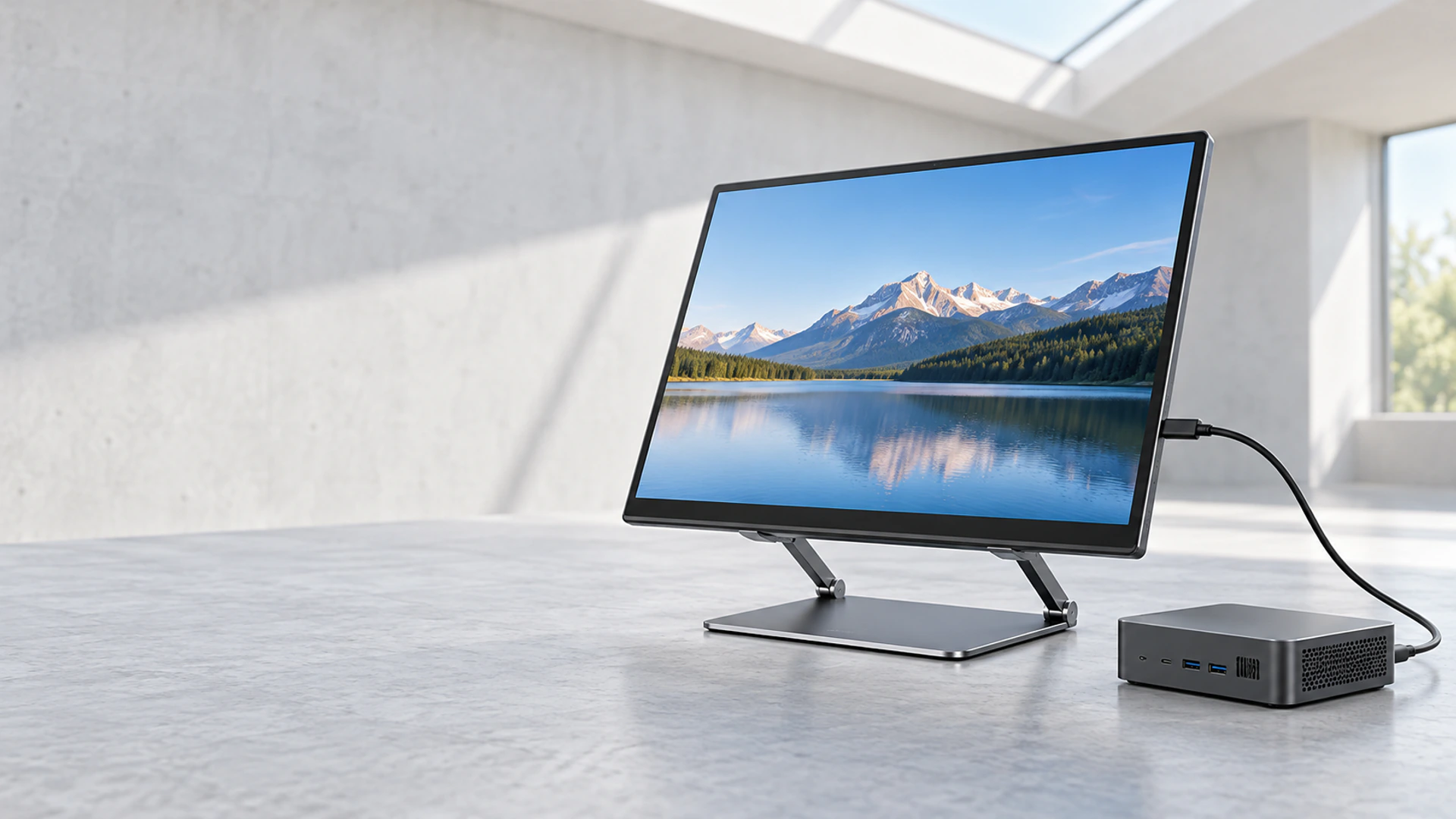
ASUS Touchscreen Monitor Alternatives From an Independent Custom Display Manufacturer
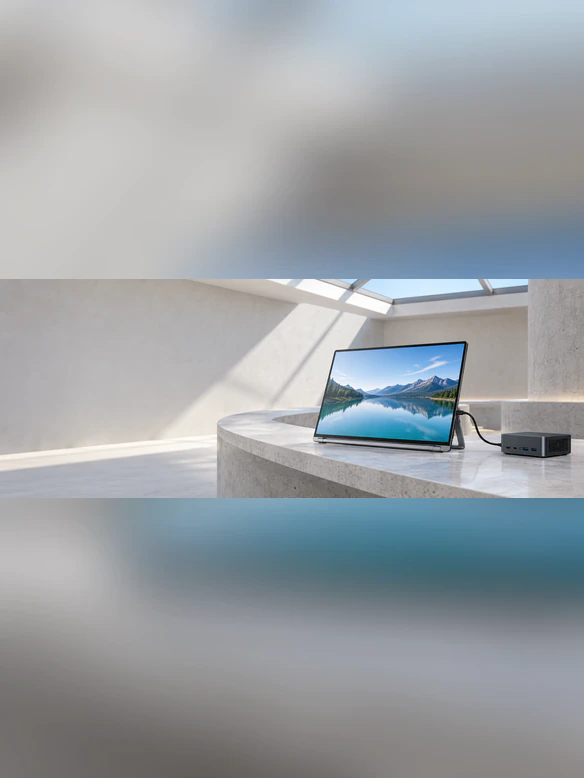
Configure a 14-inch or 15.6-inch portable touchscreen around your host device, interface and working environment. Lucky XFC coordinates the LCD, PCAP touch system, controller, video connection, power path, housing and support structure as one project-specific display.
For an ASUS laptop, mini PC or other host device, begin with the exact model and available ports. USB-C video support, touch-data return and available power must be verified before one-cable operation can be specified.
- 14-inch and 15.6-inch project directions
- PCAP touch and controller matching
- USB-C or HDMI connection planning
- Custom housing and kickstand options
- Prototype review and OEM/ODM support
Send the exact host-device model, operating system and port details for configuration review.
Lucky XFC supplies independent custom touch displays and is not affiliated with or endorsed by ASUS.
What Is a Lucky XFC ASUS Touchscreen Monitor Alternative?
A Lucky XFC alternative is an independent portable touchscreen configured to work as an external display and touch-input device for a compatible host computer. It is not an ASUS-branded monitor and does not reproduce ASUS proprietary software or product features.
The host sends video to the monitor. The touch controller returns input to the host. Power may come from the host, an external adapter or an equipment power system, depending on the approved configuration.
Portable Touch Display
An external screen with an LCD panel, touch sensor and touch controller. It normally depends on a laptop, mini PC, industrial computer or embedded controller to run the application.
Host Compatibility
Compatibility depends on the host model, operating system, graphics output, touch-input support and available power. The connector shape alone is not enough to confirm operation.
Project Configuration
Screen size, resolution, controller, interfaces, housing and support structure are selected as one coordinated configuration.
Sample Validation
The intended host, cable, application and operating system should be tested with the approved sample before production.
Choose this product direction when you need a portable or detachable touch display for an existing computer. Choose a touchscreen computer instead when the display must contain its own processor, memory, storage and operating system.
ASUS is a trademark of its respective owner. Lucky XFC is an independent touch display manufacturer and is not affiliated with, authorized by or endorsed by ASUS. References to ASUS devices are used only to explain host-device selection and compatibility. Compatibility depends on the exact device, operating system, ports, cable and approved display configuration.
Choose an ASUS Touchscreen Monitor Alternative by Size and Connection
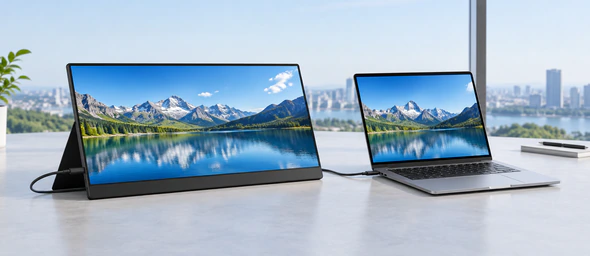
15.6 Inch Portable Alternative
A mainstream format for laptop expansion, field tools, equipment setup and touch-operated application interfaces. It provides more usable workspace than smaller portable formats while remaining suitable for detachable use.
- FHD or project-specific resolution
- PCAP touch integration
- USB-C or HDMI connection planning
- Housing and support structure
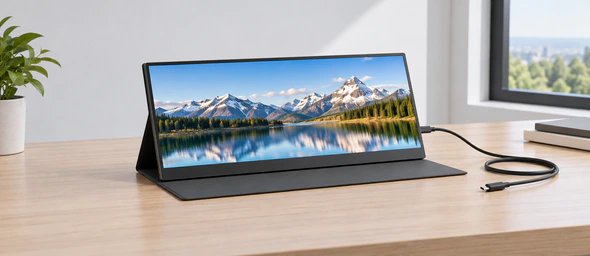
14 Inch Portable Alternative
A balanced format for mobile business workstations, presentations and compact equipment where portability and practical touch area are both important.
- Compact portable structure
- Landscape or portrait planning
- Host-interface verification
- Touch and operating-system testing
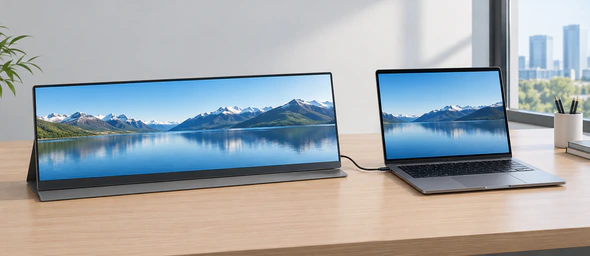
USB-C Portable Touch Display
A USB-C configuration can simplify cabling when the host, monitor and cable support the required video, touch-data and power functions.
- Host USB-C video-output capability
- Available host power
- Touch-data support
- Approved cable capability
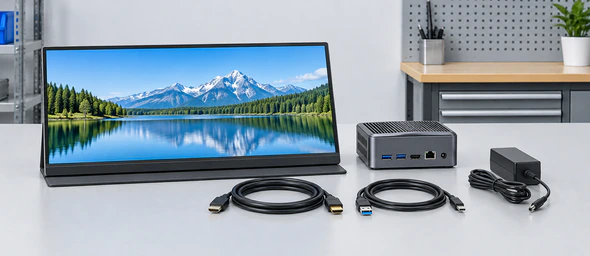
HDMI + USB Touch Display
Use HDMI for the picture and a separately configured USB path for touch data and power when the host does not support USB-C video output.
- HDMI connector type
- Separate touch-data path
- External power requirement
- Cable routing and strain relief
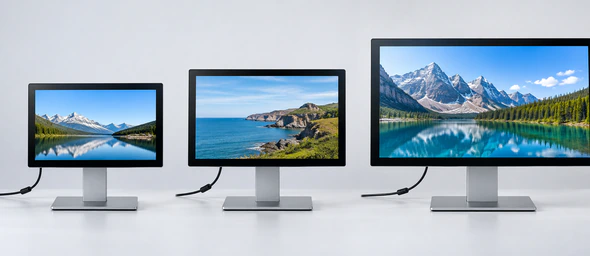
Size Selection
Choose 14 inches when a smaller footprint and easier transport are priorities. Choose 15.6 inches when the application needs more workspace, larger controls or a broader document view.
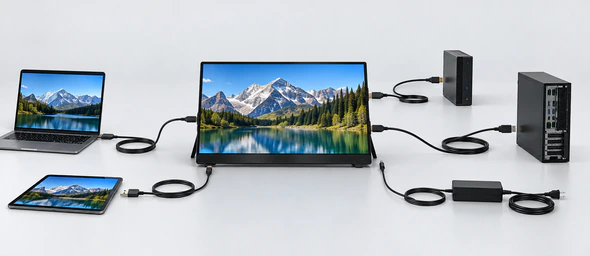
Connection Selection
Choose USB-C only after verifying the host’s video and power capabilities. Use a separate video, touch-data and power arrangement when the host connection cannot carry all three functions.
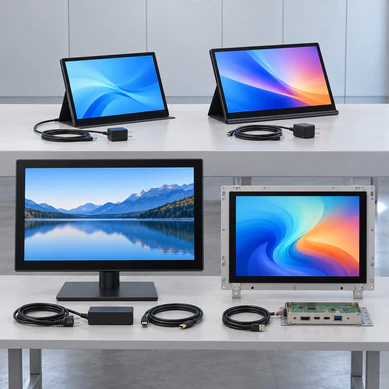
ASUS Touchscreen Monitor Alternative Configuration Matrix
Use this matrix to identify a suitable starting direction. Final values must come from the approved configuration, datasheet and mechanical drawing.
| Configuration | Size & Fit | Resolution | Touch | Connection |
|---|---|---|---|---|
| 15.6 Inch Mainstream | 15.6 inch Laptop extension, mobile workstation, equipment setup |
FHD 1920 × 1080 or project-specific option | PCAP touch with controller matching | USB-C or HDMI with separate touch-data planning |
| 14 Inch Business | 14 inch Portable business workstation, presentation display |
Selected according to panel availability and host output | PCAP touch with operating-system verification | USB-C or HDMI project planning |
| USB-C Configuration | Selected portable size Reduced cable count with a compatible host |
Depends on panel and host bandwidth | Touch-data support must be confirmed | One cable only when video, data and power requirements are satisfied |
| HDMI + USB Configuration | Selected portable size Hosts with HDMI video output |
Depends on selected display and source output | Separate USB touch-data connection | HDMI video plus USB touch and power arrangement |
Avoid Common ASUS Touchscreen Monitor Alternative Selection Problems
The laptop has USB-C, but it does not output video
Consequence: The monitor may receive power while no image appears.
Response: Check whether the exact USB-C port supports DisplayPort Alt Mode or another applicable video-output function. If it does not, evaluate HDMI or another approved video path.
The picture works, but touch does not
Consequence: Video reaches the display, but touch commands do not return to the host.
Response: Verify the touch-data connection, controller recognition, operating-system support, driver requirements and touch mapping separately from the video signal.
One-cable operation is assumed from the connector shape
Consequence: The host may not provide enough power, the cable may not support the required function or touch data may not be routed correctly.
Response: Confirm host output, available power, monitor architecture and cable capability as one system.
A proprietary ASUS feature is expected on an independent product
Consequence: Automatic rotation, active-pen behavior, bundled software or device-specific functions may not be available.
Response: Convert the desired workflow into a written technical requirement. Validate the required behavior on the Lucky XFC sample without assuming brand-specific software or accessories.
Screen size is selected without checking the application interface
Consequence: Text may be too small, touch targets may be difficult to use or the screen may not fit the carrying or mounting structure.
Response: Review software scaling, touch-target size, orientation, active area and outer dimensions before approving the screen.
The product is approved without the real host device
Consequence: A configuration may work with one test computer but behave differently with the intended laptop, operating system or cable.
Response: Use the exact deployment host and intended application during sample validation.
How USB-C Works With an ASUS Touchscreen Monitor Alternative
USB-C describes a connector format, not a guaranteed feature set. A host USB-C port may support charging and data while providing no display output. One-cable portable-monitor operation is possible only when the complete connection supports video, touch data and sufficient power.
Verify These Four Paths
- Video output: confirm that the exact host port can output a compatible display signal.
- Touch data: confirm that touch commands can return from the monitor to the host.
- Power: confirm that the available power meets the approved monitor configuration.
- Cable: confirm that the cable supports the required signal, data and power functions.
Answer: If any path is unavailable, use an approved alternative such as HDMI for video with a separate USB touch-data and power connection.
Compatibility note: The same connector can behave differently across laptop models and even between two USB-C ports on the same device. Record the exact port used during sample validation.
Connect an ASUS Touchscreen Monitor Alternative With HDMI and USB
An HDMI and USB configuration separates the system into clear functions. HDMI carries the picture. USB returns touch data and may provide power only when the approved configuration allows it. A separate adapter may still be required.
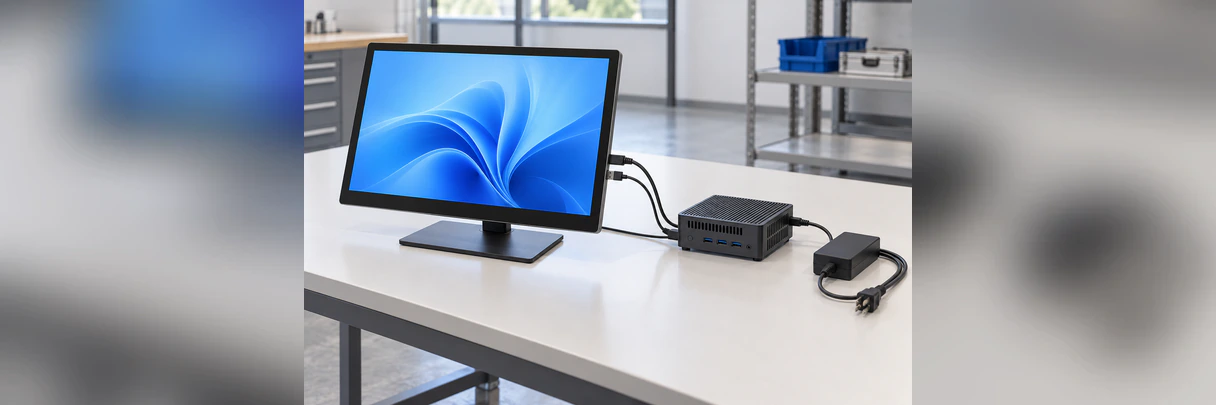
- 1 Connect the approved HDMI output from the host to the monitor’s video input.
- 2 Connect the designated USB touch-data path.
- 3 Connect the approved power source.
- 4 Select the correct video input.
- 5 Confirm that the operating system detects the touch controller.
- 6 Calibrate or map touch when required.
- 7 Test touch position, gestures, sleep, wake and reconnection.
HDMI does not normally return touchscreen input to the computer. A visible image does not confirm that touch is connected.
Check ASUS Touchscreen Monitor Compatibility Before Ordering
Compatibility is a system result. Test the host, operating system, display controller, touch controller, cable and application together.
| Host Factor | Why it matters | Required review |
|---|---|---|
| Exact device model | Different devices in the same brand family may provide different ports, graphics outputs and power capabilities. | Record the full model number and, where relevant, hardware revision. |
| Operating system | Touch recognition, gestures, multi-touch behavior, orientation and driver requirements vary. | Record the operating system and version used for deployment. |
| Video output | The source must match the selected controller-board input and target resolution. | Verify USB-C video, HDMI or another approved signal. |
| Touch-data path | The operating system must receive input from the touch controller. | Confirm USB touch-data routing, controller detection and driver expectations. |
| Power source | Portable displays may require host power, external power or equipment-level power. | Confirm the approved input and whether the host can supply enough power. |
| Application software | Gestures, multi-touch, handwriting and screen orientation depend partly on the application. | Test the intended workflow instead of relying only on an operating-system desktop test. |
| Cable | A charging cable may not support the required video or data function. | Record the cable used in the approved sample setup. |
Compatibility boundary: Do not publish a universal statement that the monitor works with every ASUS laptop, Chromebook, mini PC, handheld device, smartphone or gaming system. Compatibility must be confirmed for the selected host.
Select Touch and Stylus Input for an ASUS Touchscreen Monitor Alternative
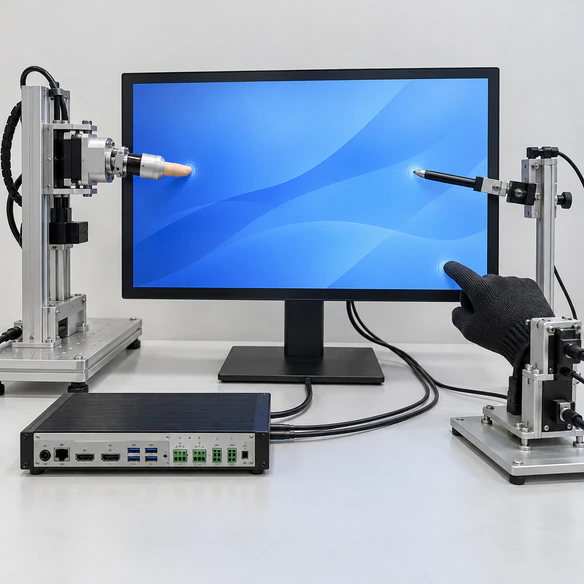
Lucky XFC supports PCAP touch integration for portable display projects. The final behavior depends on the touch sensor, controller, cover glass, grounding, enclosure, operating system and application.
Selection Checklist
- Required input method
- Required touch points
- Gesture behavior
- Writing or annotation expectation
- Cover-glass requirement
- Landscape or portrait use
- Operating-system behavior
- Electrical grounding conditions
Finger and Gesture Input
PCAP is the preferred starting direction for finger-operated controls, scrolling, tapping, zooming and compatible multi-touch workflows. Confirm the required number of simultaneous inputs with the controller and operating system.
Passive Stylus Input
A passive capacitive stylus may behave similarly to finger input, but tip size, accuracy and application behavior should be tested. Do not present passive stylus operation as handwriting-grade input without sample validation.
Active Pen Input
Active pens can require a compatible digitizer, protocol, controller, firmware and software stack. Do not claim active-pen support, pressure sensitivity or compatibility with an ASUS pen unless the complete system has been engineered and validated for that function.
Plan the ASUS Touchscreen Monitor Alternative Housing and Stand
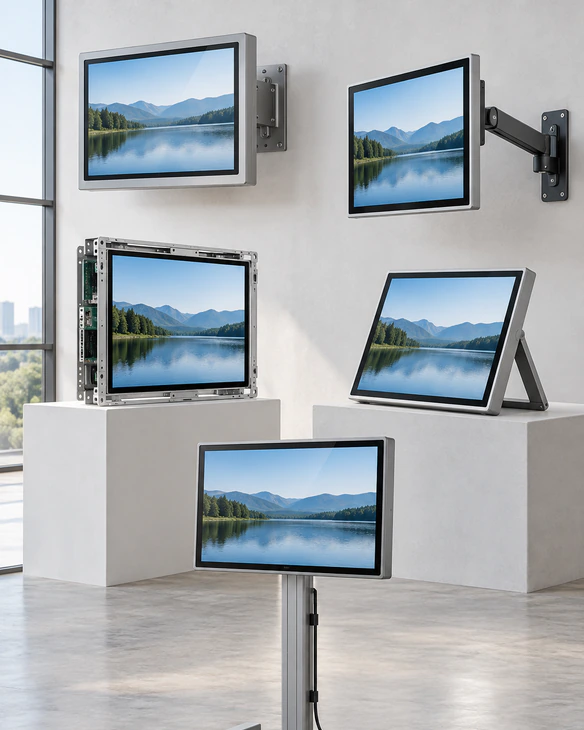
A portable touch display must remain stable while users press, swipe and drag across the screen. Housing material, stand geometry, port position and cable routing should be reviewed together.
Housing Material
Evaluate metal or plastic construction according to weight, rigidity, appearance, protection and production requirements. Final material and finish belong in the approved configuration.
Kickstand Geometry
Define the intended viewing angle, landscape or portrait use and touch force. A stand that supports passive viewing may still move during active touch operation.
Port Position
Keep ports accessible without forcing sharp cable bends or conflicting with the stand, carrying case or surrounding equipment.
Front Surface
Review visible area, printed border, edge treatment, cover-glass structure and cleaning requirements.
Mechanical Drawing
Use the approved drawing for outer dimensions, active area, thickness, port locations and mounting details. Do not use measurements from a competing monitor.
ASUS Touchscreen Monitor Alternative Applications
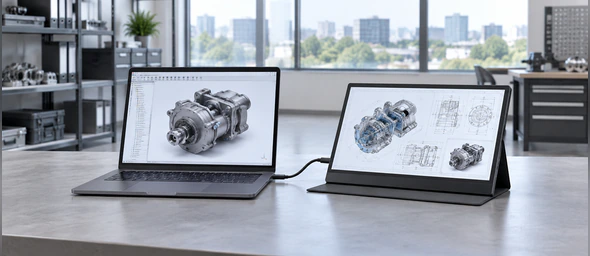
Mobile Workstation Extension
Add touch-operated documents, dashboards or presentation controls beside a compatible laptop. Prioritize a practical screen size, stable stand, readable software scaling and an approved cable arrangement.
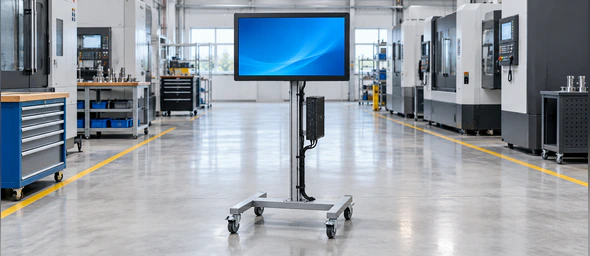
Industrial Equipment Commissioning
Provide technicians with a portable display for setup screens, diagnostics and controller interfaces near the equipment. Prioritize defined power, connector retention, touch-controller matching and a protective structure.
Product Demonstration Station
Run customer-controlled presentation or product-selection software on a compact interactive screen. Verify the host graphics output and application touch behavior.
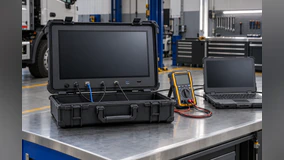
Field Diagnostic Display
Use a detachable screen to inspect system information and operate compatible service software. Review transport protection, cable access and expected working conditions.
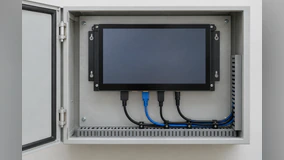
Control Interface Extension
Extend a PC-based interface to a nearby touch surface when the main computer must remain inside the equipment or workstation.
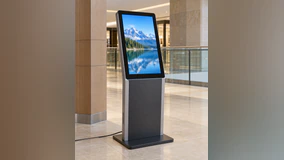
Commercial Interactive Terminal
Integrate a portable or semi-fixed touchscreen into information lookup, registration or demonstration equipment. Define the housing and host architecture from the final workflow.
Each scenario requires project-specific validation. Application images explain suitable directions and do not represent guaranteed environmental, regulatory or performance results.
Customize an ASUS Touchscreen Monitor Alternative With Lucky XFC
Lucky XFC can coordinate the display, touch layer, controller, connection architecture and mechanical structure around an approved host and application.
Display size
12.3, 13.3, 14, 15.6 and 16-inch project options
Confirm final panel availability and active area.
Resolution
1920 × 1080, 2560 × 1600 and higher-resolution paths
Availability depends on size, panel, controller, bandwidth and power design.
Touch
PCAP touch, controller matching and cover-glass integration
Confirm touch points, operating-system behavior and input method.
Interfaces
USB-C, Mini HDMI, Micro HDMI and connection planning
Confirm video, touch-data and power paths.
Housing
Metal or plastic structure
Confirm material, finish, weight and protection requirements.
Support structure
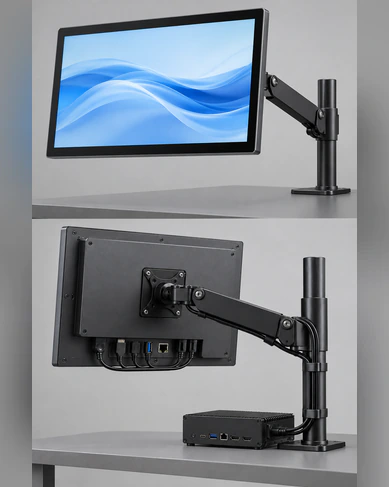
Kickstand, detachable support or project-specific mounting
Confirm orientation, angle, stability and cable clearance.
Appearance
Frame treatment, printed border and logo evaluation
Final artwork and visible details require approval.
Development
Requirement review, prototype evaluation, engineering modification
Scope depends on the approved project requirements.
Validate the ASUS Touchscreen Monitor Alternative With the Real Host
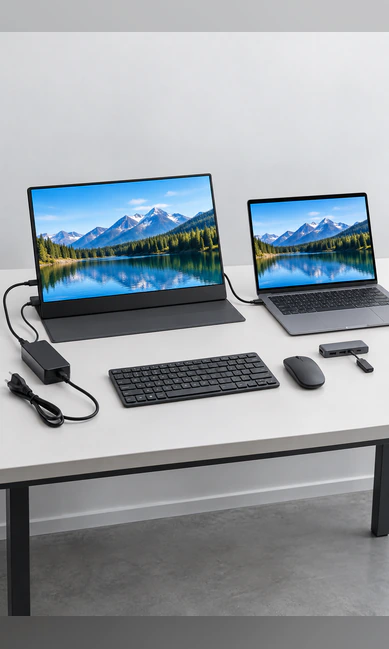
A portable monitor sample should be tested with the exact host device, operating system, application, cables and power arrangement intended for deployment.
Display
- Correct native resolution
- Stable image at the intended input
- Readable software scaling
- Landscape and portrait behavior
- Sleep, wake and reconnection
Touch
- Controller recognition
- Touch position across the active area
- Required gesture behavior
- Touch mapping and edge interaction
- Required simultaneous inputs
Connectivity
- Video path and touch-data path
- Power source
- Cable capability
- Port accessibility
- Reconnection behavior
Mechanical & Application
- Outer dimensions and stand stability
- Cable clearance and housing rigidity
- Intended software and user workflow
- Input method and orientation
- Typical session behavior
Approval note: Approve the sample configuration, specification, mechanical drawing, interface definition and acceptance record before production. Revalidate the system if the host, operating system, application, controller or cable changes.
Why Develop an ASUS Touchscreen Monitor Alternative With Lucky XFC?

Manufacturing Since 2013
Lucky XFC has manufactured touch display products since 2013, supporting custom monitor and equipment-display projects.

3,100 m² Factory
The factory supports display assembly, integration, inspection and production coordination.

160+ Production Team
The production organization supports sample evaluation, approved modifications and repeat manufacturing.

26 QC Personnel
Quality-control personnel support inspection across materials, assembly, function, appearance and shipment preparation.

MOQ From 1 Piece
Begin with one project sample when commercial terms and the selected configuration are confirmed.

OEM/ODM Coordination
Review the LCD, touch sensor, controller, interfaces, housing and support structure as a coordinated system.
Swedish Field-Service ASUS Touchscreen Monitor Alternative Project
A Swedish automation service team needed a portable touch display for commissioning equipment at customer sites. The technicians already carried company-managed laptops, so an integrated touchscreen computer would have duplicated the processor, operating system and software environment.
Challenge
The laptop connection varied between USB-C and HDMI across the service fleet. The team also needed a stable touch surface that could sit beside control cabinets without occupying a permanent operator station.
Configuration Direction
The project began with a 15.6-inch PCAP portable display direction. USB-C video capability, available power and touch-data return were checked by laptop model. For hosts without the required USB-C video function, the project retained an HDMI video path with separate USB touch and power planning.
Validation & Result
The sample workflow covered controller recognition, touch mapping, software scaling, cable access, stand stability and reconnection after sleep. Separating video, touch data and power prevented the team from assuming that every USB-C port could provide one-cable operation. The review produced a defined configuration and validation checklist for the selected laptop group.
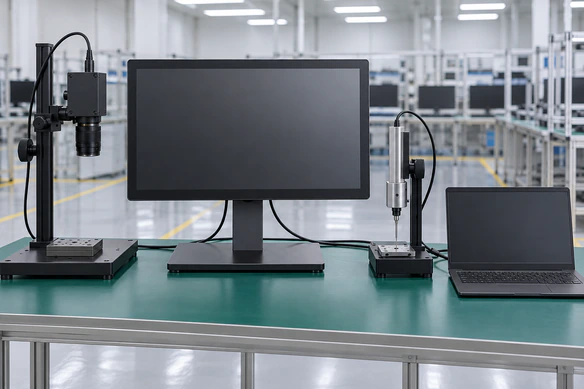
This anonymized representative scenario explains a suitable project workflow. It does not identify a customer, disclose confidential project details or claim a guaranteed result.
ASUS Touchscreen Monitor Alternative Project Workflow
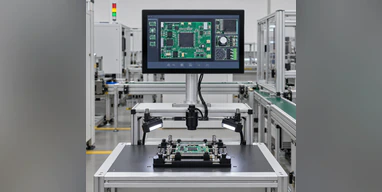
Application Definition
Define the host device, software, working environment, screen size, orientation and user workflow.
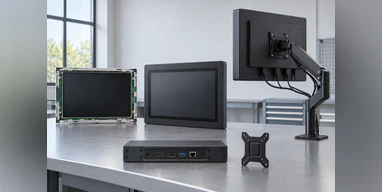
System Architecture
Review the LCD, touch sensor, controller, video signal, touch-data path, power source and mechanical structure together.
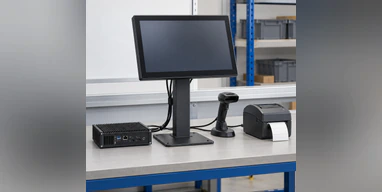
Configuration Proposal
Select the screen size, resolution direction, touch architecture, interfaces, housing and support structure.
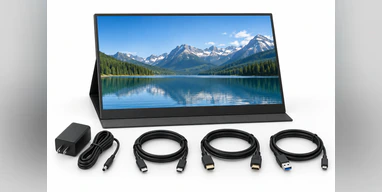
Prototype Review
Build or prepare the agreed sample configuration for host, application and mechanical testing.
Engineering Modification
Document required changes to touch behavior, connections, port positions, enclosure or support structure.
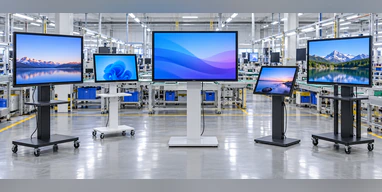
Production Planning
Release the approved configuration, inspection criteria, packaging requirements and quantity for production coordination.
Project timing depends on panel selection, controller design, mechanical requirements, sample changes and quantity. Confirm timing in the formal quotation.
ASUS Touchscreen Monitor Alternative Quality and Inspection
Inspection should follow the approved configuration rather than a generic portable-monitor checklist. The selected display, touch controller, interface architecture, housing and accessories must remain traceable to the project record.
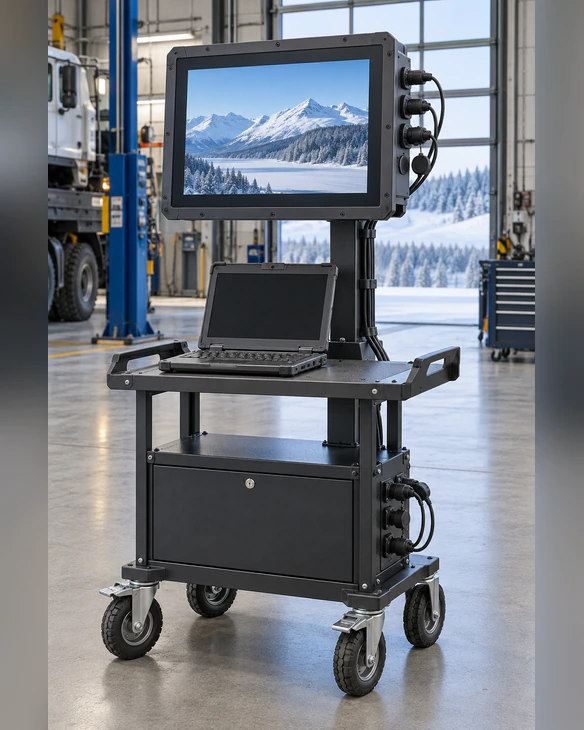
Incoming component review
Check the selected LCD, touch components, controller, housing parts and project accessories against the approved requirements.
Assembly review
Confirm the intended component combination, cable routing, port placement and enclosure construction.
Display inspection
Check image output, orientation, visible defects and selected controls according to the agreed configuration.
Touch inspection
Check controller recognition, active-area response and required touch behavior with the applicable setup.
Connection inspection
Check the approved video, touch-data and power paths.
Appearance inspection
Review the cover glass, frame, housing finish, logo position and visible assembly condition.
Pre-shipment review
Confirm quantity, configuration, accessories, documents, packaging and shipping marks.
Procurement note: Request the applicable inspection scope and available compliance documents for the exact configuration. Do not assume that documentation from another model or competitor product applies.
Prepare an ASUS Touchscreen Monitor Alternative Quotation Request
A useful quotation begins with the host and application, not only the screen diagonal.
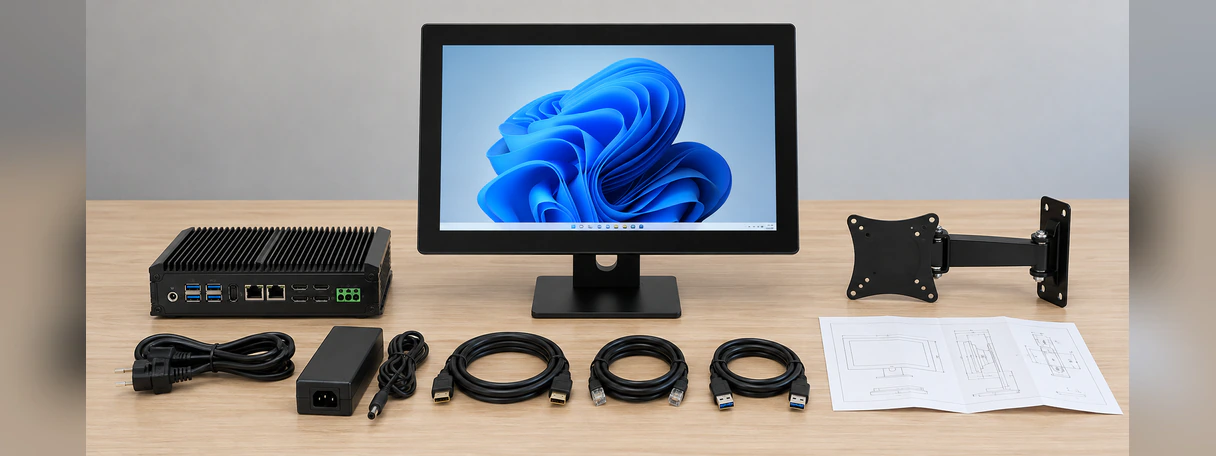
- Exact ASUS or other host-device model
- Operating system and version
- Available USB-C, HDMI or other video output
- Preferred 14-inch or 15.6-inch size
- Intended software and touch workflow
- Required resolution
- Required touch points
- Finger, passive stylus or active-pen expectation
- Power source
- One-cable preference or separate-cable acceptance
- Landscape or portrait use
- Housing and kickstand requirements
- Maximum outer dimensions
- Estimated quantity
- Destination country
- Current project stage
Note: If active-pen input, pressure sensitivity, battery operation or automatic rotation is required, state it explicitly. These functions are not included by default.
ASUS Touchscreen Monitor Alternative FAQ
Does Lucky XFC sell ASUS touchscreen monitors?
Can a Lucky XFC portable monitor work with an ASUS laptop?
What size is the recommended starting point?
Can one USB-C cable carry video, touch data and power?
Why does the monitor have power but no image?
Why is the picture visible but touch does not work?
Does HDMI carry touchscreen input?
Does the monitor support ten-point touch?
Does it support an ASUS active pen?
Does it contain a built-in battery?
Can the monitor rotate automatically?
Can Lucky XFC customize the housing and stand?
Can I start with one sample?
What should be tested on the sample?
Is this page an official ASUS comparison?
ASUS is a trademark of its respective owner. Lucky XFC is an independent touch display manufacturer and is not affiliated with, authorized by or endorsed by ASUS. References to ASUS devices are used only to explain host-device selection and compatibility. Compatibility depends on the exact device, operating system, ports, cable and approved display configuration.
Related ASUS Touchscreen Monitor Alternative Resources

Portable Touchscreen Monitors
Compare Lucky XFC portable display sizes, interfaces and integration directions.
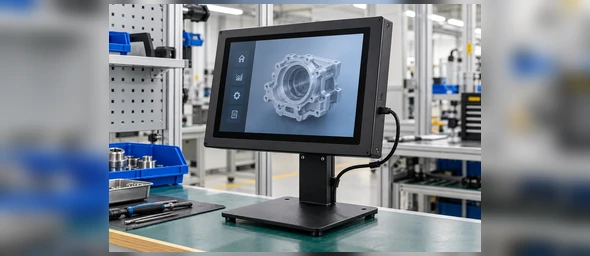
USB-C Touchscreen Monitors
Review one-cable conditions, host video support, touch data and power planning.

HDMI Touchscreen Monitors
Understand HDMI video and separate USB touch-data configurations.
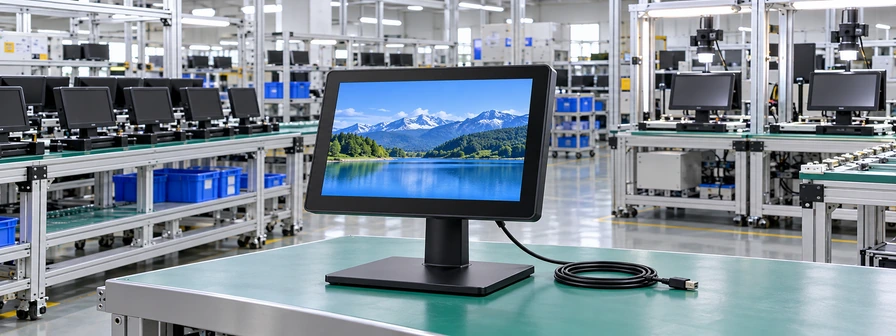
Small Touchscreen Monitors
Compare compact touch-display directions for limited workspaces and equipment.
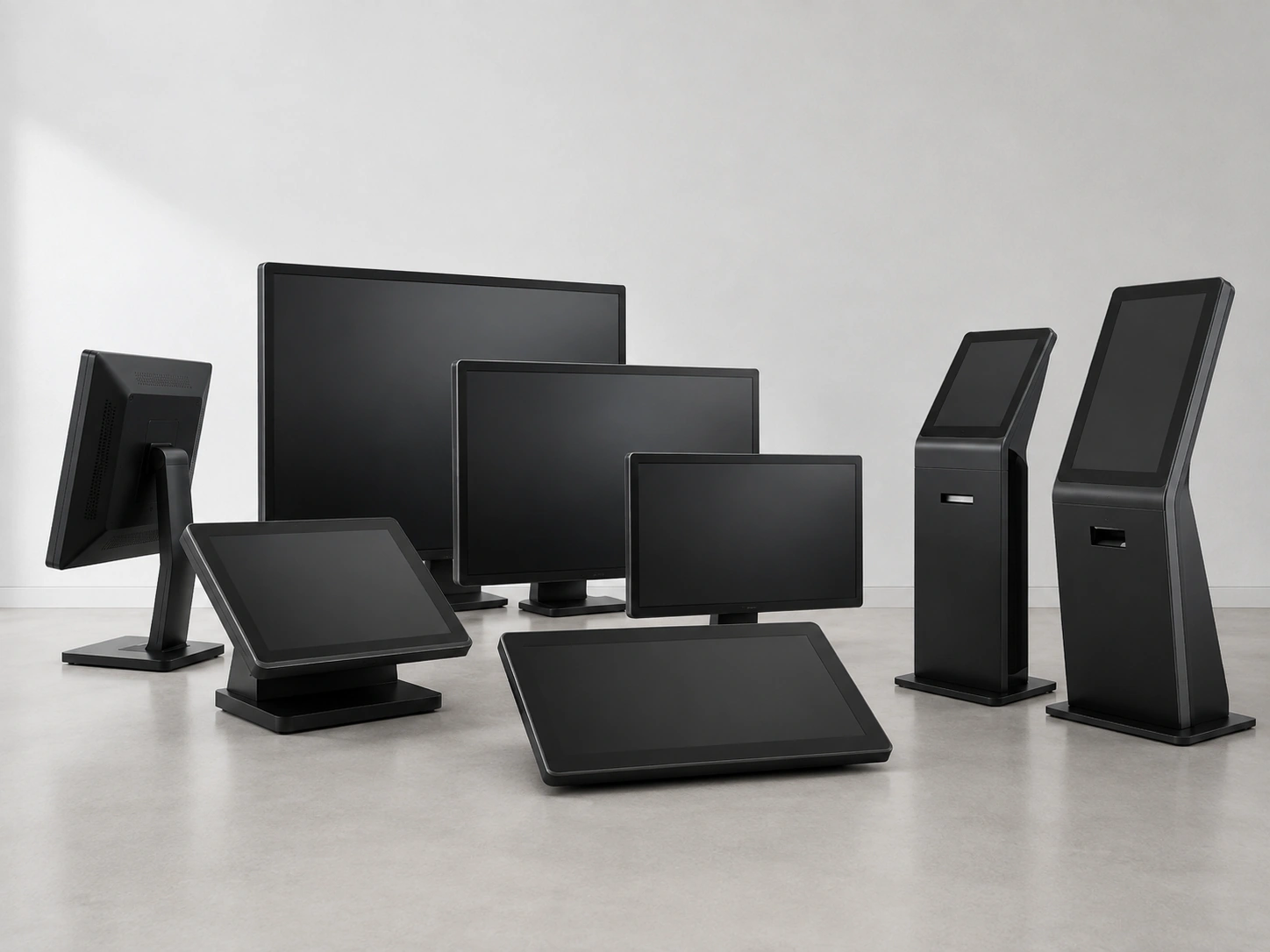
Touchscreen Displays
Review LCD, touch sensor, controller and system-integration choices.

Touchscreen Monitors
Explore broader Lucky XFC touch-monitor formats and applications.
Request an ASUS Touchscreen Monitor Alternative Configuration
Share the exact host model, operating system, available ports and preferred screen size. Lucky XFC will use this information to review the display, touch controller, connection architecture, power path and mechanical direction for your project.
You do not need a complete specification to begin. A host model, application description and interface list provide a practical starting point.
Your information will be used only to evaluate and respond to your product inquiry.
ASUS is a trademark of its respective owner. Lucky XFC is an independent manufacturer and is not affiliated with or endorsed by ASUS.
