
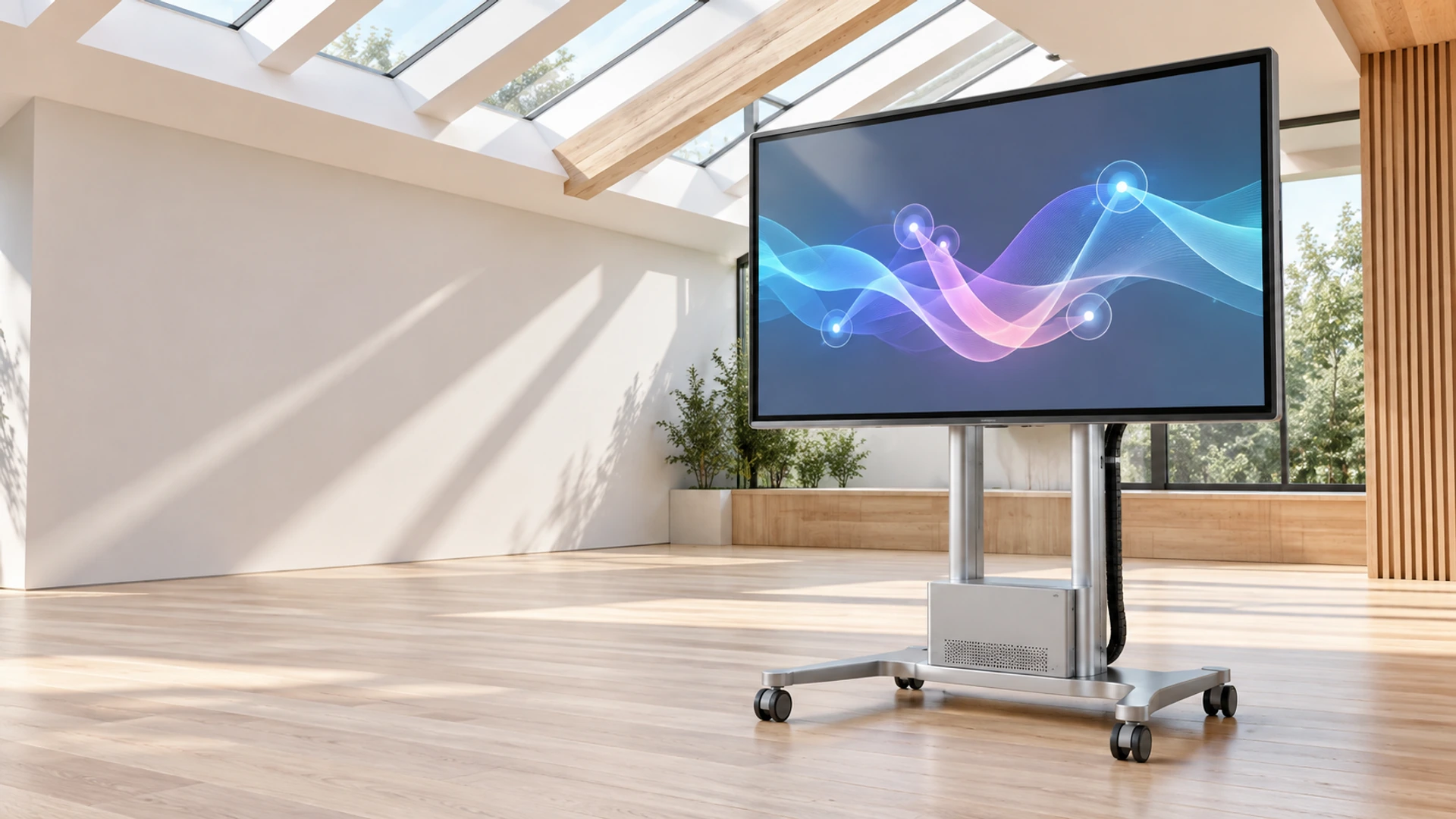
Multi Touch Monitor Manufacturer for Custom Interactive Displays
Portable, open-frame, curved and large-format touch displays configured around your users, host system and installation.
Build a multi touch monitor around the interaction your application actually needs. Lucky‑XFC supports portable PCAP projects, flat metal-housing monitors, documented 10-point open-frame models, curved touch displays and large interactive configurations. Define the required touch points, gestures, host system, mounting and operating environment before selecting the final product.
- 10-Point Open-Frame Models
- PCAP Project Options
- Portable to Large Format
- Custom Mounting Review
- Host Compatibility Support
Send your required size, touch points, host model, operating system and installation drawing.
What Makes a Multi Touch Monitor Suitable for Your Project?
A multi touch monitor detects more than one touch point at the same time. This allows compatible applications to support actions such as two-finger zoom, rotation, multi-finger navigation, simultaneous control or input from more than one user.
The number of detected points is only one part of the configuration. The touch sensor, controller, firmware, cover glass, operating system, host connection and application software must work together. A monitor can report ten touch points while the software uses only one or two. A different project may need reliable two-finger gestures rather than the highest available touch count.
Lucky‑XFC therefore separates confirmed 10-point models from product families where the exact touch count remains configuration-dependent.
Multi Touch Monitor Product Types
Choose the product structure first. Then confirm size, touch points, host system and installation details.
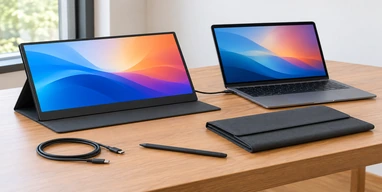
Portable Multi Touch Monitor
Portable PCAP display projects in 12.3, 13.3, 14, 15.6 and 16-inch formats for mobile workstations, diagnostic tools and laptop expansion.
Boundary: Touch-point count and gesture support are confirmed by controller and operating system.
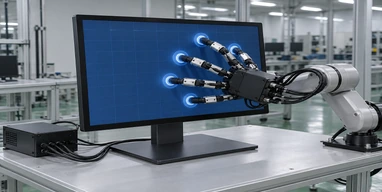
Flat PCAP Multi Touch Monitor
Metal-housing flat monitors in documented 21.5, 23.8, 27, 31.5 and 43-inch starting sizes for desktop, VESA and externally mounted equipment applications.
Boundary: The range uses capacitive touch, but the exact number of touch points is model-specific.
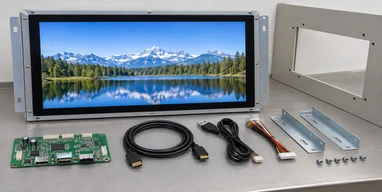
Open-Frame 10-Point Multi Touch Monitor
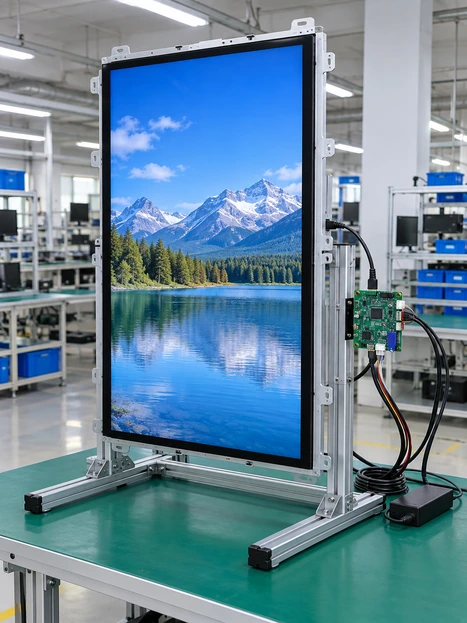
Documented 21.5, 27 and 43-inch open-frame PCAP models for integration behind machine panels, kiosks and custom equipment enclosures.
Boundary: The listed XFC-OF215-PCAP, XFC-OF270-PCAP and XFC-OF430-PCAP models support 10-point PCAP touch.
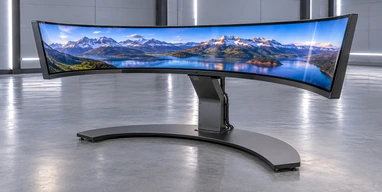
Curved Multi Touch Monitor
J-type and C-type curved PCAP display projects for gaming equipment, immersive terminals and custom commercial cabinets.
Boundary: Touch-point count and gesture behavior are confirmed for the selected curved configuration.
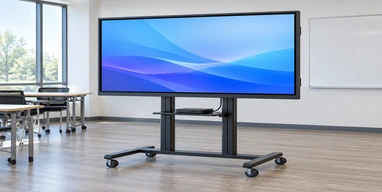
Large-Format Interactive Multi Touch Monitor
Interactive display hardware for retail browsing, public information, museums, exhibitions and large user interfaces.
Boundary: A 49-inch 4K 10-point PCAP interactive configuration is a documented starting direction. Other sizes require model confirmation.
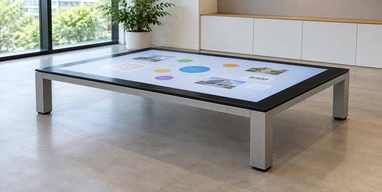
Collaborative Multi Touch Monitor
Large interactive displays for meetings, training, education and collaborative annotation where several inputs or gestures may be required.
Boundary: Touch points, writing behavior, palm handling and computing platform vary by model.
Multi Touch Monitor Technology Comparison
Select touch technology from the operator, surface, environment and required gesture behavior rather than from a general claim that one technology is always better.
PCAP Touch
- Input: Finger or compatible conductive input
- Multi-Touch: Commonly supported; exact points depend on model
- Surface: Glass-based touch surface
- Typical Fit: Portable monitors, modern interfaces, kiosks, commercial terminals and open-frame displays
- Confirm: Touch points, controller, cover glass, gloves, water behavior and operating system
Infrared Touch
- Input: Finger, glove or other opaque object
- Multi-Touch: Depends on the infrared controller and product
- Surface: Sensor frame around the display
- Typical Fit: Selected large interactive displays and public interfaces
- Confirm: Bezel space, contamination, ambient conditions, accuracy and model availability
Resistive Touch
- Input: Physical pressure from a finger, glove or stylus
- Multi-Touch: Usually single-point or limited
- Surface: Flexible pressure-sensitive layers
- Typical Fit: Selected industrial workflows requiring pressure input
- Confirm: Input method, surface durability, optical clarity and project availability
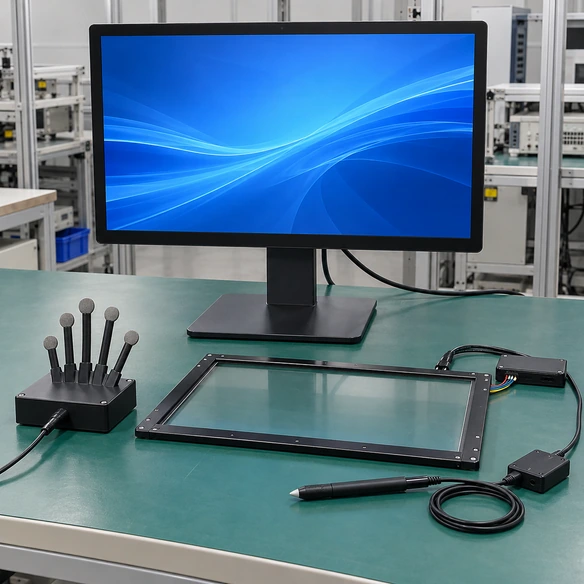
How to Select a Multi Touch Monitor
Define the User Action
List the gestures the application actually uses: tap, drag, two-finger zoom, rotation, five-finger control, simultaneous users or collaborative writing.
Choose the Product Structure
Select portable, finished flat, open-frame, curved, large interactive or collaborative hardware according to the installation.
Set the Touch-Point Requirement
Do not request ten, twenty or more touch points without checking whether the application and operating system use them.
Confirm the Host and Software
Record the host model, operating system, application, video output, USB availability and driver requirements.
Review the Physical Surface
Specify cover glass, glove use, moisture exposure, cleaning method, stylus requirements and the intended user position.
Validate the Complete System
Test the selected screen, controller, firmware, cables, host, operating system and application as one configuration.
Verified Open-Frame Multi Touch Monitor Models
The following Lucky‑XFC open-frame models provide documented 10-point PCAP starting configurations.
XFC-OF215-PCAP
XFC-OF270-PCAP
XFC-OF430-PCAP
Swipe to view full specifications
Note: Final outer dimensions, active area, cutout, installation depth, power, connector direction and operating requirements must be checked against the selected model drawing.
Multi Touch Monitor Touch Points and Gesture Planning
A touch-point specification describes how many contacts the controller can report at the same time. It does not guarantee that every application will use those points.
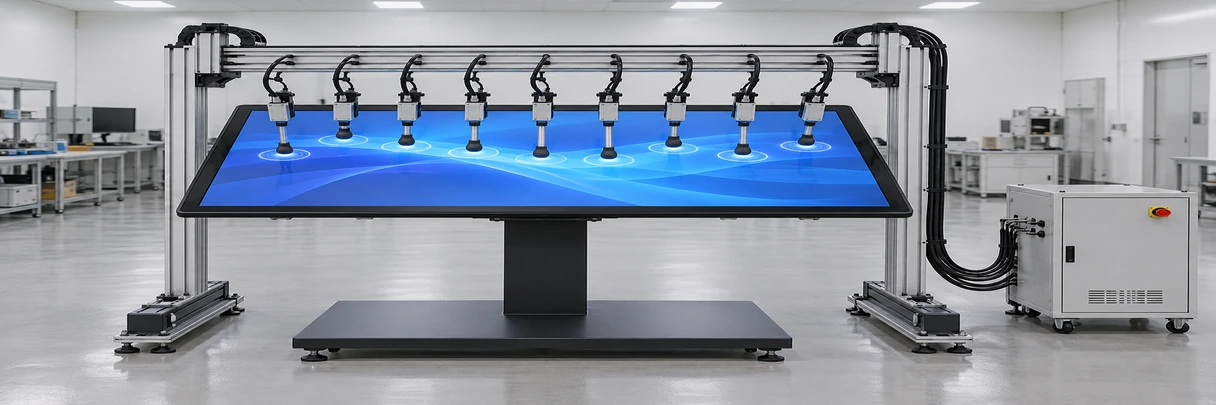
1–2 Touch Points
Suitable for tap, drag, basic zoom and rotation when the application supports those gestures.
5 Touch Points
Useful for selected multi-finger controls, training interfaces or application-specific input.
10 Touch Points
Suitable for compatible multi-finger applications, selected multi-user workflows and interactive content. Lucky‑XFC’s documented open-frame models on this page use 10-point PCAP.
More Than 10 Points
Consider only when collaborative software, large-screen use and simultaneous users require it. Availability and behavior must be verified for the selected product.
Validation Items:
- Maximum reported contacts
- Gesture recognition
- Simultaneous-user behavior
- Touch accuracy near edges
- Response after sleep/restart
- Touch mapping (multi-display)
- Application support
Multi Touch Monitor or Touchscreen Computer?
The two products can look similar from the front but require different system planning.
Multi Touch Monitor
- ■ Receives video from an external host
- ■ Sends touch coordinates to the host
- ■ Does not normally include a processor, memory, storage or operating system
- ■ Suitable when the customer already controls the computer and software
- ■ Display and host can be maintained separately
Touchscreen Computer
- ■ Includes computing hardware by configuration
- ■ Requires processor, memory, storage, operating system and thermal planning
- ■ Suitable for a standalone interactive terminal
- ■ Software compatibility must be reviewed with the integrated platform
Choose a monitor when the external PC or controller already runs the application. Choose a touchscreen computer when the display must operate independently.
Multi Touch Monitor Compatibility with Operating Systems
The operating system receives contact coordinates from the touch controller, but the final behavior depends on the driver, application and display configuration.
Windows
Common multi-touch gestures may be available when the selected controller is recognized correctly. Confirm the Windows version, required gestures and multi-display touch mapping.
Android
Confirm USB host support, controller recognition, Android version, application behavior and whether external displays are supported by the chosen hardware.
Linux
Confirm kernel support, input-device recognition, desktop environment, calibration method and the application’s gesture handling.
macOS
Do not assume that an external touchscreen provides the same native behavior as Windows. Confirm the controller, required utility or driver, gestures and application limitations.
Custom Embedded Systems
Confirm USB HID or other approved interface behavior, controller protocol, driver development responsibility and startup sequence.
Test Items:
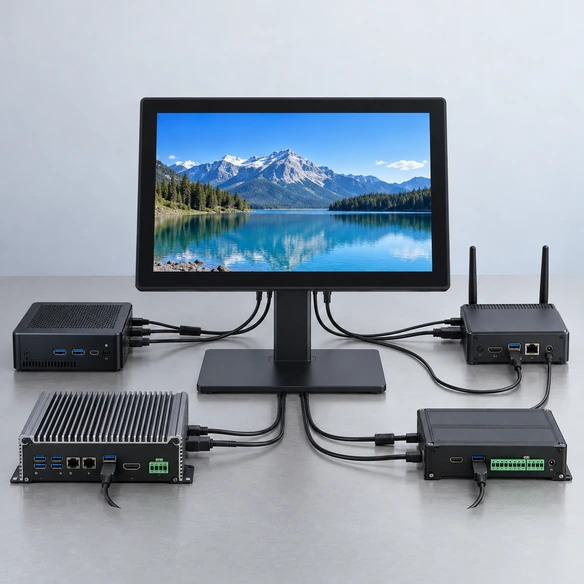
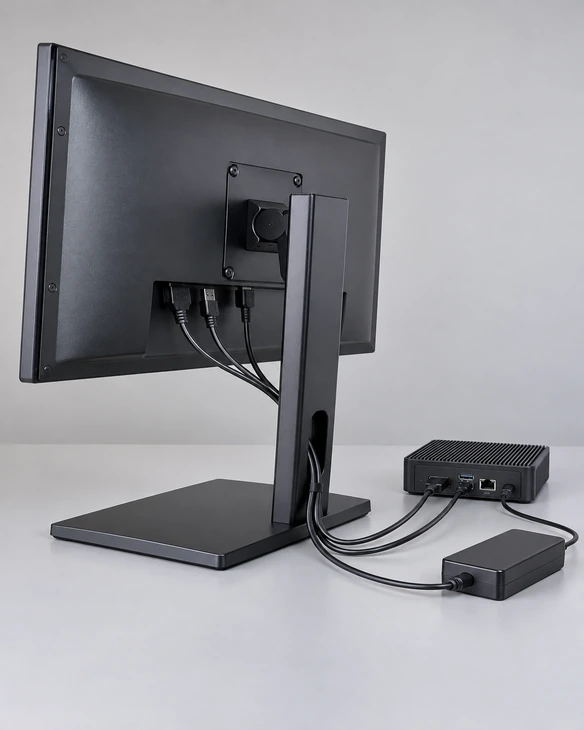
Multi Touch Monitor Video, Touch and Power Connections
A successful installation requires three connection paths to be defined separately.
Video Path
The host sends the image to the display. Confirm the host output, selected monitor input, native resolution, orientation and adapter path.
Touch-Data Path
The touch controller sends contact coordinates to the host. USB is common, but the actual interface must be confirmed for the selected model.
Power Path
The display and any integrated electronics require the approved power input. Do not assume that a host USB port can power every monitor.
USB-C Path
USB-C may combine video, touch data and power only when the monitor, host port, cable, required video protocol and power profile are compatible.
Multi Touch Monitor Applications
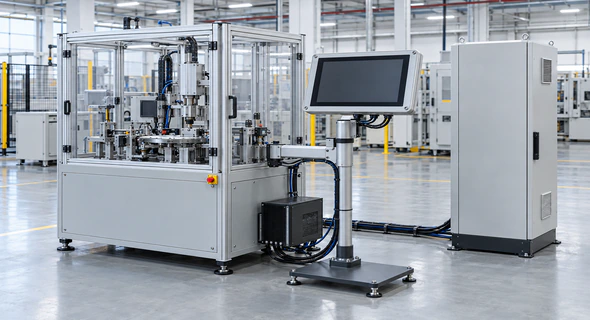
Industrial Equipment Interfaces
Support direct control, navigation and compatible multi-finger gestures on machinery, inspection systems and operator stations.
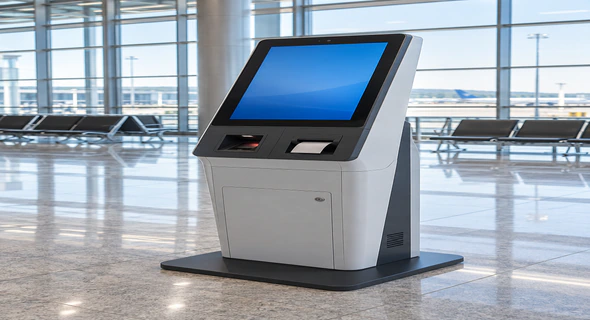
Self-Service Kiosks
Enable browsing, selection, form entry and interactive workflows inside a custom kiosk enclosure.
Retail Product Exploration
Allow users to compare products, zoom images and navigate interactive catalogs.
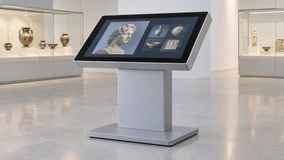
Museums and Exhibitions
Support interactive maps, timelines, visual collections and multi-user educational content.
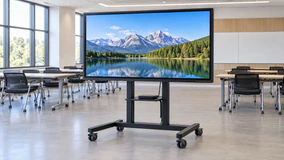
Training and Simulation
Provide gesture-based control and interactive instruction for compatible training applications.
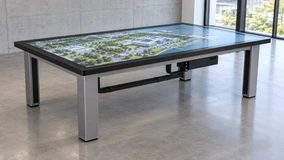
Meetings and Design Review
Enable several participants to zoom, move, rotate or annotate compatible visual content on a large display.
The final configuration depends on viewing distance, user reach, required simultaneous inputs, software behavior, mounting and host architecture.
Multi Touch Monitor Mechanical and Cover-Glass Integration
Touch performance can change after the display is installed behind a bezel, cover glass or equipment panel. Mechanical design and touch-controller tuning must be reviewed together.
Open-Frame Installation
Confirm front-panel opening, active display area, rear depth, bracket positions and cable clearance.
Cover Glass
Confirm glass dimensions, thickness, printed border, bonding structure and required surface treatment. Thick-glass touch must be validated with the selected sensor and controller.
Grounding and Interference
Power supplies, metal enclosures, displays and nearby electronics may influence PCAP behavior. Review grounding and system integration during validation.
User Reach
Confirm the screen angle, height and distance so users can reach the required touch area.
Environmental Input
Define gloves, moisture, cleaning procedures, contamination and expected user behavior before approving the touch configuration.
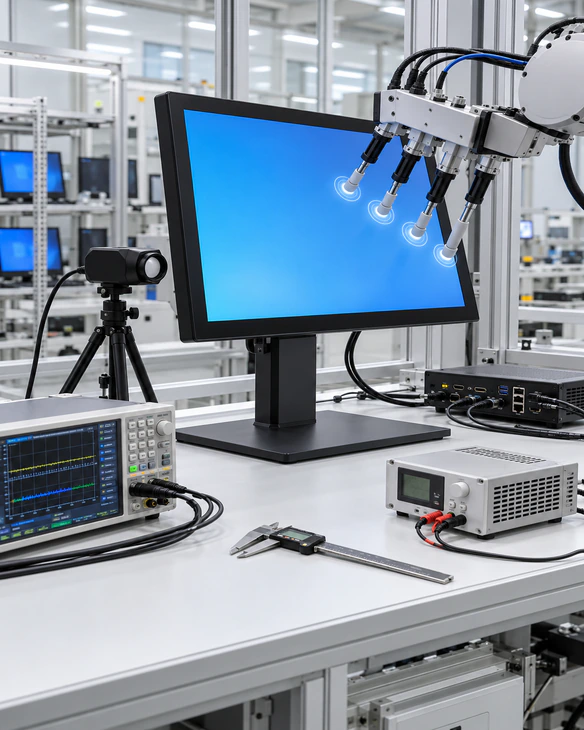
Multi Touch Monitor Validation with the Real Application
A specification sheet confirms the intended hardware configuration, but it does not replace testing with the customer’s host and application.
Controller Recognition
Confirm that the operating system detects the selected touch controller after startup and reconnection.
Touch-Point Reporting
Use an appropriate test tool to confirm the expected simultaneous contacts.
Application Gestures
Test the exact zoom, rotate, drag, draw or multi-user actions required by the software.
Touch Mapping
For multi-display systems, assign touch input to the correct screen and repeat the check after display-order changes.
Edge and Corner Behavior
Check buttons, menus and gestures near the perimeter of the active touch area.
Orientation
Validate landscape or portrait mapping according to the final installation.
Restart and Recovery
Test startup, sleep, wake, cable reconnection and application relaunch.
Environmental Conditions
When applicable, repeat relevant tests using the intended gloves, cover glass, cleaning condition or operating environment.
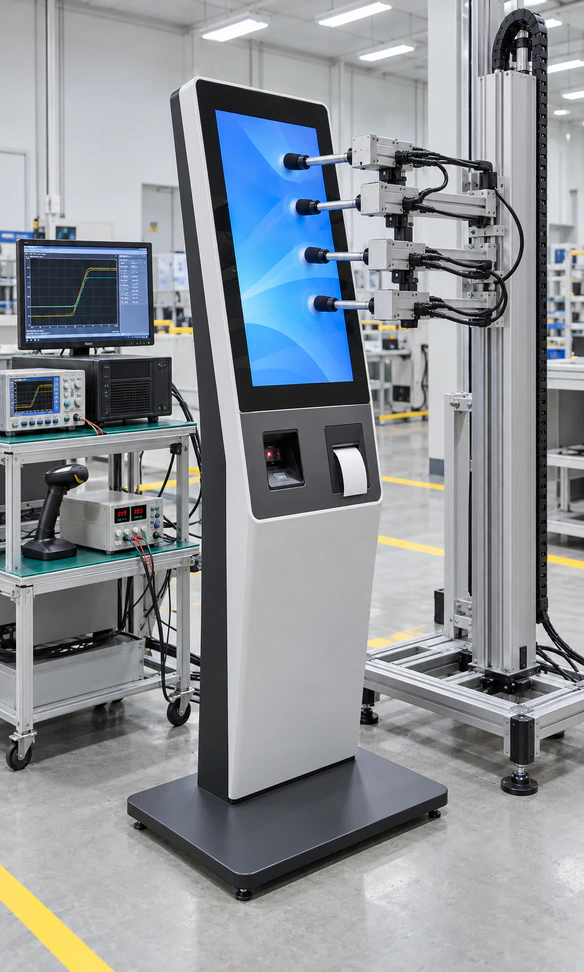
Multi Touch Monitor Responses to Common Project Risks

“The hardware reports ten points, but the software uses only one.”
Response: Confirm that the application supports the required multi-touch events and gestures. Hardware capability cannot add unsupported software behavior.

“The image works, but touch input does not.”
Response: Check the USB touch-data connection, controller recognition, driver requirements and operating-system version separately from the video connection.

“Touch is assigned to the wrong display.”
Response: Configure touch mapping in the operating system and repeat the test after reconnecting or changing display order.

“Touch behavior changes behind the cover glass.”
Response: Validate glass thickness, bonding, controller tuning, grounding and the final enclosure structure together.

“Gloves or moisture cause unreliable input.”
Response: Specify the glove material, moisture condition and cleaning method. Test the selected sensor and controller under the actual use condition.

“The requested touch count is higher than the application needs.”
Response: Start from required gestures and simultaneous users. Select the touch count that the software can use and the product can verify.
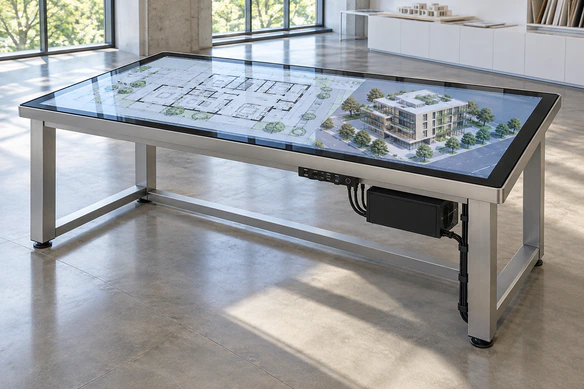
Multi Touch Monitor Case: Collaborative Architectural Review Table
An interactive-equipment integrator needed a large touch surface for architects to review floor plans with clients. The intended workflow included two-finger zoom, rotation, moving plan elements and input from more than one participant.
The initial request focused only on obtaining the highest possible touch-point count. A more useful review separated the hardware capability from the software workflow.
Lucky‑XFC project approach:
- Record the number of expected simultaneous users and the gestures supported by the architectural application.
- Review a large PCAP multi touch monitor direction instead of assuming that a standard desktop monitor would provide the required viewing and interaction area.
- Confirm the external workstation’s video output, USB touch-data path and operating system.
- Review table angle, user reach, structural support, ventilation and cable access.
- Test zoom, rotation, drag, edge controls and simultaneous contacts with the intended application.
- Document the approved display, controller, host and mounting configuration before production planning.
Project value:
The review converted an undefined request for “more touch points” into a testable interaction requirement. It also identified software support, user reach and table structure as equal parts of the final system.
This anonymized representative scenario combines common project requirements. It does not identify a specific customer or claim a published commercial result.
Multi Touch Monitor Configuration in Six Steps
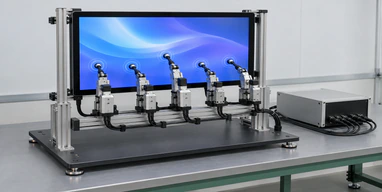
1 Define the Interaction
List required gestures, touch points, simultaneous users and input methods.
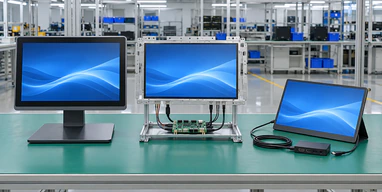
2 Choose the Product Structure
Select portable, flat, open-frame, curved, large interactive or collaborative hardware.
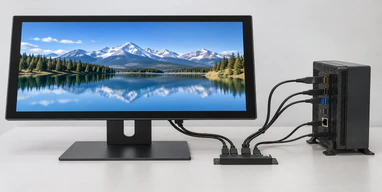
3 Review the Host and Software
Confirm the computer, operating system, application, video output and touch-data connection.
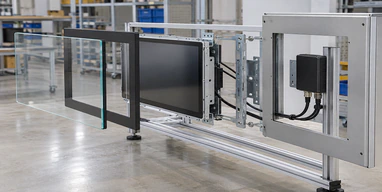
4 Confirm Mechanical Integration
Review dimensions, cutout, mounting, cover glass, cable direction and user reach.
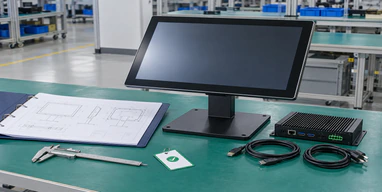
5 Approve the Configuration
Freeze the selected display, touch controller, firmware, interfaces, housing and mounting requirements.
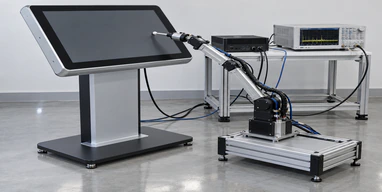
6 Validate the Complete System
Test touch points, gestures, mapping, restart behavior and application operation with the intended host.
Any later change to the host, operating system, touch controller, glass, cable or enclosure should be reviewed for compatibility impact.
Multi Touch Monitor Quality and Functional Checks
Inspection should follow the approved model and configuration rather than a universal claim applied to every product family.
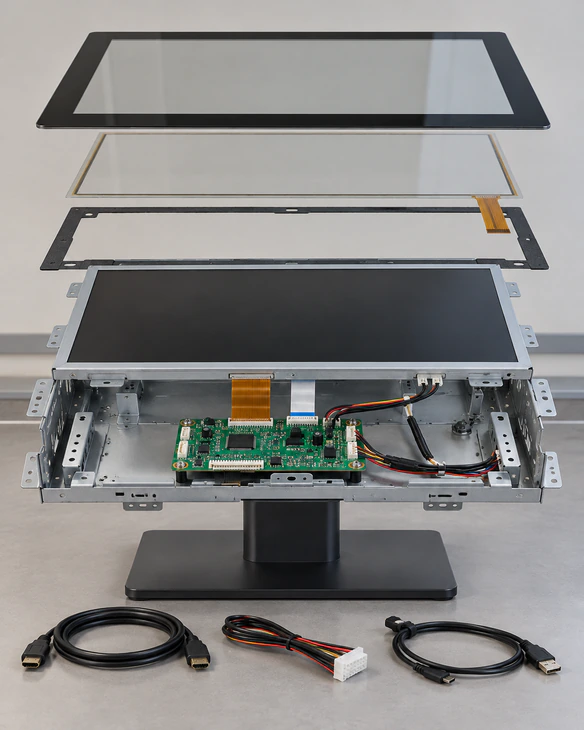
- Appearance Inspection Check the touch surface, housing, open-frame chassis, connectors and assembly.
- Display Function Confirm image input, selected resolution, orientation and visible screen condition.
- Touch-Point Test Verify the approved number of simultaneous contacts for the selected configuration.
- Gesture Test Check required gestures using compatible software or validation tools.
- Interface Test Confirm video, touch-data and power connections.
- Mechanical Check Compare applicable dimensions, brackets, mounting points and connector positions with the approved drawing.
- Host Compatibility Check Verify recognition, mapping, sleep, wake and reconnection behavior with the intended system when included in the validation scope.
Multi Touch Monitor Manufacturing Support from Lucky‑XFC
Lucky‑XFC supports touch display projects from product-direction review through configuration confirmation, assembly and applicable inspection. The product range includes finished flat monitors, documented open-frame 10-point models, portable project formats, curved displays and large interactive systems.
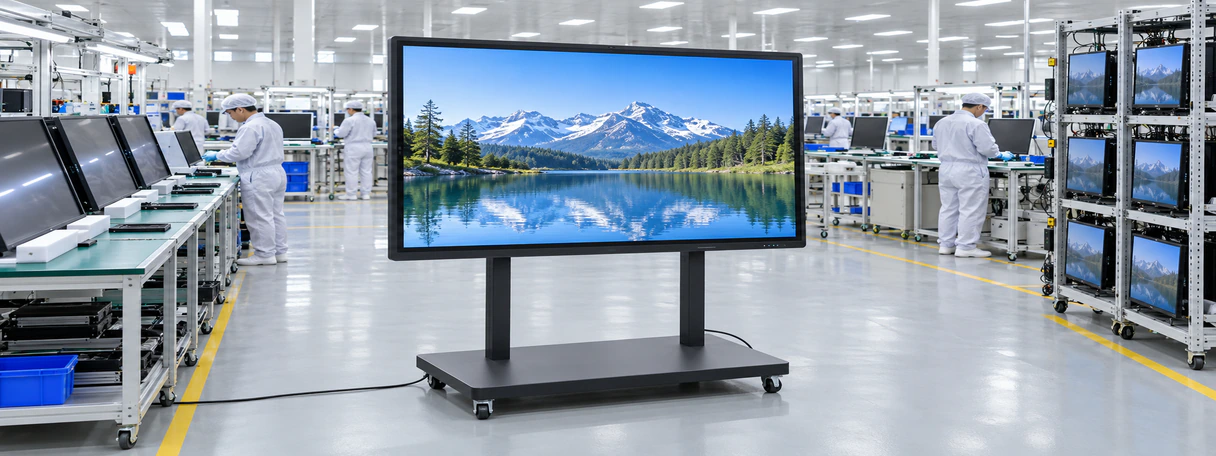
Project Support Capabilities Include:
- ✔ Product-structure selection
- ✔ PCAP touch-controller matching
- ✔ Touch-point requirement review
- ✔ Host & OS compatibility review
- ✔ Cover-glass & enclosure coordination
- ✔ Open-frame mounting & drawing review
- ✔ Video, touch-data and power planning
- ✔ OEM/ODM housing and branding review
- ✔ Configuration-based inspection
Multi Touch Monitor Buyer Guide and FAQs
What is a multi touch monitor?
How many touch points do I need?
Does every PCAP monitor support ten touch points?
What is the difference between multi-touch and dual-touch?
Does HDMI carry touch data?
Can a multi touch monitor work with Windows?
Can it work with Android, Linux or macOS?
Can several people use the screen at the same time?
Can the display work through thick cover glass?
Does multi-touch work with gloves?
What is the difference between a multi touch monitor and a touchscreen computer?
What should I provide for a quotation?
Multi Touch Monitor Project Support

Touch Requirement Review
Translate gestures and simultaneous users into an appropriate touch-point requirement.

Product Structure Selection
Compare portable, flat, open-frame, curved and large interactive formats.

Host Compatibility Review
Check the computer, operating system, video output, USB touch and software.

Mechanical Coordination
Review enclosure opening, cover glass, mounting, depth and cable clearance.

Configuration Confirmation
Record the selected display, controller, interfaces, firmware and mechanical structure.

Functional Validation
Check touch points, gestures, mapping and restart behavior against the approved scope.
For a faster review, send the application description, required gestures, host specification and installation drawing together.
Start Your Multi Touch Monitor Project
Tell Lucky‑XFC what users need to touch, how many simultaneous contacts the application supports, which host will run the software and how the display will be installed. We will determine whether the project fits a documented 10-point open-frame model, a portable or flat PCAP configuration, a curved display or a large interactive system.
