
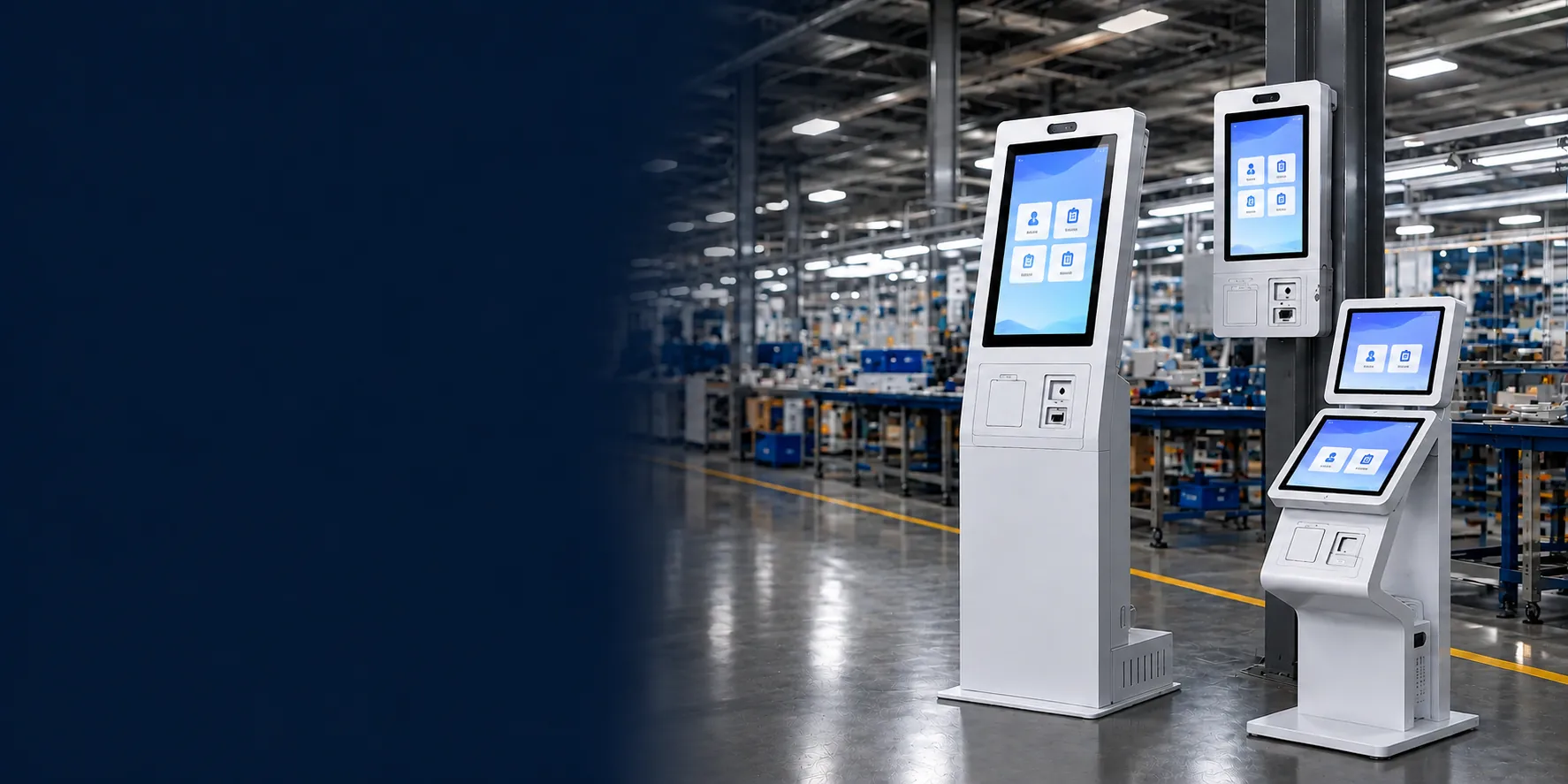
Kiosk Touch Screen Monitors for Custom Equipment Integration
Configure the display around your kiosk enclosure, host computer, user workflow and operating environment. Lucky-XFC supplies open-frame, enclosed, rugged, waterproof and curved touch monitor formats with documented starting models and project-based customization.
- Display-only monitor options for external host systems
- PCAP and selected resistive touch configurations
- Drawing-based review for mounting, interfaces and cable clearance
Do You Need a Monitor or a Complete Kiosk?
The phrase “kiosk touch screen” can describe several different hardware architectures. Confirming the architecture first prevents an inquiry for a monitor from being treated as a request for a complete kiosk—or the other way around.
| Hardware Type | What It Includes | Computing System | Best Fit |
|---|---|---|---|
| Kiosk Touch Screen Monitor | LCD, touch sensor, touch controller and display electronics | External host required | Custom kiosk enclosures and equipment integration |
| Touchscreen All-in-One or Panel PC | Display, touch and internal computing hardware | Included according to configuration | Standalone equipment that does not use an external host |
| Complete Self-Service Kiosk | Touch display, computer, enclosure and selected peripherals | Included according to project | Ordering, payment, check-in, ticketing and information workflows |
| Interactive Digital Signage | Interactive display with a content or application platform | Model-dependent | Wayfinding, promotions and guided information experiences |
This page focuses on display-only kiosk touch monitors. For an enclosure with computing hardware, printers, scanners, payment devices or other peripherals, explore our complete self-service kiosk solutions.
Choose the Monitor Structure Around the Kiosk
The right monitor format depends on how the screen will be installed, what users will touch, and where the finished kiosk will operate. Start with the physical structure, then confirm the display, touch, interface and environmental specification.
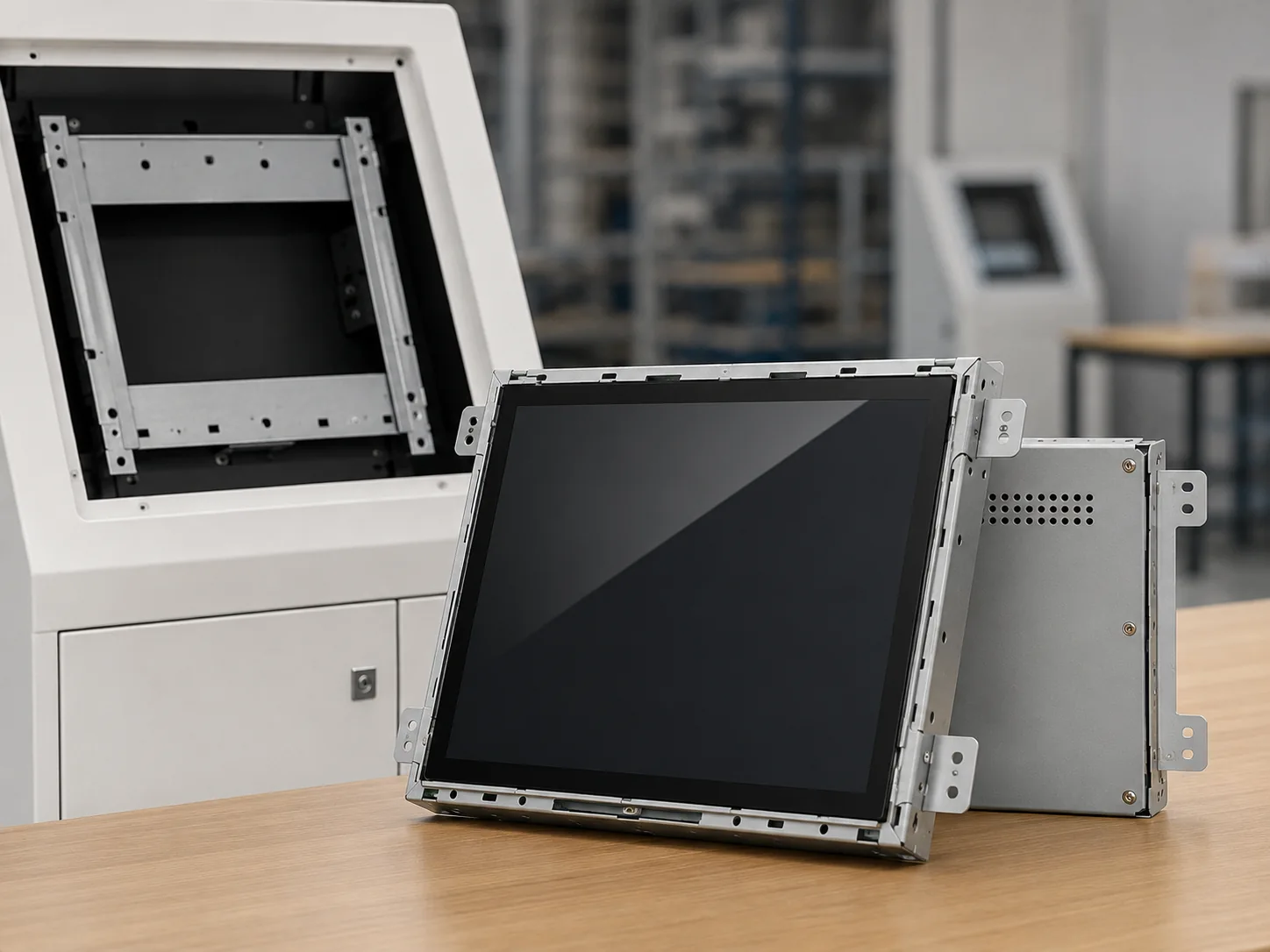
Open Frame Kiosk Touch Screen Monitors
An open metal chassis designed to sit behind the front panel of a kiosk or custom enclosure. This format gives the equipment designer control over the visible bezel, mounting points and service access.
- • Confirm cabinet cutout and rear installation depth
- • Match side brackets, VESA or project-specific mounting
- • Check video, USB touch, power and cable direction
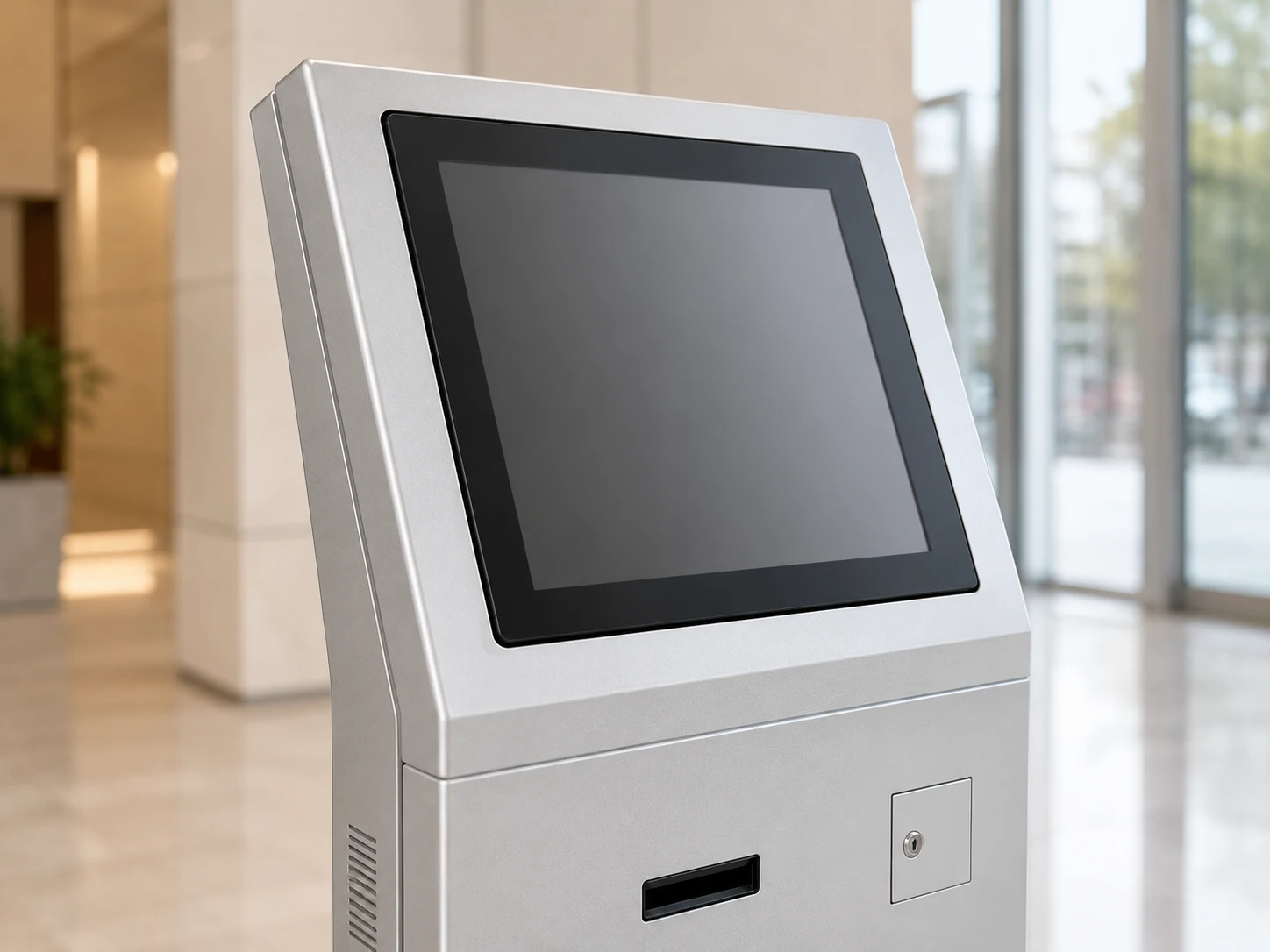
Standard Enclosed Kiosk Touchscreen Monitors
A finished metal-housed touch monitor for projects that need a complete display enclosure rather than a bare integration chassis. Suitable for VESA arms, wall brackets, stands and other confirmed mounting arrangements.
- • Choose the required display size and orientation
- • Confirm resolution, touch points and host interfaces
- • Verify the stand, bracket or VESA pattern
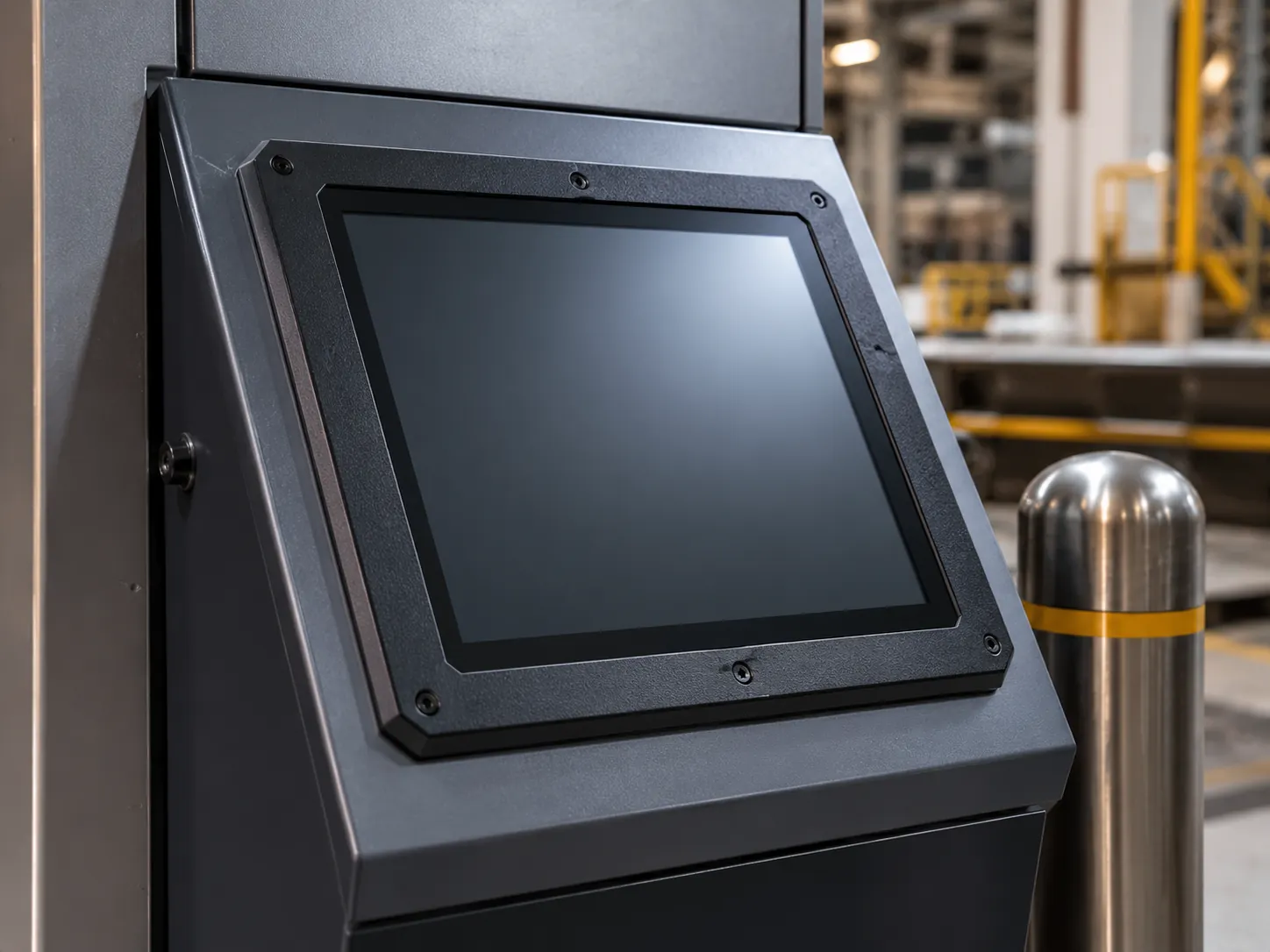
Rugged Kiosk Touch Screen Monitors
A project path for kiosks exposed to demanding operating conditions, frequent public interaction or equipment-specific power, temperature and mounting requirements.
- • Define temperature, voltage and operating conditions
- • Confirm the required protection scope and mounting
- • Test the selected touch method with the real workflow
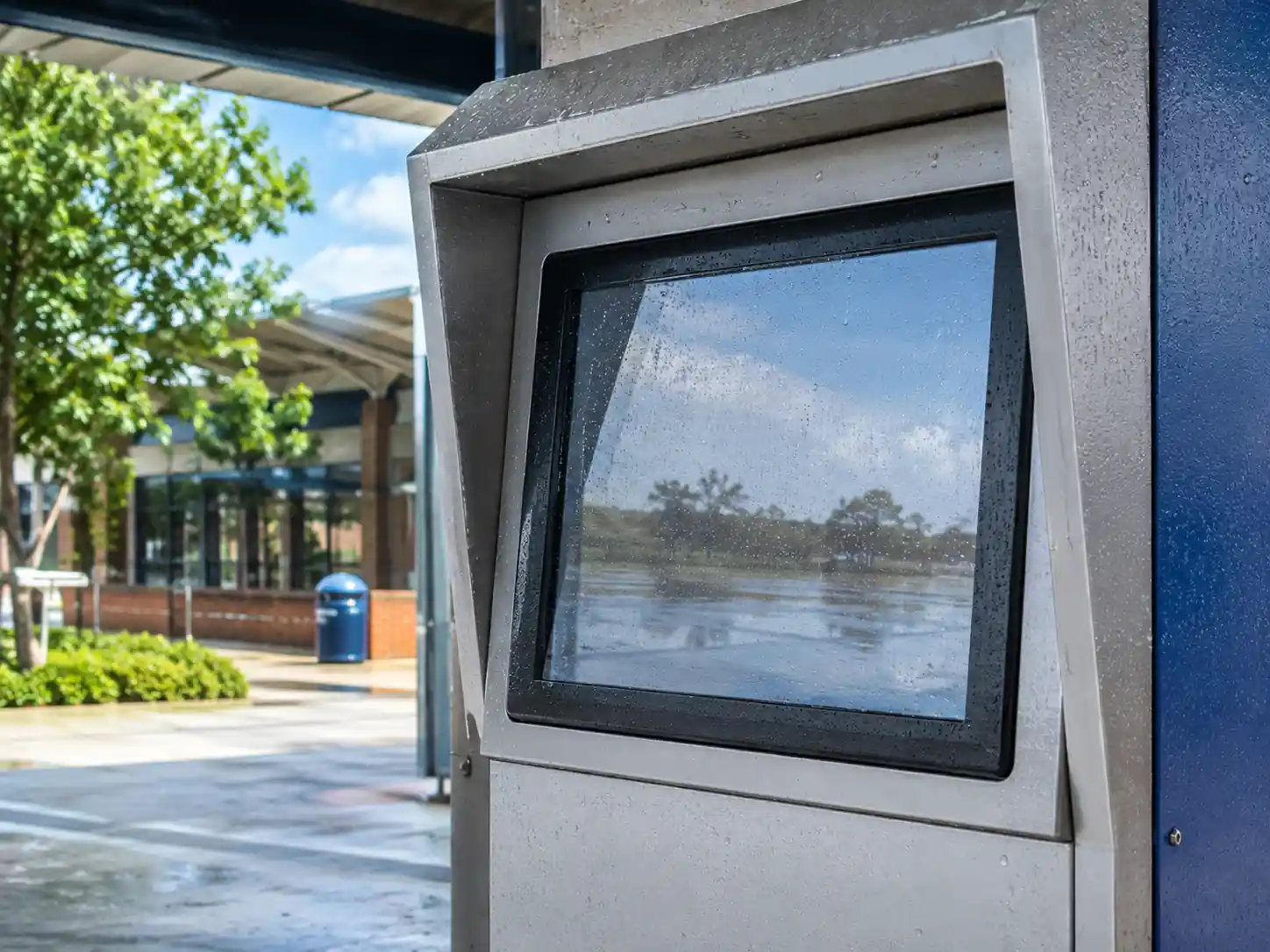
Waterproof & Outdoor Kiosk Touch Screen Monitors
For kiosks exposed to moisture, dust, cleaning, strong ambient light or outdoor conditions. Front protection, full sealing, high brightness and touch behaviour must be selected according to the complete installation.
- • Separate front-panel protection from full-enclosure sealing
- • Confirm brightness, glare and solar heat conditions
- • Define wet-hand, glove and water-rejection requirements
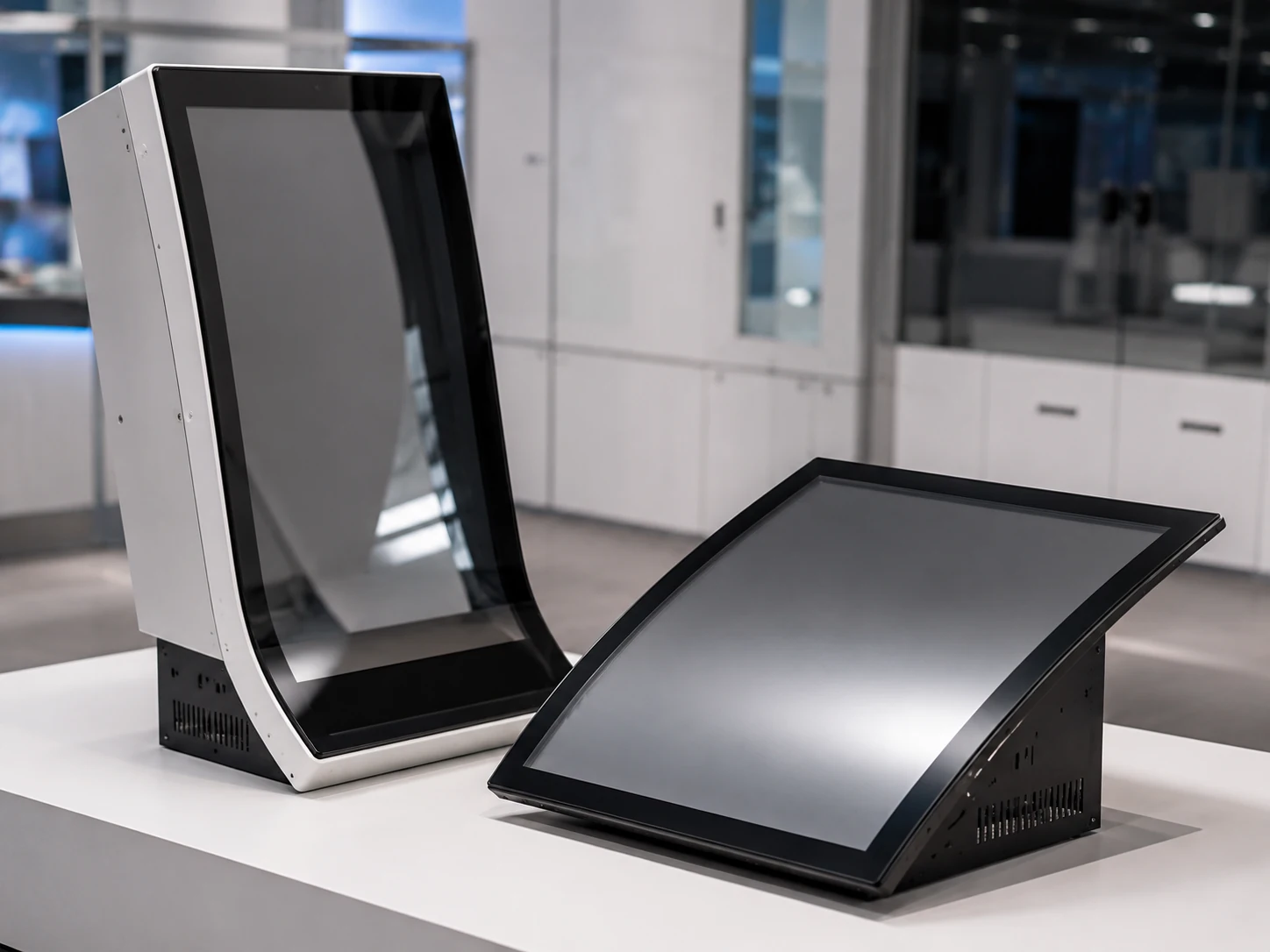
Curved Kiosk Touch Screen Monitors
J-type and C-type curved touch displays for shaped gaming terminals, immersive equipment and custom cabinets. Curve profile, active touch area and mechanical fit must be reviewed together.
- • J-type: 43″, 49″ and 55″ confirmed sizes
- • C-type: 32″, 43″, 49″ and 55″ confirmed sizes
- • Confirm cabinet profile, opening, depth and service clearance
Documented Flat Monitor Starting Range
Lucky-XFC’s cataloged flat monitor range provides five metal-housed capacitive touch display starting points. The listed models share a 16:9 Full HD format. Brightness, interfaces, mounting, orientation and environmental options must be confirmed for the selected model and kiosk design.
| Model | Screen Size | Resolution | Touch | Housing |
|---|---|---|---|---|
| TP215-JX-DR-02 | 21.5″ | 1920 × 1080 | Capacitive touch | Metal housing |
| TP238-JX-DR-02 | 23.8″ | 1920 × 1080 | Capacitive touch | Metal housing |
| TP270-JX-DR-02 | 27″ | 1920 × 1080 | Capacitive touch | Metal housing |
| TP315-JX-DR-02 | 31.5″ | 1920 × 1080 | Capacitive touch | Metal housing |
| TP430-JX-DR-02 | 43″ | 1920 × 1080 | Capacitive touch | Metal housing |
Use these models as display starting points, not as automatic matches for every kiosk. Final selection depends on the enclosure drawing, viewing conditions, touch workflow, host system, mounting and interface requirements.
Open-Frame Starting Models
For cabinet integration, the existing open-frame series provides three documented starting configurations.
| Model | Size | Resolution | Touch | Brightness | Video Inputs | Mounting |
|---|---|---|---|---|---|---|
| XFC-OF215-PCAP | 21.5″ | 1920 × 1080 | 10-point PCAP | 250 nits | HDMI, VGA | Side brackets, VESA |
| XFC-OF270-PCAP | 27″ | 1920 × 1080 | 10-point PCAP | 300 nits | HDMI, DP, VGA | Side brackets, VESA |
| XFC-OF430-PCAP | 43″ | Full HD or 4K | 10-point PCAP | 350 nits | HDMI, DP | Heavy-duty brackets, VESA |
Panel availability, external dimensions, active area, brightness, interfaces and mounting details must be confirmed against the approved model drawing before quotation.
Prevent the Mismatches That Delay Kiosk Integration
A kiosk monitor can meet the electrical specification and still fail the project if the chassis, touch connection, cable route or operating environment is not matched to the final enclosure.
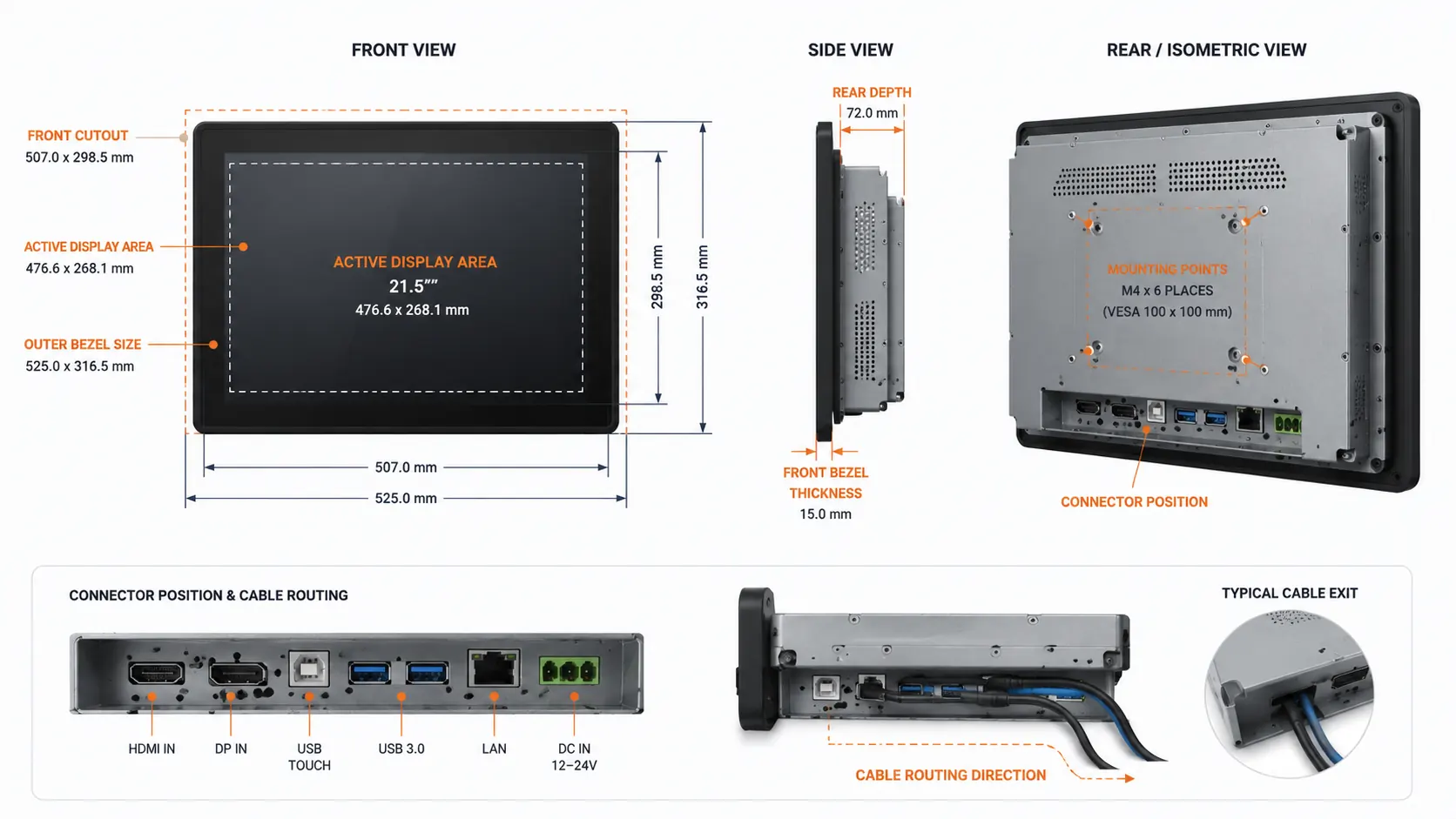
The Diagonal Size Does Not Define the Cutout
A “21.5-inch monitor” describes the display class, not the external chassis, active area, bezel overlap or mounting-hole position. Compare the approved drawing with the kiosk opening, internal width, rear clearance and service path before building the enclosure.
Video and Touch Normally Use Separate Signal Paths
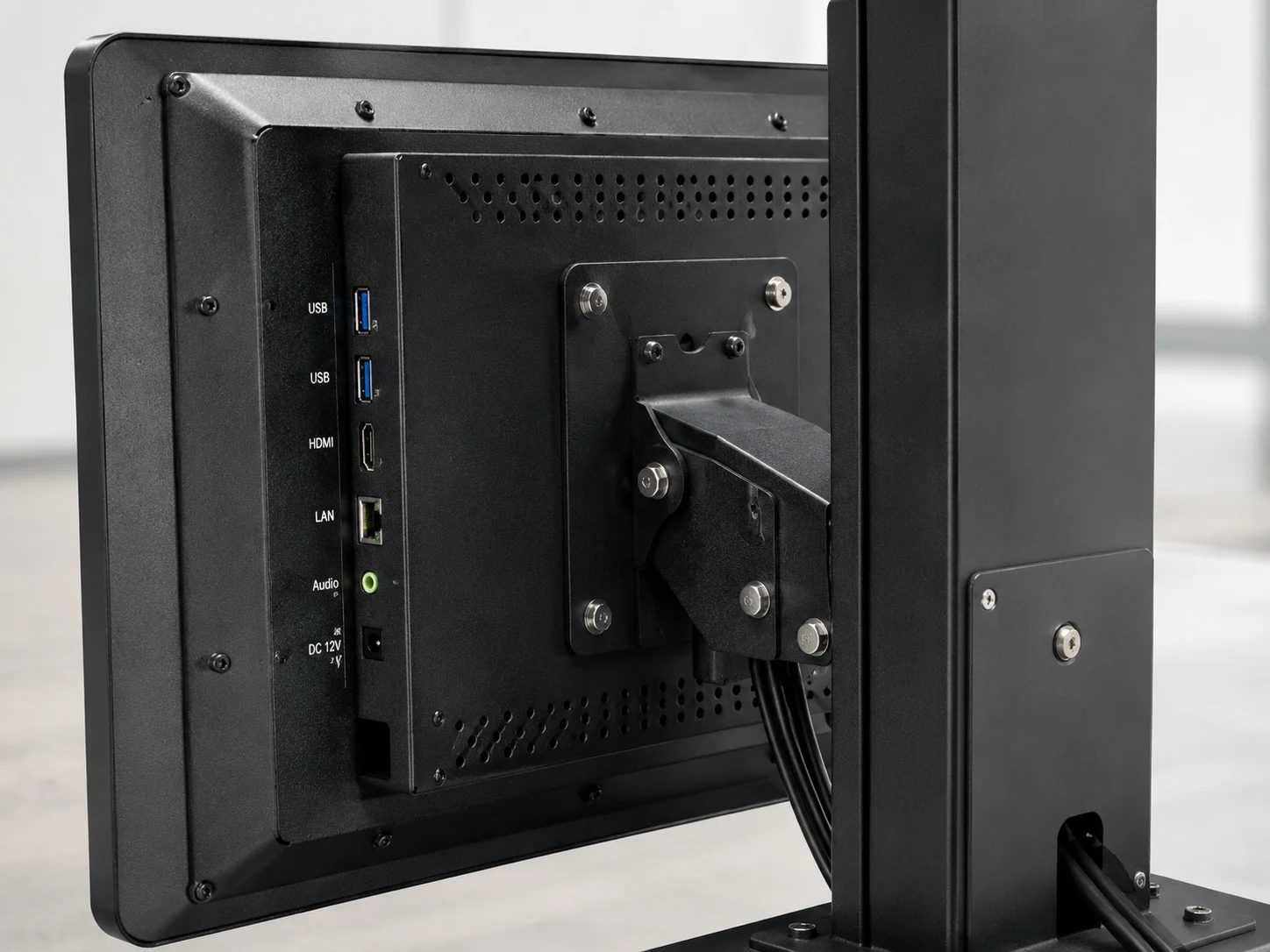
HDMI, DisplayPort or VGA carries the image. USB or a confirmed serial connection carries touch data. A screen can display the interface while touch remains inactive if the touch controller, cable, driver or operating-system version is not compatible.
Connector Position Can Become a Mechanical Problem
A connector that faces the wrong direction may conflict with a kiosk wall, printer bay or structural bracket. Confirm cable direction, bend radius, adapter clearance and maintenance access before approving the chassis.
Public Use Changes the Touch and Glass Decision
A modern multi-touch interface normally favours PCAP, while pressure-based input may make resistive touch worth evaluating for particular glove or stylus workflows. Cover-glass thickness, cleaning, moisture and vandal exposure must be considered with the touch controller and enclosure.
A Monitor Is Not Automatically a Kiosk Computer
A display-only monitor requires an external PC, embedded controller or Android host for the application. If the project needs internal computing hardware, a complete kiosk or touchscreen all-in-one configuration should be evaluated instead.
Select for the Real Operating Environment
PCAP or Resistive Touch?
| Selection Factor | PCAP Touch | Resistive Touch |
|---|---|---|
| Input | Finger or compatible conductive input | Pressure from finger, glove or stylus |
| Multi-Touch | Commonly supported | Usually single-point |
| Surface | Cover glass | Flexible resistive surface |
| Optical Clarity | Generally higher | Lower because of additional layers |
| Common Kiosk Fit | Modern public interfaces and gesture-based applications | Particular glove, stylus or pressure-input workflows |
| Validation Need | Glass thickness, water rejection, controller tuning and OS support | Surface durability, input pressure, calibration and application fit |
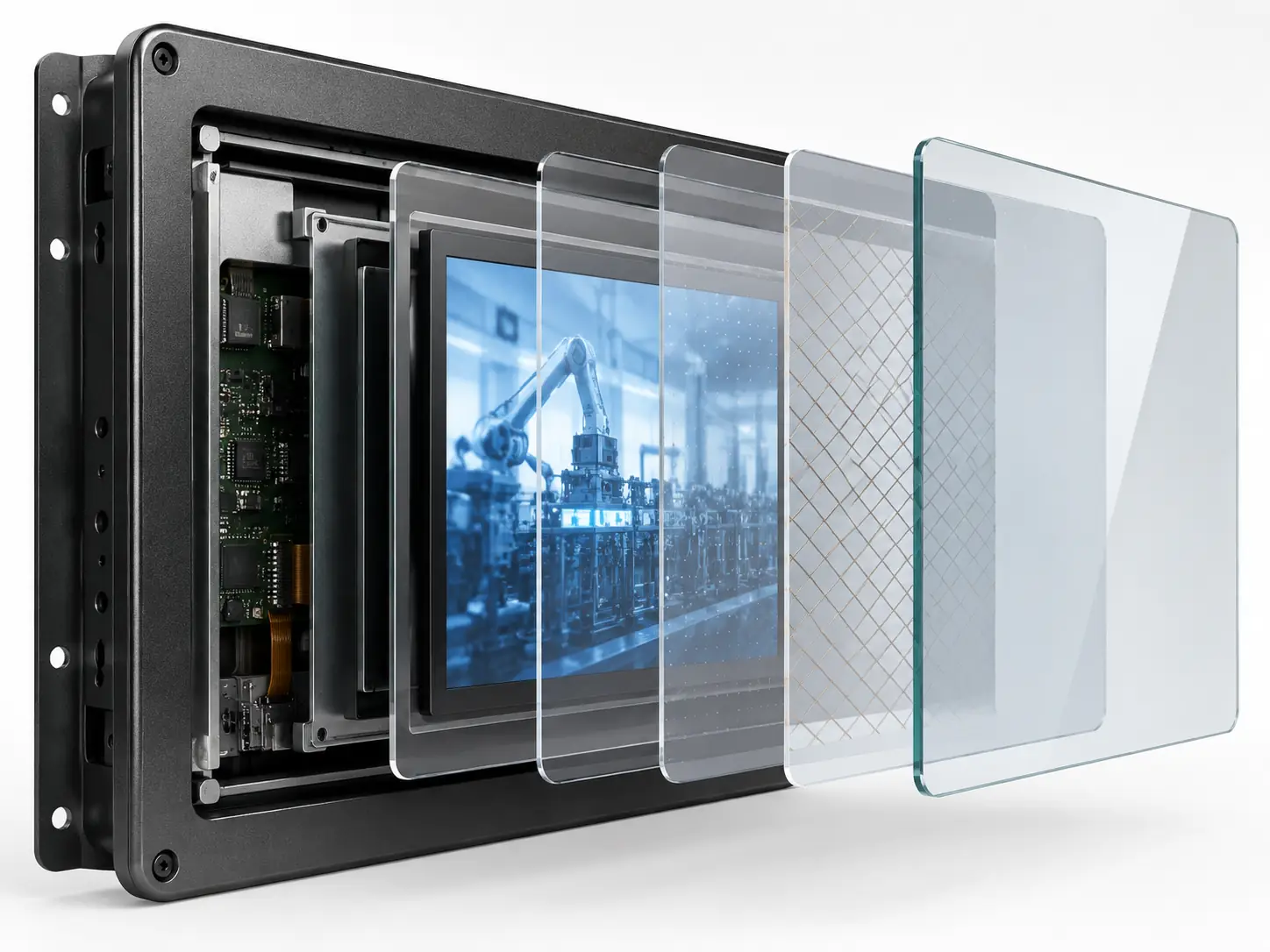
Note: Touch behaviour depends on the complete configuration. Multi-touch, glove operation, wet-hand input, water rejection and touch-through-glass performance must be validated with the selected controller, firmware, cover glass and software.
Note: Touch behaviour depends on the complete configuration. Multi-touch, glove operation, wet-hand input, water rejection and touch-through-glass performance must be validated with the selected controller, firmware, cover glass and software.
Match the Display to the Installation
| Operating Condition | What to Evaluate | Suitable Product Path |
|---|---|---|
| Controlled indoor kiosk | Viewing distance, touch points, housing and mounting | Standard enclosed or open-frame monitor |
| High-traffic public location | Cover glass, secure mounting, service access and repeated touch testing | Enclosed, rugged or project-configured open-frame monitor |
| Bright indoor or semi-outdoor site | Measured ambient light, glare, viewing angle and heat | High-brightness or rugged configuration |
| Wet, dusty or frequently cleaned location | Front sealing, gasket, connectors, cable entries and touch behaviour | Waterproof touch monitor |
| Shaped gaming or custom cabinet | Curve profile, active touch area, opening and service clearance | J-type or C-type curved monitor |
Do not select an outdoor display by IP rating alone. Visibility, solar heat, cold start, condensation, connector protection and enclosure ventilation must be specified separately.
Selection Guide
Kiosk Touch Screen Monitor Selection Guide
Use the following questions to compare kiosk displays by application fit rather than by a "best monitor" label. The correct choice is the configuration that matches the enclosure, user interaction, host system and operating environment.
What Is the Best Touch Screen Monitor for a Self-Service Kiosk?
There is no universal best model. Start with the installation structure. Choose an open-frame monitor when the screen must sit inside a custom cabinet, or an enclosed monitor when the project needs a finished housing and standard mounting. Then confirm display size, PCAP or resistive touch, resolution, brightness, host interfaces and service access.
For gesture-based public interfaces, a documented 10-point PCAP open-frame model is a practical starting point. It is still necessary to validate touch behaviour, viewing conditions and mechanical fit inside the actual kiosk.
What Features Matter for a Durable Public-Use Touch Display?
Prioritize the requirements that reduce avoidable integration and maintenance problems:
- Metal housing or a mechanically supported open-frame chassis
- Secure mounting and protected cable access
- Cover glass suited to the expected impact and cleaning method
- Touch performance tested with the real user workflow
- Readable brightness in the installed location
- Ventilation and heat-dissipation clearance
- Accessible connectors and replaceable components
- A documented model drawing and approved final specification
Durability is a system property. A strong screen mounted in a poorly sealed or difficult-to-service enclosure can still create field problems.
How Should I Choose a Touch Monitor for an Outdoor Kiosk?
Begin with measured ambient light and exposure direction. Brightness and anti-glare treatment determine visibility, while the enclosure, gasket, connectors and cable entries determine protection. An IP-rated front panel does not mean the rear electronics have the same rating.
Use the waterproof touch screen path when the project involves rain, splash, cleaning, dust or humidity. Use the rugged monitor path when temperature, voltage, mechanical structure or long operating cycles are the main constraints. Many outdoor projects require both sets of considerations.
Which Operating Systems Work With a Kiosk Touch Screen Monitor?
A display-only touch monitor does not run the kiosk application by itself. The connected host computer or controller runs Windows, Android, Linux or another operating system. The monitor receives video through HDMI, DisplayPort, VGA or another confirmed interface, while touch data normally travels through USB or a selected serial connection.
Confirm the exact OS version, touch controller, driver requirements, display resolution and rotation behaviour. Do not assume that listing an operating system guarantees compatibility with every controller or application.
What Should I Prioritize for a Retail Kiosk Display?
Retail interfaces usually benefit from clear on-screen text, responsive PCAP touch, secure mounting and an enclosure that can be cleaned without exposing connectors. The display size should suit the viewing distance and available floor, wall or counter space. Payment, scanning and receipt functions belong to the complete kiosk architecture rather than the monitor alone.
For a complete retail terminal, use the retail kiosk page. For an ordering workflow with payment and printing hardware, use the self-ordering kiosk page.
What Affects the Cost of a Kiosk Touch Screen Monitor?
Price cannot be compared accurately by diagonal size or resolution alone. The main cost drivers include the LCD panel, brightness, touch technology, cover glass, optical structure, interfaces, metal housing, mounting, protection scope, custom drawings or tooling, certification requirements, quantity, packaging and shipping.
A lower initial price may not be economical if the monitor requires enclosure redesign, is unreadable in the installed light or lacks the required touch and host compatibility. Compare quotations against one approved specification.
When Should I Buy a Complete Kiosk Instead of a Monitor?
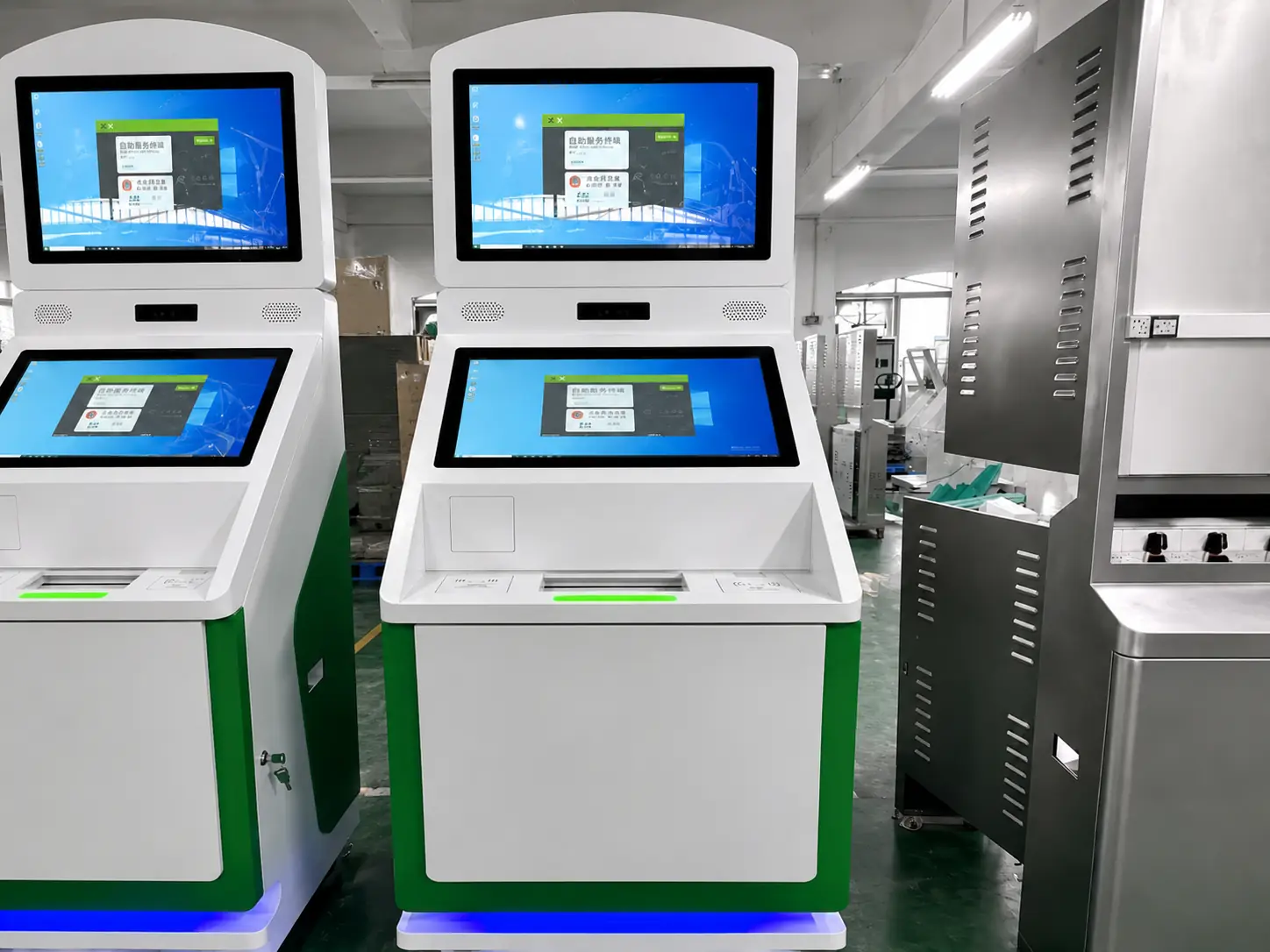
Choose a monitor when you already have the enclosure, host computer, kiosk software and peripheral plan. Choose a complete kiosk when you need the touchscreen, computer, sheet-metal enclosure and devices such as printers, scanners, card readers, cameras or payment-terminal mounts coordinated as one hardware platform.
Match the Monitor to the Kiosk Workflow
Information & Wayfinding
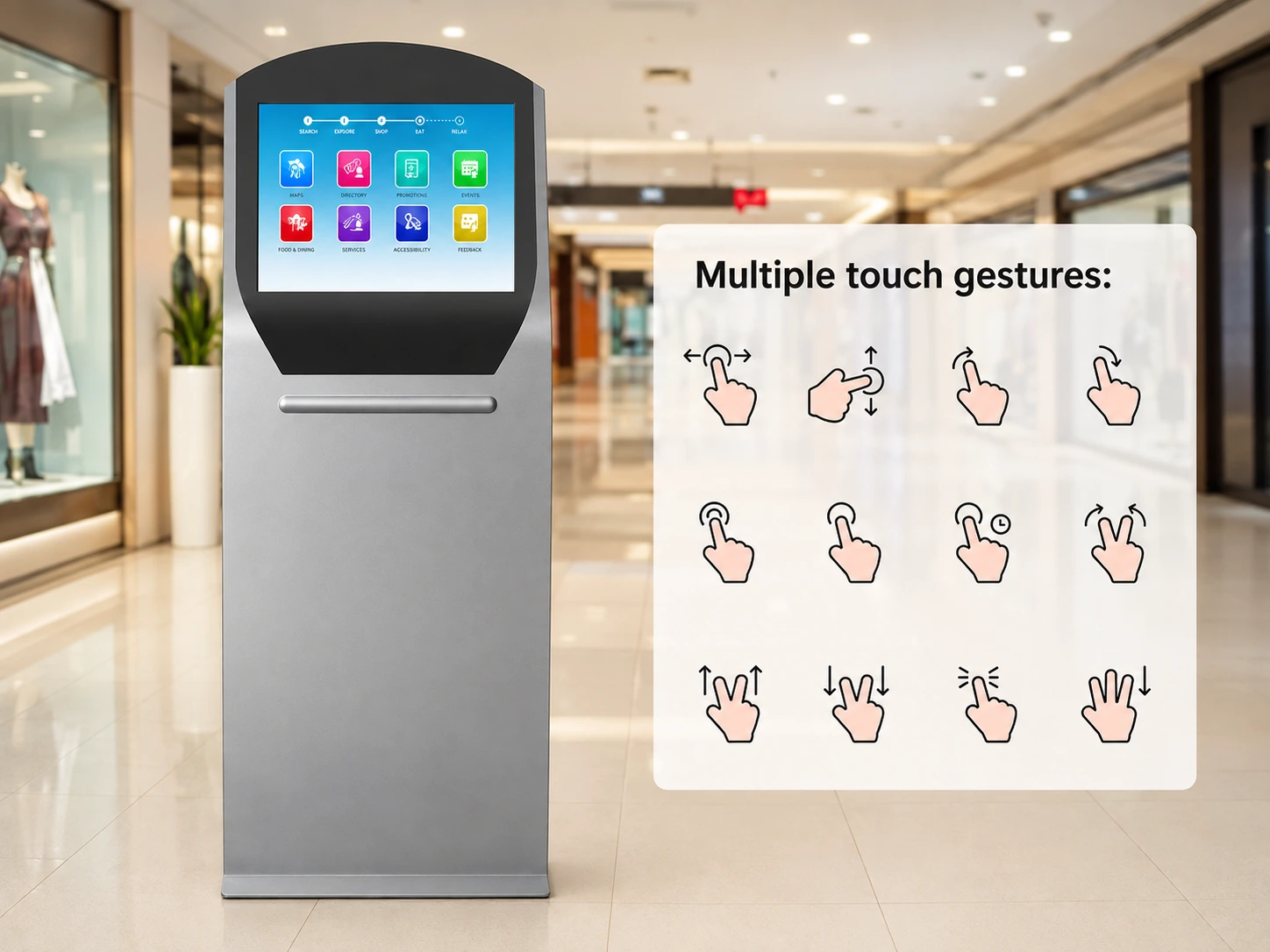
Clear text, stable touch input and a screen size matched to viewing distance and installation height.
Explore Information Kiosks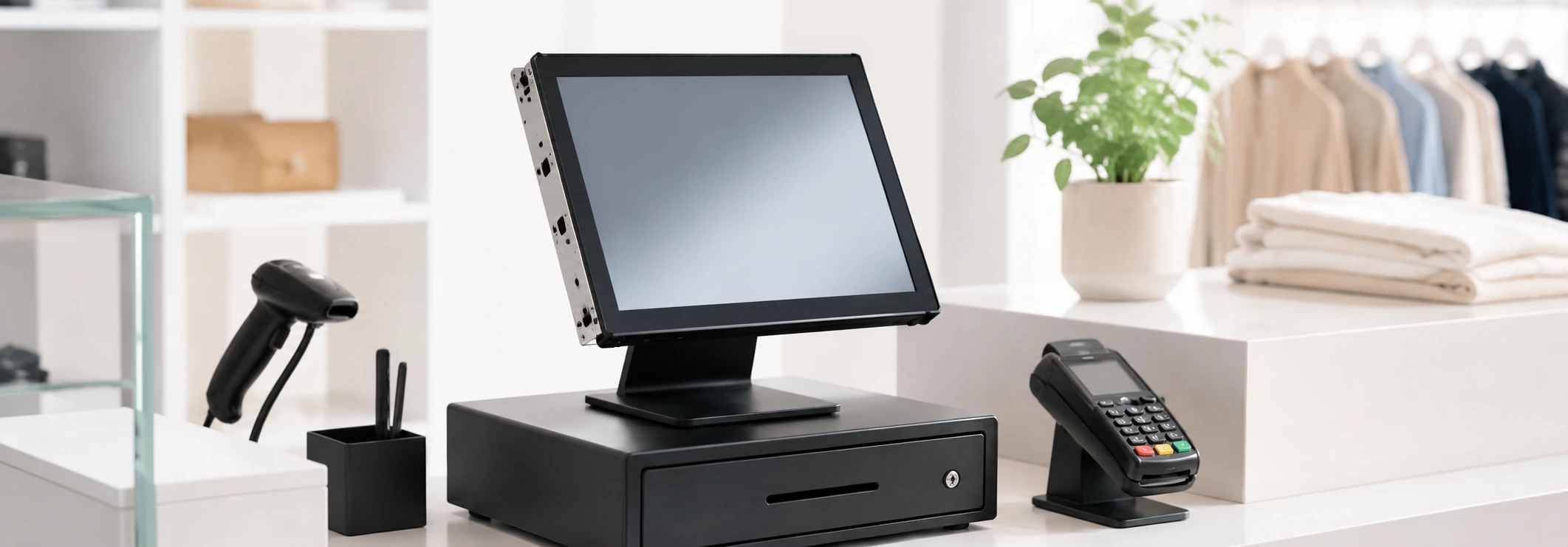
Retail Interaction
Responsive touch, secure mounting and a serviceable structure for product lookup, loyalty and assisted checkout.
Explore Retail Kiosks →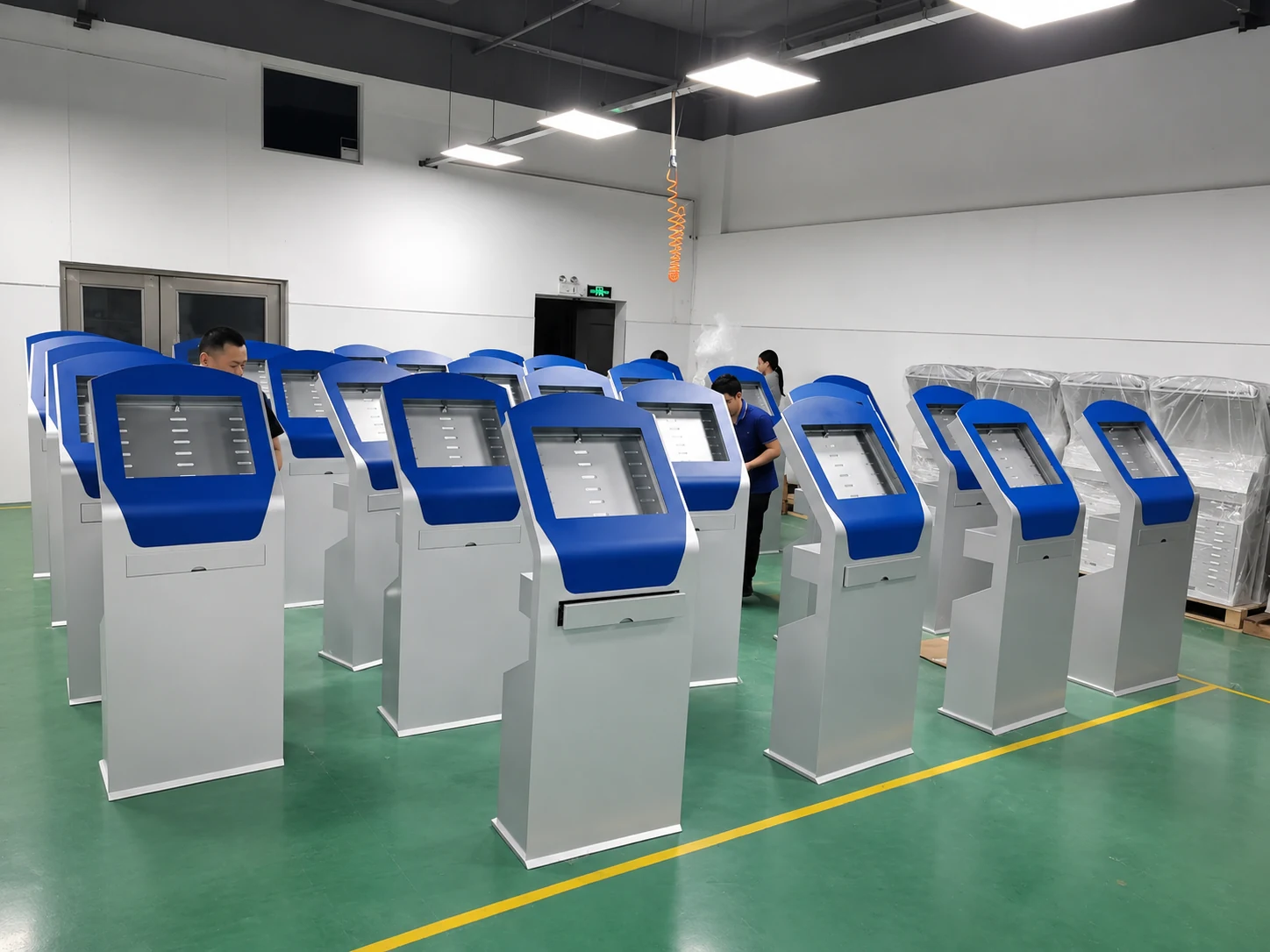
Self-Ordering
A touch interface coordinated with the host system, POS workflow, payment hardware and receipt-printer layout.
Explore Self-Ordering Kiosks →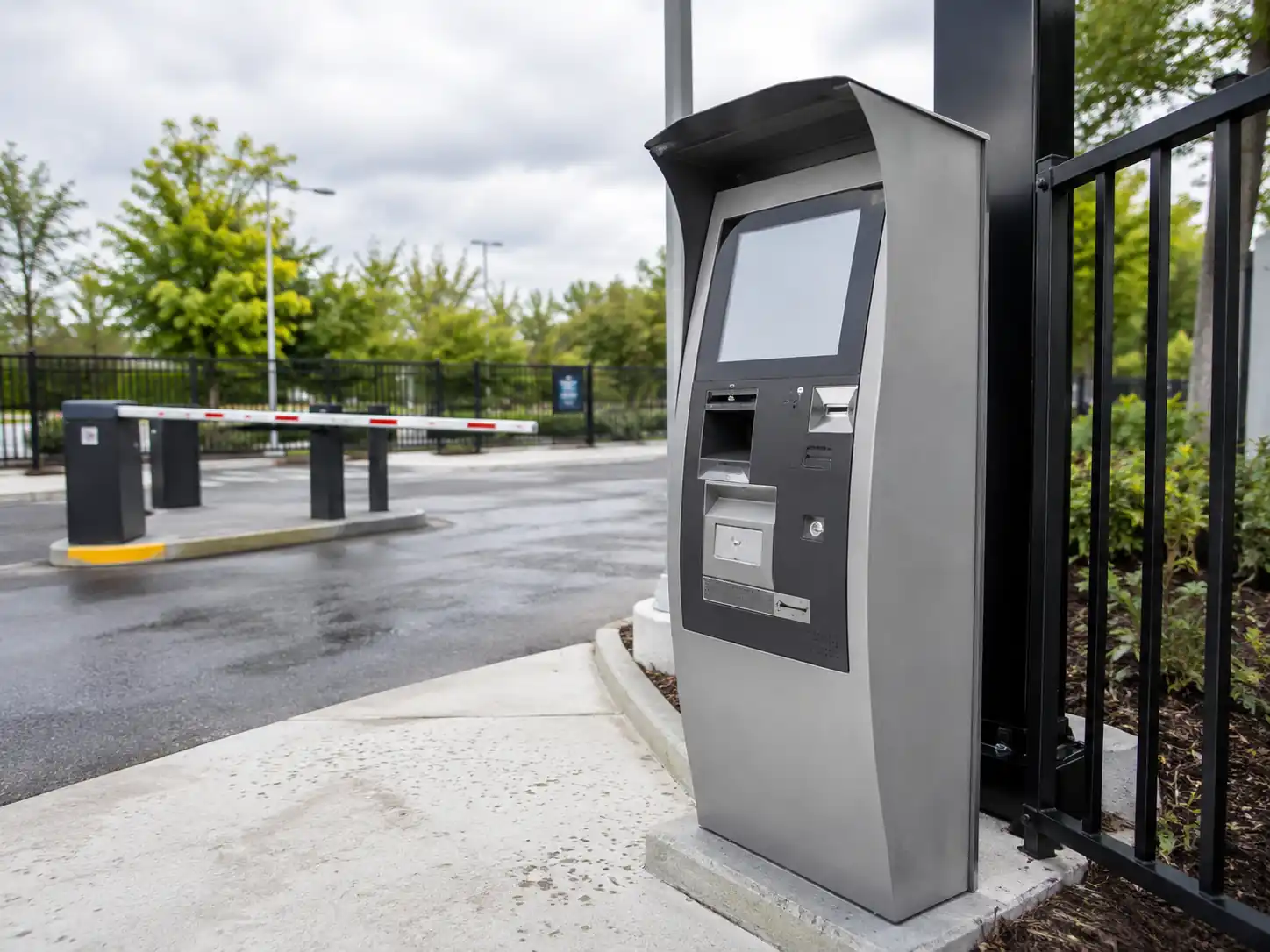
Ticketing
A display selected around ticket purchase, printing, scanning, queue management and the installed viewing environment.
Explore Ticketing Kiosks →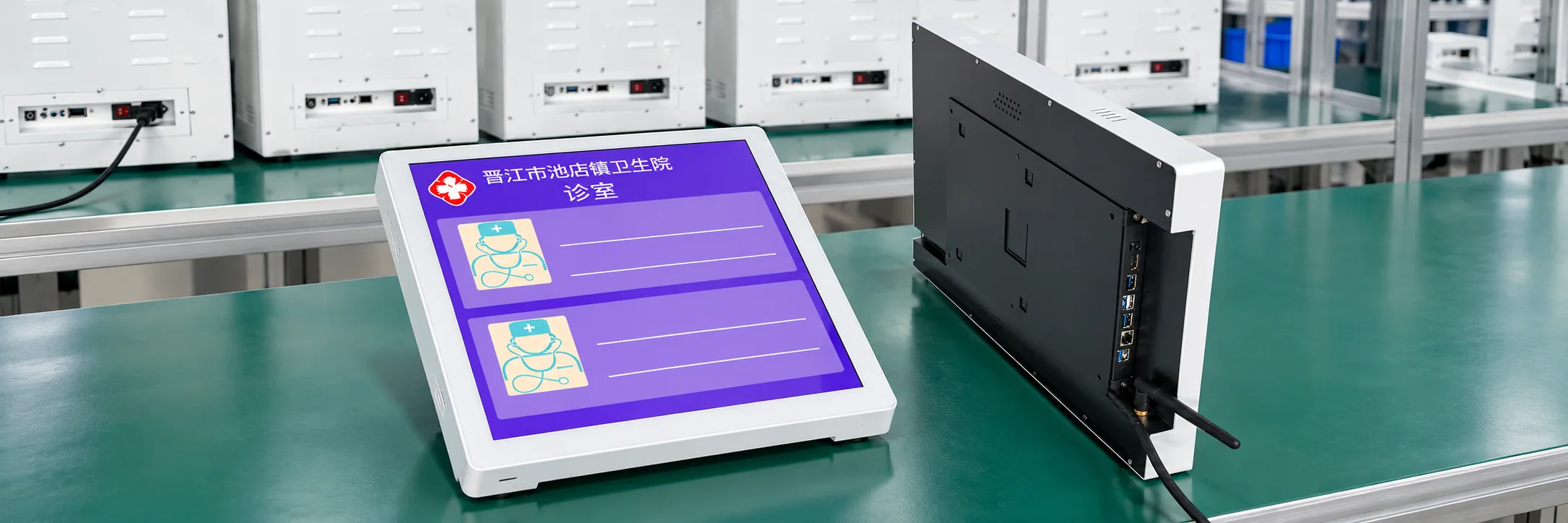
Patient Check-In
A cleaning-aware touch surface and equipment layout coordinated with registration, scanning, printing and accessibility requirements.
Explore Patient Check-In Kiosks →Drawing Review, Sample Validation and Production Support
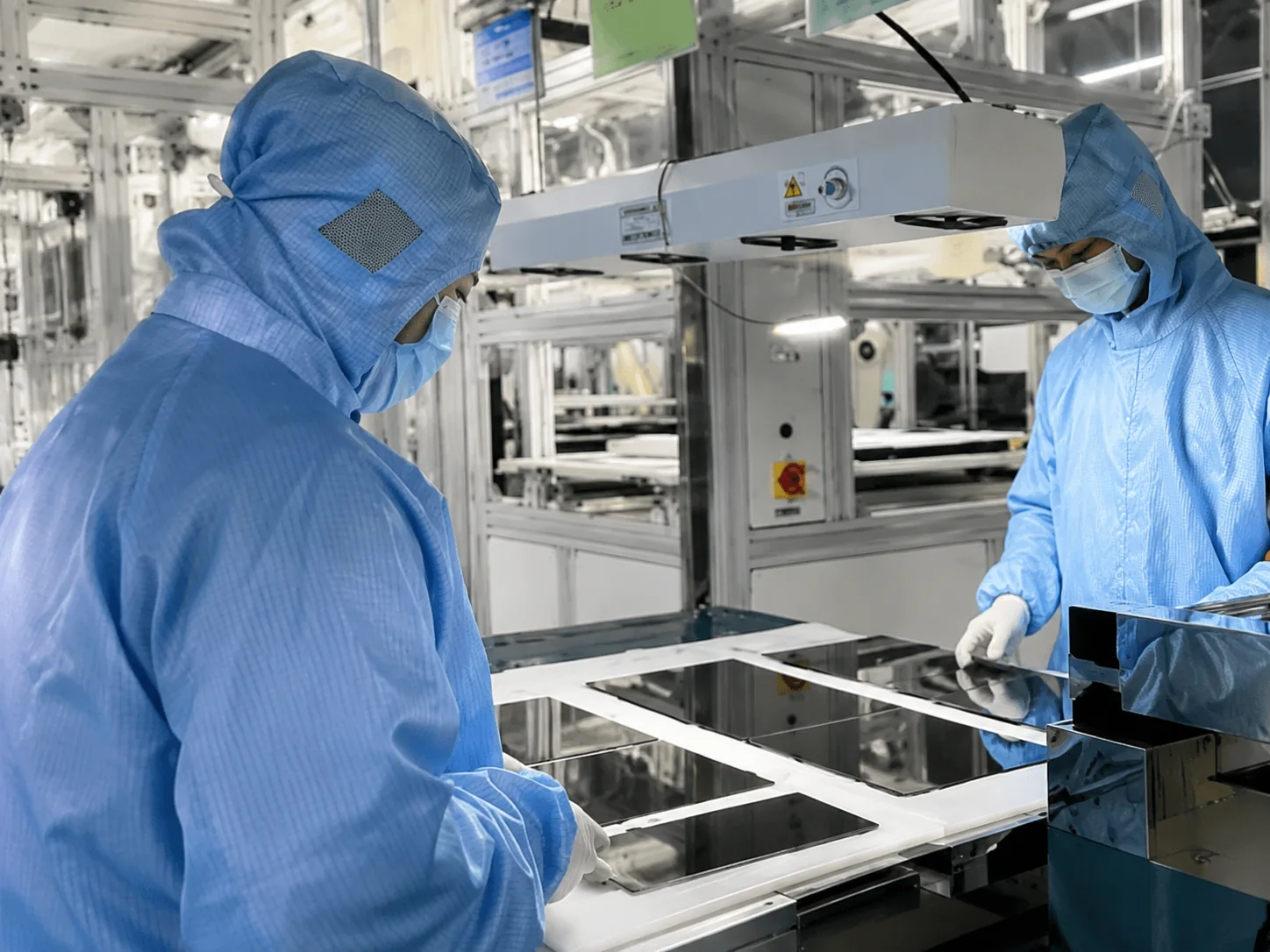
Lucky-XFC has manufactured touch-display products since 2013. Kiosk monitor projects can begin with a documented flat or open-frame configuration, then move through mechanical, electrical and application checks before production.
Start With a Verified Product Path
Choose from documented flat metal-housed monitors, existing open-frame models, or a project-based rugged, waterproof or curved configuration. This separates confirmed starting points from features that still require engineering review.
Review the Complete Integration
The review can cover the active area, cutout, chassis, mounting points, connector direction, cable clearance, power, video input, touch connection, host system and operating environment.
Validate a Sample in the Real Kiosk
Test the monitor with the actual enclosure, host computer, operating system, application, user input method and installation lighting before approving the final specification.
Inspect Against the Approved Specification
Inspection can include appearance, display output, touch response, interface connection, resolution, dimensions, mounting points and packaging. Lucky-XFC’s stated process applies 100% inspection with more than three checks before shipment.
Requirement and Drawing Review
Model or Configuration Confirmation
Sample and Application Validation
Approved Specification and Production
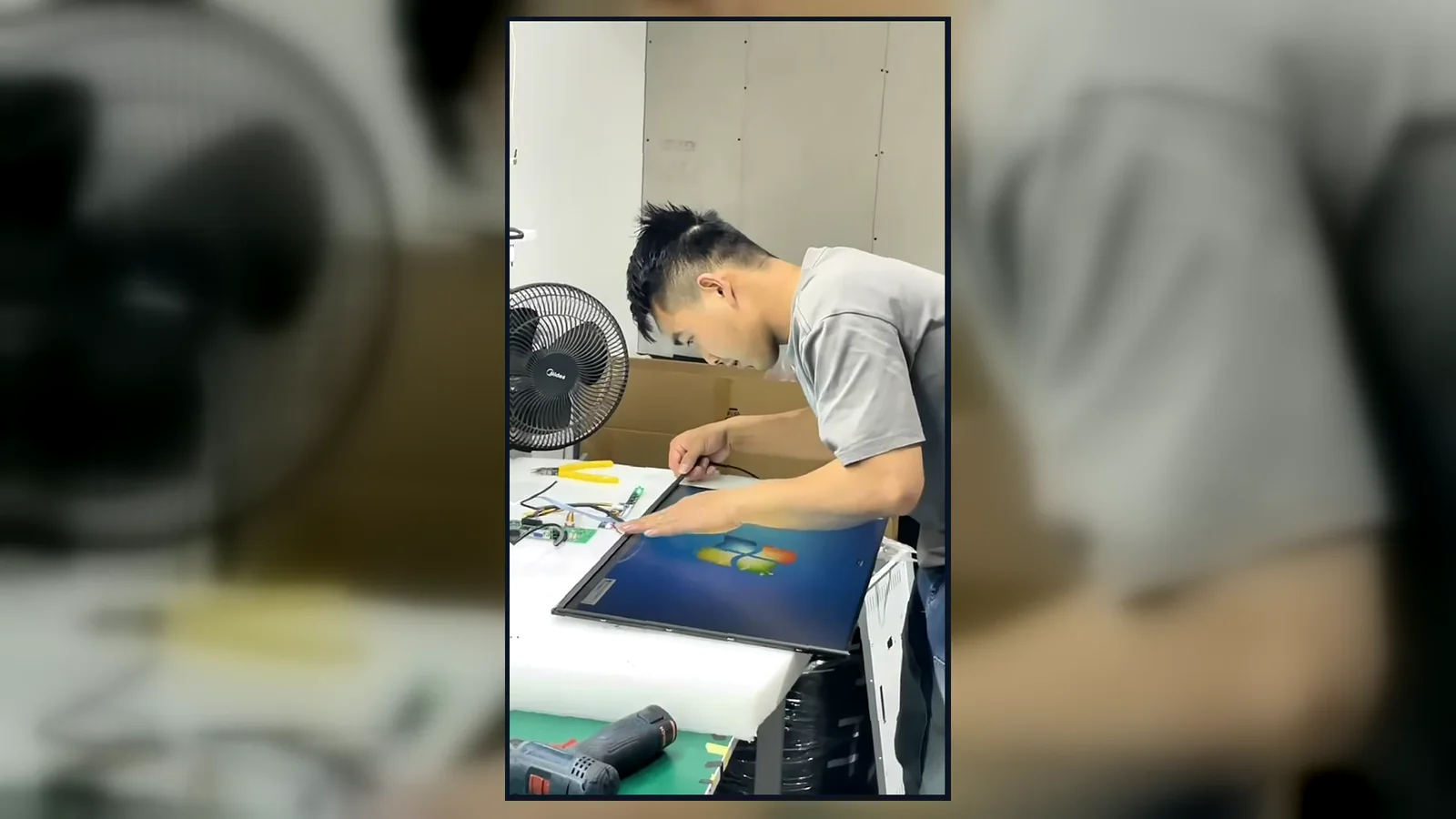
Inside the Factory: Production & Quality Testing
Watch our brief 45-second overview showcasing the rigorous assembly and testing procedures at our facility. See firsthand how our QC team conducts 100% inspections to verify touch response, display quality, interfaces and appearance according to the approved specifications.
Global Quality & Compliance Standards
Our products are manufactured under strict quality control systems and comply with international standards, ensuring reliability and safety for your projects.

ISO 9001:2015
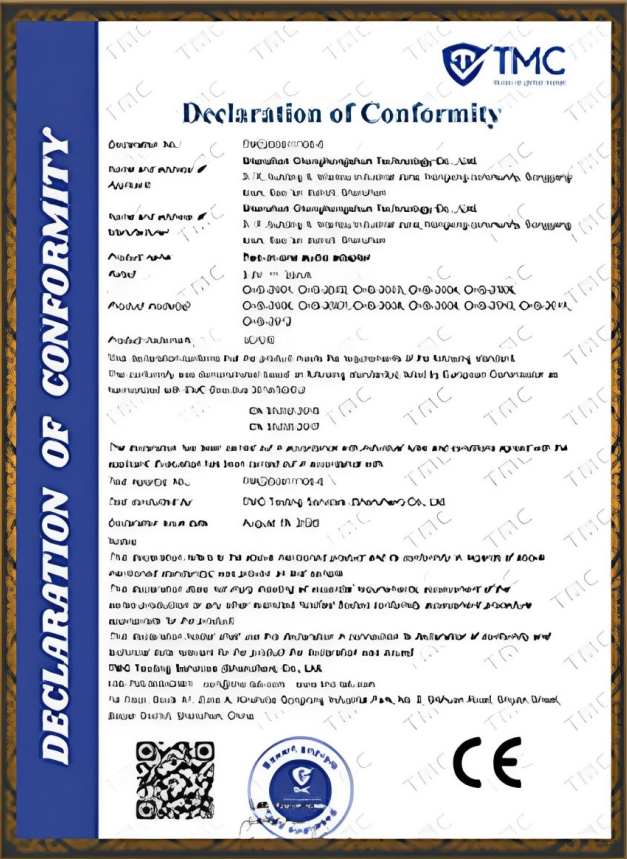
CE Certification
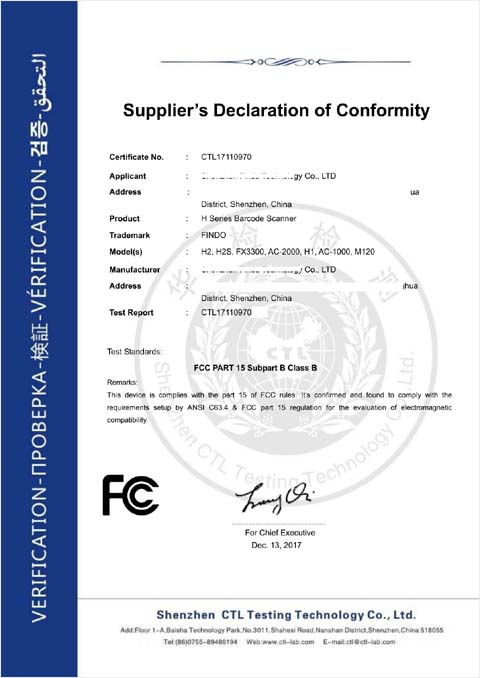
FCC Certification

RoHS Compliance
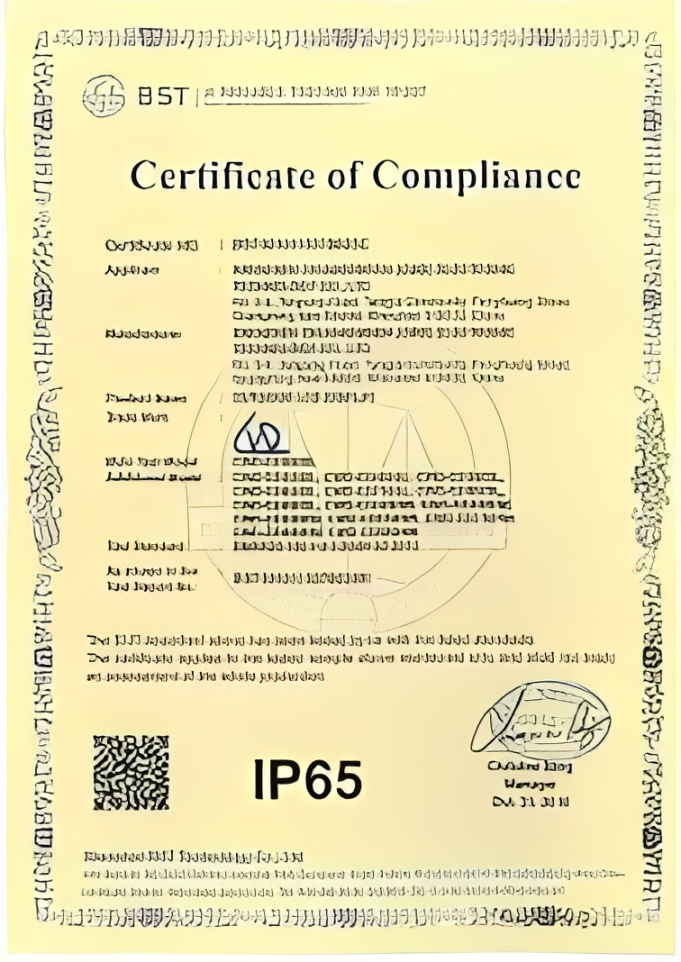
IP56/IP65/IP67/IK10
Related Display and Kiosk Solutions
Send Your Kiosk Monitor Requirements
Share the kiosk application, required screen size, enclosure dimensions, touch method, host system, interfaces and operating environment. A drawing or reference photo helps the team distinguish a standard starting model from a project-specific configuration.
Useful Project Information
- Kiosk application and installation location
- Screen size, orientation and estimated quantity
- Front cutout and available rear depth
- PCAP, resistive or undecided touch requirement
- Required resolution and brightness
- Video, touch and power connections
- Windows, Android, Linux or other host system
- Indoor, semi-outdoor, outdoor, wet or dusty conditions
- Drawing, product photo or reference specification
