
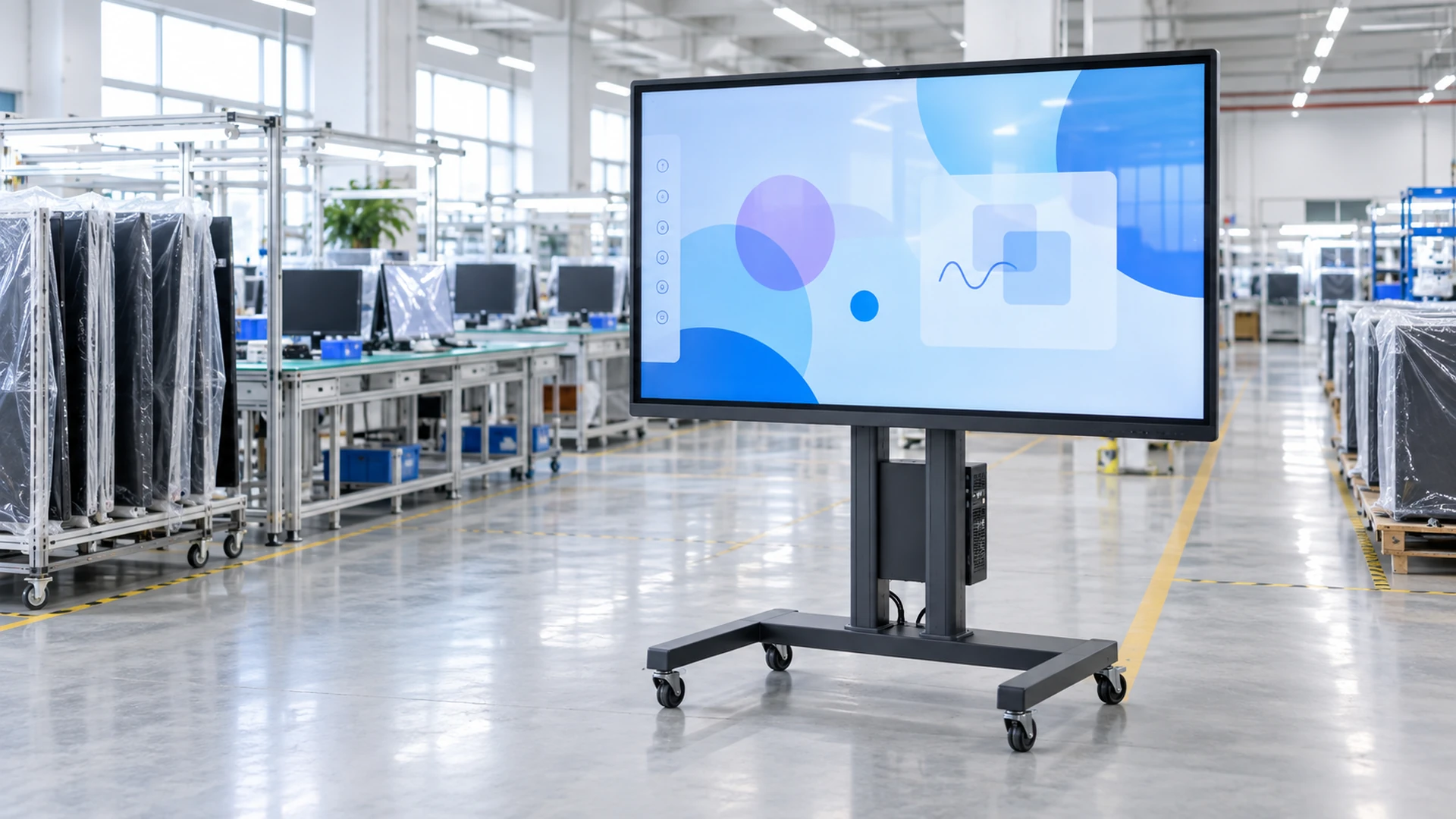
Custom Interactive Touchscreen Monitor Manufacturer for Commercial Projects
Source interactive touchscreen monitors for classrooms, meeting rooms, digital signage, self-service terminals and equipment integration. Lucky XFC supports standard display formats, project-specific structures, touch and system selection, prototype review and OEM/ODM coordination.
Screen size, touch technology, operating system, interfaces, mounting and integrated functions are confirmed by model and project.
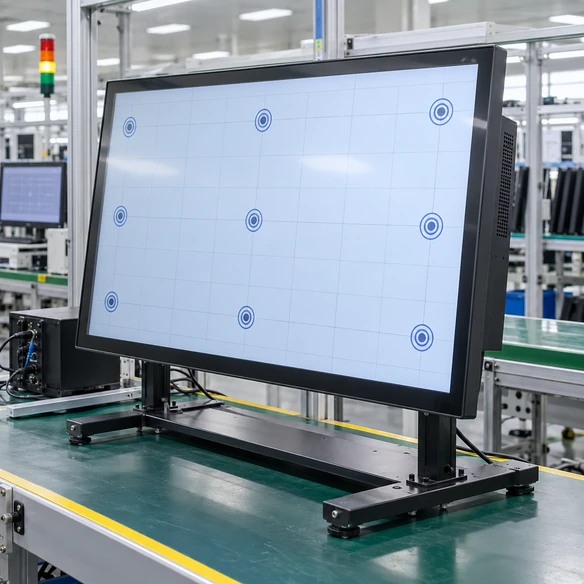
System components: Display, Touch Layer, Touch Controller, Host System, Mounting Structure
What Is an Interactive Touchscreen Monitor?
An interactive touchscreen monitor combines visual output with direct touch input so users can select, write, navigate or control on-screen content. Depending on the configuration, it may operate with an external computer, an integrated Android or Windows system, or a project-specific computing platform.
The term covers several product formats. A meeting-room interactive flat panel, a kiosk display and an open-frame monitor can all provide touch interaction, but their system architecture, mounting and intended workflows are different.
Interactive Touchscreen Monitor
A display and touch system that normally receives video from an external host and returns touch data to that host.
Interactive Flat Panel
A large touch display commonly used for presentation, annotation and group interaction in classrooms, training rooms and meeting spaces.
Interactive Digital Signage
A commercial display system that lets visitors search, browse, navigate or interact with public-facing content.
Touchscreen All-in-One
A touch display with integrated computing hardware and an operating system for standalone application use.
Clarify the required product level before comparing sizes. A display-only monitor and an integrated touchscreen computer may look similar but require different system, interface and software planning.
Choose an Interactive Touchscreen Monitor by Application and System Format
Start with how the display will be used, installed and connected. Each product family below solves a different interaction and integration requirement.
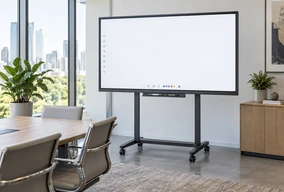
Interactive Whiteboard & Collaboration Monitors
Large 4K PCAP touch displays for classrooms, training facilities and meeting rooms. Verified 65-inch, 75-inch and 86-inch starting models can be reviewed for external-computer, Android or Windows configurations.
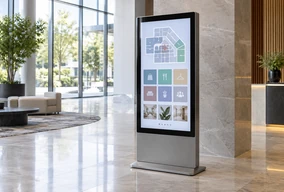
Interactive Digital Signage Monitors
Commercial touch displays for product browsing, directories, wayfinding and public information. Configurations can be reviewed for landscape or portrait installation, wall mounting, embedded structures and kiosk-ready applications.
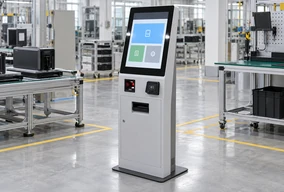
Kiosk & Self-Service Interactive Monitors
Touch displays prepared for ordering, check-in, ticketing, information and payment terminals. The display can be coordinated with the enclosure, host system and project-specific peripherals.
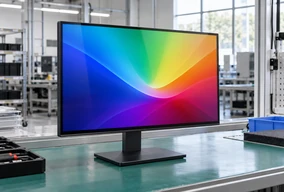
Standard Flat Interactive Touchscreen Monitors
Complete flat PCAP touch monitors for connection to an external computer, controller or media host. Verified starting sizes include 21.5, 23.8, 27, 31.5 and 43 inches.
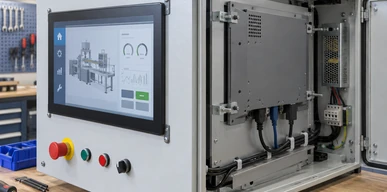
Open-Frame & Embedded Interactive Monitors
Touch displays designed for installation behind an equipment bezel or inside a custom cabinet. Selection depends on the active area, cutout, rear depth, mounting points and connector clearance.
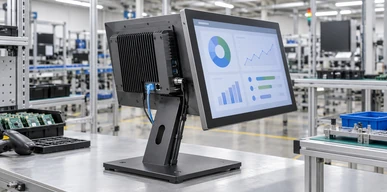
Interactive Touchscreen All-in-One Systems
Integrated touch computers combine the display, touch controller, computing hardware and operating system in one device. Windows, Android or Linux directions can be evaluated according to the selected configuration.
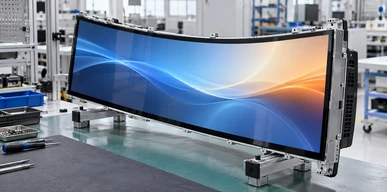
Curved Interactive Touchscreen Monitors
J-type and C-type curved PCAP displays for gaming equipment, entertainment terminals and specialized commercial cabinets. Verified curved families cover selected 32-inch to 55-inch formats depending on the curve type.
Compare Available Interactive Touchscreen Monitor Formats
These configurations provide verified starting points. Final dimensions, interfaces, touch behavior, integrated functions and accessories must be confirmed for the selected model.
Large Interactive Whiteboard Models
| Model | Display Size | Resolution | Touch | System Direction |
|---|---|---|---|---|
| XFC-IWB-6500 | 65 inch | 4K UHD | PCAP touch | Android, Windows or external PC |
| XFC-IWB-7500 | 75 inch | 4K UHD | PCAP touch | Android, Windows or external PC |
| XFC-IWB-8600 | 86 inch | 4K UHD | PCAP touch | Android, Windows or external PC |
Standard Flat Touch Monitor Starting Sizes
| Display Size | Touch | Aspect Ratio | Resolution | Construction |
|---|---|---|---|---|
| 21.5 inch | PCAP capacitive touch | 16:9 | 1920 × 1080 | Metal housing |
| 23.8 inch | PCAP capacitive touch | 16:9 | 1920 × 1080 | Metal housing |
| 27 inch | PCAP capacitive touch | 16:9 | 1920 × 1080 | Metal housing |
| 31.5 inch | PCAP capacitive touch | 16:9 | 1920 × 1080 | Metal housing |
| 43 inch | PCAP capacitive touch | 16:9 | 1920 × 1080 | Metal housing |
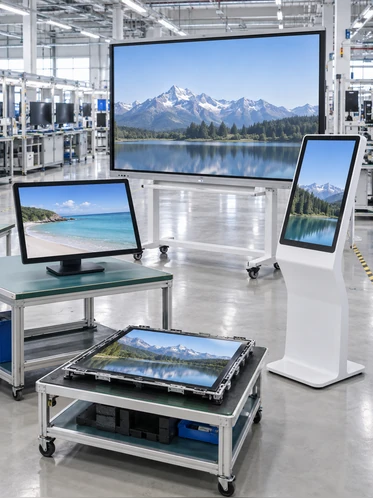
Brightness, touch-point configuration, video inputs, touch-data connection, power, mounting and overall dimensions vary by model. Use the approved datasheet and mechanical drawing for final selection.
Which Interactive Display Format Fits Your Project?
| Product Format | Computing Method | Typical Installation | Primary Interaction | Main Selection Priority |
|---|---|---|---|---|
| Interactive whiteboard | External PC or integrated system | Wall mount or mobile stand | Presentation, annotation and group interaction | Room size, writing workflow, system and mounting |
| Interactive digital signage | Integrated player or external host | Wall, portrait, landscape or custom structure | Public information and content exploration | Content platform, orientation, connectivity and operating environment |
| Kiosk touchscreen monitor | External or integrated host | Inside a self-service enclosure | Ordering, check-in, payment or information | User workflow, peripherals, service access and interface layout |
| Standard flat touch monitor | Usually external host | Desktop, VESA, wall or equipment arm | Direct control of connected software | Size, resolution, video input and USB touch |
| Open-frame touch monitor | Usually external host | Behind a bezel or inside a cabinet | Embedded equipment control | Cutout, active area, rear depth and mounting points |
| Touchscreen all-in-one | Integrated computer | Standalone terminal or equipment installation | Local application operation | Operating system, computing platform, storage and I/O |
Do Not Compare Screen Size Alone
Products with the same diagonal size may have different outer dimensions, active areas, rear structures, mounting points and system functions. Product level, mechanical format and host architecture should be confirmed before enclosure design.
Select the Touch Method Around the Real Interaction
Touch technology affects writing behavior, object recognition, glass construction, bezel design and the available display format. The correct choice depends on who uses the screen and how the interaction takes place.
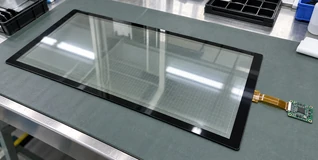
PCAP Capacitive Touch
PCAP supports responsive finger interaction and a clean glass-front appearance. It is used in Lucky XFC’s verified large interactive whiteboard models, standard flat touch monitors and curved touchscreen families.
▶ Consider PCAP for finger interaction, modern interface design and compatible multi-touch workflows.
Confirm required touch points, cover glass, glove use, water exposure and controller compatibility by model.
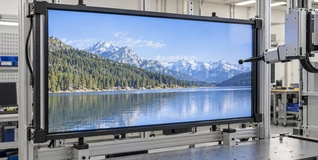
Infrared Touch
Infrared touch detects an interruption across a sensor frame around the display surface. It is frequently evaluated for large interactive displays where screen size and multi-user interaction influence the design.
▶ Consider IR when a large-format touch frame and application-compatible bezel structure are acceptable.
Confirm frame allowance, object detection, writing requirement, ambient conditions and model availability.
Resistive Touch
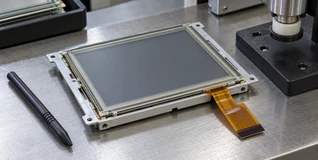
Resistive touch responds to physical pressure and can suit specialized equipment operated with a finger, glove or stylus. It is more common in industrial and compact equipment than in large collaboration displays.
▶ Consider resistive touch when pressure activation is more important than gesture-based interaction.
Confirm input method, overlay durability, display size and controller interface.
Do not select touch technology only from a marketing name. Test the intended input method, software and cover-glass configuration on the approved sample.
Match the Screen to Viewing Distance, Content and User Reach
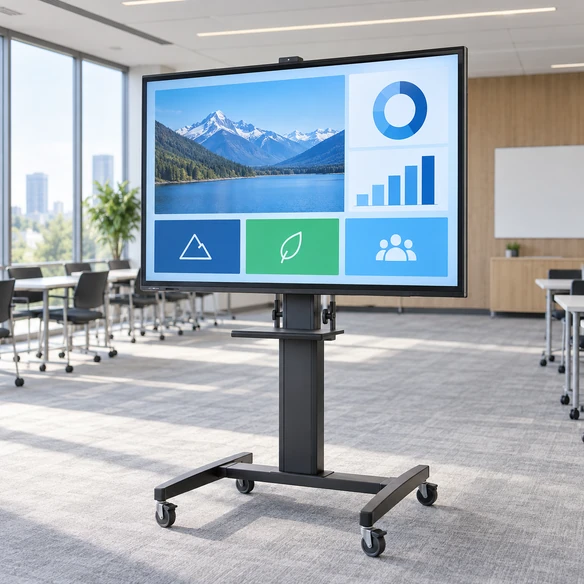
A larger screen improves visibility only when the content, room layout and mounting height are also suitable. Interactive use adds another constraint: users must be able to reach the working area comfortably.
Small Equipment & Counters
Standard flat and compact touchscreen monitors suit close-range interaction, POS equipment, operator stations and countertop terminals.
Kiosks & Public Terminals
Balance screen visibility with user height, enclosure width, peripheral positions and accessibility requirements.
Meeting & Training Rooms
Use room dimensions, seating distance, presentation content, writing area and mounting method to compare large interactive displays.
Large Public Interaction
Review viewing distance, touch reach, content scale, structural support and traffic flow before choosing a large-format display.
Choose Between an External Host and an Integrated System
External Computer
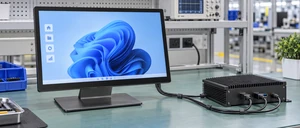
The monitor receives video from a laptop, desktop computer, controller or media player and returns touch data to that host. This approach keeps the application and computing hardware outside the display.
Integrated Android Direction
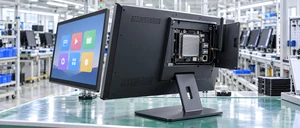
An integrated Android configuration can run compatible local applications without a separate external computer. Hardware, Android version, storage, application compatibility and management requirements must be confirmed for the selected model.
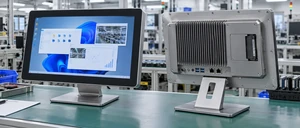
Integrated Windows or Touch Computer
A Windows-based or other integrated computing configuration combines the touchscreen with computer hardware. Processor, memory, storage, operating system, cooling and I/O should be selected around the software workload.
A touchscreen monitor is not automatically a computer. Confirm whether the quotation includes only the display and touch system or also includes computing hardware and an operating system.
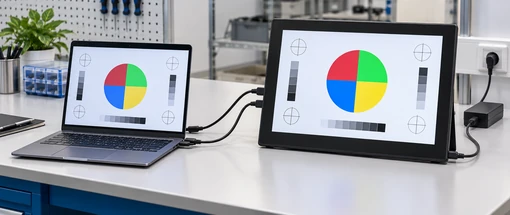
How Does an Interactive Touchscreen Monitor Connect to a Laptop?
The host must send an image to the display and receive touch input from the touch controller. These functions may use separate cables even when the image is already visible.
- Connect the approved video source, such as HDMI, DisplayPort or another supported input.
- Connect the required USB or model-specific touch-data cable.
- Connect power according to the selected monitor.
- Select the correct display input.
- Confirm the operating system detects the touch controller.
- Test touch mapping, orientation, writing and sleep/wake behavior.
HDMI Does Not Normally Carry Touch Data
An HDMI connection can display the image while the touch function remains inactive. A separate touch-data connection is commonly required.
Do not assume that a USB-C connector provides video, touch data and power through one cable. Single-cable operation must be confirmed for both the selected monitor and the host device.
Compatibility Checklist
- ✓ Host device and operating system
- ✓ Available video output
- ✓ Required native resolution
- ✓ Touch-data interface
- ✓ Required touch points
- ✓ Driver expectation
- ✓ Cable length
- ✓ Power environment
- ✓ Landscape or portrait use
- ✓ Touch mapping with multiple displays
- ✓ Sleep, wake and restart behavior
Have a Host Device or Connection Diagram?
Send the operating system, available ports, required screen size and installation drawing for a model-level compatibility review.
Plan the Mounting Structure Before Releasing the Installation
Wall Mount
Used for meeting rooms, classrooms, commercial spaces and fixed information displays. Confirm the wall structure, bracket, mounting pattern, user reach and cable access.
Mobile Stand
Used when a large interactive display must move between rooms. Confirm display weight, stand compatibility, stability, wheel clearance and cable management.
VESA or Equipment Arm
Used for standard monitors and operator stations. Confirm the approved mounting pattern, load rating and adjustment range.
Open-Frame Installation
Used when the monitor sits behind an equipment bezel. Confirm cutout, active area, rear depth, fasteners and connector clearance.
Custom Cabinet Integration
Used for kiosks, gaming equipment and purpose-built terminals. Confirm the complete assembly drawing and maintenance path.
Mechanical Drawing Checklist
- ■ Overall dimensions
- ■ LCD active area
- ■ Visible opening
- ■ Cabinet cutout
- ■ Rear depth
- ■ Mounting-hole positions
- ■ Connector direction
- ■ Cable bend allowance
- ■ Ventilation
- ■ Service access
- ■ Landscape or portrait orientation
- ■ User reach and operating height
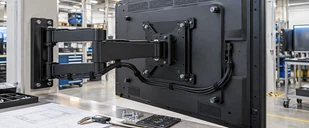
Do not cut the enclosure from a product image or nominal diagonal size. Approve the exact model datasheet and mechanical drawing first.
Interactive Touch Displays for Shared, Public and Equipment-Based Workflows
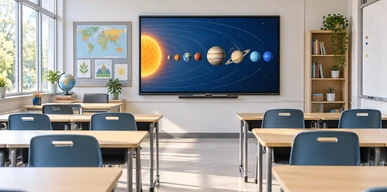
Classrooms & Education
Interactive presentation, annotation and shared learning require a screen that fits the room, teacher devices, software environment and mounting plan.
Starting direction: 65-inch, 75-inch or 86-inch interactive whiteboard
Confirm room size, writing workflow, system, interfaces and installation.

Meeting & Training Rooms
Teams may need laptop presentation, direct annotation, shared content and mobile or fixed installation.
Starting direction: large interactive whiteboard or collaboration monitor
Confirm laptop ports, conferencing platform, camera, audio and network requirements separately.
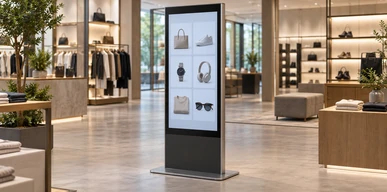
Retail & Interactive Signage
Visitors can browse products, search directories or explore branded content through a commercial touch interface.
Starting direction: interactive digital signage or wall-mounted touch display
Confirm content platform, orientation, mounting, operating system and public-use conditions.
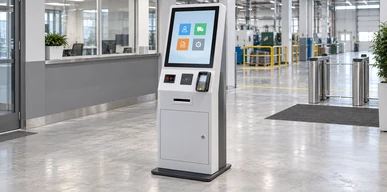
Self-Service Kiosks
Ordering, check-in, payment, ticketing and information terminals combine touch interaction with software, an enclosure and project-specific peripherals.
Starting direction: kiosk monitor, open-frame display or integrated touchscreen computer
Confirm user workflow, peripherals, service access and software compatibility.
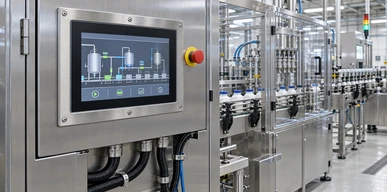
Industrial Control & Equipment
Operator interfaces require accurate mechanical integration and reliable communication with the host or controller.
Starting direction: open-frame, panel-mount or industrial touchscreen
Confirm environment, input method, mounting, power and model-specific protection requirements.
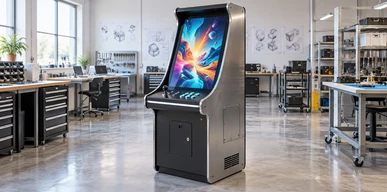
Gaming & Entertainment Equipment
Interactive cabinets may use flat or curved displays to match the equipment structure and intended user experience.
Starting direction: flat, C-type or J-type interactive touchscreen monitor
Confirm cabinet geometry, curve type, host system, active area and interface layout.
Resolve Common Interactive Display Problems Before Production
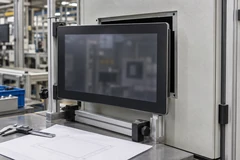
The Display Does Not Match the Room or Enclosure
Consequence: Users may struggle to read or reach the screen, or the monitor may conflict with the installation structure.
Project Response: Review viewing distance, operating height, active area, overall dimensions, mounting and cable clearance before approving the model.
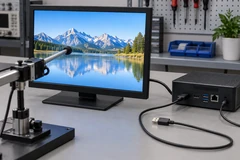
The Image Works but Touch Does Not
Consequence: The video path is connected, but the host does not receive touch input.
Project Response: Check the USB or model-specific touch-data connection, controller, operating system, driver and touch mapping separately from the video signal.
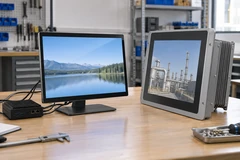
The Quotation Includes the Wrong System Level
Consequence: A display-only monitor may be ordered when the project requires an integrated computer, or unnecessary computing hardware may be included.
Project Response: Define whether the project needs an external host, Android configuration, Windows configuration or another integrated system before quotation.
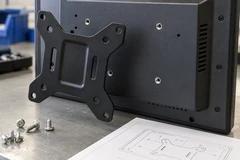
The Mounting Details Are Confirmed Too Late
Consequence: Cutouts, brackets, connectors or service access may require enclosure modification.
Project Response: Approve the datasheet, mechanical drawing, mounting pattern and connector locations before releasing the cabinet.
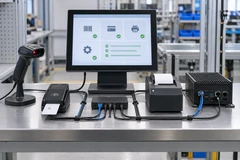
The Software and Peripherals Are Evaluated Separately
Consequence: Touch behavior, printers, scanners, cameras or payment devices may not work as expected within the final workflow.
Project Response: Validate the selected display, operating system, customer application and peripherals together on the project sample.
From Touchscreen Sample to a U.S. Kiosk Project
A U.S. self-service project required a custom check-in kiosk that combined touchscreen interaction with A4 printing and ID scanning. The display, software environment, peripherals and service access were reviewed as one hardware system.
Requirement
The requested terminal needed to support check-in interaction, A4 printing and ID scanning.
Evaluation
Printer drivers were tested with the Windows IoT environment.
Sample
One prototype was produced for the customer’s software team to validate.
Confirmation
Minor structural adjustments were made to provide easier access for paper loading.
Bulk Order Planning
A phased delivery schedule was established for the regional rollout.
This project shows why an interactive touchscreen monitor should be evaluated together with the operating system, customer application, peripherals, enclosure and maintenance workflow.
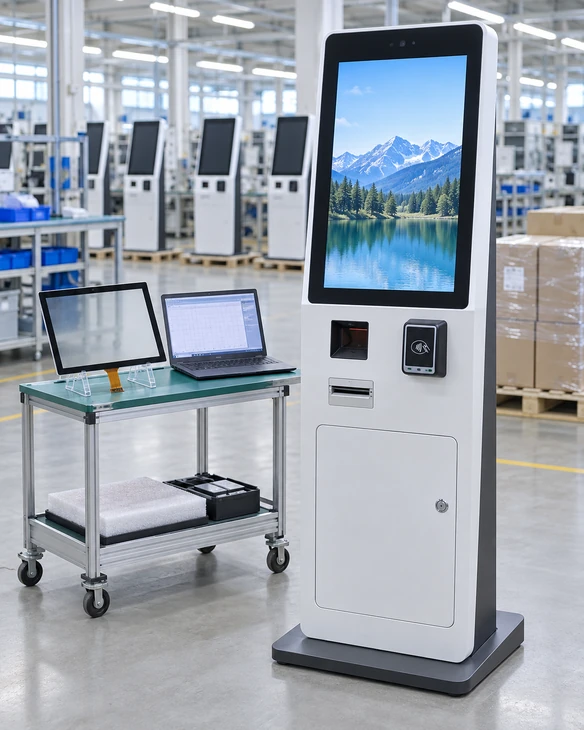
Configure the Interactive Display Around the Final Workflow
Lucky XFC can review customization across the display, touch system, computing direction, mechanical structure and connection requirements. Feasibility depends on the selected product platform and project scope.
Display Size & Resolution
Select a verified standard model or review a project-specific size and resolution direction.
Touch Technology
Evaluate PCAP, resistive, infrared or another suitable method according to the product format and interaction.
System Configuration
Review external-host, Android, Windows, Linux or other project-specific computing requirements.
Housing & Frame
Coordinate finished housing, open-frame construction, wall-mounted structure, kiosk enclosure or equipment-specific adaptation.
Mounting
Review VESA, wall mount, mobile stand, cabinet installation and custom fastening requirements.
Interfaces
Select video, touch-data, network, serial, peripheral and power connections according to model capability.
Cover Glass & Appearance
Discuss cover-glass dimensions, printed border, openings, finish, logo and visible product details.
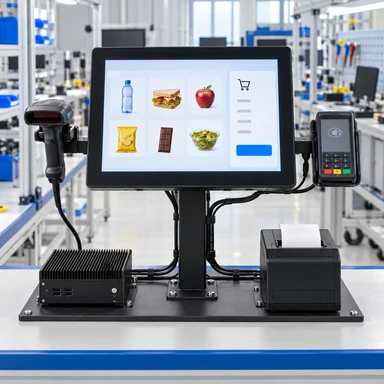
Peripheral Integration
Evaluate cameras, scanners, printers, card readers, NFC modules or other hardware when the final terminal requires them.
Provide drawings, reference images, host details and software requirements so that the proposed configuration can be reviewed against the real installation.
From Requirement Review to Production Coordination
Requirement Review
Define the application, product format, target size, user workflow, operating environment, host system and quantity.
Configuration Evaluation
Review the display platform, touch method, computing direction, interfaces, mounting and peripheral requirements.
Industrial Design
Coordinate the visible form, orientation, operator position and application-specific product appearance.
Mechanical Design
Confirm overall dimensions, active area, cutout, mounting points, connector locations, cable space and service access.
Prototype & Validation
Evaluate display output, touch behavior, software compatibility, mechanical fit and peripheral operation on the approved sample.
Production & Inspection
Record the approved configuration and coordinate assembly, inspection, packaging and shipment requirements.
Test the Interactive Touchscreen Monitor Inside the Real System
A sample should be evaluated with the intended host, software, mounting structure and user workflow. A successful power-on test does not confirm complete project compatibility.
Display Validation
- • Native resolution and image stability
- • Content readability
- • Brightness suitability for the installation
- • Viewing angle
- • Landscape or portrait behavior
- • Sleep, wake and restart response
Touch Validation
- • Touch response across the active area
- • Required multi-touch behavior
- • Finger, glove or stylus operation where applicable
- • Writing and annotation workflow
- • Touch mapping with one or multiple displays
- • Operating-system detection
Mechanical Validation
- • Overall dimensions and cutout
- • Mounting-hole alignment
- • Connector position
- • Cable clearance
- • Ventilation
- • Installation and maintenance access
- • User height and reach
System Validation
- • Video connection
- • Touch-data connection
- • Power
- • Operating system
- • Customer application
- • Printers, scanners, cameras or payment peripherals
- • Network and device-management requirements
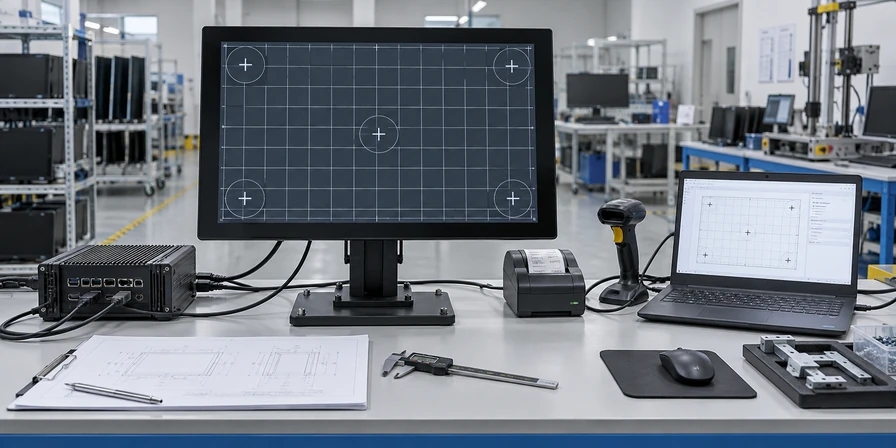
Approve the exact sample, model datasheet, mechanical drawing and configuration record before production. Review any later change to the host, cable, software or enclosure for compatibility impact.

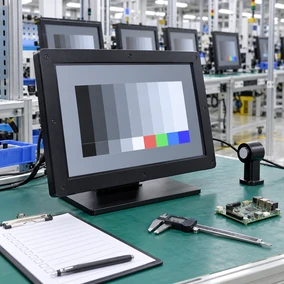
Manufacturing Support for Custom Interactive Display Projects
Lucky XFC supports touchscreen display projects through product selection, configuration review, sampling, assembly and inspection. The project is coordinated around the approved display, touch system, structure and interface requirements.
Touch display manufacturing experience
Factory area
Production team
Quality control personnel
Inspection throughout the production process
- • OEM and ODM project support
- • Display and touch configuration review
- • Mechanical drawing coordination
- • Prototype and sample validation
- • Assembly and inspection
- • Custom enclosure and interface evaluation
Inspection items and acceptance requirements should be confirmed for the selected model and order. Do not apply one model’s certification, protection rating or environmental specification to the complete product range.
Questions to Answer Before Selecting an Interactive Display
What is the difference between an interactive touchscreen monitor and an interactive whiteboard?
Can an interactive touchscreen monitor work as a second monitor for a laptop?
Does HDMI make the touchscreen function work?
Can one USB-C cable carry video, touch and power?
Should I choose an external computer or an integrated system?
How do I choose between PCAP and infrared touch?
What screen size is suitable for a classroom or meeting room?
Can the display be mounted on a wall or mobile stand?
Which product format is suitable for a kiosk?
What should I provide for a custom interactive display quotation?
Continue with the Product Family That Matches Your Project
Interactive Whiteboards
Compare verified 65-inch, 75-inch and 86-inch collaboration display starting models.
View Interactive Whiteboards →Interactive Digital Signage
Review touch-enabled commercial display structures for retail, wayfinding and public information.
View Interactive Digital Signage →Kiosk Touchscreen Monitors
Review touch display directions for ordering, check-in, ticketing and self-service equipment.
View Kiosk Touchscreen Monitors →Standard Touchscreen Monitors
Compare complete flat PCAP monitors for external computers and equipment hosts.
Open-Frame Touch Monitors
Review embedded display structures for machine bezels and custom cabinets.
View Open-Frame Monitors →Touchscreen Computers
Review integrated touch systems with project-selected computing and operating-system directions.
View Touchscreen Computers →Curved Touch Monitors
Compare verified C-type and J-type curved capacitive-touch display families.
View Curved Touch Monitors →4K Touch Screen Monitors
Review high-resolution touch display options where content detail and large-screen presentation matter.
View 4K Touch Screen Monitors →Tell Us How the Interactive Touchscreen Monitor Will Be Used
Share the application, screen size, system, mounting and connection requirements. This information helps the team compare the appropriate interactive display format and prepare a model-level discussion.
Useful Project Information
- Application and user workflow
- Preferred screen size
- External host or integrated system
- Operating system
- Video and touch connections
- Wall, stand, VESA, open-frame or cabinet mounting
- Required peripherals
- Expected quantity
- Enclosure drawing or reference image
If the configuration is not complete, submit the information currently available. Drawings and reference files can be attached for review.
Product Selection · System Review · Mechanical Coordination · Sample Validation · Production Inspection
