Lucky-XFC Logo
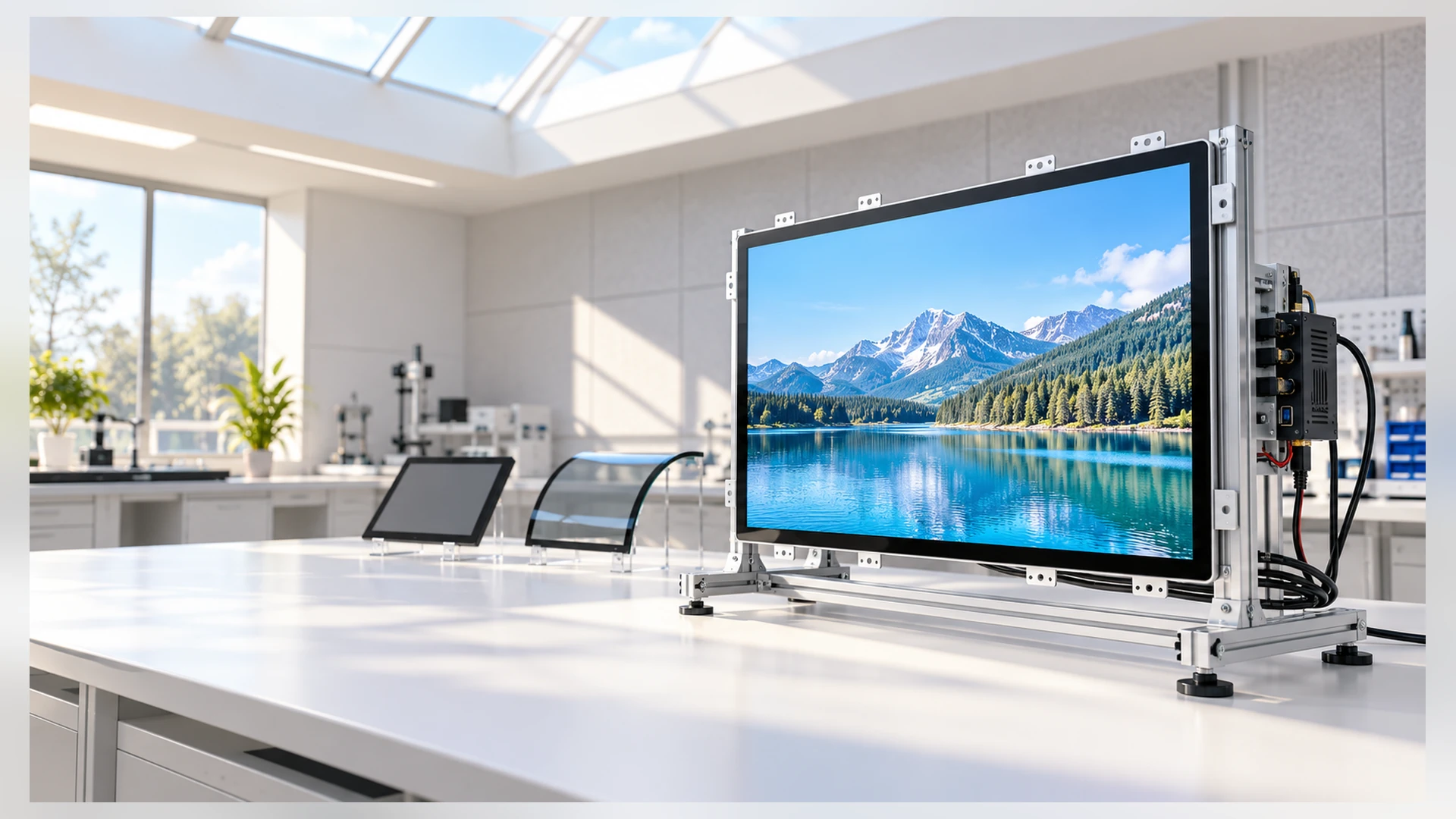
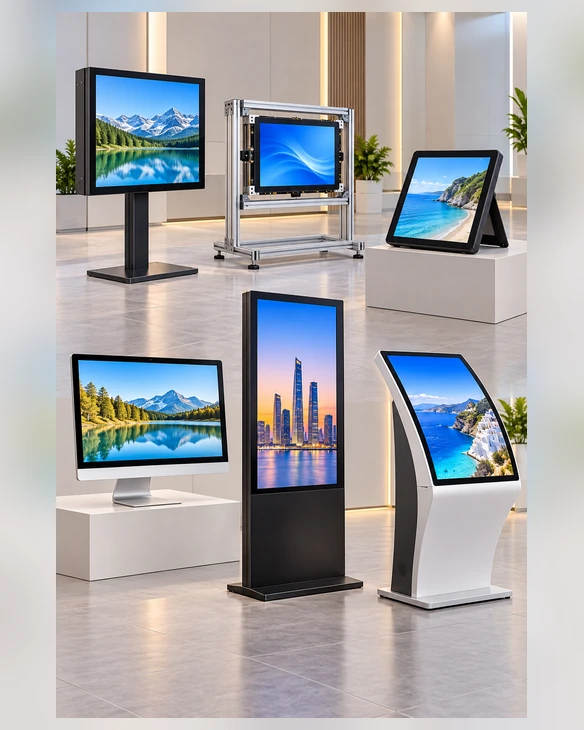
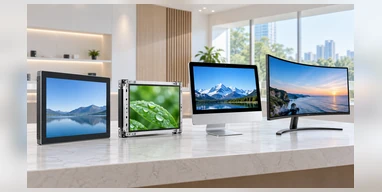
Flat, open-frame, portable, all-in-one and curved touchscreen monitor formats
TOUCH DISPLAY SELECTION GUIDE

Types of Touch Screen Monitor from a Custom Display Manufacturer

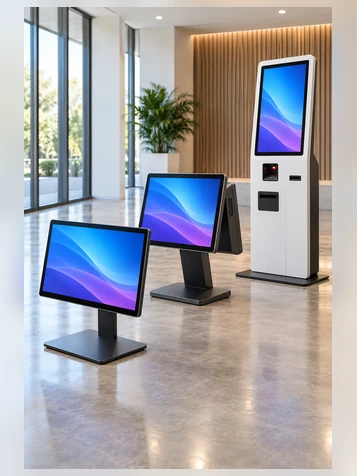
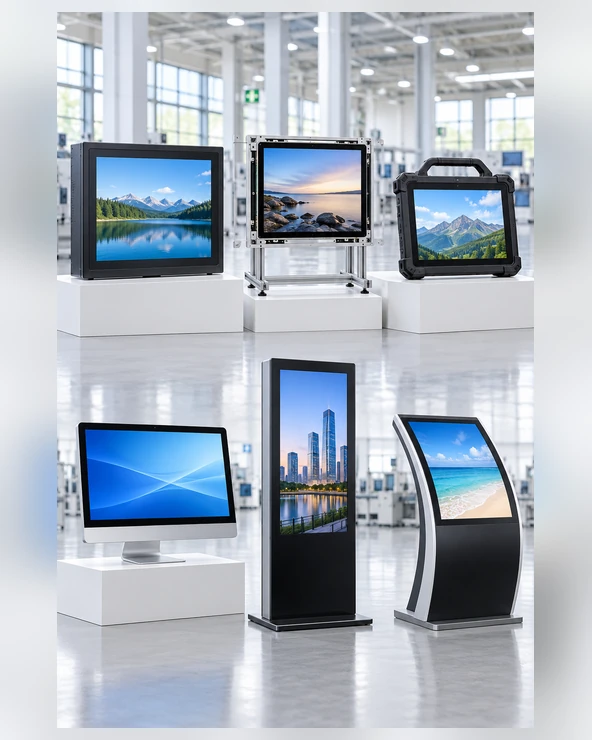
Touchscreen monitors differ in more than screen size. The right choice depends on how the system detects touch, how the display is mechanically constructed and whether computing hardware is external or integrated. Lucky-XFC manufactures and customizes flat, open-frame, portable, all-in-one, kiosk and curved touch display configurations for equipment and commercial projects.

  • Six product architectures
  • PCAP and selected resistive product paths
  • 12.3-inch to 55-inch verified ranges across different families
  • OEM and ODM mechanical, interface and computing customization

Classify the Monitor Before Comparing Specifications

A touchscreen technology and a touchscreen product type are not the same thing. For example, an open-frame monitor describes the mechanical structure, while PCAP describes how touch input is detected.

1

Touch Technology

How does the screen detect input?

PCAP, resistive, infrared, optical imaging or SAW

2

Product Structure

How is the display packaged and installed?

Enclosed, open frame, portable, all-in-one, kiosk or curved

3

Computing Architecture

Where does the operating system run?

External host, integrated computer or complete terminal

13 Years Touch Display Manufacturing
100% Inspection Before Delivery

Six Types of Touchscreen Monitor by Product Structure

Begin with the equipment architecture. The same touch technology can be supplied in several mechanical formats, while the same display structure may use different touch technologies.

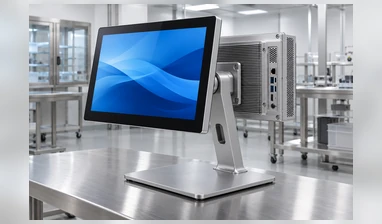
Metal-housed enclosed flat touchscreen monitor

Enclosed Flat Touchscreen Monitor

A finished monitor with a complete metal housing. It normally connects to an external computer or controller for video and touch processing.

  • Verified starting range: 21.5, 23.8, 27, 31.5 and 43 inches
  • Best-fit direction: POS systems, operator desks, interactive counters, information terminals and externally mounted equipment
  • Selection priorities: Screen size, mounting, video input, USB touch connection and host compatibility
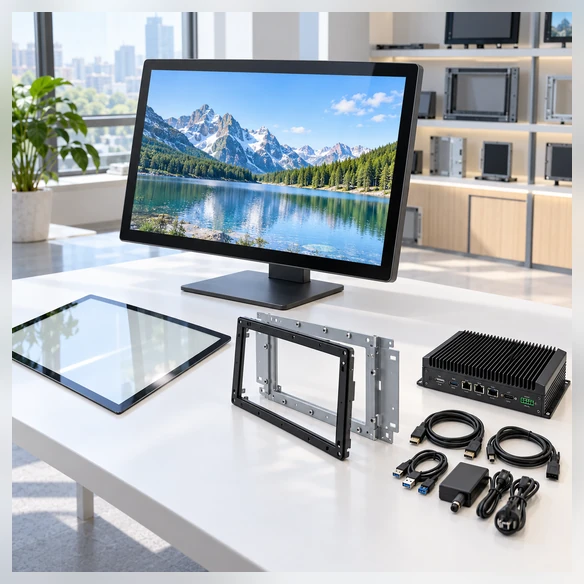
Open-frame touchscreen monitor installed behind an equipment panel

Open Frame Touchscreen Monitor

An LCD, touch sensor, controller and display electronics installed inside an open integration chassis. The customer’s machine or cabinet provides the finished exterior.

  • Verified starting models: XFC-OF215-PCAP, XFC-OF270-PCAP, XFC-OF430-PCAP
  • Best-fit direction: Control cabinets, vending machines, kiosks, gaming cabinets and OEM equipment
  • Selection priorities: Cutout, depth, brackets, touch method, interfaces and cable direction
Explore Open-Frame Monitors
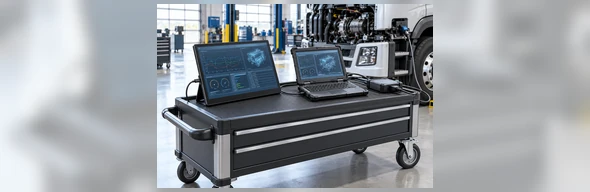
Portable PCAP touchscreen monitor with kickstand

Portable Touchscreen Monitor

A lightweight touch display with a portable housing, support structure and interface arrangement designed around a laptop, workstation or equipment controller.

  • Verified project range: 12.3, 13.3, 14, 15.6 and 16 inches
  • Best-fit direction: Mobile workstations, diagnostics, device commissioning and auxiliary controls
  • Selection priorities: Weight, stand stability, HDMI or USB-C, power and port position
Touchscreen all-in-one computer with integrated motherboard

Touchscreen Computer / All-in-One

A touch display with built-in computing hardware. CPU, memory, storage, operating system and interfaces are selected around the application workload.

  • Computing paths: Windows, Android or Linux according to configuration
  • Best-fit direction: Standalone workstations, embedded panel PCs, retail terminals and interactive equipment
  • Selection priorities: Software workload, computing platform, ports, enclosure and service access
Compare Touchscreen Computers
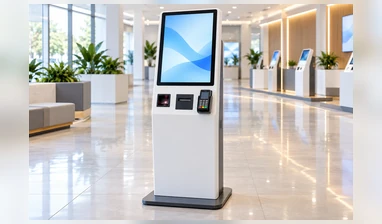
Touchscreen monitor and complete self-service kiosk comparison

Kiosk Touchscreen Monitor and Complete Terminal

A kiosk monitor provides display and touch functions for an external host. A complete terminal can also include computing hardware, a custom enclosure and selected peripherals.

  • Best-fit direction: Ordering, payment, ticketing, registration, information and visitor-service workflows
  • Selection priorities: Monitor-only or complete terminal, user reach, peripherals and maintenance access
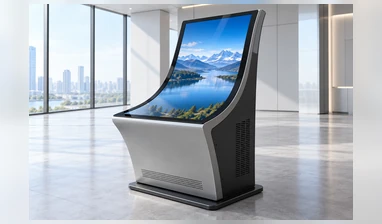
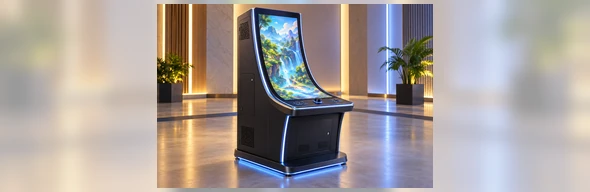
J-type and C-type curved touchscreen monitor profiles

Curved Touchscreen Monitor

A shaped display and touch surface designed around a curved cabinet and user interface. The curve profile, touch mapping and mounting structure must be reviewed together.

  • Verified range: J-Type: 43, 49 and 55 inches; C-Type: 32, 43, 49 and 55 inches
  • Best-fit direction: Gaming equipment, immersive terminals and shaped custom cabinets

Three Questions Define a Touchscreen Monitor Type

Question 1: How is touch detected?

This defines the sensing technology:

  • Projected capacitive
  • Resistive
  • Infrared
  • Optical imaging
  • Surface acoustic wave

Question 2: How is the product installed?

This defines the mechanical structure:

  • Finished enclosed monitor
  • Open-frame monitor
  • Portable display
  • Curved display
  • Integrated equipment display

Question 3: Where does the application run?

This defines the computing architecture:

  • External computer or industrial PC
  • Integrated touchscreen computer
  • Complete kiosk with peripherals

Example: A “PCAP open-frame touchscreen monitor” combines a capacitive sensing technology with an open integration chassis and normally uses an external host.

A “resistive panel PC” combines pressure-based touch with an embedded mechanical structure and internal computing hardware.

Use all three questions before selecting a model. A technology name alone does not identify the complete product.

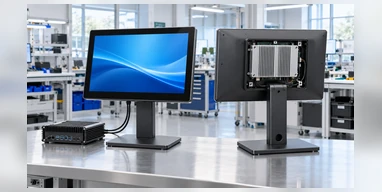
Three-axis touchscreen monitor classification by technology, structure and computing

Monitor, All-in-One or Complete Kiosk?

Trace the computing requirements to find the correct hardware scope.

TOUCHSCREEN MONITOR

Includes: LCD, touch sensor, touch controller and display electronics
Computing: External host required
Best fit: Existing computer, machine controller or media system

TOUCHSCREEN COMPUTER

Includes: Display, touch and internal computing hardware
Computing: Windows, Android or Linux according to configuration
Best fit: Standalone workstation or embedded Panel PC

COMPLETE KIOSK

Includes: Touch display, computer, custom enclosure and selected peripherals
Computing: Integrated according to project
Best fit: Ordering, payment, ticketing, check-in and information workflows

Choose a monitor when the host already exists. Choose an all-in-one when the display must run the application. Choose a complete kiosk when enclosure and peripheral integration are also required.

Lucky-XFC flat, open-frame, portable and curved touch display range

Lucky-XFC Product Types and Starting Configurations

Product Type Verified Starting Range Touch Direction Computing Installation Supply Status
Enclosed Flat Monitor 21.5, 23.8, 27, 31.5 and 43 inch PCAP External host Desktop, VESA, wall or equipment mount Verified product line
Open Frame Monitor 21.5, 27 and 43-inch documented models PCAP; selected resistive projects External host Behind machine or cabinet panel Verified product line and customization path
Portable Monitor 12.3, 13.3, 14, 15.6 and 16-inch project range PCAP project path External host Kickstand, portable housing or equipment mount Verified customization path
Touchscreen Computer Size and platform by project Capacitive or project-specific Integrated Windows, Android or Linux Wall, floor, embedded or custom Verified customization path
Kiosk Touch Monitor Flat, open-frame, rugged, waterproof or curved path according to project PCAP or selected resistive path External host Custom kiosk enclosure Verified product and customization path
Complete Kiosk Screen and structure by project Selected around workflow Integrated computing Floor, wall, desktop or custom terminal Verified project path
J-Type Curved Monitor 43, 49 and 55 inch PCAP reference External or integrated according to configuration Curved cabinet integration Verified product line
C-Type Curved Monitor 32, 43, 49 and 55 inch PCAP reference External or integrated according to configuration Curved cabinet integration Verified product line

Brightness, interfaces, touch points, power, dimensions, mounting and operating-system compatibility must be confirmed for the selected model and project.

Five Touchscreen Technologies and How They Work

PCAP, resistive, infrared, optical imaging and SAW touch technology comparison

Projected Capacitive / PCAP

Detects changes in an electrical field when a compatible conductive input touches the surface.

Typical strengths:
  • Responsive touch behavior
  • Multi-touch capability is commonly available
  • Cover-glass-based construction
  • Suitable for modern gesture-driven interfaces
Selection considerations:
  • Conductive input requirement
  • Controller and OS compatibility
  • Grounding and electrical noise
  • Cover-glass design
Lucky-XFC status: Verified standard technology for the flat range and documented PCAP open-frame models.

Resistive Touch

Uses pressure to bring two conductive layers into contact.

Typical strengths:
  • Works through physical pressure
  • Can support finger, glove or stylus input
  • Useful when pressure-based operation is required
Selection considerations:
  • Usually selected for single-point operation
  • Flexible surface construction
  • Optical clarity differs from PCAP
  • Surface wear and actuation method
Lucky-XFC status: Selected open-frame customization path.

Infrared Touch

Uses a grid of infrared beams around the display area. Touch is detected when an object interrupts the grid.

Typical strengths:
  • Can detect different input objects
  • Multi-touch is possible with suitable controllers
  • Common direction for selected large interactive displays
Selection considerations:
  • Bezel and sensor-frame structure
  • Dust or obstruction around the sensor path
  • Strong ambient-light conditions
  • Controller and application behavior
Lucky-XFC status: Industry selection knowledge only unless a specific product is confirmed.

Optical Imaging Touch

Uses cameras or optical sensors to locate touch through changes in the monitored surface area.

Typical strengths:
  • Suitable for selected large display formats
  • Can support different input objects
  • Multi-touch capability depends on the system
Selection considerations:
  • Camera or sensor position
  • Bezel design
  • Line-of-sight and environmental interference
  • Calibration
Lucky-XFC status: Industry selection knowledge only.

Surface Acoustic Wave / SAW

Uses ultrasonic waves transmitted across the touch surface. Contact changes the wave pattern and allows the controller to determine the touch position.

Typical strengths:
  • Clear glass surface
  • Accurate touch under suitable conditions
Selection considerations:
  • Surface contamination or liquid can interfere
  • Requires a suitable touch object
  • Installation and cleaning conditions matter
Lucky-XFC status: Industry selection knowledge only.

Multi-touch describes how many touch points the complete system can recognize. It is not a separate sensing technology.

Enclosed, open-frame, portable, panel, kiosk and curved touchscreen structures

Choose the Structure Around the Equipment

Enclosed Monitor

Use when the product needs its own finished housing and will be mounted on a stand, arm, wall or equipment exterior.

Confirm:

Housing dimensions, mounting pattern, external cable route, user position.

Open Frame

Use when the display sits behind a machine fascia or custom enclosure.

Confirm:

Active display area, panel opening, bezel overlap, rear depth, fixing points, connector clearance.

Portable

Use when the display must move between work areas or operate as an auxiliary touch interface.

Confirm:

Housing weight, kickstand stability, port location, power source, cable arrangement.

Touchscreen Computer

Use when the display must run the operating system and application without an external computer.

Confirm:

CPU workload, memory and storage, operating system, network and I/O, maintenance access.

Complete Kiosk

Use when the display, computer, enclosure and peripherals must be coordinated as one terminal.

Confirm:

User workflow, accessibility, printer and scanner access, payment or identification hardware, maintenance doors.

Curved Monitor

Use when the cabinet and interface are designed around a J-Type or C-Type profile.

Confirm:

Curve geometry, active touch area, cabinet opening, mounting depth, touch mapping, service clearance.

Select Touch Technology from the Real Input Method

Bare Finger and Gestures

PCAP is a common direction when the interface uses tapping, scrolling, dragging or multi-finger gestures.

Conductive Stylus

PCAP may support a compatible conductive stylus, subject to the selected controller and product.

Work Gloves

Do not assume universal glove operation. Test the actual glove with the selected PCAP configuration, or evaluate pressure-based resistive touch when appropriate.

Non-Conductive Stylus

Resistive touch can be considered when input depends on physical pressure rather than electrical conductivity.

Single-Touch Interface

Suitable for simple buttons, machine controls and workflows that do not require multi-finger gestures.

Multi-Touch Interface

Requires suitable touch technology, controller, operating system and application support. A multi-touch sensor does not make unsupported software multi-touch capable.

Public or High-Use Interface

Evaluate cover glass, touch target size, cleaning method, enclosure, service access and the expected interaction frequency.

Strong Light, Dust or Moisture

Define the real environment before selecting infrared, optical or other sensing methods. Do not infer protection or environmental performance from the technology name alone.

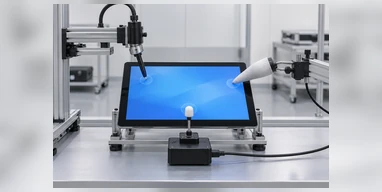
Finger, glove, stylus, single-touch and multi-touch selection guide

Avoid Six Common Touch Monitor Selection Errors

Touchscreen selection risks covering technology, structure, computing and installation
1

Choosing touch technology before defining the user

Consequence: The selected sensor may not match fingers, gloves, stylus input or required gestures.

Response: Start with the actual interaction method.

2

Treating multi-touch as a separate technology

Consequence: The buyer may overlook the sensor, controller, OS and application requirements behind multi-touch.

Response: Treat touch-point capability as a system specification.

3

Confusing a monitor with an all-in-one computer

Consequence: A display-only product may be ordered for an application that requires integrated computing.

Response: Confirm where the operating system and application will run.

4

Selecting from diagonal size alone

Consequence: The housing, active area, opening, depth and mounting points may not fit the equipment.

Response: Use the approved drawing.

5

Assuming one connector provides every function

Consequence: Video can work while touch data or power remains disconnected.

Response: Map video, touch and power separately.

6

Skipping application validation

Consequence: Touch mapping, scaling, glove behavior, cable clearance or peripheral conflicts may appear after installation.

Response: Test the intended host, application, input method and enclosure before final approval.

Touchscreen Monitor Types for Different Applications

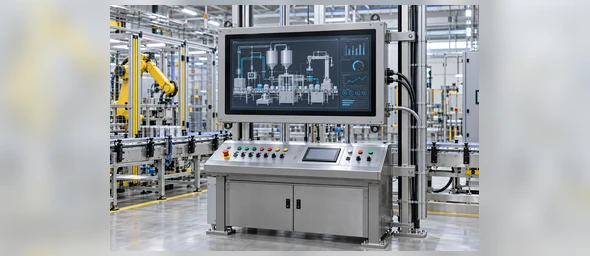
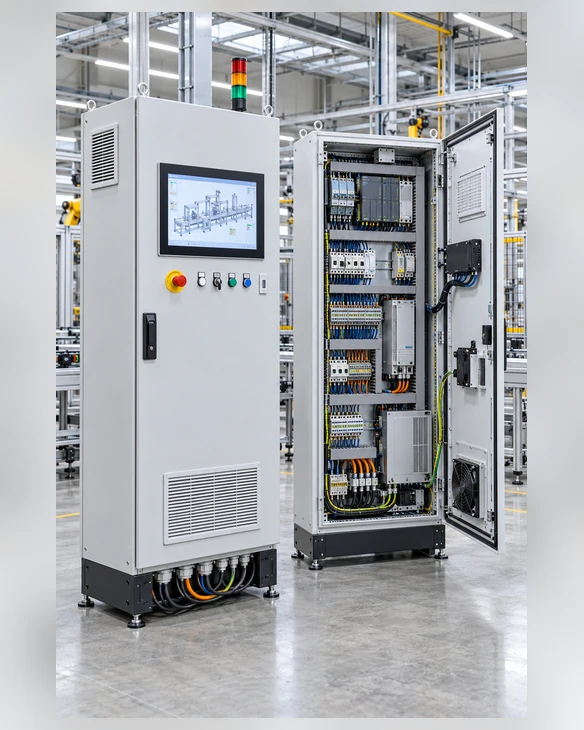
Open-frame touchscreen installed in an industrial control panel

Industrial Equipment and Control Panels

Recommended starting direction: Open-frame PCAP or selected resistive touch, depending on the actual input method.

Selection focus: Panel opening, gloves or stylus, external industrial PC, grounding, interfaces and service access.

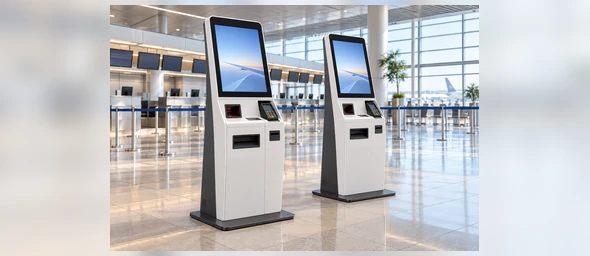
Touchscreen monitor integrated into a self-service kiosk

Self-Service and Check-In Systems

Recommended starting direction: Enclosed or open-frame monitor for an existing host; touchscreen computer or complete kiosk when computing and peripherals are also required.

Selection focus: User reach, printer, scanner, payment hardware, software and maintenance access.

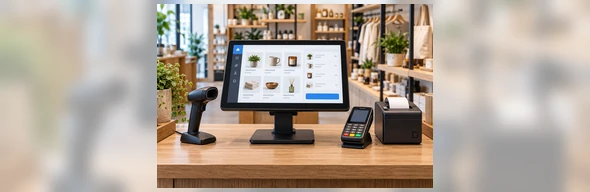
Touchscreen monitor used in a retail POS terminal

Retail and POS

Recommended starting direction: 21.5 or 23.8-inch flat or open-frame PCAP monitor.

Selection focus: Counter space, touch target size, host connections and stand stability.

Portable touchscreen used for equipment diagnostics

Portable Workstations and Diagnostics

Recommended starting direction: 12.3–16 inch portable PCAP project.

Selection focus: Weight, support structure, HDMI or USB-C, power and host compatibility.

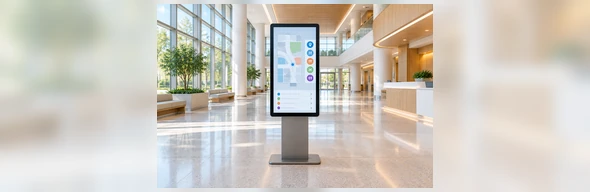
Large touchscreen information and wayfinding terminal

Information and Wayfinding

Recommended starting direction: 27, 31.5 or 43-inch flat display, touchscreen computer or complete terminal according to computing scope.

Selection focus: Viewing distance, content scale, orientation and user reach.

C-type curved touchscreen integrated into a custom cabinet

Gaming and Shaped Equipment

Recommended starting direction: J-Type or C-Type curved PCAP display.

Selection focus: Curve profile, cabinet geometry, touch mapping, software UI and maintenance space.

Open-frame touchscreen integration in a German industrial packaging-machine control cabinet

Representative Project Scenario: Industrial Control Panel Integration in Germany

Selecting the touch method and mechanical structure around an existing packaging-machine control cabinet.

Project Requirement

A German industrial equipment project required a touch display for an existing packaging-machine control cabinet. The equipment used an external Windows industrial PC, while operators needed pressure-based input when wearing work gloves.

Selection Problem

A standard enclosed monitor would have required changes to the cabinet front. The existing opening, available rear depth and internal cable route also limited the usable display structure.

Technology Direction

The project was reviewed around an open-frame touchscreen configuration. A selected resistive-touch path was evaluated because the workflow required pressure input rather than gesture-based multi-touch.

Mechanical Review

The review covered the visible display area, cabinet opening, mounting brackets, available rear clearance, connector position and cable direction.

Validation Direction

The proposed validation process included testing the screen with the intended industrial PC, control application and actual operator gloves. Cable clearance and maintenance access would also be checked after installation inside the cabinet.

Buyer Lesson:

This scenario shows why touch technology and mechanical structure should be selected together. A monitor that matches the required diagonal size can still be unsuitable when the input method, cutout, depth or cable arrangement is different.

This anonymized representative scenario combines common project requirements to explain the selection and validation process. It does not identify a specific customer or claim a published project result.

Configure the Touchscreen Around the Product Architecture

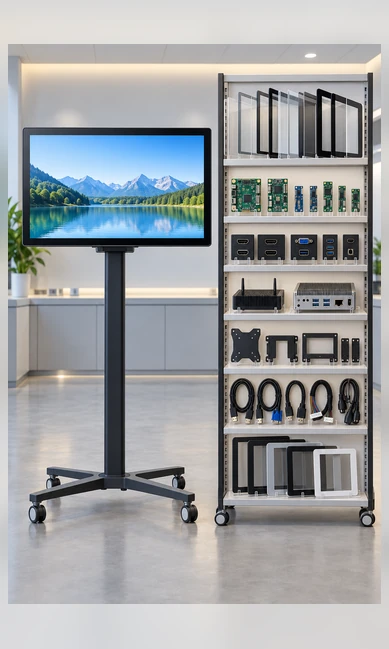
Touchscreen customization for panel, touch, glass, housing, ports and computing

Display

  • Verified flat sizes from 21.5 to 43 inches
  • Portable project sizes from 12.3 to 16 inches
  • Curved product families from 32 to 55 inches according to curve type
  • Resolution and brightness confirmed by model
  • Landscape or portrait planning

Touch

  • PCAP standard flat and documented open-frame configurations
  • Selected resistive open-frame projects
  • Touch controller matching
  • Touch-point requirements
  • Cover glass and printed border
  • Actual finger, glove or stylus validation

Mechanical Structure

  • Finished metal housing
  • Open-frame chassis
  • Side brackets or VESA
  • Portable housing and kickstand
  • Embedded panel structure
  • Curved cabinet integration
  • Custom cable direction and service access

Interfaces

  • HDMI, DisplayPort, VGA and USB according to model
  • USB-C functions confirmed by configuration
  • Project-specific control interfaces
  • Connector position and cable length

Computing

  • External host monitor
  • Integrated Windows, Android or Linux computer
  • Memory, storage and CPU selected around the application
  • Peripheral coordination

Brand Appearance

  • Logo placement
  • Printed border
  • Housing color and finish
  • Approved labels and packaging

From Application Requirements to an Approved Touchscreen Type

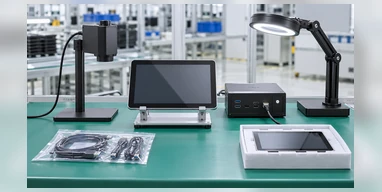
Touchscreen application requirement review

1. Application Review

Define the user, workflow, host system, installation, environment and estimated quantity.

Touch technology selection icon

2. Touch Technology Selection

Evaluate PCAP, resistive or another required sensing method around the real input method.

Touchscreen product architecture selection icon

3. Product Architecture

Choose an enclosed monitor, open frame, portable display, all-in-one, kiosk or curved product.

Touchscreen mechanical drawing review icon

4. Drawing and Interface Review

Confirm active area, outer size, cutout, depth, mounting, ports, power and cable clearance.

Touchscreen sample and application validation icon

5. Sample Validation

When included in the project, test the actual host, application, input method and enclosure.

Touchscreen production and inspection icon

6. Production and Inspection

Produce against the approved configuration and inspect the agreed functions and appearance before delivery.

The sample, documentation, validation and delivery scope are confirmed separately for each project.

Manufacturing and Inspection Behind the Selected Type

Lucky-XFC has 13 years of touch display manufacturing experience, supported by a 3,100 m² facility, a production team of more than 160 people and 26 quality personnel. Products undergo inspection before delivery according to the approved model and project requirements.

Configuration Identity

Panel, touch technology, controller, housing and approved interfaces

Display Operation

Visible image and selected resolution

Touch Response

Touch recognition using the approved controller and input method

Interface Function

Video, USB touch, power and project-specific ports

Mechanical Assembly

Housing, brackets, connector access and visible appearance

Project Details

Approved labels, branding, accessories and packing list

Inspection criteria and test conditions depend on the selected product. Do not claim universal certification, zero defects or guaranteed behavior in every final equipment installation.

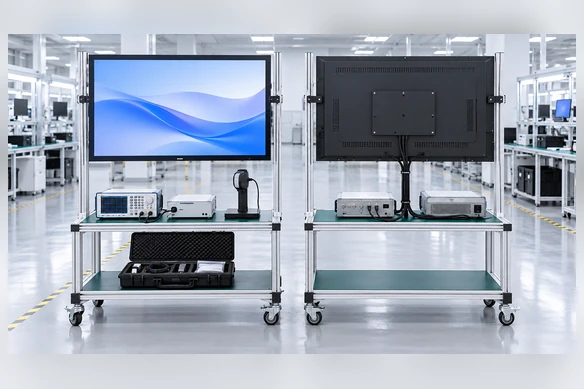
Lucky-XFC touch display manufacturing and pre-shipment inspection

Why Use Lucky-XFC for Touchscreen Type Selection?

Six touchscreen product structures

Multiple Product Architectures

Flat, open-frame, portable, integrated-computer, kiosk and curved paths allow the hardware structure to follow the equipment design.

Verified Lucky-XFC flat touchscreen monitor models

Defined Flat Starting Models

Five verified flat PCAP references provide actual sizes, model identities and Full HD starting specifications.

PCAP and resistive touchscreen options

More Than One Input Path

PCAP supports the standard flat range, while selected open-frame projects can evaluate resistive pressure input.

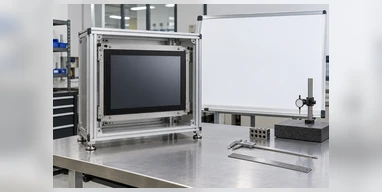
Touchscreen drawing and enclosure integration review

Drawing-Based Integration

Openings, depth, mounting points, connector positions and service clearance can be reviewed before enclosure approval.

External host, Windows, Android and Linux touchscreen computing paths

External or Integrated Computing

Projects can use an existing host or evaluate an integrated Windows, Android or Linux computing platform.

Touchscreen sample validation and pre-shipment inspection

Sample and Inspection Support

When included in the project plan, a sample provides a practical stage for checking the application, input method, interfaces and mechanical fit.

Compare Touchscreen Types by the Decisions That Matter

Decision Enclosed Monitor Open Frame Portable All-in-One Complete Kiosk Curved Monitor
External Host Required Required Required Not normally required Included by project External or integrated by configuration
Finished Housing Yes No Yes Yes or integrated Full custom enclosure Curved metal structure
PCAP Direction Verified Verified Project path Project-specific Project-specific Verified reference
Resistive Direction Confirm by model Selected project option Not standard Project review Project review Not standard
Primary Mechanical Check VESA or stand Cutout and depth Stand and ports Computing enclosure User and peripheral layout Radius and cabinet profile
Best-Fit Application POS, operator desk Machine or kiosk cabinet Mobile workstation Standalone terminal Self-service workflow Gaming and shaped equipment
Customization Focus Housing, ports, mounting Glass, brackets, cutout Housing, stand, interface CPU, OS, storage, ports Enclosure and peripherals Curve, touch mapping and cabinet
Touchscreen type selection matrix for input, structure, computing and applications

Additional compatibility checks:

  • Actual operating-system version
  • Touch controller
  • Video-output format
  • USB touch-data connection
  • Power input
  • Application scaling
  • Landscape or portrait orientation
  • Grounding and electrical noise
  • Glove or stylus behavior
  • Cable clearance

No touchscreen type is universally better. The correct choice is the one that matches the input method, product architecture, host system and installation conditions.

How to Choose Between Touchscreen Monitor Types

Touchscreen monitor type selection guide
  • 1. Define the User
  • 2. Choose the Touch Method
  • 3. Decide Where Computing Runs
  • 4. Select the Mechanical Structure
  • 5. Map Connections and Power
  • 6. Validate the Complete System

Required Information

  • Application
  • User input method
  • Required touch points
  • Screen size
  • Resolution
  • Product structure
  • External or integrated computer
  • Operating system
  • Video, touch and power interfaces
  • Installation drawing
  • Operating conditions
  • Estimated quantity

Guide 1 — Define the user

Identify whether the interface is operated with a bare finger, conductive stylus, non-conductive stylus or work gloves. Define whether the workflow needs simple button presses or multi-finger gestures.

Guide 2 — Choose the touch method

Use PCAP as a starting direction for modern gesture-based interfaces. Evaluate resistive touch for pressure input. Consider IR, optical or SAW only when the application requirements justify them and a suitable product has been confirmed.

Guide 3 — Decide where computing runs

A monitor uses an external host. An all-in-one integrates computing hardware. A complete kiosk adds the enclosure and peripherals. Confirm this architecture before comparing screen specifications.

Guide 4 — Select the mechanical structure

Choose enclosed for external mounting, open frame for cabinet integration, portable for mobile use and curved for intentionally shaped equipment.

Guide 5 — Map connections and power

Record the video signal, touch-data interface and power connection separately. USB-C combines functions only when the host, cable and display support the required modes.

Guide 6 — Validate the complete system

Test the selected display with the real host, operating system, application, input method, enclosure and cables. Recheck touch mapping after the final resolution and orientation are set.

Types of Touch Screen Monitor FAQs

What are the main types of touchscreen monitor?
Touchscreen monitors can be classified by sensing technology, mechanical structure and computing architecture. Common sensing technologies include PCAP, resistive, infrared, optical imaging and SAW. Product structures include enclosed, open-frame, portable, all-in-one, kiosk and curved displays.
What is the difference between PCAP and resistive touch?
PCAP detects changes in an electrical field and commonly supports multi-touch gestures. Resistive touch responds to physical pressure and can be operated with a finger, glove or suitable stylus. The correct choice depends on the input method and application.
Is multi-touch a type of touch technology?
No. Multi-touch is a system capability describing how many touch points can be recognized simultaneously. PCAP, infrared and other systems may support multi-touch when the sensor, controller, operating system and application are compatible.
Which touch technology works with gloves?
Resistive touch responds to pressure and is a common direction for glove or stylus input. Some PCAP systems may work with compatible gloves, but performance must be tested with the selected controller, cover glass and actual gloves.
What is an open-frame touchscreen monitor?
It combines the LCD, touch sensor, controller and display electronics inside an open chassis designed for installation behind a machine panel or custom enclosure. It normally requires an external computer.
What is the difference between a touchscreen monitor and touchscreen computer?
A touchscreen monitor provides display and touch functions for an external host. A touchscreen computer also includes a motherboard, memory, storage and an operating system according to configuration.
When should I choose a complete kiosk?
Choose a complete kiosk when the project also needs a custom enclosure, computing hardware and peripherals such as printers, scanners, readers, cameras or payment-device mounts.
Which touchscreen type is suitable for industrial equipment?
The answer depends on the operator input, cabinet structure, host computer and environment. Open-frame PCAP suits many modern interfaces, while selected resistive configurations can be evaluated for pressure-based glove or stylus input.
Which touchscreen monitor sizes does Lucky-XFC offer?
Verified flat starting models include 21.5, 23.8, 27, 31.5 and 43 inches. Portable project options include 12.3 to 16 inches. Curved product families include selected 32 to 55-inch formats depending on curve type.
Does Lucky-XFC offer infrared or optical touchscreen monitors?
PCAP is the verified standard direction for the current flat range, and selected open-frame projects can evaluate resistive touch. Infrared and optical technologies should not be treated as standard Lucky-XFC product lines without project-specific confirmation.
Does a touchscreen monitor include an operating system?
A standard monitor does not normally include its own operating system. The software runs on the connected host. Choose a touchscreen computer or complete kiosk when integrated computing is required.
What information is needed for a quotation?
Provide the application, screen size, user input method, required touch points, product structure, host computer, operating system, interfaces, installation dimensions, operating conditions and estimated quantity.

Select the Right Touchscreen Monitor Type for Your Project

Share the application, input method, product structure, host system and installation requirements. Lucky-XFC can use these details to identify a verified starting model or a project-specific configuration.

Useful information:

  • • Application
  • • Finger, glove or stylus input
  • • Single-touch or multi-touch requirement
  • • Required screen size
  • • Enclosed, open-frame, portable, all-in-one, kiosk or curved format
  • • External or integrated computer
  • • Operating system
  • • Video, touch and power connections
  • • Installation dimensions or drawing
  • • Operating conditions
  • • Estimated quantity
Custom touchscreen monitor configuration review

Request a Touchscreen Type Recommendation

Final product availability, specifications and commercial terms are confirmed for the selected model and project configuration.