DisplayPort Touchscreen Monitor Manufacturer for External-Host Integration
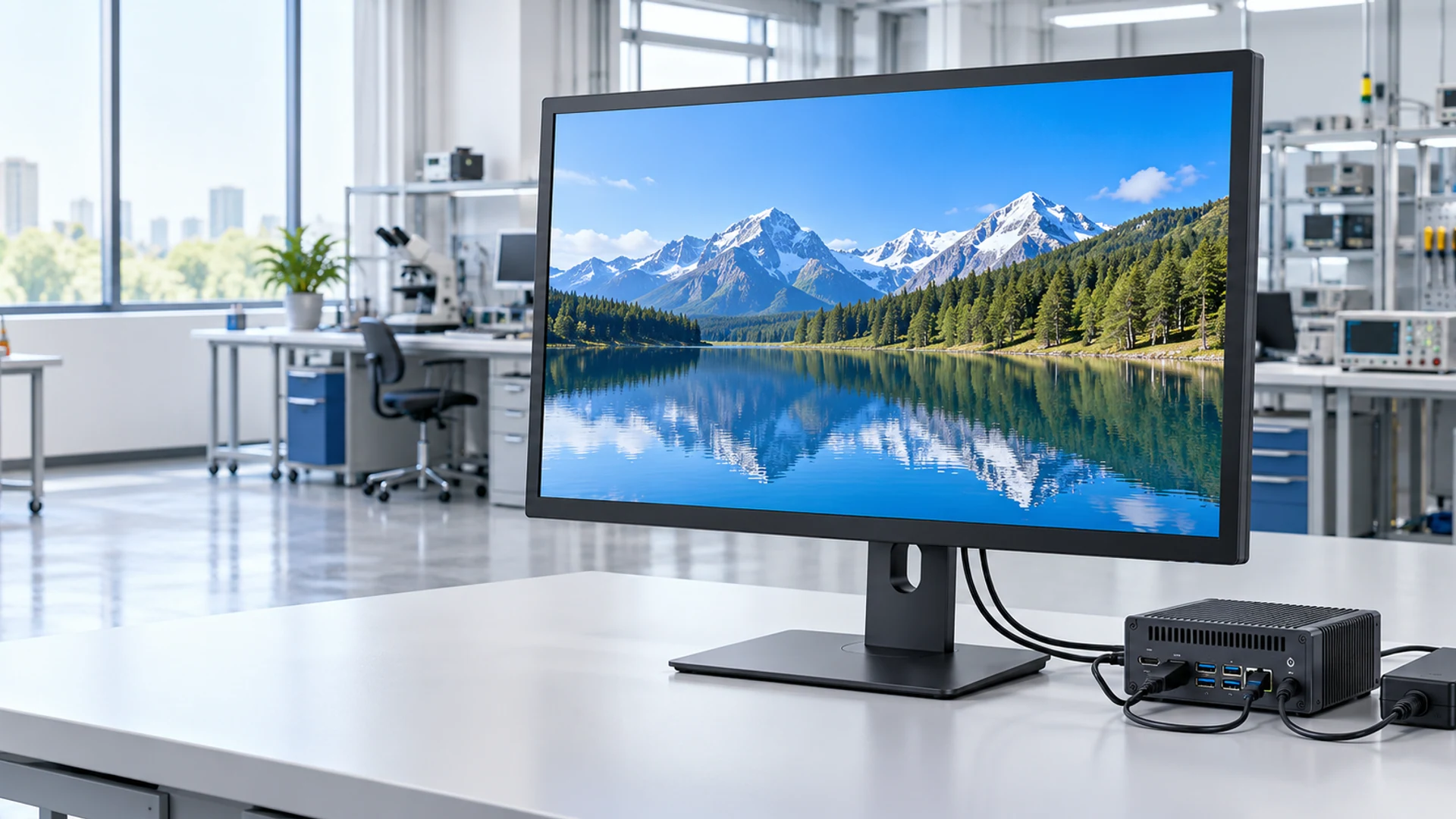
Connect an industrial PC, workstation or embedded host to a verified DisplayPort touchscreen monitor configuration. Lucky-XFC provides 21.5-inch, 27-inch and 43-inch DisplayPort product starting points with PCAP touch, open-frame integration and model-based interface review.
- Verified 21.5", 27" and 43" DisplayPort starting points
- Full HD and model-dependent 4K configuration paths
- Separate video, touch-data and power verification
- Open-frame and project-reviewed finished-housing options
How a DisplayPort Touchscreen Monitor Connection Works
DisplayPort carries the image from the host to the monitor. In a documented Lucky-XFC external-host configuration, DisplayPort video alone does not establish touch input. Touch coordinates normally return to the host through a separate USB or approved controller connection. The monitor also requires its confirmed power input.
DisplayPort Video
Carries the image from the host’s DisplayPort output to the monitor’s confirmed DisplayPort input.
Touch Data
Returns touch coordinates to the host through USB or another approved touch-controller interface.
Monitor Power
Supplies the display electronics and touch hardware according to the approved model specification.
External Host
Runs the operating system, application and touch-enabled software. The monitor does not include a computer unless explicitly configured.
Choose a DisplayPort Touchscreen Monitor Configuration
27-Inch Open-Frame DisplayPort Touchscreen Monitor
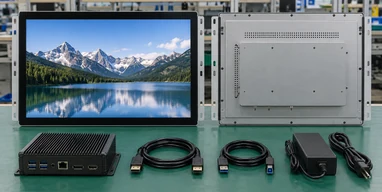
XFC-OF270-PCAP combines a 27-inch Full HD display, 10-point PCAP touch, DisplayPort/HDMI/VGA video inputs, side brackets and VESA mounting for equipment and enclosure integration.
Full HD external-host system
Side-bracket or VESA integration
21.5-Inch Industrial DisplayPort Touchscreen Monitor
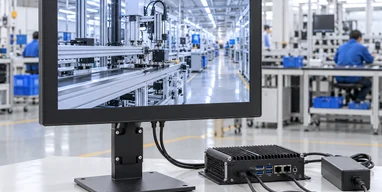
XFC-IM-215O provides a compact 21.5-inch Full HD PCAP open-frame direction with DisplayPort, HDMI and VGA video inputs.
Smaller equipment opening
Industrial PC or embedded host output

43-Inch Large-Format DisplayPort Touchscreen Monitor
XFC-OF430-PCAP provides a 43-inch PCAP product direction with HDMI and DisplayPort inputs. Full HD or 4K must be confirmed by configuration.
Viewing and touch distance
Full HD or confirmed 4K configuration

Finished-Housing Multi-Input DisplayPort Touchscreen Monitor
A project-reviewed direction for buyers requiring a complete external enclosure, VESA or desktop installation and a confirmed DisplayPort input alongside other video connections.
Finished enclosure and installation
Required input combination
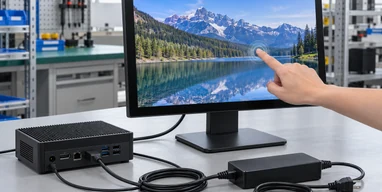
DisplayPort Carries Video
Treat DisplayPort as the video path. The selected monitor, host output, resolution and cable must support the same signal requirement.

Touch Data Requires Separate Verification
Confirm USB or the approved controller interface independently. A working DisplayPort image does not by itself confirm touch operation.
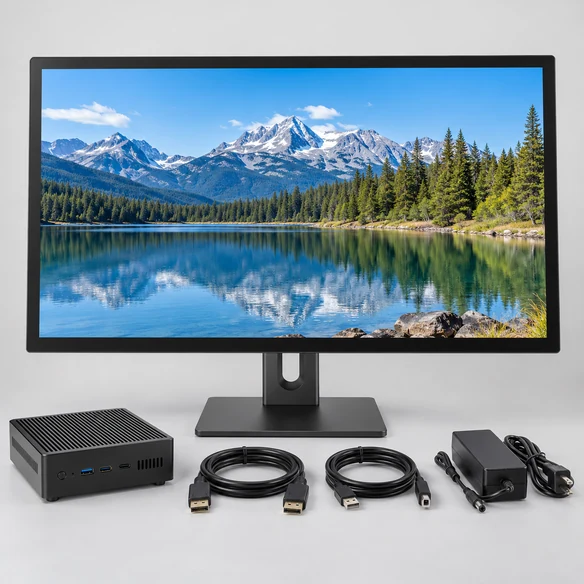
27-Inch DisplayPort Touchscreen Monitor Starting Model
XFC-OF270-PCAP is the primary DisplayPort touchscreen monitor for this page because its DisplayPort input is documented at model level. Do not transfer this interface claim to TP270-JX-DR-02 or another 27-inch monitor without a separate model specification.
| Specification | XFC-OF270-PCAP |
|---|---|
| Display size | 27 inch |
| Resolution | 1920 × 1080 |
| Touch technology | 10-point PCAP |
| Reference brightness | 300 nits |
| Video inputs | HDMI, DisplayPort, VGA |
| Mounting | Side brackets and VESA |
| Product structure | Open frame |
| Computer included | No |
| Host architecture | External computer or compatible controller |
| Touch-data interface | Confirm in approved specification |
| Power input | Confirm in approved specification |
| DP version | Not verified; confirm before quotation |
| Dimensions and active area | Confirm from approved drawing |
DisplayPort Touchscreen Monitor Compatibility Risks
| Buyer situation | Possible consequence | Required review |
|---|---|---|
| Monitor selected from size alone | The required DisplayPort input may not exist on that model | Verify the exact model and documented input list |
| DP cable connected without USB touch | The image works but touch input does not | Confirm the separate touch-data connection |
| Adapter selected without checking direction | The source and display may not establish a signal | Confirm source, destination and active/passive conversion |
| 4K assumed from the connector name | The complete signal chain may not support the required resolution | Confirm host, controller board, monitor configuration and cable |
| USB-C and DisplayPort treated as automatically interchangeable | Video, touch or power may be missing | Confirm Alt Mode and conversion direction |
| OS compatibility assumed | Touch gestures or calibration may not work as expected | Validate the exact host OS and controller |

Verified DisplayPort Touchscreen Monitor Models
| Product path | Model | Size | Resolution | Touch | Documented video inputs | Status |
|---|---|---|---|---|---|---|
| Industrial open frame | XFC-IM-215O | 21.5" | 1920×1080 | PCAP | HDMI, DP, VGA | Verified starting model |
| Main product | XFC-OF270-PCAP | 27" | 1920×1080 | 10-point PCAP | HDMI, DP, VGA | Verified starting model |
| Large open frame | XFC-OF430-PCAP | 43" | FHD or 4K by configuration | 10-point PCAP | HDMI, DP | Configuration confirmation required |
| Finished housing | Project-reviewed configuration | Confirm by project | Confirm by project | Confirm by model | DP plus selected inputs | Verified customization path |
DisplayPort Video, USB Touch and Power Paths

- External Host DisplayPort Output → Monitor DisplayPort Input
- Monitor Touch Controller → USB or Approved Touch Data → External Host
- Approved Power Source → Monitor Power Input
These paths must be confirmed separately even when the connectors are located on the same monitor. The host must output the required video signal, receive the touch data and run the application.
DisplayPort vs HDMI, VGA and USB-C Touchscreen Monitor
Connector shape or adapter availability does not prove end-to-end compatibility. Select the page and product according to the host’s native output and the verified monitor input.
| Interface direction | Primary page intent | Video type | Touch-data implication | Selection priority |
|---|---|---|---|---|
| DisplayPort | Digital host and industrial/commercial integration | Digital video | Normally confirmed separately | DP input, resolution, cable and adapter direction |
| HDMI | General digital-video connection | Digital video | Normally confirmed separately | HDMI version and host/display support |
| VGA | Legacy computer and controller integration | Analog video | Separate touch connection | Native VGA output or correct converter |
| USB-C | Multifunction host connection | May carry video through supported Alt Mode | May carry touch data in supported configurations | Host port capability, cable and power roles |
Resolution Planning for a DisplayPort Touchscreen Monitor
Full HD path
XFC-IM-215O and XFC-OF270-PCAP provide documented 1920 × 1080 starting points.
43-inch resolution path
XFC-OF430-PCAP may be configured for Full HD or 4K. The exact monitor configuration must be confirmed.
End-to-end verification
The host output, DisplayPort controller, monitor panel, selected cable and any adapter must support the required resolution and refresh rate.
Scaling and application review
Confirm how the operating system and application scale text, controls and touch targets at the selected resolution.

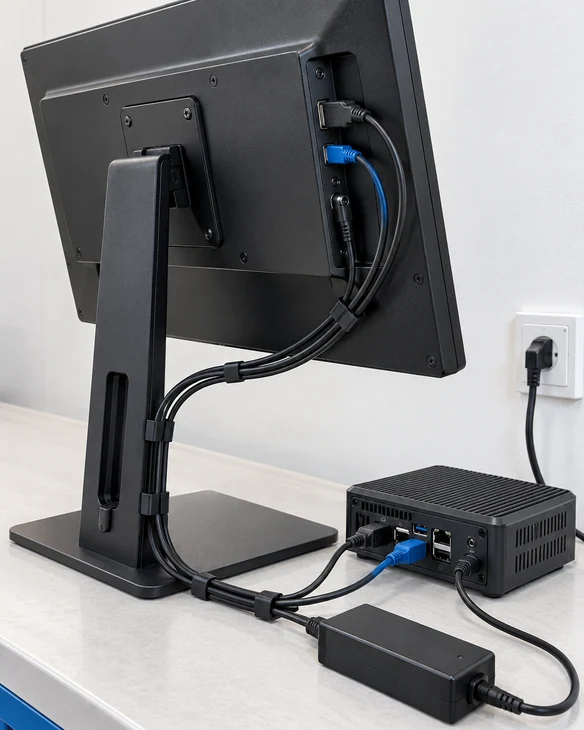
DisplayPort Touchscreen Monitor Cable and Adapter Direction
- Full-size DisplayPort and Mini DisplayPort must not be treated as the same connector
- A cable or adapter may be directional
- DisplayPort source to HDMI display is not automatically equivalent to HDMI source to DisplayPort display
- USB-C to DisplayPort requires a compatible USB-C video output
- DisplayPort to USB-C display paths may require specialized active conversion
- Adapter power requirements must be checked
- Cable length and routing can affect signal stability
- Video conversion does not automatically convert touch data
- Touch USB must still reach the host
- Test the actual host, cable and monitor combination before batch deployment
DisplayPort Touchscreen Monitor Applications

1. Industrial Workstations
Connect a DisplayPort-equipped industrial PC to a PCAP monitor for operator interaction.

2. OEM Equipment Cabinets
Integrate the open-frame monitor behind a machine or cabinet bezel.

3. Self-Service Terminals
Use a verified DP monitor with an external host running the terminal application.

4. Control Rooms
Connect to compatible workstations where direct touch input supplements keyboard and mouse operation.

5. Product & Info Displays
Use 27-inch or 43-inch directions according to viewing distance, installation and interaction requirements.

6. Engineering Stations
Display drawings, dashboards or control interfaces from a DisplayPort-equipped host after resolution and touch validation.
Representative DisplayPort Touchscreen Monitor Integration Scenario
"An equipment integrator is designing a control cabinet around a 27-inch touch interface. The industrial PC provides DisplayPort video, while the application requires multi-touch operation through the host operating system."
Evaluation Process:
- Select XFC-OF270-PCAP as the starting model
- Confirm 1920 × 1080 host output
- Connect the host’s DisplayPort output to the monitor’s DP input
- Plan the separate approved USB touch-data path
- Confirm power, cable direction and rear clearance
- Review the enclosure drawing and side-bracket installation
- Validate the actual host, cable, OS and touch application
- Approve the sample before enclosure production
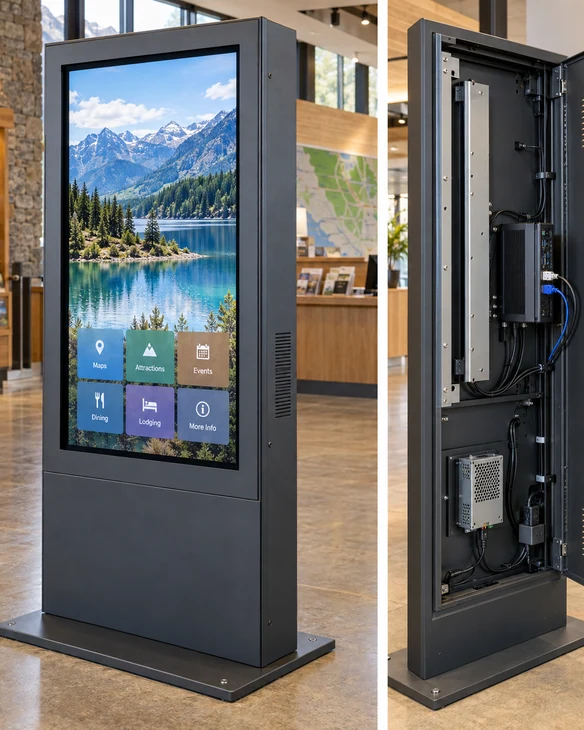
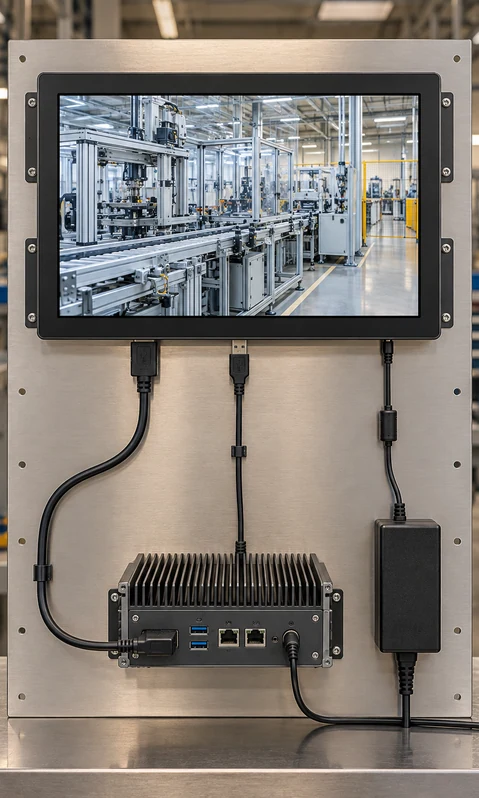
Touch Data for a DisplayPort Touchscreen Monitor
DisplayPort supplies the video signal on the documented models, while the touch controller sends coordinate data to the external host through a separately approved connection. USB is a common touch-data path, but the exact interface must be confirmed for the selected model.
Reminder: A visible image is not proof that touch data is connected. A working USB connection is not proof that the host is using the intended video input.
DisplayPort Touchscreen Monitor Validation Workflow

1. Identify the Host Output
Record the computer, graphics output and required resolution.

2. Select a Verified DP Model
Choose XFC-IM-215O, XFC-OF270-PCAP or XFC-OF430-PCAP.

3. Define the Video Path
Confirm native DP connection or the exact adapter direction.

4. Define the Touch Path
Confirm USB or the approved touch-controller connection.

5. Review Mechanics & Power
Check enclosure, mounting, cable clearance and power input.

6. Validate the Combination
Test the host, cable, monitor, OS and application before volume deployment.
DisplayPort Touchscreen Monitor Quality and Connection Inspection
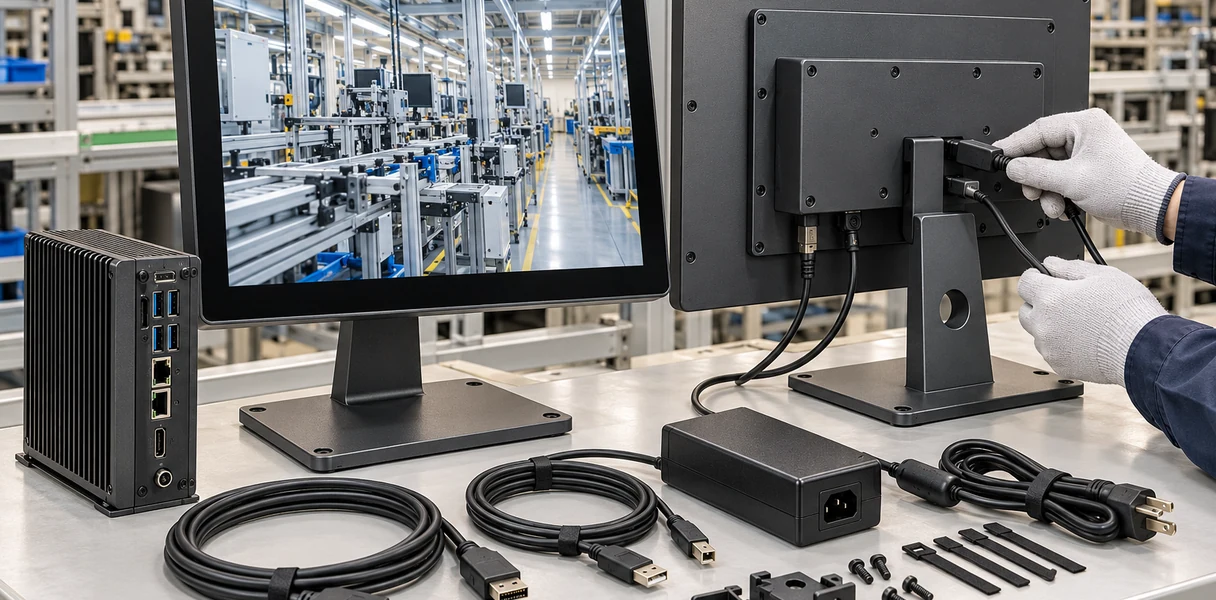
Before shipment or deployment, observable checks ensure the configured model meets the documented hardware requirements.
- Model and label verification
- DisplayPort input connection check
- Image display at the approved test resolution
- Touch response and coordinate check
- USB touch-data connection check
- Power-on and control check
- Housing, open-frame and mounting-area inspection
- Connector appearance inspection
- Accessory and cable verification against the order
- Appearance and packaging inspection
Why Source a DisplayPort Touchscreen Monitor from Lucky-XFC

Model-Level DisplayPort Evidence
DisplayPort is assigned only to models whose documented input list includes DP.

Three Verified Size Directions
The page provides documented 21.5-inch, 27-inch and 43-inch starting points.

Open-Frame Integration Options
Side brackets, VESA or model-specific open-frame structures support equipment and enclosure projects.

Separate Signal-Path Review
Video, touch data and power are treated as independent project requirements.
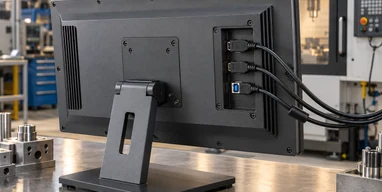
Multi-Input Starting Models
Selected verified models combine DisplayPort with HDMI and VGA for host-transition or service requirements.

Project-Based Finished-Housing Review
A finished external monitor may be evaluated without falsely assigning DisplayPort to an unverified standard model.
DisplayPort Touchscreen Monitor Selection Matrix
| Requirement | Recommended path | Verified basis | Must still be confirmed |
|---|---|---|---|
| Compact Full HD industrial integration | XFC-IM-215O | 21.5", FHD, PCAP, HDMI/DP/VGA | Touch points, brightness, drawing |
| Primary 27-inch DP project | XFC-OF270-PCAP | FHD, 10-point PCAP, HDMI/DP/VGA | Touch-data interface, power, dimensions |
| Large-format interaction | XFC-OF430-PCAP | 43", 10-point PCAP, HDMI/DP | FHD or 4K configuration, final drawing |
| Finished external monitor | Custom reviewed configuration | Enclosure and interface customization path | Exact model, DP input and all specifications |
| Existing DP host with no adapter preferred | Native-DP verified model | Direct host-to-monitor video path | Cable and touch-data path |
| HDMI/VGA host retained as backup | Multi-input verified model | Model-specific HDMI/DP/VGA combination | Input switching and project behavior |
| USB-C-only host | Compatibility review | May require USB-C video capability or adapter | Alt Mode, direction, power and touch |
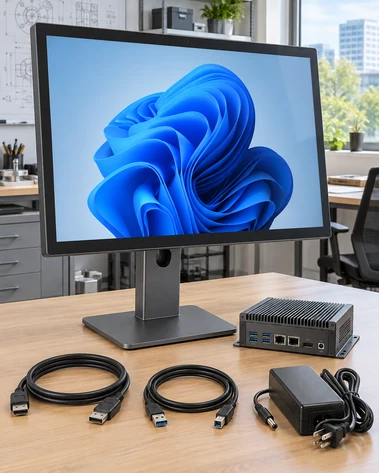
DisplayPort Touchscreen Monitor Buyer Checklist
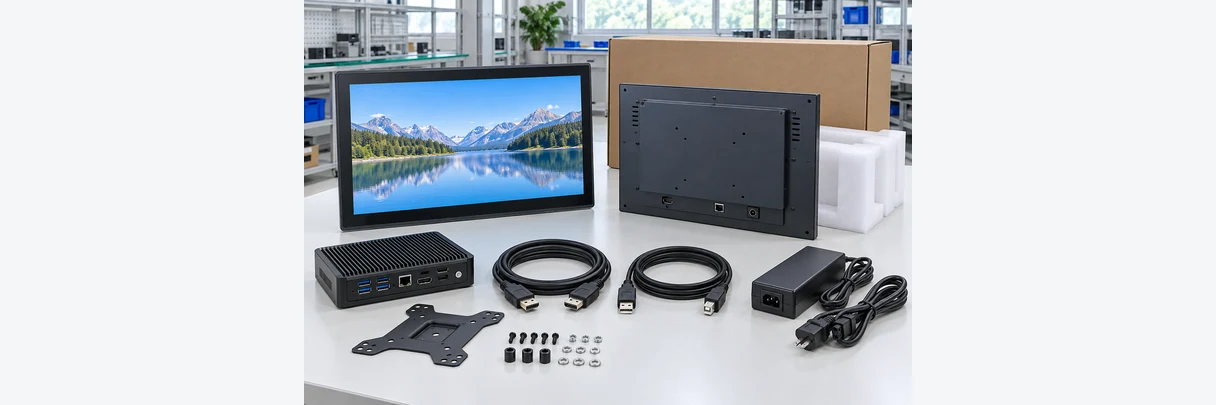
Prepare the following information to expedite your configuration review:
DisplayPort Touchscreen Monitor FAQ
1. Does DisplayPort carry touchscreen input?
2. Which Lucky-XFC models have verified DisplayPort inputs?
3. What is the main DisplayPort touchscreen monitor on this page?
4. Does the DisplayPort touchscreen monitor include a computer?
5. Can the 43-inch model support 4K?
6. Can DisplayPort be converted to HDMI?
7. Can USB-C be connected to a DisplayPort touchscreen monitor?
8. Does every 27-inch Lucky-XFC monitor have DisplayPort?
9. Does a DisplayPort connector guarantee the required resolution?
10. What should be tested before ordering multiple units?
Related DisplayPort Touchscreen Monitor Resources
27 Inch Touchscreen Monitor
Review size, structure and application selection.

Open Frame Touch Monitor
Explore integration options behind equipment bezels.
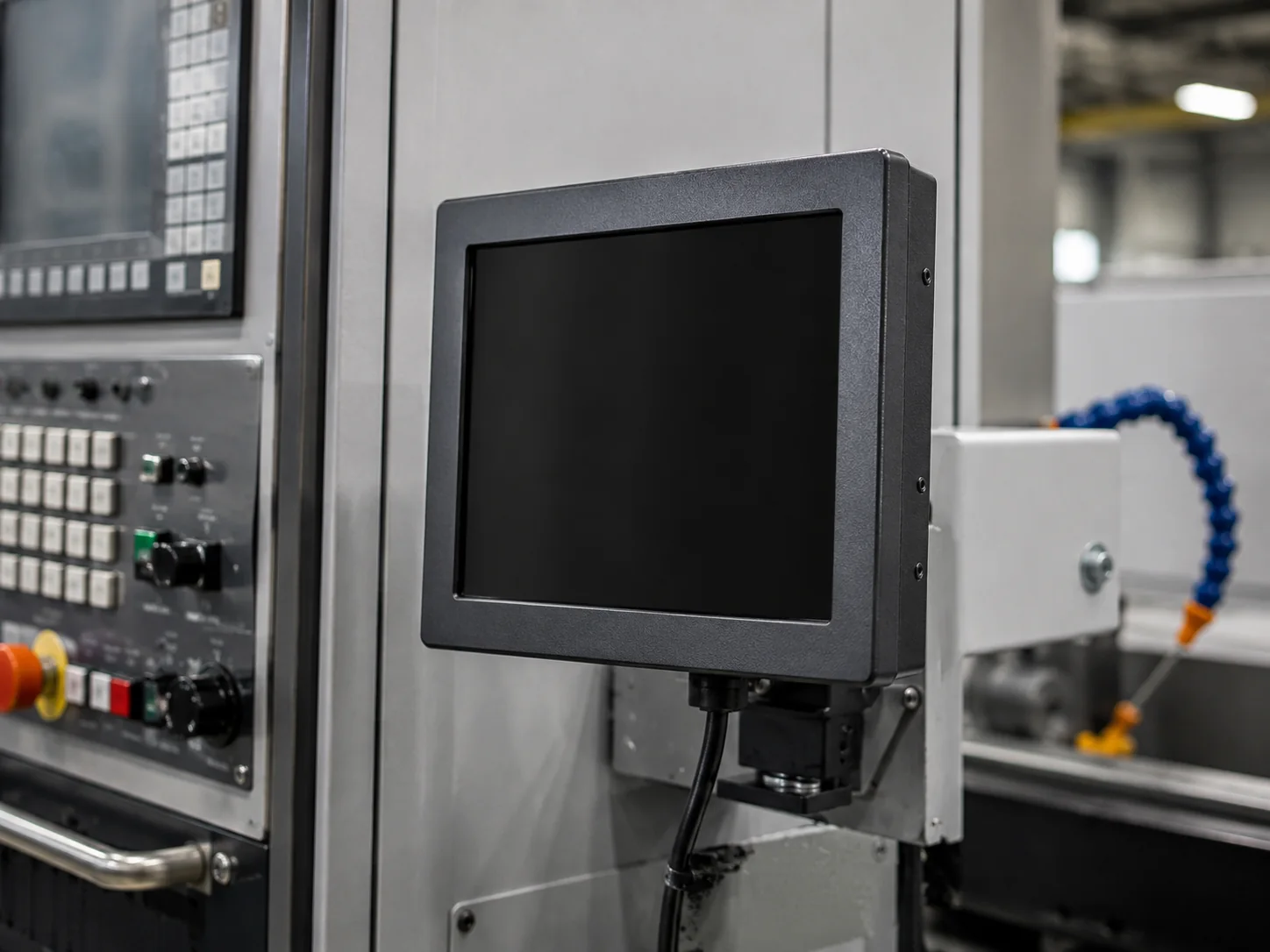
Industrial Monitors
Check small-format and robust display solutions.

HDMI Touchscreen Monitor
Compare digital video paths and HDMI host compatibility.
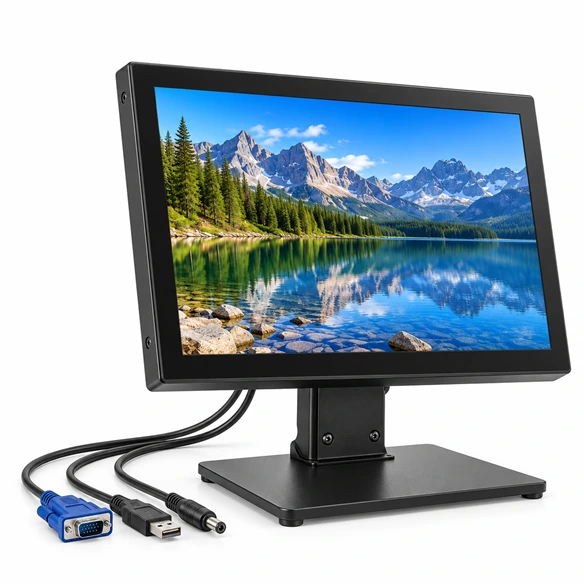
VGA Touchscreen Monitor
Review analog signal connections for legacy hosts.
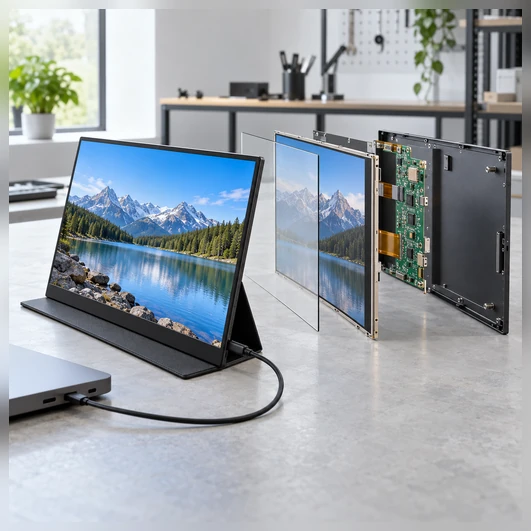
USB-C Touchscreen Monitor
Understand Alt Mode video, touch and power combinations.
Request a DisplayPort Touchscreen Monitor Quote
Share your host output, required screen size, resolution, touch requirements and installation structure. Lucky-XFC will use the verified model paths and supplied system information to review an appropriate DisplayPort touchscreen monitor configuration.