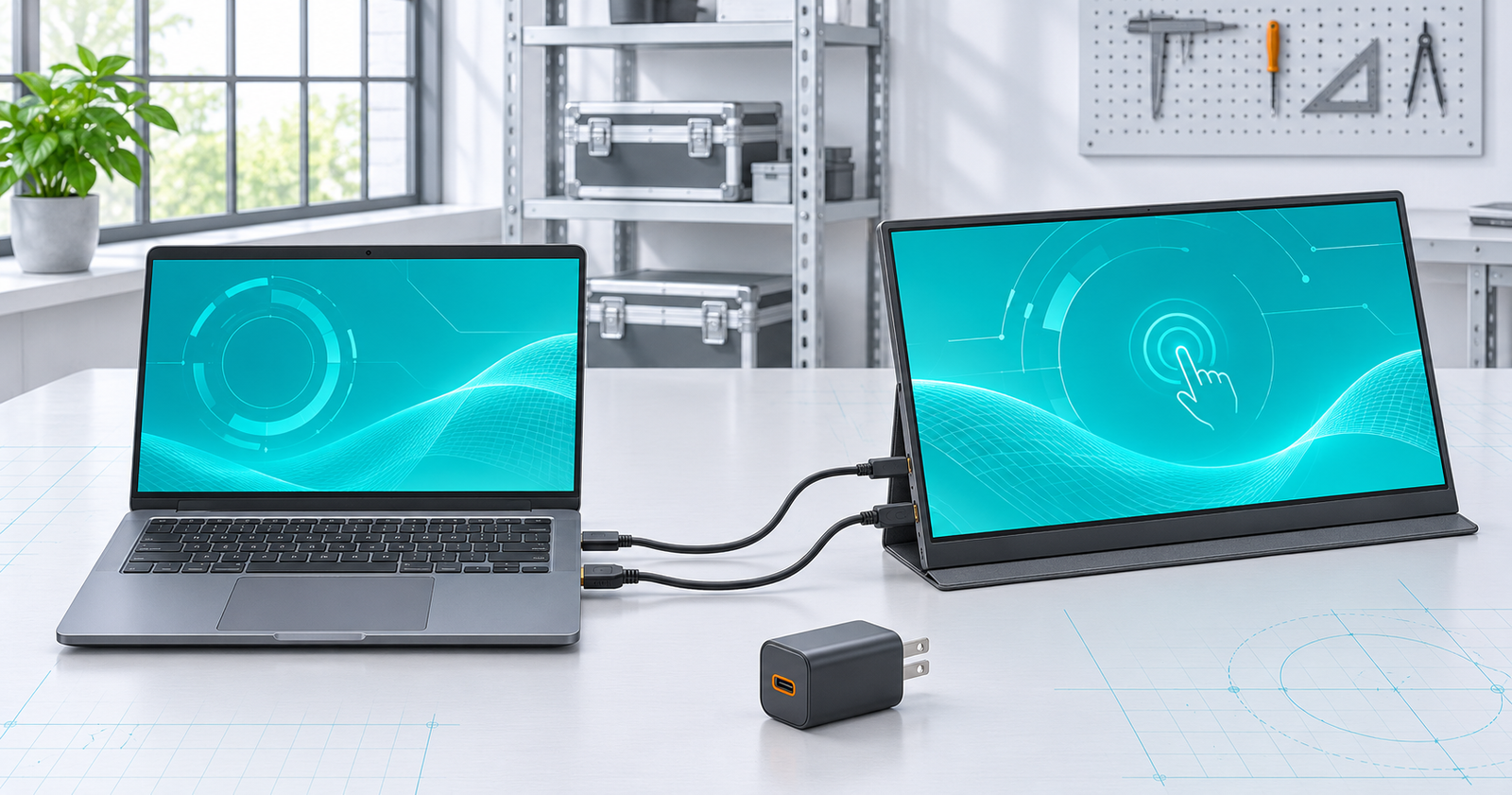
A USB powered monitor is a display that receives some or all of its operating power through a USB connection instead of relying only on a conventional AC adapter or dedicated DC input. It is commonly used as a portable second screen, a compact service display, or an auxiliary interface for commercial and industrial equipment.
The term describes the power source, not necessarily the video connection. One USB-C cable may carry power and video in a correctly matched system, but another monitor may use HDMI for the picture and USB only for power. Some USB monitors transmit video as USB data through a graphics chipset and driver. A touchscreen may also need a USB data path to return touch coordinates to the host.
For that reason, “USB powered” does not automatically mean “one cable,” “USB-C video,” “touch-enabled,” or “no driver required.” The complete connection must account for power, video, and any touch or peripheral data separately.
The Four Common USB Powered Monitor Architectures
| Architecture | Where power comes from | How video reaches the monitor | Typical cable arrangement | Important requirement |
|---|---|---|---|---|
| Full-featured USB-C display | A compatible host, dock, or USB-C power source | DisplayPort Alt Mode or another supported USB-C display path | One USB-C cable may carry video, data, and power | Host port, monitor, and cable must support the same functions and sufficient power |
| HDMI plus USB power | Host USB port, powered hub, or USB adapter | HDMI | One HDMI cable plus one USB power cable; touch may use the USB connection as well | USB source must provide enough power, and HDMI does not normally return touch data |
| USB graphics monitor | Host USB port or powered hub | Compressed display data through a USB graphics chipset | Often one USB-A or USB-C data-and-power cable | Compatible graphics chipset, operating system, and software or driver |
| USB-C adapter-powered display | External USB-C power adapter | USB-C video, HDMI, DisplayPort, or another input | One cable for power and another for video, or a model-specific pass-through arrangement | Power-input port and video-input port must be identified correctly |

These architectures can look similar from the outside. Two monitors may both have USB-C receptacles yet require different cables, host capabilities, or software. Procurement documents should therefore name the function of every port rather than listing connector shapes alone.
How Does a USB Powered Monitor Work?
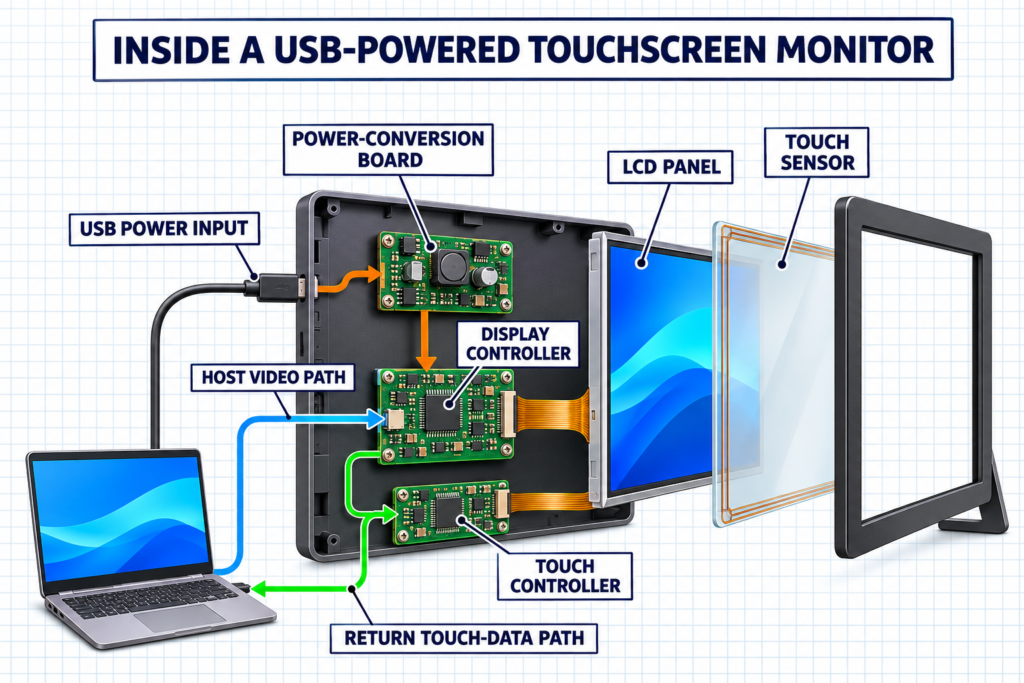
Every external monitor needs energy for the LCD or OLED panel, backlight or emissive display, controller board, interface circuits, and optional functions such as touch, speakers, or a USB hub. A USB powered design obtains that energy from a USB source and converts it into the internal voltages required by those components.
The image still needs a separate logical path. Depending on the design, the monitor receives a native display signal through USB-C DisplayPort Alt Mode, receives HDMI through a dedicated HDMI connector, or reconstructs a video stream sent as USB data by a USB graphics system.
1. The USB Source Provides Power
The source may be a laptop, desktop computer, dock, powered hub, USB charger, embedded host, or equipment power subsystem. The monitor acts as a power-consuming device for that connection.
With USB-C Power Delivery, the connected products can negotiate an appropriate power arrangement. The USB-IF overview of USB Power Delivery explains that power direction is not fixed and that compatible products can manage higher power levels over USB-C. This capability does not mean every USB-C port supplies every available power level. The source advertises what it can provide, the monitor requests what it supports, and the approved combination determines the result.
If the source cannot provide the monitor’s required startup or operating power, the display may remain off, restart, reduce brightness, flicker, or become unstable when other USB devices are added.
2. The Display Controller Receives the Image
In a full-featured USB-C configuration, the host can send a native DisplayPort signal through DisplayPort Alt Mode. VESA explains that DisplayPort over USB-C can combine audio/video, USB data, and power when the source, display, and cable support the required capabilities.
In an HDMI-plus-USB arrangement, HDMI carries the image while USB supplies power. The two functions remain electrically separate even if both cables connect to the same computer.
A USB graphics monitor works differently. Host software prepares display updates, transfers them as USB data, and a graphics chipset in the monitor decodes them for the panel. Synaptics describes this driver-based DisplayLink graphics process and lists USB monitors with graphics chipsets designed for this type of connection. This route can work without DisplayPort Alt Mode, but operating-system and driver support become part of compatibility.
3. The Panel and Electronics Create the Image
The display controller converts the received signal into the timing and pixel data required by the panel. Power-conversion circuits supply the panel, backlight, controller board, and other electronics. Brightness, resolution, refresh behavior, speakers, and integrated hubs all affect the total system load.
4. Optional Touch Data Returns to the Host
A USB powered monitor is not necessarily a touchscreen. When touch is included, a sensor detects contact and a touch controller sends coordinates back to the host. USB commonly carries this touch data.
In a full-featured USB-C touchscreen configuration, the same cable may carry video toward the monitor, touch data back to the host, and power. With HDMI, the picture normally travels through HDMI while USB carries touch data and may also supply power. This is why an HDMI-connected touchscreen can show a normal image but fail to respond to touch when its USB data connection is missing.
Does USB-C Automatically Mean the Monitor Is USB Powered?
No. USB-C identifies a connector system, not a complete feature set. A USB-C receptacle may support power input, power output, ordinary USB data, DisplayPort Alt Mode, or a selected combination. A charging cable may not carry the high-speed signals required for display video, while a video-capable port may provide less power than a particular monitor needs.
USB-IF’s USB Type-C product guidance tells manufacturers to communicate data, power, and protocol capabilities separately. In practical terms, a buyer should not approve a monitor because the host, cable, and display all have USB-C connectors. The specification should state:
- whether the host port outputs display video;
- which display protocol and operating modes are supported;
- how much power the source can provide and the monitor requires;
- whether the cable supports the required video, data, current, and length;
- whether the monitor is a power sink only or also offers pass-through charging;
- whether touch data, a USB hub, speakers, or other functions share the link.

USB Powered vs USB-C vs Portable Monitor
These terms overlap, but they are not interchangeable.
| Term | What it tells you | What it does not tell you |
|---|---|---|
| USB powered monitor | USB supplies operating power | Video protocol, connector type, touch capability, or number of cables |
| USB-C monitor | The monitor has a USB-C connection | Whether that port carries video, accepts power, provides charging, or supports touch data |
| Portable monitor | The product is designed to be moved and used as an external display | Whether it is host-powered, adapter-powered, battery-powered, or touch-enabled |
| USB touchscreen monitor | USB is involved in the touch or display system | Whether USB carries video, power, touch data, or all three |
| Docking monitor | The display includes docking functions such as USB peripherals, network, or host charging | Whether every host can use all docking features |
A portable display with an internal battery is not purely USB powered while it runs from the battery, although USB may recharge it. A desktop monitor may use USB-C for video and laptop charging while still requiring its own AC input. Conversely, a small monitor can receive power from USB-A and video from HDMI without having any USB-C connector.
What Components Are Inside a USB Powered Monitor?
The exact design varies, but a typical system contains:
- Display panel: creates the visible image and largely determines size, native resolution, brightness, viewing angle, and response characteristics.
- Backlight and driver: provide illumination for an LCD and often represent a major part of the power load.
- Display controller board: accepts USB-C video, HDMI, USB graphics, or another input and drives the panel.
- Power-management circuit: converts incoming USB power into the internal supply rails and manages startup and protection.
- USB-C controller or USB graphics chipset: handles negotiation, signal routing, or display-data decoding according to the architecture.
- Touch sensor and touch controller: optional components that detect contact and report coordinates to the host.
- Enclosure and support: protect the electronics and provide a kickstand, VESA interface, panel-mount structure, or project-specific attachment.
- Optional peripherals: speakers, buttons, USB hub ports, cameras, or other devices that add functions and consume part of the available power budget.
In equipment projects, the enclosure, connector location, strain relief, thermal path, and cable retention can be as important as the panel specification. A consumer-style side connector and loose cable may be acceptable for travel but unsuitable for a moving machine, public terminal, or service tool used repeatedly in the field.
What Are USB Powered Monitors Used For?
Portable Laptop Expansion
A compact monitor can provide a second workspace for documents, dashboards, development tools, presentations, or communications. USB power reduces the need for a separate mains adapter, especially when the host can support a validated single-cable connection.
Field Service and Equipment Commissioning
Technicians can use a portable display to configure an embedded computer, inspect machine status, or commission equipment. The project should account for the host output, available power, cable durability, stand stability, and recovery after disconnection or sleep.
Compact POS and Commercial Terminals
A small customer-facing display or operator screen may use USB power to simplify the cable arrangement. Long operating hours, cable retention, port wear, brightness, mounting, and replacement control still need evaluation.
Industrial Auxiliary Displays
An auxiliary monitor can support diagnostics, machine setup, mobile carts, or detachable control interfaces. Industrial systems may favor a regulated equipment power source or separate power input when host USB power is limited or vulnerable to interruption. Electrical noise, grounding, temperature, vibration, and cable length should be reviewed with the complete installation.
Touch-Enabled Control Interfaces
A USB powered touchscreen can combine visual output and direct input in a compact assembly. The application must support touch, and the final host, operating-system image, controller, cable, power source, and display arrangement should be tested together.

Advantages of a USB Powered Monitor
Fewer Power Accessories
Using an existing USB source can remove a dedicated adapter from a portable setup. A validated USB-C configuration may reduce the complete system to one cable.
Easier Mobile Deployment
Compact displays can travel with a laptop or service kit and operate where a convenient AC outlet is unavailable. Their value depends on the host’s battery capacity and port capability.
Cleaner Equipment Integration
USB power can simplify cable routing in a kiosk, cart, terminal, or compact enclosure. The benefit is greatest when the power source, cable, connector retention, and service method are engineered together.
Flexible Host Options
Different architectures can support different hosts. Native USB-C video offers a direct display path; HDMI plus USB power works with many conventional video sources; USB graphics can provide another option when its chipset and software are compatible.
Limitations and Engineering Trade-Offs
The Host May Not Supply Enough Power
Laptop and embedded-host ports differ. Available power can also change when a hub, dock, extension, or other peripherals share the source. A setup that starts at low brightness may become unstable at maximum brightness, during startup, or after another USB load is connected.
Host Battery Runtime Can Fall
When a laptop powers the display, the monitor becomes part of the laptop’s battery load. Higher brightness, speakers, touch electronics, and USB peripherals can shorten mobile operating time.
Cable Capability Is Easy to Misidentify
USB-C cables that look alike can support different data, video, and power functions. Long or low-quality cables can also add voltage drop or signal problems. The production cable should be treated as a controlled component, not a generic accessory.
USB Graphics Can Depend on Software
A USB graphics monitor may require a supported driver or operating-system component. Compatibility with secure corporate images, thin clients, embedded operating systems, protected content, or restricted installation policies should be checked before deployment.
One Cable Creates a Shared Failure Point
A single cable is convenient, but disconnecting it can remove video, data, and power at once. Industrial and public installations may require locking connectors, strain relief, protected routing, or a separate regulated power path.
Why Does a USB Powered Monitor Turn Off, Flicker, or Show No Image?
Start by identifying which function is missing instead of replacing cables at random.
| Symptom | Likely area to check | Practical test |
|---|---|---|
| Monitor remains completely off | Insufficient or incorrect power path | Use the specified power source and direct cable; remove unneeded hub loads |
| Power LED is on but no image appears | Host port lacks video output, wrong input selected, or unsupported cable | Confirm DisplayPort Alt Mode or connect the intended HDMI source |
| Image appears, but touch does not work | USB touch-data path is absent, connected to the wrong host, or mapped to another display | Connect the required USB data path and check touch mapping in the operating system |
| Display flickers or restarts at high brightness | Marginal power source, voltage drop, or overloaded hub | Test the approved short cable and a power source with the required operating margin |
| USB graphics monitor is not detected | Missing software, unsupported OS, USB enumeration issue, or power shortage | Confirm the chipset, approved driver, USB detection, and powered-hub requirement |
| Monitor fails after sleep or docking changes | Link renegotiation, graphics configuration, power policy, or dock compatibility | Test sleep, wake, reconnect, restart, and final multi-monitor arrangement |
The final acceptance test should use the actual host port, cable, dock or hub, power source, operating system, application, display mode, brightness setting, and optional touch connection. A bench demonstration with a different laptop and cable does not establish deployment compatibility.
How to Specify a USB Powered Monitor for a B2B Project
“USB powered monitor” is only a starting description. A useful request for quotation should include the following information.
Define the Display Requirement
State the screen size, native resolution, orientation, brightness environment, viewing distance, operating schedule, and whether the display is primarily for text, dashboards, video, or control functions.
Define the Host and Every Connection
Provide the exact laptop, industrial PC, embedded computer, dock, or controller model. Identify the selected host port and whether it supports display output. List separate requirements for:
- video from the host to the monitor;
- power from the source to the monitor;
- touch data from the monitor to the host;
- audio, USB hub, charging, or other optional functions.
Establish the Power Budget
Record the monitor’s input requirement and the source’s available output under the intended configuration. Include startup, maximum brightness, touch, speakers, hub devices, cable loss, and shared-port conditions. If the host cannot provide adequate power, plan a compatible external USB-C adapter, powered hub, or dedicated equipment supply.
Control the Cable
Specify the connector at each end, supported signal functions, power rating, length, orientation, shielding where required, retention method, and whether the cable is included. Approve and document the exact production cable used during testing.
Test the Complete Workflow
Test cold start, restart, sleep and wake, cable reconnection, dock connection, input switching, brightness extremes, multi-monitor mapping, touch calibration, and application behavior. For commercial or industrial deployments, add temperature, vibration, cleaning, electrical-noise, and endurance checks appropriate to the environment.
USB Powered Touchscreen Monitor Project Options
For touch-enabled projects, the monitor should be configured around the host and application rather than selected by connector name alone. Lucky-XFC’s USB-C touchscreen monitor project scope covers portable, enclosed, open-frame, and industrial formats, with video, touch data, power, mounting, and enclosure requirements reviewed together.
For mobile workstations, field tools, and detachable interfaces, the portable touchscreen monitor range provides 12.3, 13.3, 14, 15.6, and 16-inch project starting points. USB-C and HDMI planning, PCAP touch integration, housing, kickstand, and host compatibility are confirmed for the selected configuration.
If the system uses HDMI, remember that the image and touch input normally follow different paths. The guide to using a touchscreen with HDMI explains why USB is commonly still required for touch data and sometimes power.
Frequently Asked Questions
Can a USB port power a monitor?
Yes, when the monitor is designed for USB power and the selected port, cable, and source can provide its required input. Some monitors work directly from a host port; others need a powered hub or USB-C adapter.
Can one USB-C cable power a monitor and carry video?
Yes, if the host supports a compatible display path such as DisplayPort Alt Mode, the monitor accepts that path, the cable carries the required signals and power, and the source provides sufficient power. Connector shape alone is not enough.
Does a USB powered monitor need HDMI?
It depends on the architecture. A full-featured USB-C monitor or USB graphics monitor may not need HDMI. A design that uses USB only for power still requires HDMI, DisplayPort, or another supported video input.
Can USB-A carry monitor video?
Ordinary USB-A does not carry native DisplayPort Alt Mode. A monitor or adapter with a compatible USB graphics chipset can send display information as USB data, normally with supported software or a driver.
Is every portable monitor USB powered?
No. Portable monitors may draw power from USB, use an external adapter, include a battery, or support more than one arrangement. Check both the power input and the video path.
Does USB power also make the screen touch-sensitive?
No. Touch requires a touch sensor, controller, host data connection, operating-system support, and compatible application behavior. USB may carry touch data, but supplying power alone does not add touch capability.
Is a USB powered monitor suitable for industrial equipment?
It can be, particularly for compact auxiliary, diagnostic, or detachable interfaces. The final design should address regulated power, connector retention, cable routing, grounding, electrical noise, operating temperature, vibration, mounting, service access, and configuration control.
Plan the Power, Video, and Data Paths Together
A USB powered monitor can reduce adapters and simplify a portable or equipment-integrated display, but its connection cannot be defined by the word “USB” alone. Identify where power originates, how video is transported, whether touch data must return to the host, and which cable supports every required function. Then test the production configuration under startup, full-brightness, sleep, reconnect, and real application conditions.
Contact Lucky-XFC with the host model, selected port, screen size, resolution, touch requirement, video path, available power, cable length, mounting method, operating environment, quantity, and any equipment drawings. The engineering team can review a suitable portable, enclosed, open-frame, or industrial touchscreen monitor configuration for the project.