
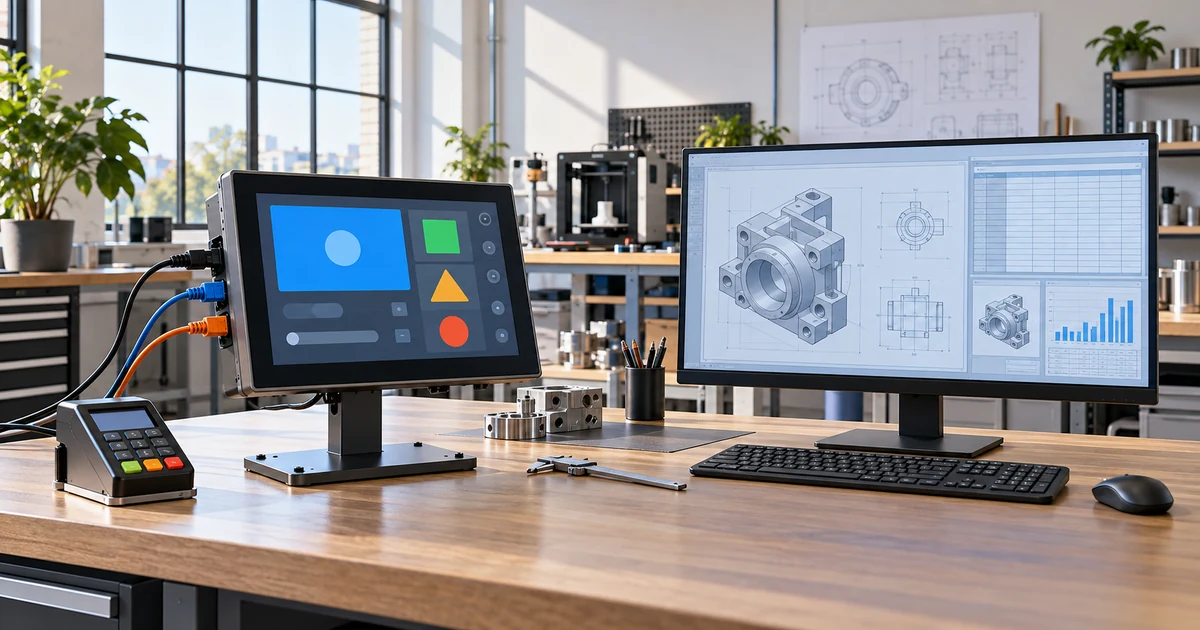
Touch screen monitors are good when direct on-screen control makes a task faster, clearer, or easier than using a mouse, keyboard, or separate button panel. They perform especially well in self-service kiosks, POS systems, industrial controls, information terminals, interactive signage, and other applications built around short visual actions.
They are less useful for long typing sessions, detailed spreadsheet work, precision CAD, passive content viewing, or any installation where the screen sits outside comfortable reach. Touch hardware cannot make desktop software with tiny controls feel naturally touch-friendly.
The practical verdict is simple: choose a touchscreen monitor when touch solves a defined workflow problem. Choose a standard monitor when the user mainly views information or works more efficiently with conventional input devices.
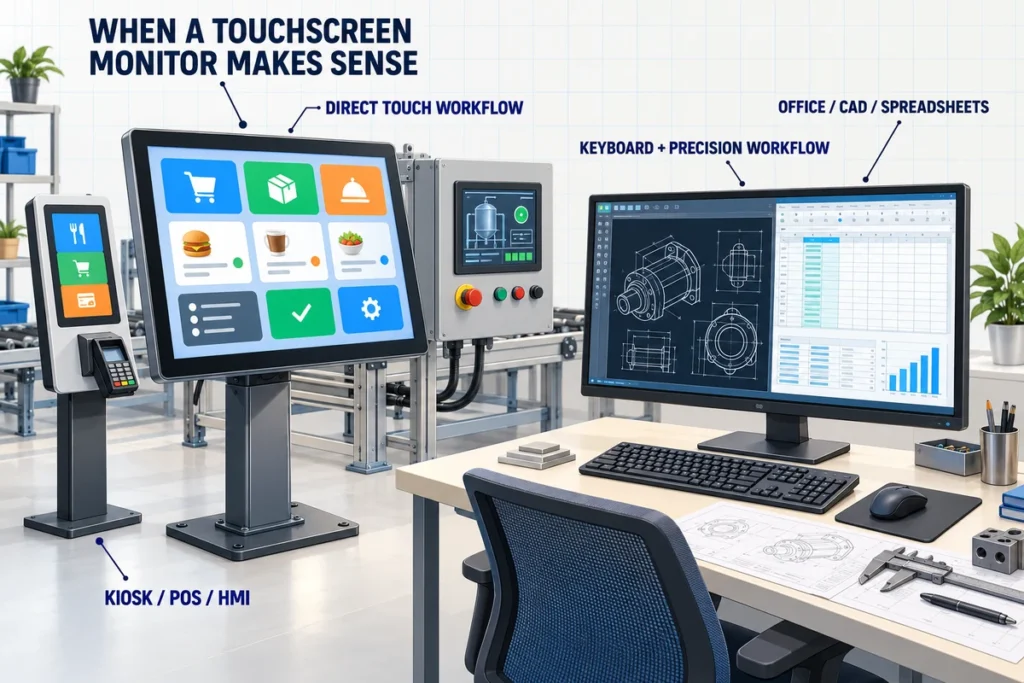
Quick Verdict by Use Case
| Use case | Are touchscreen monitors good for it? | Main reason |
|---|---|---|
| Self-service ordering and check-in | Yes | Direct choices support short, guided workflows |
| POS and retail counters | Often | Large visual buttons can speed common transactions |
| Industrial HMI and machine controls | Often | Display and input can share one compact operator surface |
| Interactive directories and wayfinding | Yes | Visitors can search and navigate information directly |
| Portable laptop extension | Sometimes | Useful when software supports touch and the host connection is compatible |
| Meeting-room annotation | Sometimes | Valuable when participants actually write or manipulate content |
| Classroom interaction | Sometimes | Depends on teaching workflow, software, screen position, and pen requirements |
| General office desktop | Usually not as the primary reason to buy | Keyboard and mouse remain efficient for typing and precision work |
| Spreadsheets and coding | Usually not | Dense controls and repeated text input favor conventional devices |
| CAD, detailed design, and professional drawing | Usually not as a finger-touch solution | Fine control may require a mouse or a compatible pen display |
| Passive digital signage | No | Touch adds cost and complexity when viewers do not interact |
| Wall display outside reach | No | A touch layer has little value when users cannot operate it comfortably |
The same monitor can be excellent in one deployment and frustrating in another. Screen quality, touch technology, software, mounting, connectivity, and user reach all influence the result.
What Does “Good” Mean for a Touchscreen Monitor?
A good touchscreen monitor does more than register a tap. It delivers predictable behavior throughout the complete user interaction.
The Interface Responds Where the User Touches
Touch coordinates should remain accurate across the active area, including the edges and corners needed by the application. The pointer or interface response should not appear on another display, drift after rotation, or become offset by scaling.
The Software Is Designed for Fingers
Buttons, fields, menus, and scroll areas need enough physical space for the intended user. A mouse pointer can select a very small target. A finger covers part of the screen and cannot provide the same precision.
Touch-friendly software should also provide visible feedback. A user needs to know that a button was pressed, a selection was accepted, or the system is processing the request.
The Input Method Matches the Touch Technology
Finger, glove, passive stylus, active pen, and pressure input are different requirements. Projected-capacitive, resistive, infrared, and dedicated pen systems do not respond to every input tool in the same way.
The Screen Is Inside a Comfortable Reach Zone
A touchscreen can feel natural on a kiosk or angled counter and tiring on a conventional desktop placed too high or too far away. Mounting height, tilt, screen size, user posture, and duration of use affect comfort.
The Complete System Remains Stable
The monitor must receive video, return touch data, receive adequate power, and work with the host operating system and application. Reliable sleep, wake, restart, rotation, and USB reconnection matter as much as the first successful tap.
Touchscreen Monitor vs Standard Monitor
A fair comparison starts with equivalent display requirements and then adds the touch system.
| Decision factor | Touchscreen monitor | Standard monitor |
|---|---|---|
| Primary interaction | Direct finger, glove, or supported stylus input | Mouse, keyboard, trackball, or separate controller |
| Best workflow | Short visual selections, guided navigation, direct control | Typing, detailed pointing, passive viewing, and desktop productivity |
| Precision | Depends on target size, touch technology, and pen support | Mouse or specialized input can provide finer control |
| User learning | Can be intuitive for simple public-facing tasks | Familiar to office and technical users |
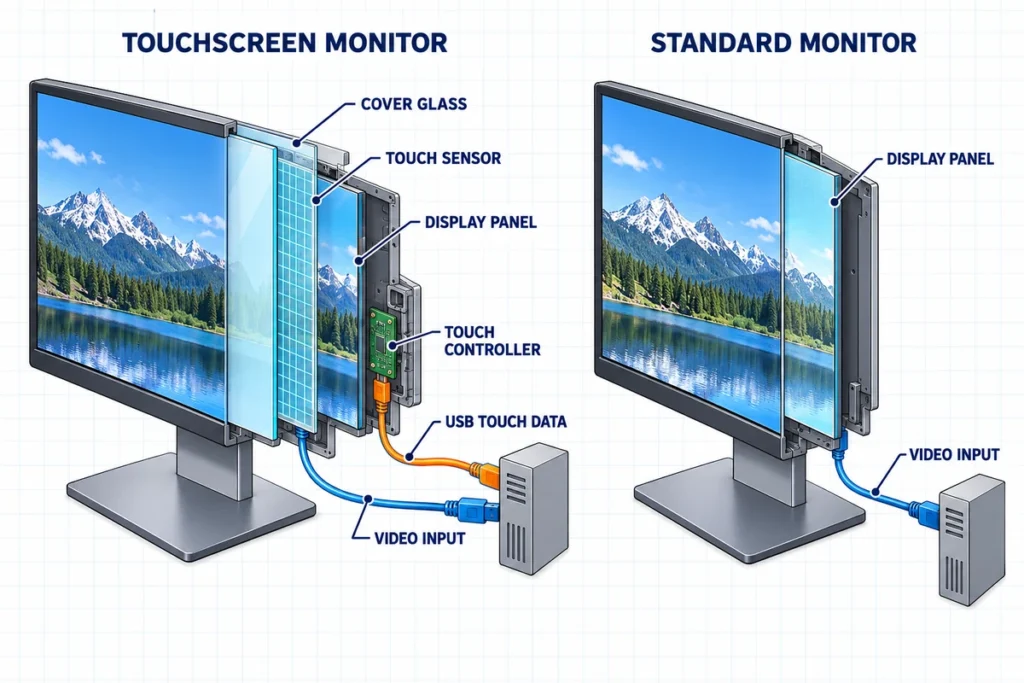
| Hardware | Adds sensor, controller, cover glass, and touch-data interface | Primarily display electronics and video interface |
| Connections | Needs video, touch data, power, and host support | Normally needs video and power |
| Software | Benefits from touch-oriented interface design | Works naturally with conventional desktop software |
| Cleaning | Front surface receives frequent contact | Screen is usually touched less often |
| Mounting | Reach, operating height, angle, and stability are critical | Viewing angle and ergonomics remain important, but direct reach is optional |
| Integration effort | Requires controller, driver, mapping, gesture, and application tests | Usually simpler when only visual output is required |
| Typical B2B fit | Kiosk, POS, HMI, interactive signage, information terminal | Office workstation, passive signage, monitoring dashboard, precision work |
The touchscreen is the better option when direct interaction removes steps or replaces separate controls. The standard monitor is better when touch adds no useful action.
What Are the Advantages of Touch Screen Monitors?
Direct and Intuitive Interaction
Users can select the object they see instead of moving a separate pointer. This can reduce learning time for short workflows such as choosing a product, finding a room, entering a queue, or acknowledging a machine message.
The advantage is strongest when the interface presents a small number of clear actions. Touch does not simplify a crowded application automatically.
Display and Input Share One Surface
Combining the visual interface and input area can reduce the need for a public keyboard, mouse, trackball, or large button panel. This can simplify a kiosk fascia, operator station, or retail counter.
Some applications still need physical controls. Emergency stops, safety functions, scanners, printers, payment terminals, and accessibility devices should be evaluated separately.
Flexible Software Controls
Physical buttons have fixed labels and functions. Software controls can change by language, user role, process step, product, or machine mode. The screen can show only the actions that apply at the current stage.
This flexibility supports updates, but it creates a software dependency. A poorly organized interface can be harder to use than a simple physical control panel.
Compact Equipment Layout
An integrated display-and-input surface can save panel space. This is useful in compact machinery, POS terminals, medical information equipment, building controls, and other installations where operators stand close to the screen.
Support for Guided Self-Service
A touchscreen can lead users through ordering, ticketing, check-in, registration, payment, or information lookup. Instructions, choices, warnings, and confirmations can appear in context.
The system still needs a clear recovery path when a user enters the wrong information, becomes inactive, or leaves midway through the workflow.
Interactive Content
Product catalogs, maps, configurators, games, training material, and presentations can become directly explorable. In these applications, touch is part of the intended experience rather than an optional substitute for a mouse.
What Are the Disadvantages?
Touch Is Less Precise Than a Mouse for Small Targets
A finger is wider than a mouse pointer and blocks the target during contact. Dense menus, narrow scrollbars, detailed timelines, CAD tools, and spreadsheet cells can be slower or less accurate to operate.
A stylus may improve control, but a basic capacitive stylus usually behaves like a finger. Pressure, tilt, hover, and reliable palm rejection require a compatible active-pen digitizer and software.
Long Typing Is Inefficient
On-screen keyboards occupy display space and provide no physical key feedback. Writing documents, coding, composing long messages, and entering large volumes of data are normally better with a physical keyboard.
Extended Arm Use Can Be Tiring
Repeatedly reaching toward an upright desktop monitor can strain the shoulder and arm. This is one reason touch did not replace the mouse and keyboard on standard desktop workstations.
An angled surface, shorter interaction, suitable mounting height, and clear task flow can reduce the problem. Ergonomics should be tested with representative users.
Fingerprints and Cleaning Increase
Frequent contact leaves fingerprints and surface marks. Public, healthcare, food-service, and industrial environments need a defined cleaning method, approved chemicals, cleaning frequency, and responsibility.
Surface coating and cover glass affect appearance and cleaning behavior. A product should not be described as suitable for a cleaning process unless its materials and sealing are appropriate for that process.
Hardware and Integration Are More Complex
The system adds a sensor, controller, touch-data cable, operating-system input device, and application behavior. Multi-monitor mapping, portrait rotation, driver support, electrical noise, grounding, and cable length can affect performance.
The Purchase Price Is Usually Higher
Touch hardware, glass, bonding, housing, controller, and testing add cost compared with a similar non-touch display. The extra cost is justified when touch improves the workflow or removes other hardware. It is difficult to justify when users only watch content.
Software Can Limit the Experience
A responsive monitor may still feel poor when the application uses small targets, hover-only controls, right-click menus, long forms, or slow feedback. Software design and hardware selection should be evaluated together.
Why Are Touchscreen Desktop Monitors Not the Default?
Touch is highly successful on phones, tablets, kiosks, and purpose-built terminals, but it has not replaced the mouse and keyboard on most desktop computers.
Several practical reasons explain the difference:
- A desktop screen usually sits farther away than a phone or tablet.
- Reaching toward a vertical display is tiring during continuous work.
- A mouse is more precise for dense desktop interfaces.
- A keyboard is faster for long text entry and shortcuts.
- Many desktop applications were designed around hover, right-click, and small controls.
- Touch adds hardware cost, cleaning, cabling, and integration requirements.
- Users often need to touch only occasionally, so the benefit may not justify the added system complexity.
This does not mean desktop touchscreens are poor products. It means general desktop work is not their strongest workflow. A desk-mounted touch monitor can still be valuable for reception, POS, audio control, lab equipment, demonstrations, accessibility, or a dedicated application with large controls.
Where Touchscreen Monitors Work Well
Self-Service Kiosks
A kiosk touch screen monitor can support ordering, ticketing, registration, check-in, payment, and information workflows. Users interact directly with the visible choices, while the enclosure can integrate printers, scanners, cameras, payment devices, or other peripherals.
The monitor, computer, software, peripherals, operating height, accessibility, and maintenance path must operate as one system.
POS and Retail Counters
Large visual buttons can support repeatable item selection and transaction steps. A touchscreen also reduces the desk area needed for a mouse.
Counter installations need a stable stand or VESA mount, suitable viewing angle, accessible ports, cable retention, and a cleaning plan.
Industrial Controls and HMIs
An industrial touch screen can combine status, guidance, alarms, and controls in one operator interface. The design can adapt to different machine modes or user roles without changing a physical button layout.
Industrial projects should define the host, touch technology, glove or stylus behavior, resolution, mounting, grounding, electrical noise, temperature, connector retention, and software lifecycle.
Safety-critical actions may still require dedicated physical controls according to the equipment design and applicable requirements.
Interactive Signage and Wayfinding
Interactive digital signage can let visitors browse products, search directories, explore maps, or navigate services. Touch adds value because the viewer becomes an active user.
If the display only plays advertising or shows a menu, a non-touch screen may be the better choice.
Information and Service Terminals
Touch can simplify room booking, queue management, visitor registration, product lookup, and service requests. The screen should use large targets, obvious progress, readable text, and a clear return-to-start process.
Meetings, Training, and Classrooms
Large touch displays can support annotation, object movement, interactive exercises, and shared review. They are good when these activities are part of the normal workflow.
They provide less value when the display is used only for slides or video. Pen behavior, multi-user writing, cameras, microphones, speakers, and collaboration software are separate requirements.
Portable and Secondary Interfaces
A portable touchscreen can provide direct controls beside a laptop, workstation, or field service tool. It can be useful for software panels, monitoring, demonstrations, or equipment commissioning.
The host must provide a compatible video path, touch-data path, and power arrangement. One-cable USB-C operation should be confirmed rather than assumed.
Where a Standard Monitor Is Usually Better
Keyboard-Heavy Office Work
Documents, email, coding, and spreadsheet entry depend on long typing sessions and shortcuts. Touch may remain a convenient secondary input, but it is rarely the main productivity tool.
Detailed CAD and Precision Editing
Small control points, layered menus, detailed selections, and accurate dragging normally favor a mouse, trackball, or purpose-built pen device.
Passive Dashboards and Signage
If the audience only reads status, watches media, or views scheduled content, touch hardware does not add a useful interaction.
Displays Mounted Beyond Reach
Wall displays installed for long-distance viewing should not include touch unless users have a safe and comfortable operating position.
Low-Cost Deployments With No Touch Workflow
When a standard monitor and existing input devices already serve the task well, the touchscreen’s higher purchase and integration cost may produce no operational benefit.
How Touch Technology Changes the Experience
The monitor category alone does not describe how it will feel to use.
Projected Capacitive Touch
PCAP detects changes in an electric field beneath the glass. It commonly supports responsive finger input, a smooth front surface, and multi-touch when the controller, operating system, and application support it.
Performance can depend on cover-glass thickness, glove type, moisture, grounding, nearby metal, controller tuning, and the selected stylus. The current Lucky-XFC flat touchscreen monitor series uses capacitive touch, with touch points and specialized input behavior confirmed by model.
Resistive Touch
Resistive systems respond to pressure on a flexible surface. They can suit deliberate single-point operation, simple stylus input, and some glove workflows.
They generally do not provide the same gesture-oriented glass-front experience as modern PCAP. Activation force, overlay wear, calibration, and stylus tip should be tested for the application.
Infrared Touch
Infrared systems detect objects interrupting a light grid around the screen. They are frequently considered for large interactive displays and can detect a finger, stylus, or other opaque object of sufficient size.
Frame design, minimum object size, contamination, edge behavior, writing performance, and ambient conditions remain product-specific.
The guide to types of touch screen monitors explains how the main sensing options differ.
Connectivity Can Decide Whether the Monitor Feels Good
An external touch monitor normally has separate functional paths:
- Video travels from the host to the display.
- Touch data returns from the controller to the host.
- Power supports the display and touch electronics.
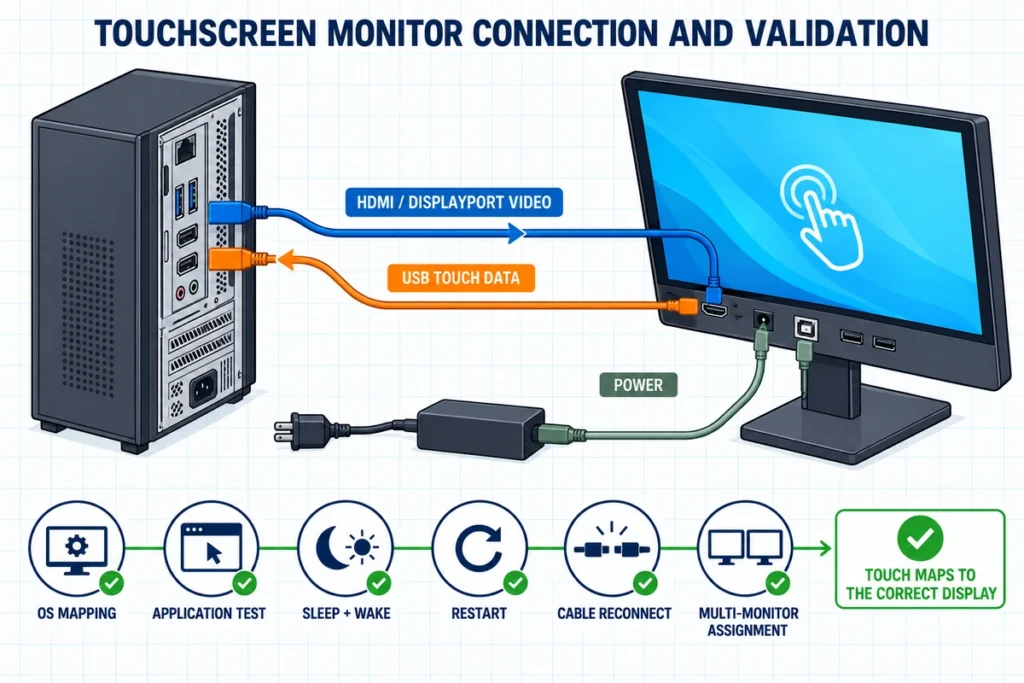
HDMI or DisplayPort commonly carries the image. USB commonly carries touch data. Connecting only HDMI can produce a normal picture with no touch response.
A supported USB-C connection may carry video, data, and power through one cable. The monitor, host port, cable, and power profile must all support the required functions.
The monitor should also be tested after sleep, wake, restart, cable reconnection, dock changes, and user login. Multi-monitor systems need touch mapped to the correct display. A touch device that works during initial setup but fails after routine system events is not ready for deployment.
Touchscreen Monitor or Touchscreen Computer?
The two product types solve different architecture problems.
| Product | Computing hardware | External host | Best fit |
|---|---|---|---|
| Touchscreen monitor | Normally display and touch hardware only | Required | Existing PC, industrial computer, SBC, or replaceable host architecture |
| Touchscreen computer | Processor, memory, storage, and operating-system configuration | Not required for onboard applications | Standalone terminal, integrated workstation, or local application |
Choose a monitor when the project already has a computer or when display and computing lifecycles should remain separate. Choose an integrated touchscreen computer when the device must run the application without a separate host.
Do not assume that “smart” or “interactive” means the screen contains a complete computer. Define the system level in the quotation.
Are Touchscreen Monitors Good for Long-Term Commercial Use?
They can be, when the selected monitor and installation match the operating conditions. Long-term suitability depends on the complete configuration rather than touch capability alone.
Review:
- Expected daily operating time
- Display brightness and ambient light
- Touch frequency and input method
- Cover glass and front-surface construction
- Cleaning chemicals and cleaning frequency
- Mounting stability and connector retention
- Temperature, dust, moisture, vibration, and electrical noise
- Power supply and grounding
- Host OS, controller firmware, and driver lifecycle
- Access for cable, display, computer, and peripheral replacement
An office monitor placed in a protected room and an industrial terminal mounted near machinery require different design decisions. Do not transfer an environmental specification from one product family or model to another.
How to Decide Before Buying
1. Describe the Exact Touch Action
State what the user will do: select an item, sign a form, navigate a map, change a parameter, annotate a document, or control a presentation.
2. Compare the Non-Touch Alternative
Consider a mouse, keyboard, keypad, trackball, button panel, scanner, or mobile device. Touch should win because it improves the workflow, not because it looks modern.
3. Test User Reach and Posture
Place a representative screen at the proposed height, distance, and angle. Test users of different heights and abilities where relevant.
4. Review the Software
Check physical target size, text, scrolling, keyboard entry, error recovery, feedback, timeouts, language, and accessibility. Test the production application rather than a generic drawing program.
5. Confirm the System Architecture
Decide whether the project needs a display-only monitor, an open-frame unit, an integrated computer, or a complete kiosk.
6. Confirm Touch, Video, Data, and Power
Record the exact monitor, controller, host, operating system, video interface, touch-data interface, cable, power supply, and driver expectation.
7. Review the Mechanical Design
Approve overall dimensions, active area, cutout, VESA or brackets, rear depth, port direction, cable clearance, ventilation, and service access.
8. Run a Representative Pilot
Test the real application, users, environment, peripherals, cleaning procedure, sleep and wake, restart, and maintenance process.
9. Freeze the Approved Configuration
Record the monitor model, panel, touch controller, firmware, driver, cables, host image, mechanical drawing, application version, and acceptance results.
Questions to Put in the RFQ
- What is the application and user workflow?
- What screen size, resolution, and orientation are required?
- Is the product a monitor, open-frame display, or integrated computer?
- Which touch technology and touch-point behavior are required?
- Will users operate with a finger, glove, passive stylus, or active pen?
- What host computer and operating-system version will be used?
- Which video, touch-data, and power connections are required?
- Is USB-C expected to carry video, touch, and power?
- What are the mounting method, cutout, depth, and cable-clearance limits?
- What lighting, temperature, dust, moisture, vibration, or electrical-noise conditions apply?
- Which cleaning chemicals and surface requirements apply?
- Which application actions and gestures must pass during sample validation?
- How will controller, firmware, driver, panel, and mechanical revisions be controlled?
These questions turn “Are touchscreen monitors good?” into a testable product and integration requirement.
Frequently Asked Questions
Are touchscreen monitors good for everyday office work?
They can be useful for occasional navigation, presentations, or accessibility, but they usually do not replace a keyboard and mouse for long typing, spreadsheets, coding, or detailed pointer work.
Are touch screen monitors good for gaming?
They are good when touch is part of the game or cabinet design. Most conventional PC and console games are designed for a mouse, keyboard, controller, or other dedicated input. HDMI video output alone does not mean a console can use external touch input.
Are touchscreen monitors accurate?
They can provide accurate input when the touch technology, controller, glass, grounding, calibration or mapping, operating system, and application are configured correctly. The required accuracy should be tested on the exact production setup.
Do touchscreen monitors work like tablets?
The interaction can feel similar, but a standard touch monitor normally lacks its own processor, storage, battery, and operating system. It depends on an external computer to run the application.
Can I use a touchscreen monitor as a second display?
Yes, when the host supports the display and recognizes the touch controller. The operating system must map touch to the correct monitor, especially when the laptop screen and external screen are both active.
Do touchscreen monitors need USB?
Most external touch monitors use USB for touch data, even when HDMI or DisplayPort carries the image. An approved USB-C configuration may combine functions, but the complete connection needs validation.
Are touchscreen monitors good for drawing?
They can support basic annotation with a finger or compatible passive stylus. Professional drawing usually needs a matched active-pen display with pressure, tilt, hover, palm rejection, suitable color performance, and application support.
Are touchscreen monitors worth the extra cost?
They are worth it when touch reduces user steps, replaces separate input hardware, supports self-service, improves an equipment interface, or creates a required interactive experience. They are not worth it when the screen only displays content or the existing input method already works better.
Final Verdict
Touch screen monitors are good products for the right job. Their strongest applications use short, visible, direct actions at a comfortable operating distance. Kiosks, POS systems, industrial HMIs, information terminals, interactive signage, and purpose-built collaboration systems can benefit substantially.
They are not a universal upgrade for every desktop. A standard monitor remains the better choice for passive viewing, long typing, precision pointer work, and software that was not designed for touch.
Before purchasing, test the full workflow and system: user reach, application layout, touch technology, host compatibility, video, touch data, power, mounting, environment, cleaning, and maintenance. The quality of that integration determines whether the touchscreen feels useful or unnecessary.
If you are evaluating a touchscreen for commercial equipment, a kiosk, an industrial control system, or an interactive display, contact Lucky-XFC with the application, screen size, host, operating system, interfaces, touch requirements, mounting method, environment, and drawings for a configuration review.
