
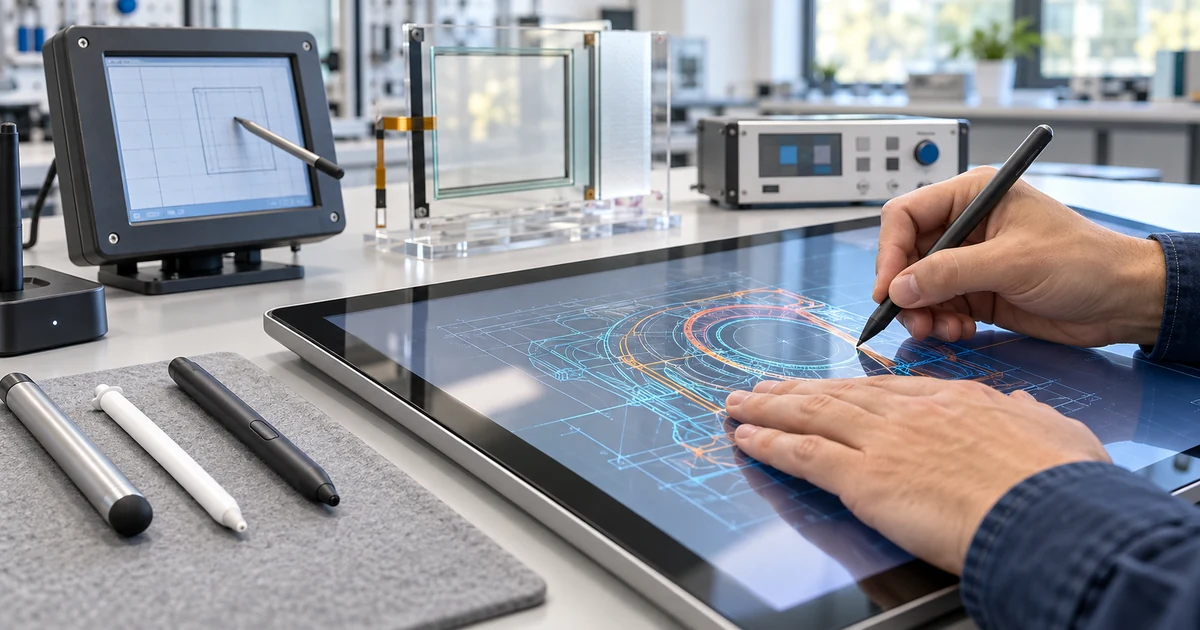
No. Not every stylus works on every touch screen. Compatibility depends on how the screen detects input and how the stylus produces it.
A simple passive capacitive stylus may work on many finger-operated capacitive screens because its conductive tip behaves like a finger. A non-sharp plastic stylus can often operate a resistive screen because that technology responds to pressure. An active digital pen is much more selective: the screen must contain a compatible digitizer and support the pen’s communication protocol.
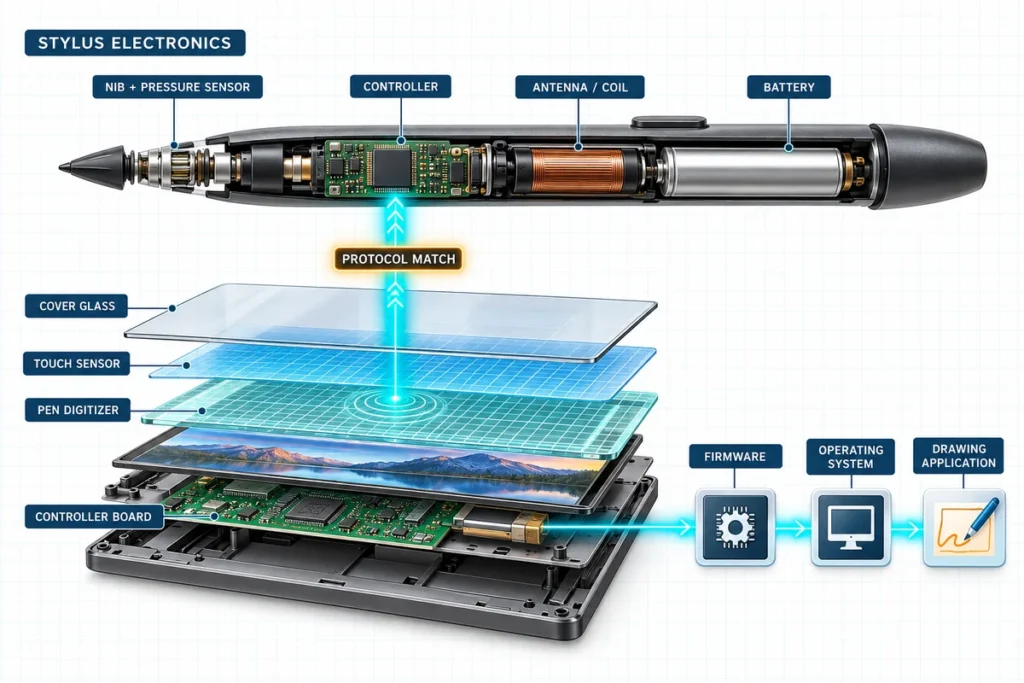
The physical fact that a pen touches the glass does not establish compatibility. For pressure sensitivity, palm rejection, hover, tilt, side buttons, or precise digital ink, the stylus, digitizer, controller, firmware, operating system, driver, and application must work as one system.
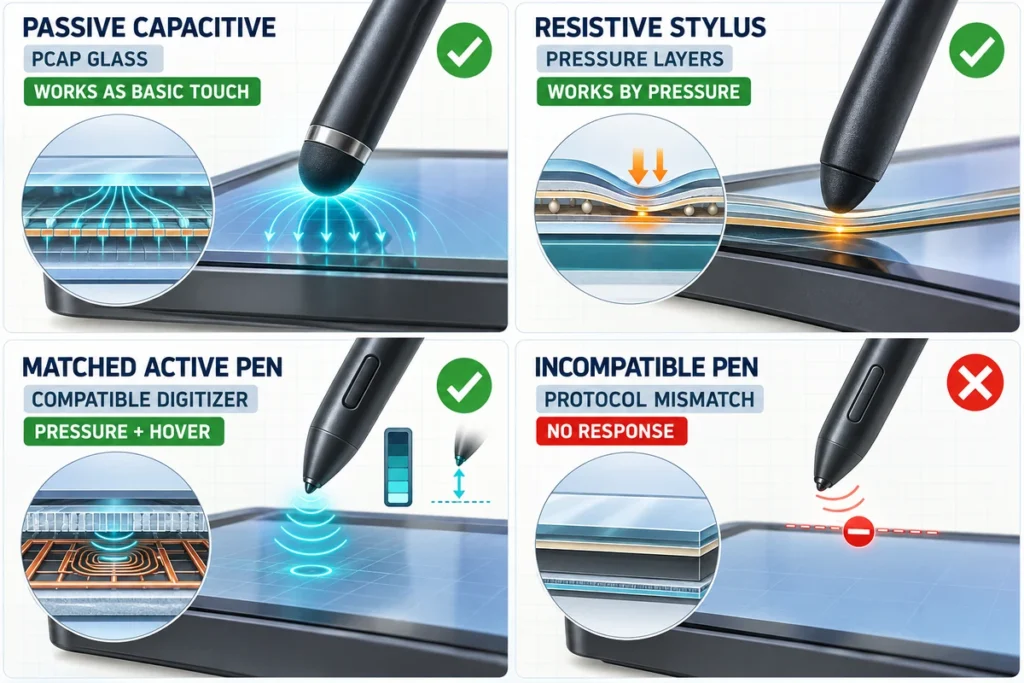
Quick Stylus Compatibility Chart
| Stylus type | Screen or digitizer required | Typical capabilities | Main limitation |
|---|---|---|---|
| Passive capacitive stylus | Compatible capacitive touch screen | Tapping, dragging, basic signatures, simple annotation | Usually acts like a finger; does not automatically provide pressure, hover, tilt, or palm rejection |
| Resistive stylus | Resistive touch screen | Accurate single-point selection through physical pressure | Requires pressure; ordinary resistive touch does not provide advanced active-pen features |
| Active digital pen | Matching active digitizer and protocol | Fine writing, pressure data, buttons, hover, tilt, or palm rejection when supported | Protocol- and model-specific; battery or charging may also be required |
| Infrared-screen stylus | Stylus or object large enough to interrupt the IR grid | Tapping, writing, and multi-user interaction depending on the system | Precision and palm behavior depend on frame resolution, software, object size, and product design |
| Brand- or model-specific pen | Explicitly listed compatible device | Features designed for that product family | A similar appearance, Bluetooth connection, or matching brand name does not prove compatibility |
This table is a starting point. Product-level specifications still take priority because screens within the same technology category can use different controllers, cover glass, firmware, and tuning.
Why Is There No Universal Stylus for Every Touch Screen?
“Touch screen” describes a user function, not one sensing method. Different screens listen for different physical or electronic signals.
A projected-capacitive screen measures changes in an electric field. A resistive screen detects pressure that brings conductive layers into contact. An infrared screen calculates coordinates from interrupted light beams. An active-pen display may add an electromagnetic or electrostatic digitizer that communicates with a supported pen.
These input methods are not interchangeable. A plastic resistive stylus may have no conductive path for a capacitive screen. A passive capacitive stylus may operate basic touch but cannot send pressure or button data. An active pen may contain sophisticated electronics yet remain invisible to a screen that lacks its matching digitizer.
The most useful question is therefore not “Is this a touch screen?” It is “Which input technology and pen protocol does this exact model support?”
Passive Capacitive Stylus: Broad Basic Compatibility
A passive capacitive stylus has a conductive tip connected electrically through the pen body to the user. It changes the capacitive field in a way that resembles a finger contact. It normally needs no battery, pairing, or dedicated radio link.
This is the closest option to a general-purpose touch-screen pen. It may work on phones, tablets, laptops, kiosks, and capacitive touchscreen monitors that accept a suitable conductive contact.
However, “works” can mean only that the screen recognizes taps and drags. A basic passive stylus normally does not deliver:
- true pressure sensitivity;
- hover detection before contact;
- tilt or rotation data;
- programmable side buttons;
- an electronic eraser;
- reliable palm rejection; or
- pen identification.
Tip size and material also matter. A very small passive tip may not create enough capacitive change for a controller tuned for finger-sized contacts. Thick cover glass, an added screen protector, electrical noise, poor grounding, moisture, gloves, and controller settings can further affect detection.
Disc-tip and mesh-tip capacitive styluses
Passive capacitive pens often use a soft rubber, conductive mesh, or transparent disc tip. A disc can help the user see the contact point, while a larger soft tip can provide stable finger-like detection. Neither design turns the screen into a pressure-sensitive pen display. The contact still enters the system as ordinary touch unless the display has a separate compatible pen digitizer.
Resistive Stylus: Pressure-Based Input
A resistive touch screen responds when pressure brings two conductive sensor layers into contact. Because the system detects force rather than the electrical properties of a finger, it can often be operated with a bare finger, glove, or suitable non-sharp stylus.
This can be useful for industrial controls, legacy terminals, handheld equipment, and interfaces with small targets. A narrow plastic tip may provide more controlled single-point selection than a finger.
Use a tip intended for resistive surfaces. Sharp metal objects can scratch or puncture the flexible top layer. Tip geometry, operating force, surface wear, calibration, and duty cycle should be evaluated for repeated commercial use.
Ordinary resistive touch should not be confused with an active pen digitizer. Pressure used to activate the screen is not the same as multiple levels of artistic pen-pressure data. Resistive systems also commonly prioritize single-point operation rather than modern multi-touch gestures.
Active Stylus: The Pen and Digitizer Must Match
An active stylus contains electronics that communicate with a compatible digitizer in or behind the display. Depending on the system, the pen may report position, pressure, tilt, hover distance, button actions, identity, and battery status.
This is why an active pen can produce finer writing and richer digital-ink behavior than a passive stylus. It is also why active pens are not universally interchangeable.
Common pen ecosystems include Microsoft Pen Protocol (MPP), Wacom AES, Wacom EMR, Universal Stylus Initiative (USI), Apple Pencil, and manufacturer-specific implementations. These names describe different architectures or compatibility families. A screen supporting one family should not be assumed to support another.
Even within one family, check the exact device, pen model, protocol version, and supported feature set. A pen may write but lack tilt, charging, shortcut buttons, haptic feedback, or another feature on a particular host. Official compatibility lists are more reliable than broad labels such as “active pen,” “universal pen,” or “works with touch screens.”
Does Bluetooth make an active pen compatible?
No. Bluetooth may support shortcut buttons, pairing, battery reporting, or other secondary functions, but it does not replace the screen’s required pen-sensing technology. A pen can pair over Bluetooth and still fail to write if the display does not support its digitizer protocol.
Does a battery mean a stylus is active?
Often, but not always in the way buyers expect. Some low-cost capacitive styluses use power to energize the tip so that it behaves more reliably on a capacitive screen. They may still provide only finger-like touch and no pressure or hover data. Evaluate advertised functions and compatibility, not the presence of a charging port.
How Touch-Screen Technology Affects Stylus Support
Projected capacitive touch
Projected capacitive, or PCAP, is common in phones, tablets, touch monitors, kiosks, and commercial interfaces. Standard PCAP detects conductive contact. It may accept a passive capacitive stylus, but behavior depends on the pen tip, sensor design, cover glass, controller tuning, grounding, and environmental conditions.
An ordinary PCAP specification does not prove active-pen support. Advanced pen features require a compatible pen-sensing implementation in addition to normal finger touch.
Resistive touch
Resistive touch responds to pressure and often accepts a simple non-sharp stylus. It can suit deliberate menu selection, glove operation, and some industrial workflows. Confirm the required activation force, surface durability, calibration, and number of simultaneous touch points.
Infrared touch
An infrared touch frame creates a light grid across the screen. A finger, stylus, or other opaque object can interrupt the beams if it is large enough for the frame to detect. This makes input-object compatibility relatively broad, but writing precision, minimum object size, palm rejection, edge behavior, and multi-user performance remain product-specific.
Surface acoustic wave touch
Surface acoustic wave systems detect changes in ultrasonic energy across the glass. They may respond to a finger or suitable soft stylus, depending on the design. Hard objects that do not absorb enough acoustic energy may not register correctly. Liquid, dirt, surface damage, and tip material can affect operation.
Electromagnetic and other dedicated pen digitizers
Dedicated pen systems are designed around a matched pen and sensing layer. Some pens need a battery or rechargeable cell; others receive energy through the digitizer field. The absence of a battery does not make a pen passive in the ordinary capacitive sense. Protocol and model compatibility still control whether it works.
For a broader explanation of the sensing principles, see how a touch screen works.
Passive Stylus vs Active Pen
| Feature | Passive capacitive stylus | Active digital pen |
|---|---|---|
| Basic tapping and dragging | Common on compatible capacitive screens | Yes, on a compatible digitizer |
| Battery or charging | Usually not required | Depends on the pen system |
| Pairing | Usually not required | May be required for some functions |
| Pressure levels | Normally no | Available when supported by the pen, digitizer, driver, OS, and app |
| Hover | No | May be supported |
| Tilt | No | May be supported |
| Palm rejection | Not inherent | May be supported by the complete system |
| Buttons or eraser | No electronic functions | May be supported |
| Cross-device compatibility | Relatively broad for basic capacitive input | Limited to compatible protocol and device models |
| Best fit | Navigation, simple signatures, tapping, basic annotation | Handwriting, detailed annotation, drawing, design, and workflows that need pen-specific data |
The correct choice depends on the task. A kiosk that needs occasional signatures may not require the cost and integration work of an active digitizer. A classroom annotation display may need smooth writing and palm rejection. A professional drawing station may need pressure, tilt, low parallax, replaceable nibs, and application-specific driver support.
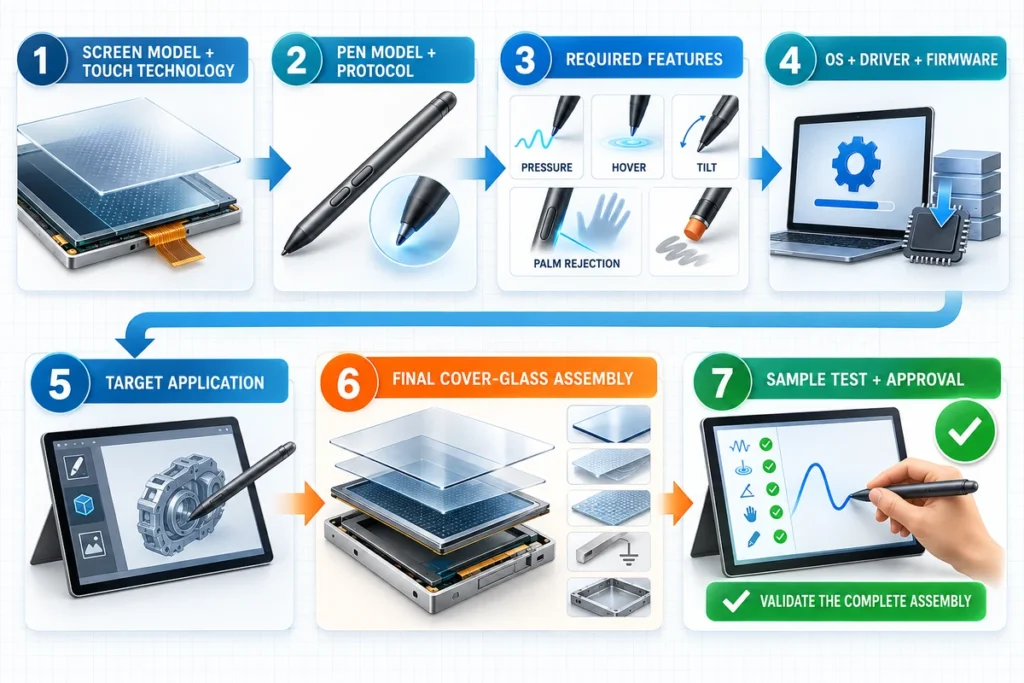
How to Check Whether a Stylus Will Work
1. Identify the exact screen model
Do not rely on the device family name, diagonal size, or the fact that it has touch. Record the full model number and hardware revision where available.
2. Find the touch and pen specifications
Look for terms such as PCAP, resistive, infrared, active digitizer, pen enabled, MPP, AES, EMR, USI, or an explicitly named compatible pen. “Ten-point touch” describes simultaneous touch capacity, not active-pen compatibility.
3. Check the manufacturer’s compatibility list
Use the screen or device manufacturer’s supported-pen list and the pen manufacturer’s supported-device list. The strongest match is an exact model-to-model listing. A marketplace title using “universal” is not equivalent to an approved compatibility matrix.
4. Confirm the required features
Separate basic contact from advanced functions. Ask whether the application needs:
- simple taps and drags;
- signature capture;
- continuous handwriting;
- pressure sensitivity;
- palm rejection;
- hover;
- tilt;
- side buttons or an eraser;
- multi-user writing; or
- operation through gloves or added cover glass.
5. Check the host and software
The operating system, driver, touch controller, and application decide how incoming pen data is used. A compatible pen may function as a pointer but not expose pressure or button actions in software that does not support those inputs.
6. Validate the complete assembly
For a commercial or industrial project, test the production pen with the final display, bonded or separate cover glass, screen protector, housing, grounding, power supply, cable arrangement, host computer, operating-system image, and application. A bench test on a bare sensor does not prove finished-equipment performance.
Why Does a Stylus Work on One Screen but Not Another?
The screen uses a different sensing technology
A nonconductive plastic stylus can activate a resistive screen but may not work on a capacitive screen. A passive capacitive stylus cannot provide active-pen data to a display that lacks a pen digitizer.
The active-pen protocol does not match
An active pen and touch screen can both be functional yet unable to communicate. Match the protocol, version, device model, and supported features.
The pen is discharged or the nib is not seated correctly
Recharge or replace the battery when applicable. Inspect the nib for wear, damage, or incorrect installation according to the pen manufacturer’s instructions.
The controller is tuned for a different contact size
A small passive capacitive tip may not cross the detection threshold of a screen configured for finger input. Cover-glass thickness, electrical noise, grounding, and moisture can change the available signal.
The driver or application does not support the feature
Basic pointing may work while pressure, tilt, buttons, or palm rejection do not. Check the device driver, operating-system pen settings, firmware, and application input configuration.
Touch is mapped to the wrong display
In a multi-monitor system, the USB touch device may be associated with another screen. Calibrate or map touch to the intended display after the video layout is finalized.
The screen protector or added glass changes performance
An extra protective layer increases the distance between the pen and sensor. Passive PCAP detection and active-pen performance may both change, depending on the system. Test the actual glass stack rather than assuming that a pen proven on the uncovered screen will behave identically.
Choosing a Stylus for Different Applications
Kiosks and public terminals
Large touch targets and basic signatures may work with a passive capacitive stylus on a compatible PCAP display. Consider tethering, replaceable tips, cleaning, vandal resistance, and whether finger input must remain available.
Industrial controls
A resistive stylus can suit deliberate single-point selection and some glove workflows. PCAP may be appropriate for modern multi-touch interfaces when the required pen, glove, cover glass, and controller tuning are validated. Avoid sharp tips near flexible resistive surfaces.
Education and meeting rooms
Interactive whiteboards may use infrared touch, PCAP, or a dedicated pen system. Check simultaneous writers, palm rejection, annotation software, pen storage, replacement availability, latency, and behavior at the screen edges.
Signature capture
Define whether the project needs only a visible signature trace or also needs pressure, timing, pen-up, security, or biometric data. A passive stylus can draw a line on a compatible touch screen, but that is not equivalent to a purpose-built signature pad.
Art, design, and detailed handwriting
Choose an active-pen display explicitly designed for the target creative application. Evaluate pressure response, tilt, hover, parallax, initial activation force, line stability, latency, color performance, driver support, and application compatibility. A standard touch monitor with a passive stylus is not a substitute for a professional pen display.
What B2B Buyers Should Put in the Specification
For an OEM monitor, industrial terminal, kiosk, or classroom deployment, define the pen as part of the input system rather than as a late accessory.
Include these items in the request for quotation or technical agreement:
- screen size, resolution, brightness, and mounting structure;
- touch technology and controller;
- exact stylus type, model, or required protocol;
- finger, glove, and stylus operating requirements;
- required pressure, hover, tilt, buttons, eraser, and palm rejection;
- minimum target size and handwriting expectations;
- cover-glass material, thickness, coating, bonding, and printed border;
- operating system, processor platform, driver, and application;
- video, touch-data, power, and charging connections;
- pen storage, tethering, charging, and replacement-nib plan;
- cleaning chemicals and expected operating environment;
- sample-validation method and acceptance criteria; and
- replacement-pen availability over the project lifecycle.
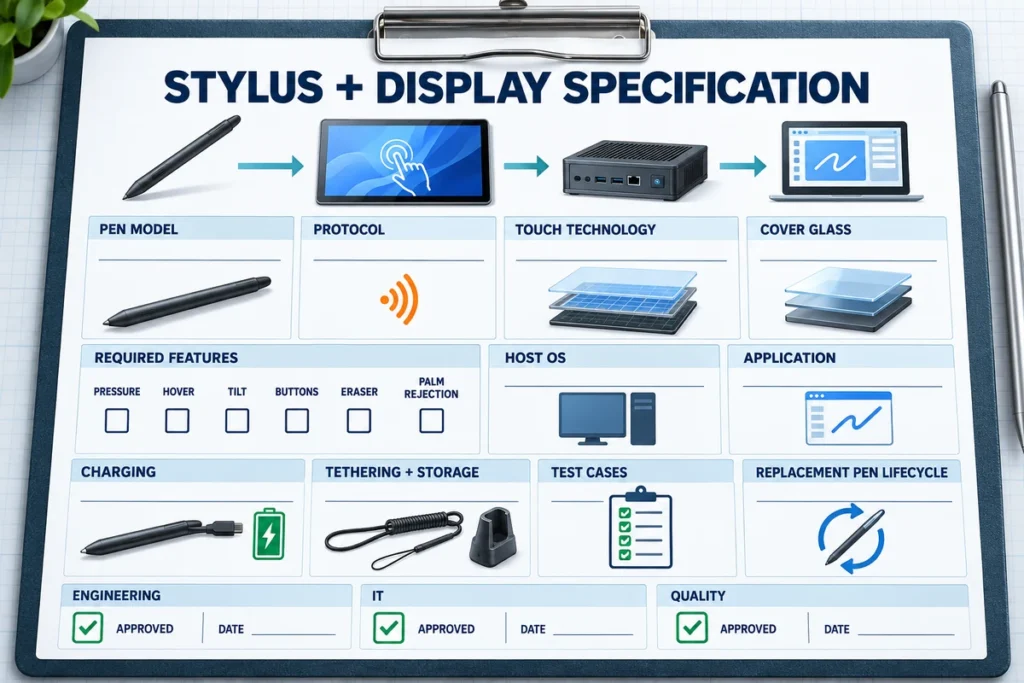
Do not accept “stylus compatible” as a complete requirement. Replace it with measurable behavior. For example: the approved pen must write continuously across the active area, reject the user’s palm in the target application, expose pressure data to the selected software, and reconnect correctly after sleep and wake.
Stylus Compatibility in Lucky-XFC Touch Display Projects
Lucky-XFC touch-display projects can be evaluated around passive capacitive, resistive, or active-pen requirements. The pen for touch screen monitor page covers available integration paths for enclosed, open-frame, and industrial display projects.
Standard capacitive touch should be specified for finger and approved conductive-stylus behavior rather than assumed to provide professional active-pen functions. Resistive touch can be considered when pressure-based single-point input is suitable. Projects requiring pressure levels, palm rejection, hover, tilt, or a named protocol need a separate digitizer and compatibility review.
For an active-pen inquiry, provide the target pen or protocol, host system, application, display size, cover-glass structure, required functions, mounting method, and sample test plan. Compatibility should be approved at configuration level before production.
Frequently Asked Questions
Can I use a stylus on any touch-screen laptop?
No. A passive capacitive stylus may provide basic finger-like input on many capacitive laptops. An active pen works only when the laptop supports the matching digitizer and protocol. Check the exact laptop model and official pen list.
Will a phone stylus work on a touch-screen monitor?
It may work if it is a passive capacitive stylus and the monitor’s PCAP controller recognizes its tip. It will usually behave like a finger. Test the pen on the exact monitor, especially when the monitor uses thick cover glass or project-specific controller tuning.
Will Apple Pencil work on any capacitive touch screen?
No. Apple Pencil models work only with specified compatible iPad models. A general capacitive screen does not contain the required Apple Pencil implementation merely because it responds to a finger.
Will a Surface Pen work on any Windows touch screen?
No. The Windows operating system and touch capability do not establish pen support. The device must support a compatible version of Microsoft Pen Protocol and the required features.
Can a passive stylus provide palm rejection?
Not by itself. A passive stylus usually appears as an ordinary touch contact. Reliable palm rejection requires the screen, controller, operating system, and application to distinguish pen input from hand contact.
Can I use a resistive stylus on a capacitive screen?
Only if the stylus also has a conductive capacitive tip. A simple nonconductive plastic resistive stylus normally will not activate a capacitive screen.
Why does my active stylus pair but not write?
Bluetooth pairing can control secondary pen functions but does not create digitizer compatibility. Check the pen protocol, screen model, battery, nib, driver, firmware, and official compatibility list.
Does ten-point touch mean ten pens can write at once?
No. Ten-point touch describes the number of simultaneous touch contacts the controller may report. Multi-pen writing, pen identity, palm rejection, and active-pen features require separate support.
The Practical Answer
No stylus should be assumed to work on every touch screen. Match the input tool to the screen technology first. Then check the active-pen protocol, exact model compatibility, required features, host system, software, cover-glass stack, and operating environment.
For basic tapping, a compatible passive capacitive or resistive stylus may be sufficient. For precise handwriting, pressure, hover, tilt, or palm rejection, specify a matched pen-and-digitizer system and test the complete production configuration.
If you are developing a kiosk, industrial terminal, interactive display, or custom touch monitor, contact Lucky-XFC with the screen size, touch technology, pen model or protocol, required writing features, host system, application, cover-glass design, and mounting requirements for a compatibility review.
