
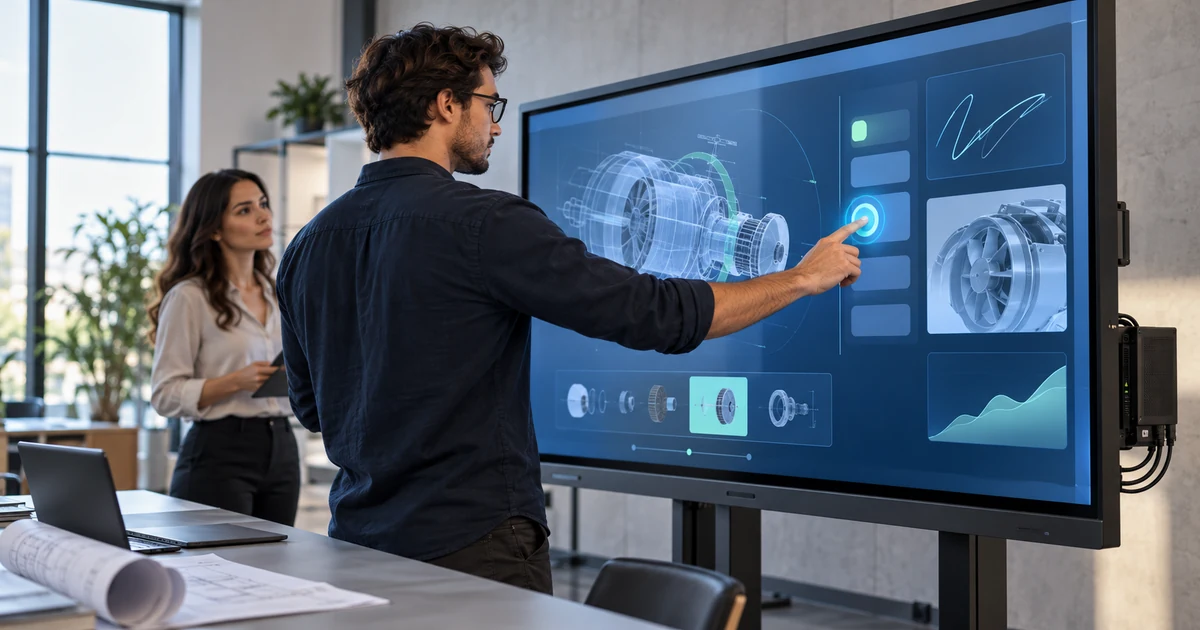
An interactive touch screen is a display system that lets a user control digital content by touching the visible screen. It combines a display, a touch sensor, a touch controller, a computer or embedded processor, and software that responds to taps, swipes, writing, gestures, and object movement.
The term covers more than one product. A desktop touch monitor connected to a PC, a large interactive flat panel in a classroom, a self-service kiosk, and a wall-mounted retail directory can all be interactive touch screens. Their physical format, computing system, software, and installation requirements may be very different.
The word “interactive” therefore describes the complete user-response loop, not just the presence of touch glass. The screen must detect input, send it to a host, allow the application to interpret it, and show an appropriate response.
What Makes a Touch Screen Interactive?
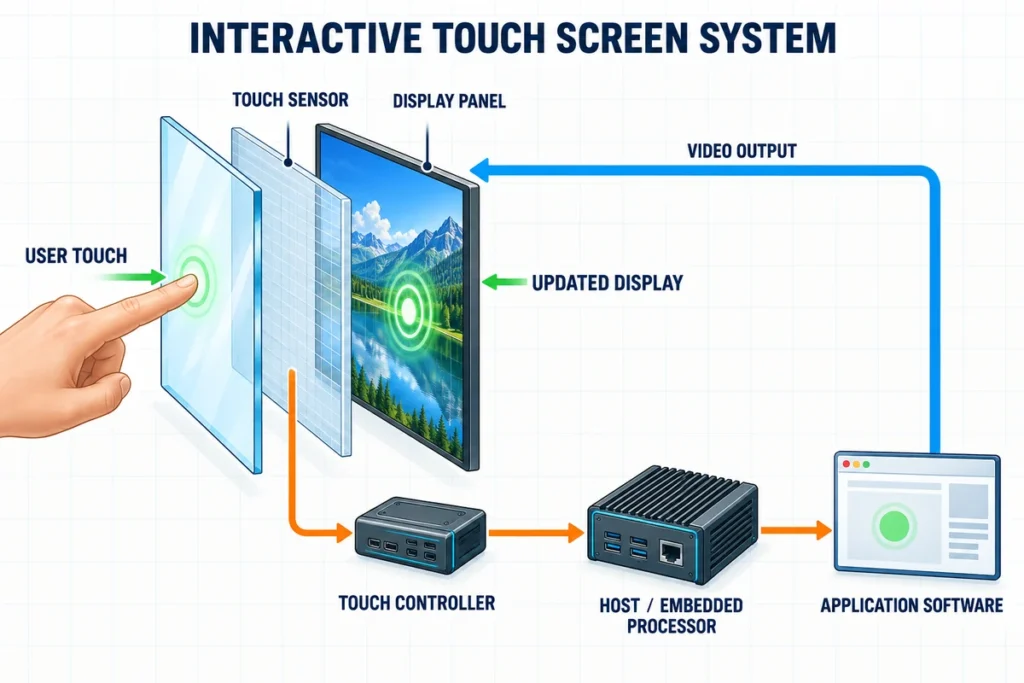
A conventional non-touch display presents information in one direction: the computer sends an image, and the user views it. An interactive screen adds an input path. The user touches the surface, and the system returns coordinates or gesture data to the software.
That two-way exchange supports actions such as:
- Selecting buttons, links, products, or menu items
- Writing, drawing, highlighting, or erasing
- Moving, resizing, and rotating digital objects
- Scrolling, zooming, and navigating content
- Entering information through an on-screen keyboard
- Controlling presentations or equipment interfaces
- Completing check-in, ordering, payment, or information workflows
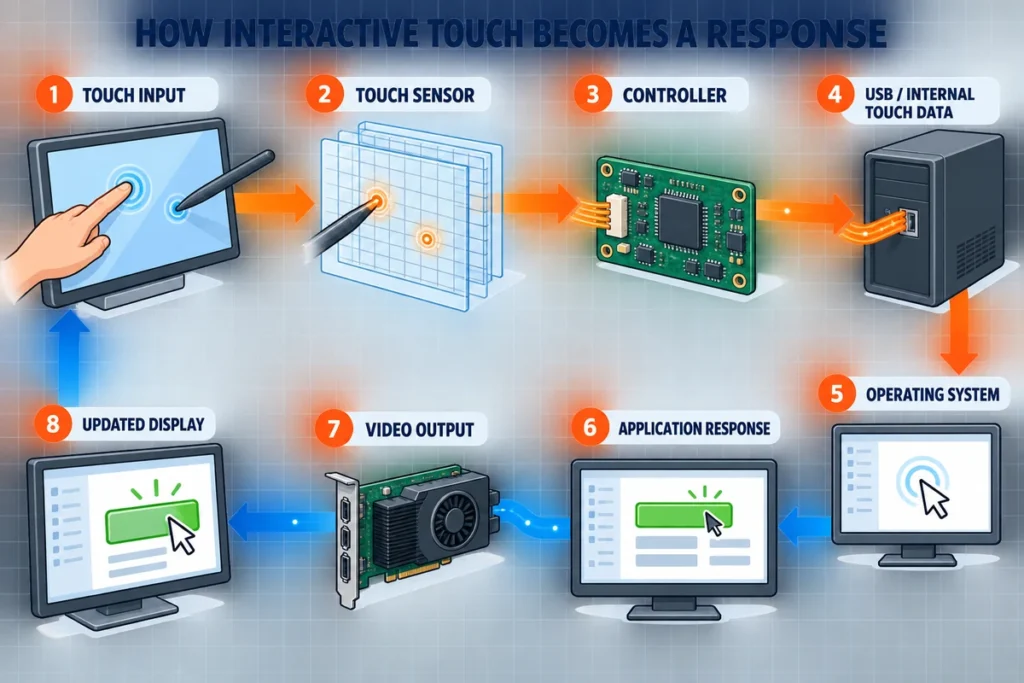
Touch alone does not define what the action means. The controller reports contact data, the operating system creates an input event, and the application decides whether the event should open a page, draw an ink stroke, change a machine setting, or perform another function.
How Does an Interactive Touch Screen Work?
An interactive touch screen operates through a continuous sequence from display output to touch input and back to the updated image.
1. The Host Generates the Content
The host may be a desktop computer, laptop, industrial PC, Android board, embedded controller, OPS computer, or internal all-in-one computer. It runs the operating system and the application that the user sees.
The application could be presentation software, a digital whiteboard, a product catalog, wayfinding software, a self-ordering interface, an industrial HMI, or a custom business application.
2. The Display Shows the Interface
The host sends video to the display electronics. An LCD or another display module produces the visible image. External-host systems commonly use HDMI, DisplayPort, USB-C video, or a model-specific connection.
The image path is separate from touch in many products. A screen can display the software correctly even when the touch-data cable is missing or the touch controller is not recognized.
3. The Touch Sensor Detects Contact
When a finger, compatible stylus, glove, or other object touches the surface, the sensor records a physical or electrical change. The detection method depends on the touch technology.
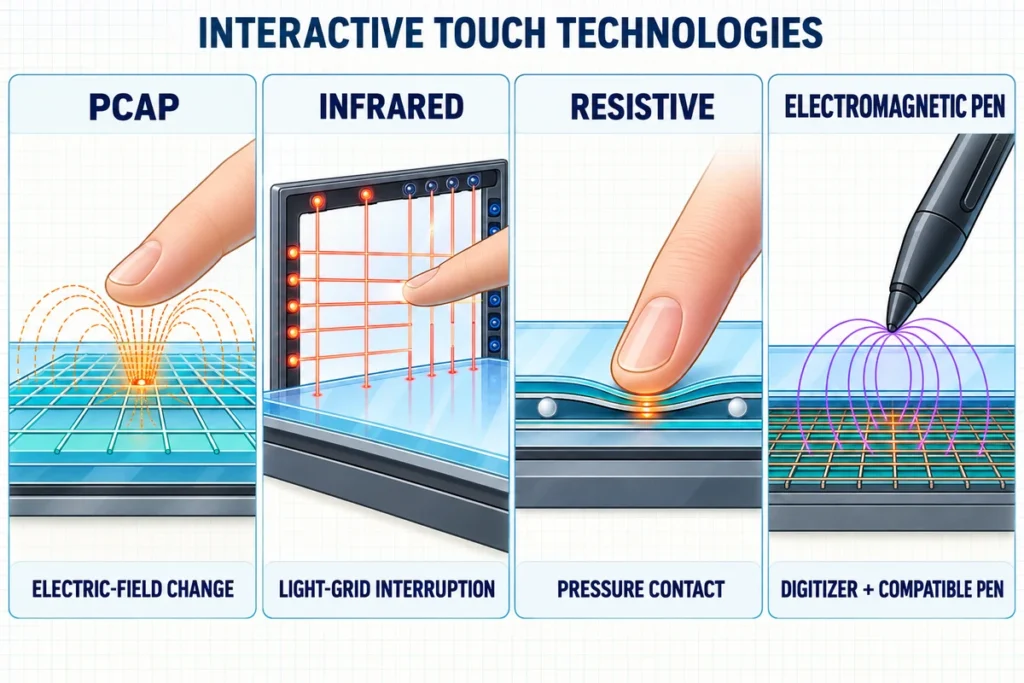
Projected-capacitive systems measure changes in an electric field. Infrared systems detect interruptions in a light grid around the screen. Resistive systems detect pressure that brings conductive layers into contact. Other products may use optical, electromagnetic, or application-specific sensing methods.
4. The Touch Controller Calculates Coordinates
The sensor sends raw signals to the touch screen controller. The controller filters noise, identifies valid contacts, calculates X-Y coordinates, tracks movement, and reports touch data through USB, serial, or an internal interface.
Multi-touch controllers can track several valid contacts at once. The number of contacts that produces useful behavior still depends on the operating system and application.
5. The Operating System Creates an Input Event
The host interprets the controller data as a tap, drag, swipe, press, or gesture. It also maps the active touch area to the correct display. This mapping matters when one computer drives multiple monitors or when the screen is rotated into portrait orientation.
6. The Application Responds
The application assigns meaning to the event. A classroom application may draw a line. A directory may open a map. A kiosk may add an item to an order. An industrial interface may request a change to an operating parameter.
The host renders the new state, and the display shows the result. This loop repeats continuously while the user interacts with the screen. The article on how a touchscreen works explains the sensor-to-application path in greater detail.
What Are the Main Components?
An interactive screen should be evaluated as a system. The front glass alone does not determine the user experience.
Display Module
The display module creates the image. Relevant characteristics include screen size, resolution, brightness, viewing angle, aspect ratio, color performance, and suitability for the installation environment.
Cover Glass and Touch Sensor
The front structure protects the display and provides the contact surface. Its glass thickness, coating, printed border, bonding method, and relationship to the sensor affect appearance, durability, optical performance, and touch tuning.
Touch Controller
The controller scans or excites the sensor, measures the response, rejects noise, calculates coordinates, and communicates with the host. Controller selection influences supported operating systems, touch points, firmware, calibration, and interface options.
Computer or Embedded Processor
Some interactive screens depend on an external host. Others contain an Android board, Windows computer, industrial processor, or optional computing module. The processor, memory, storage, operating system, and software environment determine what the finished device can run.
Application Software
Software turns raw touch into a useful workflow. It may provide annotation, collaboration, product browsing, check-in, payment, wayfinding, machine control, or data entry. A technically responsive screen can still deliver a poor experience if the interface uses small targets, unclear navigation, or gestures that the application does not support.
Interfaces and Power
The complete system may need video input, touch-data communication, power, networking, audio, and peripheral connections. HDMI commonly carries the image while a separate USB cable carries touch. A supported USB-C implementation may combine video, data, and power, but those functions must be confirmed for the screen, host, and cable.
Housing and Mounting Structure
The same display electronics can be packaged as a desktop monitor, wall-mounted panel, open-frame module, kiosk, mobile collaboration screen, or custom machine interface. Mounting points, enclosure cutout, rear depth, connector direction, ventilation, cable access, and service access are part of the product design.
What Are the Main Types of Interactive Touch Screens?
The clearest way to classify interactive screens is by system architecture and intended installation.
External-Host Touchscreen Monitor
An interactive touchscreen monitor normally receives video from an external computer and sends touch data back to that computer. It usually does not contain the processor, storage, or operating system needed to run an application independently.
This format suits desks, operator stations, equipment arms, information counters, and projects in which the buyer already controls the computer and software image.
Touchscreen All-in-One Computer
A touchscreen computer combines the display, touch controller, processor, memory, storage, operating system, and I/O in one unit. It can run local applications without a separate external PC.
An all-in-one simplifies the visible installation, but computing performance, operating-system lifecycle, cooling, storage, security, and repair strategy become part of the display purchase.
Interactive Flat Panel or Whiteboard
A large interactive flat panel is designed for shared presentation, writing, and collaboration. It may use an external laptop, an embedded system, or an optional computer module. Common installations include classrooms, training rooms, and meeting spaces.
Modern interactive whiteboards often use a large flat-panel display rather than a projector. The product category emphasizes room-scale visibility, annotation, multi-user interaction, mounting, audio, and connection to teaching or conferencing systems.
Interactive Digital Signage
Interactive digital signage lets visitors explore public-facing content instead of only watching a scheduled message. Applications include directories, product catalogs, wayfinding, visitor information, real-estate listings, and branded experiences.
The touch display is only one part of the solution. The project also needs a content application, computing platform, network plan, mounting structure, and a maintenance method suitable for public use.
Kiosk and Self-Service Touch Screen
A kiosk touch screen is integrated into a terminal for ordering, check-in, ticketing, registration, payment, or information access. The monitor may be open-frame or finished, while the host computer and peripherals sit inside the enclosure.
Barcode readers, printers, cameras, card readers, NFC modules, and payment terminals do not become compatible merely because the kiosk has a touch screen. The software, operating system, ports, drivers, enclosure, and service access must be planned as one system.
Open-Frame and Embedded Touch Display
An open-frame display is designed for installation behind an equipment bezel or inside a custom cabinet. It gives an equipment manufacturer more control over the finished appearance and mechanical integration.
Selection depends on the LCD active area, visible opening, cutout, rear depth, mounting points, connector clearance, ventilation, and maintenance path. Nominal diagonal size is not enough to release an enclosure drawing.
Industrial HMI and Control Display
An industrial interactive screen provides direct input for equipment, production lines, test systems, automation, and control stations. These projects may require specific touch behavior, legacy resolutions, panel mounting, retained connectors, grounding, noise resistance, gloves, or a defined software lifecycle.
Which Touch Technologies Are Used?
Different sensing technologies suit different screen sizes, users, environments, and input tools.
| Touch technology | How it detects input | Common strengths | Important considerations |
|---|---|---|---|
| Projected capacitive, or PCAP | Measures changes in an electric field through an electrode grid | Responsive finger input, multi-touch, modern glass-front design | Glove behavior, water exposure, cover-glass thickness, grounding, and controller tuning |
| Infrared, or IR | Detects objects interrupting a light grid around the display | Practical for large formats and multi-user interaction | Bezel or frame structure, object detection, contamination, and writing requirements |
| Resistive | Detects pressure between conductive layers | Works with pressure from a finger, glove, or simple stylus | Overlay wear, optical appearance, gesture expectations, and available sizes |
| Optical or camera-based | Uses optical sensing to locate contact or objects | Can support large interactive surfaces | Lighting, frame design, calibration, occlusion, and product architecture |
| Electromagnetic pen input | Detects a compatible active or passive pen through a dedicated digitizer | Precise pen workflows and differentiated pen functions | Pen compatibility, replacement availability, battery requirements, and protocol support |
“Capacitive,” “infrared,” or “multi-touch” does not by itself confirm the complete user experience. Buyers should test the intended finger, glove, or stylus, along with the final glass, software, mounting, and operating environment.
Interactive Touch Screen vs Touchscreen Monitor vs Interactive Whiteboard
These terms overlap, but they are not interchangeable in a quotation or technical specification.
| Term | What it usually describes | Computing arrangement | Typical use |
|---|---|---|---|
| Interactive touch screen | Broad category for any screen-based system that responds to direct touch | External or integrated host | General product and solution category |
| Touchscreen monitor | Display and touch hardware, usually without a complete onboard computer | Normally external PC or controller | Desktop, equipment, kiosk, and industrial integration |
| Interactive flat panel | Large touch-enabled flat display for shared use | External laptop, embedded system, or optional PC module | Classroom, training, and meeting rooms |
| Interactive whiteboard | Presentation and annotation system; may be projector-based or a modern flat panel | External or integrated system | Teaching, collaboration, and group presentation |
| Touchscreen all-in-one | Touch display with integrated computing hardware | Built-in computer or Android board | Standalone terminals and local applications |
| Interactive digital signage | Public-facing touch display plus content and system software | Embedded player or external host | Retail, directories, exhibitions, and wayfinding |
“Smart board” is often used informally for large collaborative touch displays, but it can also refer to a specific brand. “Digital whiteboard” may describe a hardware product, an annotation application, or both. A technical request should state the required architecture rather than relying on these labels alone.
Does an Interactive Touch Screen Need a Computer?
It needs computing somewhere in the system, but the computer does not always sit inside the display.
An external-host monitor depends on a laptop, desktop, industrial PC, media player, or embedded controller. The host sends video to the screen and receives touch data. This arrangement lets the buyer control and replace the computing platform separately.
An integrated model contains an Android or computer system and can run compatible local applications. Some large panels support both approaches: users can work in the embedded environment and connect a laptop when required.
When comparing products, ask whether the quoted item includes:
- Display and touch hardware only
- An embedded Android system
- A Windows or other integrated computer
- An optional OPS or removable computer module
- Software licenses, device management, or annotation applications
A screen described as “interactive” or “smart” is not automatically a standalone computer.
How Does It Connect to a Laptop or PC?
Most external-host systems need three functional paths:
- Video: HDMI, DisplayPort, USB-C video, or another supported input sends the image to the screen.
- Touch data: USB or a model-specific data connection sends touch coordinates to the host.
- Power: The display uses its approved power input or a validated USB-C power arrangement.
HDMI alone does not normally return touch coordinates. If the picture appears but touch does not respond, check the USB touch-data connection, cable type, controller detection, driver, and display mapping separately from the video path.
A USB-C connector does not guarantee one-cable operation. The host port, display, cable, and any dock must support the required video, USB data, and power functions.
What Are Interactive Touch Screens Used For?
Education and Training
Teachers and trainers can present content, write over material, move objects, open resources, and save annotated pages. A successful installation also depends on viewing distance, mounting height, teacher devices, lesson software, user accounts, and support procedures.
Meetings and Collaboration
Teams can present from laptops, annotate shared material, review designs, and interact with conferencing applications. Camera, microphone, speakers, wireless sharing, and touch-back control are configuration-specific and should not be assumed from the display name.
Retail and Public Information
Customers can browse products, compare options, search directories, view maps, or request assistance. Public installations need clear navigation, suitable touch-target sizes, durable mounting, network planning, content updates, and an accessible operating height.
Self-Service and Kiosks
Interactive screens guide users through ordering, registration, ticketing, check-in, and payment. The application should make the next action obvious, recover from inactivity, protect private information, and coordinate with every required peripheral.
Industrial and Equipment Control
Operators can view status, enter setpoints, acknowledge alarms, and control a machine interface. Industrial projects should define the host, environment, touch method, mounting, grounding, connectors, software version, and replacement strategy.
Healthcare, Hospitality, and Service Environments
Interactive screens can support registration, navigation, room information, queue management, and staff workflows. The required cleaning method, privacy controls, accessibility, peripherals, and local regulations depend on the application and deployment site.
What Are the Advantages?
Interactive touch screens can reduce the distance between information and action. Users interact directly with visible objects instead of translating every action through a mouse or separate control panel.
Potential benefits include:
- An intuitive interface for occasional or public users
- Direct annotation and object manipulation
- Faster navigation through visual menus
- Support for self-service workflows
- Flexible software-driven content
- Reduced need for a physical keyboard in suitable tasks
- Shared interaction on large displays
- Easier integration of guidance, media, and data entry in one interface
These benefits depend on good software and physical design. A touch screen mounted outside comfortable reach or paired with small desktop-style controls may be less usable than a conventional interface.
What Are the Limitations?
An interactive screen is not the best input method for every task.
- Long text entry may still require a physical keyboard.
- Finger input is less precise than a mouse or suitable pen for some work.
- Glare, fingerprints, cleaning, and surface wear affect public installations.
- Large screens require appropriate wall support, stands, and user reach.
- Touch performance can be affected by glass, grounding, moisture, gloves, electrical noise, and controller tuning.
- The operating system and application must support the required gestures and number of touch points.
- Integrated systems create software-update, cybersecurity, storage, and computing-lifecycle requirements.
- A visible image does not prove that the touch-data path is working.
The correct design starts with the task and operating environment, not with screen size alone.
What Should a B2B Buyer Define Before Selection?
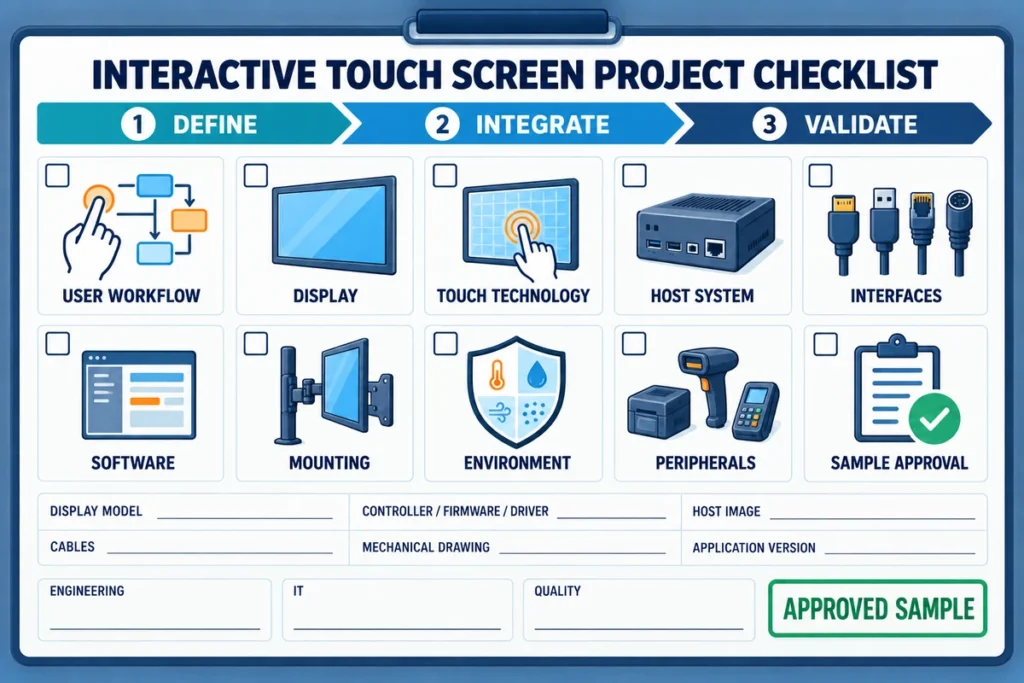
An early project brief should answer the following questions:
User and Workflow
- Who will use the screen?
- Is the main task browsing, writing, ordering, control, data entry, or collaboration?
- Is the user standing, seated, wearing gloves, or using a stylus?
- How many people need to interact at once?
Product Architecture
- Is an external-host monitor acceptable?
- Is an embedded Android or Windows system required?
- Does the project need a whiteboard panel, signage display, kiosk monitor, open-frame module, or complete terminal?
Display and Touch
- What screen size, resolution, brightness, and orientation are required?
- Which touch technology and number of touch points suit the application?
- Are gloves, water exposure, palm rejection, signatures, or precise pen input required?
Connectivity and Software
- Which computer, operating system, and application will be used?
- Which video, touch-data, network, and peripheral ports are required?
- Will the system use separate HDMI and USB connections or a validated USB-C path?
- Does the software support the intended gestures, display scaling, and orientation?
Mechanical and Environmental Requirements
- Will the unit be desktop-mounted, wall-mounted, placed on a mobile stand, or integrated into equipment?
- What are the cutout, active area, rear-depth, mounting, connector, and cable-clearance limits?
- What operating temperature, cleaning, dust, moisture, impact, or electrical-noise conditions apply?
- How will technicians access and replace the display, computer, cables, and peripherals?
Sample Validation
Test the sample with the intended host, operating-system image, application, cables, power supply, mounting structure, and input method. Check the whole active area, required gestures, orientation, sleep and wake, restart, USB reconnection, display mapping, and peripheral operation.
Record the approved display model, controller, firmware, driver, host image, cables, mechanical drawing, and application version before production.
Frequently Asked Questions
Is an interactive touch screen the same as a smart board?
Not always. Interactive touch screen is a broad technical category. Smart board is often used informally for a large teaching or meeting display, but it can also refer to a particular brand. Define the hardware, computing system, software, size, and mounting instead of relying on the name.
Can an interactive touch screen work without the internet?
Yes, local applications and files may work without an internet connection. Cloud collaboration, web content, remote management, online accounts, and software updates may require network access. The exact behavior depends on the host and application.
Can I use an interactive touch screen as a normal monitor?
An external-host model can generally display computer video like a monitor when its video input and resolution are compatible. Touch requires a separate compatible data path, commonly USB, plus operating-system support.
Can a normal TV become an interactive touch screen?
A standard TV does not contain a touch sensor and controller. An external touch frame may add coordinate input in some projects, but the frame, glass, host, calibration, mounting, software, and screen dimensions must be designed together. It is not equivalent to every purpose-built interactive display.
Does multi-touch mean several people can write at the same time?
Not automatically. The controller may report several contacts, but simultaneous writing also depends on the operating system, whiteboard application, palm handling, pens, and the physical working area.
Will any stylus work?
No. A basic capacitive stylus may imitate a finger on compatible PCAP screens, while active pens and electromagnetic pens require matching digitizer protocols. Confirm the screen technology, controller, pen type, pressure or button requirements, and application support.
Why does the image work when touch does not?
Video and touch are often separate signal paths. HDMI or DisplayPort may show the image while a missing USB cable, charge-only cable, unrecognized controller, driver problem, or incorrect display mapping prevents touch input.
Can an interactive screen be used in portrait orientation?
Many systems can, but the display hardware, mounting, operating system, application layout, and touch mapping must all support the final orientation. Test portrait operation on the actual configuration before installation.
The Practical Definition
An interactive touch screen is a complete display-and-input system that converts direct contact into software actions and visible feedback. Its value comes from the coordination of the display, sensor, controller, computer, application, connectivity, and physical installation.
For early planning, first decide whether the project needs a display-only touch monitor, an integrated touchscreen computer, a large collaboration panel, interactive signage, or a kiosk-ready display. Then define the users, software, host system, touch method, interfaces, mounting, environment, and validation procedure.
Lucky-XFC provides project-based interactive display configurations for external-host monitors, large interactive panels, digital signage, kiosks, embedded installations, and integrated touch computers. To review a project, contact Lucky-XFC with the application, target size, quantity, operating system, required interfaces, mounting method, peripherals, and any installation drawings.
