
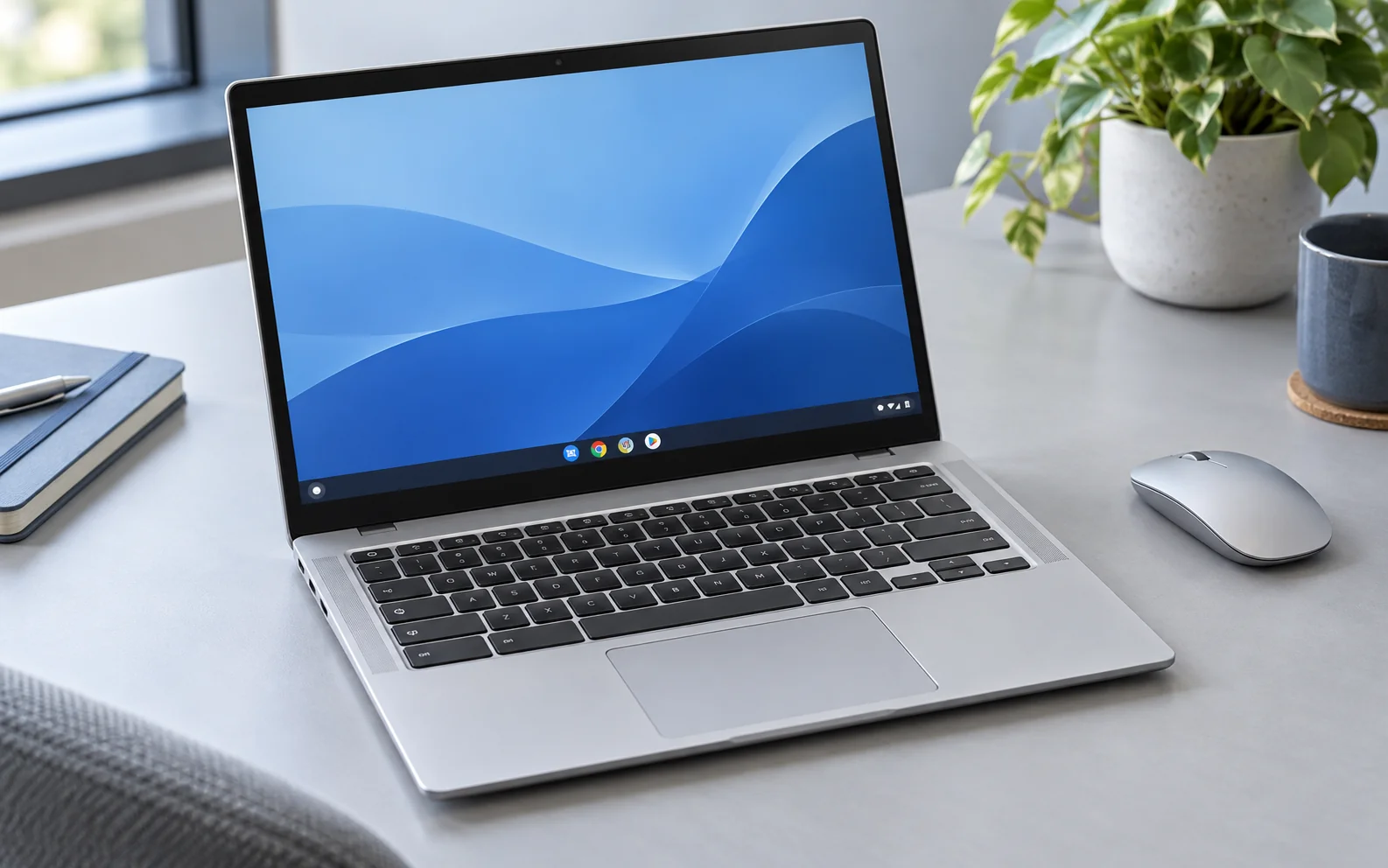
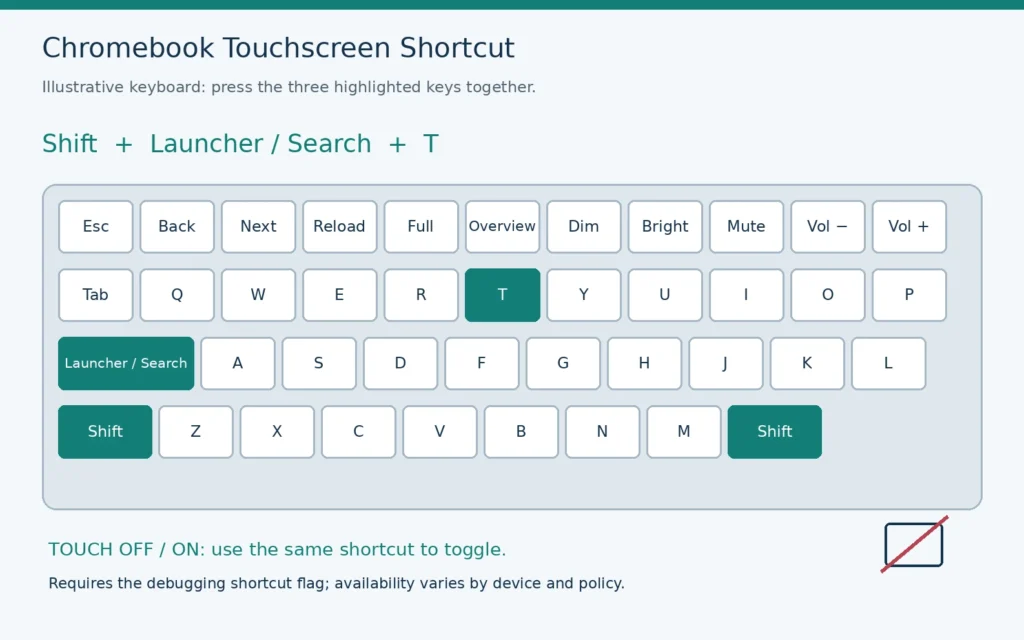
You can temporarily turn off a Chromebook touchscreen by enabling ChromeOS debugging keyboard shortcuts and then pressing Shift + Launcher/Search + T. This is useful when accidental taps interrupt typing, a damaged digitizer creates ghost touches, or you need to test whether the touchscreen is causing a problem.
The important limitation is that this is a ChromeOS debug function, not a normal touchscreen switch in Settings. It may be unavailable on some ChromeOS versions, Chromebook models, or managed school and business devices.
Quick Answer
- Open Chrome on the Chromebook.
- Enter
chrome://flags/#ash-debug-shortcutsin the address bar. - Set Debugging keyboard shortcuts to Enabled.
- Select Restart.
- After the Chromebook restarts, press Shift + Launcher/Search + T.
- Touch the screen to confirm that touch input is off.
Press the same shortcut again whenever you want to turn the touchscreen back on.
Before You Disable the Touchscreen
Make these checks first so you do not lose your easiest way to control the device:
- Confirm that the physical keyboard and touchpad or an external mouse work.
- Save any open work because enabling the flag requires a restart.
- Check whether you need touch for tablet mode, a stylus, Android apps, or an accessibility workflow.
- If the Chromebook belongs to a school or employer, expect the administrator to control or block experimental flags.
- Identify whether you want to disable the Chromebook’s built-in touchscreen or touch input from an external monitor. The correct method differs.
You do not need Developer Mode, Linux, a shell command, or a factory reset for the keyboard-toggle method.
Step-by-Step: Turn Off a Chromebook’s Built-In Touchscreen
1. Open the ChromeOS flags page
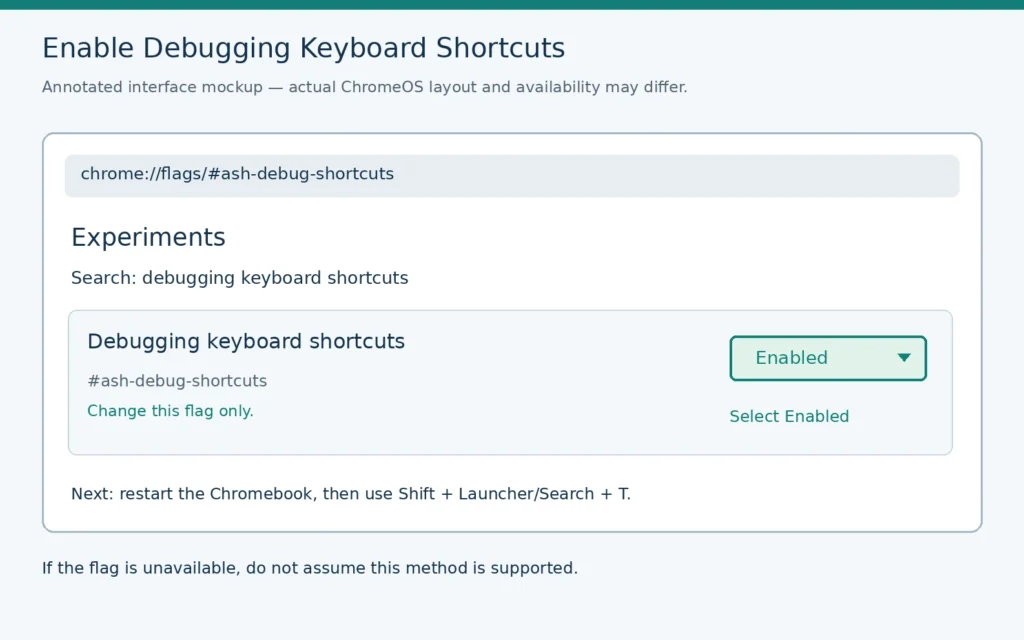
Open Chrome and enter this exact address:
chrome://flags/#ash-debug-shortcuts
Press Enter. The page should open directly at the Debugging keyboard shortcuts flag.
If that address does not open the flag on your device, try:
os://flags/#ash-debug-shortcuts
You can also open chrome://flags or os://flags and search for debugging keyboard shortcuts.
2. Enable Debugging keyboard shortcuts
Open the drop-down menu beside Debugging keyboard shortcuts and change it from Default or Disabled to Enabled.
ChromeOS flags are experimental controls. Change only this flag for this task. Do not enable unrelated options.
3. Restart the Chromebook
Select the Restart or Relaunch button shown on the flags page. Wait until ChromeOS returns to the sign-in screen, then sign in normally.
Simply enabling the flag is not enough. ChromeOS must restart before the shortcut becomes available.
4. Use the touchscreen toggle shortcut
Press these three keys together:
Shift + Launcher/Search + T
The Launcher or Search key normally has a circle or magnifying-glass symbol. On an external Windows keyboard, use the Windows key in place of Launcher/Search. On an external Mac keyboard, use the Command key. Google documents these substitutions for Chromebook shortcuts in its Chromebook keyboard guide.
5. Confirm that touch input is off
Open a page where a tap would normally select a button or move the cursor. Touch the screen in several areas without pressing any keyboard or touchpad control.
The check passes when:
- the picture remains visible;
- the keyboard and touchpad or mouse still work; and
- finger contact no longer produces an on-screen action.
Do not rely only on a notification. Test the screen directly.
How to Turn the Touchscreen Back On
Press Shift + Launcher/Search + T again. The shortcut is a toggle, so the same key combination turns touch input off and on.
If the shortcut is no longer available, return to the flags page, confirm that Debugging keyboard shortcuts is still enabled, restart, and try again. After a ChromeOS update or restart, test the touchscreen state instead of assuming it stayed disabled.
When you no longer need the feature, return the flag to Default and restart the Chromebook. This removes the extra debugging shortcuts while leaving the touchscreen in normal operation.
If the Flag or Shortcut Does Not Work
The Debugging keyboard shortcuts flag is missing
First, search the flags page manually instead of relying only on the direct link. Try both the chrome://flags and os://flags forms.
Next, update ChromeOS:
- Select the time in the lower-right corner.
- Open Settings.
- Select About ChromeOS.
- Select Check for updates.
- Restart if an update is installed.
These are the current steps in Google’s ChromeOS update instructions.
If the flag is still absent, the debug toggle may not be exposed on that model or software build. On a managed Chromebook, contact the school or company administrator rather than trying to bypass device policy.
The flag is enabled, but Shift + Launcher/Search + T does nothing
Check the following in order:
- Confirm that you restarted after enabling the flag.
- Return to the flags page and make sure the setting still shows Enabled.
- Press all three keys together while signed in to ChromeOS.
- Check whether the Launcher/Search key was remapped under Settings > Device > Keyboard and inputs.
- If using an external keyboard, substitute the Windows or Command key for Launcher/Search.
- Restart once more and test again.
Current Chromium source still maps Shift + Launcher/Search + T to the debug touchscreen toggle, but only when the debug-shortcuts flag is active. The implementation can be reviewed in Chromium’s accelerator table.
The touchscreen turns back on later
Treat this method as a reversible software toggle, not a permanent hardware configuration. Recheck it after a ChromeOS restart, update, account change, or administrator policy refresh. If a permanently disabled built-in touchscreen is required because of physical damage, ask the Chromebook manufacturer or an authorized repair provider for a model-specific service option.
Ghost touches continue
Turn the Chromebook off and clean the screen according to the device manufacturer’s instructions. Keep liquid away from openings and do not spray cleaner directly onto the device. Restart and update ChromeOS, then test again.
If the display is cracked, swollen, wet, or still generates false input after cleaning and restarting, stop using touch input and arrange hardware service. Disabling touch can make the device temporarily usable, but it does not repair a damaged digitizer, loose connection, grounding problem, or controller fault.
How to Disable Touch on an External Touchscreen Monitor
An external touch monitor normally has two signal paths:
- a video path, such as HDMI or DisplayPort, for the picture; and
- a USB touch-data path for coordinates from the touch controller.
When the monitor uses separate cables, disconnect the USB touch-data cable from the Chromebook, dock, or adapter while leaving the video cable connected. The display should continue showing an image, but touch input should stop.
Lucky-XFC’s touch screen controller guide explains why display video and touch coordinates are usually handled separately. This distinction is also useful when diagnosing a monitor that shows an image but does not respond to touch.
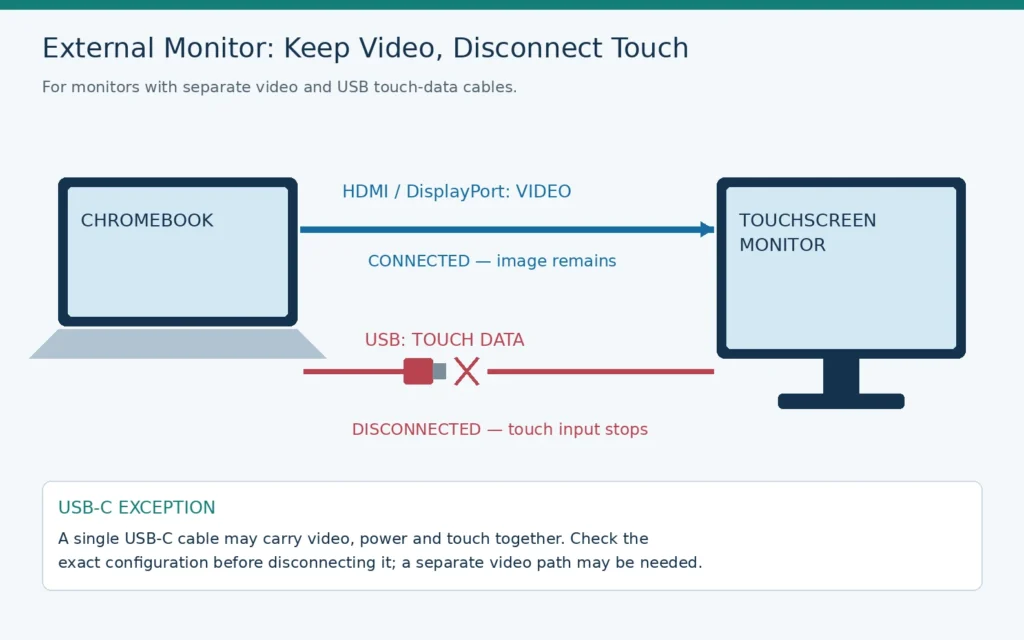
If one USB-C cable carries video, power, and touch together, do not assume you can remove touch without affecting the other functions. Check the exact monitor, Chromebook, dock, and cable configuration. A separate video connection may be needed to retain the image while omitting the USB touch path.
For new equipment, confirm the operating system, touch controller, USB behavior, connector functions, and sample performance before deployment. Browse touchscreen monitor configurations as a starting point, but approve ChromeOS compatibility against the exact host and monitor combination.
Common Mistakes to Avoid
- Pressing the shortcut before enabling the debug flag and restarting.
- Using Shift + Launcher/Search + P, which controls the touchpad under the same debug-shortcut system, not the touchscreen.
- Confusing a browser gesture setting with control of the physical touch digitizer.
- Assuming every Chromebook includes a normal touchscreen on/off switch in Settings.
- Enabling Developer Mode or performing a Powerwash for a task that should only need a reversible shortcut.
- Disconnecting the HDMI or DisplayPort cable when the goal is to stop external touch but keep the image.
- Assuming every USB-C port or cable carries the same combination of video, power, and touch data.
- Treating a disabled touchscreen as a repair for cracks, liquid damage, or persistent ghost touches.
Frequently Asked Questions
Can I turn off a Chromebook touchscreen from Settings?
Some model-specific interfaces may differ, but Google does not list a general touchscreen-off control among its standard Chromebook shortcuts or settings. The broadly documented workaround uses the experimental debug-shortcuts flag. Check your own Settings search first, and use a manufacturer-supported switch if your exact model provides one.
Does Shift + Launcher/Search + T permanently disable the touchscreen?
No. It is a reversible debug toggle. Press the same combination to restore touch and verify the state again after restarts or ChromeOS updates.
Will disabling the touchscreen erase my files?
No. Enabling the single debug-shortcuts flag and using the toggle does not require a factory reset. Save open work because ChromeOS must restart when you first enable the flag.
Can I use this on a school Chromebook?
Only if the device policy exposes the flag and shortcut. If the flag is missing, locked, or reset by policy, contact the administrator. Do not attempt to remove management or change the device channel to bypass restrictions.
Is this the same as disabling the touchpad?
No. The touchscreen is the display surface. The touchpad is the pointing surface below the keyboard. Under the debug-shortcut system, Shift + Launcher/Search + T toggles the touchscreen, while Shift + Launcher/Search + P toggles the touchpad.
Will turning off touch significantly extend battery life?
Do not expect a guaranteed or measurable battery-life improvement. Use the toggle mainly to prevent unwanted input, isolate a touch-related problem, or control a specific workflow.
Final Checklist
Before finishing, confirm all five points:
- Debugging keyboard shortcuts is enabled.
- ChromeOS was restarted after the flag change.
- Shift + Launcher/Search + T stops touch input.
- The keyboard and touchpad or mouse still provide control.
- You know how to restore touch with the same shortcut.
For an external touch-display project, send Lucky-XFC the Chromebook model, ChromeOS version and channel, monitor size and resolution, required touch points, connection method, dock or adapter details, and intended application. Contact Lucky-XFC for a controller, interface, and sample-validation review before approving the production configuration.
