
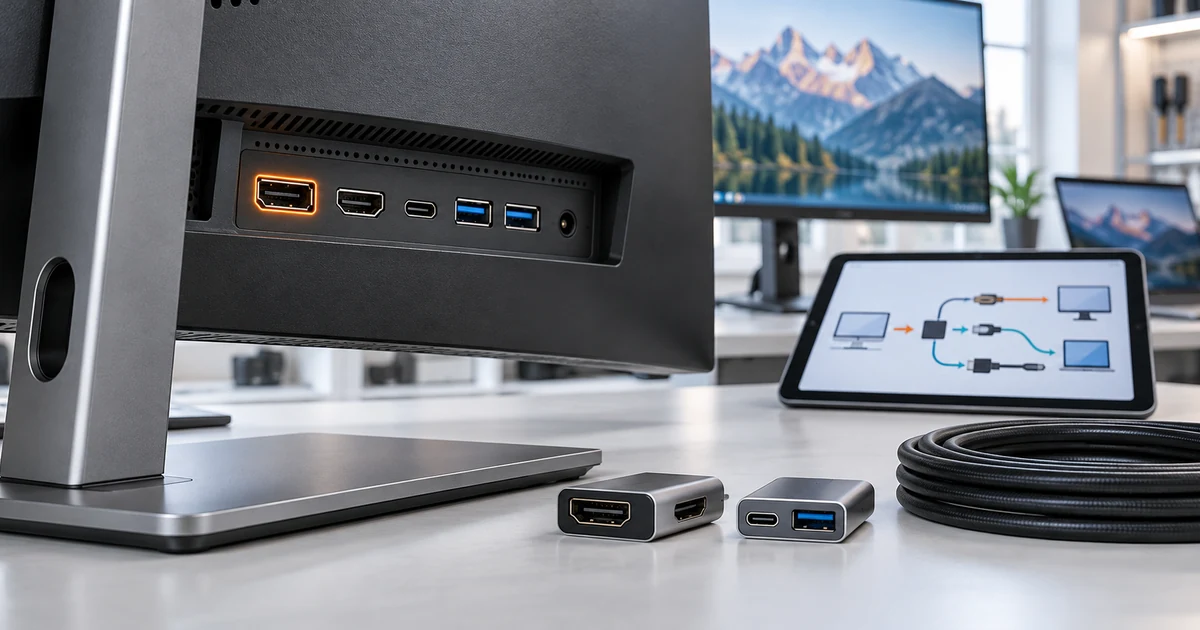
No. Not all monitors have DisplayPort. Many business, gaming, professional, and industrial monitors include it, but other displays may provide only HDMI, USB-C, DVI, VGA, or a model-specific internal connection. The available ports depend on the monitor’s age, target application, controller board, resolution, refresh-rate requirements, and product configuration.
There is also an important wording difference:
- DisplayPort is the digital audio/video interface standardized by VESA.
- Display ports can be a general phrase for any monitor video connectors, including HDMI, DisplayPort, USB-C, DVI, and VGA.
If a computer has DisplayPort but the monitor does not—or the monitor has DisplayPort but the computer does not—the system may still work with a suitable cable, dock, or directional adapter. The correct solution depends on the source output, the monitor input, and the required display mode.
Why Do Some Monitors Not Have DisplayPort?
A monitor does not need DisplayPort to display an image. It needs at least one video input that is compatible with the source device, either directly or through an appropriate converter. Manufacturers choose interfaces for the intended market and system design.
Common reasons a monitor may not include DisplayPort are:
- Product age: Older monitors may use VGA or DVI because those interfaces matched computers available when the monitor was designed.
- Consumer use: Entry-level monitors and television-style displays may focus on HDMI because laptops, media players, and game consoles commonly provide HDMI outputs.
- Portable design: Portable monitors may use USB-C and Mini HDMI to save space.
- Integrated equipment: A display built into a kiosk, machine, or all-in-one terminal may use an internal connection or a controller board selected for the host system.
- Cost and space: Every connector adds board space, controller requirements, enclosure openings, validation work, and cost.
- Project-specific configuration: An industrial display may be configured around a legacy VGA or DVI source, while another version of the same product family uses HDMI or DisplayPort.
This is why the product name, diagonal size, or panel resolution cannot prove which ports are fitted. Two monitors with the same screen size can have completely different input boards.
What Is DisplayPort?
DisplayPort is a digital interface for carrying video and audio from a source device to a display. The standard is administered by VESA. It is widely used on desktop graphics cards, business computers, docking stations, professional displays, and many industrial PCs.
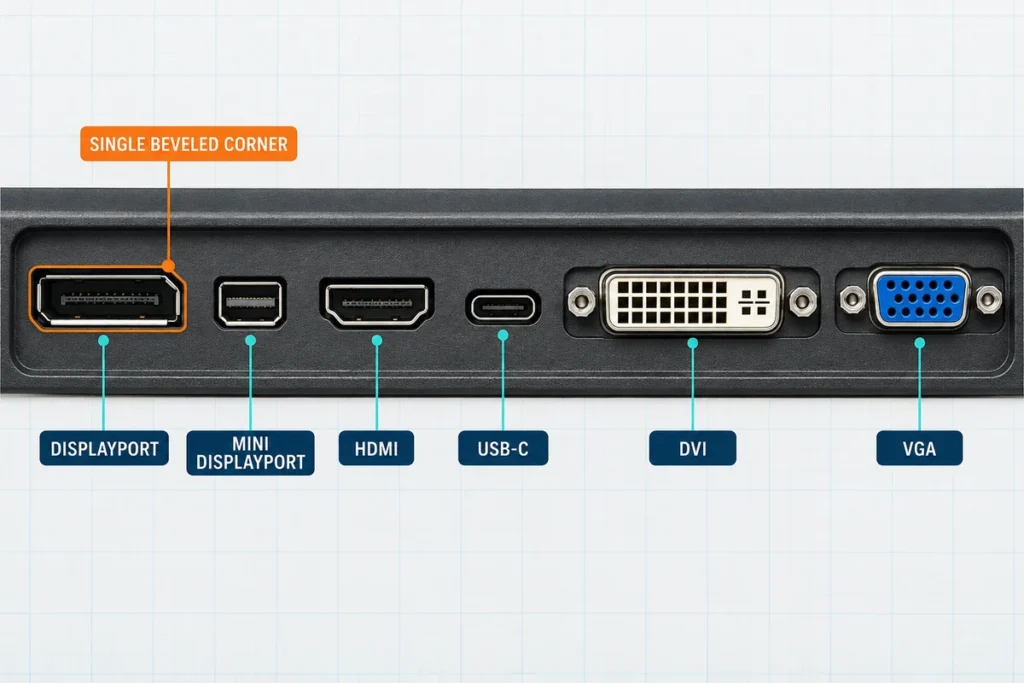
A full-size DisplayPort connector is roughly rectangular with one corner cut at an angle. Mini DisplayPort is smaller and has a different shape. DisplayPort video can also be carried through a USB-C connection when the relevant devices and cable support DisplayPort Alt Mode or another compatible DisplayPort transport method.
DisplayPort can support useful system features such as high-resolution or high-refresh-rate video, audio transport, adaptive synchronization, and Multi-Stream Transport. However, these capabilities are not guaranteed merely because a port has the DisplayPort shape. The source, monitor, cable, graphics hardware, operating system, and selected display mode must support the required feature.
DisplayPort input and output are not the same
Most monitor DisplayPort connectors are inputs. They receive video from a computer or other source. Some monitors also have a DisplayPort output for an MST daisy chain, but this is a separate function and is not present on every monitor.
Check the port label and datasheet before connecting a second display. Plugging two input ports together does not create a daisy chain.
Which Ports Can a Monitor Have?
The following interfaces are common, but no single combination applies to every monitor.
| Interface | Signal type | Common monitor use | Main selection point |
|---|---|---|---|
| DisplayPort | Digital video and audio | PCs, workstations, gaming and professional displays | Confirm supported link capability, resolution, refresh rate, and whether the connector is input or output |
| HDMI | Digital video and audio | Consumer monitors, TVs, laptops, media players, kiosks | Confirm connector size, supported display mode, and source compatibility |
| USB-C | Connector with model-dependent functions | Portable monitors, modern laptops, docking displays | Confirm video support, USB data, power direction, power delivery, and cable capability separately |
| DVI | Mainly digital video; variants differ | Older office and industrial systems | Identify the exact DVI type and required resolution |
| VGA | Analog video | Legacy PCs, industrial equipment, maintenance systems | Expect analog conversion limits and confirm the required resolution and cable length |
| Internal board connection | Product-specific | Embedded displays, kiosks, machines, all-in-one equipment | Match the display controller, voltage, pinout, firmware, and host architecture |
Some monitors provide several inputs so users can connect multiple source types. Others have only one input because they are designed for a controlled system. More ports do not automatically mean better performance; the correct interface is the one that supports the complete application.
How Can You Tell Whether a Monitor Has DisplayPort?
Use the following checks before buying a cable or adapter.
1. Inspect the physical connector
Look at the monitor’s rear, side, or downward-facing I/O area. A full-size DisplayPort connector usually has one beveled corner and may be marked with the DisplayPort symbol or “DP.” Do not confuse it with HDMI, which has a different symmetrical tapered shape.
2. Read the exact model datasheet
The model number matters. A product family may contain regional, commercial, or controller-board variants with different ports. Check the input list, supported resolutions, refresh rates, and port direction for the exact part number.
3. Check the on-screen input menu
The monitor’s input-source menu may list DP, HDMI, DVI, VGA, or USB-C. This is a useful confirmation, but the datasheet remains important because a menu used across several variants may show options that are not fitted to every unit.
4. Request a rear-interface photograph or drawing
For OEM, replacement, or industrial projects, obtain a clear photograph and an approved mechanical drawing. The drawing should show connector position and direction as well as the available cable-bend space. A technically compatible port can still be unusable if a cabinet blocks the cable.
Can You Use a Monitor Without DisplayPort?
Yes. A monitor without DisplayPort can work normally through another supported input. Start with the ports available on both devices.
| Source device output | Monitor input | Typical connection approach |
|---|---|---|
| HDMI | HDMI | Direct HDMI cable |
| DisplayPort | DisplayPort | Direct DisplayPort cable |
| USB-C with video support | USB-C with compatible video input | Full-featured USB-C cable that supports the required functions |
| USB-C with DisplayPort video | DisplayPort | USB-C-to-DisplayPort cable or adapter |
| DisplayPort | HDMI | Directional DisplayPort-to-HDMI cable or adapter; active conversion may be required for some sources, modes, or multi-display arrangements |
| HDMI | DisplayPort | Active HDMI-to-DisplayPort converter, commonly with a separate power connection |
| DisplayPort | DVI or VGA | Suitable directional conversion; active conversion is normally needed for analog VGA and may be needed for the required DVI mode |
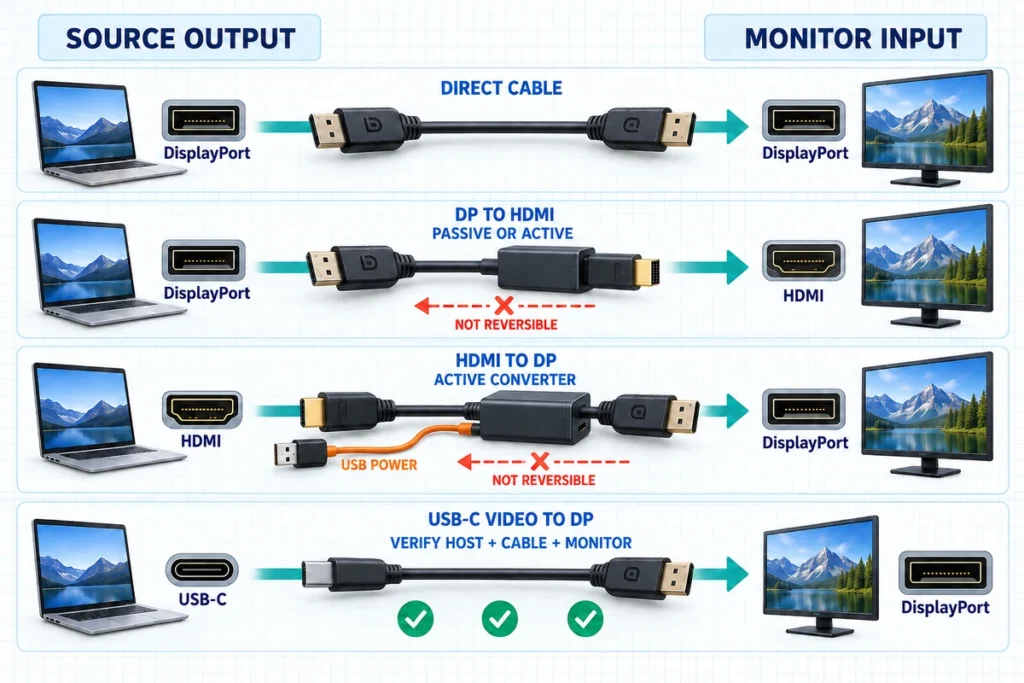
The direction printed on an adapter is critical. “DisplayPort to HDMI” and “HDMI to DisplayPort” are not interchangeable descriptions. A cable designed for a DisplayPort source and HDMI monitor usually will not operate in reverse.
When is an active adapter required?
An active adapter contains conversion electronics. It is required when the source cannot produce a signal that the monitor accepts directly. HDMI-source-to-DisplayPort-monitor conversion is a common example: use an adapter explicitly designed for that direction, verify its maximum resolution and refresh rate, and connect auxiliary USB power when the adapter requires it.
For DisplayPort-source-to-HDMI-monitor connections, some source devices support a compatible dual-mode output and can use a simpler adapter. Other sources or demanding display modes need active conversion. Do not choose only by connector shape; compare the adapter specification with the graphics output and intended mode.
Does USB-C Mean the Monitor Has DisplayPort?
Not necessarily. USB-C describes the connector, not a guaranteed feature set. A USB-C port may support:
- USB data only;
- charging or power input;
- power output;
- DisplayPort video;
- video plus USB data;
- video, data, and power in a combined setup; or
- another manufacturer-defined subset of functions.
For a USB-C video connection, verify the host’s video-output capability, the monitor’s USB-C input functions, the cable rating, the required resolution and refresh rate, and the power direction. A charge-only or basic data cable may fit physically but fail to carry video.
The same rule applies to docks. A dock’s connector list does not establish the display modes available from every host. The laptop port, dock chipset, graphics system, operating system, and total bandwidth allocation all affect the result.
Does DisplayPort Carry Touchscreen Data?
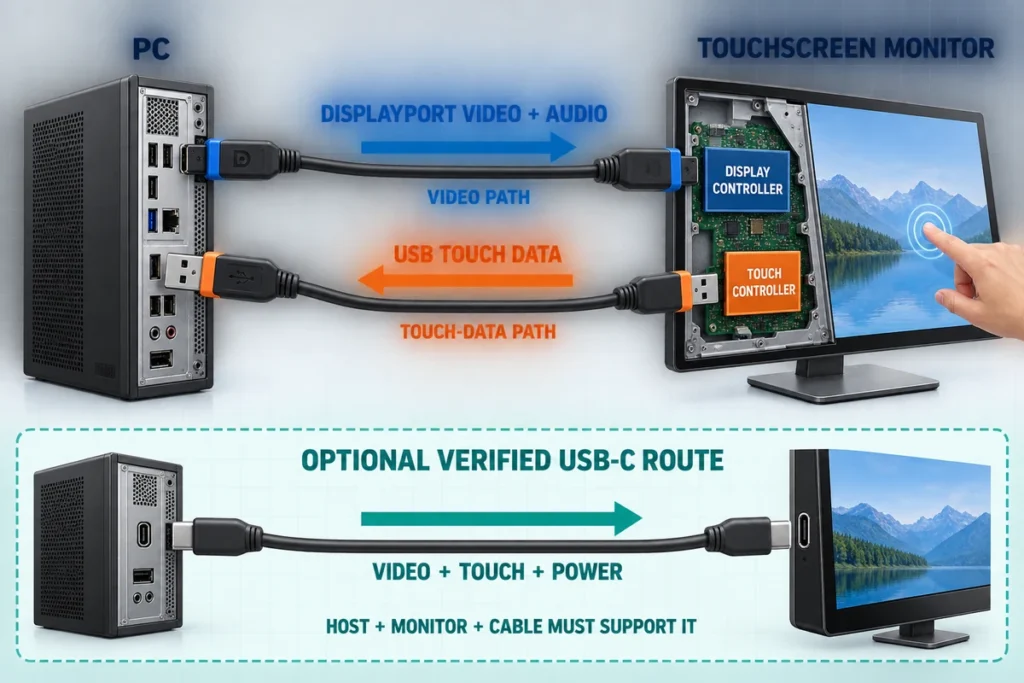
In a typical external touchscreen monitor, DisplayPort carries the image and may carry audio, but a separate USB connection sends touch coordinates back to the computer. The display and touch functions should be treated as two signal paths:
- Video path: HDMI, DisplayPort, VGA, USB-C video, or another supported input sends the picture to the display controller.
- Touch-data path: USB or a model-specific serial connection sends touch input from the touch controller to the host.
As a result, a screen can show a correct image while touch does not work. In that situation, changing the DisplayPort cable may not solve the problem; check the USB touch cable, host USB port, touch controller, driver or HID recognition, operating-system mapping, and calibration.
A compatible USB-C design may combine video and touch data in one cable, but the monitor, host, and cable must all support the required functions. The HDMI touchscreen monitor guide explains the same separation for HDMI-based systems.
Is DisplayPort Better Than HDMI for a Monitor?
Neither connector is universally better. The practical question is which complete connection supports the required display mode and system architecture.
DisplayPort is often attractive for PC systems that need high display bandwidth, adaptive synchronization, or multi-monitor features. HDMI can be the more convenient choice when the host is a laptop, media player, game console, or commercial player with HDMI output. A direct, validated HDMI connection may be more reliable than adding a converter solely to use DisplayPort.
Compare these factors instead of selecting by port name alone:
- native resolution and refresh rate;
- color depth and chroma requirements;
- HDR requirements;
- cable length and routing;
- graphics-source capability;
- docking-station limits;
- content-protection requirements;
- multi-monitor topology;
- availability of certified or appropriately rated cables;
- long-term equipment compatibility.
A newer connector does not upgrade the monitor panel, and an adapter cannot create a resolution or refresh rate that the source, converter, or display does not support.
Can DisplayPort Connect Multiple Monitors?
DisplayPort Multi-Stream Transport can support multiple displays from one compatible source connection. A system may use a monitor with a DisplayPort output, an MST hub, or a suitable dock. This does not mean every DisplayPort monitor can be daisy-chained.
Before specifying an MST system, confirm:
- the source DisplayPort output supports MST;
- the operating system and graphics driver support the intended arrangement;
- the first monitor has a genuine DisplayPort output if daisy-chaining is planned;
- the displays, hub, or dock support the required topology;
- the total link bandwidth is sufficient for all resolutions, refresh rates, and color settings; and
- any adapters in the chain support the same design.
For commercial deployment, test the complete chain with the production computer image, cables, dock, and displays before rollout.
What Should B2B Buyers Confirm Before Ordering?
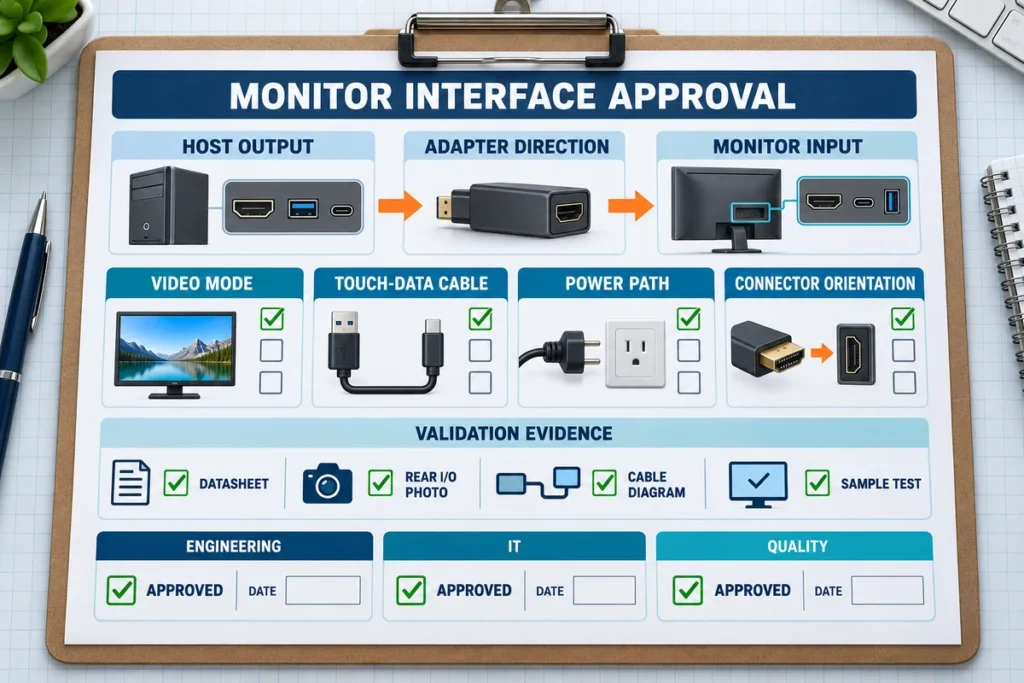
Port presence is only the first line of an interface specification. For an office rollout, kiosk, machine, control cabinet, or interactive terminal, use a connection schedule that records every required signal.
Host information
- Computer, industrial PC, media player, or embedded-board model
- Available video outputs and their direction
- Graphics hardware and supported display modes
- Operating system and driver environment
- Number of simultaneous monitors
Display requirements
- Exact resolution, refresh rate, color depth, and orientation
- DisplayPort, HDMI, USB-C, DVI, VGA, or internal input requirement
- Required input switching or multi-source behavior
- Audio requirements
- Touch technology and touch-data connection, if applicable
Mechanical and electrical requirements
- Connector direction and cable clearance
- Cable length and routing environment
- Power input and grounding arrangement
- Mounting pattern, panel cutout, and rear depth
- Resistance to vibration, dust, moisture, or temperature conditions where relevant
Validation evidence
- Exact part-number datasheet
- Rear I/O photograph
- Interface and cable diagram
- Mechanical drawing
- Adapter model and direction
- Sample test under the intended host, software, and display settings
DisplayPort Considerations for Industrial and Custom Monitors
Industrial and OEM applications often have different priorities from a consumer desktop. A new DisplayPort input may be useful when the equipment uses a modern industrial PC, but a legacy VGA or DVI connection may be required when the monitor replaces an older installed unit. HDMI may suit a digital-signage player, while an internal controller-board connection may suit a fully integrated terminal.
For industrial monitors, interface selection should follow the host equipment rather than a generic assumption. Lucky-XFC industrial monitor configurations may include HDMI, VGA, DVI, DisplayPort, or other inputs depending on the selected model and project. Touch versions may also require USB or serial touch communication. Buyers should provide the host model, output-port photographs, required display mode, touch interface, cable direction, and installation drawing during model selection.
For projects that need a compact combined connection, review the USB-C touchscreen monitor option, but define video, touch data, power delivery, and cable capability individually. If HDMI is already the established host output, a purpose-built HDMI configuration may reduce unnecessary conversion.
Common DisplayPort Connection Mistakes
Assuming every monitor has DisplayPort
Check the exact model before buying cables or deploying PCs. Product category and screen size are not enough.
Buying the correct connectors in the wrong direction
Read the adapter’s source and display labels. HDMI-to-DisplayPort conversion is not the reverse of DisplayPort-to-HDMI.
Treating USB-C as a guaranteed video port
Confirm that the host output, monitor input, and cable all support the required video function.
Expecting DisplayPort to enable touch by itself
Connect and validate the separate USB or serial touch-data path unless the approved system combines functions through USB-C.
Ignoring resolution and refresh limits
Every source, port, cable, adapter, dock, and monitor in the chain must support the intended display mode. The system operates within the limits of the complete path.
Confusing monitor input with output
Most monitor DP ports receive video. MST daisy chaining requires the correct output-capable port and compatible equipment.
Approving an interface without checking mechanical access
Downward-facing or recessed connectors can require right-angle cables or additional bend clearance. Validate the installed cable, not just the bare monitor.
Frequently Asked Questions
Do all new monitors have DisplayPort?
No. Many current monitors have DisplayPort, but some use HDMI, USB-C, or another input instead. Always check the exact model’s input specification.
What if my monitor has HDMI but my computer has DisplayPort?
Use a directional DisplayPort-source-to-HDMI-display cable or adapter that supports the required resolution and refresh rate. Some systems or display arrangements require an active adapter.
What if my computer has HDMI but my monitor has DisplayPort?
Use an active HDMI-source-to-DisplayPort-display converter. Choose the correct direction, check its display-mode limit, and connect auxiliary power if required.
Can I add a DisplayPort connector to a monitor?
Usually not as a simple port upgrade. The monitor’s controller board must support DisplayPort input. An external adapter is normally more practical. For OEM equipment, a compatible controller-board change may be evaluated as part of a custom redesign.
Can a DisplayPort cable be used with any resolution?
The connector alone does not guarantee a specific mode. Confirm the source capability, monitor capability, link performance, cable rating and length, adapter or dock limits, and chosen color settings.
Does DisplayPort provide power to a monitor?
DisplayPort is not normally the monitor’s main power supply. The display still needs its specified power connection. A USB-C display may receive power through a compatible USB Power Delivery arrangement, but that is a separate, model-dependent design.
Is DisplayPort required for a touchscreen monitor?
No. A touchscreen monitor may receive video through HDMI, DisplayPort, VGA, USB-C, or another supported input. Touch input normally returns through USB or a supported serial interface. Choose both paths according to the host system.
The Practical Answer
Not all monitors have DisplayPort, and a missing DisplayPort connector does not automatically make a monitor incompatible. Identify the source output, monitor input, signal direction, required video mode, and any touch-data or power connections. Then choose a direct cable where possible or a correctly specified directional adapter where conversion is necessary.
For a custom touch or industrial display project, send Lucky-XFC your host-computer model, port photographs, required resolution and refresh rate, touch connection, screen size, mounting drawing, and cable-direction requirements. Contact the Lucky-XFC team to review a compatible monitor and interface configuration before sample testing.
