
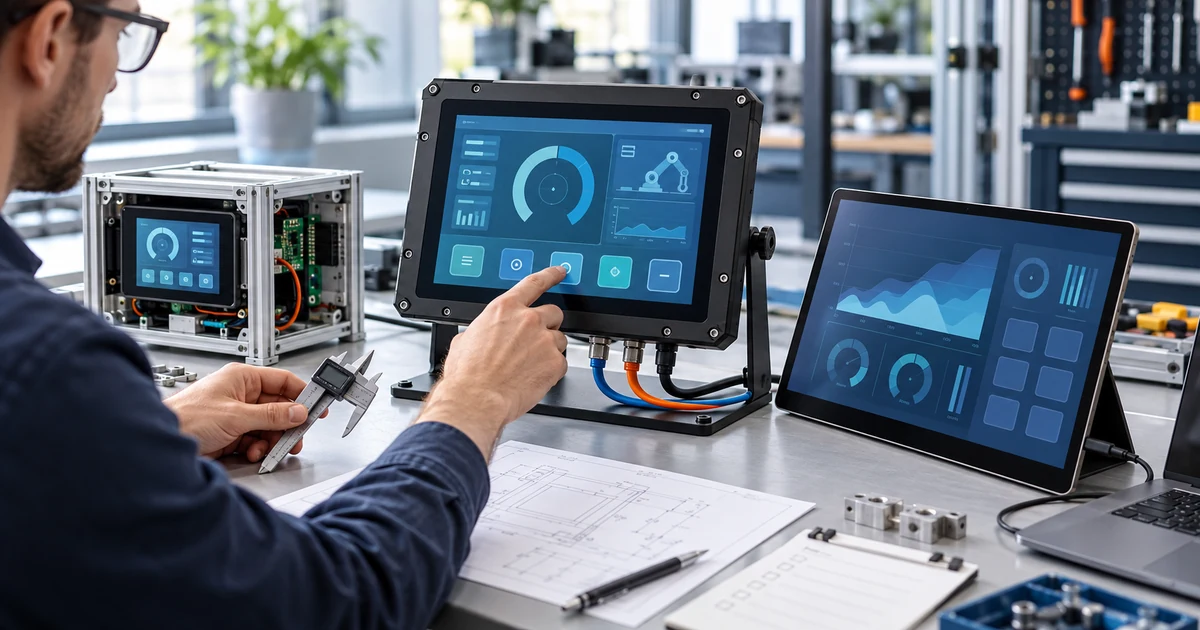
The best mini touch screen monitor is the one that fits the application, host computer, software layout, available space, power source, and mounting method. There is no single model that is best for a portable laptop setup, a Raspberry Pi project, an industrial control panel, and a self-service terminal at the same time.
For compact equipment, a 10.1-inch-class PCAP monitor is often a practical starting point because it provides more usable touch area than very small embedded screens while remaining easy to integrate into a panel or VESA-mounted workstation. For mobile laptop use, a 12.3- to 13.3-inch portable touchscreen usually provides a better balance of workspace and portability. Applications below 10 inches require closer review of resolution, interface-board size, touch-target dimensions, mounting, and current panel availability.
The buying decision should begin with the real workflow, not a marketplace rating or the highest published resolution.
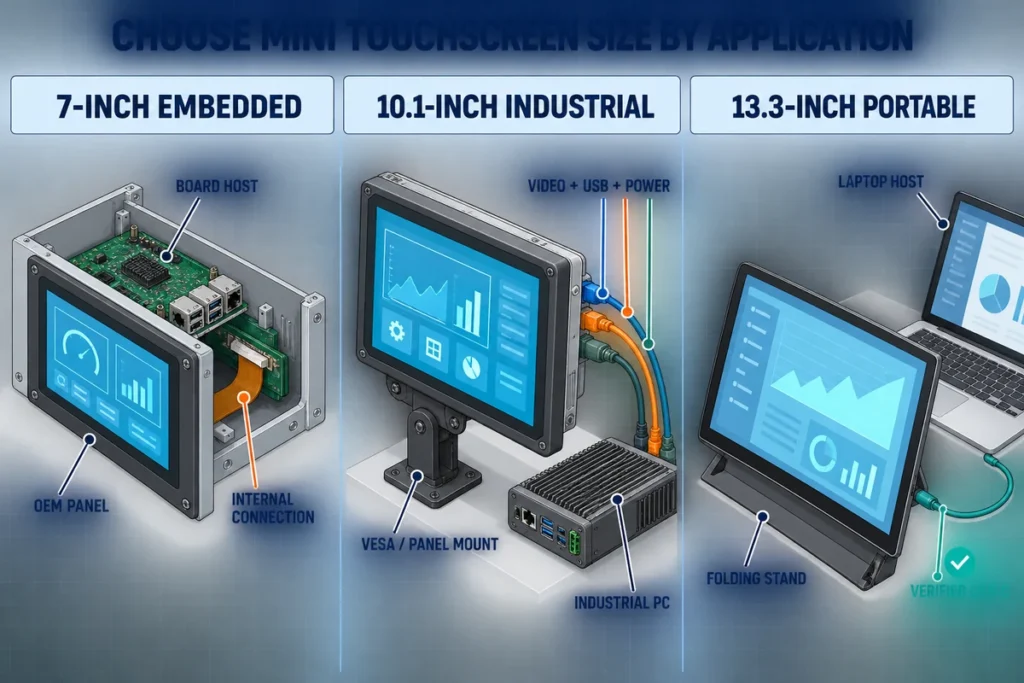
Quick Recommendation by Application
| Application | Practical starting format | Main priorities | Main risk to avoid |
|---|---|---|---|
| Compact industrial control or machine panel | 10.1-inch enclosed or panel-mount monitor | Native software layout, PCAP or resistive input, mounting drawing, HDMI or VGA, touch-data path | Designing the enclosure from nominal diagonal size |
| Raspberry Pi or small single-board computer | Compact HDMI display with USB touch | Supported resolution, OS image, USB host support, power budget, controller compatibility | Assuming video output guarantees touch operation |
| Portable laptop extension | 12.3- to 13.3-inch portable touchscreen | Weight, stand stability, USB-C or HDMI path, power, touch support | Assuming every USB-C port provides video and power |
| POS or countertop terminal | 8- to 12-inch enclosed or VESA-mounted monitor | Touch-target size, cleaning, cable retention, service access | Selecting a consumer portable screen without a stable mounting plan |
| Kiosk or OEM enclosure | Open-frame or panel-mount display sized to the opening | Active area, cutout, rear depth, brackets, port direction | Ordering from a product photo instead of an approved drawing |
| Field diagnostics or commissioning | Compact portable monitor | Host compatibility, protective structure, readable interface, simple cabling | Choosing the smallest screen at the expense of usable controls |
| Standalone application | Touchscreen computer or panel PC | Processor, memory, storage, OS, thermal design, I/O | Buying a display-only monitor when an integrated computer is required |
This table creates a shortlist, not a final specification. The selected monitor still needs to be tested with the production host, operating-system image, cables, power supply, software, and mounting structure.
What Does “Mini Touch Screen Monitor” Mean?
“Mini” is a search and purchasing term rather than a fixed technical size class. Depending on the buyer, it can describe a 5-inch embedded display, a 7- or 8-inch Raspberry Pi screen, a 10.1-inch industrial monitor, or a 13.3-inch portable second screen.
A mini touchscreen monitor normally combines:
- An LCD panel and display electronics
- A touch sensor and touch controller
- Video and touch-data connections
- A power input
- A finished housing, open-frame chassis, or panel-mount structure
- An external host such as a computer, industrial PC, or SBC
It is usually a display and input device, not a complete computer. If the screen must run an application without an external host, compare a touchscreen computer or panel PC instead.
The category should also be separated from a small tablet. A tablet includes computing hardware, storage, battery management, and a mobile operating system. A monitor normally receives video from another device and sends touch input back to that host.
Start With the Product Architecture
The best small touchscreen will have the correct physical and computing format before any individual specification is compared.
Portable Touchscreen Monitor
A portable touchscreen monitor uses a slim enclosure and an integrated or detachable stand. It suits laptop expansion, mobile workstations, field tools, demonstrations, and equipment commissioning.
Portable designs prioritize transport weight, stand angle, cable simplicity, port accessibility, and protection during travel. Lucky-XFC’s current portable project scope starts at 12.3 inches, with 13.3-, 14-, 15.6-, and 16-inch directions also listed. Smaller applications should be treated as a separate compact-display project rather than assumed to use the same portable platform.
Enclosed Desktop or VESA Monitor
An enclosed monitor has a finished housing and can sit on a desk, attach to an arm, or mount to a machine structure. This format is useful for POS stations, compact workstations, test benches, and operator terminals.
Check the VESA pattern, stand compatibility, connector direction, cable strain, and stability under repeated touch. A lightweight monitor with an unsuitable stand may move every time the user presses the screen.
Panel-Mount Monitor
A panel-mount model fits into a prepared machine or cabinet opening. The front bezel overlaps the cutout while brackets or fasteners secure the monitor from behind.
This format can provide a clean equipment front, but the enclosure must match the exact active area, outer dimensions, cutout, panel thickness, mounting depth, and connector clearance.
Open-Frame Touch Monitor
An open-frame touch monitor is designed for integration behind a custom bezel or inside an OEM enclosure. It gives the equipment manufacturer more control over the finished industrial design.
The screen is not a drop-in replacement based on diagonal size alone. The chassis, brackets, display controller, power connection, and cable exit must fit the equipment drawing.
Integrated Touchscreen Computer
An integrated system adds the processor, memory, storage, operating system, and computer I/O. It is the better format when the unit must run the application independently or when the buyer wants one approved hardware image instead of a separate monitor and host.
The trade-off is that computing performance, cooling, operating-system updates, storage, cybersecurity, and lifecycle replacement become part of the display decision.
Choose the Screen Size Around the Interface
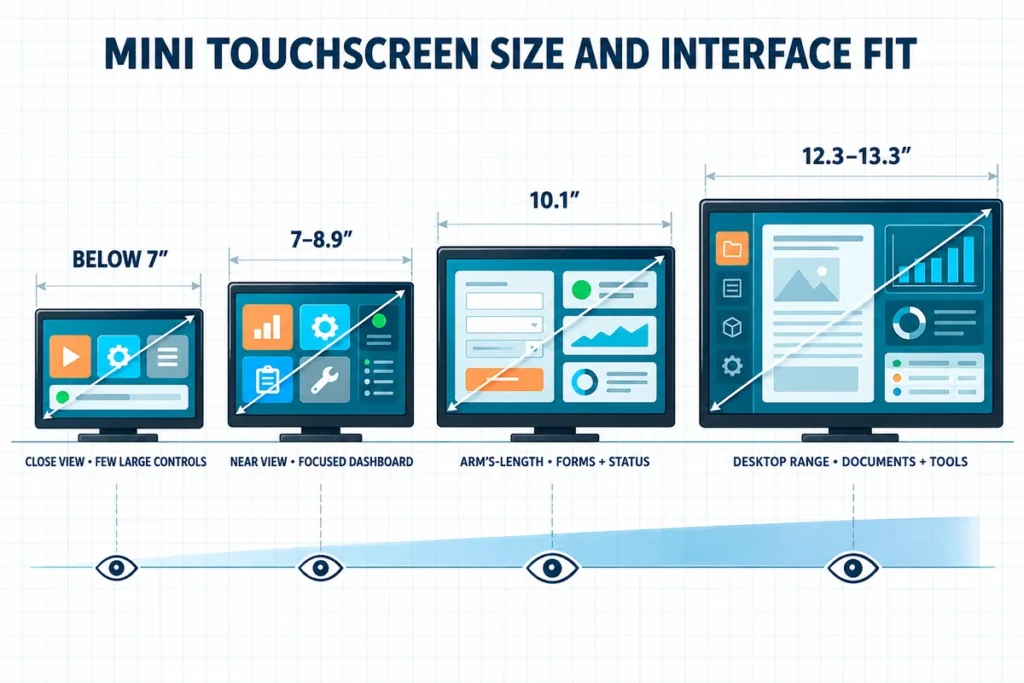
A smaller diagonal reduces the footprint, but it also reduces the physical size of text, buttons, charts, and on-screen keyboards. The smallest screen that fits the enclosure is not automatically the best screen for the operator.
Below 7 Inches
Very small touch displays can suit status pages, a few large controls, handheld equipment, and compact embedded systems. They leave little room for dense menus, full keyboards, or multi-window interfaces.
At this size, evaluate the LCD module, controller board, connectors, mounting, and enclosure as one custom assembly. A connector protruding from the side can occupy as much design space as the visible screen.
7 to 8.9 Inches
This range can work for simple SBC dashboards, compact test equipment, smart-home panels, and focused machine controls. It remains important to design the interface for finger input rather than shrinking a desktop interface.
Button dimensions, spacing, viewing distance, aspect ratio, and operating orientation should be tested on the real panel. Fine text may be readable in a screenshot but difficult to operate in a moving vehicle, bright factory, or standing position.
10 to 10.1 Inches
The 10-inch class is a useful middle ground for industrial controls, production terminals, instruments, building systems, and countertop applications. It provides more room for forms and status information while remaining compact enough for many equipment panels.
Lucky-XFC’s documented 10.1-inch touchscreen monitor configuration base uses 1280 × 800 resolution, projected-capacitive touch, panel or VESA mounting, and HDMI and VGA video inputs. Its touch-data connection, power, brightness, dimensions, cutout, and environmental configuration are confirmed for the selected project.
12.3 to 13.3 Inches
This range is often better for portable secondary displays, laptop extension, mobile diagnostics, and applications that need more usable workspace. It can show documents, dashboards, or tool panels without moving directly to a conventional desktop monitor size.
The larger housing affects transport weight and support stability. Confirm whether the screen is truly portable, detachable from equipment, or expected to stay on a fixed stand.
Match Resolution to Screen Size and Software
Resolution determines how many pixels the screen displays, but it does not guarantee a more usable interface.
A higher resolution on a small screen can produce sharp text and detailed graphics. It can also make buttons and menus physically too small if the application does not scale correctly. Operating-system scaling may enlarge the interface, but legacy industrial software and fixed-layout applications do not always respond cleanly.
Evaluate these points:
- The application’s designed resolution and aspect ratio
- The host’s supported output modes
- Operating-system scaling behavior
- Minimum physical touch-target size
- Text readability at the intended viewing distance
- Portrait or landscape layout
- GPU and interface bandwidth
- Power and thermal effects of higher-resolution panels
The documented Lucky-XFC 10.1-inch configuration uses 1280 × 800. That resolution can suit compact forms, controls, and status panels when the software is designed for it. A request for Full HD or another resolution may require a different panel, controller, active area, and enclosure drawing.
Do not release software or mechanical design from the rounded “10 inch” description. Approve the exact native resolution and active-area drawing first.
Select PCAP or Resistive Touch From the Input Method
Touch technology should match the user, environment, and software instead of being selected from a generic preference.
| Decision factor | Projected capacitive touch | Resistive touch |
|---|---|---|
| Primary input | Finger and compatible conductive input | Pressure from finger, glove, or suitable stylus |
| Typical interaction | Taps, swipes, gestures, multi-touch when supported | Deliberate single-point selection |
| Front surface | Smooth glass-front design | Pressure-sensitive overlay |
| Strong fit | Modern interfaces, portable monitors, public-facing controls | Legacy controls, pressure input, some glove and stylus workflows |
| Main checks | Touch points, glass thickness, grounding, water, gloves, controller and OS | Activation force, overlay wear, accuracy, calibration, controller and stylus tip |
PCAP is a practical starting direction for finger-operated mini monitors. The touch controller, cover glass, enclosure, grounding, and host still influence the result. A ten-point label does not prove that every operating system or application will use ten contacts.
Resistive touch can be more suitable when the application requires pressure input, a simple non-sharp stylus, or a specific glove workflow. It should be evaluated as a separate configuration rather than assumed to be interchangeable with a PCAP model.
Active-pen functions such as pressure levels, hover, tilt, and reliable palm rejection require a compatible digitizer and pen protocol. Standard capacitive touch alone does not provide those functions.
Plan Video, Touch Data, and Power Separately
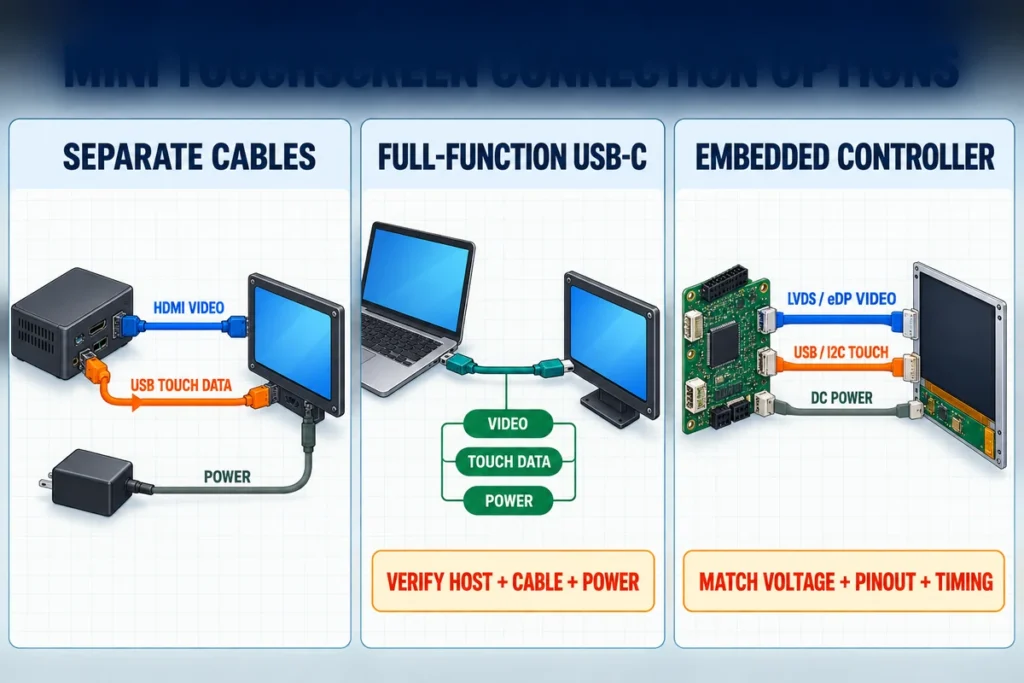
Mini touch monitor listings often emphasize connector names, but a working system needs three paths:
- Video from the host to the monitor
- Touch data from the monitor back to the host
- Adequate power for the display and controller
HDMI Plus USB
An HDMI touchscreen monitor commonly uses HDMI for video and USB for touch data. Power may use another USB connection or a dedicated adapter, depending on the monitor.
HDMI alone normally does not carry touch coordinates back to the computer. A monitor can show a perfect picture while behaving like a non-touch display because the USB touch path is absent.
Small devices may use full-size HDMI, Mini HDMI, or Micro HDMI. Confirm the connector on both ends, the cable direction, retention, and the space required for the plug and bend radius.
Full-Function USB-C
A USB-C touchscreen monitor may combine video, touch data, and power. USB-C is the connector, not a guarantee that every function is present.
For one-cable operation, confirm:
- The host port supports display output
- The monitor accepts the corresponding video path
- USB data remains available for touch
- The host or power source provides enough power
- The cable supports the required video, data, and power functions
- Any dock or adapter preserves those functions
A charge-only USB-C cable can fit without carrying video. A host port may support data and charging but not display output. A video-capable connection may still need external power when the host cannot supply enough energy.
VGA and Legacy Hosts
VGA remains useful for some industrial PCs and older control systems. It carries analog video, while touch still uses USB or another approved data interface. Confirm the native resolution, cable length, signal quality, and connector retention.
Internal and Embedded Interfaces
Bare LCD modules and embedded systems may use LVDS, eDP, MIPI, SPI, I2C, or board-specific connectors. These are engineering interfaces rather than interchangeable consumer ports. Voltage, pinout, timing, controller board, firmware, power sequence, and grounding must match.
Confirm the Host and Operating System
The computer does not need a built-in touchscreen, but it must output a supported video mode and accept touch input from the selected controller.
Windows PC or Industrial Computer
Many compatible USB touch controllers use built-in HID support for basic input. Other controllers, advanced functions, serial interfaces, or calibration tools may need a driver. Multi-monitor systems also need the digitizer mapped to the correct display.
Raspberry Pi and Other SBCs
Record the exact board revision and operating-system image. Check video connector type, supported resolution, USB host availability, touch-controller recognition, rotation, display mapping, power budget, and boot configuration.
A screen advertised for “Raspberry Pi” may work with one board and image but not another without configuration changes. Validate the actual production image and cables.
Linux
Compatibility depends on the controller, kernel, distribution, desktop environment, display server, and application. Recognition of a USB device is only the first test. Confirm coordinate mapping, rotation, scaling, gestures, and behavior after restart and software updates.
Android and Media Players
The device must operate as a USB host for the touch controller and pass input to the application. Some media players can output HDMI video but cannot accept or use external touch input.
macOS
A Mac may provide compatible video output while external touch requires a controller-specific utility or driver. Confirm the exact macOS version, controller, gestures, multi-monitor arrangement, and application.
Check the Mechanical Drawing Before Buying
For an OEM or fixed installation, the mechanical drawing can be more important than the product photo.
Review:
- Overall width, height, and depth
- LCD active area and visible opening
- Bezel overlap and printed border
- Panel cutout and allowable panel thickness
- Rear chassis and controller-board position
- VESA pattern, side brackets, or fastening points
- Connector direction and cable bend clearance
- Ventilation and heat path
- Access for installation and future replacement
- Landscape or portrait orientation
Two monitors with the same diagonal size and resolution can have different outer dimensions, mounting points, and port locations. A 10-inch search term may refer to a 10.1-inch panel. Use the approved drawing rather than a rounded category name to machine the enclosure.
For a portable monitor, inspect the stand as carefully as the screen. It should remain stable under normal touch force and keep cables accessible at the intended viewing angle.
Evaluate Brightness and Surface Conditions
There is no universal brightness value that is best for every mini monitor. A laboratory, factory panel, vehicle, retail counter, and outdoor enclosure have different ambient light and reflection conditions.
Ask for the selected model’s measured or specified brightness, surface treatment, viewing angle, and cover-glass construction. Then test representative content in the intended lighting.
Higher brightness can improve visibility but may increase power and heat. An anti-glare surface can reduce reflections but can also change image appearance. Added cover glass affects reflections, optical distance, touch sensitivity, and the front structure.
Outdoor or high-ambient-light use may need more than a bright panel. Review sealing, temperature, condensation, UV exposure, thermal management, bonding, and local environmental requirements as a complete design.
Specify Touch Performance in Measurable Terms
Avoid requirements such as “fast touch,” “zero delay,” or “works with a stylus” without a test method.
Define:
- Required number of simultaneous touch points
- Finger, glove, passive stylus, or active-pen use
- Minimum on-screen target size
- Edge and corner accuracy
- Dragging, swiping, signature, or drawing behavior
- Palm-rejection requirement
- Cover-glass thickness and coating
- Wet-surface expectations
- Landscape and portrait mapping
- Required behavior after sleep, wake, restart, and USB reconnection
Test these behaviors inside the final enclosure with the intended power supply, grounding, computer, OS, and software. Touch that works on a bare bench sample can change after thicker glass, metal housing, longer cables, or a different power arrangement is introduced.
Consider Power, Heat, and Cable Reliability
Small size does not eliminate power-planning requirements.
Confirm the input voltage, current, connector, polarity, startup behavior, and whether the monitor uses power from the host or an external supply. If the same USB-C link carries power and video, test startup, sleep, wake, and reconnection under the final load.
Industrial and mobile systems also need a secure cable route. Repeated movement, side-loading, vibration, or unsupported adapters can damage small connectors. Consider right-angle plugs, retention, strain relief, and service replacement.
A sealed or tightly integrated enclosure needs a heat path for the panel, display controller, touch controller, and any computer hardware. Do not assume that a low-profile product can be placed in an unventilated cavity without thermal review.
Compare Purchase Price With Total Integration Cost
The lowest monitor price does not always create the lowest project cost.
Include:
- Required cables, adapters, hubs, and power supplies
- Stand, bracket, bezel, or enclosure work
- Driver and software integration
- UI redesign for a smaller resolution
- Prototype testing and engineering changes
- Failure and replacement access
- Packaging and transport protection
- Spare-unit and component-lifecycle planning
- Support for firmware, controller, or OS changes
A slightly larger monitor may reduce software work by making existing controls usable. A fixed HDMI-plus-USB architecture may be easier to support than an unconfirmed one-cable design. An approved mounting drawing can prevent far more cost than a small difference in unit price.
Shortlist the Best Mini Touch Screen Monitor
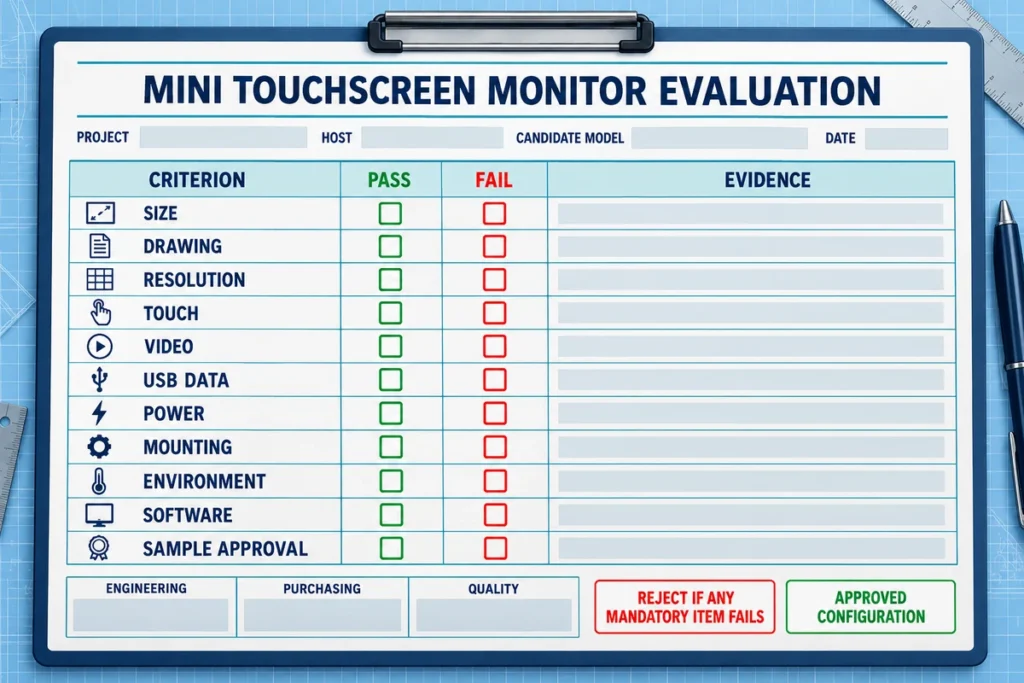
Use a pass-or-fail gate before comparing secondary features.
| Criterion | Pass condition | Evidence to request |
|---|---|---|
| Application fit | Screen supports the real workflow and user position | Interface mockup or production software test |
| Physical fit | Overall dimensions, cutout, depth, and ports fit the installation | Approved mechanical drawing |
| Resolution | Native mode works with host and software scaling | Datasheet and live host test |
| Touch method | Finger, glove, or stylus behavior meets the requirement | Controller specification and sample test |
| Video path | Host and monitor share a supported signal | Host port details and connection diagram |
| Touch-data path | Host recognizes the selected touch controller | USB or interface specification and OS test |
| Power | Supply supports startup and continuous operation | Electrical specification and load test |
| Mounting | Structure remains stable and serviceable | Mounting drawing and installation trial |
| Environment | Surface, temperature, light, and cleaning needs are addressed | Model specification and environmental test plan |
| Lifecycle | Approved configuration and replacement strategy are documented | Part number, revision control, and supply agreement |
Reject any candidate that fails a mandatory condition, even if it has attractive reviews or a lower price. Score optional features only after the basic architecture works.
Common Buying Mistakes
Choosing Only by Diagonal Size
The same nominal size can have different active areas, aspect ratios, housings, depths, and mounting patterns. Approve the actual drawing.
Assuming the Highest Resolution Is Best
High pixel density can make a small screen look sharp while making fixed software controls too small to touch. Test physical usability, not only pixel count.
Treating USB-C as a Guaranteed One-Cable Solution
USB-C ports and cables support different functions. Confirm video, data, and power for the complete path.
Forgetting the Touch-Data Cable
HDMI or VGA can show the image without sending touch back to the host. Specify the USB or other touch-data connection separately.
Buying a Monitor When a Computer Is Needed
A display-only monitor does not contain the processor or operating system required to run the application. Define the system architecture before requesting prices.
Copying a Consumer Review Into an OEM Specification
A positive review can indicate usability for one setup, but it does not provide cutout dimensions, controller revision, lifecycle control, environmental behavior, or compatibility with the production host.
Skipping the Production-Configuration Test
Bench testing with a different computer, cable, OS image, or enclosure does not approve the final system. Repeat validation after mechanical integration.
Lucky-XFC Mini Touch Monitor Selection Paths
Lucky-XFC’s current product pages provide several starting directions:
- The 10.1-inch XFC-IM-101P configuration base for compact equipment, with 1280 × 800 resolution, PCAP touch, panel or VESA mounting, and HDMI or VGA video inputs
- Portable touchscreen projects from 12.3 to 16 inches for mobile workstations, diagnostics, and equipment interfaces
- HDMI and USB-C configuration paths selected around the host, touch-data connection, power, and cable plan
- Open-frame, enclosed, and integrated touchscreen-computer formats for different installation architectures
Final dimensions, brightness, touch points, touch-data interface, power, environment, and operating-system behavior follow the selected model and approved project specification. Start with the application and host rather than treating every small screen as interchangeable.
Frequently Asked Questions
What size is best for a mini touch screen monitor?
For compact industrial and equipment interfaces, 10.1 inches often provides a practical balance of usable touch area and small footprint. A portable laptop screen may be better at 12.3 to 13.3 inches. Simpler embedded interfaces can use a smaller display when the software, connectors, and mounting are designed for it.
Is a 7-inch or 10-inch touchscreen better for Raspberry Pi?
Choose from the application layout, supported resolution, enclosure space, USB ports, power budget, and operating-system image. A 7-inch screen is smaller, while a 10.1-inch screen provides more room for controls and text. Neither size guarantees controller or driver compatibility.
Does HDMI carry touch input?
Normally, no. HDMI carries the image and may carry audio. A separate USB or approved controller interface usually sends touch data to the host.
Can USB-C carry video, touch, and power?
It can when the host port, monitor, cable, and power arrangement support all required functions. The USB-C connector alone does not guarantee one-cable operation.
Is PCAP better than resistive touch?
PCAP is often better for finger input, gestures, and a modern glass front. Resistive touch may be more suitable for pressure input, a simple stylus, or a specific glove workflow. The application determines the better choice.
Can a mini touchscreen monitor work with any computer?
No monitor is universally compatible. The computer must provide a supported video output, touch-data connection, operating-system support, and suitable power arrangement. The detailed touchscreen monitor compatibility guide explains these paths.
Do I need a driver?
It depends on the touch controller, interface, operating system, and required functions. A compatible USB HID controller may use built-in support for basic input, while another controller or advanced function may need a driver or utility.
What should I send to a supplier for a recommendation?
Send the application, preferred size, maximum available dimensions, host model, operating system, video ports, touch method, resolution, power source, mounting method, environment, quantity, and any enclosure drawing or software screenshot.
The Best Choice Is the Approved System
The best mini touch screen monitor is not the smallest, cheapest, or highest-resolution listing. It is the configuration that gives the user enough physical workspace, fits the equipment, communicates correctly with the host, receives stable power, supports the required touch behavior, and remains serviceable after installation.
Begin with the application and product architecture. Then approve the native resolution, touch technology, video path, touch-data path, power, operating-system behavior, mechanical drawing, and sample test. This process produces a defensible purchase decision and reduces redesign after the enclosure or software has already been released.
If you are selecting a compact display for industrial equipment, a portable workstation, an SBC project, a kiosk, or an OEM enclosure, contact Lucky-XFC with the host model, application, available space, target size, resolution, interfaces, power, mounting method, and drawings for a configuration review.
