
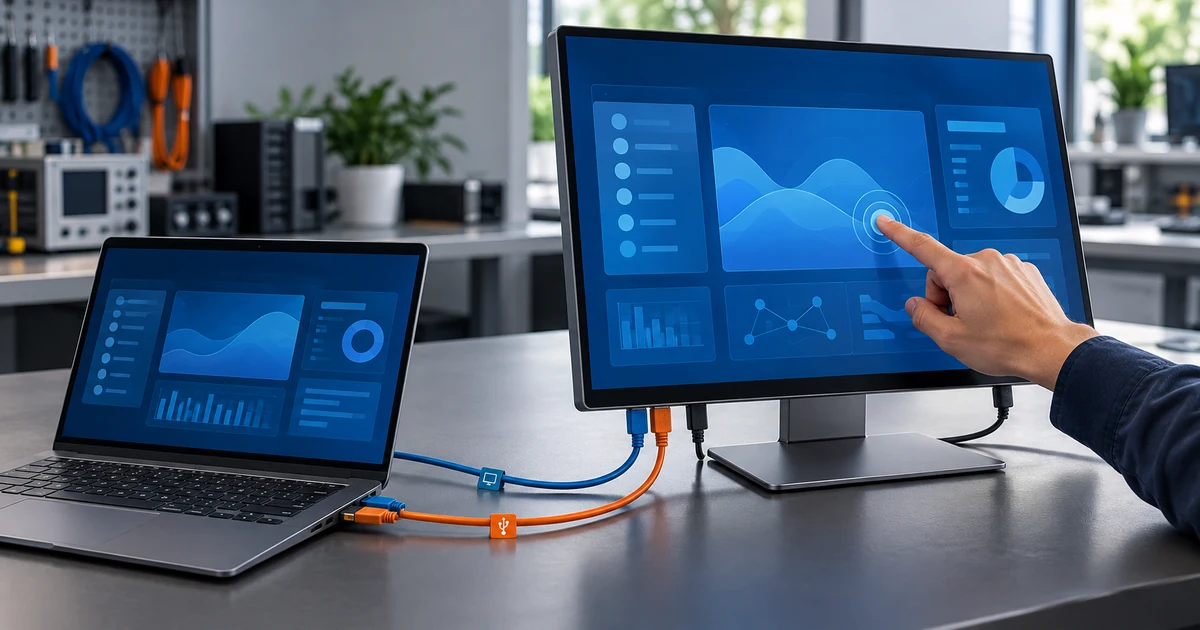
A touch screen monitor can work with many desktop computers, laptops, industrial PCs, and embedded systems, but it will not work fully with every computer automatically. The host must support the monitor’s video input, touch-data connection, power arrangement, operating system, and required touch functions.
The computer does not need a built-in touch screen. An external touch monitor supplies its own touch sensor and controller. The computer only needs to display the image and receive the touch input through compatible connections.
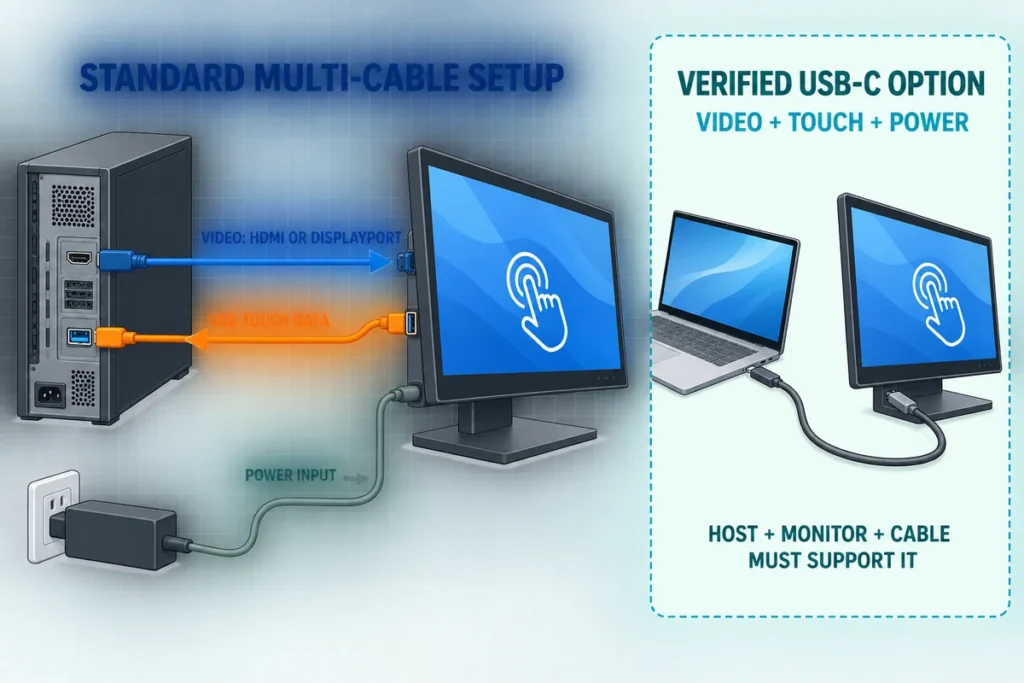
In a typical setup, HDMI or DisplayPort carries the picture while a separate USB cable sends touch coordinates back to the computer. If only the video cable is connected, the screen may show a perfect image but behave like an ordinary non-touch monitor.
The Four Requirements for Full Compatibility
| Requirement | What must match | What happens when it does not |
|---|---|---|
| Video | Computer output, monitor input, cable or adapter, resolution, and refresh rate | No image, unstable image, or an unsupported display mode |
| Touch data | Touch-controller interface and a host data port, commonly USB | Image works, but finger input does nothing |
| Software | Operating system, controller protocol, driver or HID support, and application behavior | Touch is not recognized or some gestures and touch points are unavailable |
| Power | Monitor voltage, current, adapter, or USB-C Power Delivery arrangement | The monitor does not start, resets, dims, or becomes unstable |
A system is fully compatible only when all required paths work together. A matching HDMI connector proves only that the computer can potentially send video. It does not prove that the host can receive touch input or power the monitor.
How Does a Touch Screen Monitor Connect to a Computer?
A touchscreen monitor combines a display, touch sensor, touch controller, housing, and external interfaces. It normally relies on a separate host computer to run the operating system and application.
The signal chain has separate jobs:
- The computer’s graphics system creates the image.
- HDMI, DisplayPort, USB-C video, VGA, or another supported connection sends the image to the monitor.
- The touch sensor detects a finger, glove, or supported stylus.
- The touch controller calculates coordinates.
- USB or another approved data interface reports those coordinates to the computer.
- The operating system maps the input to the display.
- The application decides whether the event means tap, drag, scroll, zoom, signature, or another action.
This separation is fundamental. The display controller handles pixels. The touch controller handles input. Power may use a third connection. A single USB-C cable can combine some or all of these functions only when the host, monitor, controller, cable, and power profile support the same arrangement.
For more detail about the input electronics, see the touch screen controller guide.
Does the Computer Need to Be Touchscreen-Compatible?
The computer does not need its own touch-enabled display. A normal desktop tower or laptop can use an external touch monitor when it has:
- a compatible graphics output;
- a suitable USB or other touch-data interface;
- operating-system support for the selected touch controller;
- enough ports or an approved dock;
- a valid power arrangement; and
- software designed to accept the required touch actions.
The graphics card does not process touch coordinates. It supplies the monitor image. Touch input reaches the operating system through USB or another data interface, much like a mouse, keyboard, or digitizer.
This means an older office PC may support a modern touch monitor if it has suitable video and USB connections and can run a compatible operating system. A newer computer can still fail if its USB-C port lacks video output, its operating system does not support the controller, or the required data cable is missing.
Common Connection Methods
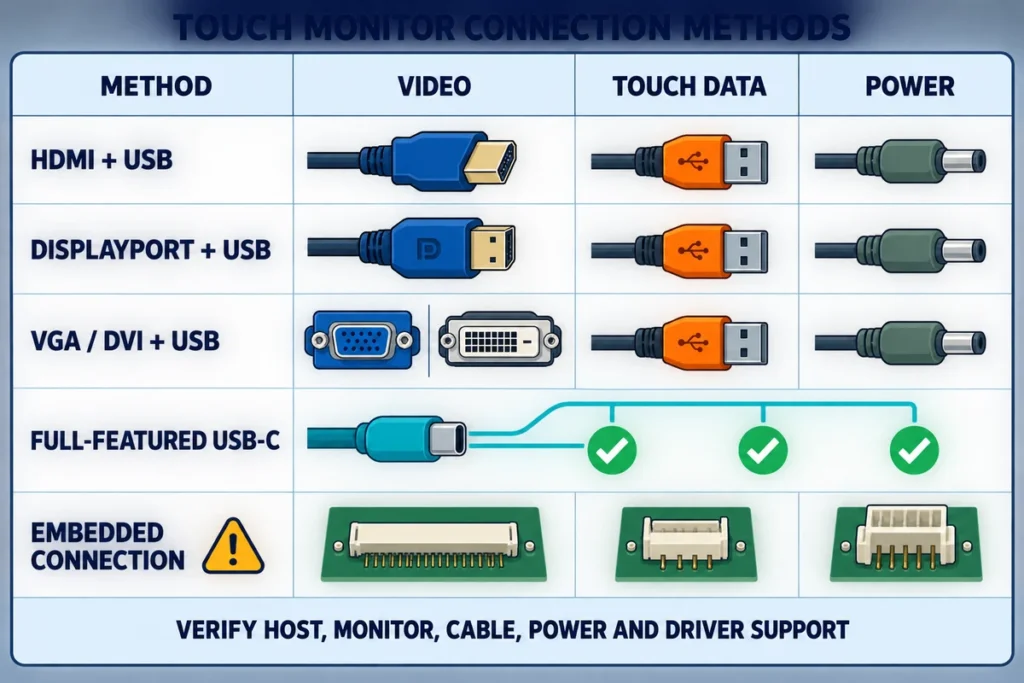
HDMI plus USB touch
This is one of the most common external-monitor arrangements:
- HDMI sends video and, when supported, audio to the display.
- USB sends touch data from the monitor to the computer.
- An adapter or approved USB power input powers the monitor, depending on the model.
HDMI alone does not normally return touch coordinates to the host. An HDMI touchscreen monitor therefore commonly needs a separate USB data cable for interactive operation.
DisplayPort plus USB touch
DisplayPort carries the image and may carry audio. A separate USB cable commonly carries touch data. This arrangement is practical for desktops, workstations, and industrial PCs with DisplayPort outputs.
As with HDMI, a DisplayPort adapter only solves the video path unless the adapter or dock also provides a compatible USB data route.
VGA or DVI plus USB touch
Legacy computers may use VGA or DVI for video while USB handles touch input. VGA is analog and may limit image quality at demanding resolutions or long cable lengths. DVI variants have different capabilities. Confirm the exact connector, signal type, resolution, adapter direction, and touch-data connection.
Full-featured USB-C
A USB-C touchscreen monitor may combine video, USB touch data, and power. However, USB-C describes a connector rather than a guaranteed function set.
For single-cable operation, confirm:
- the computer’s specific USB-C port supports display output, commonly through DisplayPort Alt Mode or another approved video path;
- the port and cable carry USB data for touch input;
- the host or approved power source provides enough power;
- the monitor accepts the negotiated power profile;
- the cable supports the required video, data, and power functions; and
- any dock or adapter preserves those functions.
A USB-C port used only for charging or basic data may fit the monitor but produce no image. A video-capable cable may show the picture while a cable or port configuration without the required USB data path leaves touch inactive.
Product-specific or embedded connections
Touch displays integrated into machines can use USB, serial, I2C, SPI, eDP, LVDS, or another internal interface. These are engineering-level connections, not interchangeable consumer cables. The host board, voltage, pinout, firmware, driver, power sequence, and grounding must be designed together.
Will a Touch Screen Monitor Work With Windows?
Windows is a common platform for external touch monitors. Many USB touch controllers that implement a supported Human Interface Device profile can use built-in Windows support for basic touch input. Other controllers, advanced functions, calibration tools, or legacy interfaces may need a manufacturer driver or utility.
Check the exact Windows version and monitor model. Do not assume that recognition on one version proves identical behavior after an operating-system, driver, firmware, dock, or hardware change.
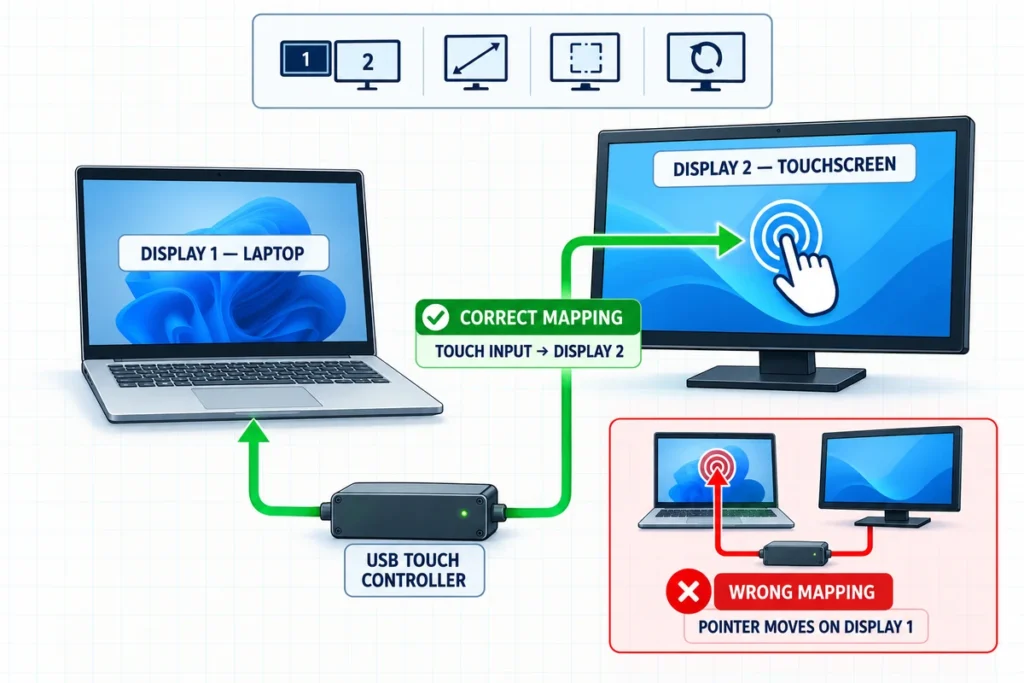
For a single external display, setup is often straightforward after connecting video, USB touch data, and power. In a multi-monitor system, Windows must map the touch digitizer to the correct display. If touching one screen moves the pointer on another, use the appropriate Windows touch or Tablet PC setup tool and confirm the final display arrangement, scaling, and orientation.
Also test sleep, wake, restart, USB reconnection, portrait rotation, and application gestures. A controller that appears correctly in Device Manager may still need display mapping or application-level configuration.
Will It Work With macOS?
A compatible video connection can let a Mac use the product as an external display, but touch support is more model-specific. External touch may require a controller-specific driver or utility, and gesture or multi-touch behavior may differ from Windows.
Before purchasing, confirm:
- the exact Mac model and macOS version;
- the video adapter or USB-C display path;
- the monitor’s touch controller;
- the availability and maintenance status of the required driver;
- supported clicks, drags, gestures, rotation, and multiple displays; and
- whether the application is designed for external touch input.
Do not treat successful video output as proof that touch will work. Test the production Mac, operating-system version, driver, and application together.
Will It Work With Linux?
It may. Linux compatibility depends on the controller, HID behavior, kernel, distribution, desktop environment, display server, calibration tools, and application. A standard USB HID controller may be recognized without a proprietary driver, while another controller or serial interface may need additional configuration.
Test the intended Linux image rather than only the distribution name. Confirm:
- the USB device is detected;
- touch events reach the input subsystem;
- the active area maps to the correct display;
- rotation and scaling behave correctly;
- all required touch points and gestures work; and
- the configuration survives reboot, sleep, and software updates.
For industrial deployments, freeze the approved kernel, driver, controller firmware, display layout, and application image after validation.
Will It Work With a Chromebook?
Some external touch monitors can work with Chromebooks when the Chromebook provides compatible video output, recognizes the USB touch device, and supports the required display arrangement. Compatibility varies by Chromebook model, ChromeOS version, dock, cable, and touch controller.
Check whether the USB-C port carries video as well as data, or use a supported HDMI video connection plus USB touch data. Managed school or business devices may restrict settings or peripherals. Test touch mapping, Android applications, browser gestures, sleep and wake, and any stylus functions required by the workflow.
Will It Work With Android Computers and Media Boxes?
Android support cannot be assumed from the word “Android.” Different boards use different processors, kernels, USB host configurations, firmware images, and input stacks.
For an Android box, panel PC board, or media player, confirm that the device can:
- output the required resolution;
- operate as a USB host for the touch controller;
- recognize the controller in its current firmware build;
- pass touch events to the application;
- map input correctly in landscape or portrait mode; and
- supply or coordinate the required power.
A signage player with HDMI output may show content but lack USB host support or application logic for interaction. In that case, it is compatible as a display source but not as a complete touch host.
Will It Work With Raspberry Pi or Another Single-Board Computer?
It may work when the board, operating-system image, video output, USB host port, driver, resolution, and power budget are compatible. Raspberry Pi and other SBC projects require special attention to connector types, available USB ports, power supply capacity, boot configuration, screen rotation, and enclosure space.
Use the exact board revision and OS image during testing. A setup validated on one board or image should not be transferred to another without retesting the touch controller and display mode.
Will It Work With a Game Console or Media Player?
A game console or media player may send video to the monitor through HDMI, but that does not mean it can accept touch input. The source needs a USB host path, driver or protocol support, and software that understands the touch events.
Most console games and ordinary media-player interfaces are not designed to treat an external touch screen as a pointing device. Consider these systems display-only unless the source manufacturer or application explicitly supports the selected touch controller.
Touch Screen Monitor vs Touchscreen Computer
These products solve different system-design problems.
| Product | Built-in computing hardware | External host required | Typical use |
|---|---|---|---|
| Touch screen monitor | Usually no CPU, memory, storage, or operating system | Yes | Extend a desktop, laptop, industrial PC, SBC, or media system with touch input |
| Touchscreen computer | Includes processor, memory, storage, and operating-system configuration | No for its onboard applications | Standalone kiosk, control terminal, all-in-one workstation, or integrated application |
A touch screen monitor is appropriate when the customer already has a host computer or wants the computer to remain separately replaceable. A touchscreen computer is appropriate when the display must run the application without an external PC.
Do not assume that a monitor has an operating system because it is described as “smart” or “interactive.” Confirm whether the quoted unit is display-only, Android-based, Windows-based, or supplied with an optional computer module.
Can an Adapter Make Any Computer Compatible?
An adapter can solve a specific connection mismatch, but it cannot create unsupported touch or software capability.
Examples include:
- USB-C-to-HDMI or USB-C-to-DisplayPort for a host with video-capable USB-C;
- DisplayPort-to-HDMI for a suitable DisplayPort source and HDMI monitor;
- an active HDMI-to-DisplayPort converter for the reverse direction;
- a powered USB hub when the approved design requires more USB connections; or
- a dock that exposes both video and USB data.
Check adapter direction, supported resolution, refresh rate, HDCP requirements, USB data path, power, and operating-system support. A video adapter does not normally carry touch data unless the complete dock or adapter design explicitly includes a USB connection for it.
Avoid long chains of adapters for a production system. Every converter, hub, detachable connector, and cable adds another point that can limit bandwidth, power, wake behavior, and serviceability.
What Happens in a Multi-Monitor Setup?
A computer can use a touch monitor as the primary or secondary display, provided the graphics system supports the display arrangement and the operating system maps touch to the correct screen.
Common problems include:
- touching the external monitor moves the pointer on the laptop screen;
- touch coordinates are offset after changing resolution or scale;
- portrait touch remains mapped as landscape;
- the USB device reconnects in a different order after docking; and
- an application opens on a non-touch display.
Finalize the physical display order, resolution, scaling, and orientation before calibrating or mapping touch. Test dock and undock, sleep and wake, cable reconnection, and user login with the deployment image.
Why Does the Image Work but Touch Does Not?
This is the most common misunderstanding in external touch-monitor integration. The video path is working, but the input path is not.
| Symptom | Likely area to check |
|---|---|
| Image works, no touch | Missing USB touch cable, charge-only USB cable, unsupported host port, controller driver, or USB enumeration |
| Touch works on the wrong display | Operating-system digitizer mapping or multi-monitor configuration |
| Touch is reversed or rotated | Display orientation, controller configuration, calibration, or scaling |
| Only one touch point works | Controller mode, driver, operating-system support, or application limitation |
| Touch stops after sleep | USB power management, hub or dock behavior, firmware, or driver resume handling |
| Monitor resets under load | Insufficient power, unsuitable USB-C power profile, or cable loss |
| Touch becomes unstable after installation | Grounding, electrical noise, metal enclosure, long USB cable, power supply, or cable routing |
Troubleshoot the image, touch, and power paths separately. Replacing the HDMI cable will not repair a missing USB touch connection. Installing a touch driver will not correct an unsupported video mode.
A Compatibility Checklist Before You Buy
Computer and operating system
- Exact computer, laptop, industrial PC, or SBC model
- Operating system, version, kernel or firmware image
- Graphics output and supported resolution
- Available USB host ports
- Docking station or adapter model
- Security or device-management restrictions
Monitor and touch system
- Exact monitor part number
- Native resolution and supported inputs
- Touch technology and number of touch points
- Touch-controller model or supported HID/driver path
- USB, serial, or other touch-data interface
- Required power input
- Supported operating systems and driver versions
Application and installation
- Required taps, gestures, drag behavior, signatures, gloves, or stylus
- Landscape or portrait orientation
- Single or multiple monitors
- Display scaling and touch-target size
- Cable length and connector retention
- Grounding, electrical noise, and enclosure material
- Wake, reboot, and reconnection requirements
- Service access and replacement strategy
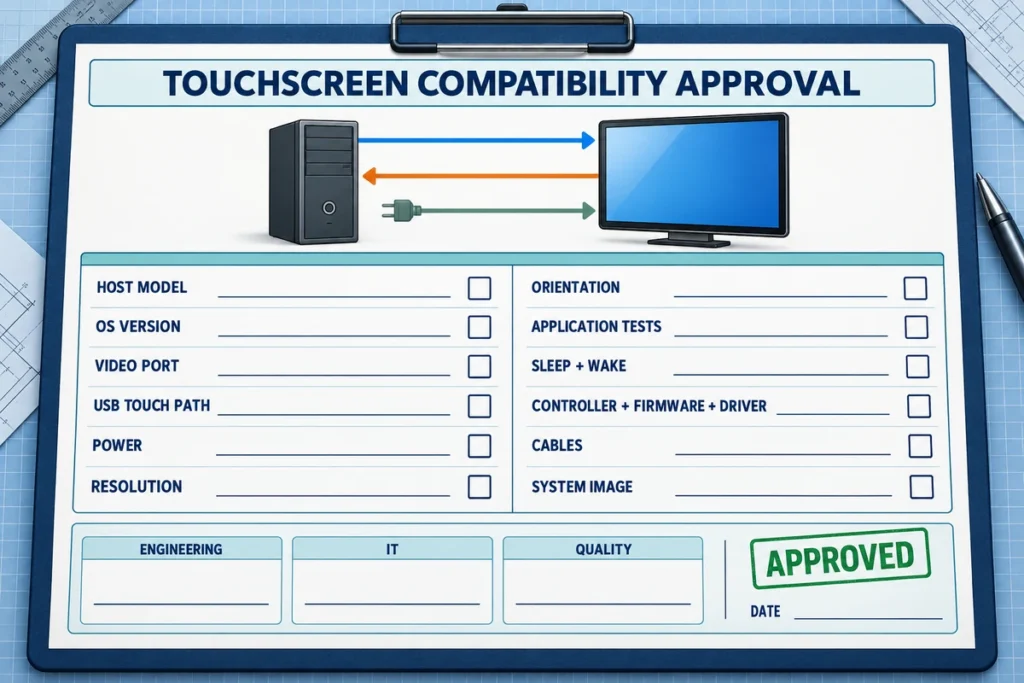
Validation
- Connect the production host and approved cables.
- Set the final resolution, scaling, and orientation.
- Verify video output.
- Confirm that the operating system recognizes touch input.
- Map touch to the correct display.
- Test the real application and every required gesture.
- Test sleep, wake, restart, and cable reconnection.
- Install the monitor in the final enclosure and repeat the checks.
- Record the approved controller, firmware, driver, cables, and system image.
Selecting a Touch Monitor for an Industrial Computer
An industrial touch screen may connect to a modern box PC, legacy control computer, embedded controller, or replacement system. The connection must account for more than connector shape.
Confirm the required video standard, USB or serial touch interface, connector retention, cable route, grounding, electrical noise, operating temperature, mounting method, and software lifecycle. Legacy control applications may also depend on a fixed resolution, aspect ratio, calibration method, or single-touch behavior.
For OEM production, approve the complete configuration and control changes to the monitor controller, touch firmware, USB identity, driver, cable, and host image. A replacement computer or monitor should be retested even when its ports appear identical.
Lucky-XFC Touch Monitor Compatibility Planning
Lucky-XFC touch-display projects can be reviewed around the intended host rather than a generic promise of universal compatibility. Current product paths include external-host touchscreen monitors, HDMI and USB-C connection options, open-frame displays, industrial touch screens, and integrated touchscreen computers.
Interfaces, operating-system support, touch points, power, and mounting are selected or confirmed by model and project configuration. For a compatibility review, provide:
- host make and model;
- operating system and version;
- available video and USB ports;
- required resolution and orientation;
- touch-point, glove, or stylus requirements;
- power source;
- dock, adapter, and cable details;
- application and gesture requirements; and
- enclosure drawing or mounting dimensions.
Sample testing should use the intended computer, operating-system image, cables, power source, application, and final mechanical installation.
Frequently Asked Questions
Can I connect a touch screen monitor to a normal desktop PC?
Yes, when the desktop provides compatible video output, USB or another supported touch-data connection, suitable operating-system support, and the required monitor power. The PC itself does not need a touch-enabled main display.
Will touch work through HDMI alone?
Normally, no. HDMI usually carries video and audio. A separate USB data connection commonly returns touch input to the computer.
Does a touch screen monitor need USB?
Most external touch monitors use USB for touch data, although some industrial or embedded designs use serial or internal interfaces. USB-C can combine video and data only when the complete connection supports both functions.
Can I use a touch screen monitor as a second monitor?
Yes, if the graphics system supports the second display and the operating system can map the touch digitizer to it. Configure the final resolution, scaling, orientation, and display order before validating touch mapping.
Can a touch monitor work without a computer?
A standard external touch monitor normally needs a host computer or embedded system to generate the image and run the application. Choose an Android or Windows touchscreen computer when standalone operation is required.
Do I need to install a driver?
It depends on the touch controller, interface, operating system, and required functions. A compatible USB HID touchscreen may use built-in operating-system support for basic input. Other controllers, serial interfaces, calibration tools, or advanced features may need dedicated software.
Can a touch screen monitor work with a Mac?
The display image may work through a compatible video connection, while touch support can require a model-specific driver or utility. Confirm the exact Mac, macOS version, controller, gestures, and application before purchase.
Can a touch screen monitor work with a Raspberry Pi?
It may work when the selected board and OS image support the monitor’s video mode, USB touch controller, and power requirements. Validate the exact board revision, connectors, driver behavior, rotation, and application.
Will any USB-C cable enable video, touch, and power?
No. The computer port, monitor, cable, and power profile must support the required functions. A charge-only or limited-function cable can fit physically without providing a complete connection.
The Practical Answer
A touch screen monitor can work with many computers, but “any computer” is too broad. Full operation requires a compatible video path, touch-data path, power source, operating system, controller, and application.
Start by identifying the exact host, monitor, ports, operating system, and required touch behavior. Use separate video and USB touch connections when appropriate, or approve a full-featured USB-C path after confirming video, data, and power together. Test the final computer, cables, software, and installation before deployment.
If you are planning a desktop, kiosk, industrial, retail, or embedded touch system, contact Lucky-XFC with the host model, operating system, screen size, interfaces, touch requirements, power arrangement, and installation drawing for a configuration review.
