
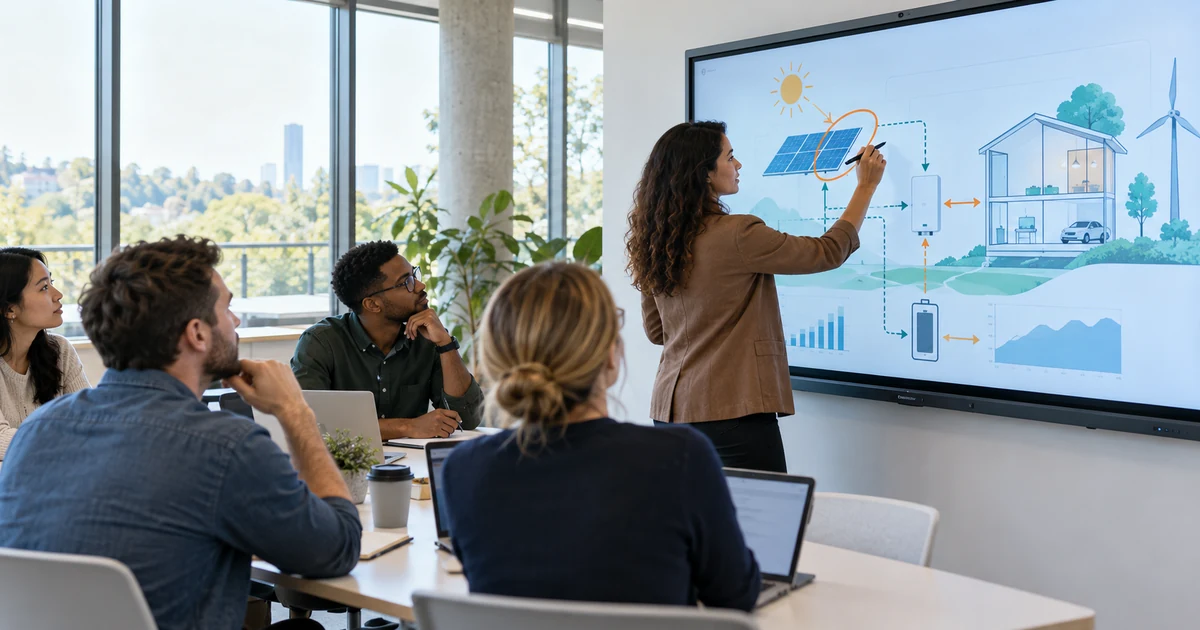
An interactive whiteboard is a large presentation surface that lets users control and annotate digital content directly with a finger, stylus, or interactive pen. It combines a display or projected image, a touch-sensing system, a computer or embedded operating system, and software for writing, presenting, saving, and sharing content.
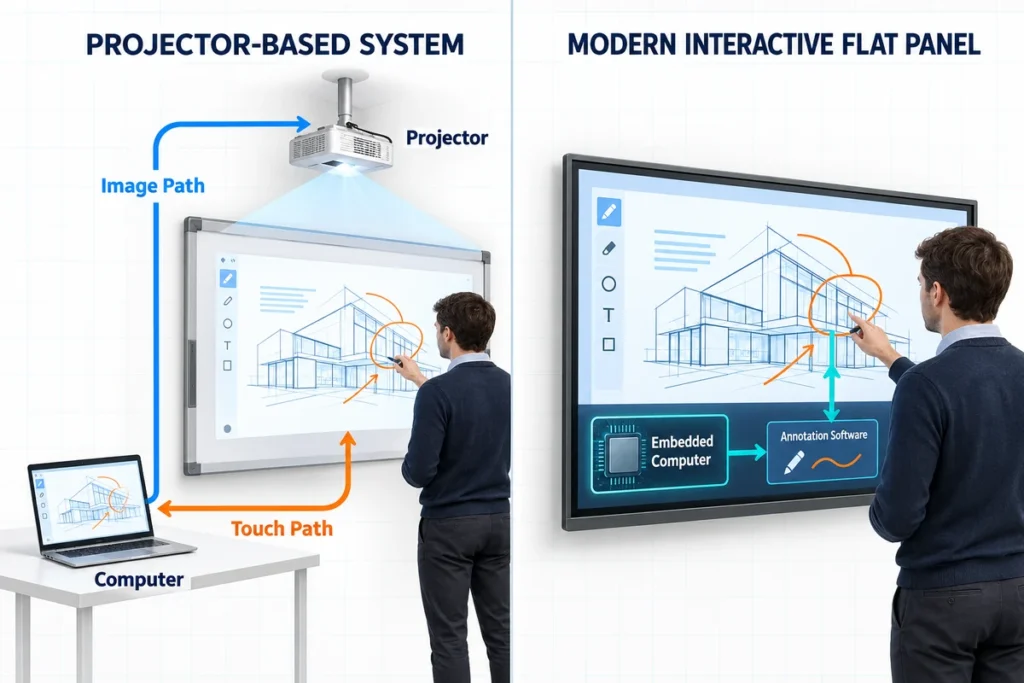
Traditional interactive whiteboards used a separate projector and computer. Many modern products are interactive flat panel displays: large LCD screens with built-in touch, speakers, connectivity, and sometimes an embedded Android or Windows computing system. Both formats can support the same basic workflow, but their hardware, installation, image quality, maintenance, and software architecture are different.
What Does “Interactive Whiteboard” Mean?
The term describes a system that turns a shared front-of-room surface into a digital input and presentation device. A presenter can open files, select objects, write over images, move content, play media, operate applications, and save the resulting notes.
The term is used broadly, so it can refer to several product architectures:
- A touch-sensitive board used with a projector and external computer
- A projector that detects an interactive pen or finger on a wall or board
- A large touch-enabled LCD display connected to an external computer
- An interactive flat panel with an embedded operating system
- A collaboration display with cameras, microphones, speakers, and conferencing software
“Smart board” is often used informally for this category. However, SMART Board is also a specific product name from SMART Technologies. For procurement, use generic technical terms and identify the required hardware architecture rather than relying on “smart board” alone.
How Does an Interactive Whiteboard Work?
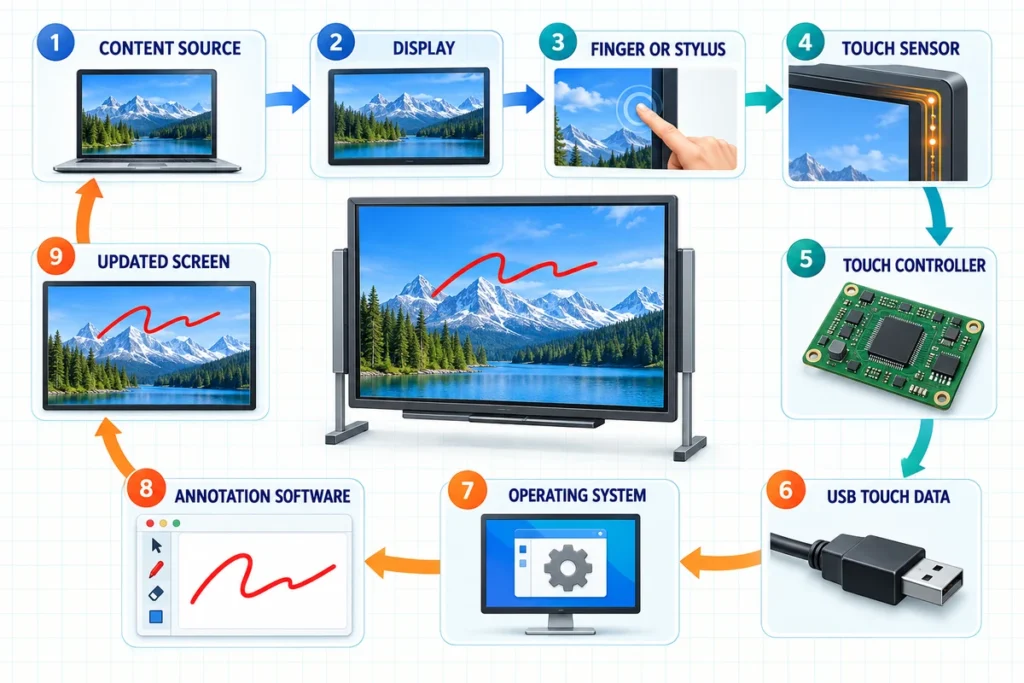
An interactive whiteboard handles two linked paths: the image path and the touch-input path.
1. The Computer or Embedded System Generates the Content
The source may be a teacher’s laptop, meeting-room PC, OPS computer, embedded Android system, or another media device. It runs the presentation, browser, whiteboard application, conferencing platform, or educational software.
2. The System Displays the Image
In a projector-based system, a projector places the computer image onto the board. In an interactive flat panel, the LCD module generates the image inside the display. Video may arrive through HDMI, DisplayPort, USB-C, or another supported connection.
3. The Touch System Detects the User’s Input
The sensing method depends on the product. Infrared systems detect where an object interrupts a light grid around the screen. Projected-capacitive systems detect a change in an electric field beneath the cover glass. Resistive systems detect pressure between conductive layers. Some pen-based boards use electromagnetic, optical, or ultrasonic tracking.
4. The Touch Controller Calculates Coordinates
The sensor sends raw measurements to a touch controller. The controller filters noise, identifies valid contacts, calculates X-Y coordinates, and tracks movement. A multi-touch system can follow several valid contact points at the same time.
5. The Host Interprets the Touch Event
Touch data normally reaches the host through USB or an internal connection. The operating system interprets the coordinates as pointer movement, taps, dragging, writing, gestures, or other supported actions. Driver and calibration requirements depend on the board, controller, operating system, and connection method.
6. The Application Responds
The whiteboard or presentation application converts the event into a visible result. It may draw an ink stroke, move an object, advance a slide, open a link, zoom an image, or save an annotation. The updated image is then shown on the board, completing the loop.
The screen does not understand a lesson or meeting by itself. Touch hardware reports input, while the operating system and application determine what that input means. The article on how a touchscreen works explains this signal chain in more detail.
What Are the Main Components?
Display or Projection Surface
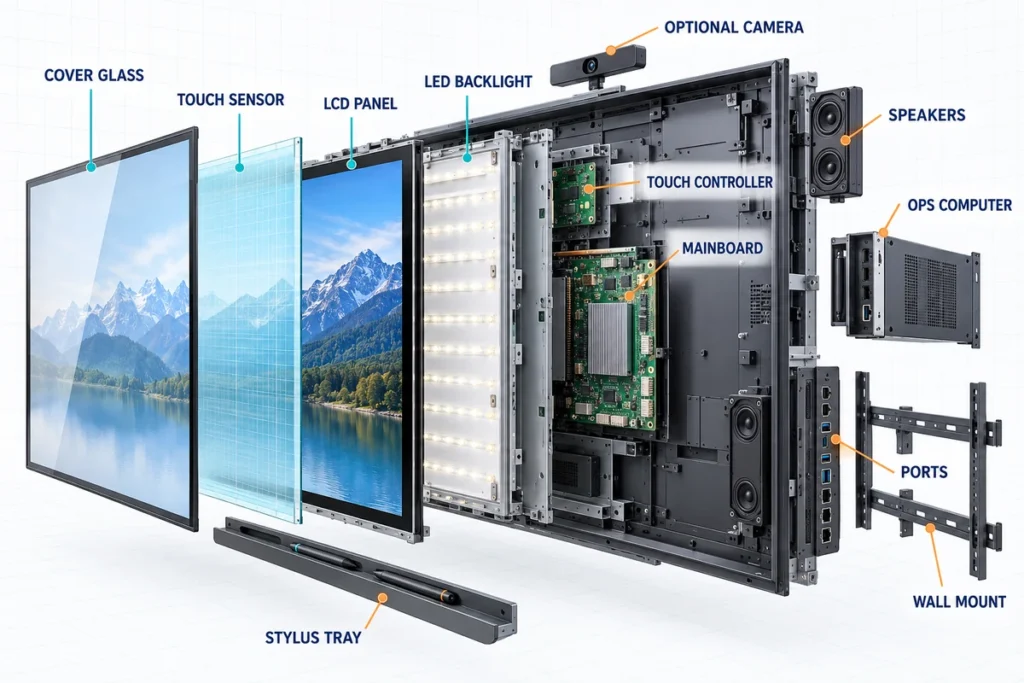
A projector-based board provides a physical surface but does not generate its own image. An interactive flat panel contains an LCD, backlight, display electronics, and protective front structure. Buyers should evaluate the complete finished display rather than a bare-panel specification.
Touch Sensor and Controller
The sensor detects input, while the controller converts the signal into usable coordinates. Touch technology influences finger and stylus behavior, edge performance, palm rejection, multi-user capability, cover-glass design, and environmental sensitivity.
Computer or Embedded System
Some systems require an external laptop or desktop computer. Others include an embedded operating system or accept an OPS computer module. The computing platform determines which applications can run, how files are stored, and how the device is updated and managed.
Whiteboard and Annotation Software
Software provides digital ink, erasing, shapes, object manipulation, page creation, screen capture, file import, export, and sharing. Advanced packages may add lesson tools, polls, cloud storage, remote collaboration, user accounts, and device management.
Connectivity
An interactive display may use one cable for video and another for touch. For example, HDMI can carry the image while USB carries touch data. A supported USB-C implementation may combine video, USB data, and power delivery, but a USB-C connector does not guarantee that every function is available.
Wireless screen sharing is also software- and model-dependent. Confirm supported operating systems, network requirements, guest access, security controls, resolution, frame rate, and whether touch-back control is supported.
Audio, Camera, and Microphones
Speakers are common on modern panels, while cameras and microphone arrays may be integrated or added separately. These components are useful for hybrid teaching and video meetings, but they should not be assumed from the phrase “interactive whiteboard.”
Mounting and Accessories
The installation may use a fixed wall bracket, height-adjustable wall mount, floor stand, or mobile cart. Accessories can include styluses, pen trays, remote controls, document cameras, external speakers, webcams, and computing modules.
Main Types of Interactive Whiteboards
| Type | How it creates the image | How users interact | Main strengths | Main limitations |
|---|---|---|---|---|
| Projector-based interactive board | Separate projector displays the computer image on the board | Finger or special pen, depending on sensor | Large image, existing classroom installations may already support it | Shadows, projector alignment, lamps or filters, calibration, ambient-light sensitivity |
| Interactive projector | Projector creates the image and detects pen or touch on a wall or board | Interactive pen, finger, or both, depending on model | Can make a large existing surface interactive | Surface quality, projector placement, calibration, shadowing, model-specific input method |
| Interactive flat panel display | Integrated LCD produces the image | Touch and supported stylus directly on the glass | No projector shadow, consistent geometry, integrated audio and computing options | Higher unit weight, wall-load requirements, large-panel handling and service planning |
| Touchscreen monitor with external PC | Integrated LCD displays an external computer’s image | Touch sensor reports input to the connected host | Flexible computer choice and easier host replacement | Requires separate computer, software, cables, and often external audio |
| Interactive all-in-one display | Integrated LCD plus embedded Android, Windows, or another system | Touch, stylus, onboard apps, and connected devices | Standalone whiteboarding and presentation can work without a permanent external PC | Embedded hardware, OS support, security policy, storage, and updates need lifecycle planning |
Modern education and meeting-room projects often use “interactive whiteboard” and “interactive flat panel” interchangeably. The safest approach is to state whether the requirement is projector-based, display-only, or an integrated all-in-one system.
Interactive Whiteboard vs. Related Terms
| Term | What it normally means | Important distinction |
|---|---|---|
| Traditional whiteboard | Dry-erase writing surface | No digital display or touch input |
| Interactive whiteboard (IWB) | Generic interactive presentation and annotation system | May be projector-based or use a flat panel |
| Interactive flat panel display (IFPD) | Large LCD touchscreen for collaboration | Generates its own image and often includes speakers and an embedded OS |
| Interactive touchscreen monitor | Touch-enabled display connected to a host | May not include whiteboard software or an internal computer |
| Digital whiteboard | Can mean hardware, an annotation application, or a cloud collaboration service | The physical product scope must be clarified |
| Virtual whiteboard | Software canvas used on computers and mobile devices | Does not require a dedicated large-format display |
| SMART Board | Product family from SMART Technologies | Not a generic technical specification |
An interactive whiteboard is therefore more than a large touchscreen. The full system includes the interaction software, computing path, mounting, connectivity, and workflow needed to turn touch into useful collaboration.
What Can an Interactive Whiteboard Do?
Common functions include:
- Write and draw with a finger or stylus
- Annotate presentations, documents, images, websites, and video
- Move, resize, rotate, group, and erase digital objects
- Save whiteboard pages and export notes
- Share content with students, colleagues, or remote participants
- Display video, web content, diagrams, and applications
- Run quizzes, polls, demonstrations, and group exercises
- Mirror a laptop, tablet, or phone when supported
- Control a connected computer from the display
- Support several simultaneous users on compatible hardware and software
- Join video meetings when the required camera, microphones, speakers, and platform are available
The user experience depends on the complete system. A high touch-point count does not guarantee accurate handwriting, effective palm rejection, low visible parallax, or compatibility with every application.
Where Are Interactive Whiteboards Used?
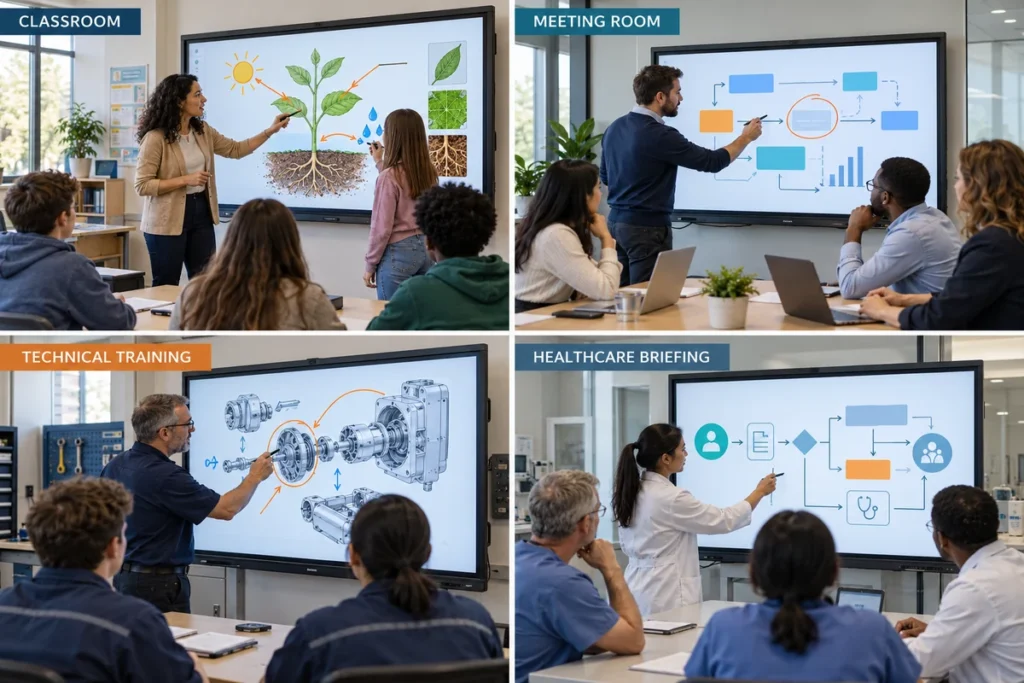
Classrooms and Universities
Teachers can present multimedia, annotate lessons, demonstrate software, save board notes, and invite students to interact with content. The University of Maryland’s educational technology guidance describes traditional projector-based boards as tools for brainstorming, saving notes, demonstrating computer tasks, and collaborative learning. Modern flat panels extend the same idea with integrated displays and software.
Corporate Meeting Rooms
Teams use interactive displays for presentations, planning, document review, brainstorming, and hybrid meetings. A meeting-room system should be evaluated together with the conferencing platform, camera, microphone, speakers, room computer, guest-laptop connections, and security policy.
Training and Demonstration Spaces
Trainers can mark up diagrams, operate applications, capture notes, and switch between prepared content and live explanation. Mobile stands can allow one display to serve several rooms, provided the floor, doorways, power, network, and cable management support safe movement.
Healthcare, Engineering, and Professional Collaboration
Large interactive displays can support training, visual review, planning, and team discussion. Industry-specific workflows may require additional controls for privacy, cleaning, software validation, data security, or specialist peripherals.
Advantages of Interactive Whiteboards
Direct Interaction With Content
The presenter can work at the shared screen instead of controlling everything from a laptop. This makes pointing, writing, moving objects, and demonstrating software more visible to the group.
Reusable and Shareable Notes
Digital annotations can be saved, exported, edited, and shared. The exact file formats and cloud services depend on the software platform.
Multimedia Presentation
Text, images, websites, video, live applications, and remote participants can appear in one presentation workflow. This can reduce the need to move between unrelated display devices.
Multi-User Collaboration
Compatible hardware and software can track several users or pens at once. This supports group problem-solving, design review, classroom exercises, and brainstorming.
Flexible Computing Options
Organizations can choose an external PC, embedded Android system, Windows OPS computer, or a combination. The best structure depends on software compatibility, IT management, security, and replacement strategy.
Limitations and Deployment Risks
Hardware Does Not Guarantee Effective Collaboration
The board needs suitable software, prepared content, user training, and a defined workflow. A technically capable display can remain underused if teachers or meeting hosts cannot quickly open, annotate, save, and share content.
Projector Systems Need More Alignment and Light Control
Projector-based systems can be affected by shadows, glare, ambient light, projector alignment, and calibration. Ceiling mounting and cable routing also add installation work.
Large Flat Panels Are Heavy
Wall structure, bracket rating, mounting height, service clearance, delivery route, and installation labor must be planned. Mobile stands need stable bases and safe movement paths.
Software and Device Compatibility Can Change
Operating-system updates, conferencing platforms, screen-sharing protocols, drivers, and security requirements evolve. Buyers should confirm the supported versions and update responsibility for the exact model.
Touch Quality Is a System Property
Writing performance depends on the sensor, controller, cover glass, firmware, operating system, application, stylus, display refresh, and mounting. Test real handwriting and multi-user workflows rather than comparing only the advertised touch-point count.
Networked Features Create IT Responsibilities
Cloud storage, user accounts, wireless casting, cameras, microphones, and remote management may require network segmentation, access controls, update policies, and privacy review.
Does an Interactive Whiteboard Need a Computer?
It depends on the architecture.
- A traditional projector-based board normally needs an external computer.
- A display-only interactive touchscreen monitor also needs an external host.
- An interactive flat panel with an embedded operating system can run supported whiteboard and presentation functions independently.
- An integrated panel may still use an external laptop or OPS computer for applications that the embedded system cannot run.
Ask the supplier to identify what is built in, what is optional, and what the customer must provide. An Android-equipped display is not automatically a Windows computer, and an OPS slot does not mean the OPS module is included.
How Does an Interactive Whiteboard Connect to a Laptop?
The most common wired arrangement uses a video cable plus a touch-data cable:
- Connect HDMI or DisplayPort for the image.
- Connect USB for touch control.
- Select the correct input on the display.
- Confirm the laptop recognizes the touch device.
- Test coordinate mapping, writing, audio, and orientation.
A supported USB-C connection may carry video and touch data through one cable and may also provide power delivery. Confirm the exact port functions, cable specification, laptop capability, and power limit before designing a one-cable room.
Wireless casting can simplify guest presentations, but it may not return touch control to the source device. Test the required operating systems, network configuration, guest access, audio, resolution, latency, and touch-back behavior.
What Specifications Matter When Comparing Models?
| Area | What to confirm |
|---|---|
| Display | Screen size, native resolution, brightness, viewing angle, surface treatment, orientation |
| Touch and writing | Touch technology, supported users, accuracy, edge behavior, stylus type, palm rejection, parallax |
| Computing | External host, embedded OS, processor, memory, storage, OPS support, update policy |
| Connections | HDMI, DisplayPort, USB touch, USB-C functions, network, audio, control ports |
| Software | Annotation tools, file formats, screen sharing, accounts, cloud services, licensing |
| Audio and video | Speakers, microphone array, camera, external-device compatibility |
| Installation | Product dimensions, weight, VESA or bracket, wall structure, mobile stand, service clearance |
| IT management | User permissions, remote management, firmware, security updates, reset and recovery |
| Lifecycle | Warranty terms, spare parts, repair method, software-support period, model revision control |
For large rooms, screen size should be selected from viewing distance, room capacity, mounting height, content detail, and user reach. A larger panel improves visibility but also increases weight, installation requirements, and transport cost. The large touch screen monitor guide provides a relevant hardware starting point for projects that do not need a dedicated education software ecosystem.
Interactive Whiteboard Project Checklist
Before requesting a model or quotation, define:
- Classroom, training room, meeting room, or specialist application
- Room dimensions, seating layout, viewing distance, and ambient light
- Preferred screen size and mounting height
- Wall mount, height-adjustable mount, or mobile stand
- External computer, embedded Android, Windows OPS, or combined workflow
- Teacher, presenter, and guest-device operating systems
- Required HDMI, DisplayPort, USB, and USB-C functions
- Wired and wireless screen-sharing workflow
- Number of simultaneous writers and required stylus behavior
- Annotation software, file format, cloud, and account requirements
- Camera, microphones, speakers, and conferencing platform
- Network, security, device-management, and update policy
- Installation country, power standard, quantity, and delivery plan
Test a sample with the intended laptop, software, conferencing platform, network, mount, styluses, and real content. Include writing at the center and edges, multi-user input, sleep and wake behavior, cable reconnection, screen sharing, saving, and account login in the acceptance test.
Lucky-XFC Interactive Whiteboard Configurations
Lucky-XFC’s current interactive whiteboard product range presents 65-inch, 75-inch, and 86-inch 4K PCAP starting configurations. Project paths can use Android, Windows, or an external computer, depending on the selected model and application.
These large-format systems are intended for classrooms, training facilities, and meeting-room projects. Final touch points, interfaces, computing hardware, software, camera and audio options, mounting, accessories, and compatibility should be confirmed against the model-specific datasheet and connection diagram.
Projects that need a display controlled entirely by an existing PC can also evaluate an interactive touchscreen monitor. This separates the display from the computing lifecycle and can simplify host replacement for some commercial installations.
Choose the Architecture Before the Model
An interactive whiteboard is a complete collaboration system, not only a large touch display. Its practical performance depends on the display, touch sensor, controller, computer, operating system, annotation software, connections, mounting, and room workflow working together.
Start by deciding whether the project needs a projector-based board, an external-PC touchscreen, or an integrated interactive flat panel. Then confirm the screen size, writing behavior, software environment, interfaces, conferencing equipment, installation, and IT-management requirements before selecting a model.
Share your room layout, application, preferred size, computing platform, interfaces, mounting method, quantity, and destination with Lucky-XFC for a configuration review.
