
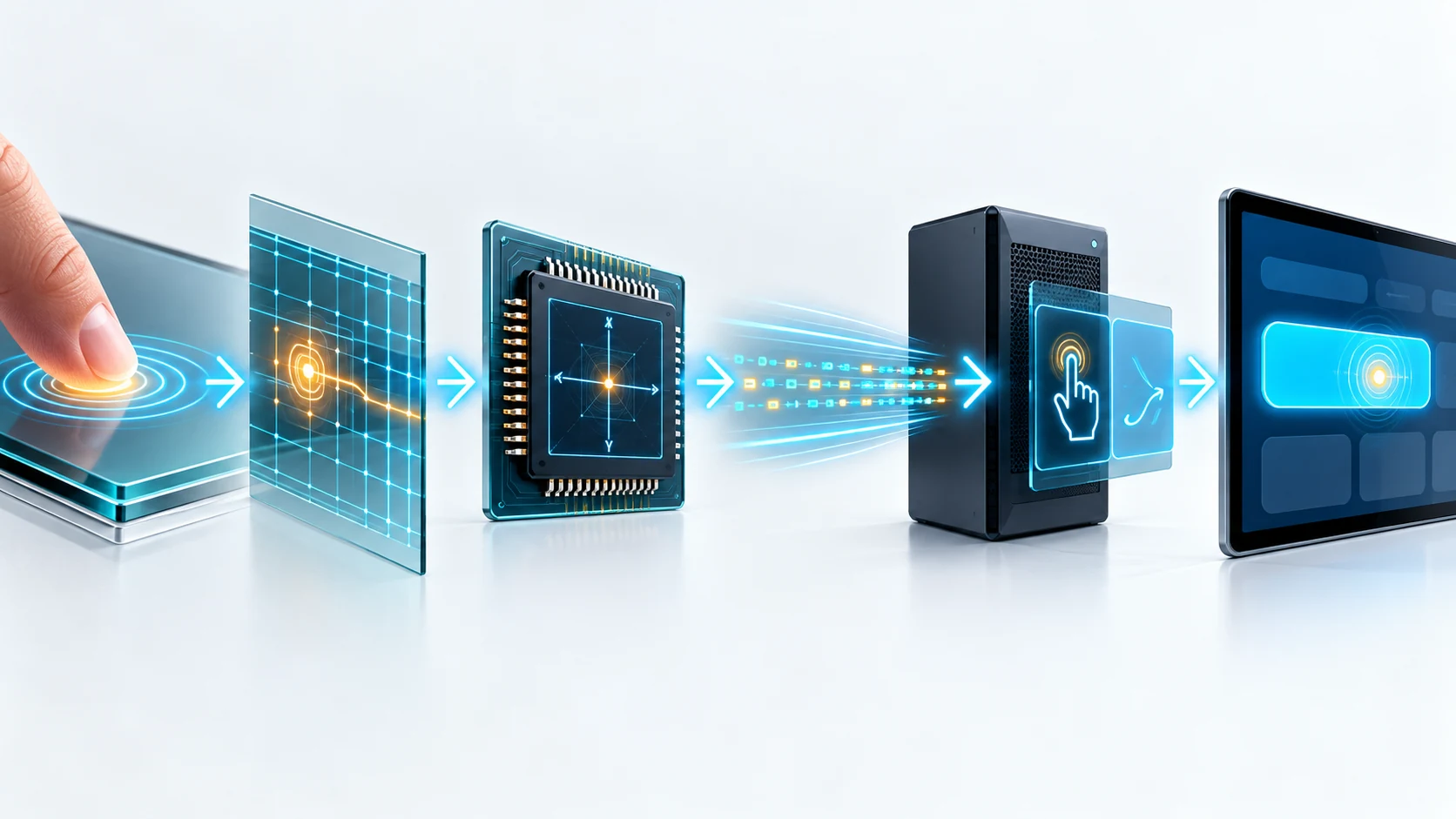
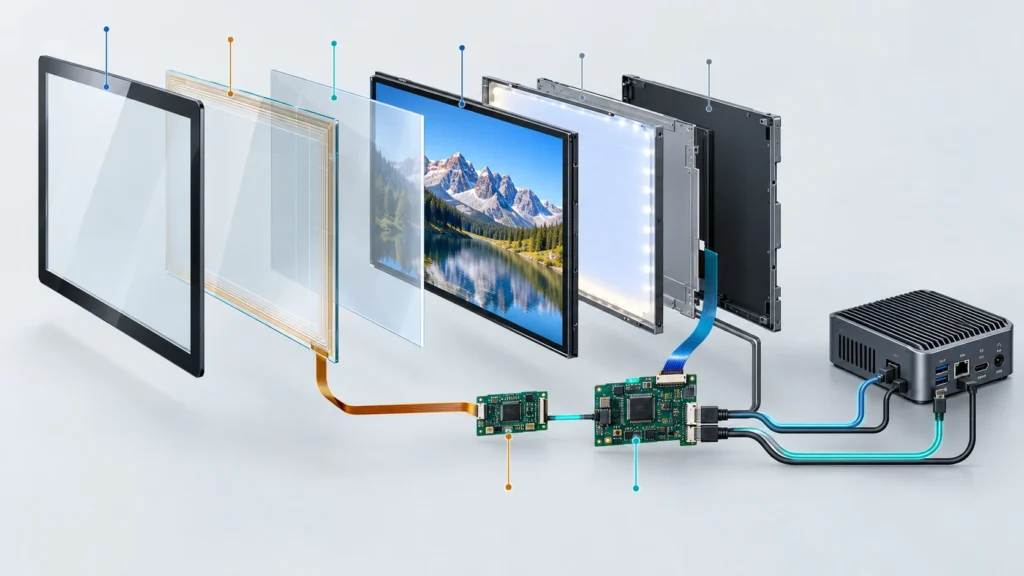
A touchscreen works by combining two systems: a display that creates the image and a touch sensor that detects input. When a finger or stylus interacts with the surface, the sensor produces a measurable electrical, optical, acoustic, or mechanical change. A touch controller converts that change into X-Y coordinates, sends the coordinates to the host device, and the operating system turns them into a tap, swipe, drag, or gesture.
The screen does not “see” a finger, and the LCD pixels do not normally detect touch. The touch layer, controller, host interface, operating system, and application form a separate input chain positioned over or integrated with the display.
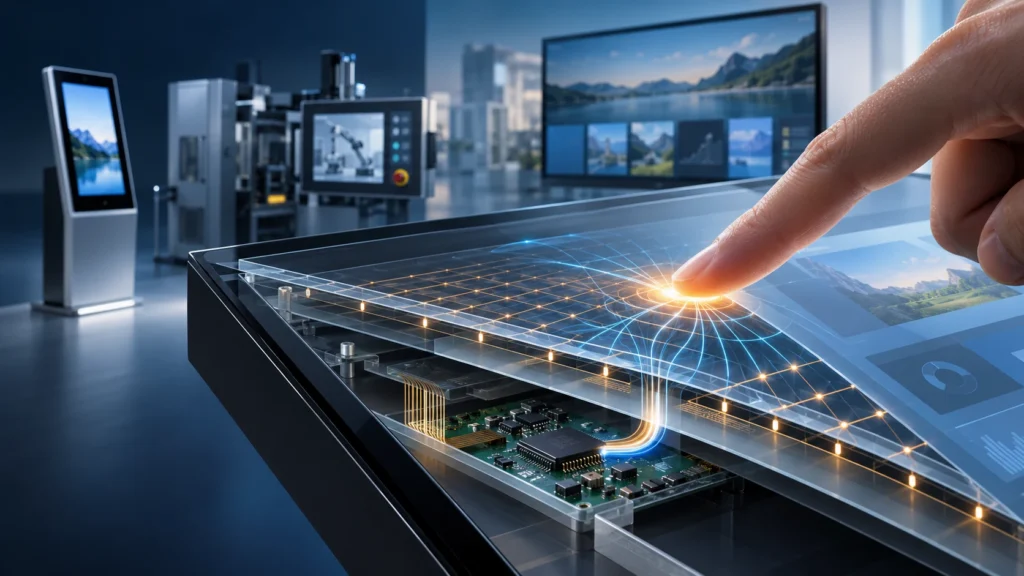
A Touchscreen Is a Display and an Input Device
The word “touchscreen” often makes the hardware sound like one component. In practice, the image path and touch path perform different jobs.
| System | Main Job | Typical Signal Path |
|---|---|---|
| Display system | Produces pixels, color, and brightness | Host graphics output to display electronics and LCD or OLED panel |
| Touch system | Detects contact and calculates position | Touch sensor to controller, then USB, I2C, serial, or another approved host interface |
This separation explains a common situation: a monitor can show a perfect image while touch does not work. HDMI or DisplayPort may be carrying video correctly, while the USB touch-data cable, controller, driver, or operating-system connection is missing or incompatible.
For a deeper explanation of this part of the signal chain, see the touch screen controller guide.
What Happens After You Touch the Screen?
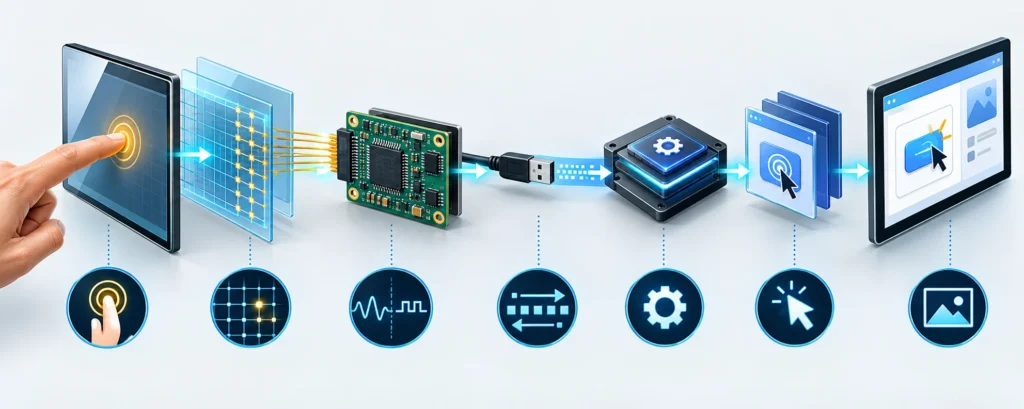
Although the sensing method differs by technology, the complete process usually follows the same sequence.
1. The sensor scans for a change
The touch controller repeatedly reads the sensor. In a projected capacitive screen, it scans a grid of transparent electrodes. A resistive panel checks the conductive layers. An infrared frame monitors light beams. A surface acoustic wave system measures ultrasonic energy traveling across the glass.
2. The touch changes a measurable signal
Your finger may disturb an electric field, pressure may connect two conductive layers, or an object may block light or absorb an acoustic wave. The controller compares the changed signal with its normal baseline.
3. The controller calculates coordinates
The controller identifies where the change occurred and converts the raw sensor reading into a position. It may also filter electrical noise, reject an unintended palm or water event, track several touch points, and compensate for the orientation of the sensor.
4. The coordinates reach the host system
The controller sends touch data to the computer or embedded board. External touch monitors commonly use USB for touch data, while integrated products may use USB, I2C, serial, or a model-specific internal connection.
5. The operating system creates an input event
The host interprets the coordinates as a touch event. It tracks whether contact began, moved, or ended. With multiple valid contacts, it can recognize gestures such as pinch, rotate, or two-finger scrolling.
6. The application responds
The software decides what the event means. A kiosk may open a product category, an industrial HMI may change a setpoint, and a drawing application may render a line. The graphics system then updates the displayed image.
This loop happens continuously while the user interacts with the screen. The perceived response depends on the sensor scan, controller processing, host communication, operating system, application, and display refresh—not on one “touch response” component alone.
How Does a Projected Capacitive Touchscreen Work?
Projected capacitive, usually shortened to PCAP or P-CAP, is the technology behind many phones, tablets, commercial touch monitors, kiosks, and modern control interfaces.
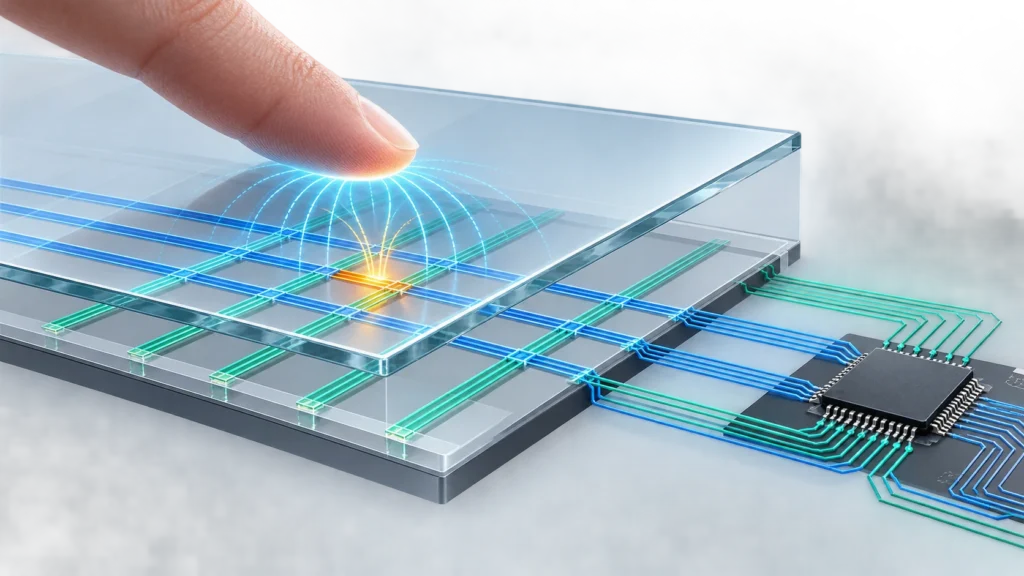
The electrode grid creates an electric field
A PCAP sensor contains transparent conductive electrodes arranged as rows and columns. These are commonly described as transmit and receive electrodes. The cover glass above them is an electrical insulator, but it allows the electric field to extend toward the touch surface.
A finger changes the capacitance
The human body conducts electricity and couples to the surrounding electrical environment. When a finger approaches or touches the cover glass, it disturbs the field at nearby electrode intersections. In a mutual-capacitance system, the finger reduces the coupling between a transmit electrode and a receive electrode.
The change is extremely small, so the controller does not simply look for an on/off switch. It measures signal differences against a baseline and determines which intersections changed enough to represent intentional contact.
The controller scans the matrix
By scanning the electrode combinations, the controller builds a map of touch activity across the panel. Because every row-column intersection is a distinct sensing node, a suitable PCAP controller can follow multiple contacts at the same time.
Each valid contact receives coordinates and often a tracking identity. As the fingers move, the controller updates their positions so the operating system can recognize a gesture rather than a series of unrelated taps.
Why can PCAP work through glass?
The glass acts as a dielectric between the finger and electrodes. The electric field can couple through it, but the complete sensor and controller must be designed for the selected glass construction. Greater cover thickness, printed borders, air gaps, adhesives, grounding, nearby metal, and display noise can all change the signal available to the controller.
This is why “works through thick glass,” “works with gloves,” and “works when wet” are not universal PCAP features. They depend on electrode design, controller capability, firmware tuning, glove material, water conditions, and the final mechanical assembly.
How Does a Resistive Touchscreen Work?
A resistive touchscreen uses pressure instead of relying on the electrical properties of a bare finger.
The panel typically contains two transparent conductive layers facing each other, separated by a small gap and spacer points. When a finger, glove, or stylus presses the top layer, it bends until the conductive surfaces make contact.
The controller applies and measures voltage across the layers to determine the X and Y position of that contact. Because activation comes from physical pressure, resistive touch can accept a wide range of input objects.
This mechanical construction also creates tradeoffs. The flexible top layer can affect optical clarity, the panel must physically deflect, and wear or damage to the surface can influence long-term operation. Conventional resistive systems are often selected for deliberate single-point input, although specialized multi-touch resistive designs also exist.
How Does an Infrared Touchscreen Work?
An infrared touchscreen places emitters and receivers around the edge of the display. They form an invisible grid of horizontal and vertical light beams just above the surface.
When a finger, stylus, glove, or another opaque object enters the grid, it blocks specific beams. The controller identifies the interrupted X and Y paths and calculates the touch position.
Because the technology does not require a conductive coating over the display image, it can provide high optical clarity and is practical for large interactive displays. The bezel, emitter alignment, contaminants, unintended objects, and ambient conditions must be considered in the final design.
How Does a Surface Acoustic Wave Touchscreen Work?
A surface acoustic wave, or SAW, touchscreen sends ultrasonic waves across a glass surface using transmitting and receiving transducers. Reflectors guide the waves along the X and Y axes.
A finger or compatible soft stylus absorbs part of the acoustic energy. The controller compares the received wave pattern with its stored reference and calculates where the change occurred.
SAW can provide a clear glass viewing surface because it does not need the same electrode grid used by PCAP. Liquids, dirt, or objects on the active surface can absorb or disturb the wave, so environmental exposure and cleaning conditions matter.
PCAP vs Resistive vs Infrared vs SAW
| Technology | What Touch Changes | Typical Input | Main Strength | Main Design Consideration |
|---|---|---|---|---|
| Projected capacitive | Capacitance at electrode nodes | Finger or approved conductive stylus; glove support is configuration-dependent | Responsive multi-touch behind a durable cover lens | Controller tuning, cover glass, grounding, moisture, EMI, and host compatibility |
| Resistive | Electrical contact between pressure-separated layers | Finger, glove, passive stylus, or other pressure input | Broad input flexibility and deliberate activation | Flexible-layer wear, optical stack, pressure, and touch-point requirements |
| Infrared | Interruption of an optical beam grid | Any object that blocks the beams | Clear image path and suitability for large displays | Bezel design, contaminants, obstruction, and optical environment |
| Surface acoustic wave | Absorption of ultrasonic energy on glass | Finger, suitable glove, or soft stylus depending on the system | Clear glass surface and accurate touch | Liquid, dirt, surface condition, and technology-specific controller support |
No technology is universally best. The correct choice depends on the user input, environment, required touch points, cover construction, display size, cleaning process, operating system, enclosure, and maintenance plan.
What Are the Main Parts of a Touchscreen System?
Cover lens
The cover lens is the surface the user touches. It may provide impact protection, printed borders, anti-glare treatment, branding, or a flush front. Its material and thickness influence optical performance and, for PCAP, touch sensitivity.
Touch sensor
The sensor is the physical structure that changes when a touch occurs. It may be a PCAP electrode matrix, resistive layer stack, infrared frame, or acoustic glass assembly.
Bonding layer or mechanical gap
The sensor must be positioned relative to the display. Optical adhesive can reduce internal reflections and parallax, while other assemblies use an air gap or model-specific lamination structure. The correct construction depends on the display, sensor, repair strategy, optical target, and environment.
Touch controller
The controller excites or scans the sensor, measures the response, filters noise, calculates coordinates, and reports touch data. It must match the sensor technology, channel arrangement, touch count, cover glass, host interface, and operating environment.
Display module and display electronics
The LCD or OLED creates the image. Its timing electronics, backlight, power circuitry, and video controller belong to the display path. They can still influence touch performance through electrical noise, grounding, and mechanical integration.
Host system and application
The computer, Android board, industrial PC, or embedded processor receives the touch event. The operating system and application determine gesture behavior, orientation, calibration, button size, and the final user experience.
Why Do Touchscreens Sometimes Behave Differently?
Two displays with the same diagonal size can feel very different because touch performance is determined by the complete stack.
Cover glass and bonding
Changing glass thickness, adhesive, printed border, or air gap changes the physical and electrical relationship between the user and sensor. PCAP sensitivity and edge behavior may need to be retuned after such changes.
Electrical noise and grounding
Power supplies, LCD electronics, metal housings, cable routing, and inadequate grounding can reduce signal-to-noise ratio. The result may be false touches, missed touches, unstable coordinates, or different behavior when the equipment is connected to another power source.
Water, gloves, and contaminants
Water can alter a capacitive field, absorb an acoustic wave, or obstruct an optical path. Gloves may insulate a finger from a PCAP surface but work normally with pressure-based resistive or beam-based infrared systems. Performance must be tested with the actual glove, cleaning liquid, moisture pattern, and operating environment.
Controller algorithms
Thresholds, filtering, palm rejection, edge compensation, scan rate, and multi-touch tracking affect how raw signals become reported contacts. More filtering may improve stability but can also change perceived responsiveness.
Host and software behavior
The controller may report coordinates correctly while the operating system maps them to the wrong display, rotates them incorrectly, or exposes fewer touch points than expected. The final application can add further delay or interpret gestures differently.
Common Touchscreen Misconceptions
“The LCD detects my finger”
Usually, it does not. The display produces the image while a separate or integrated touch sensor detects input.
“Pressing harder makes a capacitive screen respond better”
PCAP detects a capacitance change, not mechanical force. A larger contact area can change the measured signal, but extra pressure is not the intended activation method. Resistive touch, by contrast, needs enough pressure for its conductive layers to meet.
“Every glass screen is capacitive”
Glass is only one part of the construction. PCAP, SAW, infrared, and some resistive assemblies can all present a glass surface or cover lens while using different sensing principles.
“Ten-point touch means ten people can always use it at once”
The touch controller may report ten contacts, but the operating system, application, screen size, palm-rejection behavior, and user-interface design determine whether those contacts are usable for a multi-user task.
“USB-C automatically carries video, touch, and power”
A connector shape does not define every supported function. Confirm the capabilities of the monitor, host port, controller, cable, and selected operating mode. Many external monitors still use one path for video and another USB path for touch data.
What This Means for Commercial and Industrial Projects
Understanding the sensing principle is useful, but equipment buyers should approve the complete working system.
For a kiosk, POS terminal, gaming machine, control panel, or interactive display, confirm:
- the touch technology and required number of simultaneous contacts;
- the real input method, including gloves, stylus, wet hands, or public use;
- the cover glass, printed border, surface treatment, and bonding construction;
- the display size, resolution, orientation, and active area;
- the touch controller and its sensor compatibility;
- the touch-data interface and separate video connection;
- the exact operating system, driver environment, and application behavior;
- the enclosure, grounding, power supply, cable routing, and nearby electronics;
- the cleaning process, moisture, dust, lighting, and expected impact exposure; and
- validation on a complete prototype before production approval.
Lucky-XFC supports PCAP and applicable resistive configurations across custom touch screens, touchscreen monitors, open-frame assemblies, curved displays, and kiosk projects. The touch sensor, controller, cover glass, host connection, display electronics, and enclosure are reviewed as one system rather than as isolated components.
For industrial equipment, explore industrial touchscreen configurations and define the actual operating environment before selecting the sensing method.
Send Lucky-XFC your display size, drawing, touch-point requirement, cover-glass construction, input method, host operating system, video and touch interfaces, installation structure, and operating environment. Contact the Lucky-XFC team to review a controller-matched touchscreen configuration and plan prototype validation for your application.
