
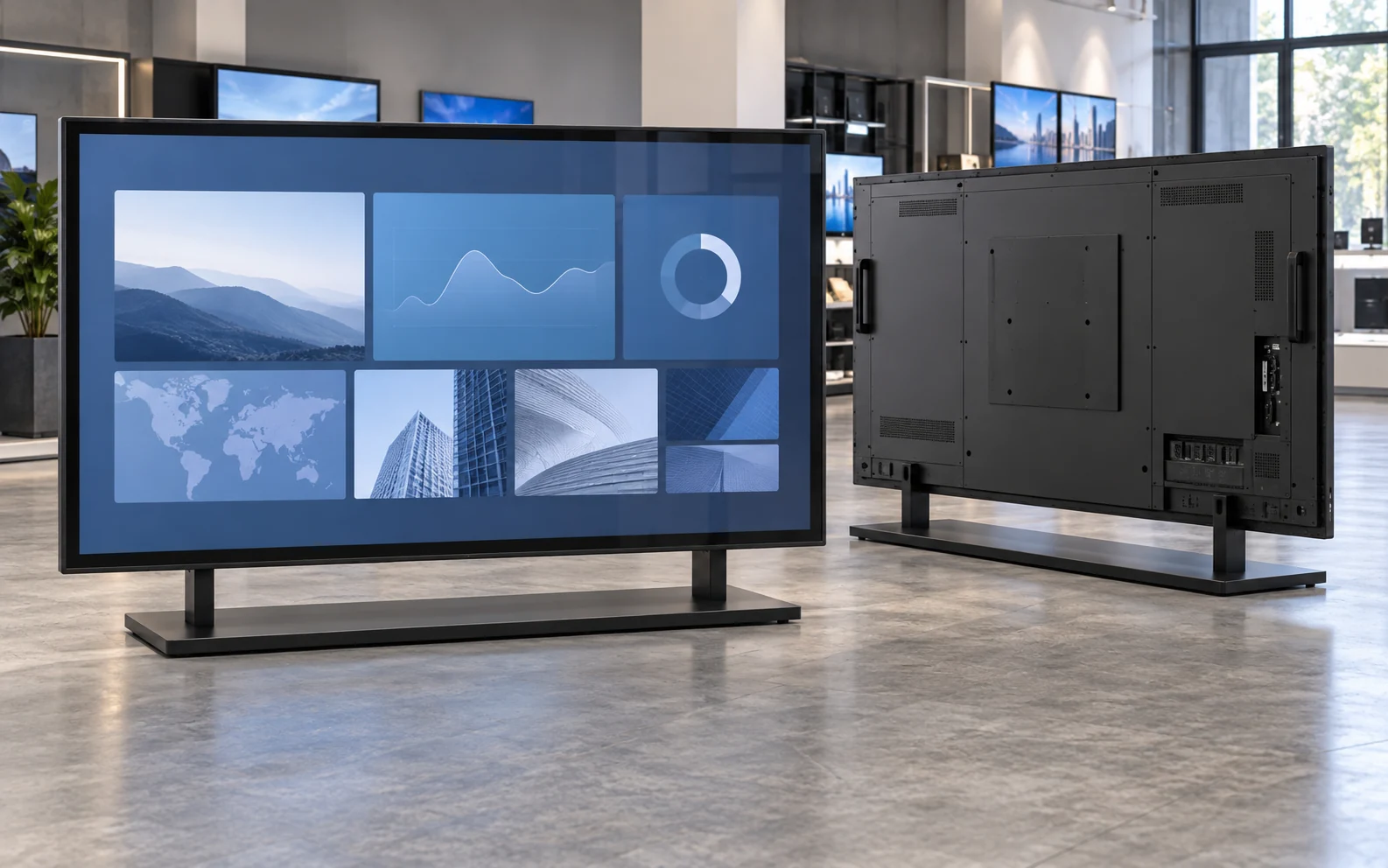
A 55-inch touchscreen monitor can serve as a self-service interface, interactive product display, meeting-room screen, industrial control surface, gaming cabinet display, or digital-signage terminal. These applications may use the same diagonal size, but they do not require the same hardware.
The right product is defined by its complete architecture: display resolution and brightness, touch technology, controller, host computer, operating system, video and touch interfaces, mounting structure, enclosure, operating environment, and service plan. Start with the workflow and installation, then approve a model-specific datasheet and drawing before purchase.
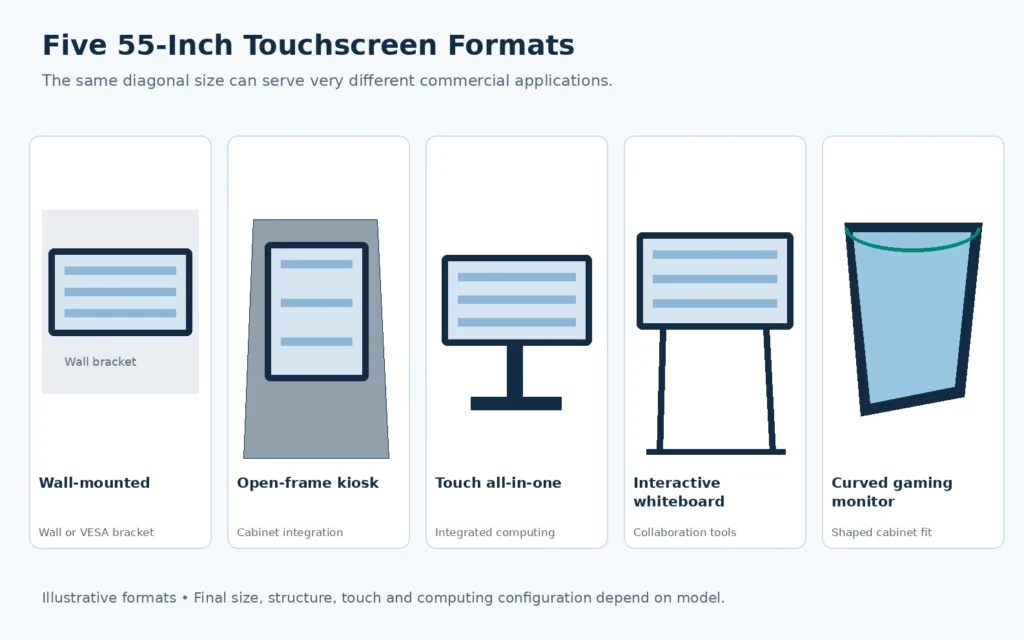
First Decide What Product You Actually Need
“55-inch touchscreen monitor” is used for several different product categories. Define the product boundary before comparing specifications.
| Product format | What it includes | Best suited to | Main buying risk |
|---|---|---|---|
| Touchscreen monitor | Display, touch sensor, controller, housing, video input, and touch-data connection | External PC, media player, industrial computer, or embedded host | Assuming a computer or operating system is built in |
| Open-frame touch monitor | Integration-ready display and touch assembly with mounting structure | Kiosks, cabinets, industrial equipment, and custom terminals | Final cutout, rear clearance, grounding, and cable conflicts |
| Touchscreen all-in-one | Display, touch, computing hardware, storage, and operating system | Standalone applications and dedicated terminals | Under-specifying processor, memory, storage, software, or service access |
| Interactive whiteboard or flat panel | Large touch display designed for presentation, annotation, and collaboration | Classrooms, meeting rooms, and training spaces | Buying unnecessary collaboration features or omitting required camera, audio, or software functions |
| Touch overlay plus display | Separate touch frame or overlay fitted to a compatible screen | Retrofitting selected signage displays | Mechanical mismatch, reduced brightness, unsupported screen model, or poor cable routing |
A display can be 55 inches, 4K, and Android-based without being touch-enabled. Confirm that the quoted configuration includes the touch sensor, touch controller, touch-data interface, and required driver support. Do not rely on the words “interactive,” “smart,” or “digital signage” without a complete specification.
Is 55 Inches the Right Physical Size?
A typical 16:9 55-inch panel has an active image area of approximately 1209.6 × 680.4 mm. The finished monitor will be larger because of the bezel, housing, connectors, mounting structure, and ventilation space.
Before selecting the size, check:
- Available wall, cabinet, or stand dimensions
- User reach across the full touch area
- Mounting height for the shortest and tallest expected users
- Viewing distance and required text size
- Portrait or landscape orientation
- Doorways, elevators, and access routes for installation
- Rear clearance for connectors, ventilation, and service
- Weight capacity of the wall, stand, or cabinet
- Packaging dimensions and destination handling limits
A 55-inch screen may look appropriate on a floor plan but become difficult to operate if users cannot comfortably reach its upper corners. For public installations, test the interaction height with representative users before freezing the mount.
Choose the Product Architecture Around the Application
External-Host Touchscreen Monitor
Choose a display-only touchscreen monitor when the application already runs on a PC, industrial computer, media player, or embedded host. This structure keeps the computer replaceable and allows the customer to control software and security separately.
Confirm the video input, touch-data connection, host operating system, driver, cable length, and power arrangement. HDMI or DisplayPort normally carries the image, while USB commonly carries touch data. Both connections must be included in the system design.
Integrated Android or Windows System
Choose an integrated touchscreen computer when the screen must run the application without an external PC. Define the operating system, processor class, memory, storage, network, software workload, update method, and peripheral requirements.
The monitor specification alone does not establish application performance. A content player, browser-based kiosk, collaboration platform, and industrial visualization package place different demands on the computing hardware.
Interactive Whiteboard
An interactive whiteboard is appropriate when presentation, annotation, screen sharing, stylus input, speakers, cameras, or meeting software are central to the purchase. If the requirement is simply a touch interface connected to an existing PC, a conventional touchscreen monitor may be more direct.
Open-Frame or Panel-Mount Display
An open-frame touch monitor is designed for installation inside another product. The equipment enclosure provides the exterior appearance, so the monitor must be selected from the cabinet opening, bezel overlap, mounting points, depth, cable direction, and service access.
Curved Touch Monitor
A curved touch monitor is useful when the display must follow a gaming cabinet, simulator, exhibition structure, or immersive enclosure. Lucky-XFC documents 55-inch J-type and C-type curved capacitive-touch starting points. The reference curved configurations use a 16:9 format, 1920 × 1080 resolution, and metal housings. A 4K curved configuration requires a separate feasibility review of the panel, curve, controller, cabinet, and content source.
PCAP vs. Infrared Touch for a 55-Inch Display
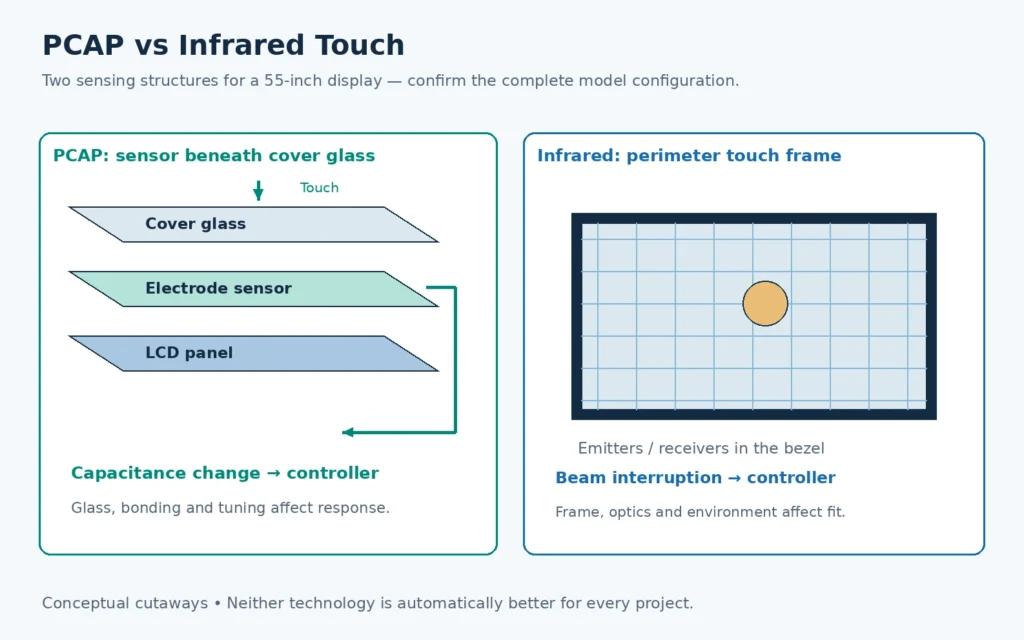
Projected capacitive touch and infrared touch are common large-format choices, but they create different integration and user-experience trade-offs.
| Decision factor | Projected capacitive touch (PCAP) | Infrared touch (IR) |
|---|---|---|
| Sensing method | Detects changes in a transparent electrode field | Detects interruption of infrared beams around the screen |
| Front appearance | Can support a clean glass-front design | Requires a touch frame around the active area |
| Input | Finger and supported conductive stylus; glove behavior depends on design and tuning | Finger, stylus, glove, or other sufficiently large opaque object, depending on the frame |
| Multi-touch | Depends on sensor and controller | Depends on frame and controller |
| Cover glass | Thickness, bonding, printed border, and grounding affect performance | Overlay structure and frame geometry affect fit and optics |
| Environment | Must be evaluated for moisture, electrical noise, gloves, and grounding | Must be evaluated for dust, debris, ambient conditions, bezel obstruction, and object size |
| Typical fit | Premium kiosks, commercial interfaces, shaped cabinets, and integrated glass designs | Large interactive displays, whiteboards, and compatible touch-overlay projects |
Neither technology is automatically better. PCAP is often selected for a smooth glass-front interface, while IR can be practical for large collaborative screens or retrofit structures. Request the exact touch-point count, supported input method, controller, operating-system support, glass or frame construction, and test conditions for the proposed model.
Should a 55-Inch Touchscreen Monitor Be 4K?
At 55 inches, 4K resolution provides four times the pixel count of Full HD. It is useful when users stand close to the screen, read detailed text, inspect images or drawings, use split-screen layouts, or write and annotate on fine content.
Full HD can still be suitable for simpler user interfaces, entertainment equipment, large buttons, video playback, or applications viewed from farther away. The correct choice depends on content, viewing distance, host graphics capability, cable standard, and budget.
When evaluating a 4K touch screen monitor, confirm more than the resolution label:
- Native resolution and refresh rate
- Video input and cable capability at the required resolution
- Host graphics output and application scaling
- Text and user-interface scaling in the target operating system
- Touch-coordinate mapping at native resolution
- Brightness after the touch layer or protective glass is added
- Supported orientation and multi-display configuration
- Availability of the selected panel and controller combination
Do not assume that every 55-inch touch product is 4K. Lucky-XFC’s documented 55-inch curved reference configurations use Full HD, while 4K is evaluated as a project-specific option. Flat and interactive models must be confirmed from their own datasheets.
Evaluate Brightness, Surface Treatment, and Viewing Conditions
Brightness should be selected for the actual environment, not from a universal minimum. A screen in a controlled meeting room has different needs from a store window, bright exhibition hall, factory floor, or outdoor enclosure.
Ask for the brightness of the finished touch configuration. A touch layer, protective glass, anti-glare treatment, optical bonding, and viewing angle can change the result users see. A bare-panel brightness figure may not describe the completed product.
Evaluate these items together:
- Ambient light level and direct-light exposure
- Reflection from windows and overhead lighting
- Anti-glare, anti-reflection, or clear-glass finish
- Required viewing angle
- Color and contrast requirements
- Fingerprint visibility and cleaning method
- Indoor, semi-outdoor, or outdoor use
- Thermal load created by high-brightness operation
For storefronts or bright public spaces, test real content under representative lighting. Increasing brightness does not correct every reflection problem; placement and surface treatment also matter.
Check Touch Performance Against the Real Workflow
The required touch specification depends on what users will do.
For a kiosk with large buttons, reliable single-user input may matter more than a high touch-point count. Collaborative drawing and whiteboarding require smooth multi-touch, stylus behavior, palm rejection, low visible parallax, and software support. Gaming and immersive equipment may prioritize continuous touch behavior across a shaped surface.
Ask the supplier to define:
- Number of simultaneous touch points
- Finger, glove, and stylus support
- Touch accuracy and edge behavior
- Gesture and palm-rejection behavior
- Touch controller and host interface
- Calibration and orientation procedure
- Supported operating systems and driver versions
- Wake, restart, and reconnect behavior
- Performance after the screen is installed in the final enclosure
Touch delay should be evaluated as part of the complete system. The sensor, controller, USB or serial connection, host computer, operating system, graphics pipeline, and application can all influence perceived response.
Confirm Video, Touch, Power, and Control Interfaces Separately
A 55-inch touch display may need several connection paths:
- HDMI, DisplayPort, or another input for video
- USB or another supported interface for touch data
- AC or DC power according to the approved configuration
- USB-C only when its video, data, and power functions are explicitly supported
- LAN, Wi-Fi, or Bluetooth for an integrated system when required
- RS232, RJ45 control, or remote OSD functions for commercial installations
- Audio output or built-in speakers when required by the workflow
A USB-C connector does not guarantee single-cable video, touch, and power. Request a connection diagram that identifies each port, cable, signal, and power requirement.
The touch screen controller guide explains why the sensor, controller, host interface, and operating system must be approved together.
Review Mounting and Mechanical Integration Before Ordering
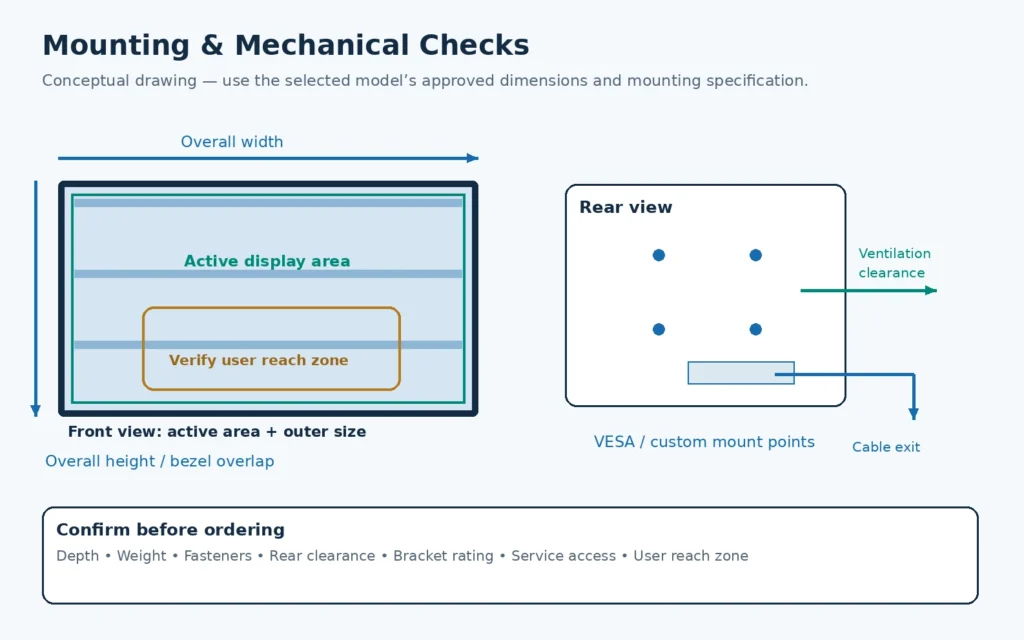
Large-format touch monitors are heavy and require more than a diagonal-size check. Ask for the model-specific dimensional drawing before finalizing the wall, kiosk, cabinet, or stand.
The drawing should identify:
- Overall width, height, and depth
- Active display area
- Bezel dimensions
- VESA pattern or custom mounting points
- Fastener size and allowed engagement depth
- Connector position and cable exit direction
- Ventilation and rear-clearance requirements
- Portrait and landscape restrictions
- Center of gravity and product weight
- Service-access panels and removable components
- Glass overhang, edge treatment, and exposed seams
For open-frame installations, confirm the cabinet cutout, bezel overlap, clamping method, front sealing boundary, rear support, and tolerance stack. For wall mounting, confirm the wall structure and bracket rating for the complete installed load.
Match the Monitor to the Operating Environment
The product must be evaluated for the location in which it will operate.
| Environment | Important checks |
|---|---|
| Retail and public kiosk | Front-glass durability, cleaning, touch stability, cable security, service access, and operating hours |
| Meeting or classroom | 4K detail, writing behavior, stylus, speakers, camera, device connectivity, and mounting height |
| Industrial equipment | Electrical noise, grounding, power input, operating temperature, glove use, mounting, and host compatibility |
| Digital signage | Brightness, orientation, scheduled operation, media-player architecture, network, and optional touch |
| Gaming or immersive cabinet | Curve, touch behavior, cabinet fit, content resolution, controller, ventilation, and cable clearance |
| Healthcare or check-in terminal | Cleaning method, touch workflow, privacy, peripheral integration, mounting, and project-specific compliance needs |
Request operating and storage temperature, humidity limits, protection rating where needed, approved cleaning method, expected operating schedule, and applicable compliance documents for the exact model. A family-level statement should not replace a model-specific datasheet.
Calculate Total Project Cost, Not Only Monitor Price
The lowest unit price may not produce the lowest installed cost. Include the parts and work required to make the display usable in its final location.
Consider:
- Touch display or monitor
- Computer module or external host
- Mount, stand, or custom cabinet
- Video, touch, power, and control cables
- Camera, speakers, scanner, printer, or other peripherals
- Software licenses and device management
- Custom glass, housing, logo, color, or interfaces
- Engineering, drawing, tooling, and sample costs
- Export packaging and protective crate requirements
- Freight, duties, local delivery, and installation
- Spare units, replacement parts, and support
- Power consumption across the expected operating schedule
For international projects, request packed dimensions and gross weight before approving the logistics budget. Large glass-front displays need packaging designed to resist impact, tipping, and pressure on the screen face.
Request These Documents Before Placing a Batch Order
- Model-specific datasheet
- Dimensional and mounting drawing
- Touch technology and controller information
- Interface and cable diagram
- Supported operating-system and driver list
- Power specification
- Operating and storage conditions
- Applicable certification or compliance documents
- Cleaning and maintenance instructions
- Packaging dimensions and weight
- Warranty and after-sales terms
- Approved sample or pre-production specification
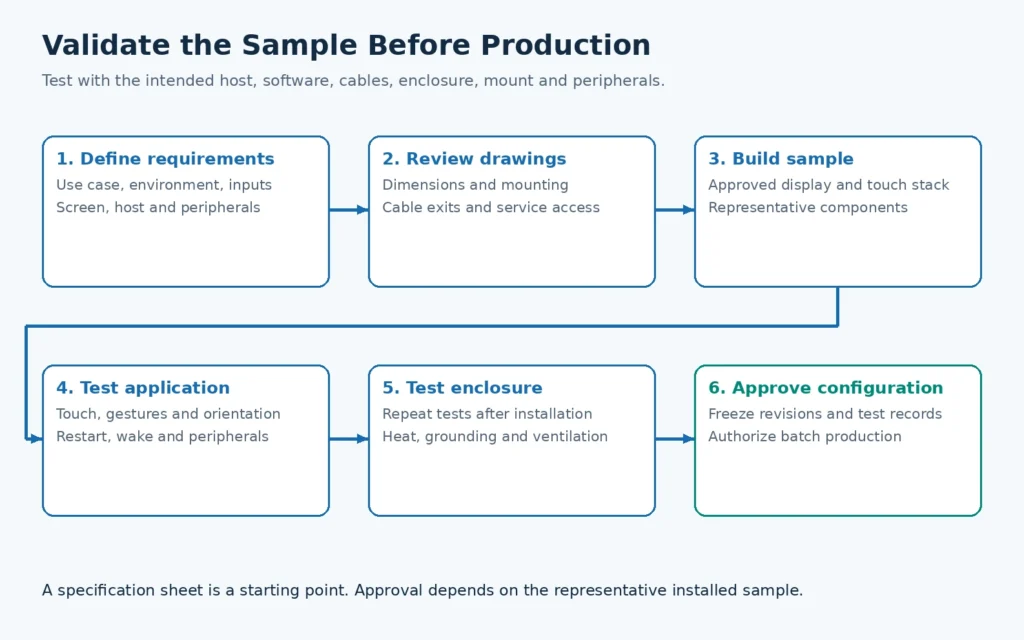
If the project uses custom cover glass, a curved structure, an unusual host, long cables, special mounting, or integrated peripherals, test a representative sample before mass production.
Sample Validation Checklist
Test the sample with the production host, application, cables, mount, enclosure, and peripherals.
- Inspect the display for brightness, color, uniformity, and visible defects.
- Confirm native resolution and refresh rate from every intended video source.
- Test touch at the center, edges, and corners.
- Test all required simultaneous touches, gestures, gloves, and styluses.
- Confirm portrait or landscape coordinate mapping.
- Restart, sleep, wake, disconnect, and reconnect the system.
- Run the application for the expected operating period.
- Check heat, ventilation, noise, and power behavior.
- Verify speakers, network, camera, and peripheral communication where included.
- Install the unit in the real cabinet or mount and repeat critical tests.
- Confirm packaging and delivery handling.
- Freeze the approved display, sensor, controller, firmware, driver, cable, glass, and drawing revisions.
55-Inch Touchscreen Monitor Selection Table
| Project requirement | Recommended starting point | Confirm before quotation |
|---|---|---|
| Wall-mounted interactive content | Enclosed flat touch monitor | 4K or Full HD, brightness, PCAP or IR, VESA, speakers, external host |
| Kiosk or custom cabinet | Open-frame touch monitor | Cutout, bezel overlap, depth, controller, grounding, cable direction |
| Standalone application | Android or Windows touchscreen all-in-one | CPU, memory, storage, OS, ports, application workload, service access |
| Classroom or meeting collaboration | Interactive whiteboard or flat panel | Annotation, stylus, touch points, camera, audio, USB-C, software |
| Curved gaming equipment | 55-inch J-type or C-type PCAP monitor | Curve, cabinet drawing, Full HD or project-reviewed 4K, interfaces, power |
| Bright public display | High-brightness touch configuration | Finished brightness, glare control, thermal design, operating hours |
| Retrofit existing signage | Compatible IR overlay or engineered touch frame | Exact display model, frame fit, glass, USB, mounting, optical impact |
Questions to Send with Your RFQ
Provide enough information for the supplier to recommend an actual configuration rather than a generic 55-inch product.
- Application and user workflow
- Installation country and destination
- Quantity and expected purchasing schedule
- Flat, open-frame, wall-mounted, all-in-one, whiteboard, or curved format
- 4K or Full HD content requirement
- PCAP, IR, or input-method requirement
- Touch-point, glove, and stylus needs
- External host or integrated Android/Windows system
- Required video, touch, network, audio, and control interfaces
- Indoor lighting, operating schedule, temperature, and cleaning conditions
- Mounting method, cabinet drawing, cutout, and rear clearance
- Required certifications, packaging, warranty, and spare-unit plan
Choose the Configuration, Then Approve the Model
A useful 55-inch touchscreen monitor purchase specification should describe the complete installed system. Screen size alone does not define resolution, touch technology, operating system, brightness, interfaces, mounting, or suitability for the environment.
Lucky-XFC supports flat, open-frame, integrated, large-format, and 55-inch curved touch-display projects. Share your application, host system, required resolution, touch method, interfaces, mounting drawing, quantity, and destination. The engineering team can review the configuration, identify the specifications that need model-level confirmation, and prepare a sample or quotation path.
Discuss your 55-inch touchscreen monitor project with Lucky-XFC.
