
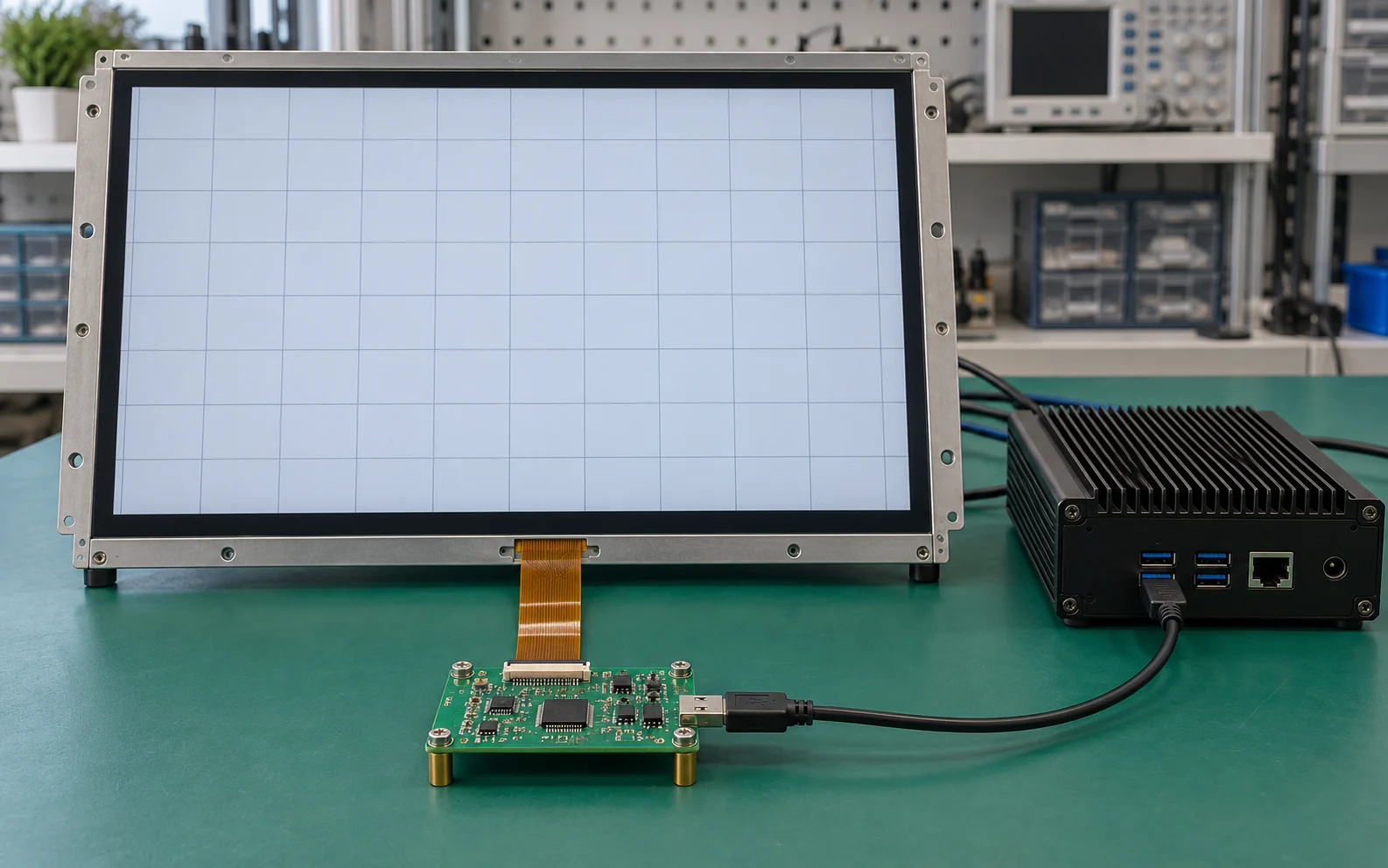
A touch screen controller is the electronic link between a touch sensor and the host computer. It scans the sensor, detects a valid touch, calculates its position, filters unwanted signals, and reports the touch event to the operating system or application.
The controller does not normally create the image shown on the screen. Video electronics handle the picture, while the touch controller handles user input. A reliable touchscreen therefore depends on the complete stack: sensor, controller, display, cover glass, power, grounding, enclosure, host interface, operating system, and application.
What Does a Touch Screen Controller Do?
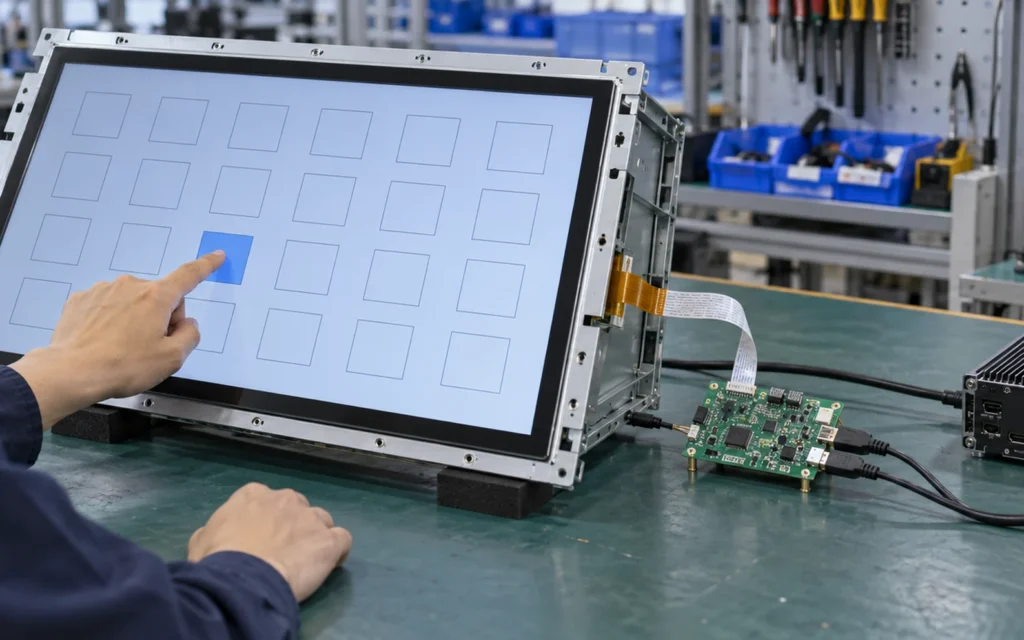
The controller converts a physical interaction with the touch surface into usable digital input. Its exact operation depends on the touch technology, but the basic process follows the same path:
- The controller scans the sensing electrodes or reads the sensor circuit.
- A finger, stylus, glove, or applied pressure changes the measured signal.
- The controller compares that signal with its baseline and noise thresholds.
- Firmware identifies whether the change represents an intentional touch.
- The controller calculates one or more touch coordinates and tracks movement.
- It sends the resulting event to the host, where the operating system maps it to the user interface.
This processing also helps manage edge behavior, palm or false-touch rejection, gesture tracking, orientation, and recovery from environmental or electrical changes. Available functions vary by controller family and the approved sensor design.
Touch Controller vs. Display Controller vs. Host Computer
These three components are often confused because they can sit inside the same monitor or terminal.
| Component | Primary job | Typical data path |
|---|---|---|
| Touch screen controller | Reads the touch sensor and reports input coordinates | Sensor to USB, I²C, SPI, UART, or another supported host interface |
| Display controller or display electronics | Receives and processes the video signal for the LCD or other display panel | HDMI, DisplayPort, VGA, eDP, LVDS, MIPI, or a product-specific connection |
| Host computer or embedded system | Runs the operating system and application | Receives both display-output and touch-input data |
A screen can display an image even when touch is not connected. It can also report touch while the video input is assigned incorrectly. When diagnosing an integration problem, test the image path and touch path separately.
How Different Touch Screen Controller Types Work
Projected Capacitive Touch Controllers
Projected capacitive, or PCAP, systems use a patterned electrode grid. A finger or conductive stylus changes the local capacitive field. The controller scans the electrodes, measures these changes, and uses signal-processing algorithms to calculate the contact position.
PCAP is widely used when a project needs a glass front, multi-touch gestures, and a modern user experience. Its performance is influenced by sensor design, cover-glass thickness, bonding structure, grounding, display noise, moisture, gloves, and nearby electronics. A controller that performs well on one sensor should not be assumed to work identically with another panel construction.
Resistive Touch Controllers
A resistive touchscreen uses flexible conductive layers separated by a small gap. Pressure brings the layers into contact. The controller applies voltage across the sensor and measures the resulting signal to determine the touch position.
Resistive systems can be useful when the interface must respond to pressure from a finger, glove, or passive stylus. They are usually selected for specific operating and cost requirements rather than as a universal alternative to PCAP. Sensor construction, wire count, controller compatibility, calibration, surface durability, and expected input method must be confirmed together.
Infrared and Optical Touch Controllers
Infrared and optical systems detect interruptions or changes in a sensing field around the display rather than measuring a transparent electrode layer over the image area. Their controller processes signals from emitters, receivers, or cameras to locate the touch.
These architectures can be considered for large interactive displays and applications where a touch frame is practical. Bezel design, ambient conditions, object size, cleaning, installation geometry, and required touch behavior influence suitability.
Where Is the Touch Controller Located?
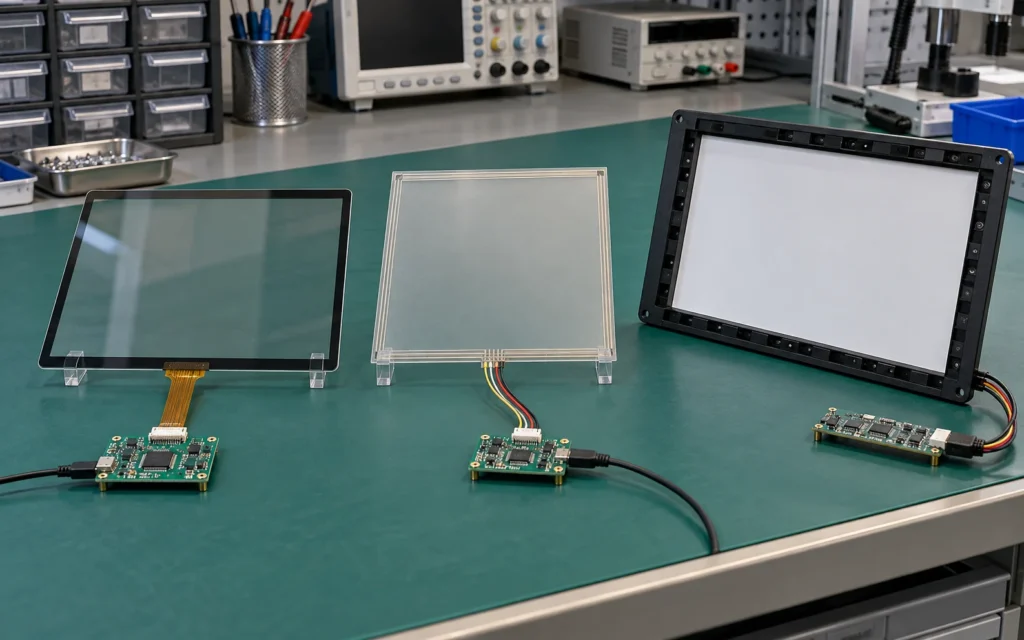
The controller may appear in several physical forms:
- A small board connected to the touch sensor by a flexible cable
- Electronics integrated into the sensor tail or touch module
- A controller section built into a monitor’s internal electronics
- A dedicated IC or circuit on an embedded product’s mainboard
- An external controller board used during development or replacement
The physical location does not determine compatibility. The sensor technology, electrode design, channel count, electrical characteristics, connector, firmware, host interface, and mechanical stack still have to match.
For equipment builders, a complete touchscreen monitor usually simplifies this boundary because the sensor, controller, display electronics, housing, and external connections can be validated as one assembly. An open-frame touch monitor gives the equipment designer more control over the final enclosure but makes mechanical, grounding, and cable validation especially important.
How the Controller Communicates with the Host
The host-side interface depends on whether the controller is used inside an embedded device or a finished monitor.
USB
USB is common in finished touch monitors and commercial terminals. The display video may arrive through HDMI or DisplayPort, while a separate USB connection carries touch data. When the controller uses a supported human-interface profile, the operating system may recognize basic touch input without a custom application driver. Advanced settings, calibration, firmware tools, or nonstandard functions can still require specific software.
I²C or SPI
I²C and SPI are common between a touch controller and an embedded host processor. They are useful in integrated products where the system designer controls the mainboard, firmware, interrupt line, power sequence, and driver stack. They are not direct substitutes for a finished USB touch connection.
UART or Selected Serial Interfaces
Serial communication may be used with compatible industrial computers, embedded hosts, or legacy systems. The electrical standard, protocol, baud rate, power arrangement, connector, operating-system support, and driver must all match. A connector that looks familiar does not by itself establish compatibility.
USB-C
USB-C describes a connector, not a guaranteed function set. A USB-C port may carry power, touch data, video, or only a subset of these functions. Confirm the exact product specification, cable capability, power delivery, and host support before designing a single-cable installation.
What Determines Controller Compatibility?
A controller should be selected for the complete touch stack, not only for screen diagonal size.
| Selection factor | What to confirm |
|---|---|
| Touch technology | PCAP, resistive, infrared, optical, or another approved architecture |
| Sensor design | Active area, electrode or wire configuration, channel requirements, tail position, and connector |
| Required input | Bare finger, glove, conductive stylus, passive stylus, or pressure input |
| Touch points | Required number of simultaneous contacts and gesture behavior |
| Cover glass | Thickness, printed border, surface treatment, bonding method, and edge construction |
| Display electronics | Noise environment, power architecture, refresh behavior, and internal cable layout |
| Host interface | USB, I²C, SPI, UART, or another supported connection |
| Software | Exact operating system, driver, firmware, calibration method, and application behavior |
| Mechanical integration | Enclosure material, mounting pressure, grounding, cutout, connector clearance, and cable routing |
| Operating environment | Moisture, cleaning method, temperature range, electrical noise, vibration, and expected user behavior |
| Supply continuity | Approved part number, firmware control, change notification, and replacement strategy |
For an industrial touch screen, electrical noise, grounding, gloves, moisture, mounting, and long-term component control may be central to the specification. For a kiosk touch screen monitor, the controller also has to work reliably with the selected computer, application, orientation, peripherals, and service layout.
Why a Controller Can Work on the Bench but Fail After Assembly
An open sensor and controller board may perform correctly during an early test, then become unstable in the finished enclosure. The assembly changes the electrical and mechanical environment.
Common causes include:
- A metal bezel or chassis changes grounding or creates coupling near the sensing area.
- The display, power supply, or internal cables introduce electrical noise.
- The cover glass or bonding structure reduces the measurable touch signal.
- Mounting pressure distorts the sensor or affects edge performance.
- Cable routing places the sensor tail near a noisy circuit or antenna.
- The final screen orientation does not match controller or operating-system mapping.
- Moisture, cleaning fluid, gloves, or nearby objects create conditions that were not included in bench testing.
Controller tuning can improve a compatible design, but tuning cannot correct every mismatch. A controller with the wrong sensor architecture, insufficient channel support, unsuitable host interface, or incompatible electrical design normally requires a different hardware decision.
Common Touch Controller Problems
| Symptom | Likely areas to investigate |
|---|---|
| Image works but touch does not | Missing touch-data cable, unsupported USB port, driver issue, controller power, or incorrect host connection |
| Touch is reversed or rotated | Sensor orientation, controller configuration, display rotation, or operating-system mapping |
| Cursor does not follow the touch point | Calibration, scaling, active-area mismatch, multi-display mapping, or wrong sensor/controller pairing |
| False touches appear | Grounding, power noise, display interference, moisture, cable routing, or unsuitable thresholds |
| Edge response is weak | Electrode design, printed border, cover glass, enclosure pressure, bonding, or tuning |
| Multi-touch is unavailable | Controller or sensor limitation, driver mode, operating-system support, or application behavior |
| Touch stops after wake or reboot | Power sequencing, USB enumeration, firmware, host driver, or suspend/resume behavior |
| Performance changes after replacing a panel | Different sensor construction, firmware configuration, connector pinout, or cover-glass stack |
Troubleshooting should reproduce the fault in the intended enclosure with the production host, power supply, cables, and application. Replacing the controller before checking the system conditions can hide the real cause.
A Practical Validation Process for OEM Projects
1. Define the User and Environment
Specify who will operate the screen, the expected input method, indoor or outdoor placement, cleaning process, moisture exposure, electrical environment, and required service life.
2. Define the Complete Hardware Stack
Record the display model, sensor technology, cover glass, controller, connector, host computer, video input, touch-data interface, power source, and enclosure materials. Keep video and touch connections clearly separated in the drawing.
3. Confirm Software Compatibility
Test the exact operating-system version, driver, application, orientation, gestures, and multi-display behavior. A controller recognized by one computer configuration may not behave the same way on another platform.
4. Build a Representative Sample
Use the intended glass, sensor, display, controller, cables, power supply, grounding method, and metal structure. A loose bench setup cannot validate the final mechanical assembly.
5. Test the Actual Workflow
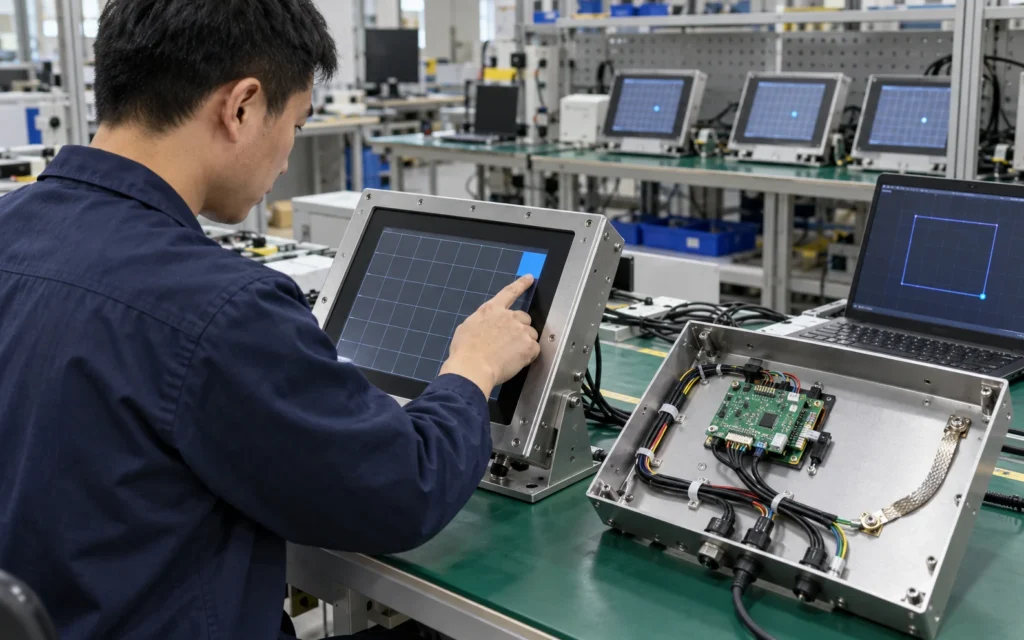
Check initial touch recognition, edge and corner response, drag behavior, multi-touch if required, wake and restart, portrait or landscape mapping, long cable behavior, and interaction with nearby peripherals. Repeat the relevant tests after the enclosure is fully assembled.
6. Freeze the Approved Configuration
Record controller hardware, firmware, sensor revision, cable pinout, driver, tuning file, glass stack, and mechanical drawing. Production should follow this approved combination, with changes reviewed before substitution.
Touch Controller Requirements by Application
Self-Service Kiosks
Kiosks need stable touch recognition across repeated public use, screen rotation, cleaning, and integration with the host computer and application. The controller is one part of a larger workflow that may include scanners, printers, card readers, or payment hardware.
Industrial Equipment
Industrial projects may prioritize glove operation, resistance to electrical noise, a controlled serial or USB connection, secure mounting, and compatibility with an embedded or industrial computer. Requirements should be written as measurable project conditions rather than relying on the label “industrial.”
POS and Retail Terminals
Retail systems usually need quick, predictable input and straightforward operating-system support. Counter layout, cable strain relief, cleaning, display angle, and nearby payment equipment can affect the final design.
Interactive Digital Signage
Large interactive displays may use PCAP, infrared, or another approved technology depending on size, glass, bezel, installation, and user behavior. Review the complete interactive digital signage architecture rather than choosing the controller independently.
Touchscreen Computers and All-in-One Systems
In a touchscreen computer, the display, controller, computing hardware, operating system, and application are integrated into one product. This reduces external cabling but increases the importance of internal power sequencing, driver control, heat management, and service access.
Questions to Ask Before Approving a Touch Screen Controller
- What exact touch technology and sensor part number will be used?
- What input must the system recognize: finger, glove, stylus, or pressure?
- How many simultaneous touch points does the application require?
- What are the cover-glass thickness, printed border, and bonding method?
- Which host interface and connector will carry touch data?
- Which operating system, version, and driver environment will be used?
- Is the display orientation fixed, switchable, or part of a multi-monitor system?
- What power, grounding, and electrical-noise conditions exist inside the enclosure?
- Has the controller been tested with the production display, glass, cables, and housing?
- Which hardware, firmware, tuning file, and driver revisions will be frozen for production?
These questions are more useful than asking whether a controller is simply “compatible with a 21.5-inch screen.” Screen size alone does not define the sensor or system requirements.
Frequently Asked Questions
Does Every Touchscreen Need a Controller?
Every touch sensor needs electronics that acquire and interpret its signal. Those electronics may be a separate board, integrated into the sensor assembly, or incorporated into another device. The physical packaging varies, but the controller function remains necessary.
Does the Touch Controller Carry the Video Signal?
Normally, no. HDMI, DisplayPort, VGA, eDP, LVDS, or another video path carries the image. USB, I²C, SPI, UART, or another supported data path carries touch information. A combined USB-C design is possible only when the exact hardware supports the required functions.
Can One Controller Work with Any Touch Panel?
No. The controller must match the touch technology, sensor construction, electrical design, connector, firmware, host interface, and required functions. Even panels with the same diagonal size can require different controllers or tuning.
Is a Driver Always Required?
It depends on the controller, interface, operating system, and required functions. Some finished USB touch products can use built-in operating-system support for basic input. Embedded interfaces and advanced features commonly need a specific driver or firmware integration.
Can Controller Tuning Fix False Touches?
Tuning can address some sensitivity, noise, moisture, edge, and glove conditions when the hardware stack is compatible. It should follow checks of grounding, power, cable routing, enclosure design, sensor construction, and host behavior. Tuning is not a substitute for correct hardware matching.
Does Lucky-XFC Manufacture Touch Controller ICs?
Lucky-XFC manufactures and customizes touch display products rather than bare semiconductor ICs. Its project scope can include controller matching, sensor and cover-glass coordination, host-interface planning, mechanical integration, and sample validation within a complete touch monitor or open-frame display project.
Plan the Controller as Part of the Complete Touch Display
The best controller is not the board with the longest feature list. It is the controller that matches the sensor, glass, display, host, software, enclosure, environment, and production plan.
If you are developing a kiosk, industrial interface, POS terminal, gaming machine, or interactive display, share the touch technology, screen size, cover-glass structure, host system, interface, operating system, mounting method, quantity, and any existing drawings. Lucky-XFC can review the complete stack and recommend a practical touch screen controller integration path for sampling and production.
