
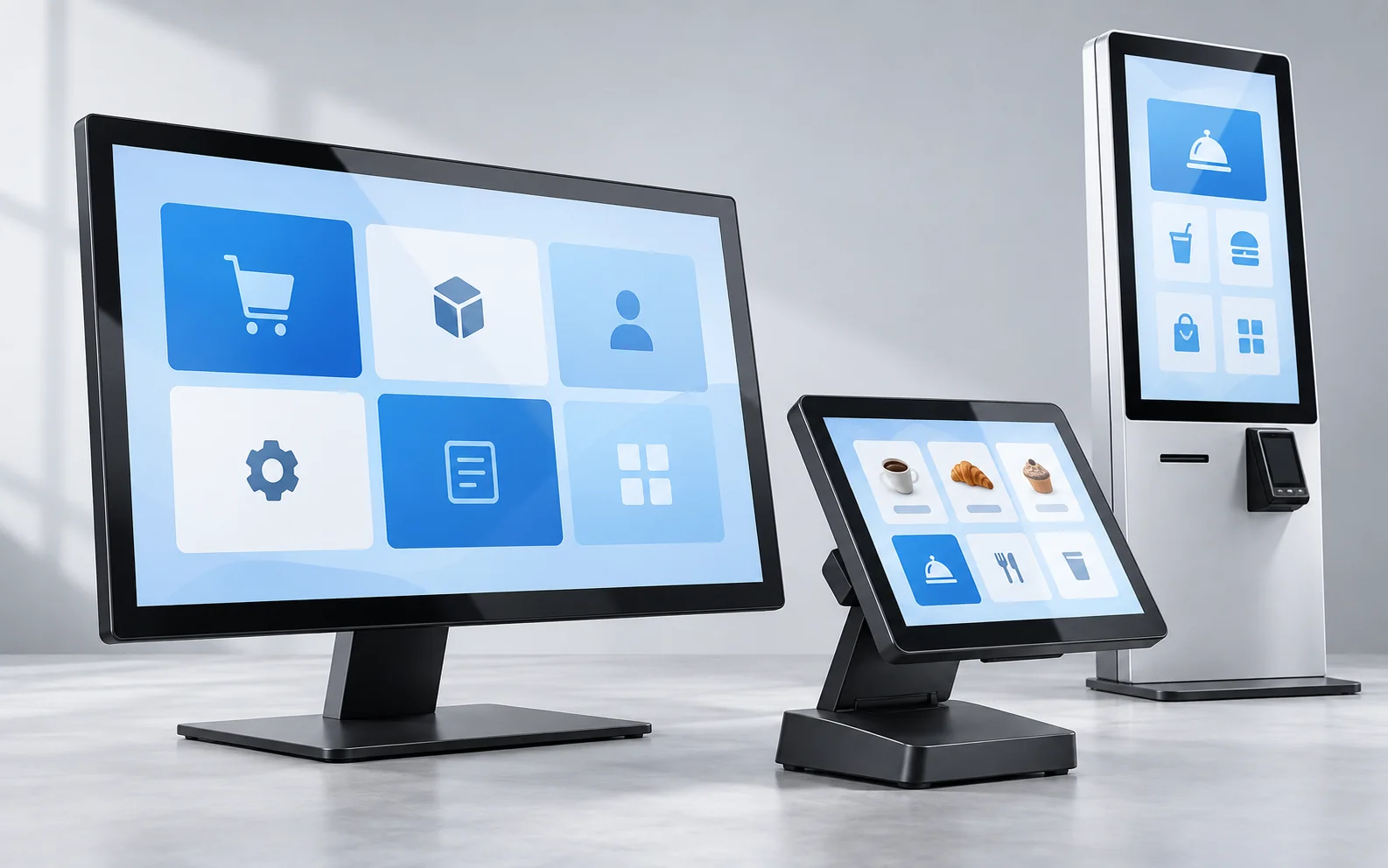
Touchscreen monitors are worth it when direct on-screen interaction makes a real workflow faster, simpler, or more accessible. They are especially valuable in self-service kiosks, POS systems, industrial controls, information terminals, interactive signage, and collaborative displays.
They are usually not worth the additional cost when users mainly type, work with spreadsheets, perform precision mouse tasks, or only view content. The decision should be based on the complete workflow and total installed cost, not on the appeal of touch as a feature.
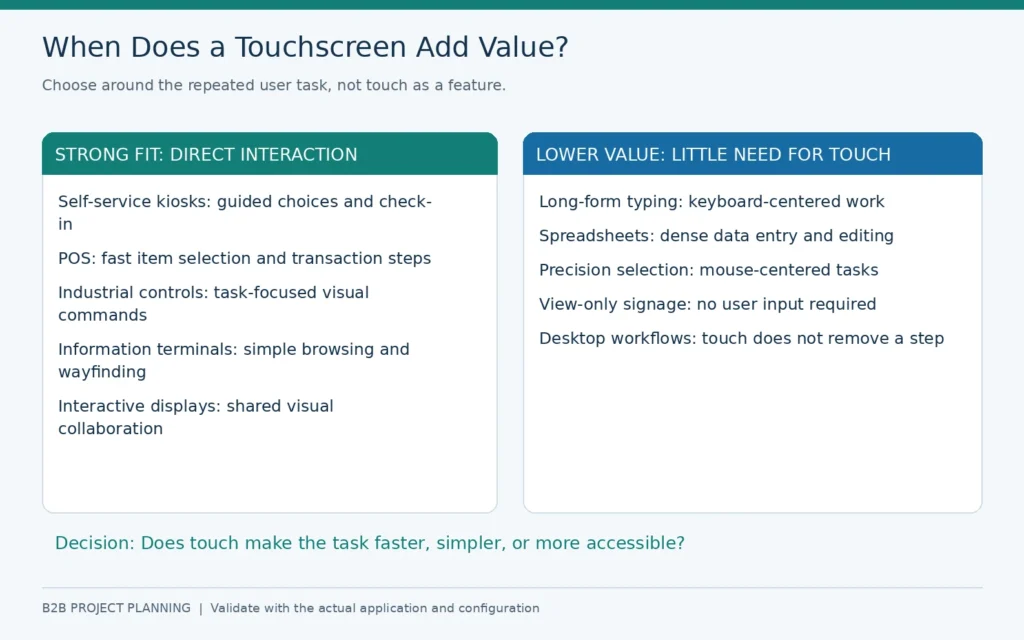
The Short Answer by Use Case
| Use case | Is touch usually worth considering? | Why |
|---|---|---|
| Self-service ordering or check-in | Yes | Direct selection can reduce dependence on staff and physical input devices |
| POS and retail counter | Often | Fast item selection and a compact interface can improve transaction flow |
| Industrial machine control | Often | A task-specific HMI can place controls, status, and guidance in one interface |
| Interactive wayfinding | Yes, when users need to search or navigate | Touch changes passive signage into a usable information tool |
| Meeting-room annotation | Sometimes | Valuable when teams actually write, mark up, or manipulate shared content |
| Classroom display | Sometimes | Depends on teaching method, software, mounting height, and stylus requirements |
| Gaming or immersive equipment | Often | Touch can be part of the intended user experience and cabinet design |
| Standard office desktop | Usually not | Keyboard and mouse remain more efficient for typing and precision work |
| Passive digital signage | No | If users only watch content, touch adds cost without adding a workflow |
| Graphic design or detailed CAD | Usually not as the only input | Precision work often still needs a mouse, pen display, or specialized controller |
| Large display mounted out of reach | No | A touch layer has little value if users cannot comfortably reach it |
This table is a starting point. The same monitor can be worthwhile in one installation and unnecessary in another because software, users, mounting, environment, and service requirements change the result.
What Extra Value Does a Touchscreen Monitor Provide?
Direct Interaction
Touch removes the mental and physical step between a pointer device and the object on screen. Users can select a product, enter a queue, navigate a map, acknowledge an alarm, or adjust a setting by touching the visible control.
This is most valuable when the interface uses large, clear targets and a short guided workflow. Adding touch to desktop software designed for a mouse does not automatically make the system easier to use.
Fewer External Input Devices
A touchscreen can reduce or eliminate the need for a public keyboard, mouse, trackball, or button panel. That can simplify a kiosk or equipment enclosure and reduce the number of exposed components.
It does not eliminate every peripheral. Applications may still require a scanner, printer, card reader, payment terminal, physical emergency control, or accessible alternative input. The complete user journey determines the hardware.
A Flexible User Interface
Physical buttons have fixed positions and functions. A software interface can change by language, user role, product selection, or workflow step. This is useful for equipment that supports several operating modes or needs periodic interface updates.
The benefit depends on good software design. Small buttons, crowded menus, unclear feedback, or slow applications can make a touchscreen harder to use than dedicated controls.
Compact Equipment Design
Combining display and input on the same surface can reduce control-panel space. This can be useful in POS systems, kiosks, medical check-in terminals, industrial HMIs, and other equipment where the operator stands close to the screen.
Greater Engagement
Interactive product catalogs, configurators, maps, games, and presentation tools invite active participation. In these cases, touch is part of the experience rather than an alternative to a mouse.
Engagement should still be tied to a measurable outcome, such as completed searches, transactions, product exploration, training tasks, or service requests.
When Is a Touchscreen Monitor Not Worth It?
The Workflow Is Mainly Typing
Touch is inefficient for long-form writing, large spreadsheet editing, coding, or repeated keyboard shortcuts. An on-screen keyboard also consumes display space and offers no physical key feedback.
For these jobs, a conventional monitor with a keyboard and mouse is normally the more practical primary interface. Touch can remain an occasional secondary input, but its added cost may not produce a meaningful return.
The Work Requires Fine Pointer Accuracy
Detailed CAD, precision design, complex timelines, and small user-interface elements may be easier to control with a mouse, trackball, or purpose-built pen device. A finger blocks part of the target and is less precise than a fine pointer.
The Screen Is Too Far Away
A touchscreen is only useful inside a comfortable reach zone. A wall-mounted screen may look visually appropriate but become tiring or impractical if users must repeatedly extend an arm or reach above shoulder height.
Test the proposed mounting height, screen size, and interface with representative users. Do not approve the position from architectural drawings alone.
The Content Is Passive
Digital menu boards, advertising screens, status dashboards, and video displays often need no direct user input. If the application does not respond to touch, a non-touch display avoids unnecessary hardware, controller, glass, software, and maintenance costs.
The Software Is Not Designed for Touch
Touch hardware cannot correct an interface built around small desktop controls, hover actions, right-click menus, or dense data entry. Application design should be evaluated before the monitor is purchased.
Cleaning and Surface Appearance Matter More Than Interaction
Public touchscreens collect fingerprints and require a defined cleaning process. Surface treatment, cover glass, cleaning chemicals, frequency, and staff responsibility should be included in the operating plan.
The Environment Creates an Integration Problem
Moisture, gloves, dust, electrical noise, thick cover glass, strong ambient light, vibration, or an unsuitable enclosure can affect touch performance. The correct touch technology and mechanical design can solve many of these issues, but the project cost rises when environmental requirements become more demanding.
Touchscreen Monitor vs. Standard Monitor
| Decision factor | Touchscreen monitor | Standard monitor |
|---|---|---|
| Primary input | Direct finger, glove, or supported stylus input | Mouse, keyboard, trackball, or separate controller |
| User learning | Can be intuitive for simple visual tasks | Familiar and efficient for desktop productivity |
| Precision | Depends on touch technology, target size, and stylus support | Mouse or specialized input can provide fine control |
| Enclosure design | Can combine display and input in one surface | Needs separate input hardware when interaction is required |
| Software | Requires a touch-friendly interface | Works naturally with conventional desktop applications |
| Cleaning | Touch surface needs regular cleaning | Screen may be touched less often |
| Hardware cost | Generally higher because of sensor, controller, glass, and integration | Usually lower for an equivalent display specification |
| Integration | Requires touch-data interface, driver, mapping, and testing | Primarily requires video, power, and mounting |
| Best fit | Kiosks, POS, HMI, interactive signage, collaboration, and games | Office work, passive signage, precision tasks, and content viewing |
The comparison should be made between complete systems. A touchscreen may reduce spending on keyboards, button panels, enclosure space, or operator steps even if the monitor itself costs more.
Calculate Whether Touch Produces a Return
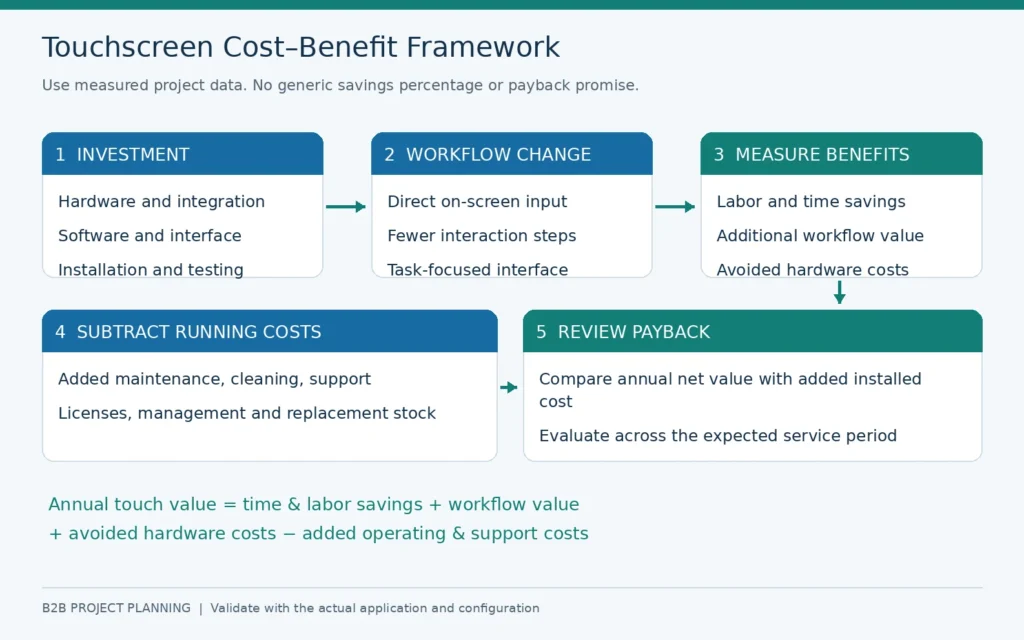
A useful business case compares the annual value of the workflow improvement with the added lifecycle cost of touch.
Potential Value
- Time saved per transaction or operating cycle
- Additional users or transactions handled in a fixed period
- Staff time redirected from repetitive service tasks
- Reduced need for separate keyboards, mice, or button panels
- Fewer user errors when instructions and controls appear in context
- Greater product exploration or completion of interactive workflows
- Faster training for a simple visual interface
- More flexible interface updates than physical controls
Added Cost
- Touch sensor, controller, cover glass, and integration
- Touch-friendly application or interface redesign
- Higher-spec computing hardware where required
- Custom mounting, enclosure, or bonding
- Sample testing and engineering review
- Cleaning materials and operating labor
- Replacement stock and field service
- Software licenses, device management, and security
- Export packaging, freight, installation, and support
Use actual project data rather than a generic industry percentage. A simple evaluation is:
Annual touch value = labor and time savings + additional workflow value + avoided hardware costs − added operating and support costs
Compare that value with the added installed cost across the expected service period. If the main benefit cannot be connected to a repeated task or business outcome, touch may be difficult to justify.
Example: Evaluate a Self-Service Workflow
Consider a customer check-in process that currently requires an employee to ask standard questions and enter the answers.
To evaluate touch, measure:
- Current staff time per check-in
- Number of check-ins per day
- Percentage of users who can complete the digital workflow without help
- Time required for exceptions and accessibility support
- Cost of the kiosk, touch display, computer, scanner, printer, software, enclosure, installation, and support
- Difference in queue time, completion rate, data-entry errors, and staff workload during a pilot
If the touchscreen only moves the same work onto a screen without reducing effort or improving service, the business case is weak. If it reliably handles repeated steps and frees staff for exceptions, the value becomes measurable.
For projects of this kind, a kiosk touch screen monitor must be evaluated with the host computer, application, enclosure, mounting, and peripherals rather than as a standalone screen.
Which Touch Technology Delivers the Best Value?
The best-value technology is the one that meets the required input and environment without unnecessary complexity.
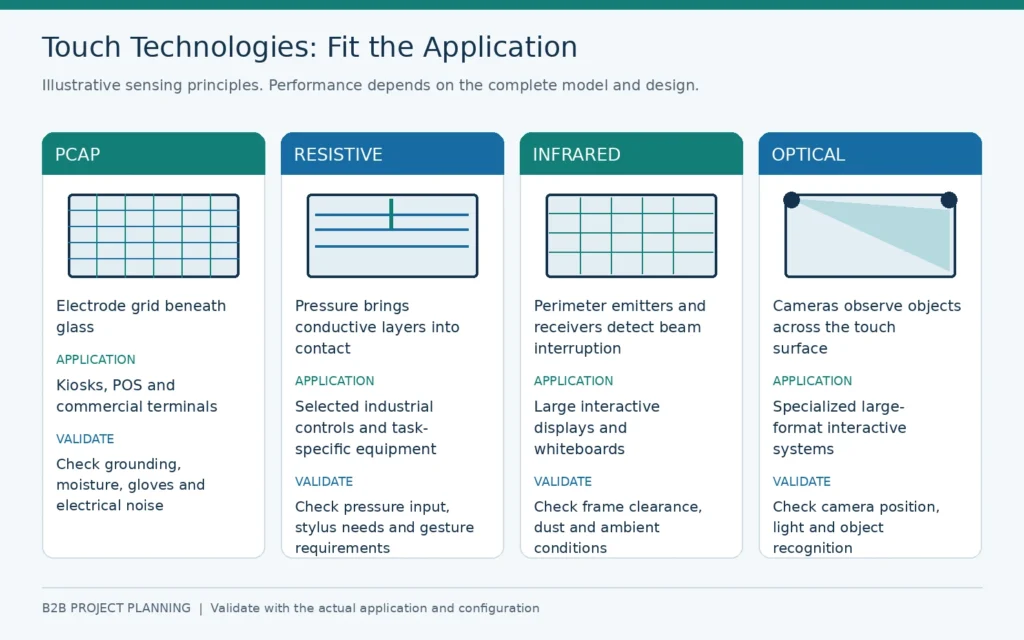
| Touch technology | Typical advantages | Main trade-offs | Common project fit |
|---|---|---|---|
| Projected capacitive (PCAP) | Glass-front appearance, multi-touch capability, responsive finger interaction | Cover glass, grounding, moisture, gloves, and electrical noise require correct design | Kiosks, POS, commercial terminals, gaming equipment, and modern interfaces |
| Resistive | Pressure-based input can support gloves and passive styluses | Normally less suited to modern multi-touch gestures and premium glass-front presentation | Selected industrial controls and task-specific equipment |
| Infrared (IR) | Practical for large-format touch and can detect different opaque input objects | Touch frame, dust, bezel obstruction, and ambient conditions require evaluation | Interactive displays, whiteboards, and selected retrofit projects |
| Optical | Can support large interactive surfaces | Camera position, lighting, bezel geometry, and object recognition affect performance | Specialized large-format interactive systems |
For a deeper overview, compare the types of touch screen monitor and then request a model-level touch specification. Touch-point count, glove support, stylus behavior, wet-hand performance, and cover-glass capability are not determined by the technology name alone.
Monitor or Touchscreen Computer?
A touchscreen monitor contains the display, touch sensor, controller, display electronics, and a finished or integration-ready structure. It normally connects to an external computer.
A touchscreen computer adds processor, memory, storage, operating system, and application support. It is appropriate when the device must run independently.
Choose a monitor when:
- The equipment already has a PC, industrial computer, PLC interface, or media host
- Computing hardware must be upgraded separately
- The customer controls its own software image and security environment
- Heat and service access are easier to manage outside the display
Choose a touchscreen computer when:
- The system must operate as one self-contained unit
- The application can run on the approved Android, Windows, or Linux configuration
- Fewer external boxes and cables improve installation
- The computing specification and update process can be frozen with the product
Do not compare these products by screen price alone. The all-in-one option includes functions that would otherwise be supplied by an external host.
Where Touch Usually Creates Strong B2B Value
Self-Service and Ordering
Touch supports guided ordering, ticketing, registration, payment selection, and information lookup. Value comes from handling repeated steps consistently while staff manage exceptions and personal service.
Industrial HMI and Equipment Control
An industrial touch screen can combine machine status, alarms, instructions, and controls in one interface. Touch is worthwhile when the interface is designed for the operator, environment, gloves, safety requirements, and maintenance workflow.
POS and Commercial Terminals
Large visual controls can speed common selections and reduce counter clutter. The monitor must still match the POS software, host, peripherals, mounting, and cleaning routine.
Interactive Signage and Wayfinding
Interactive digital signage can provide directories, product lookup, maps, catalogs, and guided content. Touch is unnecessary when the display only plays scheduled media.
Gaming and Immersive Equipment
Touch can be central to the experience and equipment design. Flat, J-type, and C-type displays create different cabinet and interaction options. Screen shape, controller, game interface, host, mounting, and touch behavior must be tested together.
Meetings, Training, and Education
Touch is valuable when users annotate, move content, collaborate, or teach directly on the display. If the screen is only used for video calls and presentations, the same budget may be better spent on display quality, camera, audio, or room control.
Hidden Costs Buyers Often Miss
Software Redesign
The application may need larger controls, clearer feedback, simplified navigation, and an on-screen keyboard. This work can cost more than the touch hardware.
Separate Video and Touch Connections
HDMI or DisplayPort normally carries video, while USB or another supported interface carries touch data. A screen can show an image while touch remains disconnected. USB-C combines functions only when the exact monitor, host, port, and cable support them.
Mounting and User Reach
Adding touch changes the physical design. The display needs a stable mount, comfortable operating height, and resistance to repeated contact. Wall structure, VESA pattern, cabinet cutout, rear clearance, and cable routing must be checked from the drawing.
Controller and Driver Compatibility
The touch sensor, controller, host interface, operating system, and application must work as one system. The touch screen controller guide explains the separate touch-data path and common integration issues.
Service and Replacement
Consider whether the touch sensor, controller, display, or complete monitor can be replaced in the field. Record the approved hardware, firmware, tuning, driver, cable, and glass revisions so that future replacements match the original system.
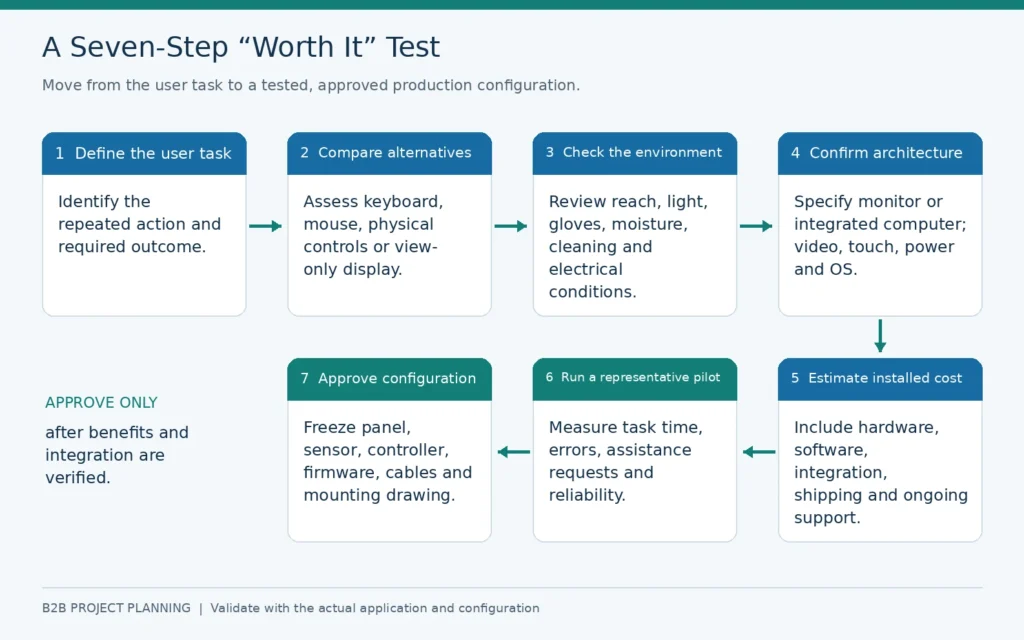
A Seven-Step “Worth It” Test
1. Name the Exact User Action
Write the repeated task that touch will improve. “We want an interactive screen” is not specific enough. “Customers will select a service, scan an ID, confirm details, and print a queue ticket” is testable.
2. Compare the Non-Touch Alternative
Compare touch with the real alternative: keyboard and mouse, physical buttons, staff service, mobile QR workflow, passive signage, or a smaller dedicated terminal.
3. Confirm Physical Reach and Environment
Check screen size, mounting height, viewing distance, gloves, moisture, light, cleaning, vibration, and electrical conditions.
4. Confirm the System Architecture
Decide between a display-only monitor and an integrated computer. Specify video, touch, power, network, peripheral, and operating-system requirements.
5. Estimate Total Installed Cost
Include hardware, software, enclosure, integration, sample testing, packaging, shipping, installation, maintenance, and replacement stock.
6. Run a Representative Pilot
Test the proposed monitor with the production application, host, cables, mounting, enclosure, and users. Measure task completion, time, errors, assistance requests, cleaning, and reliability.
7. Approve the Complete Configuration
Freeze the model, panel, touch sensor, controller, firmware, driver, glass, interfaces, cables, mounting drawing, and inspection requirements before batch production.
Questions to Include in Your RFQ
- What task will users complete on the screen?
- Who will use it, and will they wear gloves or use a stylus?
- What screen size and orientation are required?
- Will the display be desktop, wall-mounted, VESA-mounted, open-frame, or cabinet-integrated?
- Is a separate computer available, or is an all-in-one system required?
- Which operating system and application will run?
- Which video, touch, network, audio, and peripheral interfaces are required?
- What brightness, resolution, and surface treatment suit the location?
- What temperature, moisture, dust, cleaning, and operating-hour conditions apply?
- Which drawings, compliance documents, packaging details, warranty terms, and spare parts are required?
- How many units are needed for samples and production?
Use the answers to shortlist actual models. The touchscreen monitor range provides starting formats, but final brightness, touch behavior, interfaces, mounting, and environmental specifications should come from the selected model and approved drawing.
Final Verdict
Touchscreen monitors are worth it when touch is part of the job, not merely part of the specification. The strongest projects connect direct interaction to shorter tasks, higher throughput, simpler equipment, better self-service, or a more effective user experience.
They are not worth it when users mainly type, need precise pointer control, cannot comfortably reach the screen, or only watch content. In those cases, a standard monitor or a different input method usually delivers better value.
Lucky-XFC supports flat, open-frame, industrial, curved, large-format, and integrated touch-display projects. Share the application, user workflow, host system, screen size, touch method, interfaces, mounting drawing, environment, quantity, and destination. The team can help define a configuration for sample validation and quotation.
