
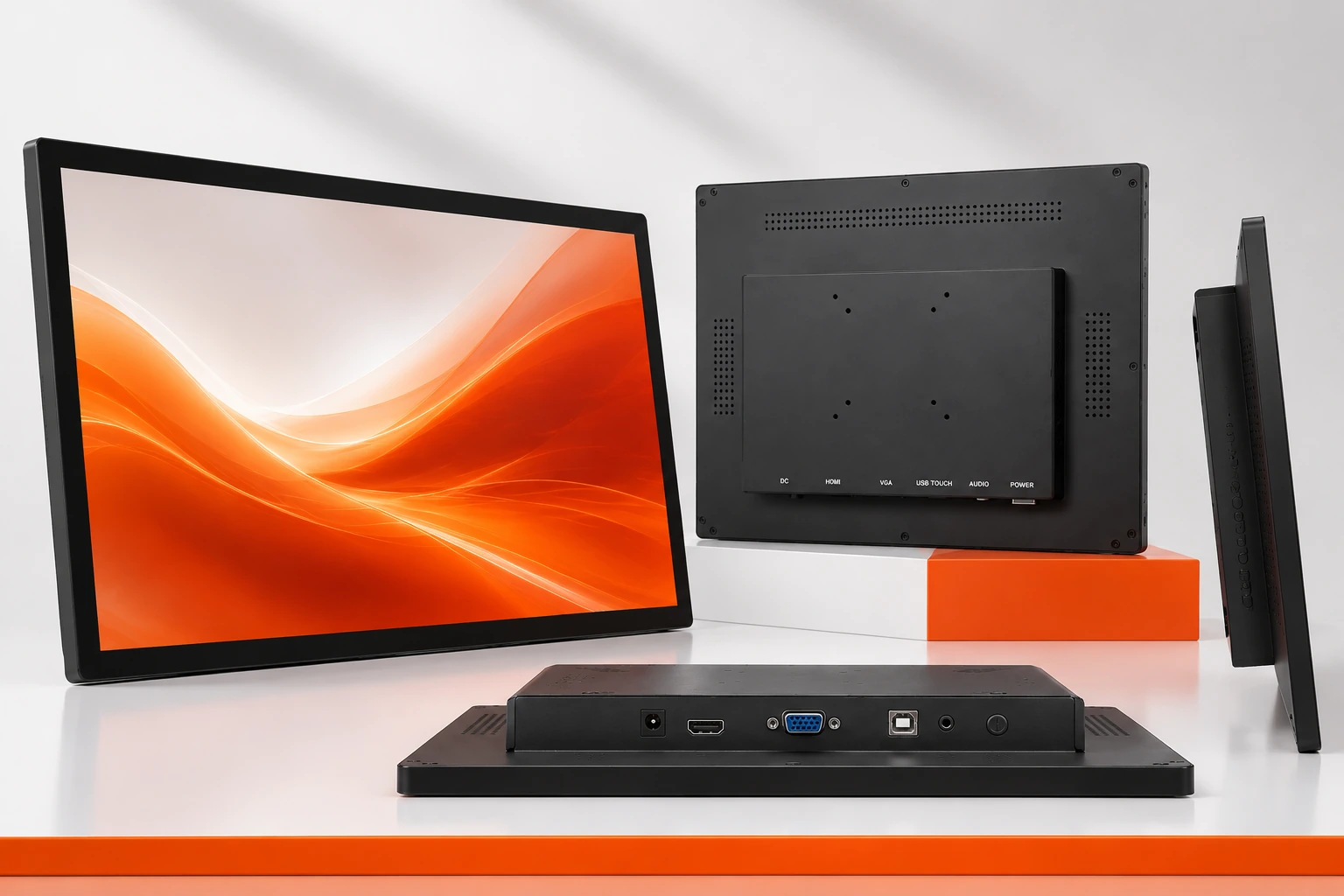
Choosing the right touchscreen monitor is mainly about matching touch technology, OS compatibility, and durability to your real workload. This guide explains what a multi-touch monitor and 10-point multi-touch monitor are, how they work, what they cost, and how to maintain them—so you can buy confidently for retail, industrial control, education, or collaboration. Lucky-XFC also supports wide-size OEM/ODM projects with fast lead times.
Video Guide: A practical buyer’s-guide style walkthrough that helps you understand common specs and selection criteria for touchscreen monitors before purchasing.
What is touchscreen monitor、multi-touch monitor、10-point multi-touch monitor?
A touchscreen monitor is a display that detects touch input on its surface. A multi-touch monitor recognizes two or more touches at once for gestures like pinch-to-zoom. A 10-point multi-touch monitor supports up to 10 simultaneous contact points, enabling smooth collaboration and advanced gesture control in Windows, Android, and many embedded systems.
Video Guide: An overview-style video that illustrates common touchscreen monitor types and what to look for before buying.
Clear Definitions and Typical Use Cases
A touchscreen monitor combines a standard LCD/LED panel with a touch sensor and controller, turning finger or stylus contact into cursor movement and clicks.
A multi-touch monitor extends this by tracking multiple points at the same time, enabling gesture input (rotate, zoom, multi-finger shortcuts).
A 10-point multi-touch monitor is a common configuration for PC and commercial use, supporting up to 10 contacts—useful for classroom collaboration, interactive kiosks, and design workflows.
Key “what it is” checkpoints:
- Touch layer: capacitive (PCAP), infrared (IR), resistive, optical bonding options
- Touch controller: translates touch signals into HID/USB events
- Connection: video (HDMI/DP/USB-C) + touch (USB), sometimes single-cable USB-C
- Enclosure: open-frame, panel-mount, or desktop housing depending on environment
Typical matches:
- Retail/restaurant POS: PCAP multi-touch for gestures + easy cleaning
- Industrial HMI: glove-friendly options, sealed front, wide temp range
- Education/meeting rooms: 10-point multi-touch for multi-user interaction
Lucky-XFC Pro Tip: I treat “10-point” as a usability baseline for modern Windows interaction—if you expect gesture navigation, multiple users, or on-screen keyboards, don’t drop below it unless the application is strictly single-touch.
How Does touchscreen monitor、multi-touch monitor、10-point multi-touch monitor Work?
Most modern multi-touch monitors use projected capacitive (PCAP) sensors: a transparent grid detects tiny electrical changes when a finger approaches, then the controller calculates X/Y coordinates for each touch point. The monitor sends touch data to the computer via USB as standard HID input, while video comes through HDMI/DP/USB-C.
Video Guide: A visual, product-focused overview that helps connect touch performance to underlying monitor hardware and real user experience.
Touch Sensing Methods and Signal Path
A touchscreen system is essentially: touch sensor → controller IC → USB/HID → OS driver stack → application.
Common touch technologies and how they work:
- PCAP (Projected Capacitive)
- A conductive matrix senses capacitance changes.
- Pros: precise, multi-touch, durable, great clarity.
- Notes: glove/water handling depends on tuning and cover glass.
- Resistive
- Pressure brings two layers into contact.
- Pros: works with gloves/stylus, low cost.
- Notes: usually single-touch or limited multi-touch; lower optical clarity.
- Infrared (IR) frame
- IR LEDs/receivers create a light grid; touch interrupts beams.
- Pros: can scale to large sizes; works with any object.
- Notes: bezel/frame required; dust/grease can affect accuracy.
- Optical/Camera-based (less common)
- Edge cameras detect touch/pen.
- Pros: large-format possible.
- Notes: depends on lighting and calibration.
Signal/compatibility checklist (why “it works” can fail in the field):
- USB HID compliance: ensures plug-and-play on Windows and many Linux builds
- Driver/firmware tuning: improves palm rejection, water rejection, glove mode
- Latency and scan rate: affects drawing smoothness and gesture response
- Panel bonding: optical bonding can reduce parallax and improve readability
Lucky-XFC Pro Tip: I always validate “works” with a real workflow test—drag, pinch, edge swipes, long-press, and two-hand interactions—because lab-perfect touch can still feel wrong if latency, firmware tuning, or palm rejection isn’t aligned with the application.
What are the benefits of touchscreen monitor、multi-touch monitor、10-point multi-touch monitor?
Touchscreen monitors simplify interaction by letting users tap directly on what they see, reducing mouse/keyboard dependence. Multi-touch improves productivity with gestures, faster navigation, and more natural UI control. A 10-point multi-touch monitor enables multi-user collaboration, smoother zoom/rotate actions, and better on-screen keyboard operation—especially in kiosks, classrooms, and control stations.
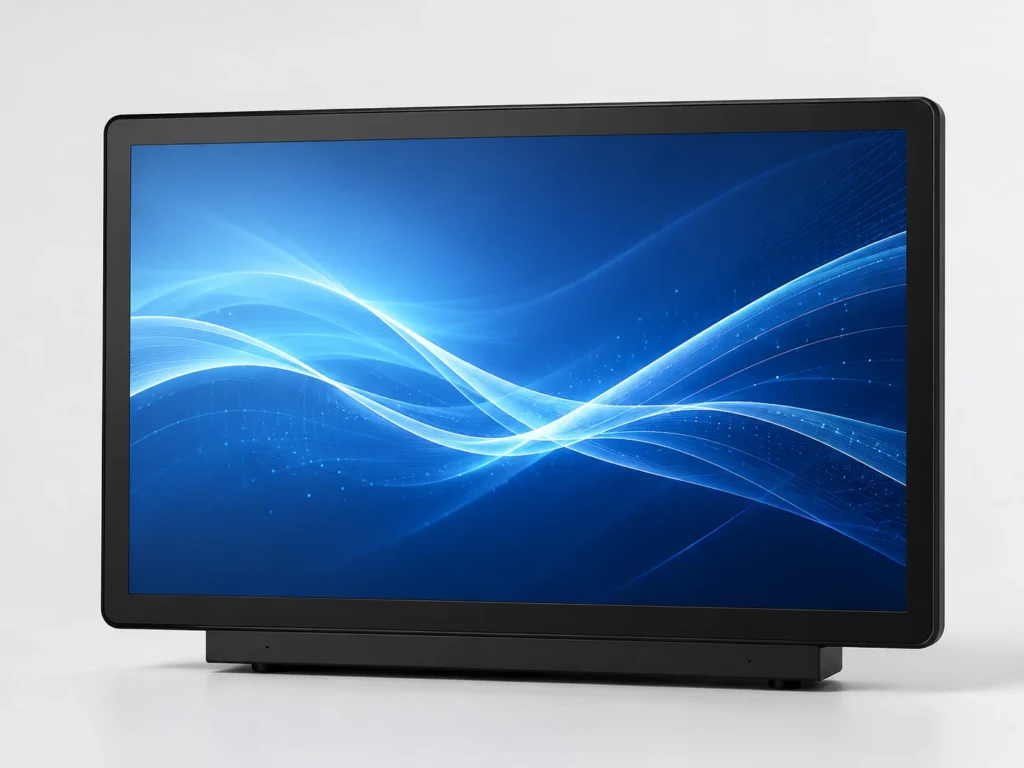
Practical Advantages by Scenario
Core benefits you can expect:
- Faster task execution for point-and-select workflows (POS, check-in, maps, CAD review)
- Lower training time for public-facing terminals (kiosks, wayfinding)
- Space savings by reducing peripherals (mouse/keyboard), useful in compact counters
- Better accessibility through larger touch targets and direct manipulation
- Collaboration when multiple people can interact at once (10-point multi-touch)
Where 10-point multi-touch matters most:
- Education: multiple students interacting simultaneously
- Meetings: two-person zoom/annotate without “taking turns”
- Design review: pinch/rotate with both hands feels natural and precise
Benefit-to-feature mapping (quick selection list):
- Need gesture control → choose multi-touch + OS gesture support
- Need two-person interaction → choose 10-point multi-touch
- Need public use durability → choose tempered cover glass + anti-scratch
- Need sunlight readability → choose higher brightness + bonding/AR options
Lucky-XFC Pro Tip: I recommend defining your “primary gesture set” upfront (tap, drag, pinch, rotate, handwriting). Then buy the touch stack (sensor + controller + firmware) that is proven for those gestures—not just the display size or resolution.
How to maintain a touchscreen monitor、multi-touch monitor、10-point multi-touch monitor?
Proper maintenance focuses on protecting the touch surface, keeping ports stable, and preserving calibration. Clean with a microfiber cloth and screen-safe cleaner, avoid harsh solvents, and prevent liquid ingress around edges. For commercial deployments, schedule routine inspections for scratches, cable strain, and touch drift, and keep firmware/OS updates controlled to avoid driver conflicts.
Video Guide: A practical overview that helps you compare touchscreen monitor builds and choose options that are easier to maintain in real deployments.
Cleaning, Handling, and Reliability Checklist
Recommended maintenance routine:
- Power down before cleaning (reduces accidental input and spotting).
- Dry wipe first with microfiber to remove grit (prevents micro-scratches).
- Use approved cleaner (screen-safe; avoid ammonia/acetone).
- Apply to cloth, not directly to the panel edge or bezel seams.
- Inspect cables and strain relief monthly in high-use environments.
- Recalibrate only when needed (some systems auto-calibrate; IR frames may need more).
What to avoid:
- Paper towels (abrasive fibers)
- Alcohol-heavy or solvent cleaners on coatings (can haze AR/AF layers)
- Excess pressure on the panel (can damage LCD beneath)
- Loose USB touch cables (can mimic “ghost touch” or intermittent input)
High-traffic site checklist (bullet list for technicians):
- Verify touch accuracy at corners/edges
- Check “ghost touch” events (often grounding, noise, moisture, or cable issues)
- Confirm mounting torque and no chassis twist (open-frame installs)
- Log operating temperature if used in industrial enclosures
Lucky-XFC Pro Tip: When customers report “touch is jumping,” I first check grounding and USB cable quality before touching firmware—electrical noise and poor shielding cause more real-world touch issues than the panel itself.
What is the price of touchscreen monitor、multi-touch monitor、10-point multi-touch monitor?
Pricing varies mainly by size, touch technology, durability, brightness, and customization. Entry-level small touchscreen monitors cost far less than industrial, high-brightness, or optically bonded models. A 10-point multi-touch monitor (PCAP) usually costs more than single-touch or resistive options, but delivers better gesture performance and longer commercial lifecycle value.
Video Guide: A curated “best of” overview that helps benchmark price-to-feature tradeoffs across popular touchscreen monitor categories.
What Drives Cost (and How to Budget Correctly)
Key price drivers (most to least impactful in many projects):
- Size range (larger panels and touch sensors scale cost quickly)
- Touch tech (PCAP multi-touch vs resistive vs IR)
- Cover glass and surface treatments (tempered, anti-glare, anti-fingerprint)
- Optical bonding (improves clarity, reduces parallax, raises cost)
- Brightness (standard vs high-brightness for sunlight/retail window)
- Ruggedization (IP-rated front, metal housing, wide-temp components)
- Interfaces (USB-C single cable, additional I/O)
- OEM/ODM customization (mechanical design, branding, firmware tuning)
Budget planning list (practical steps):
- Confirm installation type (desktop vs open-frame vs panel-mount).
- Specify environment (clean office vs greasy kitchen vs dusty factory).
- Decide whether 10-point is required (multi-user/gesture heavy).
- Identify target lifecycle (consumer replacement vs 3–5+ year commercial).
- Include accessories and spares (cables, mounts, protective films).
Lucky-XFC Pro Tip: I advise clients to budget for the “system cost,” not just the screen—mounting, cabling, and the right touch tuning can prevent downtime that costs far more than a slightly higher monitor BOM.
Key Features & Comparison
The best touchscreen monitor choice comes from balancing touch performance, display quality, durability, and integration. Compare touch type (PCAP/IR/resistive), maximum touch points, brightness, bonding, enclosure style, and connectivity. For commercial rollouts, also weigh QC, lead time, and OEM/ODM flexibility—these directly affect deployment risk and long-term maintenance cost.
Video Guide: A 2026-focused roundup that helps visualize how different touchscreen monitor specs compare during real usage and purchasing decisions.
Feature Checklist for Fast, Correct Shortlisting
Based on our internal data and market analysis, here is the breakdown:
| Feature | Entry-Level Touchscreen Monitor | Multi-Touch Monitor (Typical) | 10-Point Multi-Touch Monitor (Recommended Baseline) | Best For |
|---|---|---|---|---|
| Touch technology | Often resistive or basic PCAP | PCAP or IR | PCAP (tuned firmware) | Modern UI/gesture workflows |
| Touch points | 1–2 | 5–10 | 10 | Collaboration, gestures |
| Accuracy/feel | Varies; can feel “soft” | Generally responsive | Most natural gesture response | Design review, kiosks |
| Optical clarity | Moderate | Good | Best with bonding/AR/AF options | Premium visual experience |
| Durability | Consumer-grade | Commercial-grade options | Commercial/industrial options common | Public/industrial use |
| Glove/wet support | Resistive good; PCAP varies | Depends on tuning | Often available with tuning | Factory, kitchen, outdoors |
| Brightness | Standard | Standard to higher | Standard to high-brightness variants | Retail window, sunlight |
| Connectivity | HDMI + USB | HDMI/DP + USB | HDMI/DP/USB-C + USB (or single-cable USB-C) | Easy integration |
| Enclosure | Desktop | Desktop/open-frame | Desktop/open-frame/panel-mount | Projects & embedded installs |
Lucky-XFC Pro Tip: I shortlist monitors by “integration friction”: if your project needs open-frame, panel-mount, specific cable exit, or front IP sealing, confirm those mechanical details before you compare resolution or color gamut.
Cost & Buying Factors
A smart purchase decision combines the right touch experience with reliable supply and predictable deployment. Beyond sticker price, consider environment, mounting, OS compatibility, warranty/QC, and lead time. For OEM/ODM projects, supplier capability matters: consistent 100% inspection, engineering support, and scalable manufacturing reduce rework, delays, and field failures.
Video Guide: A portable and USB-C oriented selection video that helps you think through connectivity, portability, and value factors that affect total cost.
A Decision Framework You Can Apply in Minutes
Buying factors checklist (use as an RFQ template):
- Size & aspect ratio: confirm viewing distance and UI scaling needs
- Use environment: dust/oil/water exposure, temperature, vibration
- Mounting: VESA, open-frame brackets, panel-mount ears, kiosk integration
- Touch requirements: 10-point, glove mode, water rejection, palm rejection
- Display requirements: brightness, contrast, viewing angle, anti-glare
- Connectivity: HDMI/DP/USB-C, single-cable needs, cable length limits
- Compliance: CE/FCC/RoHS and region-specific needs
- Service plan: spares, replacement policy, firmware control, lifecycle plan
Lucky-XFC capability considerations (project-risk reducers):
- 13+ years manufacturing experience in touch display products
- Size coverage: 2.5–120 inches for broad application fit
- OEM/ODM supported; MOQ as low as 1 unit for prototypes
- Factory scale: about 6,000㎡ and 300+ staff
- Export footprint: 80+ countries/regions
- Lead time reference: samples/small batches 3–7 days, bulk 7–15 days
- Quality control: 3+ checks per unit and 100% inspection before shipment
Lucky-XFC Pro Tip: I recommend ordering one prototype first (even if MOQ is low) and running a 3–5 day on-site test: cleaning routine, peak usage, glove/wet scenarios, and cable strain. That short trial catches most deployment-killing issues early.
Conclusion
A touchscreen monitor is about more than touch points: the right combination of touch tech, tuning, display quality, and mechanical integration determines whether users love it or fight it. If you need modern gestures and multi-user interaction, a 10-point multi-touch monitor is usually the safest baseline. For OEM/ODM or fast deployment, choose a supplier that can prove QC rigor, lead-time reliability, and real integration support—like Lucky-XFC.
Lucky-XFC Pro Tip: If you send me your target size, installation method (desktop/open-frame/panel-mount), OS, and environment (glove/wet/dust), I can map it to a proven touch stack and a deployment-ready spec list you can copy directly into your RFQ.
